MAC配置CC Switch接入Claude桌面版
本文介绍了两种将阿里云百炼大模型接入Claude桌面版的方法:通用API-KEY接入和TokenPlan接入。主要内容包括:1) 下载CC Switch和Claude桌面版;2) 配置CC Switch创建API提供方并开启路由;3) 配置Claude开发者模式并选择Gateway;4) 两种接入方式的协议地址配置差异;5) 测试验证响应效果。TokenPlan接入方式响应较慢但配置更简单。全文提
·
文章目录
一、环境准备
下载CC Switch
https://github.com/farion1231/cc-switch/releases/download/v3.16.1/CC-Switch-v3.16.1-macOS.dmg
下载Claude桌面版
https://claude.ai/redirect/claudedotcom.v1.4a923c1c-6229-46af-946e-a18fa0e2bdde/api/desktop/darwin/universal/dmg/latest/redirect
二、百炼通用API-KEY接入
1、配置CC Switch
①、创建提供方
打开CC Switch, 切换到 Claude Desktop 创建提供方如下图所示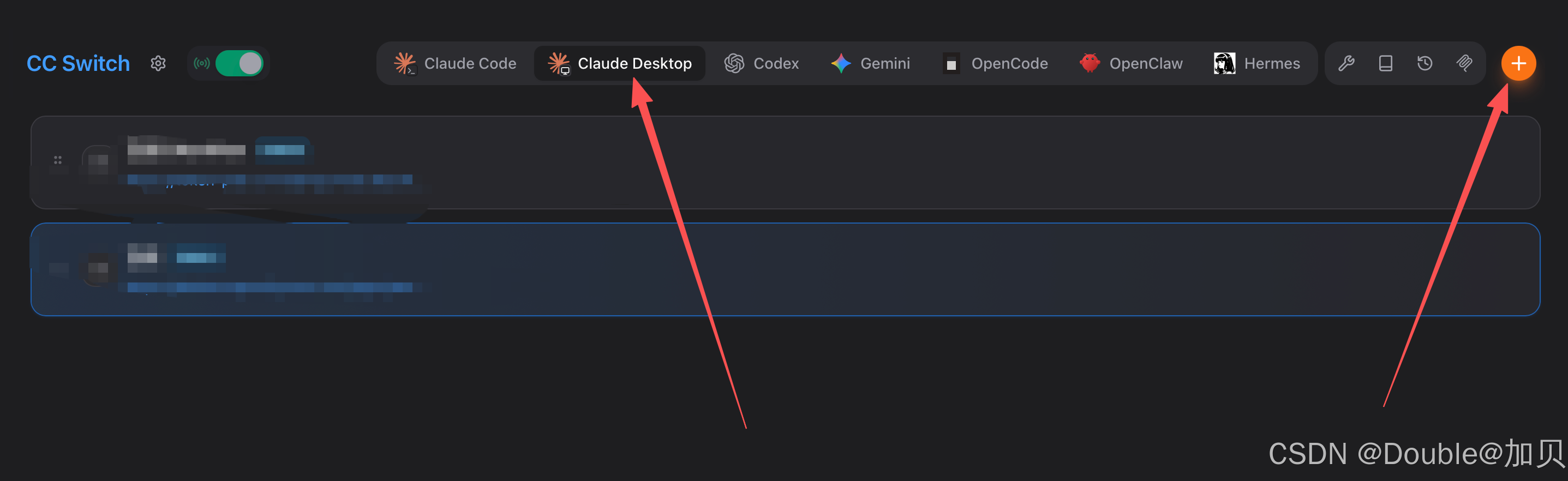
Anthropic兼容-Messages协议地址(本案例用这个):
https://dashscope.aliyuncs.com/apps/anthropic

OpenAI兼容-Chat协议地址
https://dashscope.aliyuncs.com/compatible-mode/v1
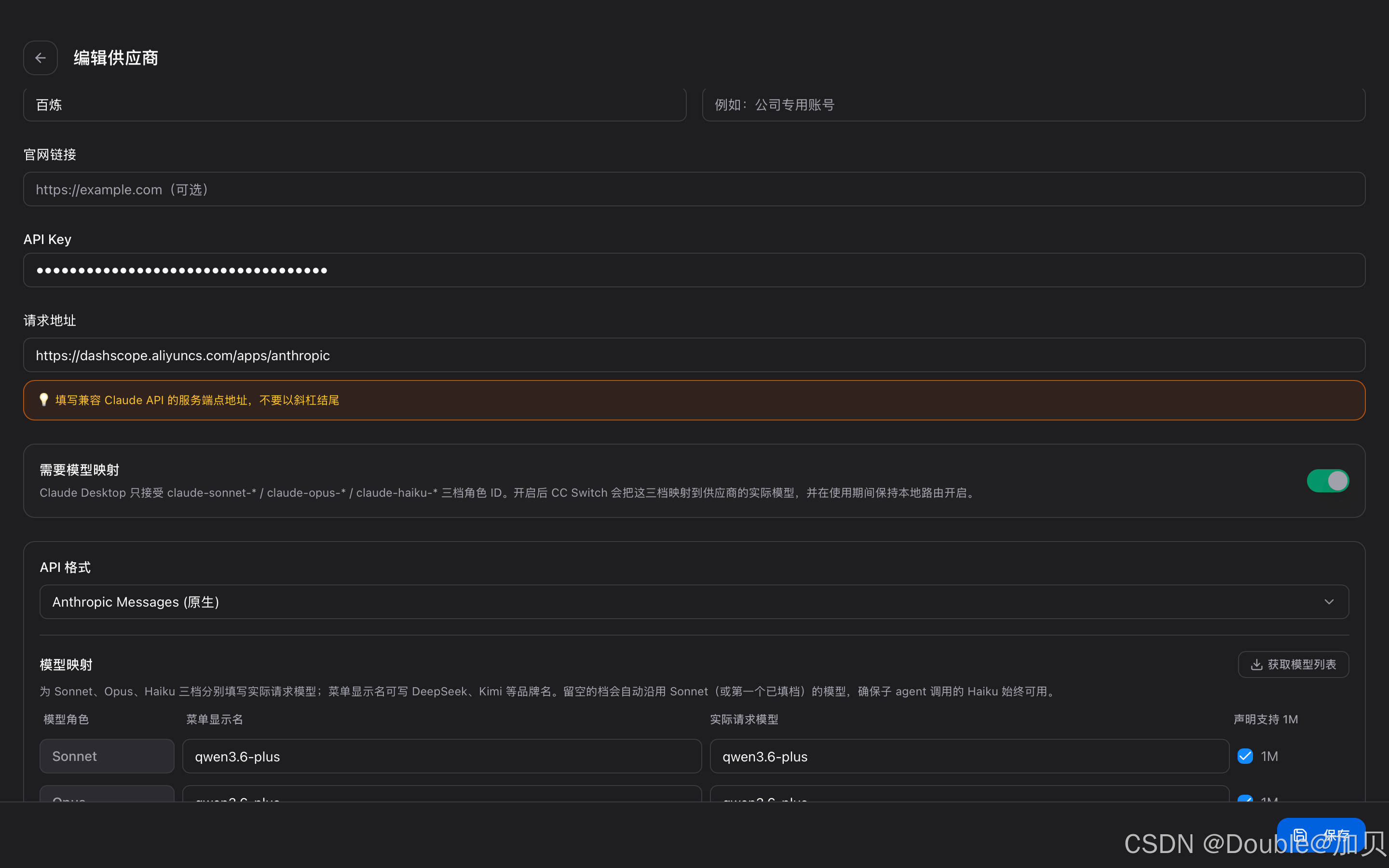
②、开启路由
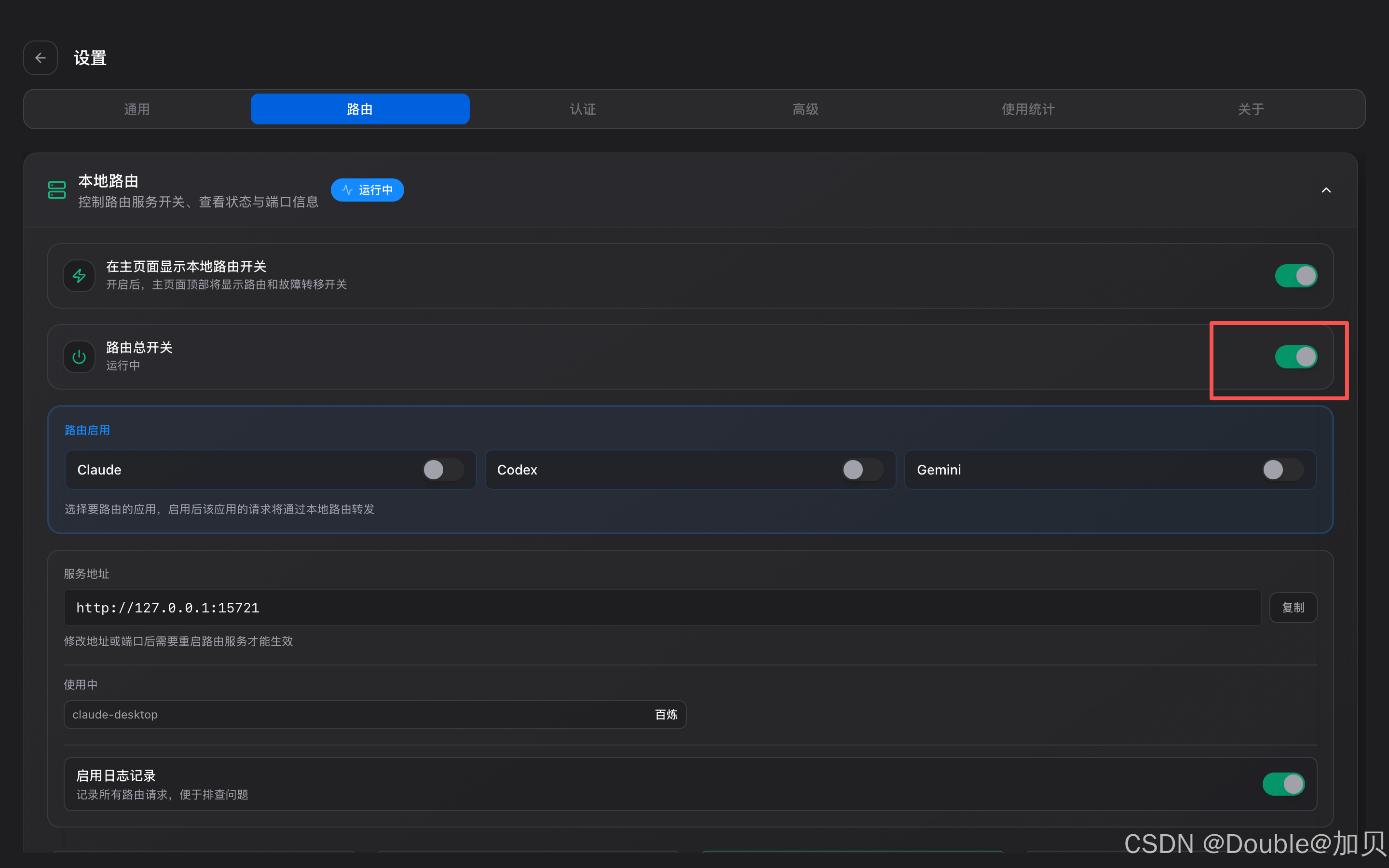
2、配置Claude
这里进入打开开发者模式 设置为enable,然后重启Claude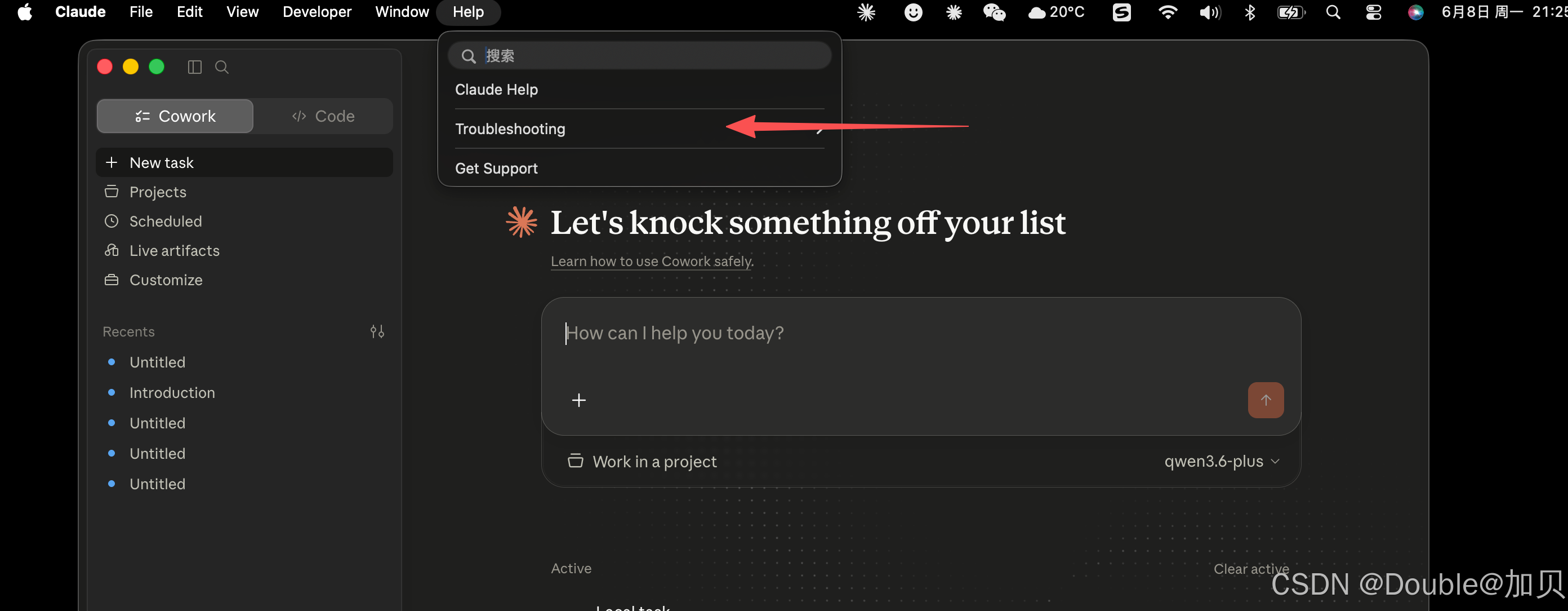
这里Developer进入配置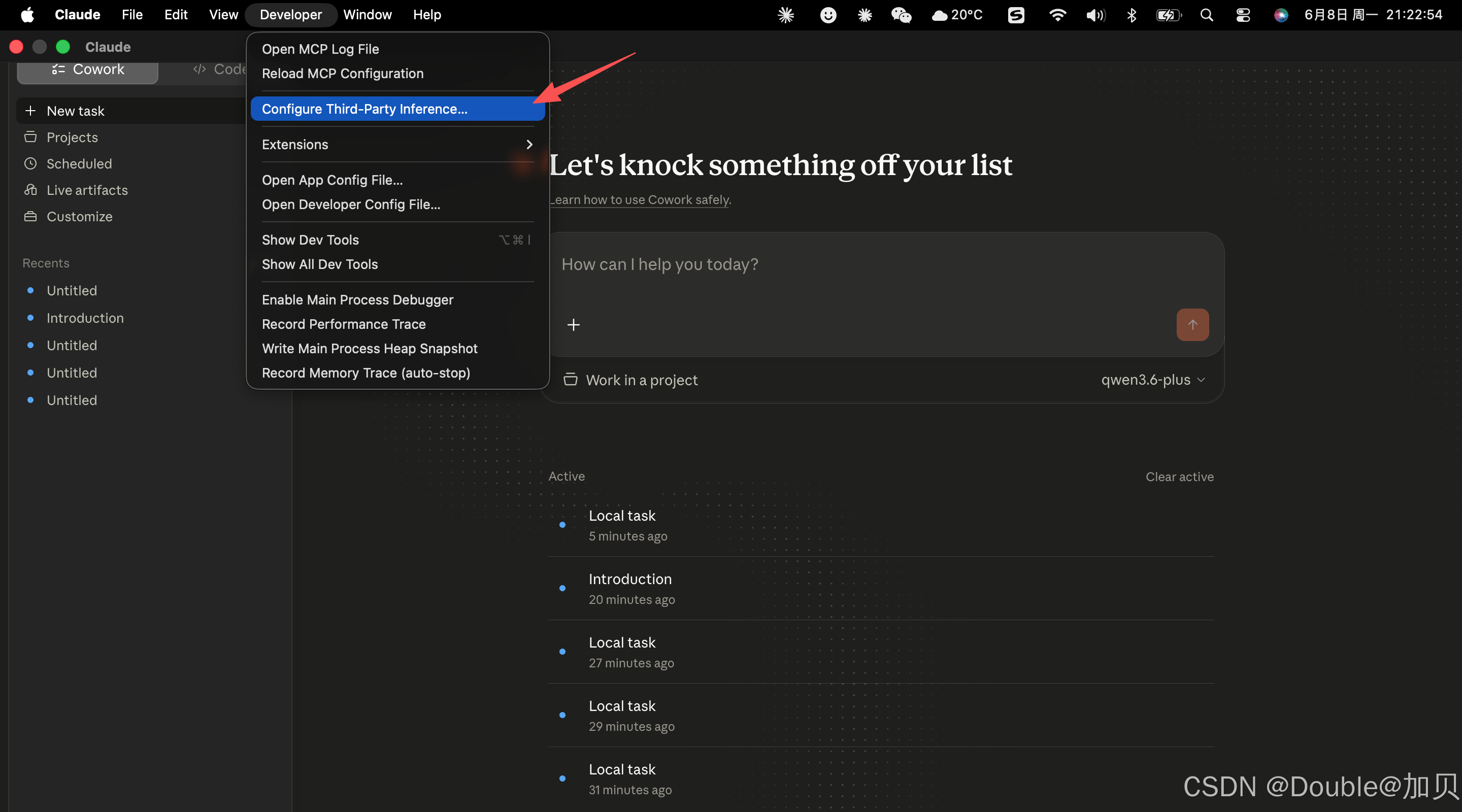
选择Gateway 直接Apply Changes,然后重启Claude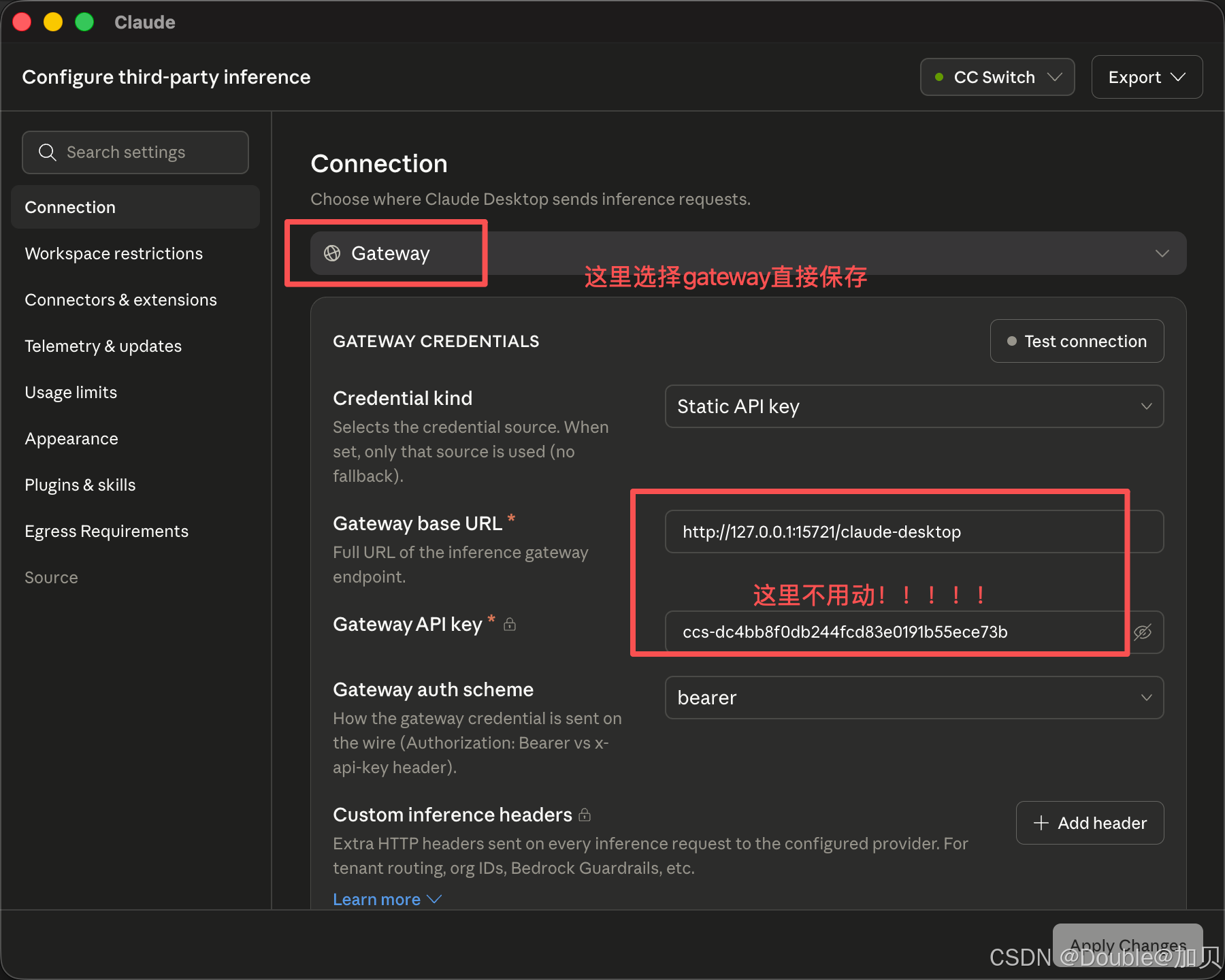
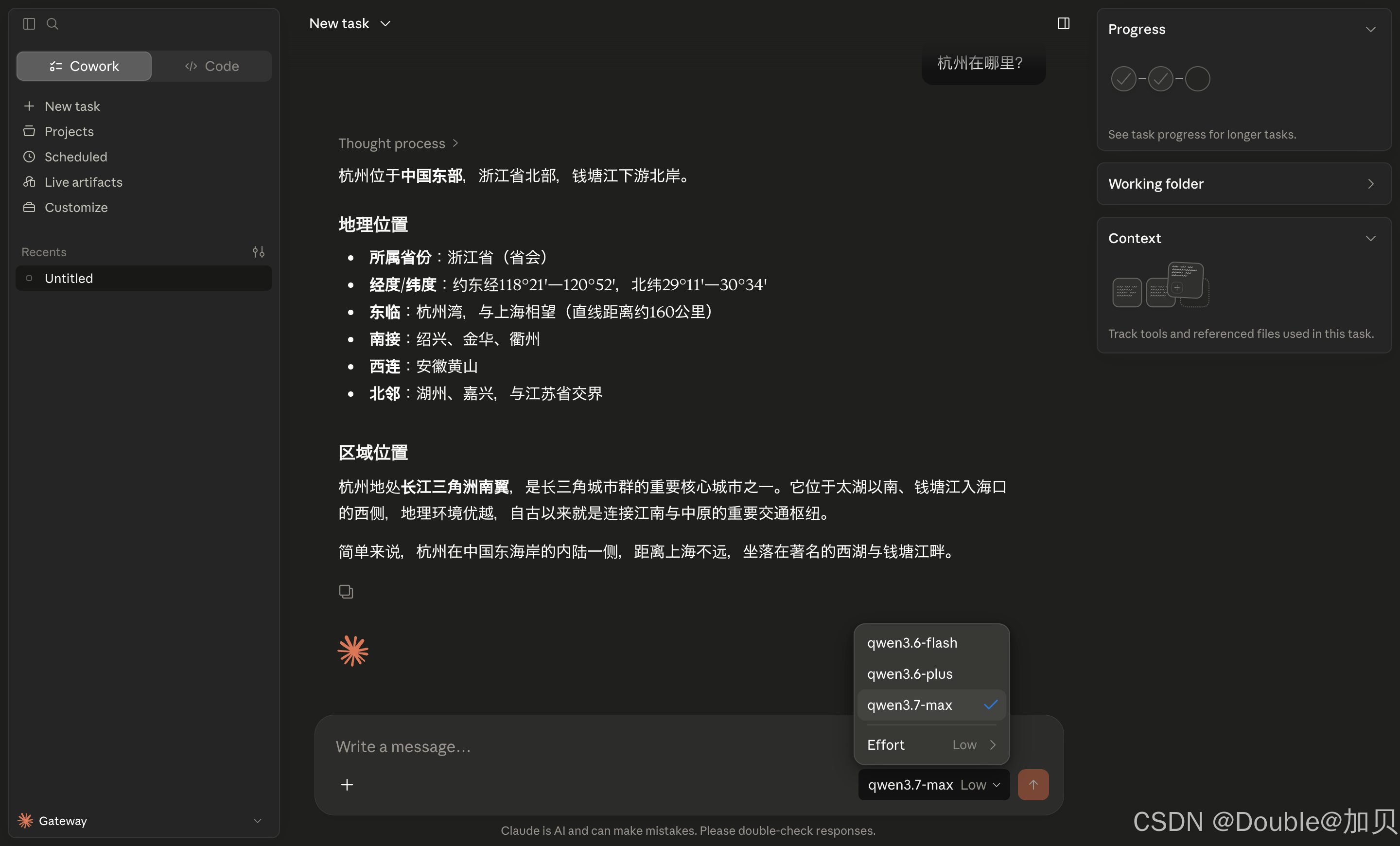
3、测试验证
选择刚配置的映射模型来验证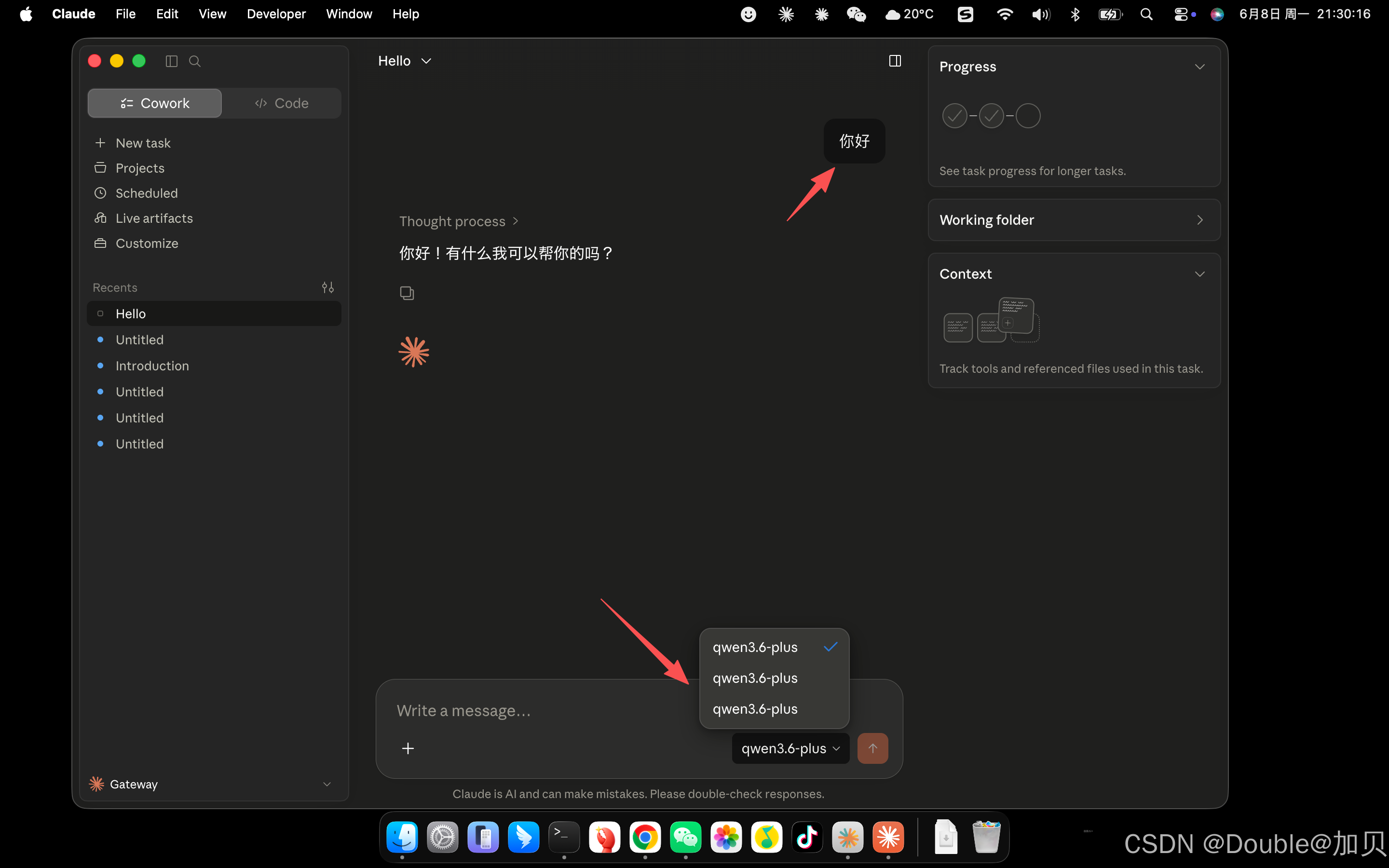
二、百炼通TokenPlan接入
1、配置CC Switch
①、创建提供方
Anthropic兼容-Messages协议地址(本案例用这个):
https://token-plan.cn-beijing.maas.aliyuncs.com/apps/anthropic

OpenAI兼容-Chat协议地址
https://token-plan.cn-beijing.maas.aliyuncs.com/compatible-mode/v1
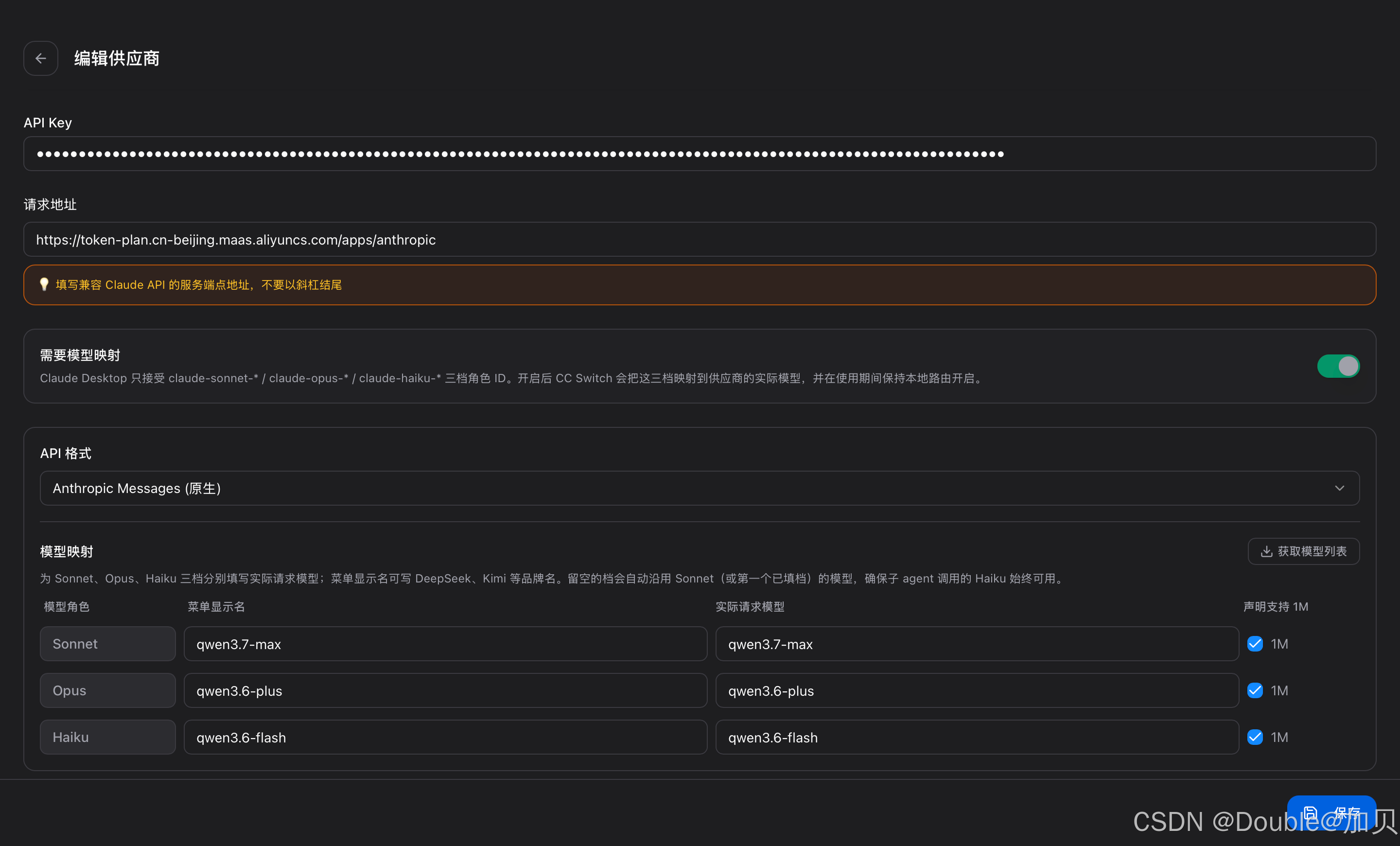
②、开启路由
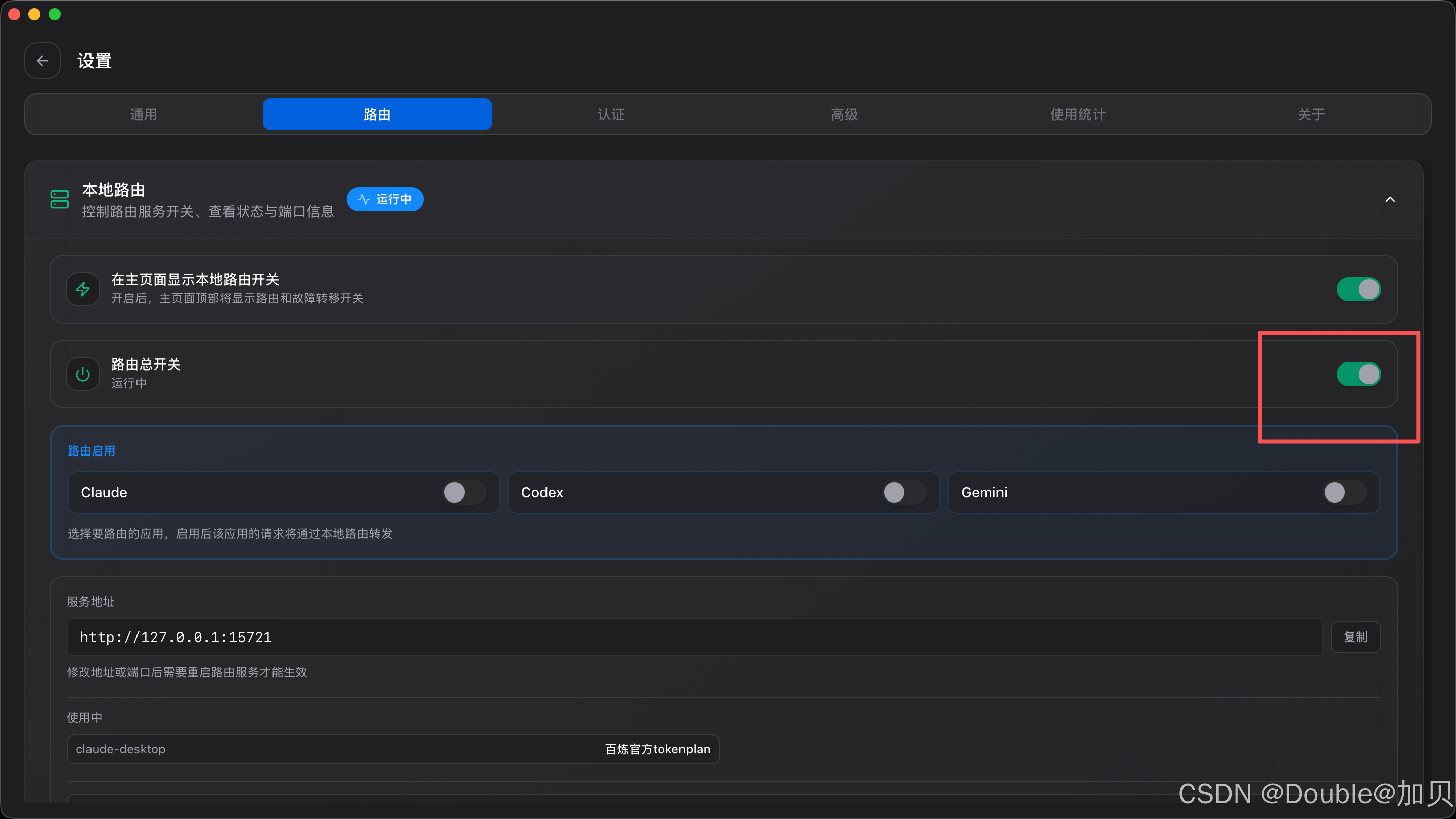
2、配置Claude
默认配置即可 选择Gateway 然后直接选择Apply Changes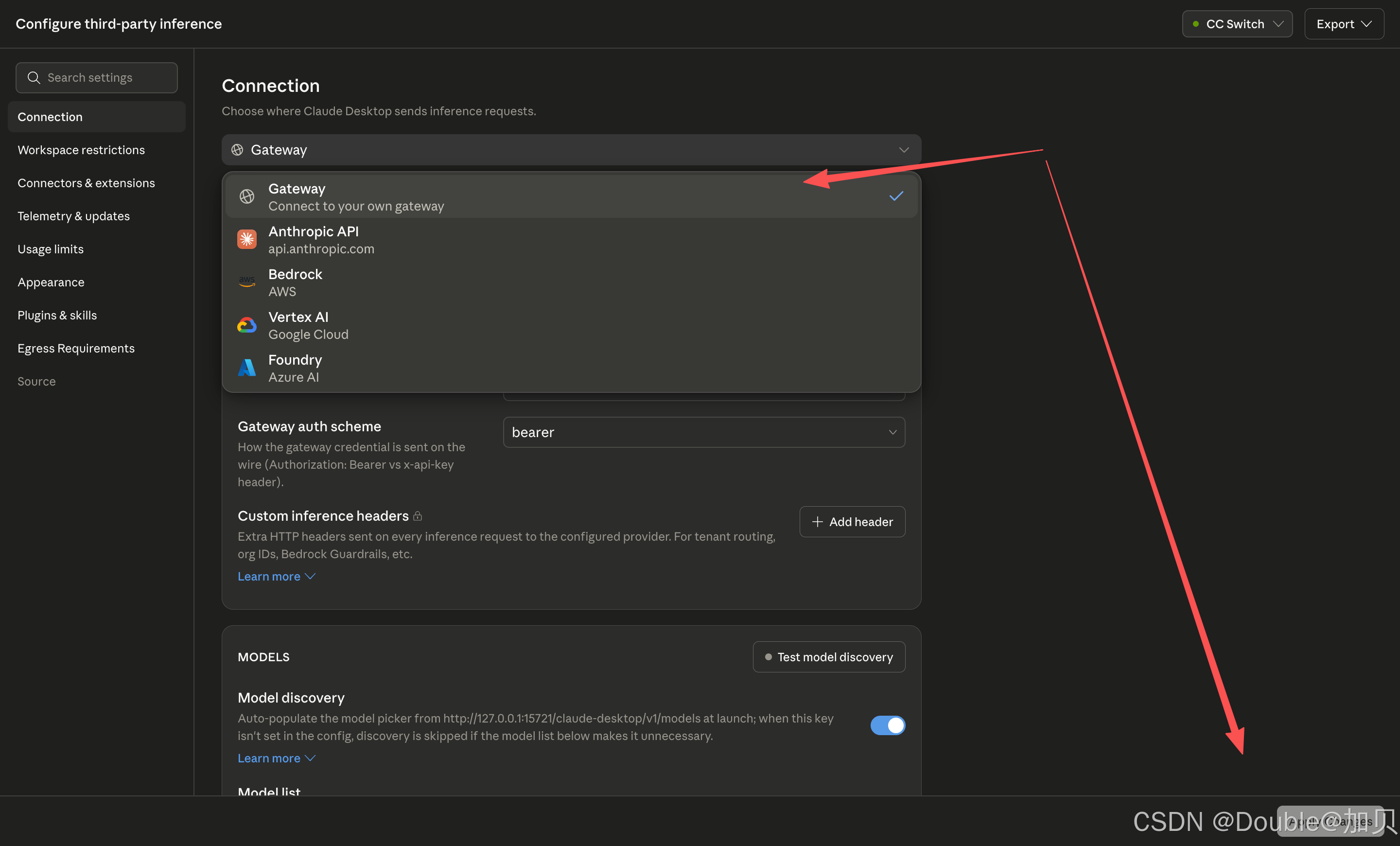
3、测试验证
响应很慢, 耐心等待一下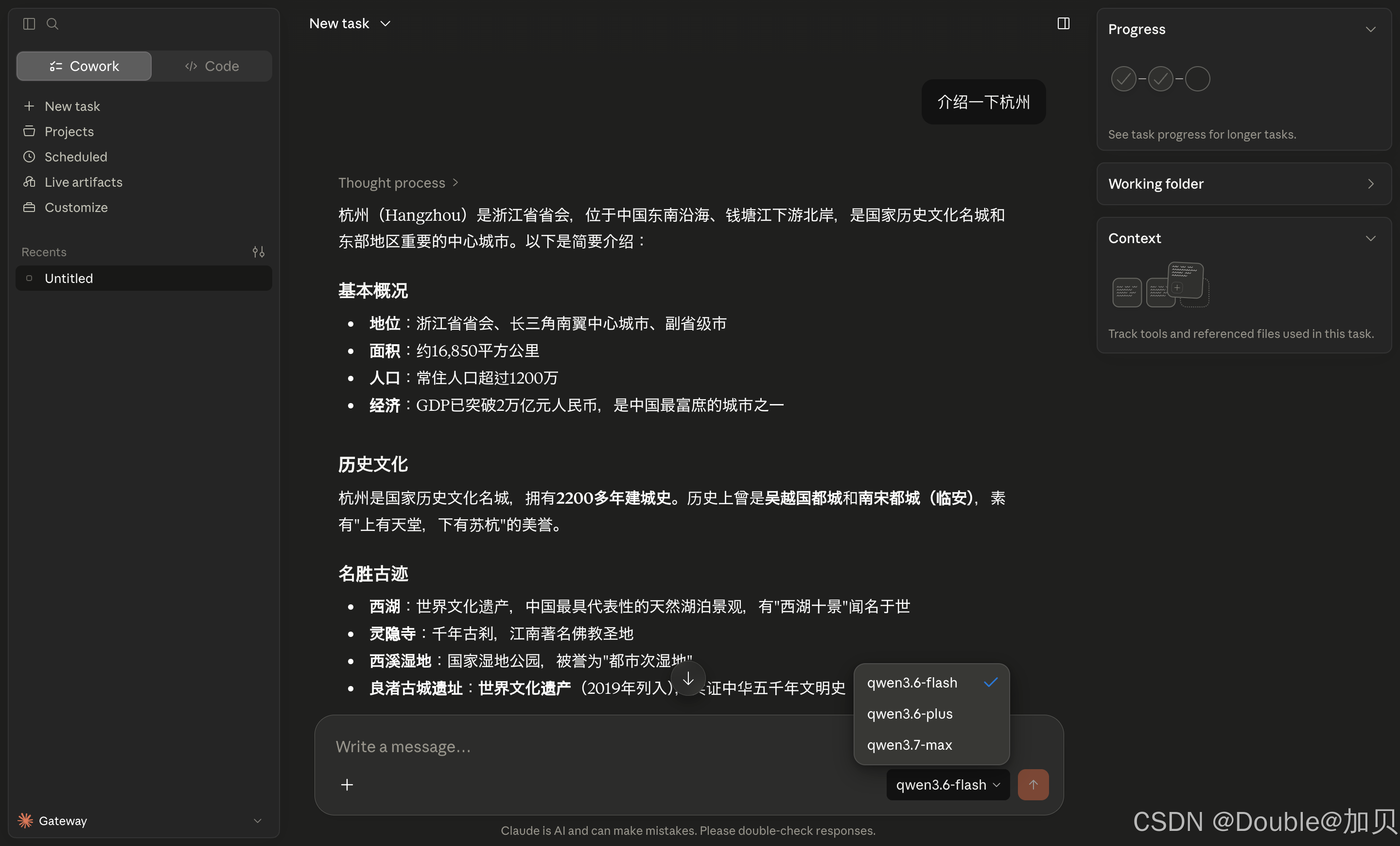

有“AI”的1024 = 2048,欢迎大家加入2048 AI社区
更多推荐

 1
1 0
0- 0


 已为社区贡献1条内容

所有评论(0)