在腾讯 CloudStudio 上部署 Moltbot 接入企业微信完整教程
继上一篇《在腾讯 CloudStudio 上成功部署 Moltbot 接入飞书》后,本文将详细介绍如何将 Moltbot 接入企业微信,实现智能对话机器人功能。
一、前期准备
1.1 所需资源清单
在开始部署之前,请确保准备好以下资源:
-
✅ 企业微信账号:需要企业管理员权限(未认证企业也可以)
-
✅ 腾讯 CloudStudio 账号:用于部署 Moltbot 服务
-
✅ AI 模型 API:如 OpenAI、Claude 或国内大模型 API,推荐免费的glm-4.7-flash(通过邀请链接https://www.bigmodel.cn/invite?icode=L%2F388iaNUS6kHtW7Jjk5pJmwcr074zMJTpgMb8zZZvg%3D注册即可获得 2000万Tokens 大礼包)
-
✅ 公网域名(可选):用于配置回调地址,CloudStudio 会自动提供临时域名
1.2 技术架构概览
┌─────────────────┐      ┌──────────────────┐      ┌─────────────────┐

│   企业微信客户端   │ ───▶ │  企业微信 API 服务器 │ ───▶ │  CloudStudio    │

│  (用户发送消息)   │      │  (消息转发与加密)   │      │  (Moltbot 服务) │

└─────────────────┘      └──────────────────┘      └─────────────────┘

                                                            │

                                                            ▼

                                                    ┌─────────────────┐

                                                    │   AI 模型 API    │

                                                    │  (生成回复内容)  │

                                                    └─────────────────┘
二、企业微信应用配置
2.1 创建企业微信自建应用
步骤 1:进入企业微信管理后台
-
登录 企业微信管理后台[https://work.weixin.qq.com/]
-
点击左侧菜单 "应用管理" → "应用" → "自建"
-
点击 "创建应用" 按钮
📌 提示:如果是第一次使用,需要先完成企业注册
步骤 2:填写应用基本信息
-
应用名称:
Moltbot AI 助手(可自定义) -
应用 Logo:上传一个机器人图标
-
可见范围:选择需要使用机器人的部门或成员
步骤 3:记录关键参数
创建完成后,在应用详情页面记录以下信息(后续配置需要):
| 参数名称 | 获取位置 | 示例值 | 说明 |
|---------|---------|--------|------|
| Corp ID | "我的企业" → "企业信息" | ww1234567890abcdef | 企业唯一标识 |
| Agent ID | 应用详情页 | 1000002 | 应用唯一标识 |
| Secret | 应用详情页(点击"查看") | Abc123XYZ... | 应用密钥(务必保密) |
2.2 配置接收消息 API
步骤 1:进入 API 接收设置
在应用详情页,找到 "接收消息" 模块,点击 "设置 API 接收"
步骤 2:生成 Token 和 EncodingAESKey
-
点击 "随机获取" 按钮生成 Token
-
点击 "随机获取" 按钮生成 EncodingAESKey
-
暂时不要点击保存,先记录这两个值:
Token: YourRandomToken123

EncodingAESKey: YourBase64EncodedAESKey456==
⚠️ 重要:URL 回调地址需要在 Moltbot 部署完成后填写,否则会验证失败
三、CloudStudio 环境搭建
3.1 创建工作空间
步骤 1:登录 CloudStudio
访问 腾讯 CloudStudio[https://cloudstudio.net/],使用微信或 QQ 登录
步骤 2:创建新工作空间
-
点击 "新建工作空间"
-
选择模板:Node.js 或 Python(根据 Moltbot 实现语言选择)
-
配置参数:
- 工作空间名称:moltbot-wechat
- 运行环境:Ubuntu 20.04
- 规格:选择 2核4G(免费版足够)
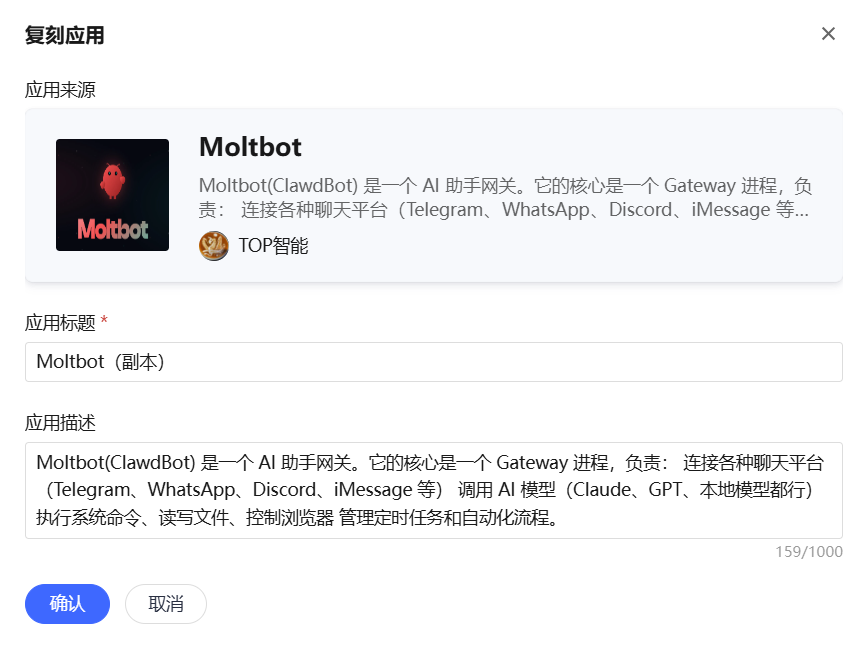
复制已经部署好的moltbot模板
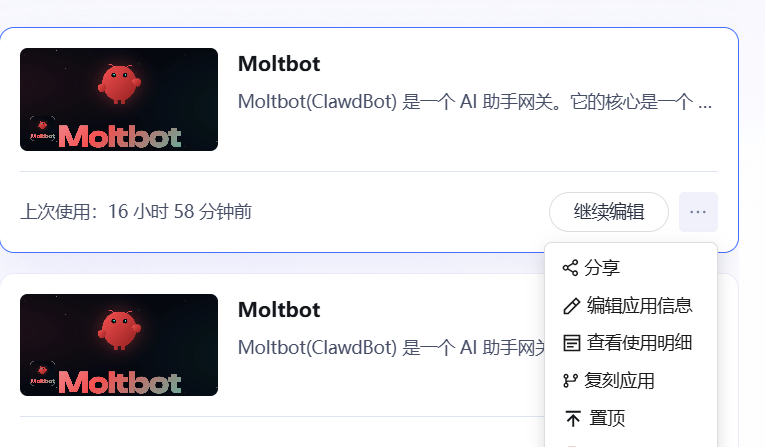
https://cloudstudio.net/a/33091989687595008?channel=share&sharetype=URL
步骤 3:等待环境初始化
初始化完成后,会自动打开 VS Code 在线编辑器
3.2 安装依赖环境
不会直接喊codebuddy出来帮忙,把文章命令都给它
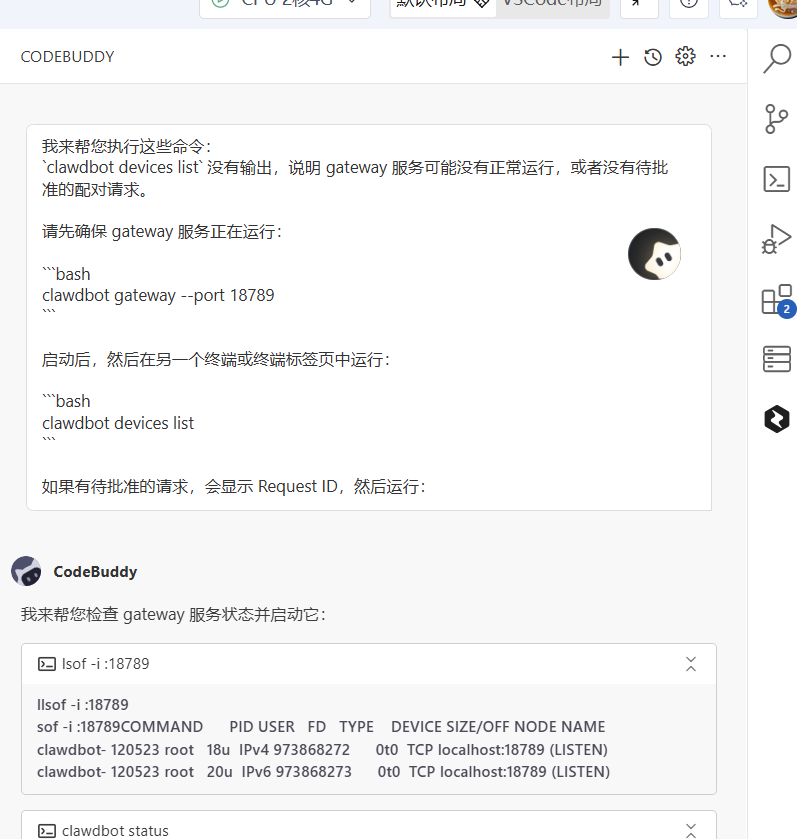
在 CloudStudio 终端执行以下命令:
# 更新系统包

sudo apt update


# 安装 Node.js(如果使用 Python 则安装 Python3)

curl -fsSL https://deb.nodesource.com/setup_18.x | sudo -E bash -

sudo apt install -y nodejs


# 验证安装

node -v  # 应显示 v18.x.x

npm -v   # 应显示 9.x.x


# 安装 Git

sudo apt install -y git


# 克隆 Moltbot 项目(替换为实际仓库地址)

git clone https://github.com/your-repo/moltbot.git

cd moltbot


# 安装项目依赖

npm install  # 或 pip install -r requirements.txt
四、Moltbot 部署与配置
4.1 配置环境变量
在项目根目录创建 .env 文件:
# 企业微信配置

WECHAT_CORP_ID=ww1234567890abcdef           # 替换为你的 Corp ID

WECHAT_AGENT_ID=1000002                     # 替换为你的 Agent ID

WECHAT_SECRET=Abc123XYZ...                  # 替换为你的 Secret

WECHAT_TOKEN=YourRandomToken123             # 替换为你的 Token

WECHAT_ENCODING_AES_KEY=YourBase64EncodedAESKey456==  # 替换为你的 AES Key


# AI 模型配置

AI_MODEL_API_KEY=sk-xxx...                  # 替换为你的 AI API Key

AI_MODEL_BASE_URL=https://api.openai.com/v1 # 或其他模型 API 地址

AI_MODEL_NAME=gpt-3.5-turbo                 # 模型名称


# 服务配置

PORT=9898                                   # 服务端口

LOG_LEVEL=info                              # 日志级别
4.2 修改 Moltbot 配置文件
编辑 config/wechat.js(或对应配置文件):
module.exports = {

  // 企业微信配置

  corpId: process.env.WECHAT_CORP_ID,

  agentId: parseInt(process.env.WECHAT_AGENT_ID),

  secret: process.env.WECHAT_SECRET,

  token: process.env.WECHAT_TOKEN,

  encodingAESKey: process.env.WECHAT_ENCODING_AES_KEY,

  // 回调路径

  callbackPath: '/wechat/callback',

  // 消息处理配置

  messageConfig: {

    maxRetry: 3,              // 最大重试次数

    timeout: 30000,           // 超时时间(毫秒)

    enableEncryption: true    // 启用消息加密

  }

};
4.3 实现消息接收与回复逻辑
创建 src/wechat/messageHandler.js:
const axios = require('axios');

const crypto = require('crypto');


class WeChatMessageHandler {

  constructor(config) {

    this.config = config;

  }


  // 验证 URL 签名

  verifySignature(signature, timestamp, nonce, echostr) {

    const token = this.config.token;

    const arr = [token, timestamp, nonce].sort();

    const str = arr.join('');

    const sha1 = crypto.createHash('sha1').update(str).digest('hex');

    return sha1 === signature;

  }


  // 解密消息

  decryptMessage(encryptedMsg) {

    const key = Buffer.from(this.config.encodingAESKey + '=', 'base64');

    const iv = key.slice(0, 16);

    const decipher = crypto.createDecipheriv('aes-256-cbc', key, iv);

    let decrypted = decipher.update(encryptedMsg, 'base64', 'utf8');

    decrypted += decipher.final('utf8');

    return decrypted;

  }


  // 处理文本消息

  async handleTextMessage(message) {

    const { FromUserName, Content } = message;

    // 调用 AI 模型生成回复

    const aiResponse = await this.callAIModel(Content);

    // 发送回复消息

    await this.sendMessage(FromUserName, aiResponse);

  }


  // 调用 AI 模型

  async callAIModel(userMessage) {

    const response = await axios.post(

      `${process.env.AI_MODEL_BASE_URL}/chat/completions`,

      {

        model: process.env.AI_MODEL_NAME,

        messages: [

          { role: 'system', content: '你是一个友好的企业微信助手' },

          { role: 'user', content: userMessage }

        ]

      },

      {

        headers: {

          'Authorization': `Bearer ${process.env.AI_MODEL_API_KEY}`,

          'Content-Type': 'application/json'

        }

      }

    );

    return response.data.choices[0].message.content;

  }


  // 发送消息到企业微信

  async sendMessage(toUser, content) {

    // 获取 access_token

    const tokenRes = await axios.get(

      `https://qyapi.weixin.qq.com/cgi-bin/gettoken?corpid=${this.config.corpId}&corpsecret=${this.config.secret}`

    );

    const accessToken = tokenRes.data.access_token;


    // 发送消息

    await axios.post(

      `https://qyapi.weixin.qq.com/cgi-bin/message/send?access_token=${accessToken}`,

      {

        touser: toUser,

        msgtype: 'text',

        agentid: this.config.agentId,

        text: {

          content: content

        }

      }

    );

  }

}


module.exports = WeChatMessageHandler;
4.4 启动 Moltbot 服务
创建 server.js:
const express = require('express');

const bodyParser = require('body-parser');

const WeChatMessageHandler = require('./src/wechat/messageHandler');

const config = require('./config/wechat');


const app = express();

const handler = new WeChatMessageHandler(config);


app.use(bodyParser.json());

app.use(bodyParser.urlencoded({ extended: true }));


// 验证 URL 回调

app.get('/wechat/callback', (req, res) => {

  const { msg_signature, timestamp, nonce, echostr } = req.query;

  if (handler.verifySignature(msg_signature, timestamp, nonce, echostr)) {

    res.send(echostr);

  } else {

    res.status(403).send('Signature verification failed');

  }

});


// 接收消息

app.post('/wechat/callback', async (req, res) => {

  try {

    const { xml } = req.body;

    const decryptedMsg = handler.decryptMessage(xml.Encrypt[0]);

    // 解析 XML 消息

    const message = parseXML(decryptedMsg);

    // 处理消息

    if (message.MsgType === 'text') {

      await handler.handleTextMessage(message);

    }

    res.send('success');

  } catch (error) {

    console.error('Message handling error:', error);

    res.status(500).send('Internal server error');

  }

});


const PORT = process.env.PORT || 9898;

app.listen(PORT, () => {

  console.log(`✅ Moltbot 服务已启动,监听端口 ${PORT}`);

  console.log(`📡 回调地址: http://localhost:${PORT}/wechat/callback`);

});
启动服务:
node server.js五、回调 URL 配置与验证
5.1 获取 CloudStudio 公网地址
方法 1:使用 CloudStudio 内置端口转发
-
在 CloudStudio 终端运行服务后,点击右下角 "端口" 标签
-
找到
9898端口,点击 "公网访问" -
复制生成的公网 URL,格式如:
https://xxx-9898.cloudstudio.net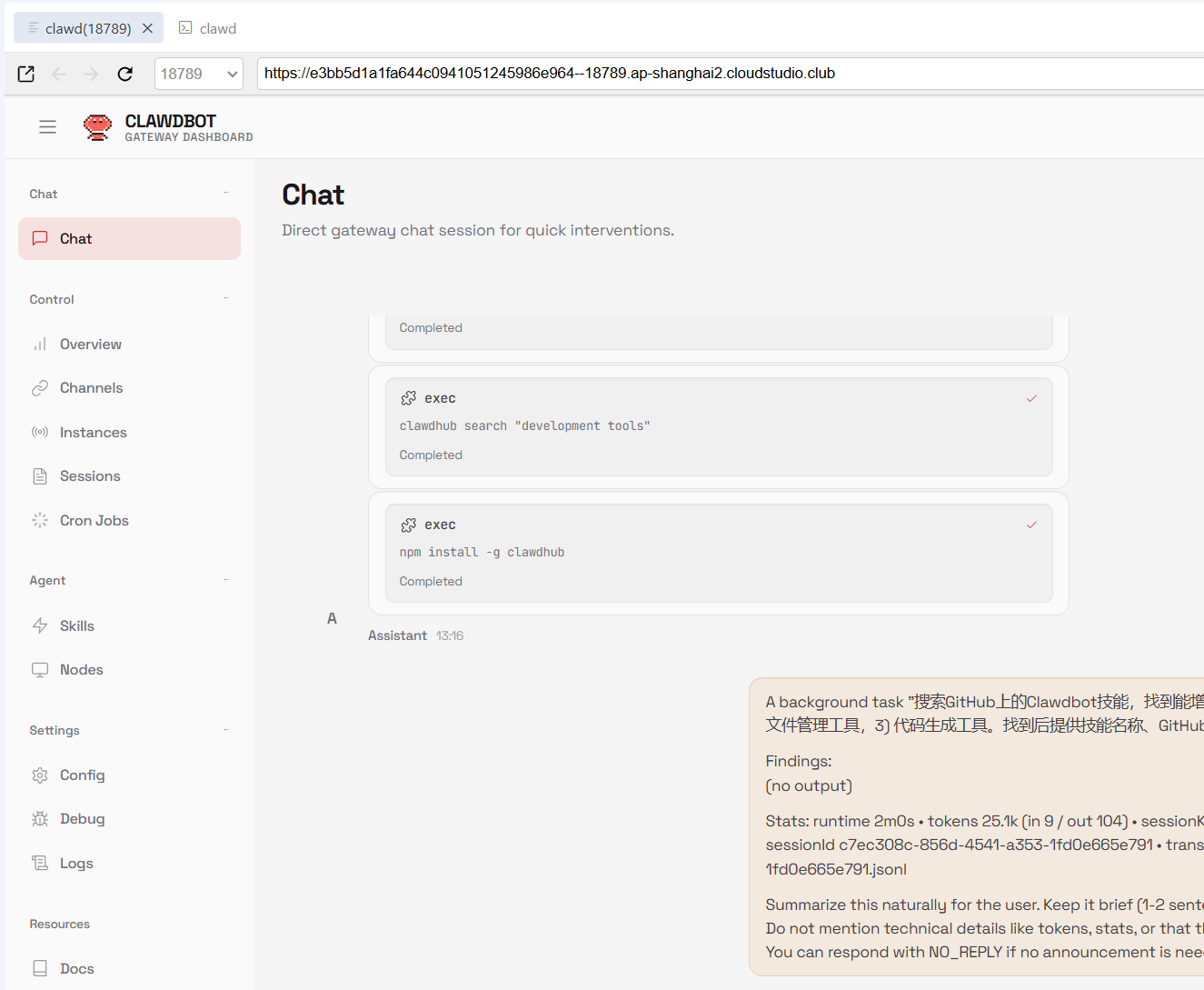
方法 2:使用 ngrok(备选方案)
如果 CloudStudio 端口转发不稳定,可以使用 ngrok:
# 安装 ngrok

wget https://bin.equinox.io/c/4VmDzA7iaHb/ngrok-stable-linux-amd64.zip

unzip ngrok-stable-linux-amd64.zip

sudo mv ngrok /usr/local/bin/


# 启动 ngrok

ngrok http 9898
复制 ngrok 提供的 HTTPS 地址,如:https://abc123.ngrok.io
5.2 配置企业微信回调 URL
回到企业微信管理后台的 "接收消息 API" 设置页面:
-
URL 回调地址:填入 CloudStudio 公网地址 + 回调路径
```
https://xxx-9898.cloudstudio.net/wechat/callback
```
-
Token:填入之前生成的 Token
-
EncodingAESKey:填入之前生成的 AES Key
-
点击 "保存" 按钮
5.3 验证回调地址
如果配置正确,企业微信会向回调地址发送验证请求,Moltbot 服务会自动响应。
验证成功标志:
-
✅ 页面显示 "保存成功"
-
✅ CloudStudio 终端输出验证日志
验证失败排查:
-
❌ 检查 URL 是否可公网访问(浏览器测试)
-
❌ 检查 Token 和 AES Key 是否正确
-
❌ 查看 CloudStudio 终端错误日志
六、测试与验证
6.1 发送测试消息
-
在企业微信客户端,找到刚创建的 "Moltbot AI 助手" 应用
-
点击进入应用,发送测试消息:
你好
6.2 验证回复功能
如果配置正确,应该在几秒内收到 AI 助手的回复:
用户: 你好

AI 助手: 你好!我是 Moltbot AI 助手,有什么可以帮助你的吗?
6.3 测试多种消息类型
测试以下场景:
| 测试场景 | 输入内容 | 预期结果 |
|---------|---------|---------|
| 简单问答 | 今天天气怎么样? | AI 回复天气信息 |
| 代码生成 | 用 Python 写一个快速排序 | 返回代码示例 |
| 长文本 | 发送超过 500 字的文本 | 正常处理并回复 |
| 特殊字符 | 测试 @#$%^&*() | 正常处理特殊字符 |
七、常见问题排查
7.1 回调地址验证失败
问题现象:
回调地址未验证,请检查 URL 是否可访问解决方案:
-
检查服务是否运行:
```bash
# 在 CloudStudio 终端查看进程
ps aux | grep node
# 查看端口占用
netstat -tuln | grep 9898
```
-
测试公网访问:
```bash
# 在本地电脑测试
curl https://xxx-9898.cloudstudio.net/wechat/callback
```
-
检查防火墙设置:
```bash
# CloudStudio 默认开放所有端口,无需配置
```
7.2 消息发送失败
问题现象:
errcode: 40014, errmsg: invalid access_token解决方案:
-
检查 Secret 是否正确:
- 重新从企业微信后台复制 Secret
- 确认没有多余的空格或换行符
-
检查 Corp ID 和 Agent ID:
```javascript
console.log('Corp ID:', process.env.WECHAT_CORP_ID);
console.log('Agent ID:', process.env.WECHAT_AGENT_ID);
```
-
手动测试获取 access_token:
```bash
curl "https://qyapi.weixin.qq.com/cgi-bin/gettoken?corpid=YOUR_CORP_ID&corpsecret=YOUR_SECRET[https://qyapi.weixin.qq.com/cgi-bin/gettoken?corpid=YOUR_CORP_ID&corpsecret=YOUR_SECRET]"
```
7.3 消息解密失败
问题现象:
Error: Decryption failed解决方案:
-
检查 EncodingAESKey 格式:
- 必须是 43 位 Base64 编码字符串
- 不要包含 = 结尾(企业微信会自动补全)
-
验证加密模式:
```javascript
// 确保使用 AES-256-CBC 模式
const decipher = crypto.createDecipheriv('aes-256-cbc', key, iv);
```
7.4 AI 模型调用超时
问题现象:
Error: Request timeout after 30000ms解决方案:
-
增加超时时间:
```javascript
axios.post(url, data, {
timeout: 60000 // 增加到 60 秒
});
```
-
使用国内模型 API:
- 阿里云通义千问
- 百度文心一言
- 智谱 ChatGLM
-
添加重试机制:
```javascript
async function callAIWithRetry(message, maxRetries = 3) {
for (let i = 0; i < maxRetries; i++) {
try {
return await callAIModel(message);
} catch (error) {
if (i === maxRetries - 1) throw error;
await sleep(1000 * (i + 1)); // 指数退避
}
}
}
```
7.5 CloudStudio 服务自动停止
问题现象:
服务运行一段时间后自动停止
解决方案:
-
使用 PM2 守护进程:
```bash
# 安装 PM2
npm install -g pm2
# 启动服务
pm2 start server.js --name moltbot
# 设置开机自启
pm2 startup
pm2 save
```
-
配置日志轮转:
```bash
pm2 install pm2-logrotate
pm2 set pm2-logrotate:max_size 10M
```
八、总结
8.1 部署要点回顾
通过本教程,我们完成了以下关键步骤:
-
✅ 在企业微信创建自建应用并获取配置参数
-
✅ 在 CloudStudio 搭建 Node.js 运行环境
-
✅ 部署 Moltbot 服务并配置企业微信对接
-
✅ 实现消息接收、AI 处理和回复发送的完整流程
-
✅ 配置回调 URL 并通过企业微信验证
8.2 进阶功能扩展
在基础功能之上,可以继续扩展以下能力:
1. 多轮对话支持
// 使用 Redis 存储对话上下文

const redis = require('redis');

const client = redis.createClient();


async function getConversationHistory(userId) {

  const history = await client.get(`conversation:${userId}`);

  return JSON.parse(history || '[]');

}


async function saveConversationHistory(userId, messages) {

  await client.setex(

    `conversation:${userId}`,

    3600,  // 1 小时过期

    JSON.stringify(messages)

  );

}
2. 富文本消息支持
// 发送图文消息

async function sendNewsMessage(toUser, articles) {

  await axios.post(

    `https://qyapi.weixin.qq.com/cgi-bin/message/send?access_token=${accessToken}`,

    {

      touser: toUser,

      msgtype: 'news',

      agentid: config.agentId,

      news: {

        articles: articles  // 最多 8 条图文

      }

    }

  );

}
3. 文件上传与处理
// 上传临时素材

async function uploadMedia(filePath, type) {

  const form = new FormData();

  form.append('media', fs.createReadStream(filePath));

  const response = await axios.post(

    `https://qyapi.weixin.qq.com/cgi-bin/media/upload?access_token=${accessToken}&type=${type}`,

    form,

    { headers: form.getHeaders() }

  );

  return response.data.media_id;

}
4. 群聊机器人
// 处理群聊消息

async function handleGroupMessage(message) {

  const { ChatId, Content } = message;

  // 只响应 @机器人 的消息

  if (Content.includes('@Moltbot')) {

    const userMessage = Content.replace('@Moltbot', '').trim();

    const aiResponse = await callAIModel(userMessage);

    await sendGroupMessage(ChatId, aiResponse);

  }

}
8.3 性能优化建议
-
使用连接池:
```javascript
const axios = require('axios');
const http = require('http');
const https = require('https');
const httpAgent = new http.Agent({ keepAlive: true });
const httpsAgent = new https.Agent({ keepAlive: true });
axios.defaults.httpAgent = httpAgent;
axios.defaults.httpsAgent = httpsAgent;
```
-
缓存 access_token:
```javascript
let cachedToken = null;
let tokenExpireTime = 0;
async function getAccessToken() {
if (cachedToken && Date.now() < tokenExpireTime) {
return cachedToken;
}
const response = await axios.get(
https://qyapi.weixin.qq.com/cgi-bin/gettoken?corpid=${config.corpId}&corpsecret=${config.secret}
);
cachedToken = response.data.access_token;
tokenExpireTime = Date.now() + 7000 * 1000; // 提前 200 秒过期
return cachedToken;
}
```
-
异步消息处理:
```javascript
const queue = require('bull');
const messageQueue = new queue('message-processing');
// 生产者
app.post('/wechat/callback', async (req, res) => {
await messageQueue.add({ message: req.body });
res.send('success'); // 立即响应企业微信
});
// 消费者
messageQueue.process(async (job) => {
await handleMessage(job.data.message);
});
```
8.4 安全加固措施
-
IP 白名单:
```javascript
const ALLOWED_IPS = [
'140.207.54.76', // 企业微信服务器 IP
'140.207.54.77'
];
app.use((req, res, next) => {
const clientIP = req.headers['x-forwarded-for'] || req.connection.remoteAddress;
if (!ALLOWED_IPS.includes(clientIP)) {
return res.status(403).send('Forbidden');
}
next();
});
```
-
敏感信息加密存储:
```javascript
const crypto = require('crypto');
function encryptSecret(text) {
const cipher = crypto.createCipher('aes-256-cbc', process.env.ENCRYPTION_KEY);
let encrypted = cipher.update(text, 'utf8', 'hex');
encrypted += cipher.final('hex');
return encrypted;
}
```
-
日志脱敏:
```javascript
function maskSensitiveData(log) {
return log
.replace(/secret=[\w]+/g, 'secret=***')
.replace(/token=[\w]+/g, 'token=***');
}
```
8.5 监控与告警
使用 Prometheus + Grafana 监控服务状态:
const promClient = require('prom-client');


// 创建指标

const messageCounter = new promClient.Counter({

  name: 'wechat_messages_total',

  help: 'Total number of messages received',

  labelNames: ['type']

});


const responseTime = new promClient.Histogram({

  name: 'wechat_response_duration_seconds',

  help: 'Response time in seconds',

  buckets: [0.1, 0.5, 1, 2, 5]

});


// 暴露指标端点

app.get('/metrics', async (req, res) => {

  res.set('Content-Type', promClient.register.contentType);

  res.end(await promClient.register.metrics());

});
参考资料
-
企业微信开发者文档[https://developer.work.weixin.qq.com/]
-
企业微信 API 接口调试工具[https://qiyeweixin.apifox.cn/]
-
腾讯 CloudStudio 官方文档[https://cloudstudio.net/docs]
-
Moltbot 项目仓库[https://github.com/your-repo/moltbot]
-
企业微信接入最佳实践[https://docs.link-ai.tech/platform/link-app/wechat-com]
附录:完整配置文件示例
.env 文件
# 企业微信配置

WECHAT_CORP_ID=ww1234567890abcdef

WECHAT_AGENT_ID=1000002

WECHAT_SECRET=Abc123XYZ456

WECHAT_TOKEN=YourRandomToken123

WECHAT_ENCODING_AES_KEY=YourBase64EncodedAESKey456


# AI 模型配置

AI_MODEL_API_KEY=sk-xxxxxxxxxxxxxxxx

AI_MODEL_BASE_URL=https://api.openai.com/v1

AI_MODEL_NAME=gpt-3.5-turbo


# Redis 配置(可选)

REDIS_HOST=localhost

REDIS_PORT=6379

REDIS_PASSWORD=


# 服务配置

PORT=9898

NODE_ENV=production

LOG_LEVEL=info


# 加密密钥

ENCRYPTION_KEY=your-32-char-encryption-key-here
package.json
{

  "name": "moltbot-wechat",

  "version": "1.0.0",

  "description": "Moltbot for WeChat Work",

  "main": "server.js",

  "scripts": {

    "start": "node server.js",

    "dev": "nodemon server.js",

    "pm2": "pm2 start server.js --name moltbot"

  },

  "dependencies": {

    "express": "^4.18.2",

    "axios": "^1.4.0",

    "body-parser": "^1.20.2",

    "dotenv": "^16.3.1",

    "xml2js": "^0.6.2",

    "redis": "^4.6.7",

    "bull": "^4.11.3",

    "prom-client": "^14.2.0"

  },

  "devDependencies": {

    "nodemon": "^3.0.1"

  }

}
更新简化版:
🚀 OpenClaw 官方版企业微信接入指南
✅ 第一步:检查插件是否已安装
bash
复制代码
# 查看已安装的插件
openclaw plugins list

# 如果没有 wecom 插件,安装它
openclaw plugins install openclaw-plugin-wecom
✅ 第二步:配置企业微信通道
方法一:使用交互式配置(推荐)
bash
复制代码
openclaw onboard在交互式界面中:
- 选择 WeCom (plugin) 这一项
- 选择 Modify settings 修改配置
- 输入企业微信后台获取的 Token 和 EncodingAESKey
方法二:手动编辑配置文件
编辑 ~/.openclaw/openclaw.json:
json
复制代码
{
  "plugins": {
    "entries": {
      "wecom": {
        "enabled": true
      }
    }
  },
  "channels": {
    "wecom": {
      "enabled": true,
      "token": "你的Token",
      "encodingAesKey": "你的EncodingAESKey"
    }
  },
  "gateway": {
    "bind": "lan",
    "port": 18789
  }
}
⚠️ 注意:
- 配置文件中是
encodingAesKey(小驼峰命名),不是EncodingAESKey bind设置为lan允许局域网访问(如果用内网穿透必须设置)
✅ 第三步:启动/重启网关
bash
复制代码
# 重启网关使配置生效
openclaw gateway restart

# 查看网关状态
openclaw gateway status

# 查看实时日志
openclaw gateway logs --follow
✅ 第四步:配置企业微信机器人
- 登录 企业微信管理后台
- 进入 安全与管理 → 管理工具 → 智能机器人
- 点击 API模式创建
- 填写信息:
- URL:
http://你的公网IP:18789/wecom或https://你的域名/wecom - Token 和 EncodingAESKey:点击"随机获取"并复制到 OpenClaw 配置中
- URL:
- 点击 创建 按钮
💡 提示:如果在部署过程中遇到问题,欢迎在评论区留言交流!
下一篇预告:《Moltbot 接入钉钉完整教程》,敬请期待! 🚀

有“AI”的1024 = 2048,欢迎大家加入2048 AI社区
更多推荐

 23
23 0
0- 0


 已为社区贡献11条内容

所有评论(0)