50天50个小项目 (React19 + Tailwindcss V4) ✨ | QuizApp(交互式在线测验应用组件)
📅 今天我们继续 50 个小项目挑战!——QuizApp组件
仓库地址:https://gitee.com/hhm-hhm/50days50projects.git
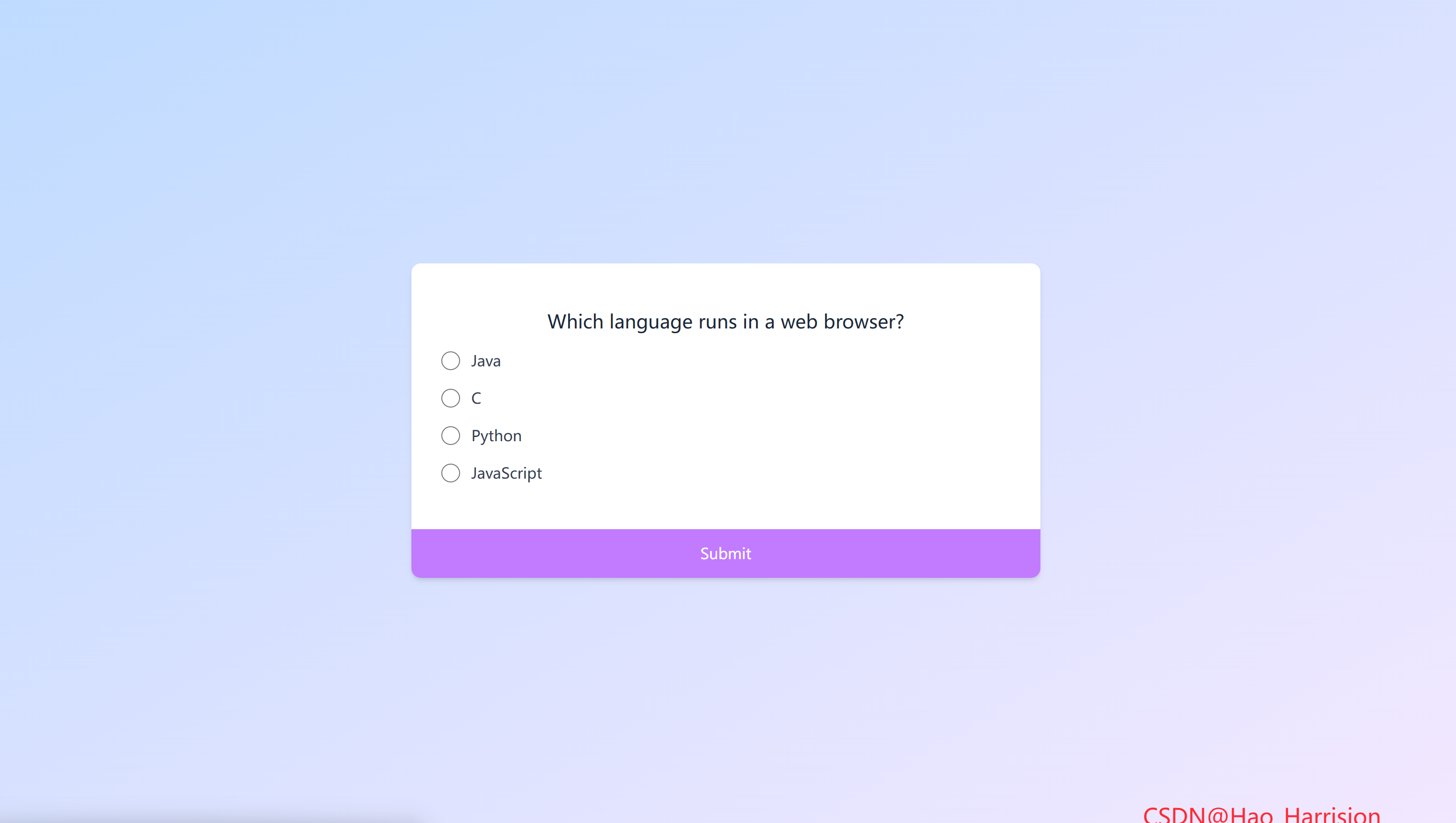
使用 React19 和 Tailwindcss V4 实用优先的样式框架,从零开始构建一个现代化、响应式的在线测验(Quiz)应用。这个应用不仅界面美观,而且功能完整,包含了题目展示、答案选择、提交验证、得分统计和重新开始等核心功能。
准备好让你的前端技能更上一层楼了吗?让我们开始吧!✨
🌀 组件目标
- 创建一个包含多道题目的交互式在线测验
- 实现单选题的答题、提交和得分逻辑
- 在所有题目完成后显示最终得分和重新开始按钮
- 利用 Tailwind CSS 快速构建基础样式,并通过内联样式实现精确控制
- 优化用户体验,提供流畅的搜索反馈
🔧 QuizApp.tsx组件实现
import { useState, useMemo } from 'react'

// 定义问题数据结构
interface QuizQuestion {
    question: string
    a: string
    b: string
    c: string
    d: string
    correct: 'a' | 'b' | 'c' | 'd'
}

const quizData: QuizQuestion[] = [
    {
        question: 'Which language runs in a web browser?',
        a: 'Java',
        b: 'C',
        c: 'Python',
        d: 'JavaScript',
        correct: 'd',
    },
    {
        question: 'What does CSS stand for?',
        a: 'Central Style Sheets',
        b: 'Cascading Style Sheets',
        c: 'Cascading Simple Sheets',
        d: 'Cars SUVs Sailboats',
        correct: 'b',
    },
    {
        question: 'What does HTML stand for?',
        a: 'Hypertext Markup Language',
        b: 'Hypertext Markdown Language',
        c: 'Hyperloop Machine Language',
        d: 'Helicopters Terminals Motorboats Lamborginis',
        correct: 'a',
    },
    {
        question: 'What year was JavaScript launched?',
        a: '1996',
        b: '1995',
        c: '1994',
        d: 'none of the above',
        correct: 'b',
    },
]

const QuizApp = () => {
    const [currentQuestionIndex, setCurrentQuestionIndex] = useState(0)
    const [selectedAnswer, setSelectedAnswer] = useState<string | null>(null)
    const [score, setScore] = useState(0)
    const [isQuizCompleted, setIsQuizCompleted] = useState(false)

    // 当前问题(等价于 Vue 的 computed)
    const currentQuestion = useMemo(() => {
        return quizData[currentQuestionIndex]
    }, [currentQuestionIndex])

    // 选项列表(动态映射 a/b/c/d)
    const options = useMemo(() => {
        if (!currentQuestion) return []
        return [
            { key: 'a', text: currentQuestion.a },
            { key: 'b', text: currentQuestion.b },
            { key: 'c', text: currentQuestion.c },
            { key: 'd', text: currentQuestion.d },
        ]
    }, [currentQuestion])

    // 提交答案
    const submitAnswer = () => {
        if (selectedAnswer === null) return

        // 检查是否正确
        if (selectedAnswer === currentQuestion.correct) {
            setScore((prev) => prev + 1)
        }

        // 判断是否还有下一题
        if (currentQuestionIndex < quizData.length - 1) {
            setCurrentQuestionIndex((prev) => prev + 1)
            setSelectedAnswer(null) // 重置选择
        } else {
            setIsQuizCompleted(true)
        }
    }

    // 重新开始测验
    const restartQuiz = () => {
        setCurrentQuestionIndex(0)
        setSelectedAnswer(null)
        setScore(0)
        setIsQuizCompleted(false)
    }

    return (
        <div className="font-poppins m-0 flex min-h-screen items-center justify-center overflow-hidden bg-linear-to-br from-blue-200 to-purple-100 p-4">
            <div className="w-full max-w-2xl overflow-hidden rounded-lg bg-white shadow-md transition-all duration-300">
                {/* 问题页面 */}
                {!isQuizCompleted ? (
                    <div className="p-8">
                        <h2 className="py-4 text-center text-xl font-medium text-gray-800">
                            {currentQuestion.question}
                        </h2>

                        <ul className="list-none p-0">
                            {options.map((option) => (
                                <li key={option.key} className="mb-4">
                                    <label className="flex cursor-pointer items-center">
                                        <input
                                            type="radio"
                                            name="answer"
                                            value={option.key}
                                            checked={selectedAnswer === option.key}
                                            onChange={(e) => setSelectedAnswer(e.target.value)}
                                            className="mr-3 h-5 w-5 text-purple-600"
                                        />
                                        <span className="text-gray-700">{option.text}</span>
                                    </label>
                                </li>
                            ))}
                        </ul>
                    </div>
                ) : (
                    /* 结果页面 */
                    <div className="p-8 text-center">
                        <h2 className="mb-6 text-2xl font-bold text-gray-800">
                            You answered {score}/{quizData.length} questions correctly
                        </h2>
                        <button
                            onClick={restartQuiz}
                            className="w-full rounded-none bg-purple-600 px-6 py-3 font-medium text-white transition-colors duration-300 hover:bg-purple-700">
                            Restart
                        </button>
                    </div>
                )}

                {/* 提交按钮(仅在问题页面显示) */}
                {!isQuizCompleted && (
                    <button
                        onClick={submitAnswer}
                        disabled={!selectedAnswer}
                        className={`w-full py-3.5 font-medium text-white transition-colors duration-300 ${
                            selectedAnswer
                                ? 'bg-purple-600 hover:bg-purple-700'
                                : 'cursor-not-allowed bg-purple-400'
                        }`}>
                        Submit
                    </button>
                )}
            </div>
            <div className="fixed right-20 bottom-5 z-100 text-2xl text-red-500">
                CSDN@Hao_Harrision
            </div>
        </div>
    )
}

export default QuizApp
🔄 转换说明(Vue → React)
| 功能 | Vue 3 实现 | React + TS 实现 | 说明 |
|---|---|---|---|
| 状态管理 | ref() |
useState() |
所有响应式变量转为 useState |
| 计算属性 | computed() |
useMemo() |
使用 useMemo 缓存派生数据,避免重复计算 |
| 条件渲染 | v-if |
{condition ? A : B} 或逻辑与 && |
React 使用 JS 表达式控制渲染 |
| 列表渲染 | v-for |
.map() |
使用 key={option.key} 确保唯一性 |
| 双向绑定 | v-model on <input> |
checked + onChange |
React 中 radio 需手动控制选中状态 |
| 类型安全 | — | interface QuizQuestion |
明确定义问题结构,correct 限定为 `'a' |
| 禁用按钮 | :disabled="!selectedAnswer" |
disabled={!selectedAnswer} + 样式反馈 |
添加视觉反馈(灰色+禁止光标) |
| 字体类 | font-poppins |
同样保留(需确保 Poppins 已加载) | 若未配置 Google Fonts,可替换为 font-sans |
📝 关键细节说明
1. Radio 按钮受控处理
Vue 的 v-model 自动同步值,而 React 需要:
<input
  type="radio"
  checked={selectedAnswer === option.key}
  onChange={(e) => setSelectedAnswer(e.target.value)}
/>
✅ 确保单选行为正确。
2. 状态更新的函数式写法
setScore((prev) => prev + 1)✅ 避免闭包问题,尤其在快速连续操作时更安全。
3. 禁用状态的样式增强
当未选择答案时:
- 按钮背景变浅(
bg-purple-400) - 光标变为
not-allowed - 保持语义化
disabled属性
4. 性能优化
useMemo防止每次渲染都重建options和currentQuestionkey={option.key}确保 React 正确复用 DOM 元素
5. 字体注意事项
若项目未引入 Poppins 字体,请在 index.html 添加:
<link href="https://fonts.googleapis.com/css2?family=Poppins:wght@400;500;600&display=swap" rel="stylesheet">或替换 font-poppins 为 font-sans。
✅ 总结
该 QuizApp.tsx 完全复刻了 Vue 版本的功能和 UI,包括:
- 多题测验流程
- 单选答题
- 实时评分
- 完成后显示结果
- 重新开始功能
🎨 TailwindCSS 样式重点讲解
| 类名 | 作用 |
|---|---|
font-poppins |
使用 Poppins 字体 |
m-0 / p-4 / p-8 / py-4 / px-6 / py-3.5 |
外边距和内边距 |
flex / items-center / justify-center |
Flexbox 布局 |
min-h-screen |
最小高度为视口高度 |
overflow-hidden |
隐藏溢出内容 |
bg-gradient-to-br from-blue-100 to-purple-100 |
渐变背景 |
w-full / max-w-2xl / min-w-[320px] |
宽度设置 |
overflow-hidden |
隐藏溢出 |
rounded-lg |
圆角 |
bg-white / bg-purple-600 |
背景颜色 |
shadow-md |
阴影 |
transition-all / transition-colors / duration-300 |
过渡效果和持续时间 |
text-center |
文字居中 |
text-xl / text-2xl / text-gray-800 / text-gray-700 / text-white |
文字大小和颜色 |
font-medium / font-bold / font-semibold |
字体粗细 |
list-none |
移除列表默认样式 |
cursor-pointer |
鼠标指针为手型 |
h-5 / w-5 |
固定单选框尺寸 |
text-purple-600 |
单选框选中颜色 |
mr-3 / mb-4 / mb-3 / mb-6 / mt-2 |
外边距 |
hover:bg-purple-700 |
悬停时背景色变深 |
rounded-none |
移除按钮圆角(可选) |
disabled:opacity-50 cursor-not-allowed |
(虽然代码中未显式写出,但通常会添加)禁用状态样式 |
🦌 路由组件 + 常量定义
router/index.tsx 中 children数组中添加子路由
{
    path: '/',
    element: <App />,
    children: [
       ...
        {
                path: '/QuizApp',
                lazy: () =>
                    import('@/projects/QuizApp').then((mod) => ({
                        Component: mod.default,
                    })),
            },
    ],
 },
constants/index.tsx 添加组件预览常量
import demo46Img from '@/assets/pic-demo/demo-46.png'
省略部分....
export const projectList: ProjectItem[] = [
    省略部分....
      {
        id: 46,
        title: 'NQuiz App',
        image: demo46Img,
        link: 'QuizApp',
    },
]
🚀 小结
通过这篇教程,我们成功构建了一个功能完整、界面美观的在线测验应用。我们深入实践了 React19 ,并充分利用了 Tailwind CSS 的实用类来快速搭建 UI。
这个测验应用是一个很好的起点,可以在此基础上进行很多有趣的扩展:
✅ 加载动画:在题目切换时添加淡入淡出 (fade-in) 或滑动动画。
✅ 反馈机制:提交答案后,立即显示“正确”或“错误”的反馈(例如,正确选项变绿,错误选项变红)。
✅ 计时器:为每道题或整个测验添加倒计时功能。
✅ 进度条:显示当前进度 (Question 2 of 4)。
✅ 数据持久化:使用 localStorage 保存用户的最高分。
✅ 动态数据源:从 API 接口动态获取题目数据,而不是硬编码在组件中。
✅ 多种题型:支持多选题、判断题等。
✅ 结果详情:在结果页面展示每道题的答题情况(正确/错误)。
📅 明日预告: 我们将完成TestimonialBoxSwitcher组件,一个用于展示用户 testimonial(评价、推荐语)的组件,核心功能是实现不同评价内容的切换展示。。🚀
感谢阅读,欢迎点赞、收藏和分享 😊
原文链接:https://blog.csdn.net/qq_44808710/article/details/149783541
每天造一个轮子,码力暴涨不是梦!🚀

有“AI”的1024 = 2048,欢迎大家加入2048 AI社区
更多推荐
 27
27 0
0- 0


 已为社区贡献43条内容

所有评论(0)