在 PySide6 中创建额外的窗口
本文介绍了在Qt应用中创建和管理多窗口的方法。主要内容包括:1. 创建新窗口的基本方法,通过实例化无父级的QWidget或QMainWindow实现;2. 窗口引用管理,避免因局部变量被销毁导致窗口关闭;3. 窗口切换技术,包括检查窗口存在性和显式调用close()方法;4. 持久窗口的创建和使用,在应用启动时初始化窗口并通过show()/hide()控制显示;5. 多窗口管理方案,包括为每个窗口
在之前的教程中,我们已经讲解过如何打开对话框窗口。这些特殊的窗口(默认情况下)会获取用户的焦点,并运行自己的事件循环,从而有效地阻塞应用程序其余部分的执行。
然而,很多时候,您可能需要在应用程序中打开第二个窗口,而不中断主窗口的运行——例如,显示某个长时间运行进程的输出,或者显示图表或其他可视化内容。或者,您可能希望创建一个应用程序,允许您同时在各自的窗口中处理多个文档。
打开新窗口相对简单,但需要注意一些事项才能确保其正常工作。本教程将逐步介绍如何创建新窗口,以及如何按需显示和隐藏外部窗口。
创建新窗口
在 Qt 中,任何没有父级的控件都是一个窗口。这意味着,要显示一个新窗口,只需创建一个新的控件实例即可。这可以是任何控件类型(严格来说,可以是任何子类QWidget),如果您愿意,甚至可以是另一个控件类型QMainWindow。
您可以创建的实例数量没有限制QMainWindow。如果您需要在第二个窗口中使用工具栏或菜单,则必须使用 `<div>` 标签QMainWindow来实现。但这可能会让用户感到困惑,因此请确保这样做是必要的。
与主窗口一样,仅仅创建一个窗口是不够的,你还必须显示它:
import sys

from PySide6.QtWidgets import (
    QApplication,
    QLabel,
    QMainWindow,
    QPushButton,
    QVBoxLayout,
    QWidget,
)


class AnotherWindow(QWidget):
    """
    This "window" is a QWidget. If it has no parent, it
    will appear as a free-floating window as we want.
    """

    def __init__(self):
        super().__init__()
        layout = QVBoxLayout()
        self.label = QLabel("Another Window")
        layout.addWidget(self.label)
        self.setLayout(layout)


class MainWindow(QMainWindow):
    def __init__(self):
        super().__init__()
        self.button = QPushButton("Push for Window")
        self.button.clicked.connect(self.show_new_window)
        self.setCentralWidget(self.button)

    def show_new_window(self, checked):
        w = AnotherWindow()
        w.show()


app = QApplication(sys.argv)
window = MainWindow()
window.show()
app.exec()
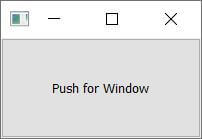
一个带有按钮的主窗口,该按钮可以启动一个子窗口。
使用 Python 和 Qt6 创建 GUI 应用程序 (作者:Martin Fitzpatrick )——(PySide6 版)使用 Python 制作应用程序的实用指南——销量超过 15,000 册!
运行这段代码后,你会看到主窗口。点击按钮可能会显示第二个窗口,但即使显示了,也只会持续很短的时间。这是怎么回事?
在方法内部show_new_window(),我们创建窗口(控件)对象,将其存储在变量中w并显示它。然而,一旦我们离开该方法,我们就失去了对该w变量的引用(它是一个局部变量),因此它会被清理——窗口也会被销毁。为了解决这个问题,我们需要在某个地方保留对窗口的引用,例如在self对象本身中:
    def show_new_window(self, checked):
        self.w = AnotherWindow()
        self.w.show()
现在,当你点击按钮显示新窗口时,它会一直显示下去。
但是,如果您再次点击按钮会发生什么呢?窗口将被重新创建!这个新窗口将替换self.w变量中的旧窗口,并且由于现在没有对它的引用,之前的窗口将被销毁。
如果您将窗口定义更改为每次创建窗口时在标签中显示随机数,即可看到此效果:
from random import randint


class AnotherWindow(QWidget):
    """
    This "window" is a QWidget. If it has no parent, it
    will appear as a free-floating window as we want.
    """

    def __init__(self):
        super().__init__()
        layout = QVBoxLayout()
        self.label = QLabel("Another Window % d" % randint(0,100))
        layout.addWidget(self.label)
        self.setLayout(layout)
该方法仅在创建__init__()窗口时运行。如果您持续单击按钮,数字会发生变化,表明窗口正在重新创建。
一种解决方法是在创建窗口之前先检查它是否已经存在。下面的示例展示了这种方法的实际应用:
import sys

from PySide6.QtWidgets import (
    QApplication,
    QLabel,
    QMainWindow,
    QPushButton,
    QVBoxLayout,
    QWidget,
)


class AnotherWindow(QWidget):
    """
    This "window" is a QWidget. If it has no parent, it
    will appear as a free-floating window as we want.
    """

    def __init__(self):
        super().__init__()
        layout = QVBoxLayout()
        self.label = QLabel("Another Window")
        layout.addWidget(self.label)
        self.setLayout(layout)


class MainWindow(QMainWindow):
    def __init__(self):
        super().__init__()
        self.button = QPushButton("Push for Window")
        self.button.clicked.connect(self.show_new_window)
        self.setCentralWidget(self.button)

    def show_new_window(self, checked):
        if self.w is None:
            self.w = AnotherWindow()
        self.w.show()


app = QApplication(sys.argv)
window = MainWindow()
window.show()
app.exec()
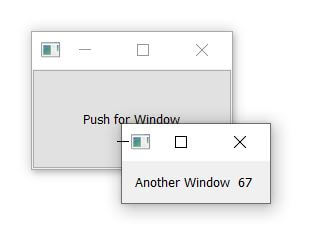
创建时随机生成标签的子窗口。
使用此按钮可以弹出窗口,并使用窗口控件将其关闭。如果再次单击此按钮,则会重新出现同一个窗口。
这种方法适用于临时创建的窗口——例如,当您想要弹出一个窗口来显示特定图表或日志输出时。然而,对于许多应用程序而言,您需要能够按需显示/隐藏许多标准窗口。
下一部分我们将探讨如何使用这类窗口。
切换窗口
通常情况下,您需要使用工具栏或菜单中的操作来切换窗口的显示。正如我们之前看到的,如果没有对窗口的引用,它将被丢弃(并关闭)。我们可以利用这一特性来关闭窗口,只需show_new_window将上一个示例中的方法替换为:
    def show_new_window(self, checked):
        if self.w is None:
            self.w = AnotherWindow()
            self.w.show()
        else:
            self.w = None  # Discard reference, close window.
如果设置了self.w该属性,则None对窗口的引用将会丢失,窗口将会关闭。
使用 Python 和 Qt6 创建 GUI 应用程序 (作者:Martin Fitzpatrick )——(PyQt6 版)使用 Python 制作应用程序的实用指南——销量超过 15,000 册!
如果我们将其设置为任何其他值,None窗口仍然会关闭,但if self.w is None下次单击按钮时测试将不会通过,因此我们将无法重新创建窗口。
只有在您没有在其他地方保留对该窗口的引用时,此方法才有效。为了确保窗口始终关闭,您可能需要显式地调用.close()其关闭方法。完整示例如下所示:
import sys
from random import randint

from PySide6.QtWidgets import (
    QApplication,
    QLabel,
    QMainWindow,
    QPushButton,
    QVBoxLayout,
    QWidget,
)


class AnotherWindow(QWidget):
    """
    This "window" is a QWidget. If it has no parent, it
    will appear as a free-floating window as we want.
    """

    def __init__(self):
        super().__init__()
        layout = QVBoxLayout()
        self.label = QLabel("Another Window % d" % randint(0, 100))
        layout.addWidget(self.label)
        self.setLayout(layout)


class MainWindow(QMainWindow):
    def __init__(self):
        super().__init__()
        self.w = None  # No external window yet.
        self.button = QPushButton("Push for Window")
        self.button.clicked.connect(self.show_new_window)
        self.setCentralWidget(self.button)

    def show_new_window(self, checked):
        if self.w is None:
            self.w = AnotherWindow()
            self.w.show()
        else:
            self.w.close()  # Close window.
            self.w = None  # Discard reference.


app = QApplication(sys.argv)
window = MainWindow()
window.show()
app.exec()
持久窗口
到目前为止,我们已经了解了如何按需创建新窗口。但是,有时您会遇到一些标准应用程序窗口。在这种情况下,与其在需要显示窗口时再创建它们,不如在启动时创建它们,然后.show()在需要时显示它们,这样通常更合理。
在以下示例中,我们在__init__主窗口的代码块中创建外部窗口,然后我们的show_new_window方法只需调用相应的方法self.w.show()来显示它:
import sys
from random import randint

from PySide6.QtWidgets import (
    QApplication,
    QLabel,
    QMainWindow,
    QPushButton,
    QVBoxLayout,
    QWidget,
)


class AnotherWindow(QWidget):
    """
    This "window" is a QWidget. If it has no parent, it
    will appear as a free-floating window as we want.
    """

    def __init__(self):
        super().__init__()
        layout = QVBoxLayout()
        self.label = QLabel("Another Window % d" % randint(0, 100))
        layout.addWidget(self.label)
        self.setLayout(layout)


class MainWindow(QMainWindow):
    def __init__(self):
        super().__init__()
        self.w = AnotherWindow()
        self.button = QPushButton("Push for Window")
        self.button.clicked.connect(self.show_new_window)
        self.setCentralWidget(self.button)

    def show_new_window(self, checked):
        self.w.show()


app = QApplication(sys.argv)
window = MainWindow()
window.show()
app.exec()
运行此代码后,点击按钮将像之前一样显示窗口。但是请注意,窗口只会创建一次,对.show()已显示的窗口调用函数无效。
显示和隐藏常驻窗口
创建持久窗口后,无需重新创建即可显示和隐藏它。隐藏后,窗口仍然存在,但不再可见,也无法接收鼠标或其他输入。不过,您仍然可以调用窗口的方法并更新其状态,包括更改其外观。重新显示窗口后,所有更改都将生效。
下面我们更新主窗口,创建一个toggle_window方法来检查.isVisible()窗口当前是否可见。如果不可见,则使用 `show()` 方法显示窗口;.show()如果可见,则使用 `hide .hide()()` 方法隐藏窗口。
class MainWindow(QMainWindow):

    def __init__(self):
        super().__init__()
        self.w = AnotherWindow()
        self.button = QPushButton("Push for Window")
        self.button.clicked.connect(self.toggle_window)
        self.setCentralWidget(self.button)

    def toggle_window(self, checked):
        if self.w.isVisible():
            self.w.hide()
        else:
            self.w.show()
下面展示了这个持久窗口及其显示/隐藏状态切换的完整工作示例:
import sys
from random import randint

from PySide6.QtWidgets import (
    QApplication,
    QLabel,
    QMainWindow,
    QPushButton,
    QVBoxLayout,
    QWidget,
)


class AnotherWindow(QWidget):
    """
    This "window" is a QWidget. If it has no parent, it
    will appear as a free-floating window as we want.
    """

    def __init__(self):
        super().__init__()
        layout = QVBoxLayout()
        self.label = QLabel("Another Window % d" % randint(0, 100))
        layout.addWidget(self.label)
        self.setLayout(layout)


class MainWindow(QMainWindow):
    def __init__(self):
        super().__init__()
        self.w = AnotherWindow()
        self.button = QPushButton("Push for Window")
        self.button.clicked.connect(self.toggle_window)
        self.setCentralWidget(self.button)

    def toggle_window(self, checked):
        if self.w.isVisible():
            self.w.hide()
        else:
            self.w.show()


app = QApplication(sys.argv)
window = MainWindow()
window.show()
app.exec()
请注意,窗口只会创建一次——__init__()每次重新显示窗口时,窗口的方法不会重新运行(因此标签中的数字不会改变)。
多窗口
创建多个窗口的原理相同——只要你保留对窗口的引用,一切都会按预期工作。最简单的方法是创建一个单独的方法来切换每个窗口的显示:
import sys
from random import randint

from PySide6.QtWidgets import (
    QApplication,
    QLabel,
    QMainWindow,
    QPushButton,
    QVBoxLayout,
    QWidget,
)


class AnotherWindow(QWidget):
    """
    This "window" is a QWidget. If it has no parent,
    it will appear as a free-floating window.
    """

    def __init__(self):
        super().__init__()
        layout = QVBoxLayout()
        self.label = QLabel("Another Window % d" % randint(0, 100))
        layout.addWidget(self.label)
        self.setLayout(layout)


class MainWindow(QMainWindow):
    def __init__(self):
        super().__init__()
        self.window1 = AnotherWindow()
        self.window2 = AnotherWindow()

        layout = QVBoxLayout()
        button1 = QPushButton("Push for Window 1")
        button1.clicked.connect(self.toggle_window1)
        layout.addWidget(button1)

        button2 = QPushButton("Push for Window 2")
        button2.clicked.connect(self.toggle_window2)
        layout.addWidget(button2)

        w = QWidget()
        w.setLayout(layout)
        self.setCentralWidget(w)

    def toggle_window1(self, checked):
        if self.window1.isVisible():
            self.window1.hide()
        else:
            self.window1.show()

    def toggle_window2(self, checked):
        if self.window2.isVisible():
            self.window2.hide()
        else:
            self.window2.show()


app = QApplication(sys.argv)
window = MainWindow()
window.show()
app.exec()
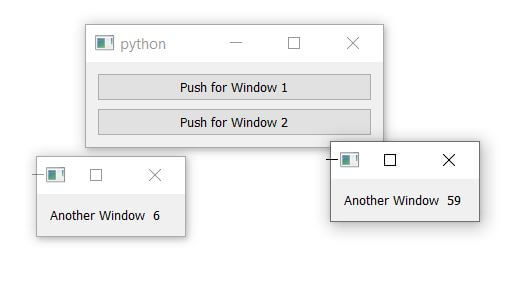
一个主窗口,带有两个子窗口。
不过,你也可以创建一个通用的方法来处理所有窗口的切换——有关其工作原理的详细说明,请参阅“使用 Qt 信号传输额外数据”lambda 。下面的示例展示了它的实际应用,使用一个函数来拦截每个按钮的信号并将其传递给相应的窗口。checked由于我们没有使用该值,因此可以将其丢弃:
import sys
from random import randint

from PySide6.QtWidgets import (
    QApplication,
    QLabel,
    QMainWindow,
    QPushButton,
    QVBoxLayout,
    QWidget,
)


class AnotherWindow(QWidget):
    """
    This "window" is a QWidget. If it has no parent,
    it will appear as a free-floating window.
    """

    def __init__(self):
        super().__init__()
        layout = QVBoxLayout()
        self.label = QLabel("Another Window % d" % randint(0, 100))
        layout.addWidget(self.label)
        self.setLayout(layout)


class MainWindow(QMainWindow):
    def __init__(self):
        super().__init__()
        self.window1 = AnotherWindow()
        self.window2 = AnotherWindow()

        layout = QVBoxLayout()
        button1 = QPushButton("Push for Window 1")
        button1.clicked.connect(
            lambda checked: self.toggle_window(self.window1),
        )
        layout.addWidget(button1)

        button2 = QPushButton("Push for Window 2")
        button2.clicked.connect(
            lambda checked: self.toggle_window(self.window2),
        )
        layout.addWidget(button2)

        w = QWidget()
        w.setLayout(layout)
        self.setCentralWidget(w)

    def toggle_window(self, window):
        if window.isVisible():
            window.hide()
        else:
            window.show()


app = QApplication(sys.argv)
window = MainWindow()
window.show()
app.exec()
有“AI”的1024 = 2048,欢迎大家加入2048 AI社区
更多推荐



 0
0 0
0- 0


 已为社区贡献4条内容

所有评论(0)