Scripting Governance Tool
Disclaimerwrongyescananswer “yesnotXdays.ClickSGTScanOn theKeep listand on theon thetile.NextKeep listand the。
Disclaimer – This article is part of a series exploring the new features and capabilities introduced in the Zurich release. Since we’re still in the Early Availability (EA) phase, things may change before General Availability (GA). After GA, these articles will be reviewed and updated as needed. Also, this message will be removed.
Do you have a process in place to prevent the wrong people from scripting in your instance? I mean, are you absolutely sure your current setup can easily restrict access to script and script-like fields, and only specific users are not automatically blocked to write scripts at all, no matter on which table those fields exist?
If you can't confidently answer "yes," then this article is for you.
And even if you can answer “yes,” you might still want to keep reading because with the Scripting Governance Tool, introduced in the Zurich release, ServiceNow now provides an easy, centralized way to govern and manage permissions for all script-like fields in one place.
The Scripting Governance Tool provides two main benefits:
- A clear overview of users who are not blocked from writing to script or script-like fields.
- An easy process to block users from writing to script and script-like fields in general
Technically, the solution is built on Datatype ACLs, which were also introduced in the Zurich release. If you have not heard about datatype ACLs yet, check out my article: Datatype ACLs
The Scripting Governance Tool combines these new ACLs with the deny-unless feature to restrict write access across all script-like fields.
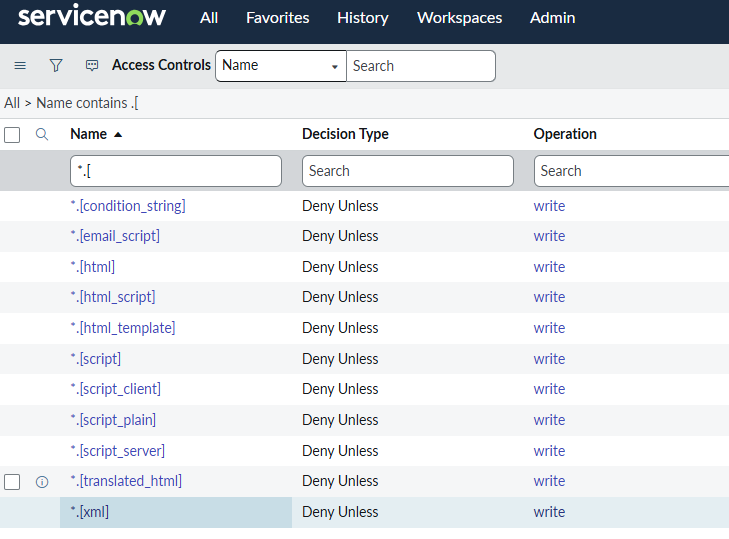
If you don’t pass these new ACLs, you can’t write to script fields.
If you do pass them, you’re not completely off the hook. You still need the correct permissions for the specific field you're trying to edit.
Think of it like this:
As @David Skowronek explains in his great article about the Need-to-know Principle, the Scripting Governance Tool builds a fence with a single entry point around your house. To do any scripting, users need to pass through the main gate of the fence. But even after entering, you still need a key to unlock the door for a specific script field.
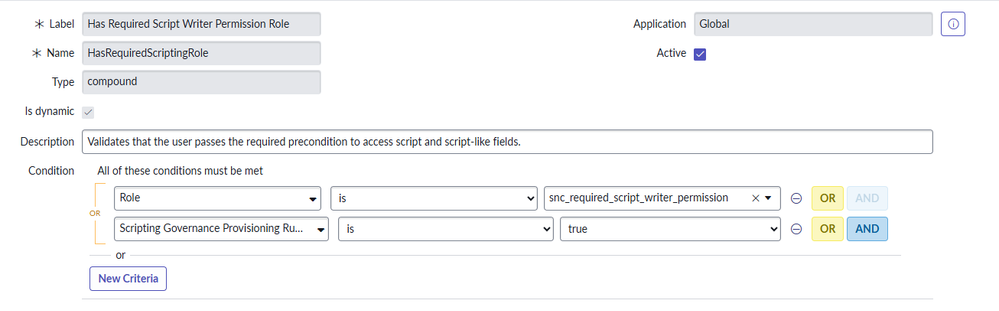
Access is controlled by the HasRequiredScriptingRole security attribute, which can be satisfied if a user has the role snc_required_script_writer_permission. This role is assigned via the Conditional Script Writer group. Additionally, all users will pass the gate as long as the initial provisioning job is still running.
The Scripting Governance Tool Dashboard
You can access the Dashboard via:
All > System Security > Scripting Governance Tool
The dashboard provides an overview of the users that are part of the Conditional Script Writer Group and it provides a process to decide which user should stay in the group and removes the others.
You need to elevate the security_admin role to access the Scripting Governance Tool.
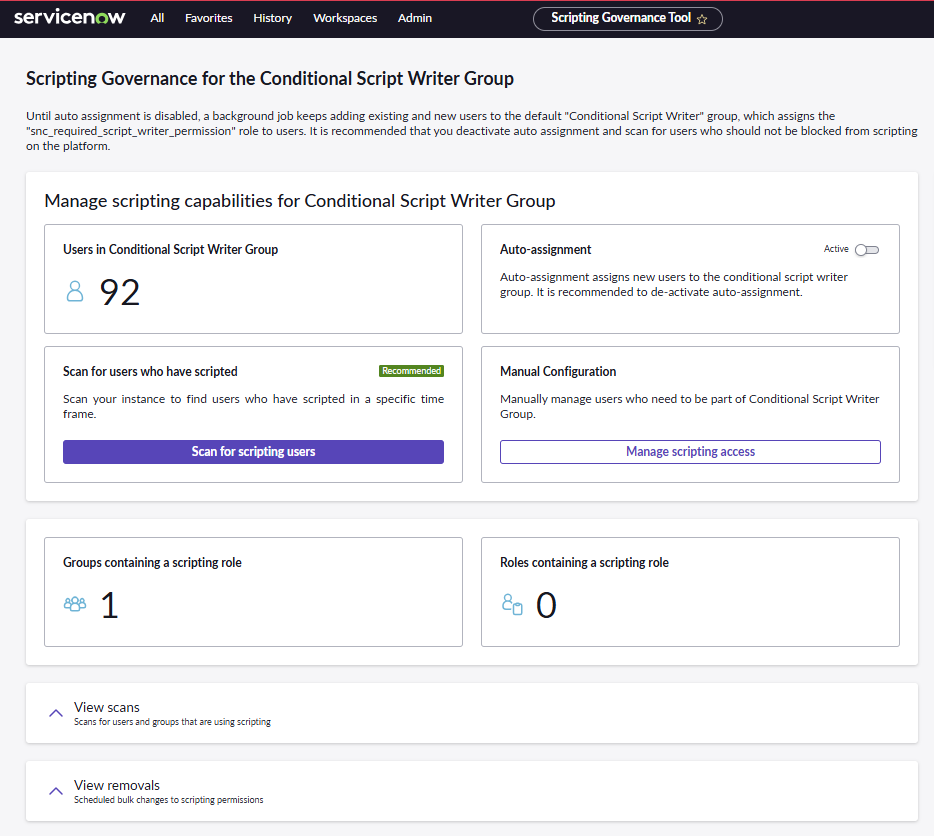
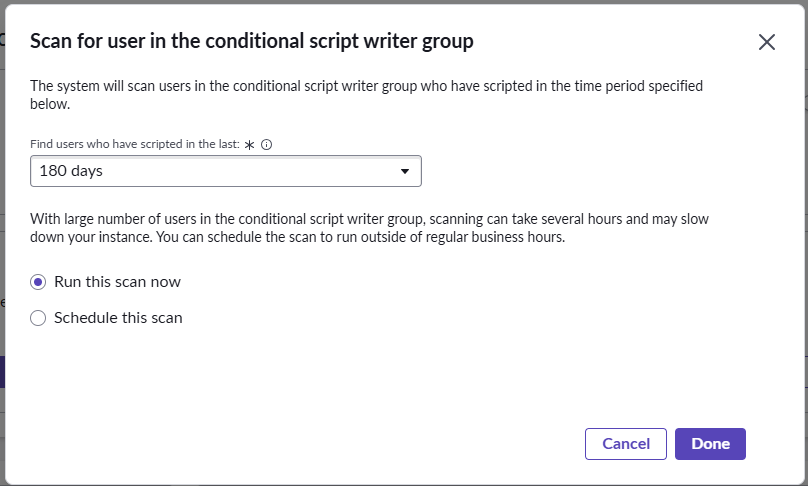
You can manage the group membership manually or you can get support from the system that scans which user of the group changed scripts within the last X days.
Click Scan for scripting users to start a job that checks which users in the group have modified records containing script fields within the specified time range.
If you are interested in the technical implementation of the scan, you can start at the Script Include SGTScan.
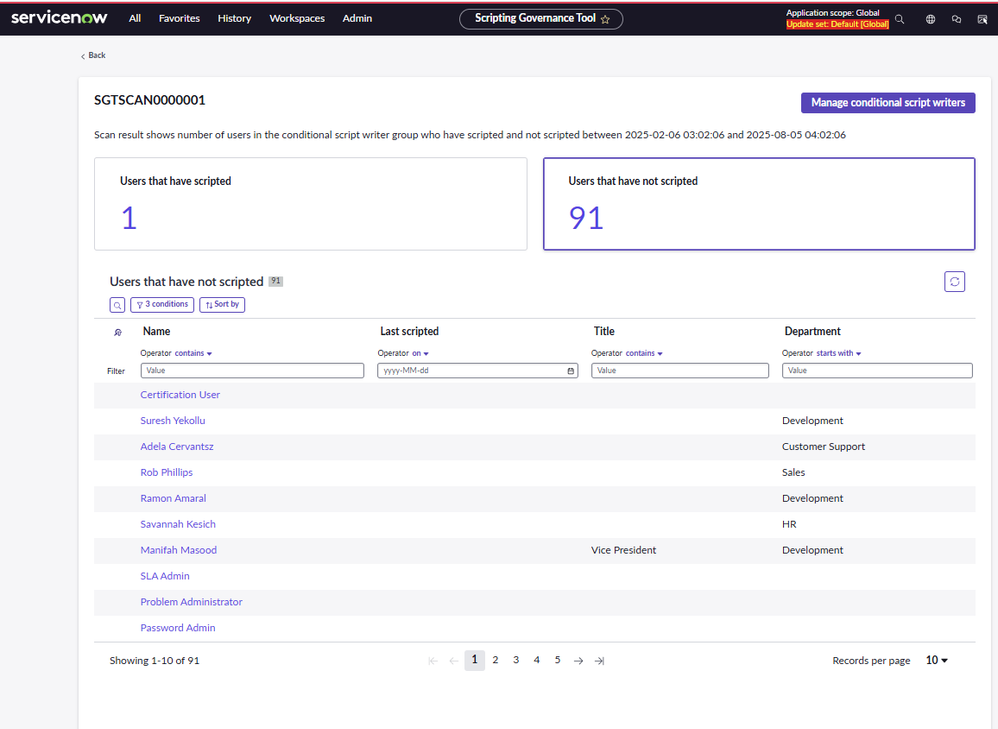
Once the scan completes, you’ll get a breakdown of the members of the Conditional Script Writer Group divided into users that have scripted and users that have not scripted.
By default, users with no recent scripting activity are the users that should be removed from the group. You can still move users between these two groups when clicking Manage conditional script writers.
On the Keep list you can select users and click Add to remove list and on the Remove list you can select users and click Add to keep list.
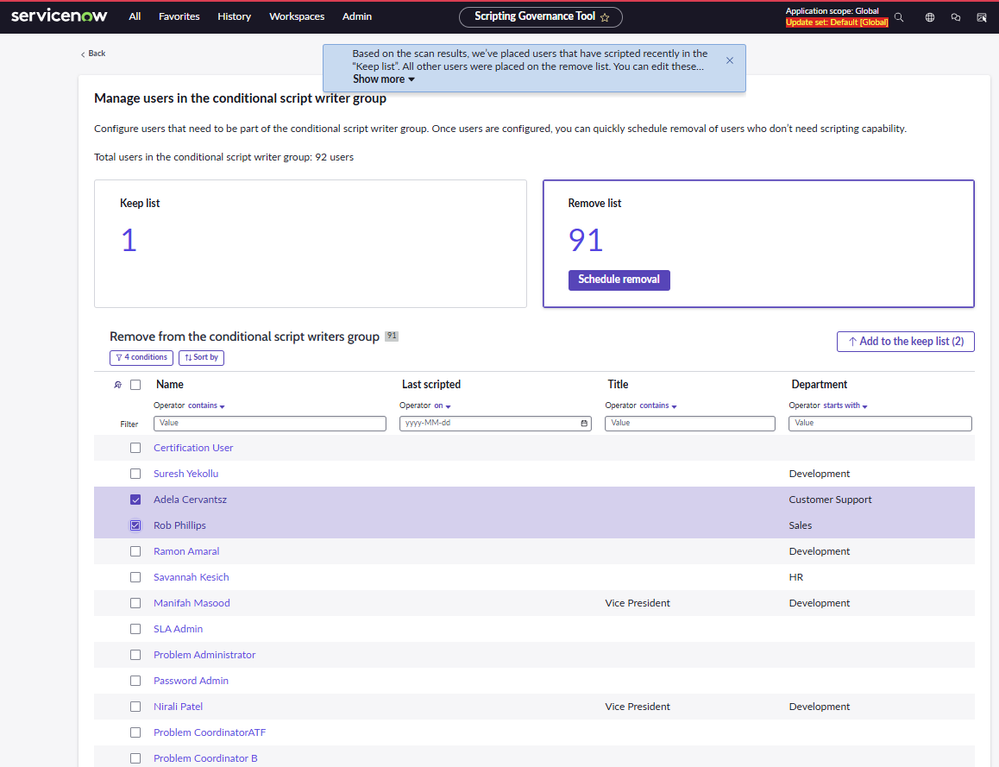
Once you are happy with both lists you can hit Schedule removal on the Remove list tile.
The created removal job removes the users from the group and additionally removes the role from the users, just in case the role was directly assigned to the user.
In case you want to manage the Conditional Script Writer Group without the scan, you can use the Manage scripting access button within the Manual Configuration tile on the dashboard.
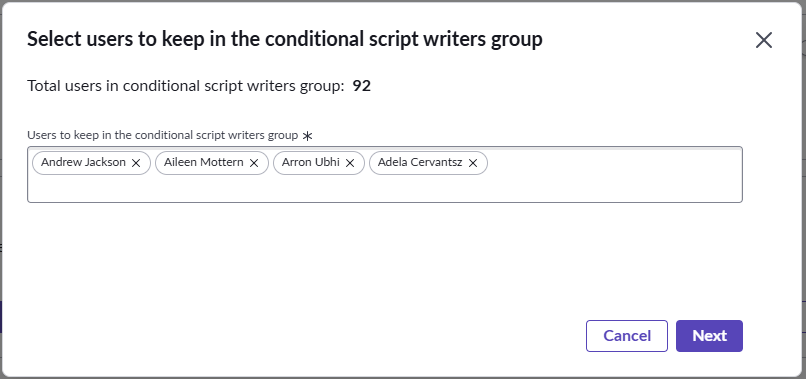
On the dialog you must select the users you want to keep in the Conditional Script Writers Group. Just click Next and you will get to the same overview of the Keep list and the Remove list.
The dashboard also includes an option to auto-assign all new users to the Conditional Script Writer Group. But it is not recommended to activate this option. For me, it was not even possible to activate it because of the following error:

Once you upgrade your instance to Zurich, the Scripting Governance Tool is enabled by default. To prevent breaking anything, the system runs an initial provisioning job which will add every user with at least one role to the Conditional Script Writer Group.

有“AI”的1024 = 2048,欢迎大家加入2048 AI社区
更多推荐



 3
3 0
0- 0


 已为社区贡献14条内容

所有评论(0)