日志管理和时钟同步
日志管理和时钟同步
日志管理
systemd-journald:临时,服务器重启后,日志随之消失。
rsyslog:永久,日志文件永久保存,配置文件:/etc/rsyslog.conf
主要存放在/var/log/
日志文件的种类
1、内核及系统日志
2、用户日志
3、程序日志
主要日志文件
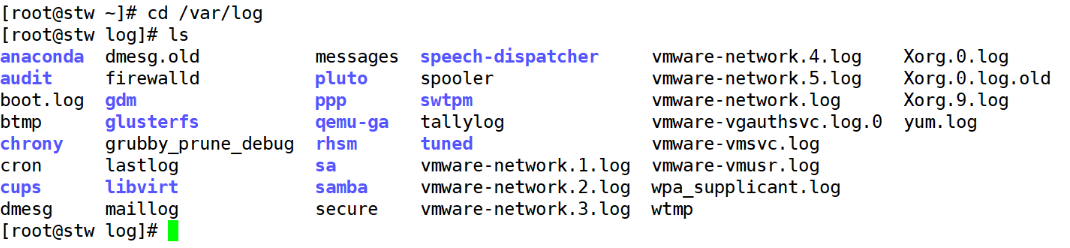
/var/log/messages :记录系统日志
/var/log/maillog :记录邮件产生的日志
/var/log/secure : 记录安全日志
/var/log/cron : 计划任务的日志
/var/log/boot.log :引导日志
/var/log/dmesg : 记录linux系统在引导过程中的各种事件信息
/var/log/lastlog :记录每个用户最近的登录事件信息
/var/log/wtmp :记录每个用户登录、注销及系统启动和停机事件
/var/log/btmp :记录失败的、错误的登录尝试及验证事件
分析日志:
日志优先级
优先级由低到高:
debug–程序或系统调试级别
info–一般信息性事件
notice–不会影响正常功能,但是需要注意的事件
warning–可能影响系统功能,需要提醒用户的重要事件
err–运行出现错误,非严重错误状况
cirt–比较严重的情况
alert–必须立即采取措施解决的问题
emerg–会导致主机系统不可用的情况
一 . 实时监控日志文件
开两个远程方便观察
1:
[root@stw ~]# cd /var/log
[root@stw log]# tail -f messages
Jul 30 16:30:01 stw systemd: Started Session 2 of user root.
Jul 30 16:36:59 stw systemd: Starting Cleanup of Temporary Directories...
Jul 30 16:36:59 stw systemd: Started Cleanup of Temporary Directories.
Jul 30 16:38:36 stw systemd-logind: New session 3 of user root.
Jul 30 16:38:36 stw systemd: Started Session 3 of user root.
Jul 30 16:38:36 stw dbus[8617]: [system] Activating service name='org.freedesktop.problems' (using servicehelper)
Jul 30 16:38:36 stw dbus[8617]: [system] Successfully activated service 'org.freedesktop.problems'
Jul 30 16:39:06 stw systemd: Started Session 4 of user root.
Jul 30 16:39:06 stw systemd-logind: New session 4 of user root.
Jul 30 16:40:01 stw systemd: Started Session 5 of :2user root.
2:
[root@stw ~]# su - stw
[stw@stw ~]$
然后在远程1中可以查看到这条命令的日志
1:
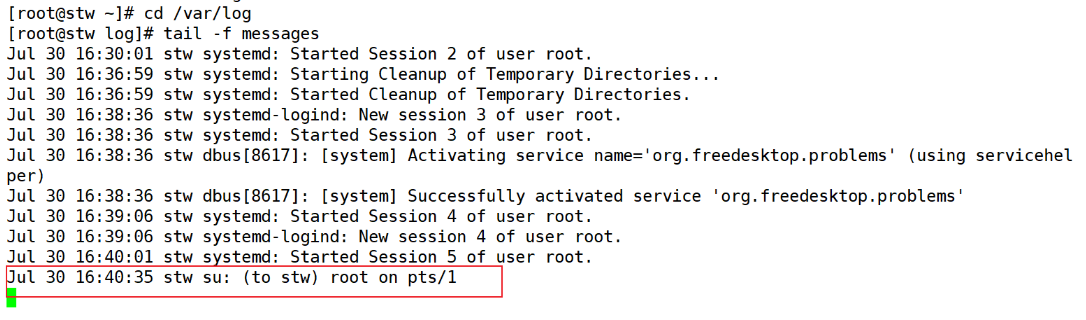
日志记录格式
时间标签:消息发出的日期和时间
主机名:生成消息的主机名称
子系统名称:发出消息的应用程序名称或者进程名和PID编号
消息:消息具体的内容
手动发送syslog消息也可以进行测试
向rsyslog服务发送消息并记录在/var/log/boot.log日志文件中
logger -p local7.notice(可更改) “stw” (一般用来测试改变日志存放路径是否成功)
也就是用来测试rsyslog服务配置的
2:
[root@stw ~]# logger -p local7.notice "stw"
[root@stw ~]# logger -p local7.err "abc"
1:
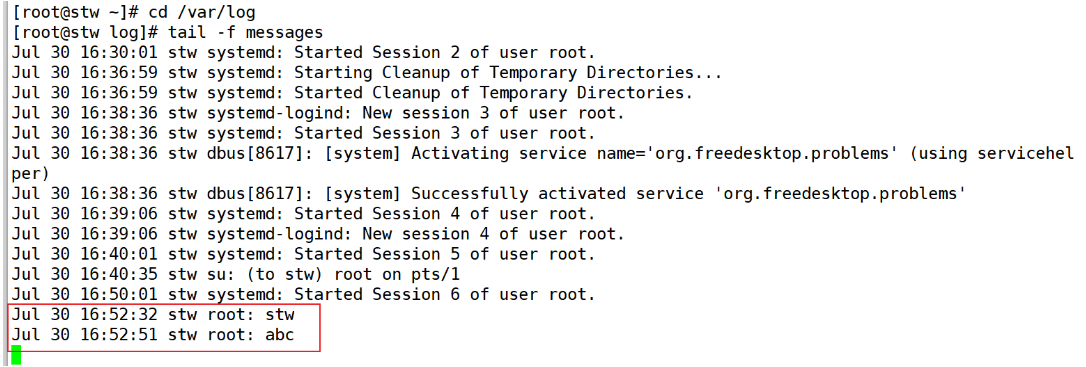
这些日志默认记录在messages中,但可以手动更改
1:
[root@stw log]# vim /etc/rsyslog.conf
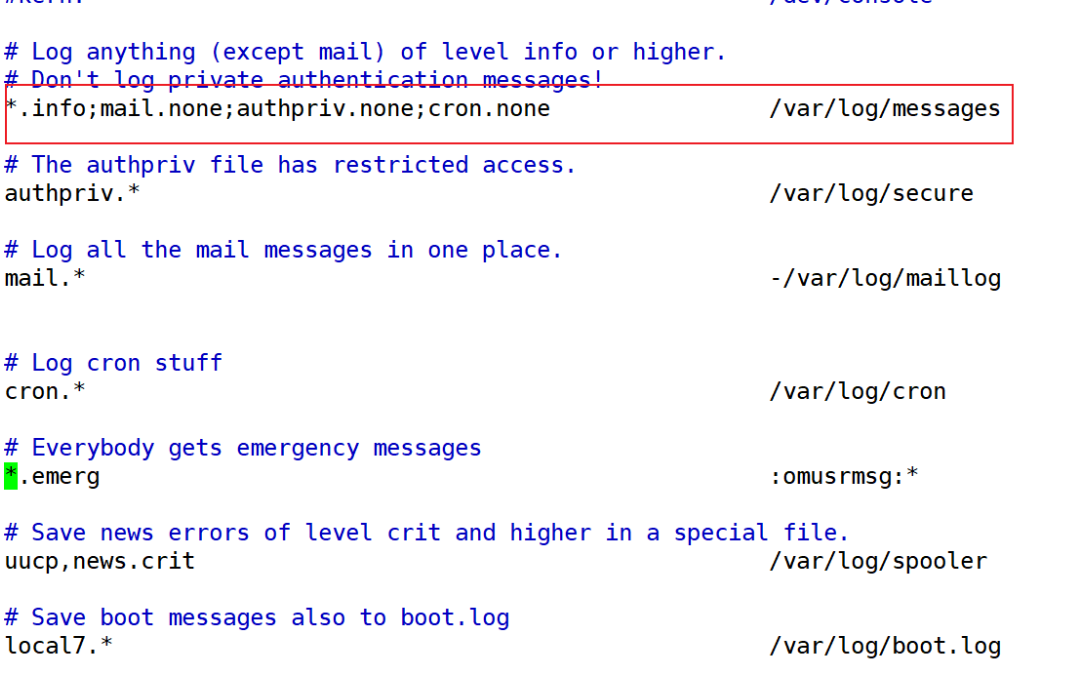
info及以上的优先级的事件都会记录到/var/log/messages中,但是mail事件(邮件)、authpriv事件(安全认证)、cron事件(计划任务)不会记录在/var/log/messages中。
更改其存放位置
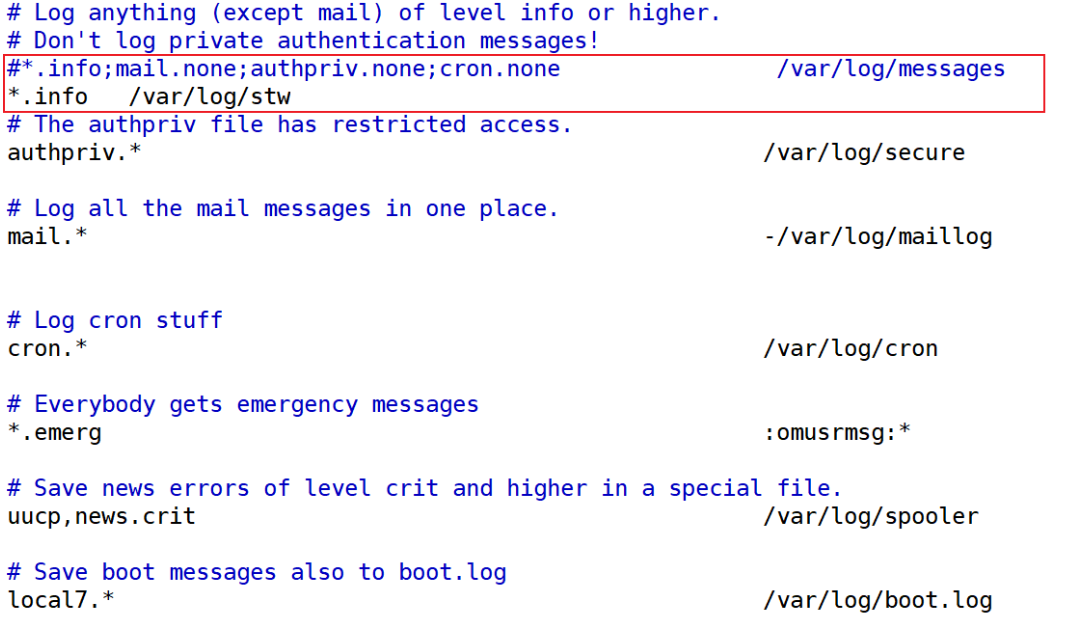
[root@stw log]# systemctl restart rsyslog.service
[root@stw log]# ls
anaconda  dmesg.old           messages  speech-dispatcher     vmware-network.3.log    wtmp
audit     firewalld           pluto     spooler               vmware-network.4.log    Xorg.0.log
boot.log  gdm                 ppp       stw                   vmware-network.5.log    Xorg.0.log.old
btmp      glusterfs           qemu-ga   swtpm                 vmware-network.log      Xorg.9.log
chrony    grubby_prune_debug  rhsm      tallylog              vmware-vgauthsvc.log.0  yum.log
cron      lastlog             sa        tuned                 vmware-vmsvc.log
cups      libvirt             samba     vmware-network.1.log  vmware-vmusr.log
dmesg     maillog             secure    vmware-network.2.log  wpa_supplicant.log
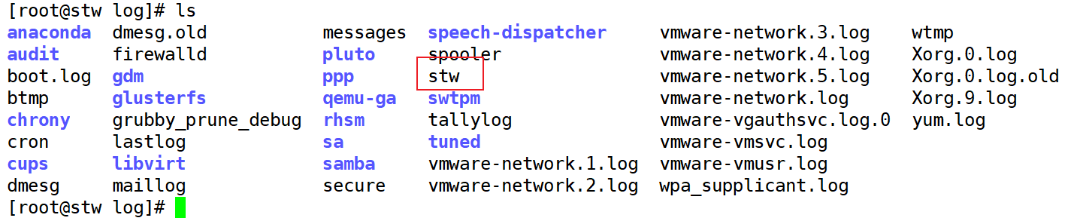
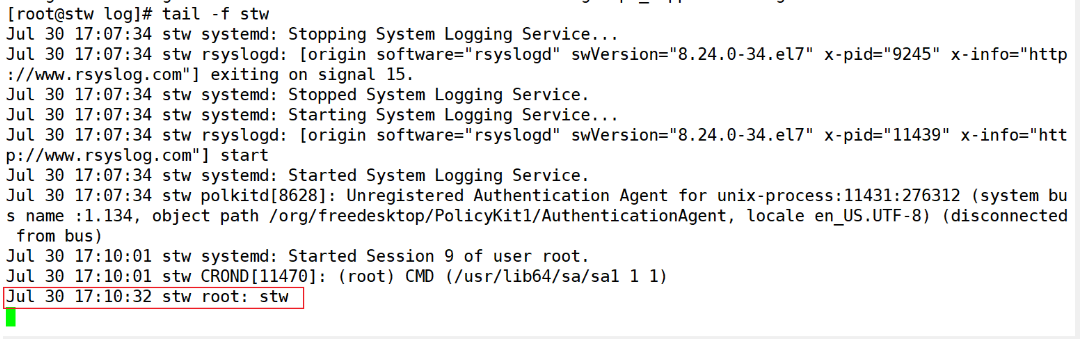
2:
[root@stw ~]# logger -p local7.notice "stw"
1:开启实时监控
二 . 查看系统日志信息
(1)journalctl -n 默认查看最新10条日志信息,-n后面也可以跟数字
[root@stw log]# journalctl -n
-- Logs begin at Wed 2025-07-30 16:21:34 CST, end at Wed 2025-07-30 17:30:01 CST. --
Jul 30 17:20:01 stw.example.com CROND[53206]: (root) CMD (/usr/lib64/sa/sa1 1 1)
Jul 30 17:20:09 stw.example.com run-parts(/etc/cron.daily)[59030]: finished man-db.cron
Jul 30 17:20:09 stw.example.com run-parts(/etc/cron.daily)[59032]: starting mlocate
Jul 30 17:20:12 stw.example.com run-parts(/etc/cron.daily)[59041]: finished mlocate
Jul 30 17:20:12 stw.example.com anacron[11326]: Job `cron.daily' terminated
Jul 30 17:30:00 stw.example.com rtkit-daemon[8645]: The canary thread is apparently starving. Taking action.
Jul 30 17:30:00 stw.example.com rtkit-daemon[8645]: Demoting known real-time threads.
Jul 30 17:30:00 stw.example.com rtkit-daemon[8645]: Demoted 0 threads.
Jul 30 17:30:01 stw.example.com systemd[1]: Started Session 11 of user root.
Jul 30 17:30:01 stw.example.com CROND[59140]: (root) CMD (/usr/lib64/sa/sa1 1 1)
[root@stw log]# journalctl -n 5
-- Logs begin at Wed 2025-07-30 16:21:34 CST, end at Wed 2025-07-30 17:30:01 CST. --
Jul 30 17:30:00 stw.example.com rtkit-daemon[8645]: The canary thread is apparently starving. Taking action.
Jul 30 17:30:00 stw.example.com rtkit-daemon[8645]: Demoting known real-time threads.
Jul 30 17:30:00 stw.example.com rtkit-daemon[8645]: Demoted 0 threads.
Jul 30 17:30:01 stw.example.com systemd[1]: Started Session 11 of user root.
Jul 30 17:30:01 stw.example.com CROND[59140]: (root) CMD (/usr/lib64/sa/sa1 1 1)
(2)journalctl -f 实时监控日志
[root@stw log]# journalctl -f
-- Logs begin at Wed 2025-07-30 16:21:34 CST. --
Jul 30 17:20:01 stw.example.com CROND[53206]: (root) CMD (/usr/lib64/sa/sa1 1 1)
Jul 30 17:20:09 stw.example.com run-parts(/etc/cron.daily)[59030]: finished man-db.cron
Jul 30 17:20:09 stw.example.com run-parts(/etc/cron.daily)[59032]: starting mlocate
Jul 30 17:20:12 stw.example.com run-parts(/etc/cron.daily)[59041]: finished mlocate
Jul 30 17:20:12 stw.example.com anacron[11326]: Job `cron.daily' terminated
Jul 30 17:30:00 stw.example.com rtkit-daemon[8645]: The canary thread is apparently starving. Taking action.
Jul 30 17:30:00 stw.example.com rtkit-daemon[8645]: Demoting known real-time threads.
Jul 30 17:30:00 stw.example.com rtkit-daemon[8645]: Demoted 0 threads.
Jul 30 17:30:01 stw.example.com systemd[1]: Started Session 11 of user root.
Jul 30 17:30:01 stw.example.com CROND[59140]: (root) CMD (/usr/lib64/sa/sa1 1 1)
(3)journalctl -p err(报错:红色) 可以按照日志级别的优先级进行显示日志,显示该优先级及以上日志信息
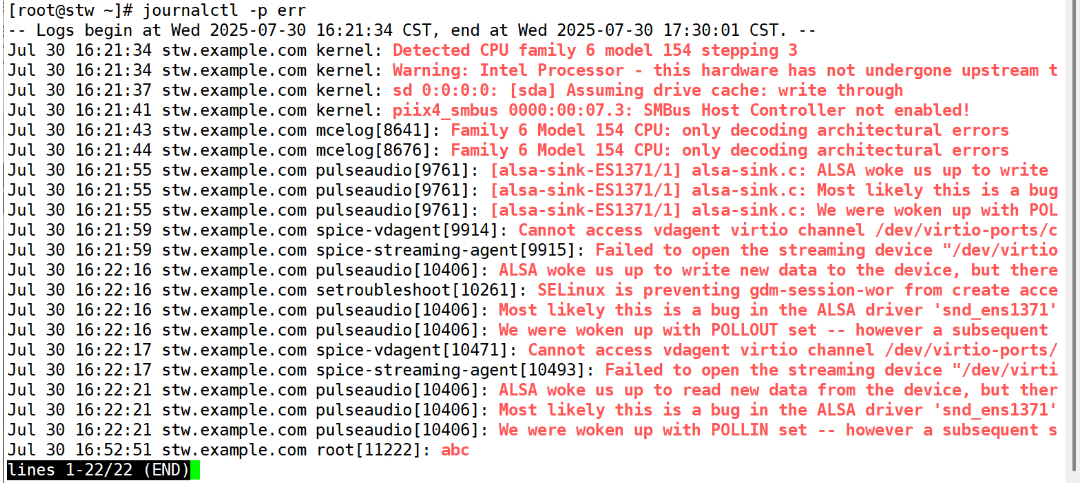
显示某个时间段的日志
journalctl --since today (显示今天的日志信息)
journalctl --since “2020-11-11 21:00:00” --until “2020-11-11 21:10:00”
(显示2020-11-11 21:00:00到2020-11-11 21:10:00的日志信息)
journalctl --since “-1 hour”
(显示一个小时之前的日志信息)
journalctl -o verbose —查看详细日志信息,后可以跟条件进行查找
如:
journalctl --since “-1 hour” -o verbose _COMM(命令)=su
[root@stw ~]# journalctl --since "-1 hour" -o verbose _COMM=su
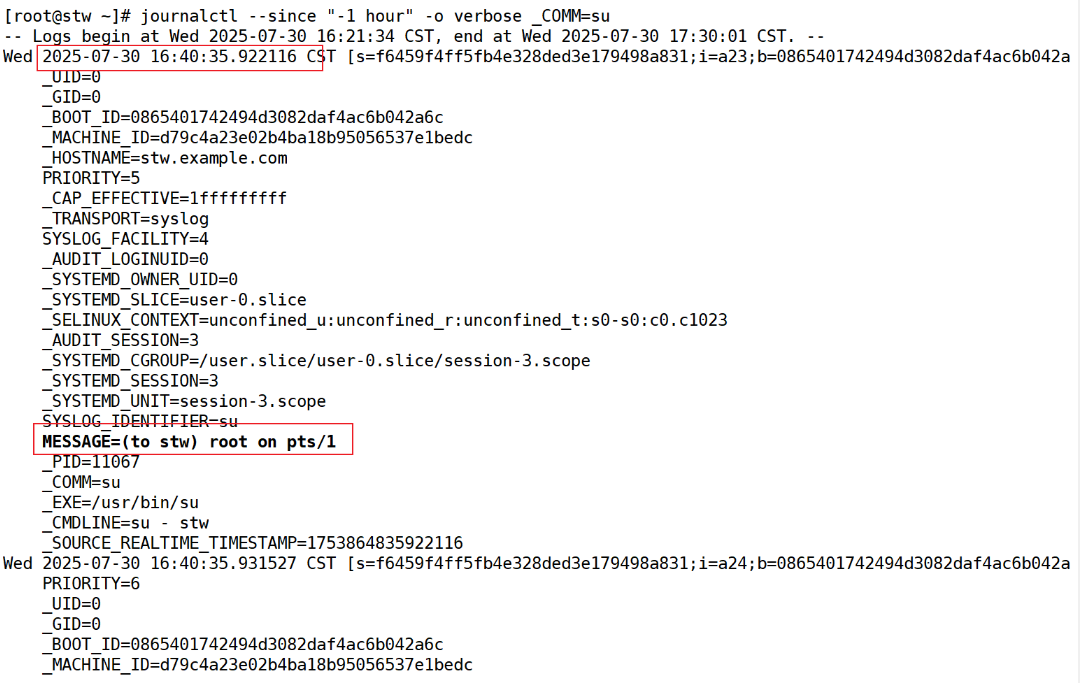
(1)_COMM 是命令的名称
(2)_EXE 是进程的可执行文件的路径
(3)_PID 是进程的PID
(4)_UID 是运行该进程的用户的UID
(5)_SYSTEMD_UNIT 是启动该进程的systemd单元
三 . 查看用户日志信息(不能直接进行查看,使用命令进行查看)
[root@stw ~]# cd /var/log
[root@stw log]# ls
anaconda  dmesg.old           messages  speech-dispatcher     vmware-network.3.log    wtmp
audit     firewalld           pluto     spooler               vmware-network.4.log    Xorg.0.log
boot.log  gdm                 ppp       stw                   vmware-network.5.log    Xorg.0.log.old
btmp      glusterfs           qemu-ga   swtpm                 vmware-network.log      Xorg.9.log
chrony    grubby_prune_debug  rhsm      tallylog              vmware-vgauthsvc.log.0  yum.log
cron      lastlog             sa        tuned                 vmware-vmsvc.log
cups      libvirt             samba     vmware-network.1.log  vmware-vmusr.log
dmesg     maillog             secure    vmware-network.2.log  wpa_supplicant.log
[root@stw log]# vim lastlog

直接查看是乱码
用命令查看
users:查看系统中被使用用户的次数
who:查看哪台机器在哪个时间的哪个终端登录的哪个用户
w:查看哪台机器在哪个时间的哪个终端登录的哪个用户,并显示正在操作的命令
[root@stw log]# users
root root root root
[root@stw log]# who
root     :0           2025-07-30 16:22 (:0)
root     pts/0        2025-07-30 16:22 (:0)
root     pts/1        2025-07-30 16:38 (192.168.100.1)
root     pts/2        2025-07-30 16:39 (192.168.100.1)
[root@stw log]# w
 17:30:03 up  1:08,  4 users,  load average: 0.00, 0.07, 0.11
USER     TTY      FROM             LOGIN@   IDLE   JCPU   PCPU WHAT
root     :0       :0               16:22   ?xdm?   1:39   0.76s /usr/libexec/gnome-session-binary --session
root     pts/0    :0               16:22    1:07m  0.07s  0.07s bash
root     pts/1    192.168.100.1    16:38    3.00s  0.22s  0.07s w
root     pts/2    192.168.100.1    16:39    3.00s  0.39s  0.00s journalctl -f
wtmp
last:显示成功访问过服务器的用户信息
[root@stw log]# last
root     pts/2        192.168.100.1    Wed Jul 30 16:39   still logged in
root     pts/1        192.168.100.1    Wed Jul 30 16:38   still logged in
root     pts/0        :0               Wed Jul 30 16:22   still logged in
root     :0           :0               Wed Jul 30 16:22   still logged in
reboot   system boot  3.10.0-957.el7.x Wed Jul 30 16:21 - 17:30  (01:09)
root     pts/0        :0               Wed Jul 23 13:57 - 13:59  (00:01)
root     :0           :0               Wed Jul 23 13:56 - 13:59  (00:03)
reboot   system boot  3.10.0-957.el7.x Wed Jul 23 13:55 - 17:30 (7+03:35)
root     pts/0        :0               Wed Jul 23 12:27 - 12:28  (00:00)
root     :0           :0               Wed Jul 23 12:27 - down   (00:00)
reboot   system boot  3.10.0-957.el7.x Wed Jul 23 12:26 - 12:28  (00:01)

wtmp begins Wed Jul 23 12:26:22 2025
btmp
lastb:显示失败访问过服务器的用户信息
本机登录这台主机(输入错误密码,失败登录)
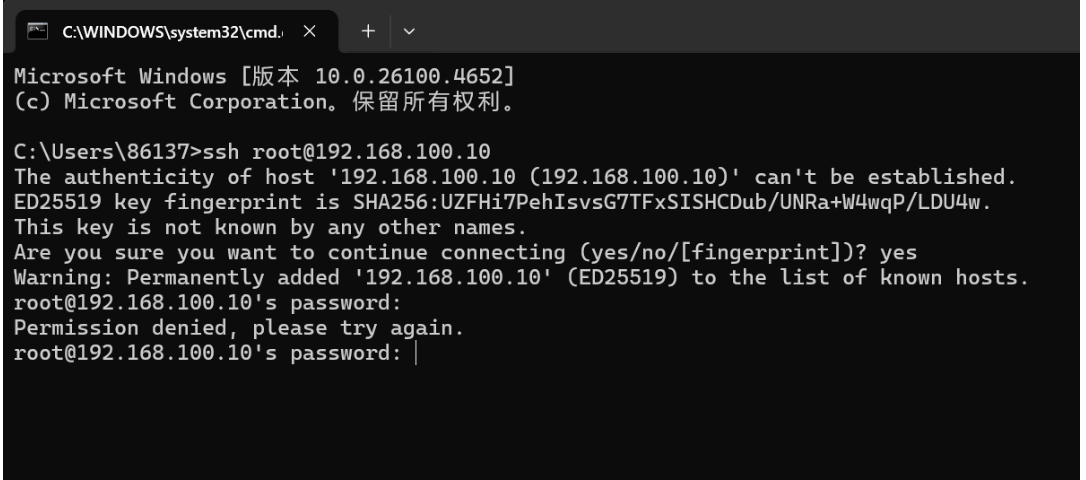
[root@stw log]# lastb
root     ssh:notty    192.168.100.1    Wed Jul 30 17:33 - 17:33  (00:00)

btmp begins Wed Jul 30 17:33:47 2025
四 . 时钟同步
(1)timedatectl —查看当前的时间、时区和NTP同步设置
[root@stw ~]# timedatectl
      Local time: Wed 2025-07-30 19:09:02 CST
  Universal time: Wed 2025-07-30 11:09:02 UTC
        RTC time: Wed 2025-07-30 11:09:02
       Time zone: Asia/Shanghai (CST, +0800)
     NTP enabled: no
NTP synchronized: no
 RTC in local TZ: no
      DST active: n/a
(2)timedatectl list-timezones 列出时区
[root@stw ~]# timedatectl list-timezones
Africa/Abidjan
Africa/Accra
Africa/Addis_Ababa
Africa/Algiers
Africa/Asmara
Africa/Bamako
Africa/Bangui
......
(3)timedatectl set-timezone 设置时区
如:
timedatectl set-timezone “Asia/Shanghai”
(4)更改系统的当前时间:
语法:
timedatectl set-time “YYYY-MM-DD hh:mm:ss”
或者使用
语法:
date -s “YYYY-MM-DD hh:mm:ss”
同步到硬件时钟:hwclock -w
[root@stw ~]# timedatectl set-time "2025-07-29 17:00:00"
[root@stw ~]# timedatectl
      Local time: Tue 2025-07-29 17:00:13 CST
  Universal time: Tue 2025-07-29 09:00:13 UTC
        RTC time: Tue 2025-07-29 09:00:14
       Time zone: Asia/Shanghai (CST, +0800)
     NTP enabled: no
NTP synchronized: no
 RTC in local TZ: no
      DST active: n/a
服务端:
1、安装chrony
2、修改配置
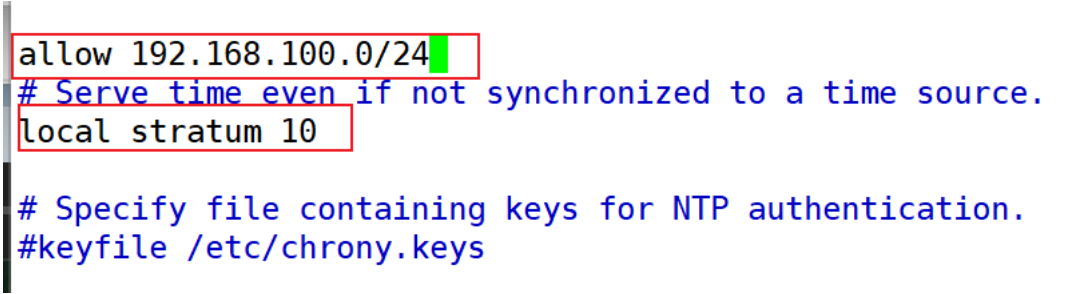
vim /etc/chrony.conf
local stratum 10 -----不去同步任何人的时间。时间同步服务级别
allow 172.16.30.0/24 ----允许172.16.30.0/24网段内的主机来同步我的时钟服务器
3、重启服务
systemctl restart chronyd
systemctl enable chronyd
4、关闭防火墙
systemctl stop firewalld
systemctl disable firewalld
[root@stw ~]# rpm -q chrony
chrony-3.2-2.el7.x86_64
[root@stw ~]# vim /etc/chrony.conf
[root@stw ~]# systemctl restart chronyd
[root@stw ~]# systemctl enable chronyd
Created symlink from /etc/systemd/system/multi-user.target.wants/chronyd.service to /usr/lib/systemd/system/chronyd.service.
[root@stw ~]# timedatectl
      Local time: Wed 2025-07-30 19:22:22 CST
  Universal time: Wed 2025-07-30 11:22:22 UTC
        RTC time: Wed 2025-07-30 11:22:22
       Time zone: Asia/Shanghai (CST, +0800)
     NTP enabled: yes
NTP synchronized: yes
 RTC in local TZ: no
      DST active: n/a
客户端:
1、安装chrony
2、修改配置
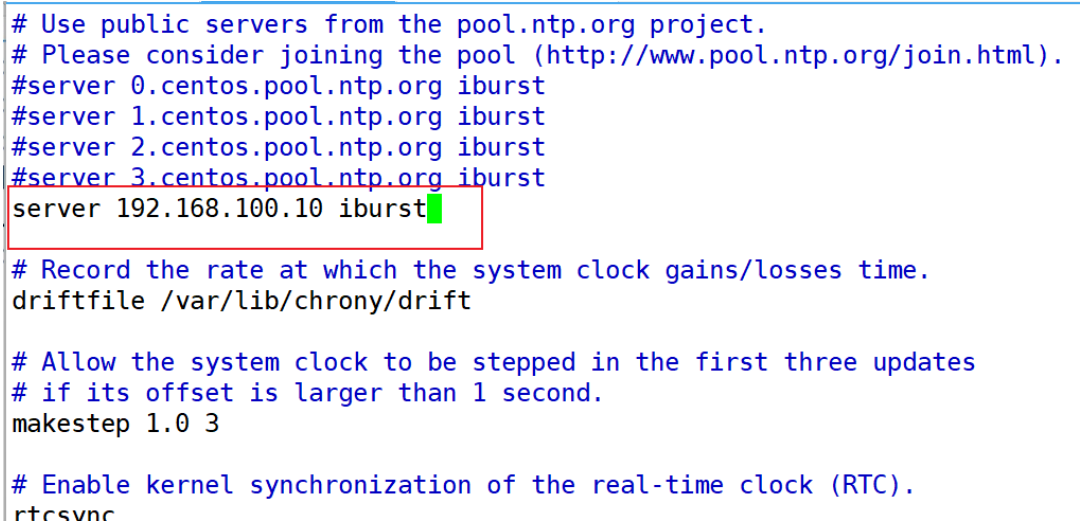
vim /etc/chrony.conf
server 192.168.100.10 iburst(服务器地址)
3、重启服务
systemctl restart chronyd
systemctl enable chronyd
4、关闭防火墙
systemctl stop firewalld
systemctl disable firewalld
[root@stw2 ~]# timedatectl
      Local time: Wed 2025-07-30 19:31:39 CST
  Universal time: Wed 2025-07-30 11:31:39 UTC
        RTC time: Wed 2025-07-30 11:31:38
       Time zone: Asia/Shanghai (CST, +0800)
     NTP enabled: no
NTP synchronized: no
 RTC in local TZ: no
      DST active: n/a
[root@stw2 ~]# rpm -q chrony
chrony-3.2-2.el7.x86_64
[root@stw2 ~]# systemctl stop firewalld
[root@stw2 ~]# systemctl disable firewalld
Removed symlink /etc/systemd/system/multi-user.target.wants/firewalld.service.
Removed symlink /etc/systemd/system/dbus-org.fedoraproject.FirewallD1.service.
[root@stw2 ~]# date -s "2025-07-15 15:00:00"
Tue Jul 15 15:00:00 CST 2025
[root@stw2 ~]# hwclock -w
[root@stw2 ~]# timedatectl
      Local time: Tue 2025-07-15 15:00:29 CST
  Universal time: Tue 2025-07-15 07:00:29 UTC
        RTC time: Tue 2025-07-15 07:00:29
       Time zone: Asia/Shanghai (CST, +0800)
     NTP enabled: no
NTP synchronized: no
 RTC in local TZ: no
      DST active: n/a
[root@stw2 ~]# vim /etc/chrony.conf
[root@stw2 ~]# systemctl restart chronyd
[root@stw2 ~]# systemctl enable chronyd
Created symlink from /etc/systemd/system/multi-user.target.wants/chronyd.service to /usr/lib/systemd/system/chronyd.service.
[root@stw2 ~]# hwclock -w
[root@stw2 ~]# timedatectl
      Local time: Wed 2025-07-30 19:42:14 CST
  Universal time: Wed 2025-07-30 11:42:14 UTC
        RTC time: Wed 2025-07-30 11:42:14
       Time zone: Asia/Shanghai (CST, +0800)
     NTP enabled: yes
NTP synchronized: yes
 RTC in local TZ: no
      DST active: n/a
[root@stw2 ~]# chronyc sources
210 Number of sources = 1
MS Name/IP address         Stratum Poll Reach LastRx Last sample
===============================================================================
^* 192.168.100.10                3   6    77    36    +18us[ +986us] +/-   23ms

有“AI”的1024 = 2048,欢迎大家加入2048 AI社区
更多推荐

 24
24 0
0- 0


 已为社区贡献4条内容

所有评论(0)