Agent智能会议室项目思路
当下有很多智能家具这种,但是大多数需要通过语音助手,去进行指令输入,然后根据指令去对特定的家具进行开关调节的操作。但是现在有多模态大模型的视频理解功能,就可以让这个过程变得更智能,不需要人工输入。能做到完全脱离人的智能,这里分享某个智能会议室的落地项目思路和部分代码,希望对正在研究相关项目的人有所帮助。
·
当下有很多智能家具这种,但是大多数需要通过语音助手,去进行指令输入,然后根据指令去对特定的家具进行开关调节的操作。但是现在有多模态大模型的视频理解功能,就可以让这个过程变得更智能,不需要人工输入。能做到完全脱离人的智能,这里分享某个智能会议室的落地项目思路和部分代码,希望对正在研究相关项目的人有所帮助。
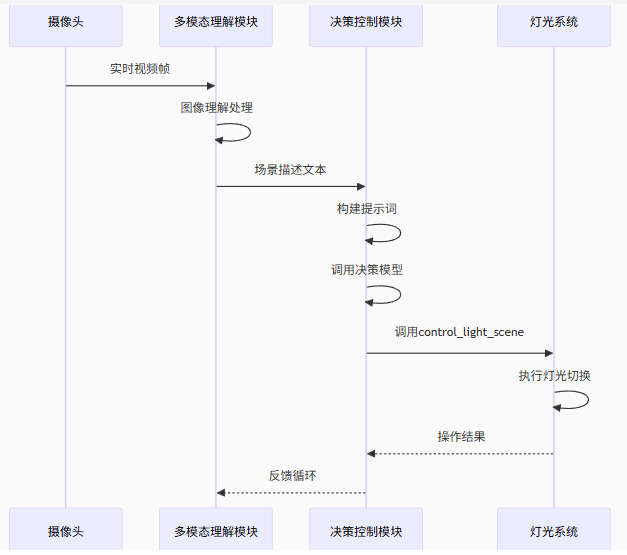
整体流程:
1.视频取流---> 2.QWen2.5多模态模型理解当前视频内容->3.根据多模态理解生成的格式化文本喂给deepseek ->4.deepseek理解文本调用fuction calling ->5.调用能源系统。
流程思路图:
具体模型选型:
多模态大模型:Janus/Qwem2.5VL 部署Jetson Nano
大语言模型:Deep Seek 32B 部署deepseek32B
关键代码拆解:
1.视频流读取,启动双线程
#开启线程抓帧
processor = RTSPVideoProcessor("rtsp://192.168.177.1/live/0")
processor.start()

#具体实现
class RTSPVideoProcessor:

    #实现 init相关参数
    def __init__(self, rtsp_url):
        self.rtsp_url = rtsp_url
        # FFMPEG解码器并设置缓冲
        self.cap = cv2.VideoCapture(self.rtsp_url, cv2.CAP_FFMPEG)
        self.cap.set(cv2.CAP_PROP_BUFFERSIZE, 1)
        self.latest_frame = None
        self.running = False
        self.frame_lock = threading.Lock()

        # 字体配置参数
        self.font = cv2.FONT_HERSHEY_SIMPLEX
        self.font_scale = 0.8
        self.font_color = (0, 255, 0)  # 绿色文本
        self.line_type = 2
        self.text_wrapper = app_util.SmartTextWrapper("simhei.ttf")

    #双线程1,抓帧.2,处理
    def start(self):
        """启动视频处理"""
        self.running = True
        # 双线程架构:抓取+处理[2](@ref)
        threading.Thread(target=self._grab_frames, daemon=True).start()
        threading.Thread(target=self._process_frames, daemon=True).start()


    #实现线程停止处理逻辑
    def stop(self):
        """停止视频处理"""
        self.running = False
        self.cap.release()
        cv2.destroyAllWindows()
2.实现抓帧,处理帧
    #实现抓帧
    def _grab_frames(self):
        while self.running:
            try:
                if self.cap.grab():  # 快速跳帧
                    ret, frame = self.cap.retrieve()
                    if ret:
                        with self.frame_lock:
                            self.latest_frame = frame.copy()
            except Exception as e:
                logging.error(f"抓帧异常:{str(e)}")
                self._reconnect()
            time.sleep(0.001)

    #实现处理帧
    def _process_frames(self):
        """帧处理线程(含3秒业务逻辑)"""
        while self.running:
            start_time = time.time()
            # 获取最新帧
            with self.frame_lock:
                if self.latest_frame is None:
                    continue
                process_frame = self.latest_frame.copy()
            # 业务处理
            processed_frame = self.business_logic(process_frame)
            # 显示处理结果
            cv2.imshow('RTSP Stream Processing', processed_frame)
            if cv2.waitKey(1) & 0xFF == ord('q'):
                break
3.模拟具体业务处理,传视频帧给多模态大模型janus。
    #模拟具体业务
    def business_logic(self, frame):
        """业务逻辑(添加时间戳)"""
        # 模拟3秒耗时处理
        time.sleep(3)

        # 添加当前时间戳
        timestamp = datetime.now().strftime("%Y-%m-%d %H:%M:%S.%f")[:-3]


        # 转换颜色空间(BGR->RGB)
        rgb_frame = cv2.cvtColor(frame, cv2.COLOR_BGR2RGB)

        # 转换为PIL Image对象
        pil_image = Image.fromarray(rgb_frame)

        #提示词非常重要
        question = '请认真理解图片中的场景,重点关注人的活动和位置、场景中整体照明环境与灯具的状态,以及人所在的区域的灯具状态。我希望场景中有人的区域就开灯,没有人的区域就关灯。请认真理解图片中场景的内容和我给你的规则,给出正确的开灯关灯的建议,回答要清晰明确,说明控制灯具的区域以及理由。回复以“AI视觉传感器看到”的文字开头。'
        seed = 42
        top_p = 0.95
        temperature = 0.1
        # 关键步骤,将question 提示词,处理后的图片。随机种子,等参数给janus_client多模态挂载服务端,然后得到ans
        ans = janus_client.multimodal_understanding(pil_image, question, seed, top_p, temperature)

        pil_image = self.text_wrapper.render_text(pil_image, ans)
        # 转换回OpenCV格式
        frame = cv2.cvtColor(np.array(pil_image), cv2.COLOR_RGB2BGR)

        h, w = frame.shape[:2]
        cv2.putText(frame, timestamp,
                    (w - 400, h - 20),  # 右下角位置
                    self.font,
                    self.font_scale,
                    self.font_color,
                    self.line_type)

        return frame
4.janus_client多模态服务端模拟处理逻辑
import torch
from transformers import AutoConfig, AutoModelForCausalLM
from janus.models import VLChatProcessor  # Janus专用多模态处理器
from PIL import Image
import numpy as np

# 检查CUDA设备可用性
cuda_device = 'cuda' if torch.cuda.is_available() else 'cpu'

# ============ 加载模型和处理器 ============
def load_model_and_processor():
    """加载Janus模型及多模态处理器"""
    model_path = "deepseek-ai/Janus-Pro-7B"

    # 1. 加载模型配置
    config = AutoConfig.from_pretrained(model_path)
    language_config = config.language_config
    language_config._attn_implementation = 'eager'  # 设置注意力机制实现方式

    # 2. 加载模型主体
    vl_gpt = AutoModelForCausalLM.from_pretrained(
        model_path,
        language_config=language_config,
        trust_remote_code=True  # 信任远程代码执行
    )
    vl_gpt = vl_gpt.to(torch.bfloat16).cuda()  # 转换为bfloat16并移入GPU

    # 3. 加载多模态处理器
    vl_chat_processor = VLChatProcessor.from_pretrained(model_path)
    tokenizer = vl_chat_processor.tokenizer  # 获取文本分词器

    return vl_gpt, vl_chat_processor, tokenizer

# 初始化模型组件
vl_gpt, vl_chat_processor, tokenizer = load_model_and_processor()

# ============ 多模态理解函数 ============
@torch.inference_mode()  # 启用高效推理模式(减少内存占用)
def multimodal_understanding(
    image: Image.Image,    # PIL图像对象
    question: str,         # 用户提问文本
    seed: int = 42,        # 随机种子(确保可复现性)
    top_p: float = 0.9,    # 核采样概率阈值(0-1)
    temperature: float = 0.6  # 采样温度(>0.5增加随机性,<0.5更确定)
) -> str:
    """
    多模态图像理解推理函数
    返回模型生成的文本回答
    """
    # 清理GPU缓存(确保足够推理内存)
    torch.cuda.empty_cache()

    # 设置随机种子(确保结果可复现)
    torch.manual_seed(seed)
    np.random.seed(seed)
    torch.cuda.manual_seed(seed)

    # ===== 构建多模态对话结构 =====
    conversation = [
        {
            "role": "User",
            "content": f"<image_placeholder>\n{question}",  # 图像占位符+问题
            "images": [image],  # 关联图像数据
        },
        {"role": "Assistant", "content": ""},  # 模型回复占位
    ]

    # ===== 多模态输入预处理 =====
    prepare_inputs = vl_chat_processor(
        conversations=conversation,
        images=[image],  # 传入PIL图像列表
        force_batchify=True  # 强制批处理
    ).to(cuda_device, dtype=torch.bfloat16)  # 数据移至GPU并指定精度

    # ===== 生成输入嵌入 =====
    inputs_embeds = vl_gpt.prepare_inputs_embeds(**prepare_inputs)

    # ===== 文本生成配置 =====
    generate_kwargs = {
        "inputs_embeds": inputs_embeds,
        "attention_mask": prepare_inputs.attention_mask,  # 注意力掩码
        "pad_token_id": tokenizer.eos_token_id,   # 使用EOS作为填充符
        "bos_token_id": tokenizer.bos_token_id,   # 开始符ID
        "eos_token_id": tokenizer.eos_token_id,   # 结束符ID
        "max_new_tokens": 512,                    # 最大生成token数
        "do_sample": temperature > 0,             # 是否启用采样
        "use_cache": True,                        # 使用KV缓存加速
        "temperature": temperature,               # 采样温度
        "top_p": top_p,                           # 核采样参数
    }

    # ===== 执行生成 =====
    outputs = vl_gpt.language_model.generate(**generate_kwargs)

    # ===== 解码生成结果 =====
    # 跳过特殊token(如[CLS]/[SEP])并转换为文本
    answer = tokenizer.decode(outputs[0].cpu().tolist(), skip_special_tokens=True)

    return answer

# ======================= 模块测试模拟 使用示例 =======================
#if __name__ == "__main__":
#    # 示例用法
#    image = Image.open("example.jpg")  # 加载图像
#    question = "描述图片中的场景和主要物体"
#
#    # 调用多模态理解函数
#    response = multimodal_understanding(
#        image=image,
#        question=question,
#        seed=123,
#        top_p=0.95,
#        temperature=0.7
#    )
#
#    print("模型回复:", response)
5,ollama_client大语言模型服务端核心处理逻辑(接收视频理解信息调用function call)
async def deepseek_assistant(app_config, ans_config):
    """
    智能灯光控制系统主循环

    参数:
        app_config: 应用配置对象(需实现get_prompt方法)
        ans_config: 答案配置对象(需实现get_ans方法)

    功能:
        1. 持续获取视频理解内容
        2. 构建系统提示词
        3. 调用大模型进行场景分析
        4. 执行灯光控制函数
        5. 处理模型返回结果
    """
    while True:  # 持续监控循环
        # 获取当前任务提示(多模态理解结果)
        _, task_prompt = app_config.get_prompt()

        # 构建系统提示词
        if not task_prompt.strip():  # 无视频理解内容时使用默认提示
            system_prompt = SYSTEM_PROMPT_PREFIX + DEFAULT_TASK_PROMPT
        else:  # 有视频理解内容时组合提示
            system_prompt = SYSTEM_PROMPT_PREFIX + task_prompt

        # 获取当前场景描述
        ans = ans_config.get_ans()

        # 打印调试信息
        print('\n\n=====================================================================')
        print('\033[32m【视频理解】: ' + ans + '\033[0m')  # 绿色文本
        print('\033[32m【任务推理+灯光场景切换】: ' + '\033[0m')

        # 构建对话消息结构
        messages = [
            {'role': 'system', 'content': system_prompt},  # 系统角色设置场景规则
            {'role': 'user', 'content': ans}               # 用户角色提供当前场景描述
        ]

        # 调用大模型进行场景分析(使用tool_calling功能)
        response: ChatResponse = await client.chat(
            MODEL_NAME,
            messages=messages,
            tools=[control_light_scene],  # 传入可调用的工具函数
        )

        # 处理模型返回的工具调用请求
        if response.message.tool_calls:
            # 可能存在多个工具调用,遍历处理每个调用
            for tool in response.message.tool_calls:
                # 检查调用的函数是否可用
                if function_to_call := available_functions.get(tool.function.name):
                    print('Calling function:', tool.function.name)
                    print('Arguments:', tool.function.arguments)

                    # 执行灯光控制函数
                    output = function_to_call(**tool.function.arguments)
                    print('Function output: succeed')  # 简化输出
                else:
                    print('Function', tool.function.name, 'not found')

            # 将函数响应加入消息历史(供模型生成最终回复)
            messages.append(response.message)
            messages.append({
                'role': 'tool',
                'content': str(output),
                'name': tool.function.name
            })

            # 获取包含函数调用结果的最终模型回复
            final_response = await client.chat(MODEL_NAME, messages=messages)
            print('\033[32mFinal response:' + final_response.message.content + '\033[0m')
        else:
            print('No tool calls returned from model')

        # 每次循环后暂停1秒(避免高频请求)
        sleep(1)
6,function call的具体实现,模拟可控灯光,空调,抽风机等边缘智能设备
# ================= 灯光控制函数 =================
def control_light_scene(scene_id: int) -> None:
    """
    智能灯光场景控制系统(符合OpenAI Function Calling规范)

    参数:
        scene_id (int): 灯光场景ID,取值范围为17-20

    功能:
        根据传入的场景ID执行对应的灯光控制操作(模拟)

    Function Calling元数据说明:
        name: control_light_scene
        description: 根据自然语言指令切换预设灯光场景,支持100种场景模式
        parameters:
            type: object
            properties:
                scene_id:
                    type: integer
                    description: |
                        预设场景ID映射规则:
                        - 会议场景:17=会议模式(会议室灯光全开,亮度100%)
                        - 离开场景:18=离开模式(会议室灯光全部关闭)
                        - 节能场景:19=节能模式(会议室灯光打开,亮度50%)
                        - 投影场景:20=投影模式(会议室前面灯光关闭,后面灯光打开)
                    enum: [17,18,19,20]  # 明确模型需优先识别的关键场景
            required: [scene_id]
    """
    # 实际应用中此处应有API调用代码(当前为模拟实现)
    # API端点配置(示例)
    req_url = f" "  # 实际API地址应在此处填写

    # 请求头配置(示例)
    req_head = {"Authorization": ACCESS_TOKEN}  # 需要提前定义有效的ACCESS_TOKEN

    # 设备控制指令结构(示例)
    request_body = {
        "method": "multicast",
        "params": {
            "cmd": "call",
            "aia": {"await": 0},  # 异步模式不等待响应
            "sid": scene_id
        }
    }

    # 模拟灯光场景切换逻辑
    match scene_id:
        case 17:
            print("正在调用API,切换到会议模式")
        case 18:
            print("正在调用API,切换到离开模式")
        case 19:
            print("正在调用API,切换到节能模式")
        case 20:
            print("正在调用API,切换到投影模式")
        case _:  # 处理未定义的场景ID
            print("正在调用API,切换灯光模式")

# 可用函数映射表(供模型调用)
available_functions = {
    'control_light_scene': control_light_scene,
}
7,要用的提示词书写
# 使用的Ollama模型名称
MODEL_NAME = 'MFDoom/deepseek-r1-tool-calling:32b'

# ================= 提示词配置部分 =================
# 系统提示词前缀 - 定义AI角色和任务
SYSTEM_PROMPT_PREFIX = '''
你是一个很聪明的人工智能灯光管家。用户会在提示词中输入一个关于会议室房间内的描述,你要认真分析并理解当前属于哪种场景,并根据每种场景,调用函数完成正确的开关灯操作。
下面是每种场景及对应灯光控制需求,你要严格遵守下面这些规则来控制灯光,禁止使用任何外部规则和知识来控制灯光。同时,你需要在回复中告诉我当前是哪种场景,以及灯光的需求。
如果用户输入的对房间内容的描述不明确,例如描述中有”似乎“、”有可能“等类似没有明确把握的语气,你可以不用执行场景分析与灯光控制了。

[场景列表+灯光需求]规则如下:
'''

# 默认任务提示词 - 定义四种灯光场景切换规则
DEFAULT_TASK_PROMPT = '''
1.如果房间内没有人,将灯光切换到离开模式;2.如果房间内只有一个人,将灯光切换到节能模式;3.如果房间内有多人在开会讨论,且投影幕布上没有出现蓝屏画面或者PPT界面,将灯光切换到会议模式; 4. 如果房间内有多人在开会讨论,且投影幕布上出现了蓝屏画面或者PPT界面,务必将灯光切换到投影模式;
'''
8.总结:
其实以上内容可以算是完成一个智能体的整体思路和demo展现了,仅供学习参考,请勿商用。

有“AI”的1024 = 2048,欢迎大家加入2048 AI社区
更多推荐

 6
6 0
0- 0


 已为社区贡献2条内容

所有评论(0)