如何在ideal用git创建本地仓库及在GitHub创建远程仓库(小组合作实现项目)
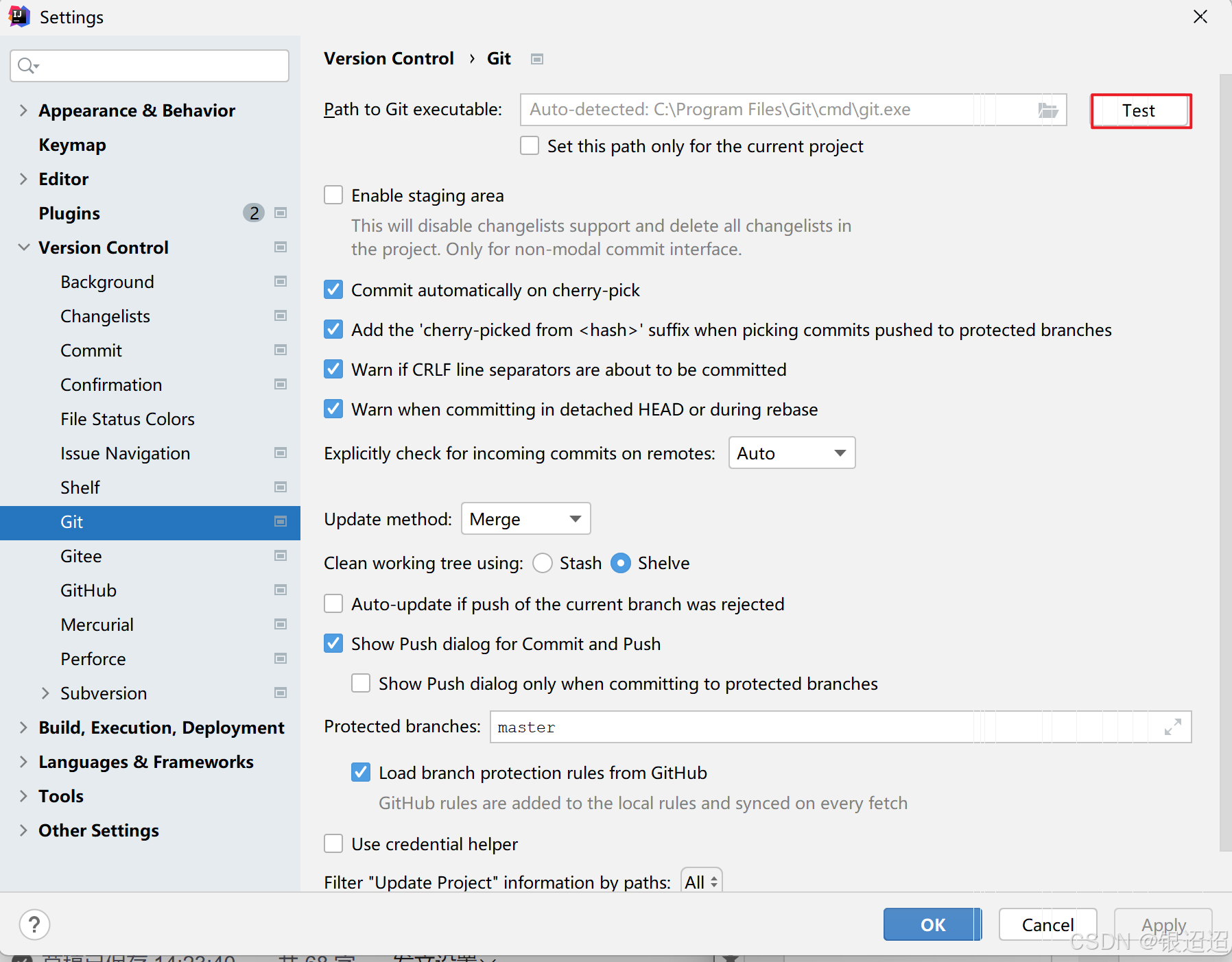
6、点击ideal主页上方栏的 VCS -> import into version Contro l-> Create Git Repository——选择自己要关联的项目点击ok——再次点击VCS——点击Git——点击Add——然后点击Git——点击Push。File——setting——Version Control——Git——点击Test选择Git 安装目录中 bin/git.exe 点
1、下载Git
2、打开ideal本地项目
3、ideal配置git插件
File——setting——Version Control——Git——点击Test选择Git 安装目录中 bin/git.exe 点击 OK——之后再次点击Test——安装git插件完成
4、找到.gitignore文件——编辑文件
# 参考文件

## .gitignore for Grails 1.2 and 1.3

# .gitignore for maven
target/
*.releaseBackup

# web application files
#/web-app/WEB-INF

# IDE support files
/.classpath
/.launch
/.project
/.settings
/*.launch
/*.tmproj
/ivy*
/eclipse

# default HSQL database files for production mode
/prodDb.*

# general HSQL database files
*Db.properties
*Db.script

# logs
/stacktrace.log
/test/reports
/logs
*.log
*.log.*

# project release file
/*.war

# plugin release file
/*.zip
/*.zip.sha1

# older plugin install locations
/plugins
/web-app/plugins
/web-app/WEB-INF/classes

# "temporary" build files
target/
out/
build/

# other
*.iws

#.gitignore for java
*.class

# Package Files #
*.jar
*.war
*.ear

## .gitignore for eclipse

*.pydevproject
.project
.metadata
bin/**
tmp/**
tmp/**/*
*.tmp
*.bak
*.swp
*~.nib
local.properties
.classpath
.settings/
.loadpath

# External tool builders
.externalToolBuilders/

# Locally stored "Eclipse launch configurations"
*.launch

# CDT-specific
.cproject

# PDT-specific
.buildpath

## .gitignore for intellij

*.iml
*.ipr
*.iws
.idea/

## .gitignore for linux
.*
!.gitignore
!.gitattributes
!.editorconfig
!.eslintrc
!.travis.yml
*~

## .gitignore for windows

# Windows image file caches
Thumbs.db
ehthumbs.db

# Folder config file
Desktop.ini

# Recycle Bin used on file shares
$RECYCLE.BIN/

## .gitignore for mac os x

.DS_Store
.AppleDouble
.LSOverride
Icon


# Thumbnails
._*

# Files that might appear on external disk
.Spotlight-V100
.Trashes

## hack for graddle wrapper
!wrapper/*.jar
!**/wrapper/*.jar
5、右键目录——New——File——创建README.md文件
6、点击ideal主页上方栏的 VCS -> import into version Contro l-> Create Git Repository——选择自己要关联的项目点击ok——再次点击VCS——点击Git——点击Add——然后点击Git——点击Push

如果出现master-> Empty repository问题,则打开项目所在地——右键——Git Bash Here——输入以下命令
git commit -m "Initial Commit"
若是出现文件为追踪问题
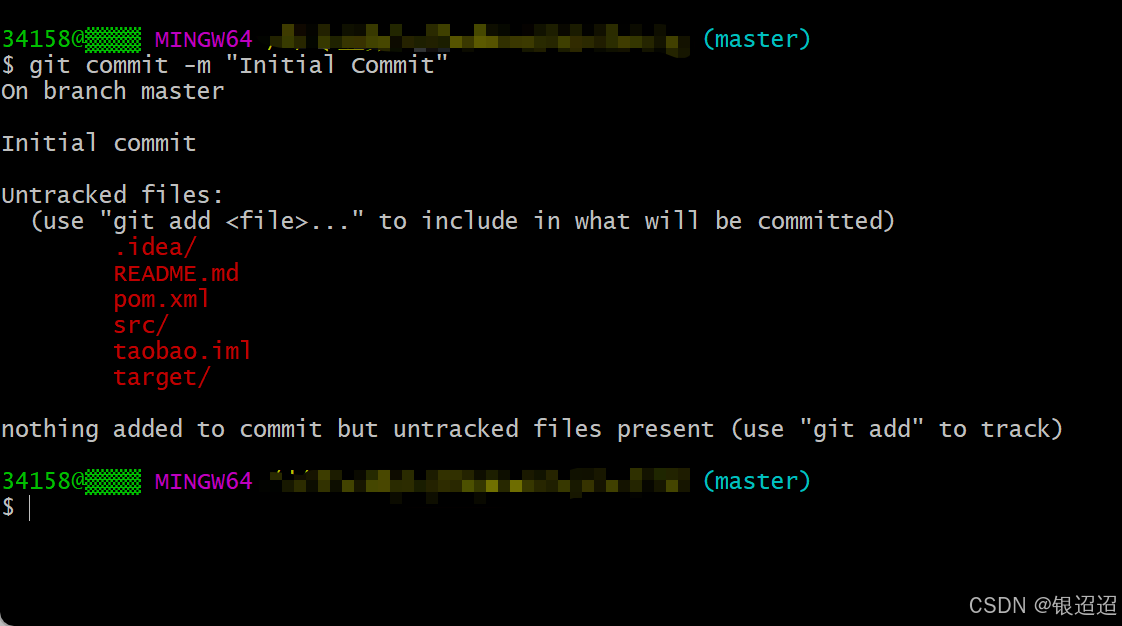
则运行下列代码,把文件添加到暂存区,然后再次运行git commit -m "Initial Commit"——回到ideal主页进行Git——Push
git add README.md
git add pom.xml
git add src/

7、git和GitHub的连接需要通过ssh-key
点击电脑c盘用户主文件夹,找到.ssh文件,里面有两个文件

如果没有,在电脑搜索栏里搜索并打开Git Bash,输入命令
ssh-keygen -t rsa -C "youxiang@qq.com"//邮箱是你注册GitHub的邮箱一路enter下去
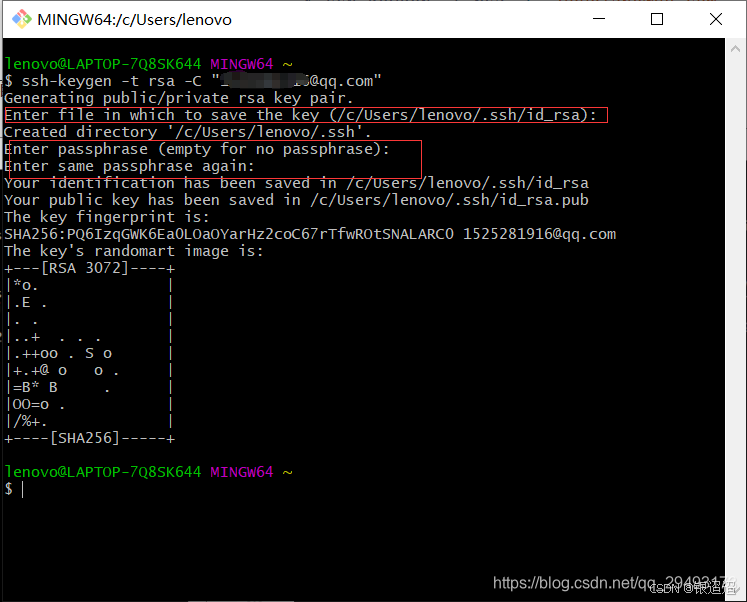
再次打开.ssh文件夹就会出现那两个文件了
8、SSH Key的秘钥对:id_rsa是私钥,不能泄露;id_rsa.pub是公钥,可以公开。我们要使用的是其中的公钥id_rsa.pub
打开Github(这里我用的是Watt Toolkit加速,可以了解一下)——点击个人主页——找到setting——找到SSH and GPG keys——点击New SSH key
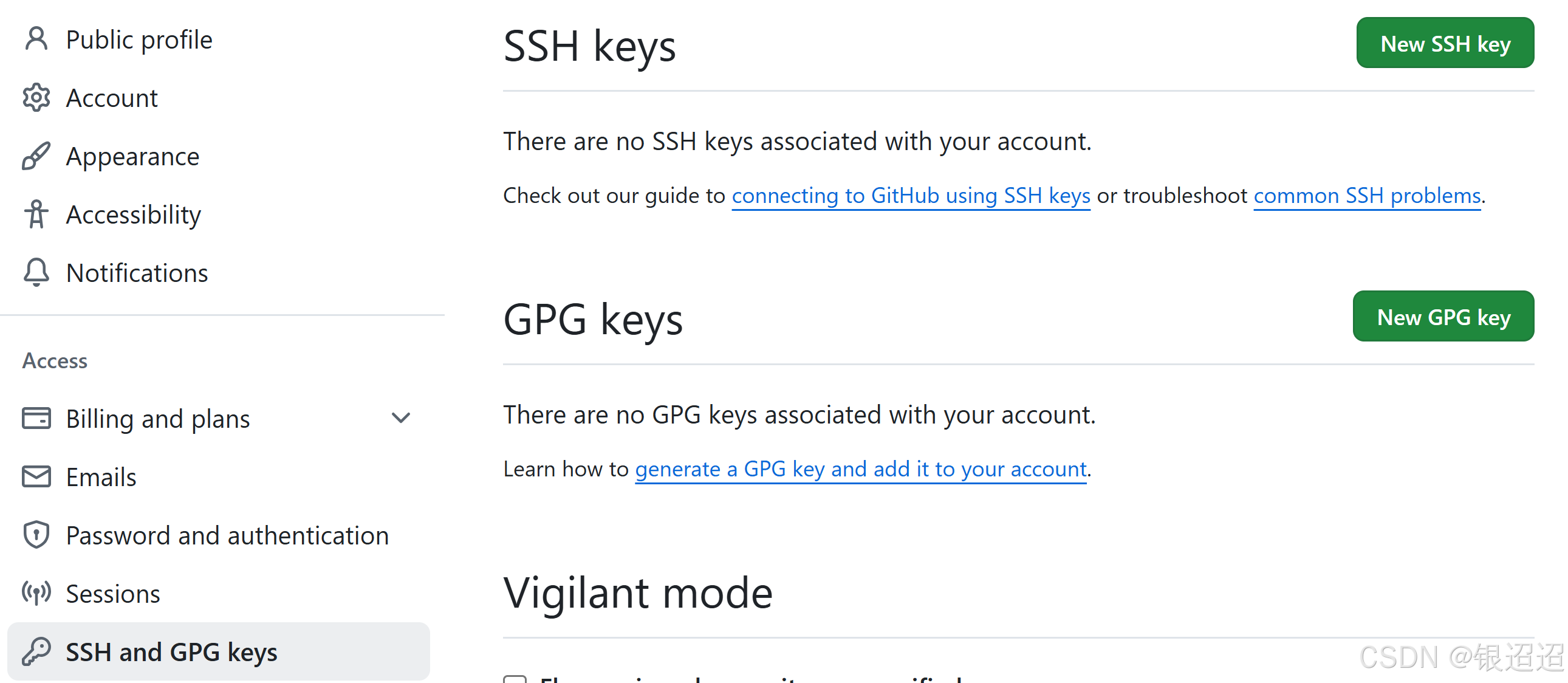
title自定义,key复制id_rsa.pub的全部内容到文本框中
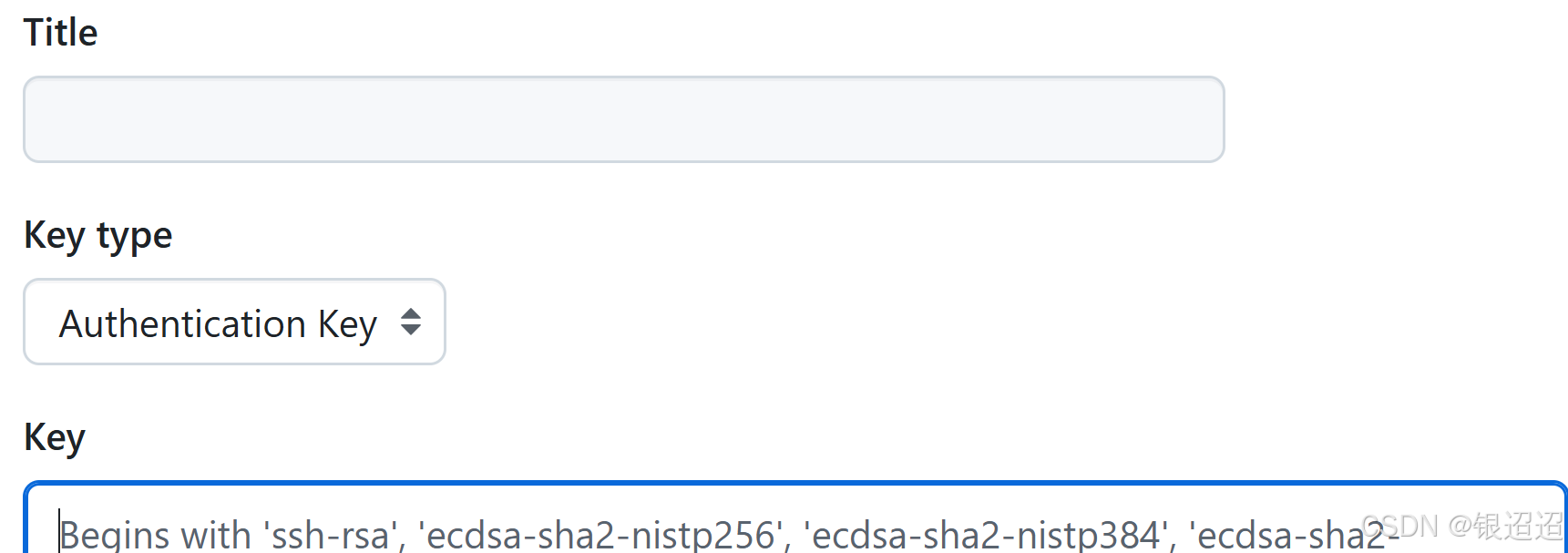
9、现在开始验证ssh添加是否成功,若你使用Watt Toolkit加速GitHub网站,则在运行下列代码的时候会出现问题
ssh -T git@github.com
这时候我们打开c:\Windows\System32\Drivers\etc\ 下的hosts文件,则会发现Steam++也就是Watt Toolkit在里面的配置把github.com的ip地址写成了127.0.0.1,这个时候我们要重新在hosts里添加GitHub的ip地址。使用命令找到github.com的地址
nslookup github.com 8.8.8.8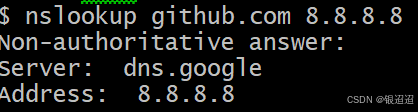
hosts文件修改方法
1、找到hosts文件;
2、右键选择属性,更改hosts为允许安全控制状态;
3、将hosts文件复制/移动到桌面,用记事本打开!将修改后的hosts文件放入原来的位置替换以前的hosts文件即可!
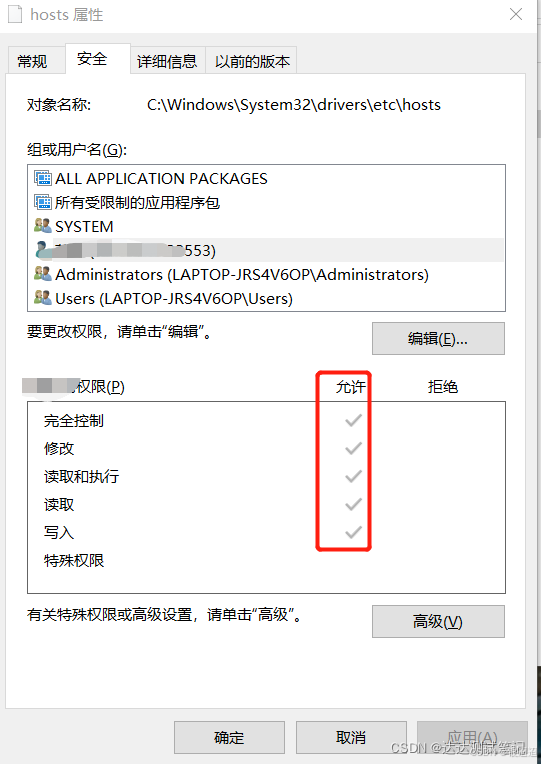
在hosts文件末尾里添加

然后在.ssh(也就是那个包含密钥的文件夹)文件夹下创建config文件
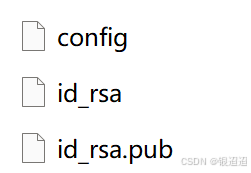
在里面输入
# github
Host github.com
HostName github.com
PreferredAuthentications publickey
IdentityFile ~/.ssh/id_rsa
保存退出后再次运行代码,输入yes
ssh -T git@github.com成功

10、GitHub建立仓库,不要勾选initialize

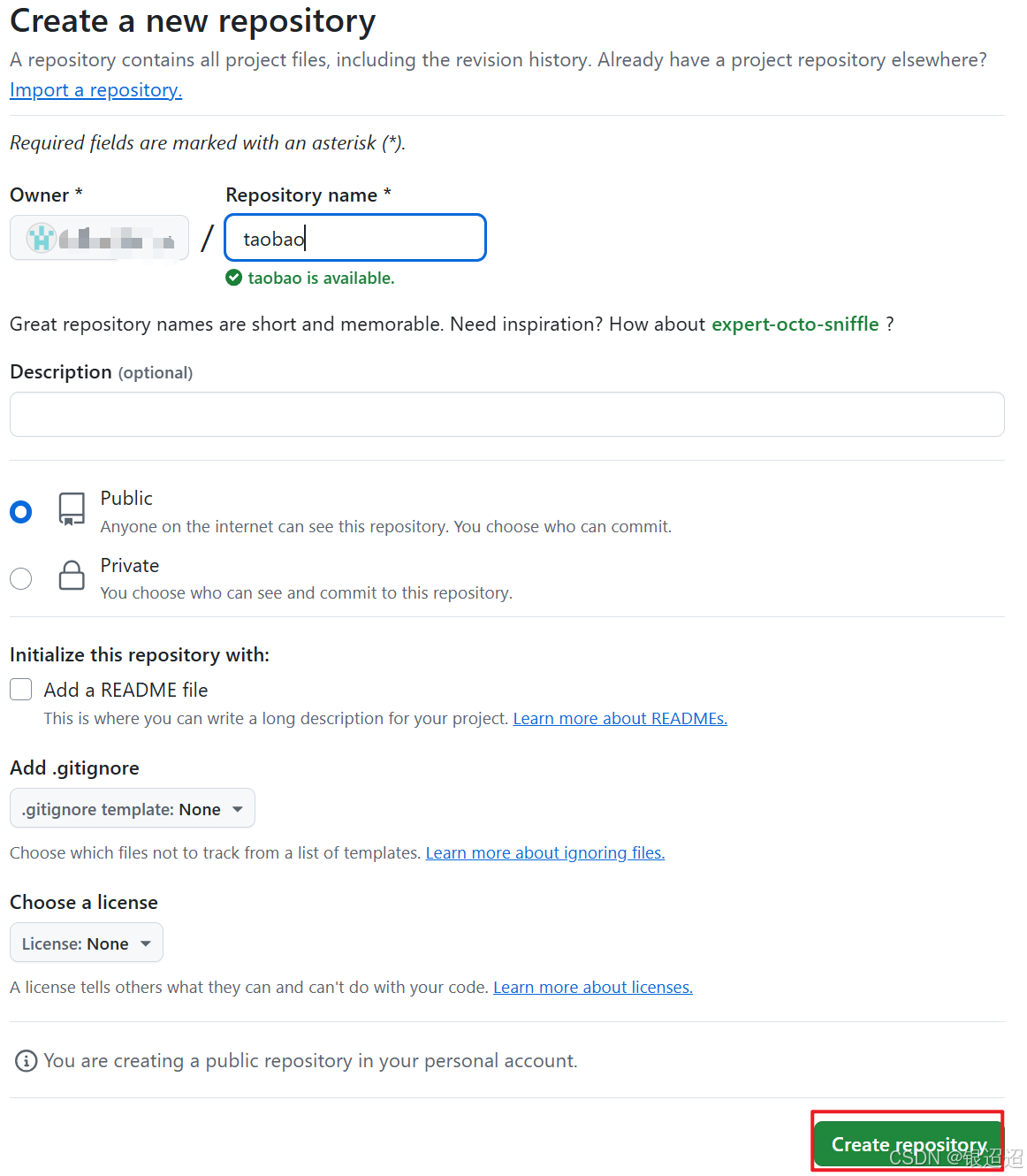
仓库创建完毕,复制HTTP

11、回到ideal主页——点击Git——Push——define remote——把HTTP粘贴到url上——点击确定——点击Push

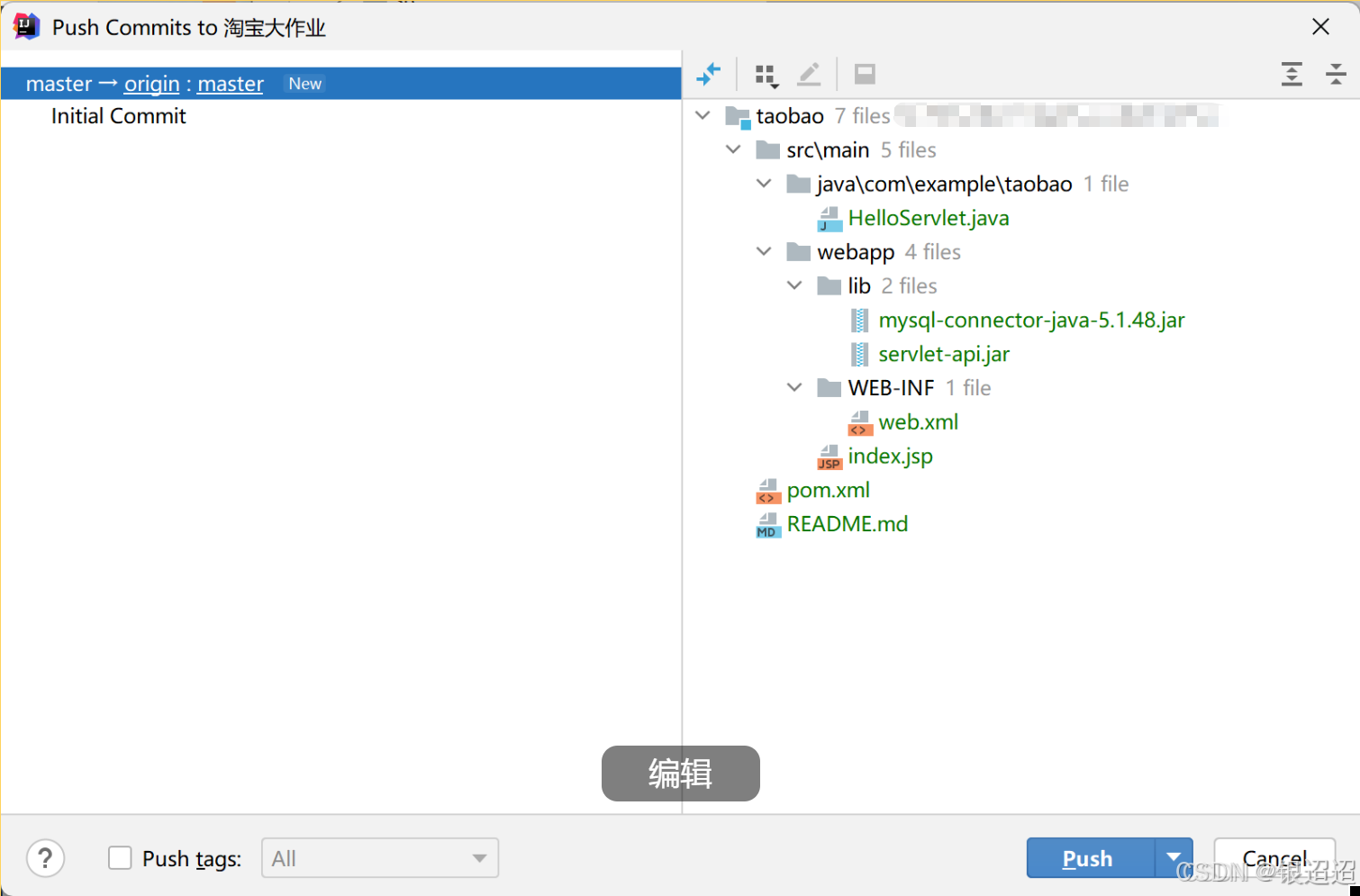
若是遇到问题,一直都Push不了

点击File——setting——Version Control——找到Git——勾选Use credential helper
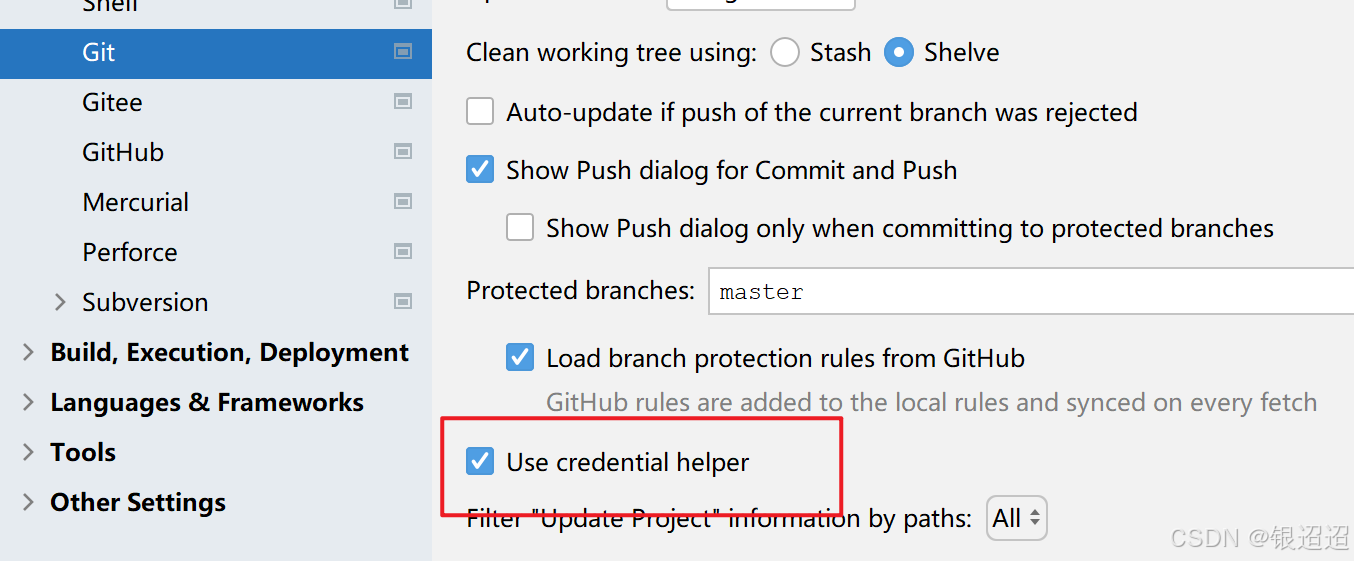
再一次Push就可以了
或者可以直接使用命令关联(输入自己仓库的HTTP),来到项目所在文件夹 ,右击选择GIt Bash Here输入命令
git remote add origin https://……
把项目内容传到远程仓库GitHub
#由于新建的远程仓库是空的,所以要加上-u这个参数
git push -u origin master
#之后仓库不是空的,就不用加上-u
git push origin master
刷新GitHub后仓库就有内容了
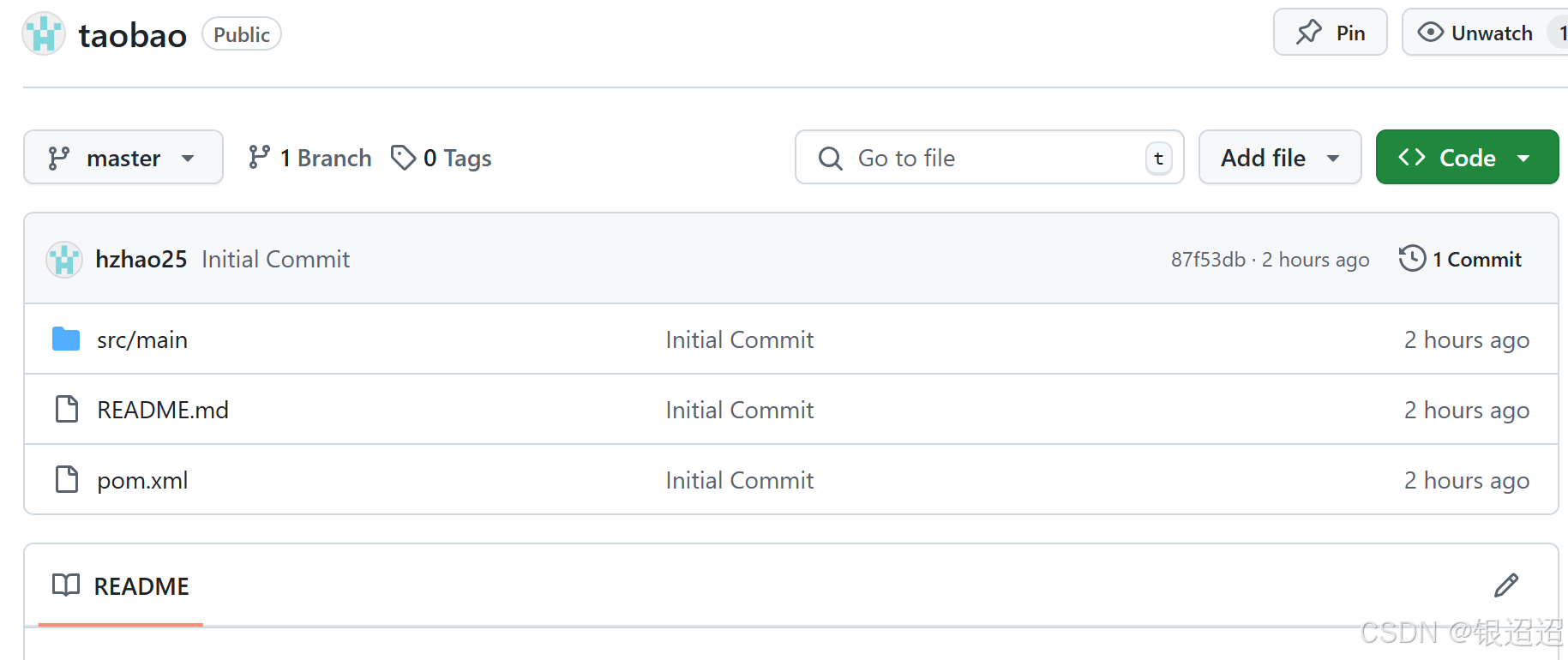
12、后续项目内容更改
更改README.md
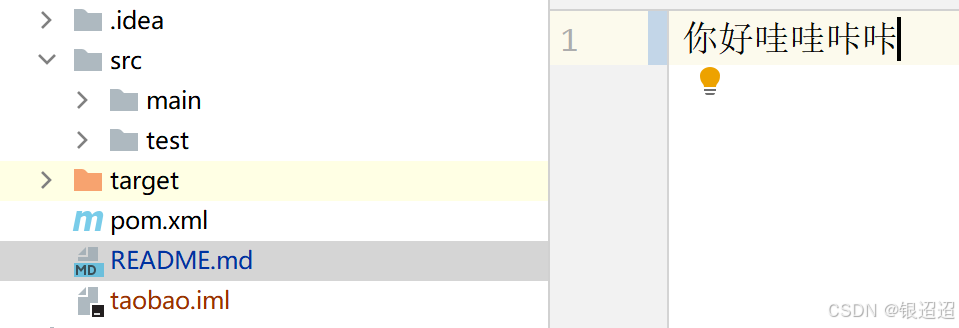
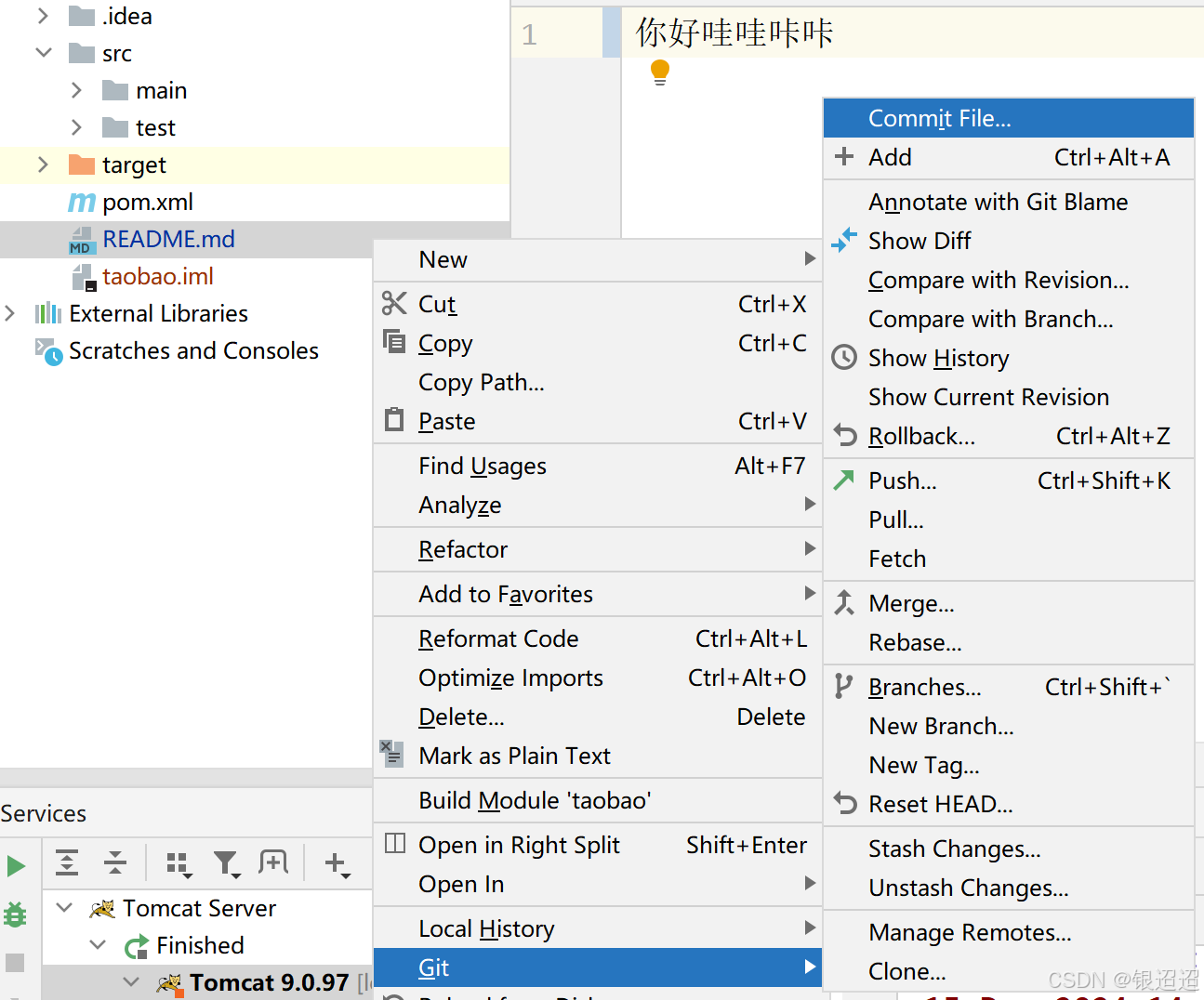
13、提交到本地仓库
右键README.md,选择Git——Commit File
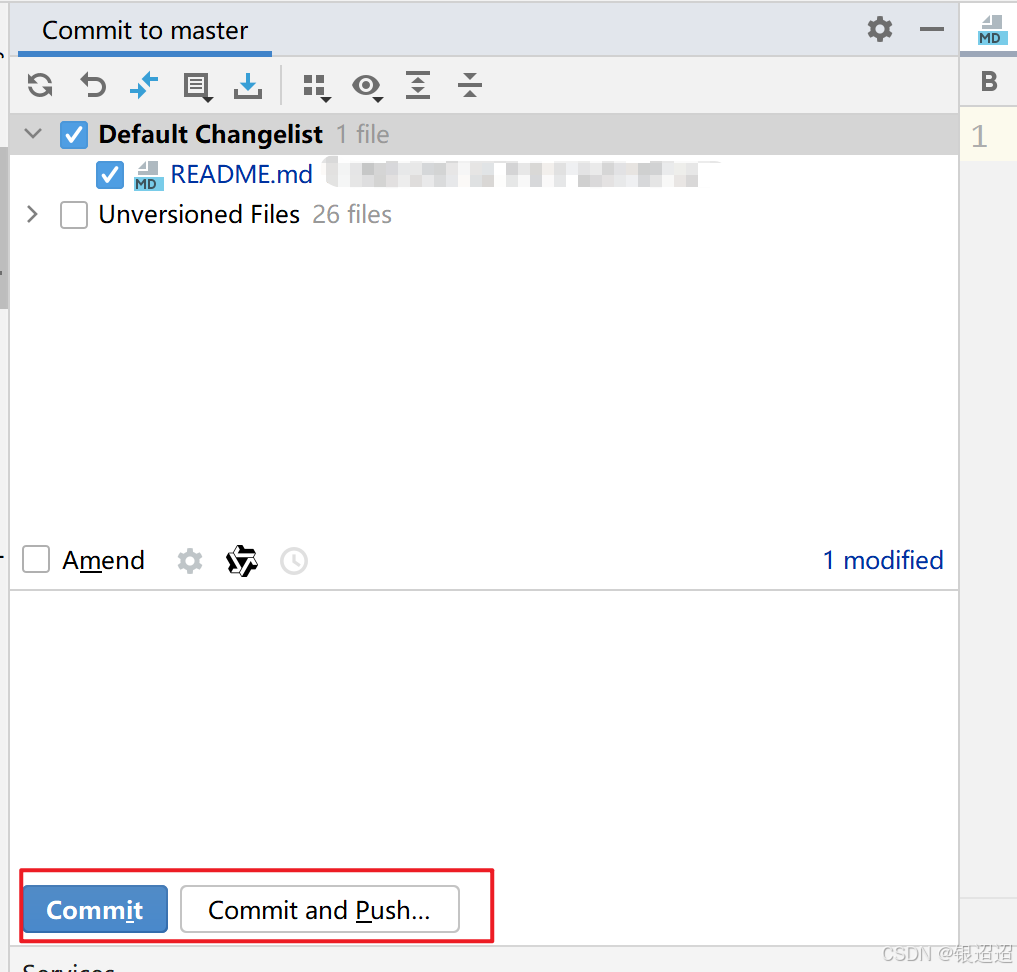
其中Commit是指提交到本地仓库git,而Commit and Push选项是指提交本地仓库的同时提交到远程仓库GitHub,如果提交时弹出specify commit message,则需要在空白框框里写点东西
14、提交到远程仓库
首先需要先提交到本地仓库,选择commit按钮后,才能再次Push到远程仓库
,执行完提交到本地仓库操作后——右键README.md——Git——Push——再次点击Push
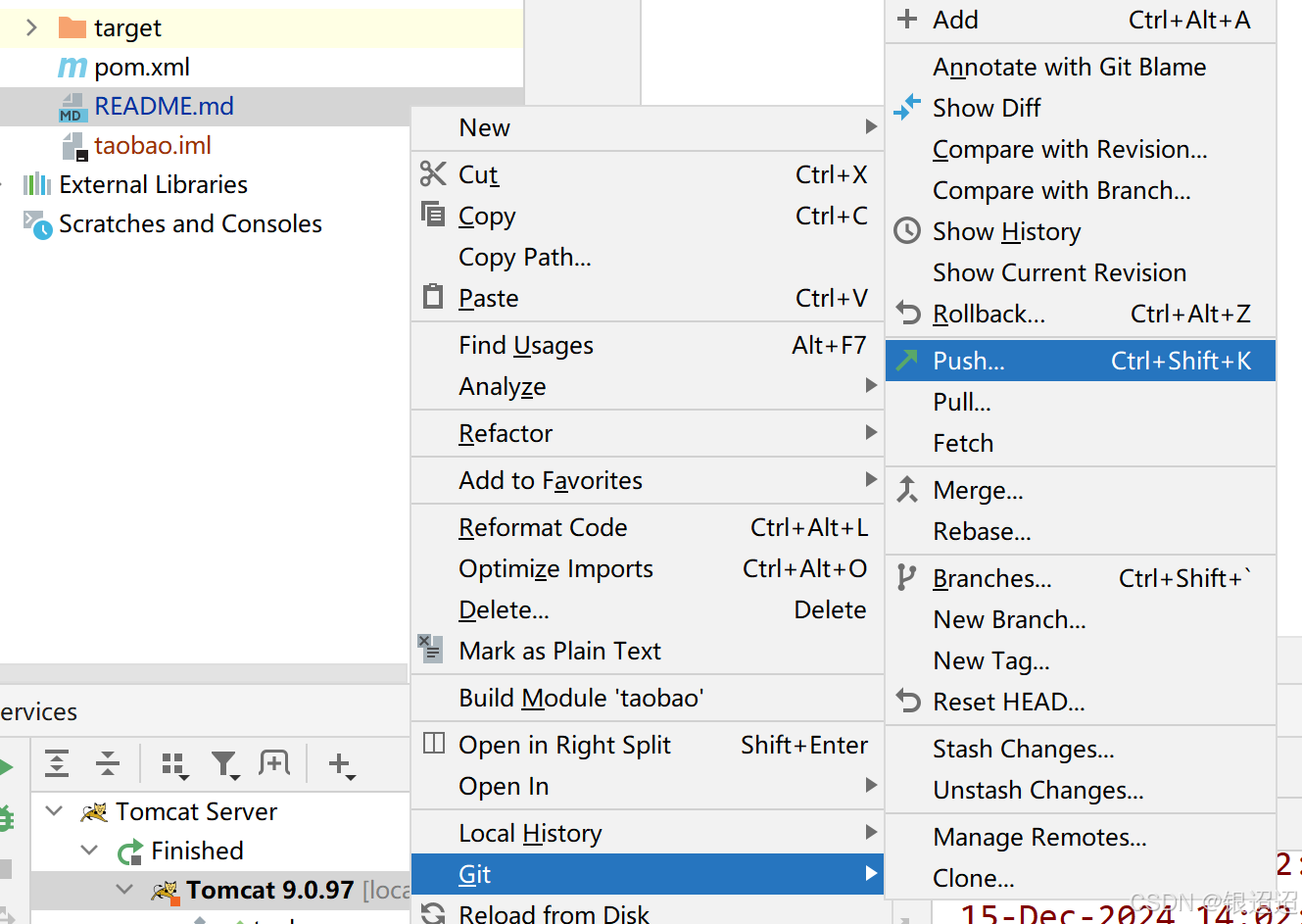
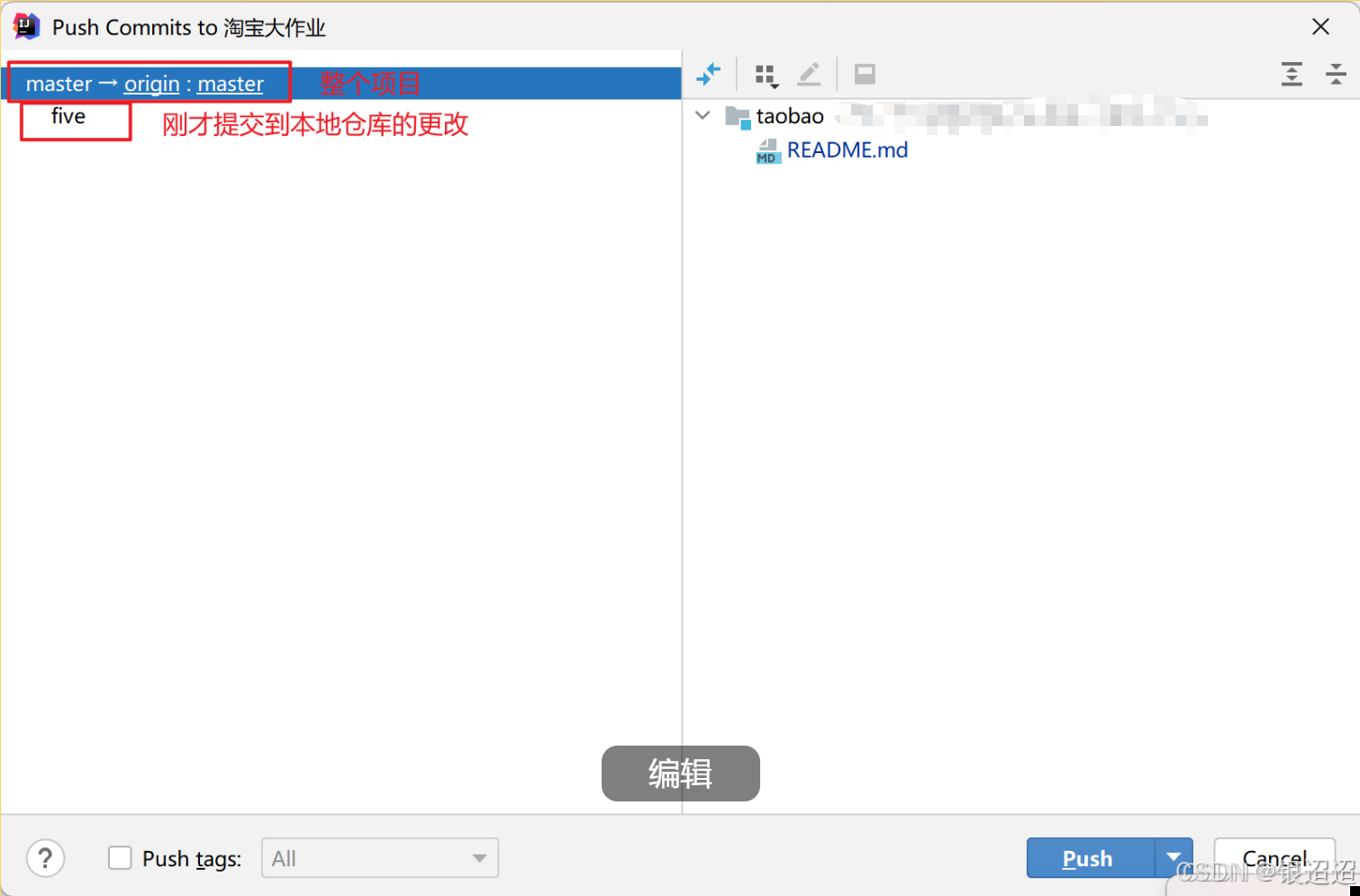
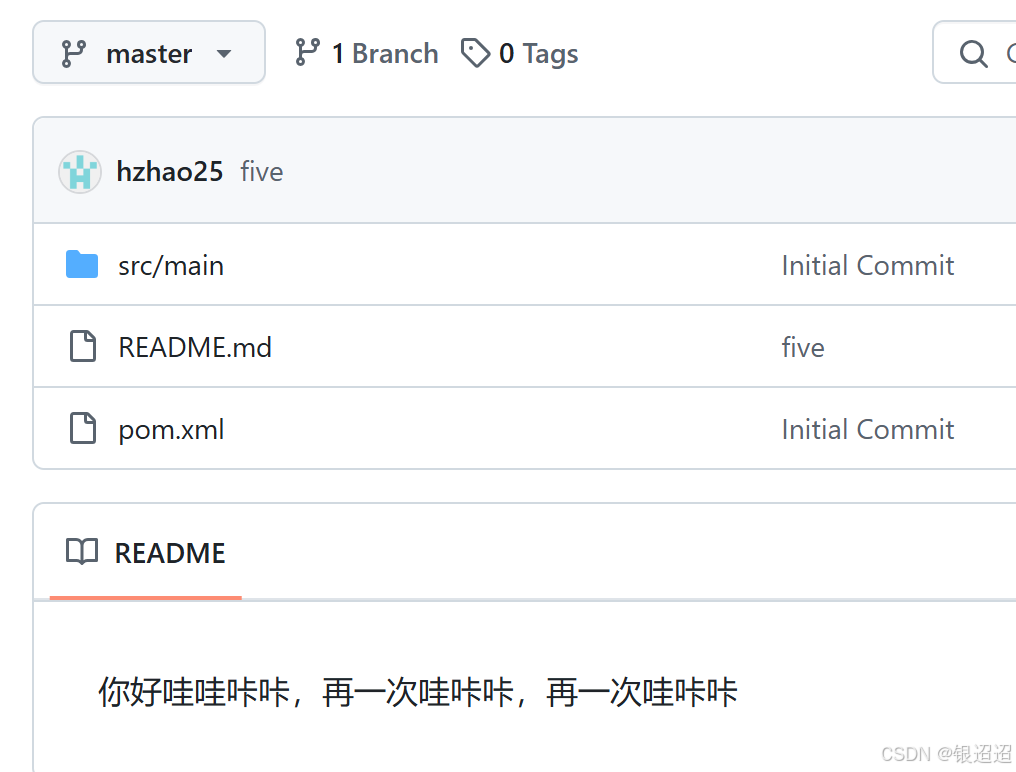
刷新GitHub,已更改
15、把组员更改后的最新项目获取到你的ideal中
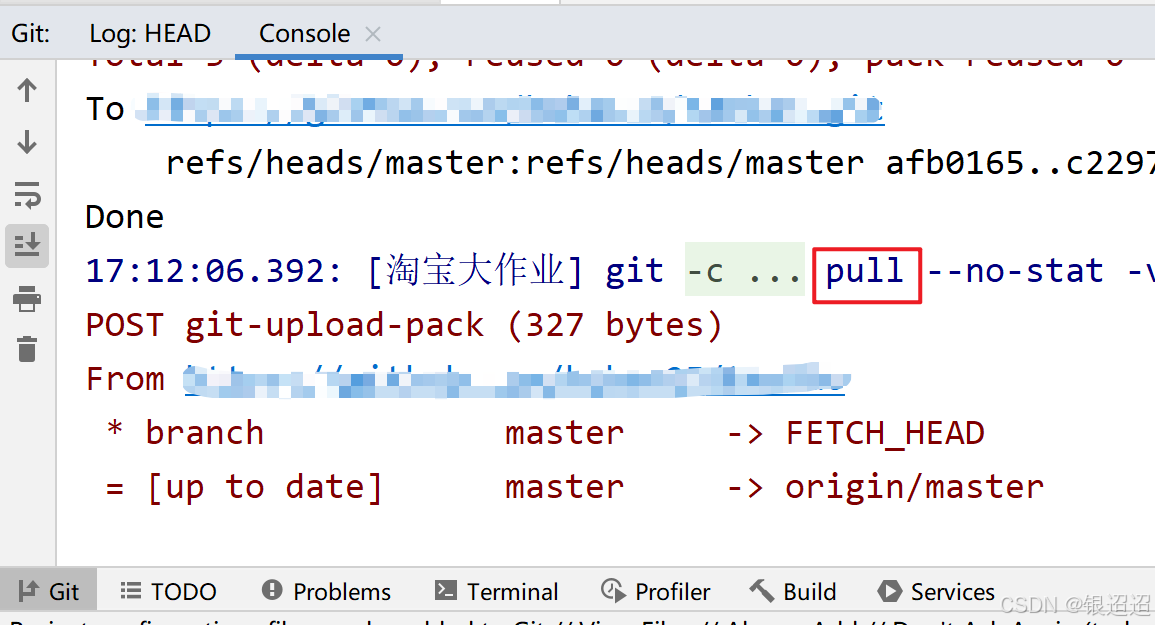
右键README.md——Git——Pull
查看更新日志
16、把组员拉入GitHub远程仓库
点击setting——collaboration——Add People——输入组员邮箱


17、你和组员修改项目
1、你和组员修改的文件或文件的部分是不同的,Git 会自动合并你们的更改并成功 push 上去。
2、如果你和同伴同时修改了 同一行代码 或 相同的文件部分,Git 会检测到冲突,无法自动合并你们的更改,提示冲突,并阻止 push。
首先,在你 push 前,要确保你已经从远程仓库拉取最新的代码(git pull origin <branch_name>),这会将远程仓库的修改合并到你的本地仓库。
提示Push冲突后你需要手动解决冲突

有“AI”的1024 = 2048,欢迎大家加入2048 AI社区
更多推荐
 17
17 0
0- 0


 已为社区贡献1条内容

所有评论(0)