基于Yolov7图像识别的CF自瞄
刚学 yolo 的时候就想着能不能用 yolo 去做一些比较有意思的项目,既可以加深我对 yolo 模型的理解,也能让我彻底提起编程的兴趣。对于本人来说我认为编程最有意思的地方在于我脑袋里经常有很多稀奇古怪的想法,然后我就想去实现它,经历过很多困难之后实现了出来,这种感觉颇具成就感,这跟高中做数学题是一样的想法,我很享受这种成就感。本人上周在CF排位的时候碰到了一个锁头挂,然后理所当然的那一场被打
提示:本文只做学习和交流使用,本人不推荐使用,还是老老实实靠技术上分吧。
文章目录
1、使用 mss 模块实时截取屏幕保存到本地,使用 cv2 读取图像。
3、计算各个人物中心坐标,并计算其与鼠标的距离判断距离鼠标最近的人物
前言
刚学 yolo 的时候就想着能不能用 yolo 去做一些比较有意思的项目,既可以加深我对 yolo 模型的理解,也能让我彻底提起编程的兴趣。对于本人来说我认为编程最有意思的地方在于我脑袋里经常有很多稀奇古怪的想法,然后我就想去实现它,经历过很多困难之后实现了出来,这种感觉颇具成就感,这跟高中做数学题是一样的想法,我很享受这种成就感。
这里主要想说一下用 yolov7 的思路:
1、先用截屏的代码在游戏中获得我们的CF数据集,并进行标注。
2、标记好的数据使用 yolov7 训练、转成 onnx 模型进行推理。
3、在打游戏的时候使用截屏的代码将游戏的画面实时存储在本地,名为 Image.jpg,接着下一时刻使用 cv2 读取这张图像,并使用 onnx 模型进行推理识别;
这篇文章主要是分为:yolov7环境配置、yolov7代码与预训练模型下载、使用mss模块截取CF训练数据图像、labelimg标注CF数据集、yolov7代码训练、.pt 模型转.onnx模型、onnx模型推理识别与控制鼠标等步骤来进行总结。
本人环境:3060Ti + 8G显卡、1.9.0版本pytorch、3.7.9版本python、Anaconda虚拟环境名为yolov7。
算法参考大佬:https://blog.csdn.net/weixin_69999177/article/details/125135969
一、yolov7环境配置
yolov7环境配置比较简单不过多赘述,可以参考大佬:YOLOv7(目标检测)入门教程详解---环境安装_yolo安装_螺丝工人的博客-CSDN博客
二、yolov7代码与预训练模型下载
yolov7代码下载网站:https://github.com/WongKinYiu/yolov7
预训练模型使用的是 YOLOv7-X 模型,在上面的网站一并下载。
下载完成之后打开 yolov7 文件夹,在根目录下新建一个名为 weights 的文件夹,这文件夹主要是拿来存放我们的权重文件,把下载好的预训练模型放入该文件夹,并把预训练模型名字改为yolov7x_training.pt 。
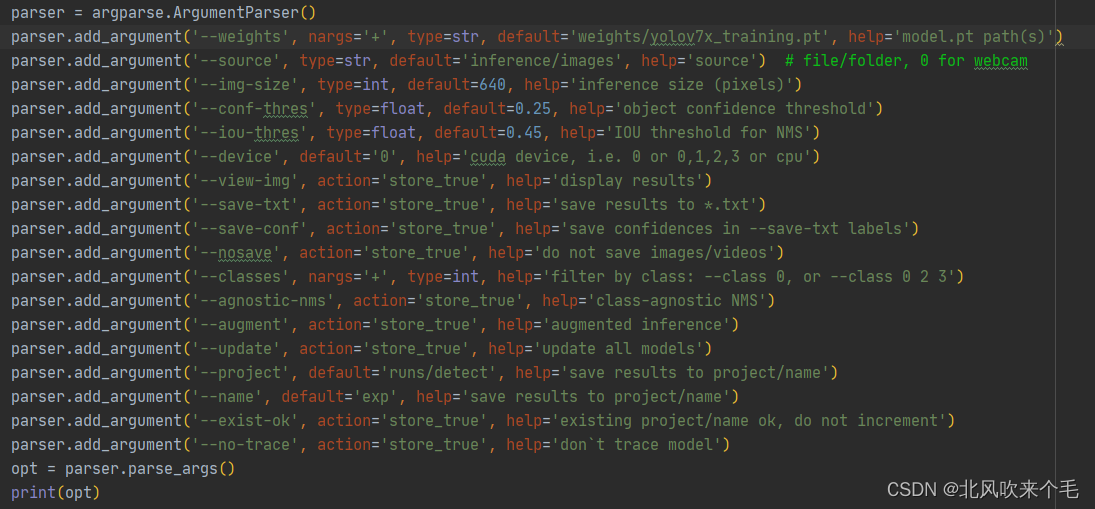
用 pycharm 打开文件夹,选择刚刚配置好的环境,打开 detect.py ,修改以下参数默认值:
1、--weights >>> ' weights/yolov7x_training.pt '
2、device >>> ' 0 '
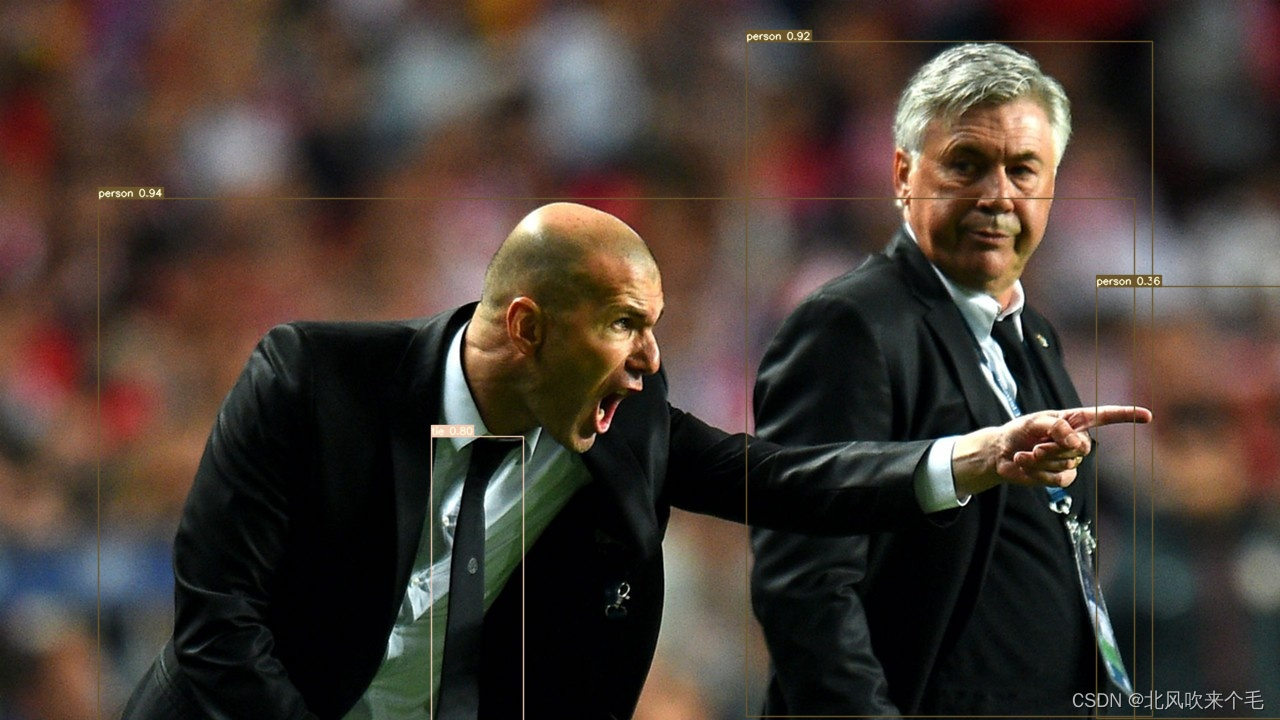
其他参数保持默认,如图 2-1,接着运行 detect.py 即可,运行结果在 runs/detect/exp 文件夹下,若你的运行结果如图 2-2 所示,那么 yolov7 的环境配置就完成了,我们就可以接着走下一步了。
三、采集CF图像数据集
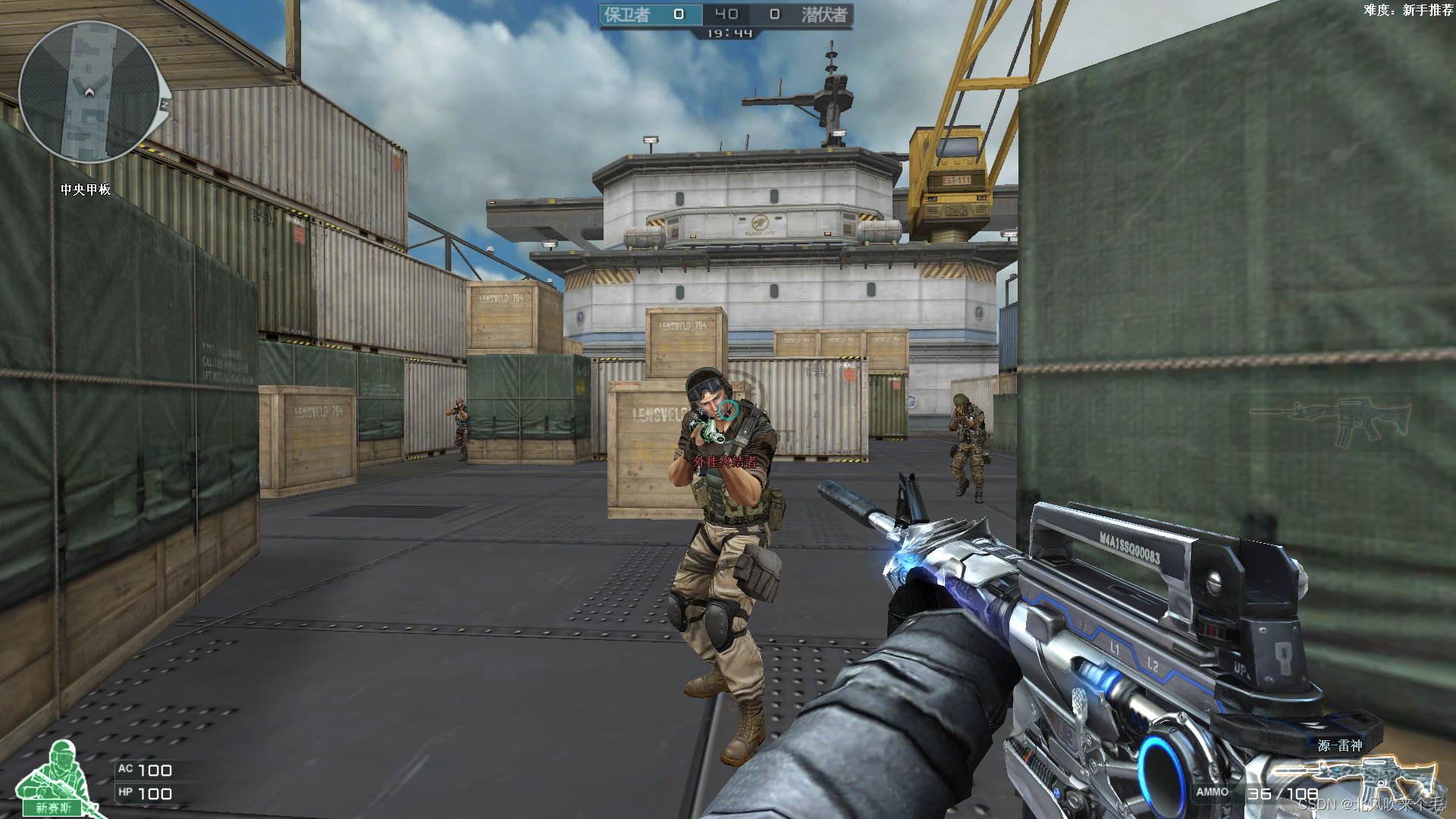
之前我在网上找了找 CF 数据集但是没找到我就只能自己去游戏里截图了,在游戏中运行下面的代码就可以了,我大概截取了1000张图像,再经过一些数据的清洗、挑选,能用的大概有700张图像左右,不过也够用了。
使用的是 mss 模块中的屏幕截取功能, width 和 height 的值是自己游戏中屏幕分辨率的值,"camera/Image_{0}.jpg" 中的 camera 为当前代码根目录下已经存在的文件夹名,没有则需要自行创建,否则会报错,截取到的CF数据集图像如图3-1所示。
grab_Image().py
import mss.tools
import mss
import cv2
import numpy as np
import time


# 定义屏幕宽和高
width = 2560
height = 1440

rect = (0, 0, width, height)
m = mss.mss()
mt = mss.tools

# 截图保存
def screen_record():
    img = m.grab(rect)
    image = np.array(img)
    cv2.imwrite("camera/Image_{0}.jpg".format(time.strftime("%Y_%m_%d_%H_%M_%S", time.localtime())), image)


def main():
    while True:
        start = time.time()
        screen_record()
        end = time.time()
        print("time: ", end - start)


if __name__ == "__main__":
    main()
四、CF图像数据集标注
1.Anconda环境使用pip安装labelimg
使用以下命令进入自己建的 Anaconda 虚拟环境,并使用 pip 命令安装labelimg
conda activate yolov7
pip install -i https://mirror.baidu.com/pypi/simple labelimg
安装完成之后,在命令行输入 labelimg 打开图像标注软件,如图4-1所示。
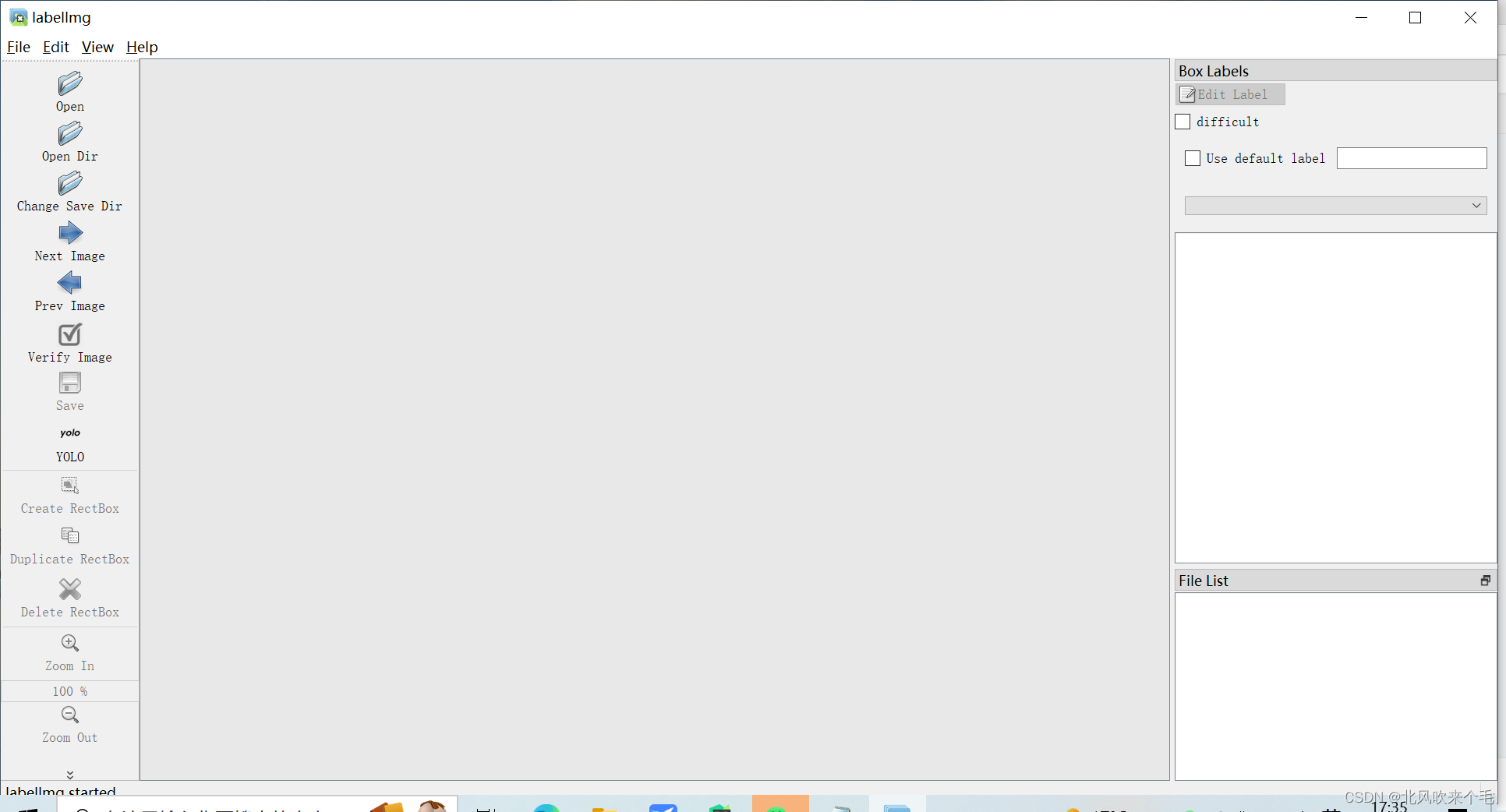
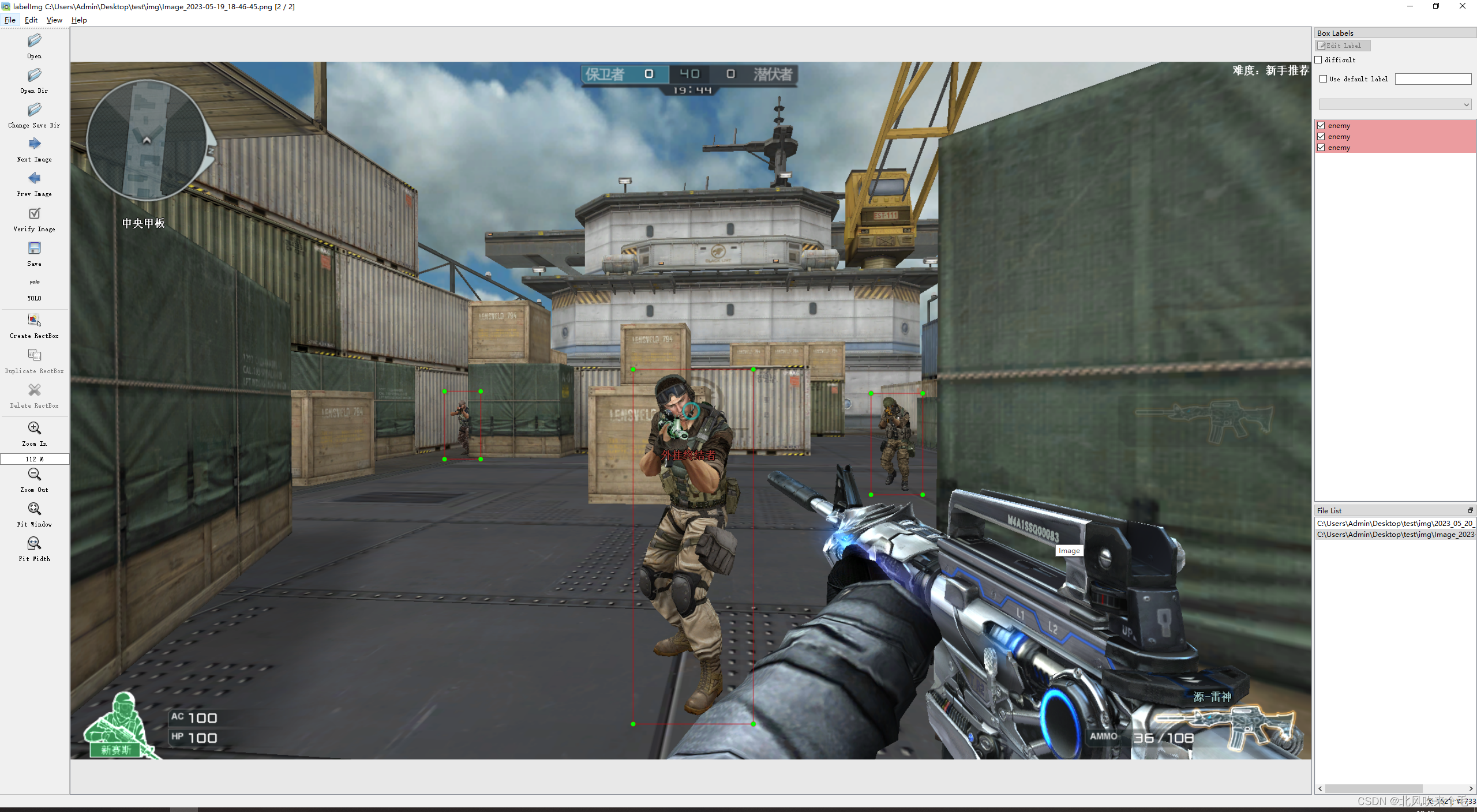
导入图像和选择输出位置之后记得选择 YOLO 格式的标签,我这次只标注了全身,若是想要实现锁头,则标注人物的头部,标签名字为:enemy, 标注图像如图4-2所示。
2、数据集划分
图像数据集全部标注完成之后,打开保存标签的路径,删除 classes.txt ,使用以下的程序生成以图像名匹配的 txt 文件,这是因为你在标注CF图像数据集的时候有的图像没有人物,就没有标注这张图像,导致没有这张图像的标签文件,这在训练的时候是会报错的,为了防止这些错误,因此我们需要手动生成这些空的标签文件,代码如下,image_path 是图像数据集的路径,result_txt_path 是生成的标签的路径。空的标签生成之后,只需要把我们刚刚标注好的标签复制到这个生成的标签的路径就行了,这 result_txt_path 就是我们训练需要的标签路径。
import os

image_path = "camera"
result_txt_path = "labels"


for image in os.listdir(image_path):
    with open(image.strip(".")[0] + ".txt", "w") as file:
        file.close()
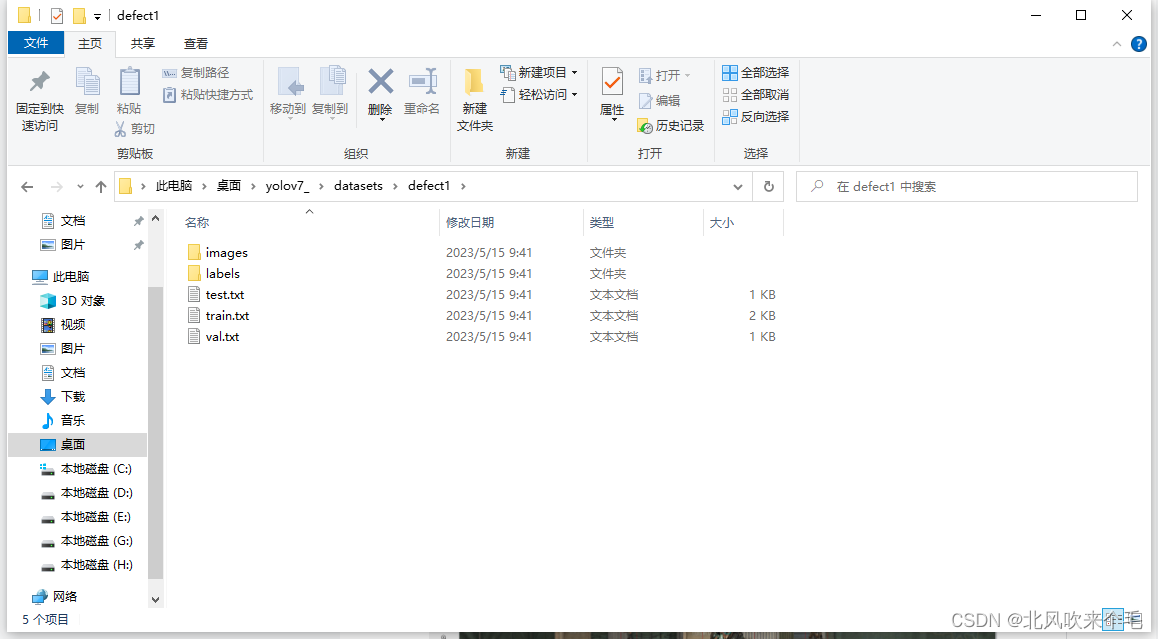
生成标签路径之后,我们需要在我们的yolov7文件夹的根目录下新建一个datasets文件,里面存放的是我们划分好的数据集;在yolov7根目录下新建一个 cut_dataset.py 文件,我们现在需要把我们的CF数据集按照8:1:1的比例划分为训练集、验证集、测试集,使用以下代码进行划分,
image_original_path 是我们的图像数据集路径,label_original_path 是我们的标签路径,defect1 文件夹下存放的是我们划分好的图像数据和标签,如图4-3所示。
cut_dataset.py
# 将图片和标注数据按比例切分为 训练集和测试集
import shutil
import random
import os

# 原始路径
image_original_path =  "C:/Users/Admin/Desktop/test/result_img/"
label_original_path = "C:/Users/Admin/Desktop/test/labels/"

cur_path = os.getcwd()

# 训练集路径
train_image_path = os.path.join(cur_path, "datasets/defect1/images/train/")
train_label_path = os.path.join(cur_path, "datasets/defect1/labels/train/")

# 验证集路径
val_image_path = os.path.join(cur_path, "datasets/defect1/images/val/")
val_label_path = os.path.join(cur_path, "datasets/defect1/labels/val/")


# 测试集路径
test_image_path = os.path.join(cur_path, "datasets/defect1/images/test/")
test_label_path = os.path.join(cur_path, "datasets/defect1/labels/test/")

# 训练集目录
list_train = os.path.join(cur_path, "datasets/defect1/train.txt")
list_val = os.path.join(cur_path, "datasets/defect1/val.txt")
list_test = os.path.join(cur_path, "datasets/defect1/test.txt")

train_percent = 0.8
val_percent = 0.1
test_percent = 0.1


def del_file(path):
    for i in os.listdir(path):
        file_data = path + "\\" + i
        os.remove(file_data)


def mkdir():
    if not os.path.exists(train_image_path):
        os.makedirs(train_image_path)
    else:
        del_file(train_image_path)
    if not os.path.exists(train_label_path):
        os.makedirs(train_label_path)
    else:
        del_file(train_label_path)

    if not os.path.exists(val_image_path):
        os.makedirs(val_image_path)
    else:
        del_file(val_image_path)
    if not os.path.exists(val_label_path):
        os.makedirs(val_label_path)
    else:
        del_file(val_label_path)

    if not os.path.exists(test_image_path):
        os.makedirs(test_image_path)
    else:
        del_file(test_image_path)
    if not os.path.exists(test_label_path):
        os.makedirs(test_label_path)
    else:
        del_file(test_label_path)


def clearfile():
    if os.path.exists(list_train):
        os.remove(list_train)
    if os.path.exists(list_val):
        os.remove(list_val)
    if os.path.exists(list_test):
        os.remove(list_test)


def main():
    mkdir()
    clearfile()

    file_train = open(list_train, 'w')
    file_val = open(list_val, 'w')
    file_test = open(list_test, 'w')

    total_txt = os.listdir(label_original_path)
    # total_img = os.listdir(image_original_path)
    num_txt = len(total_txt)
    list_all_txt = range(num_txt)

    num_train = int(num_txt * train_percent)
    num_val = int(num_txt * val_percent)
    num_test = num_txt - num_train - num_val

    train = random.sample(list_all_txt, num_train)
    # train从list_all_txt取出num_train个元素
    # 所以list_all_txt列表只剩下了这些元素
    val_test = [i for i in list_all_txt if not i in train]
    # 再从val_test取出num_val个元素,val_test剩下的元素就是test
    val = random.sample(val_test, num_val)
    j = 0
    print("训练集数目:{}, 验证集数目:{}, 测试集数目:{}".format(len(train), len(val), len(val_test) - len(val)))
    for i in list_all_txt:
        name = total_txt[i][:-4]
        # name = total_txt[i]

        srcImage = image_original_path + name + '.jpg'
        if not os.path.exists(srcImage):
            print("no exist image",srcImage)
        # if not os.path.exists(srcImage):
        #     srcImage=srcImage.replace('.bmp','.jpg')
        #     if not os.path.exists(srcImage):
        #         srcImage = srcImage.replace('.jpg','.PNG')
        # srcImage = image_original_path + name
        srcLabel = label_original_path + name + ".txt"
        print("j: ", j)
        j += 1

        if not os.path.exists(srcLabel):
            print("no exist label",srcLabel)
        if i in train:
            # dst_train_Image = train_image_path + name
            dst_train_Image = train_image_path + name + '.jpg'
            dst_train_Label = train_label_path + name + '.txt'
            shutil.copyfile(srcImage, dst_train_Image)
            shutil.copyfile(srcLabel, dst_train_Label)
            file_train.write(dst_train_Image + '\n')
        elif i in val:
            dst_val_Image = val_image_path + name + '.jpg'
            # dst_val_Image = val_image_path + name
            dst_val_Label = val_label_path + name + '.txt'
            shutil.copyfile(srcImage, dst_val_Image)
            shutil.copyfile(srcLabel, dst_val_Label)
            file_val.write(dst_val_Image + '\n')
        else:
            # dst_test_Image = test_image_path + name + '.bmp'
            dst_test_Image = test_image_path + name + '.jpg'
            dst_test_Label = test_label_path + name + '.txt'
            shutil.copyfile(srcImage, dst_test_Image)
            shutil.copyfile(srcLabel, dst_test_Label)
            file_test.write(dst_test_Image + '\n')

    file_train.close()
    file_val.close()
    file_test.close()


if __name__ == "__main__":
    main()
五、yolov7模型训练
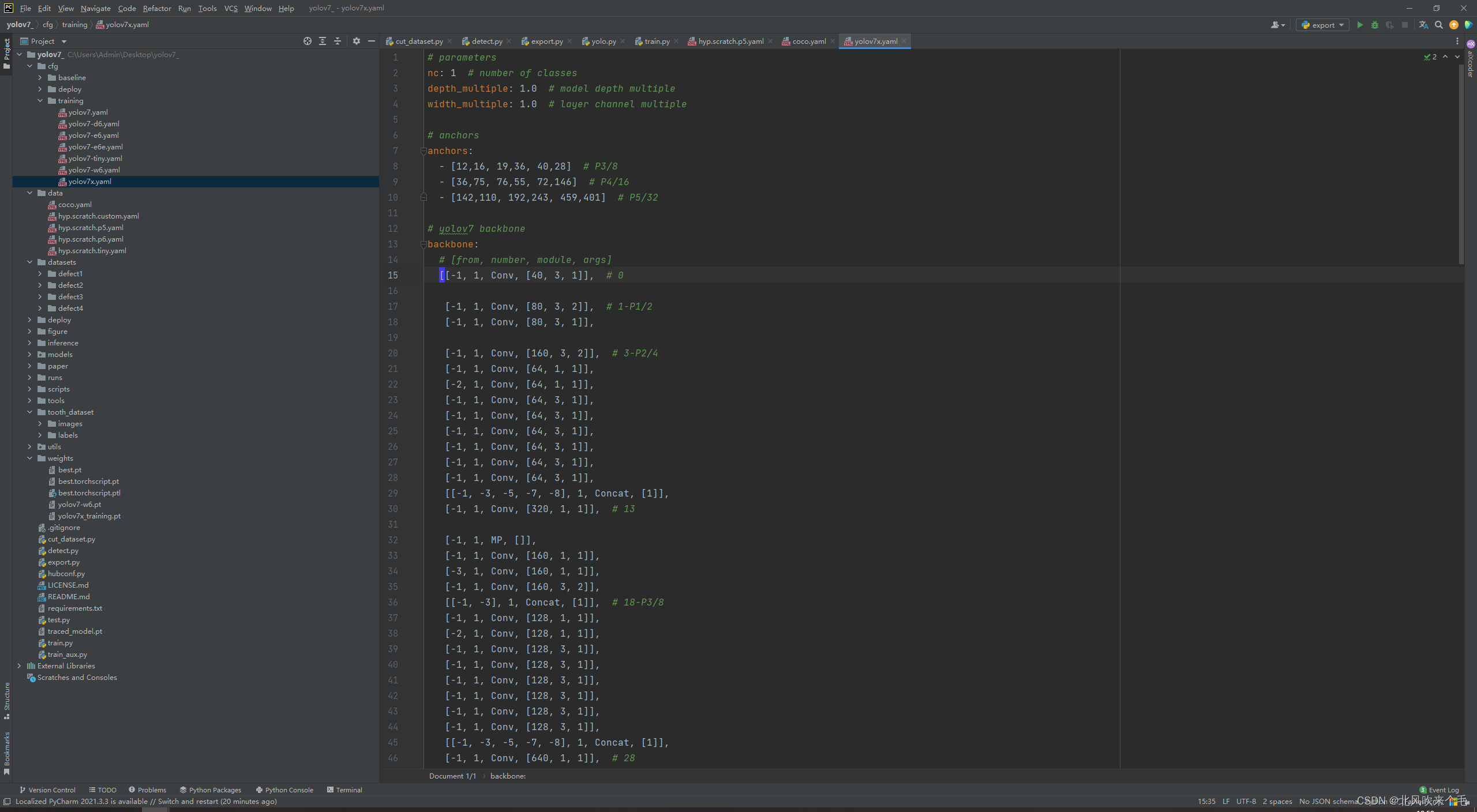
用 pycharm 打开我们的 yolov7 文件夹,打开 cfg/training/yolov7x.yaml 文件夹修改 nc 变量的值为 1,这是我们的训练类别,我们只标注了一类,因此只训练一类,修改后的 yolov7x.yaml 文件如图5-1所示。
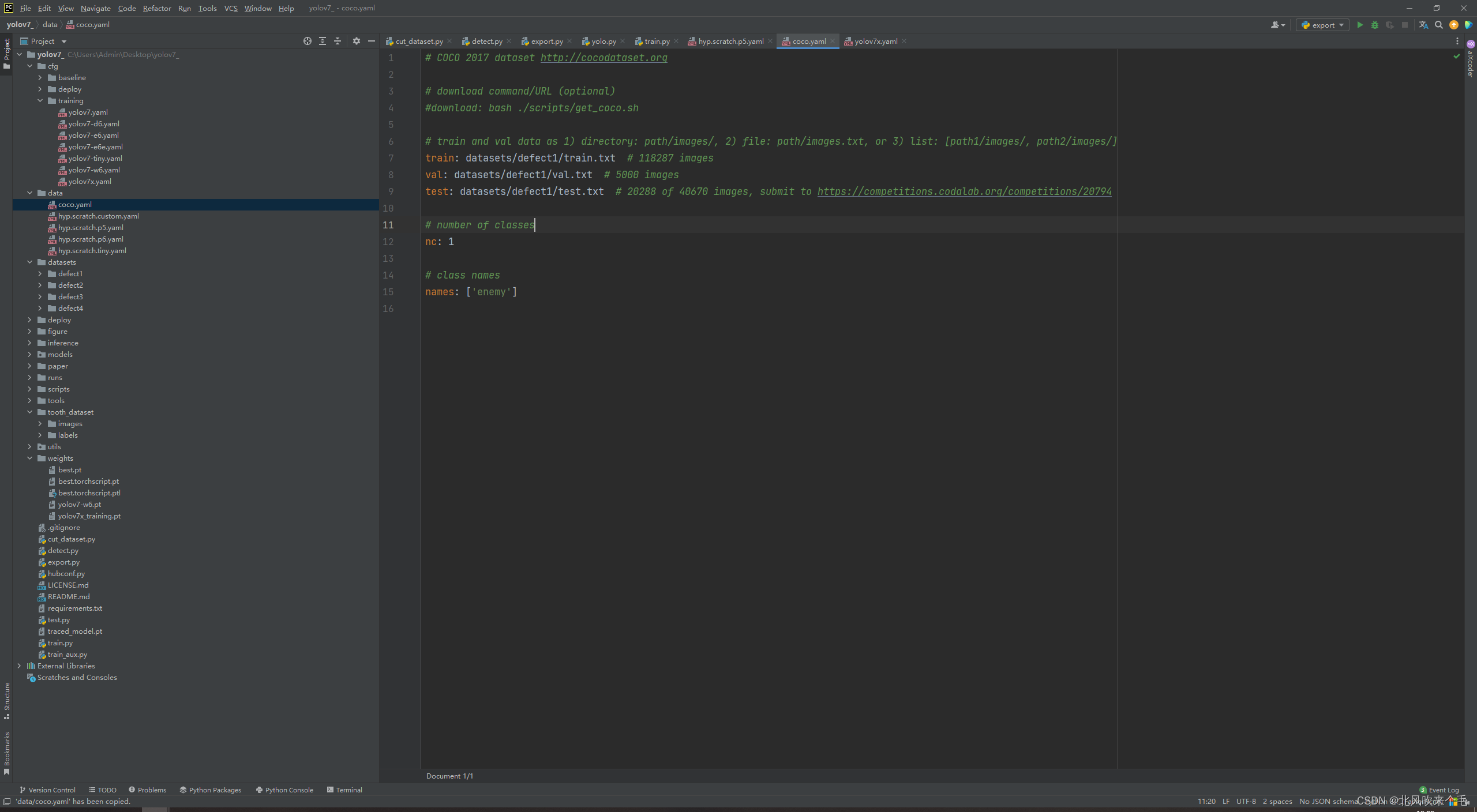
打开 data/coco.yaml 文件夹,修改如图5-2所示,train、val、test 对应的txt路径是我们之前生成的含有图像、标签等路径的txt文件路径,names 的值为你标注时的标签名称。
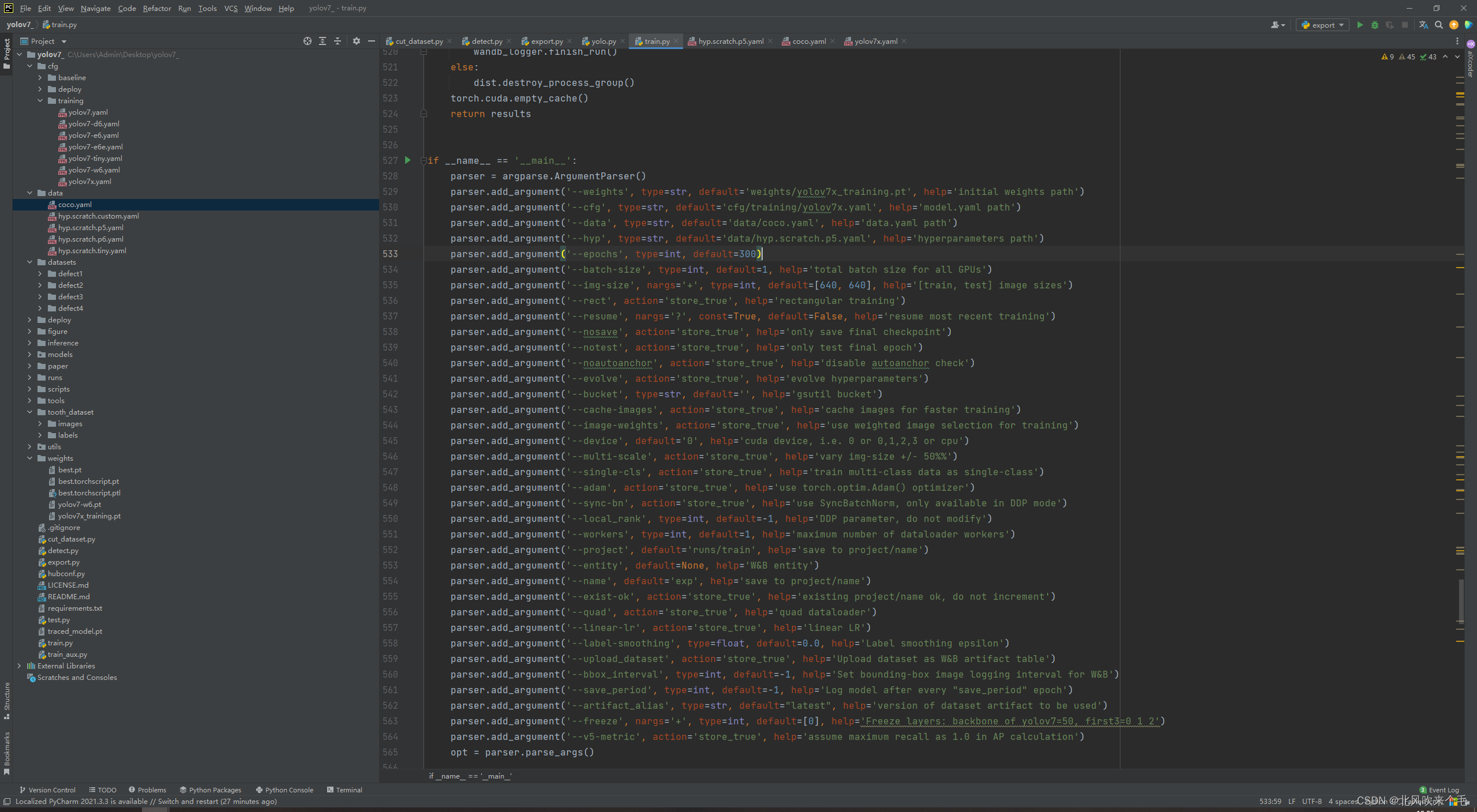
打开 train.py ,修改如图5-3所示,主要是修改 --weights、--cfg、--data、--hyp、--epochs、--batch-size、--device、--workers 等参数的默认值,若训练时报显存不足的错误,可以把--batch-size、--workers的值改小一点,直到能够训练,也能改--img-size的值为 [320, 320]。
这一步做完之后就可以开始训练了,这一步是最消耗时间的,训练完成之后,打开 runs/train/exp/weights ,训练好的模型文件就在里面,我们需要的是 best.pt 这个权重文件。
六、.pt权重文件转.onnx模型
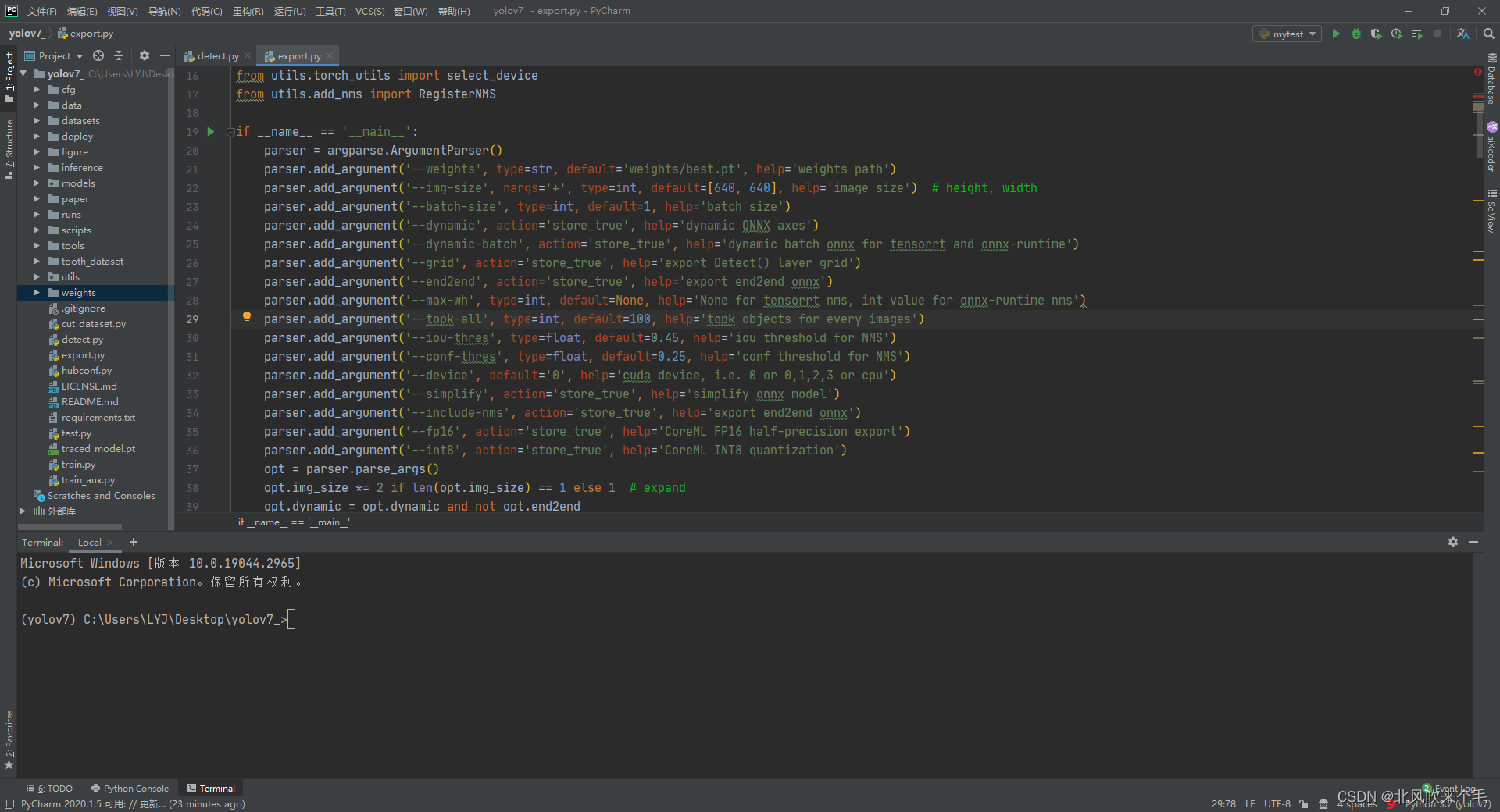
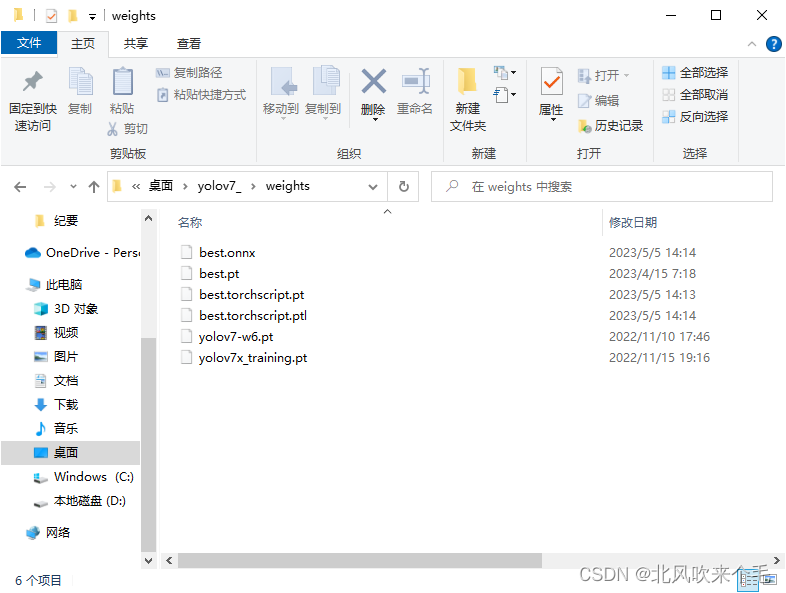
这里为什么要用 .onnx 模型文件而不是用 .pt 模型文件呢, 主要是 .onnx 模型文件可以部署在各种环境里,速度还比较快。把训练好的 best.pt 权重文件放入到 weights 文件夹里,打开 export.py ,此处只需要修改 --weights、--device 参数的默认值即可,修改如图6-1所示,运行结果就在 weights 文件夹里,best.onnx 就是我们最后需要的权重文件。
七、onnx模型推理与鼠标控制
1、使用 mss 模块实时截取屏幕保存到本地,使用 cv2 读取图像。
代码:
img = m.grab(rect)
mt.to_png(img.rgb, img.size, 6, "result_img/Image_.jpg")
image = cv2.imread("result_img/Image_.jpg")
print("grab screen with {0} pictures.".format(i))
2、 onnx 模型推理 cv2 读取到的图像
onnx初始化代码:
cuda = True
w = "weights/best.onnx"
providers = ['CUDAExecutionProvider', 'CPUExecutionProvider'] if cuda else ['CPUExecutionProvider']
session = ort.InferenceSession(w, providers=providers)
outname = [i.name for i in session.get_outputs()]
print(outname)

inname = [i.name for i in session.get_inputs()]
print(inname)
识别名称跟矩形框随机颜色代码:
names = ['enemy']
colors = {name:[random.randint(0, 255) for _ in range(3)] for i,name in enumerate(names)}
yolov7图像自适应缩放代码:
def letterbox(im, new_shape=(640, 640), color=(114, 114, 114), auto=True, scaleup=True, stride=32):
    # Resize and pad image while meeting stride-multiple constraints
    shape = im.shape[:2]  # current shape [height, width]
    if isinstance(new_shape, int):
        new_shape = (new_shape, new_shape)

    # Scale ratio (new / old)
    r = min(new_shape[0] / shape[0], new_shape[1] / shape[1])
    if not scaleup:  # only scale down, do not scale up (for better val mAP)
        r = min(r, 1.0)

    # Compute padding
    new_unpad = int(round(shape[1] * r)), int(round(shape[0] * r))
    dw, dh = new_shape[1] - new_unpad[0], new_shape[0] - new_unpad[1]  # wh padding

    if auto:  # minimum rectangle
        dw, dh = np.mod(dw, stride), np.mod(dh, stride)  # wh padding

    dw /= 2  # divide padding into 2 sides
    dh /= 2

    if shape[::-1] != new_unpad:  # resize
        im = cv2.resize(im, new_unpad, interpolation=cv2.INTER_LINEAR)
    top, bottom = int(round(dh - 0.1)), int(round(dh + 0.1))
    left, right = int(round(dw - 0.1)), int(round(dw + 0.1))
    im = cv2.copyMakeBorder(im, top, bottom, left, right, cv2.BORDER_CONSTANT, value=color)  # add border
    return im, r, (dw, dh)
onnx推理代码:
def detect():
    j = 1
    while True:
        t0 = time.time()
        t1 = time.time()
        img = screen_record(j)
        print("runs_time: ", (time.time() - t1)*1000)
        j += 1
        #img = cv2.imread("C:\\Users\\Admin\\Desktop\\test\\images\\Image_2023-05-19_18-46-56.png")
        #img = cv2.cvtColor(img, cv2.COLOR_BGR2RGB)

        image, ratio, dwdh = letterbox(img, auto=False)
        image = image.transpose((2, 0, 1))
        image = np.expand_dims(image, 0)
        image = np.ascontiguousarray(image)

        im = image.astype(np.float32)
        im /= 255

        inp = {inname[0]: im}

        outputs = session.run(outname, inp)[0]
        ori_images = [img.copy()]
        center_xy = []
        distance = []
        for i, (batch_id, x0, y0, x1, y1, cls_id, score) in enumerate(outputs):
            image = ori_images[int(batch_id)]
            box = np.array([x0, y0, x1, y1])
            box -= np.array(dwdh * 2)
            box /= ratio
            box = box.round().astype(np.int32).tolist()
            cls_id = int(cls_id)
            score = round(float(score), 3)
            name = names[cls_id]
            color = colors[name]
            name += ' ' + str(score) + str(box)
            if score > 0.5:
                cv2.rectangle(image, box[:2], box[2:], color, 2)
                cv2.putText(image, name, (box[0], box[1] - 2), cv2.FONT_HERSHEY_SIMPLEX, 0.75, [225, 255, 255],
                            thickness=2)
            if len(outputs)>0:
                #image = cv2.cvtColor(image, cv2.COLOR_RGB2BGR)
                cv2.imwrite("C:\\Users\\Admin\\Desktop\\test\\result_img\\{0}.jpg".format(str(time.strftime("%Y_%m_%d_%H_%M_%S", time.localtime()))), image)
3、计算各个人物中心坐标,并计算其与鼠标的距离判断距离鼠标最近的人物
计算距离代码:
# 传入两个坐标点,计算直线距离的
class Point:
    def __init__(self, x1, y1, x2, y2):
        self.x1 = x1
        self.y1 = y1
        self.x2 = x2
        self.y2 = y2


class Line(Point):
    def __init__(self, x1, y1, x2, y2):
        super().__init__(x1, y1, x2, y2)

    def getlen(self):
        return math.sqrt(math.pow((self.x1 - self.x2), 2) + math.pow((self.y1 - self.y2), 2))
if score > 0.5:
# 获取识别出来的人物中心点 x, y
center_x = ((box[2] - box[0]) / 2) + box[0]
center_y = ((box[3] - box[1]) / 2) + box[1]
center_xy.append((int(center_x), int(center_y)))4、获取鼠标位置并控制鼠标移动到人物中心
代码:
# 获取当前鼠标所在位置
mouse_control = Controller()
if len(center_xy) != 0:
for center_x, center_y in center_xy:
L1 = Line( mouse_control.position[0], mouse_control.position[1], center_x, center_y)
distance.append(L1.getlen())
print(" orginal mouse_control.position: ", mouse_control.position)
print("center_xy: ", center_xy[distance.index(min(distance))])
#mouse_control.move(center_x - mouse_x, center_y - mouse_y)
move_x = int(center_xy[distance.index(min(distance))][0] - mouse_control.position[0])
move_y = int(center_xy[distance.index(min(distance))][1] - mouse_control.position[1]) #敌人y坐标 - (屏幕高度 - (敌人最大y坐标 - 敌人最小y坐标) / 2)
win32api.mouse_event(win32con.MOUSEEVENTF_MOVE, move_x, move_y, 0, 0)
print(" move mouse_control.position: ", mouse_control.position)5、onnx模型推理与鼠标控制总代码
代码:
import mss.tools
import mss
from pynput.mouse import Controller
import time
import cv2
import numpy as np
import random
import onnxruntime as ort
import math
import win32api
import win32con
game_width = 2560
game_height = 1440
rect = (0, 0, game_width, game_height)
m = mss.mss()
mt = mss.tools
cuda = True
w = "best.onnx"
providers = ["CUDAExecutionProvider", "CPUExecutionProvider"] if cuda else["CPUExecutionProvider"]
session = ort.InferenceSession(w, providers=providers)
outname = [i.name for i in session.get_outputs()]
print(outname)
inname = [i.name for i in session.get_inputs()]
print(inname)
names = ["enemy"]
colors = {name : [random.randint(0, 255) for _ in range(3)] for i,name in enumerate(names)}
# 传入两个坐标点,计算直线距离的
class Point:
def __init__(self, x1, y1, x2, y2):
self.x1 = x1
self.y1 = y1
self.x2 = x2
self.y2 = y2
class Line(Point):
def __init__(self, x1, y1, x2, y2):
super().__init__(x1, y1, x2, y2)
def getlen(self):
return math.sqrt(math.pow((self.x1 - self.x2), 2) + math.pow((self.y1 - self.y2), 2))
# 截图保存
def screen_record(i):
img = m.grab(rect)
mt.to_png(img.rgb, img.size, 6, "result_img/Image_.jpg")
image = cv2.imread("result_img/Image_.jpg")
#img = cv2.cvtColor(image, cv2.COLOR_BGR2RGB)
print("grab screen with {0} pictures.".format(i))
return image
def letterbox(im, new_shape=(320, 320), color=(114, 114, 114), auto=True, scaleup=True, stride=32):
# Resize and pad image while meeting stride-multiple constraints
shape = im.shape[:2] # current shape [height, width]
if isinstance(new_shape, int):
new_shape = (new_shape, new_shape)
# Scale ratio (new / old)
r = min(new_shape[0] / shape[0], new_shape[1] / shape[1])
if not scaleup: # only scale down, do not scale up (for better val mAP)
r = min(r, 1.0)
# Compute padding
new_unpad = int(round(shape[1] * r)), int(round(shape[0] * r))
dw, dh = new_shape[1] - new_unpad[0], new_shape[0] - new_unpad[1] # wh padding
if auto: # minimum rectangle
dw, dh = np.mod(dw, stride), np.mod(dh, stride) # wh padding
dw /= 2 # divide padding into 2 sides
dh /= 2
if shape[::-1] != new_unpad: # resize
im = cv2.resize(im, new_unpad, interpolation=cv2.INTER_LINEAR)
top, bottom = int(round(dh - 0.1)), int(round(dh + 0.1))
left, right = int(round(dw - 0.1)), int(round(dw + 0.1))
im = cv2.copyMakeBorder(im, top, bottom, left, right, cv2.BORDER_CONSTANT, value=color) # add border
return im, r, (dw, dh)
def detect():
j = 1
while True:
t0 = time.time()
t1 = time.time()
img = screen_record(j)
print("runs_time: ", (time.time() - t1)*1000)
j += 1
#img = cv2.imread("C:\\Users\\Admin\\Desktop\\test\\images\\Image_2023-05-19_18-46-56.png")
#img = cv2.cvtColor(img, cv2.COLOR_BGR2RGB)
image, ratio, dwdh = letterbox(img, auto=False)
image = image.transpose((2, 0, 1))
image = np.expand_dims(image, 0)
image = np.ascontiguousarray(image)
im = image.astype(np.float32)
im /= 255
inp = {inname[0]: im}
outputs = session.run(outname, inp)[0]
ori_images = [img.copy()]
center_xy = []
distance = []
for i, (batch_id, x0, y0, x1, y1, cls_id, score) in enumerate(outputs):
image = ori_images[int(batch_id)]
box = np.array([x0, y0, x1, y1])
box -= np.array(dwdh * 2)
box /= ratio
box = box.round().astype(np.int32).tolist()
cls_id = int(cls_id)
score = round(float(score), 3)
name = names[cls_id]
color = colors[name]
name += ' ' + str(score) + str(box)
if score > 0.5:
cv2.rectangle(image, box[:2], box[2:], color, 2)
cv2.putText(image, name, (box[0], box[1] - 2), cv2.FONT_HERSHEY_SIMPLEX, 0.75, [225, 255, 255],
thickness=2)
if len(outputs)>0:
#image = cv2.cvtColor(image, cv2.COLOR_RGB2BGR)
cv2.imwrite("C:\\Users\\Admin\\Desktop\\test\\result_img\\{0}.jpg".format(str(time.strftime("%Y_%m_%d_%H_%M_%S", time.localtime()))), image)
if score > 0.5:
   # 获取识别出来的人物中心点 x, y
   center_x = ((box[2] - box[0]) / 2) + box[0]
   center_y = ((box[3] - box[1]) / 2) + box[1]
   center_xy.append((int(center_x), int(center_y)))
 # 获取当前鼠标所在位置
 mouse_control = Controller()

 if len(center_xy) != 0:
     for center_x, center_y in center_xy:
           L1 = Line( mouse_control.position[0],  mouse_control.position[1], center_x, center_y)
            distance.append(L1.getlen())
 print(" orginal mouse_control.position: ", mouse_control.position)
 print("center_xy: ", center_xy[distance.index(min(distance))])
 #mouse_control.move(center_x - mouse_x, center_y - mouse_y)
 move_x = int(center_xy[distance.index(min(distance))][0] - mouse_control.position[0])
 move_y = int(center_xy[distance.index(min(distance))][1] - mouse_control.position[1])  #敌人y坐标 - (屏幕高度 - (敌人最大y坐标 - 敌人最小y坐标) / 2)
 win32api.mouse_event(win32con.MOUSEEVENTF_MOVE, move_x, move_y, 0, 0)
 print(" move mouse_control.position: ",  mouse_control.position)
#sys.exit()
print("inference time is:", time.time() - t0)
print("\n")
def main():
detect()
if __name__ == "__main__":
main()
推理识别结果:
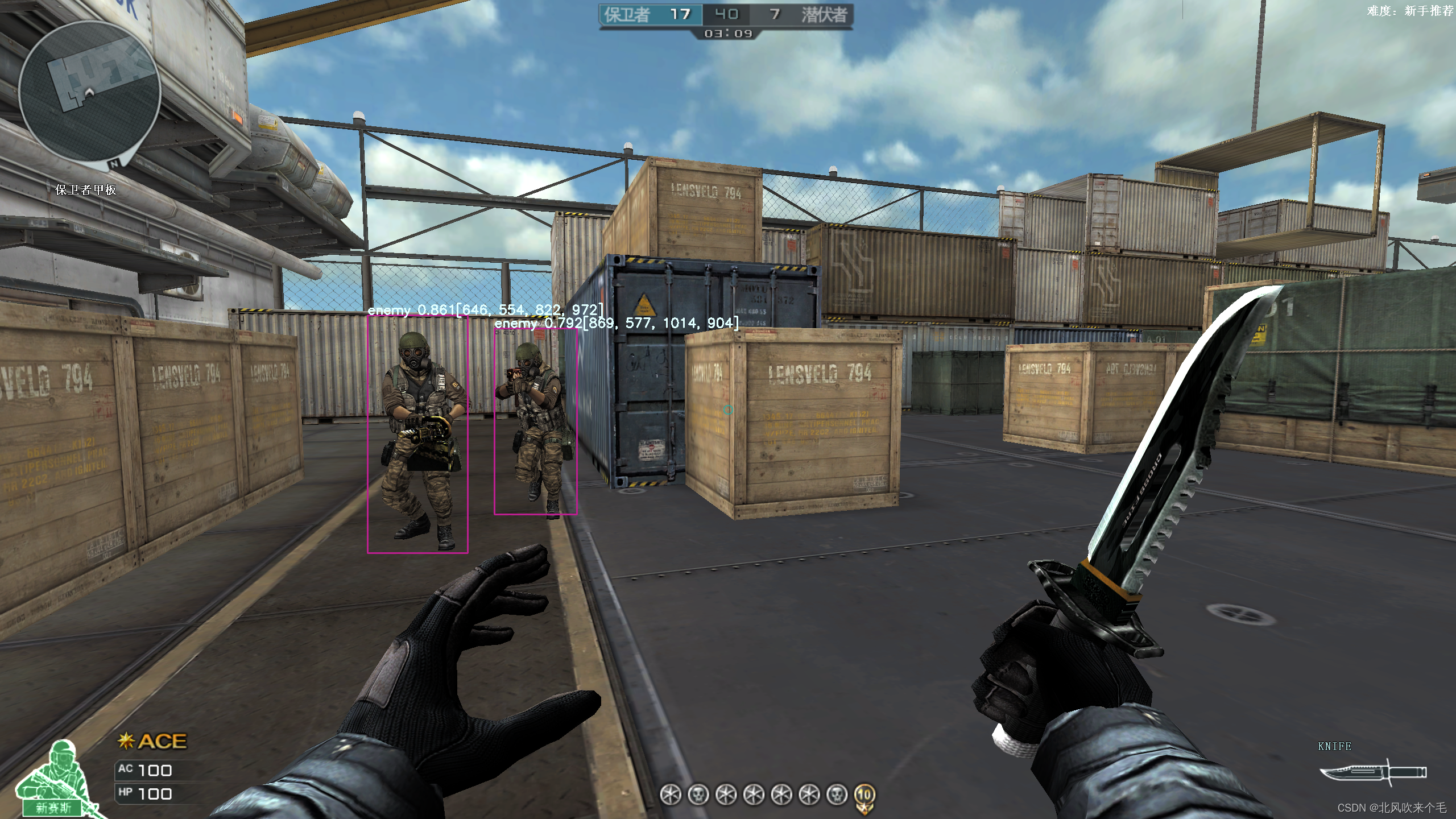
为了更好的展示效果,截图暂停300ms的时间:
Crossfire
总结
整个项目有两点需要特别注意:
1、pt 模型文件转 onnx 模型文件时,img-size参数应该一致;
2、若显存不足,则修改图像大小及关闭nvidia experence中的重放功能和录制功能;
3、游戏中控制鼠标移动时应该使用的是相对移动,而不是绝对位置,不然是无效移动;
4、应该使用管理员权限来运行程序,不然不能在游戏中控制鼠标;
项目需要改进的地方有:
1、截图模块需要改进,项目里使用的是 pynput 进行截图,消耗的时间有30毫秒,听说用 Qt 或者 win32 的接口来截图时间会更少,但是我没有去试过;
2、项目运行时,不可避免的会有一些误判,应该想办法去解决,比如提高置信度阈值或者根据面积大小来做阈值;
3、总的消耗时间大概是 100ms ,还有很大的优化空间。

有“AI”的1024 = 2048,欢迎大家加入2048 AI社区
更多推荐

 38
38 0
0- 0


 已为社区贡献3条内容

所有评论(0)