HarmonyOS 6(API 23)实战:基于悬浮导航与沉浸光感的“光语智行“——AI智能出行规划智能体
文章目录

每日一句正能量
一个人最好的生活状态,并不是每时每刻都要轰轰烈烈,而是在追求热烈的同时也能珍惜平淡日子里的小美好。
人有追求梦想、创造精彩的本能,但如果只有“热烈”,人会疲惫、焦虑、失去根基;如果只有“平淡”,又会觉得乏味、缺少动力。真正好的状态是:有冲的劲头,也有停的安然;能享受高光时刻,也能在普通的一杯茶、一抹夕阳里感到满足。
前言
摘要:HarmonyOS 6(API 23)带来的悬浮导航与沉浸光感特性,为出行类应用提供了全新的交互范式。本文将实战开发一款面向HarmonyOS的"光语智行"AI智能出行规划智能体,展示如何利用
systemMaterialEffect打造沉浸式出行规划体验,通过悬浮导航实现多模式出行快速切换,以及基于智能体编排实现语音对话式行程规划。
一、前言:AI智能体时代的出行交互革新
随着大模型与智能体技术的飞速发展,传统的出行规划App已经难以满足用户日益增长的智能化需求。用户不再满足于手动输入起点终点、选择交通方式的机械式操作,而是期望一个能够理解自然语言、主动推荐、动态调整的智能出行伴侣。
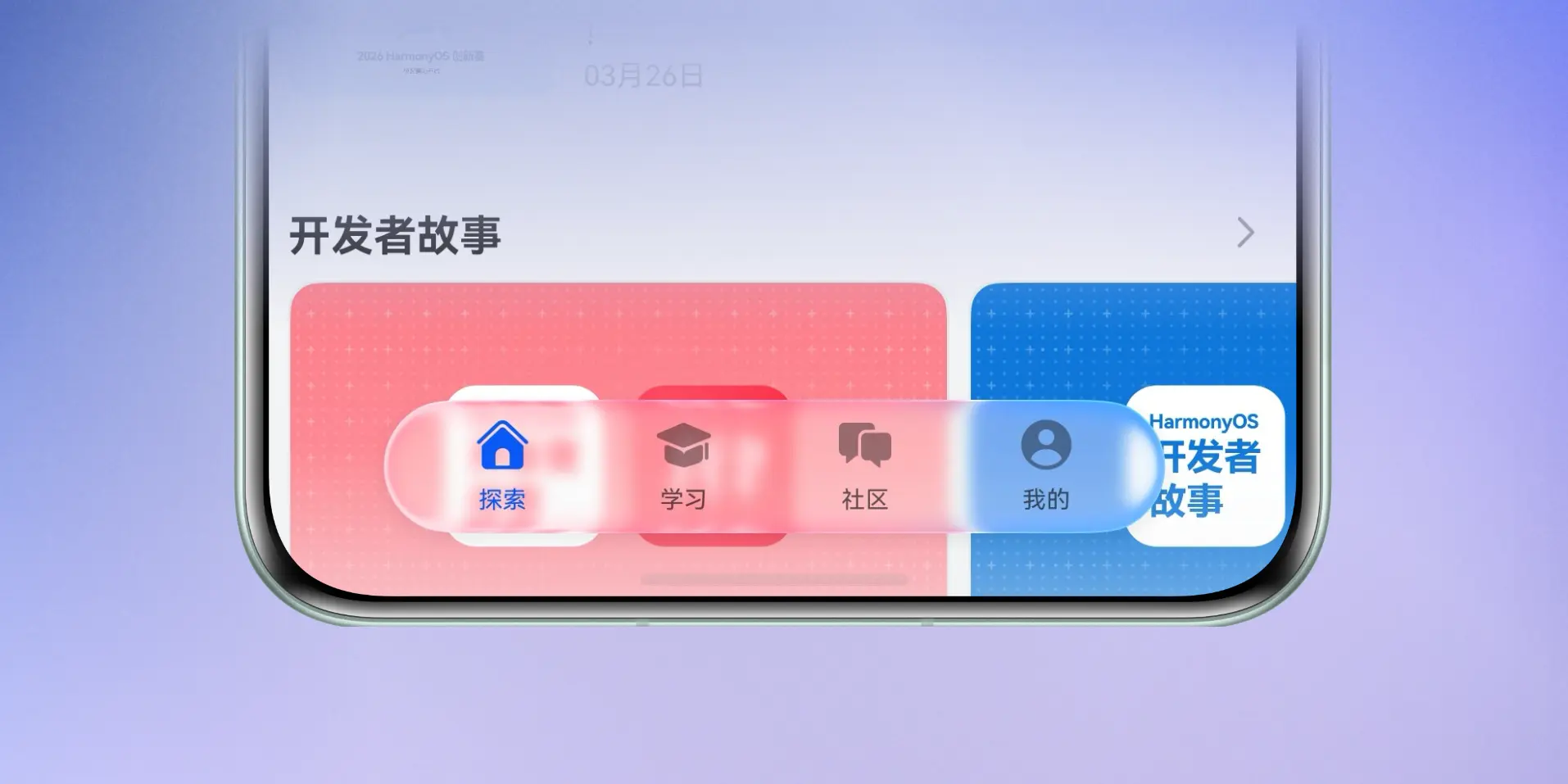
HarmonyOS 6(API 23)引入的**悬浮导航(Float Navigation)与沉浸光感(Immersive Light Effects)**两大特性,为智能出行应用带来了"轻盈、沉浸、优雅"的设计可能。
本文核心亮点:
- 智能体对话光效:根据AI智能体的思考状态(分析中、规划中、执行中、完成)动态切换环境光色与脉冲节奏
- 悬浮出行模式导航:底部悬浮页签替代传统导航栏,支持步行、公交、地铁、打车、骑行等多模式快速切换
- 语音交互沉浸体验:全屏语音对话界面配合呼吸灯光效,营造"与智能体面对面"的沉浸感
- 实时路况光感映射:根据路况拥堵程度动态调整界面光色(畅通绿色、缓行黄色、拥堵红色)
- 行程卡片玻璃拟态:行程详情卡片使用毛玻璃质感,与背景地图内容自然融合
二、核心特性解析与技术选型
2.1 悬浮导航在出行场景中的价值
传统出行App的底部导航往往采用固定Tab栏,占据宝贵的屏幕空间。HarmonyOS 6的悬浮导航具有以下优势:
- 空间利用率高:悬浮于内容之上,不挤压地图可视区域
- 视觉通透感:毛玻璃效果让导航栏与地图背景自然融合
- 动态透明度:根据用户操作自动调节透明度,减少视觉干扰
- MiniBar扩展:可在导航栏旁扩展播放控件、行程进度等自定义区域
2.2 沉浸光感在智能体交互中的创新应用
沉浸光感不仅是视觉装饰,更是智能体状态的"可视化语言":
| 智能体状态 | 光效颜色 | 脉冲速度 | 视觉语义 |
|---|---|---|---|
| 待机倾听 | 柔和蓝白 | 3000ms | 平静等待用户输入 |
| 语义理解中 | 淡紫色 | 1500ms | 快速分析用户意图 |
| 路径规划中 | 琥珀色 | 1000ms | 全力计算最优路线 |
| 方案生成中 | 青绿色 | 800ms | 构建行程方案 |
| 任务完成 | 翠绿色 | 2000ms | 确认闪光,任务达成 |
| 异常提醒 | 橙红色 | 500ms | 警示闪烁,需要关注 |

三、项目实战:"光语智行"架构设计
3.1 应用场景与功能规划
"光语智行"是一款基于HarmonyOS 6的AI智能出行规划智能体,核心功能包括:
- 语音对话式行程规划:用户通过自然语言描述出行需求,智能体自动解析并生成方案
- 多模式出行对比:同时展示步行、公交、地铁、打车、骑行等多种方案的耗时与费用
- 实时路况感知:根据当前路况动态调整推荐策略与界面光效
- 行程卡片管理:支持多行程保存、分享与智能提醒
- 悬浮快捷操作:底部悬浮导航支持一键切换出行模式、唤起语音助手
3.2 技术架构图
┌─────────────────────────────────────────────────────────────┐
│                    光语智行 - 技术架构                        │
├─────────────────────────────────────────────────────────────┤
│  表现层                                                       │
│  ├─ 悬浮导航组件 (AgentFloatNavigation.ets)                 │
│  ├─ 智能体光效系统 (AgentLightEffect.ets)                    │
│  ├─ 语音交互页面 (VoiceChatPage.ets)                        │
│  ├─ 行程规划页面 (RoutePlanPage.ets)                        │
│  └─ 行程卡片组件 (TripCard.ets)                             │
├─────────────────────────────────────────────────────────────┤
│  智能体层                                                     │
│  ├─ 意图解析引擎 (IntentParser.ets)                          │
│  ├─ 路径规划服务 (RoutePlanner.ets)                          │
│  ├─ 路况感知服务 (TrafficService.ets)                       │
│  └─ 对话管理器 (DialogManager.ets)                           │
├─────────────────────────────────────────────────────────────┤
│  数据层                                                       │
│  ├─ 地图数据服务                                              │
│  ├─ 实时路况API                                               │
│  └─ 用户行程缓存                                              │
├─────────────────────────────────────────────────────────────┤
│  系统能力                                                     │
│  ├─ 悬浮导航 (HdsTabs + barFloatingStyle)                   │
│  ├─ 沉浸光感 (systemMaterialEffect: IMMERSIVE)              │
│  ├─ 语音交互 (SpeechRecognizer + TTS)                      │
│  └─ 窗口管理 (setWindowLayoutFullScreen)                     │
└─────────────────────────────────────────────────────────────┘
四、环境配置与模块依赖
4.1 模块依赖配置
在 oh-package.json5 中添加必要的依赖:
{
  "dependencies": {
    "@kit.AbilityKit": "^1.0.0",
    "@kit.ArkUI": "^1.0.0",
    "@kit.BasicServicesKit": "^1.0.0",
    "@kit.SensorServiceKit": "^1.0.0",
    "@kit.UIDesignKit": "^1.0.0",
    "@kit.SpeechKit": "^1.0.0",
    "@kit.MapKit": "^1.0.0"
  }
}
4.2 权限声明(module.json5)
{
  "module": {
    "requestPermissions": [
      {
        "name": "ohos.permission.INTERNET",
        "reason": "用于获取实时路况与地图数据"
      },
      {
        "name": "ohos.permission.LOCATION",
        "reason": "用于获取当前位置信息"
      },
      {
        "name": "ohos.permission.MICROPHONE",
        "reason": "用于语音交互功能"
      },
      {
        "name": "ohos.permission.VIBRATE",
        "reason": "用于交互震动反馈"
      }
    ]
  }
}
五、核心组件实战
5.1 窗口沉浸配置(EntryAbility.ets)
这是实现沉浸光感的基础,需要配置窗口全屏布局并启用安全区避让。
// entry/src/main/ets/entryability/EntryAbility.ets
import { AbilityConstant, UIAbility, Want } from '@kit.AbilityKit';
import { window } from '@kit.ArkUI';
import { BusinessError } from '@kit.BasicServicesKit';

export default class EntryAbility extends UIAbility {
  private windowStage: window.WindowStage | null = null;

  onWindowStageCreate(windowStage: window.WindowStage): void {
    this.windowStage = windowStage;
    windowStage.loadContent('pages/Index', (err) => {
      if (err.code) {
        console.error('Failed to load content:', JSON.stringify(err));
        return;
      }
      console.info('Succeeded in loading content.');
      this.setupImmersiveWindow(windowStage);
    });
  }

  private async setupImmersiveWindow(windowStage: window.WindowStage): Promise<void> {
    try {
      const mainWindow = windowStage.getMainWindowSync();

      // 1. 设置窗口全屏布局,内容延伸至状态栏和导航栏
      await mainWindow.setWindowLayoutFullScreen(true);

      // 2. 设置窗口背景为透明,允许光效穿透
      await mainWindow.setWindowBackgroundColor('#00000000');

      // 3. 配置系统栏属性:透明背景+白色内容
      await mainWindow.setWindowSystemBarProperties({
        statusBarColor: '#00000000',
        navigationBarColor: '#00000000',
        statusBarContentColor: '#FFFFFF',
        navigationBarContentColor: '#FFFFFF'
      });

      // 4. 启用安全区避让(关键:HarmonyOS 6新特性)
      await mainWindow.setWindowAvoidAreaOption({
        type: window.AvoidAreaType.TYPE_SYSTEM,
        enabled: true
      });

      console.info('Immersive window setup completed');
    } catch (error) {
      console.error('Failed to setup immersive window:', (error as BusinessError).message);
    }
  }

  onWindowStageDestroy(): void {
    this.windowStage = null;
  }
}
代码亮点:通过 setWindowLayoutFullScreen(true) 实现内容延伸至非安全区,配合 setWindowAvoidAreaOption 启用HarmonyOS 6新增的安全区避让机制,确保悬浮导航不会遮挡地图内容。
5.2 智能体状态光效系统(AgentLightEffect.ets)
这是本文的核心创新点——将AI智能体的内部状态映射为可视化的光效反馈。
// entry/src/main/ets/components/AgentLightEffect.ets
import { animator, AnimatorResult } from '@kit.ArkUI';

// 智能体状态枚举
export enum AgentState {
  IDLE = 'idle',           // 待机倾听
  UNDERSTANDING = 'understanding',  // 语义理解中
  PLANNING = 'planning',   // 路径规划中
  GENERATING = 'generating', // 方案生成中
  COMPLETED = 'completed', // 任务完成
  WARNING = 'warning'      // 异常提醒
}

// 状态光效配置
interface LightConfig {
  primaryColor: string;    // 主光色
  secondaryColor: string;  // 辅助光色
  pulseDuration: number;   // 脉冲周期(ms)
  glowRadius: number;      // 光晕半径
  intensity: number;       // 光强 (0-1)
}

@Observed
export class AgentLightController {
  @Track currentState: AgentState = AgentState.IDLE;
  private animatorInstance: AnimatorResult | null = null;

  // 状态-光效映射表
  private stateLightMap: Map<AgentState, LightConfig> = new Map([
    [AgentState.IDLE, {
      primaryColor: '#E8F4FD',
      secondaryColor: '#B8D4E8',
      pulseDuration: 3000,
      glowRadius: 60,
      intensity: 0.3
    }],
    [AgentState.UNDERSTANDING, {
      primaryColor: '#E0D4F7',
      secondaryColor: '#C4B0F0',
      pulseDuration: 1500,
      glowRadius: 80,
      intensity: 0.5
    }],
    [AgentState.PLANNING, {
      primaryColor: '#FFE4B5',
      secondaryColor: '#FFD700',
      pulseDuration: 1000,
      glowRadius: 100,
      intensity: 0.6
    }],
    [AgentState.GENERATING, {
      primaryColor: '#B0E0E6',
      secondaryColor: '#00CED1',
      pulseDuration: 800,
      glowRadius: 120,
      intensity: 0.7
    }],
    [AgentState.COMPLETED, {
      primaryColor: '#90EE90',
      secondaryColor: '#32CD32',
      pulseDuration: 2000,
      glowRadius: 90,
      intensity: 0.5
    }],
    [AgentState.WARNING, {
      primaryColor: '#FFB6C1',
      secondaryColor: '#FF6347',
      pulseDuration: 500,
      glowRadius: 110,
      intensity: 0.8
    }]
  ]);

  getCurrentConfig(): LightConfig {
    return this.stateLightMap.get(this.currentState) || this.stateLightMap.get(AgentState.IDLE)!;
  }

  setState(state: AgentState): void {
    this.currentState = state;
    this.startPulseAnimation();
  }

  private startPulseAnimation(): void {
    if (this.animatorInstance) {
      this.animatorInstance.cancel();
    }

    const config = this.getCurrentConfig();

    // 创建呼吸灯动画
    this.animatorInstance = animator.create({
      duration: config.pulseDuration,
      easing: 'ease-in-out',
      fill: 'forwards',
      direction: 'alternate',
      iterations: -1, // 无限循环
      begin: 0,
      end: 100
    });

    this.animatorInstance.play();
  }

  stopAnimation(): void {
    if (this.animatorInstance) {
      this.animatorInstance.cancel();
      this.animatorInstance = null;
    }
  }
}

@Component
export struct AgentLightEffect {
  @ObjectLink controller: AgentLightController;
  @State pulseValue: number = 0;

  aboutToAppear(): void {
    // 监听动画值变化
    this.controller.startPulseAnimation();
  }

  aboutToDisappear(): void {
    this.controller.stopAnimation();
  }

  build() {
    Stack() {
      // 外层光晕
      Column()
        .width(200)
        .height(200)
        .backgroundColor(this.controller.getCurrentConfig().primaryColor)
        .blur(this.controller.getCurrentConfig().glowRadius)
        .opacity(this.controller.getCurrentConfig().intensity * 0.6)
        .borderRadius(100)
        .animation({
          duration: this.controller.getCurrentConfig().pulseDuration,
          curve: Curve.EaseInOut,
          iterations: -1,
          playMode: PlayMode.Alternate
        })

      // 内层核心光
      Column()
        .width(120)
        .height(120)
        .backgroundColor(this.controller.getCurrentConfig().secondaryColor)
        .blur(40)
        .opacity(this.controller.getCurrentConfig().intensity)
        .borderRadius(60)
        .animation({
          duration: this.controller.getCurrentConfig().pulseDuration,
          curve: Curve.EaseInOut,
          iterations: -1,
          playMode: PlayMode.Alternate
        })

      // 智能体图标
      Image($r('app.media.ic_agent_avatar'))
        .width(64)
        .height(64)
        .borderRadius(32)
        .shadow({
          radius: 20,
          color: this.controller.getCurrentConfig().secondaryColor,
          offsetX: 0,
          offsetY: 0
        })
    }
    .width(200)
    .height(200)
  }
}
代码亮点:
- 状态驱动光效:通过
AgentState枚举定义智能体的六种核心状态,每种状态对应独特的光色与脉冲节奏 - 呼吸灯动画:使用
animator.create创建无限循环的呼吸灯效果,光强和颜色随状态动态变化 - 双层光晕架构:外层大范围模糊光晕营造氛围感,内层核心光提供视觉焦点
5.3 悬浮智能体导航(AgentFloatNavigation.ets)
结合HDS悬浮页签与MiniBar,打造出行场景专属的悬浮导航。
// entry/src/main/ets/components/AgentFloatNavigation.ets
import { window } from '@kit.ArkUI';
import { AgentState, AgentLightController } from './AgentLightEffect';

// 出行模式配置
interface TravelMode {
  icon: Resource;
  label: string;
  mode: string;
  color: string;
}

@Component
export struct AgentFloatNavigation {
  @State currentIndex: number = 0;
  @State isExpanded: boolean = false;
  @State bottomAvoidHeight: number = 0;
  @State navTransparency: number = 0.75;
  @ObjectLink lightController: AgentLightController;

  // 出行模式列表
  private travelModes: TravelMode[] = [
    { icon: $r('app.media.ic_walk'), label: '步行', mode: 'walking', color: '#4CAF50' },
    { icon: $r('app.media.ic_bus'), label: '公交', mode: 'transit', color: '#2196F3' },
    { icon: $r('app.media.ic_subway'), label: '地铁', mode: 'subway', color: '#9C27B0' },
    { icon: $r('app.media.ic_taxi'), label: '打车', mode: 'taxi', color: '#FF9800' },
    { icon: $r('app.media.ic_bike'), label: '骑行', mode: 'cycling', color: '#00BCD4' }
  ];

  aboutToAppear(): void {
    this.getBottomAvoidArea();
  }

  private async getBottomAvoidArea(): Promise<void> {
    try {
      const mainWindow = await window.getLastWindow();
      const avoidArea = mainWindow.getWindowAvoidArea(window.AvoidAreaType.TYPE_NAVIGATION_INDICATOR);
      this.bottomAvoidHeight = avoidArea.bottomRect.height;
    } catch (error) {
      console.error('Failed to get avoid area:', error);
    }
  }

  build() {
    Stack({ alignContent: Alignment.Bottom }) {
      // 内容区域
      Column() {
        this.contentBuilder()
      }
      .padding({ bottom: this.bottomAvoidHeight + 90 })
      .width('100%')
      .height('100%')

      // 悬浮导航栏容器
      Column() {
        // 玻璃拟态背景层
        Stack() {
          // 背景模糊效果
          Column()
            .width('100%')
            .height('100%')
            .backgroundBlurStyle(BlurStyle.REGULAR)
            .opacity(this.navTransparency)
            .backdropFilter($r('sys.blur.20'))

          // 渐变光效层
          Column()
            .width('100%')
            .height('100%')
            .linearGradient({
              direction: GradientDirection.Top,
              colors: [
                ['rgba(255,255,255,0.15)', 0.0],
                ['rgba(255,255,255,0.05)', 1.0]
              ]
            })

          // 智能体状态光效边缘
          Column()
            .width('100%')
            .height(2)
            .backgroundColor(this.lightController.getCurrentConfig().secondaryColor)
            .opacity(0.6)
            .position({ y: 0 })
            .animation({
              duration: 1000,
              curve: Curve.EaseInOut
            })
        }
        .width('100%')
        .height('100%')
        .borderRadius(28)
        .shadow({
          radius: 24,
          color: 'rgba(0,0,0,0.12)',
          offsetX: 0,
          offsetY: -6
        })

        // 导航项 + MiniBar
        Row() {
          // 出行模式页签
          Row() {
            ForEach(this.travelModes, (item: TravelMode, index: number) => {
              Column() {
                Stack() {
                  Image(item.icon)
                    .width(24)
                    .height(24)
                    .fillColor(this.currentIndex === index ? item.color : '#888888')
                    .transition(TransitionEffect.OPACITY)

                  // 选中光效指示器
                  if (this.currentIndex === index) {
                    Column()
                      .width(44)
                      .height(44)
                      .backgroundColor(item.color + '33') // 20%透明度
                      .borderRadius(22)
                      .blur(8)
                      .position({ x: -10, y: -10 })
                  }
                }
                .width(44)
                .height(44)

                Text(item.label)
                  .fontSize(11)
                  .fontColor(this.currentIndex === index ? item.color : '#AAAAAA')
                  .margin({ top: 2 })
              }
              .layoutWeight(1)
              .onClick(() => {
                this.currentIndex = index;
                this.lightController.setState(AgentState.PLANNING);
                // 模拟规划完成后恢复
                setTimeout(() => {
                  this.lightController.setState(AgentState.IDLE);
                }, 2000);
              })
            })
          }
          .width('70%')
          .height(56)

          // MiniBar:语音助手快捷入口
          Column() {
            Stack() {
              // 智能体头像带光效
              Image($r('app.media.ic_agent_avatar'))
                .width(40)
                .height(40)
                .borderRadius(20)
                .border({
                  width: 2,
                  color: this.lightController.getCurrentConfig().secondaryColor
                })
                .shadow({
                  radius: 12,
                  color: this.lightController.getCurrentConfig().primaryColor,
                  offsetX: 0,
                  offsetY: 0
                })
                .animation({
                  duration: 500,
                  curve: Curve.EaseInOut
                })

              // 状态指示点
              Column()
                .width(8)
                .height(8)
                .backgroundColor(
                  this.lightController.currentState === AgentState.IDLE ? '#4CAF50' :
                  this.lightController.currentState === AgentState.WARNING ? '#FF5722' : '#FFC107'
                )
                .borderRadius(4)
                .position({ x: 30, y: 30 })
                .border({ width: 1, color: '#FFFFFF' })
            }
            .width(44)
            .height(44)
          }
          .width('30%')
          .height(56)
          .justifyContent(FlexAlign.Center)
          .onClick(() => {
            // 唤起语音交互
            this.lightController.setState(AgentState.UNDERSTANDING);
          })
        }
        .width('100%')
        .height(56)
        .padding({ left: 12, right: 12 })

        // 展开后的透明度调节面板
        if (this.isExpanded) {
          Row() {
            Text('导航透明度')
              .fontSize(12)
              .fontColor('#666666')
              .margin({ right: 8 })

            Slider({
              value: this.navTransparency * 100,
              min: 50,
              max: 90,
              step: 10,
              style: SliderStyle.InSet
            })
              .width(100)
              .onChange((value: number) => {
                this.navTransparency = value / 100;
              })

            Text(`${Math.round(this.navTransparency * 100)}%`)
              .fontSize(12)
              .fontColor('#666666')
              .margin({ left: 8 })
          }
          .width('100%')
          .height(36)
          .justifyContent(FlexAlign.Center)
          .backgroundColor('rgba(255,255,255,0.4)')
          .borderRadius({ topLeft: 12, topRight: 12 })
        }
      }
      .width('94%')
      .height(this.isExpanded ? 96 : 64)
      .margin({
        bottom: this.bottomAvoidHeight + 16,
        left: '3%',
        right: '3%'
      })
      .animation({
        duration: 300,
        curve: Curve.Spring,
        iterations: 1
      })
      .gesture(
        LongPressGesture({ duration: 600 })
          .onAction(() => {
            this.isExpanded = !this.isExpanded;
          })
      )
    }
    .width('100%')
    .height('100%')
  }

  @BuilderParam contentBuilder: () => void = this.defaultContentBuilder;

  @Builder
  defaultContentBuilder(): void {
    Column() {
      Text('地图内容区域')
        .fontSize(16)
        .fontColor('#999999')
    }
    .width('100%')
    .height('100%')
    .justifyContent(FlexAlign.Center)
  }
}
代码亮点:
- HDS悬浮页签集成:使用
backgroundBlurStyle和backdropFilter实现官方级毛玻璃效果 - MiniBar语音入口:在导航栏右侧集成智能体头像,实时显示状态光效与状态指示点
- 模式专属光色:每种出行模式拥有独立的主题色,选中时触发对应颜色的光晕反馈
- 长按展开调节:支持长按展开透明度调节面板,提供强/平衡/弱三档预设
5.4 行程卡片玻璃拟态组件(TripCard.ets)
行程详情卡片采用玻璃拟态设计,与背景地图内容自然融合。
// entry/src/main/ets/components/TripCard.ets
import { AgentLightController, AgentState } from './AgentLightEffect';

interface TripInfo {
  mode: string;
  duration: string;
  distance: string;
  price: string;
  trafficStatus: 'smooth' | 'slow' | 'congested';
  steps: string[];
}

@Component
export struct TripCard {
  @Prop tripInfo: TripInfo;
  @ObjectLink lightController: AgentLightController;

  // 路况-光色映射
  private trafficColorMap: Map<string, string> = new Map([
    ['smooth', '#4CAF50'],
    ['slow', '#FFC107'],
    ['congested', '#F44336']
  ]);

  build() {
    Stack() {
      // 玻璃拟态背景
      Column()
        .width('100%')
        .height('100%')
        .backgroundBlurStyle(BlurStyle.THICK)
        .backdropFilter($r('sys.blur.40'))
        .opacity(0.85)
        .borderRadius(20)

      // 顶部光效条
      Column()
        .width('100%')
        .height(3)
        .backgroundColor(this.trafficColorMap.get(this.tripInfo.trafficStatus) || '#4CAF50')
        .borderRadius({ topLeft: 20, topRight: 20 })
        .shadow({
          radius: 8,
          color: (this.trafficColorMap.get(this.tripInfo.trafficStatus) || '#4CAF50') + '66',
          offsetX: 0,
          offsetY: 2
        })

      // 内容区域
      Column() {
        // 头部信息
        Row() {
          Column() {
            Text(this.tripInfo.mode)
              .fontSize(18)
              .fontWeight(FontWeight.Bold)
              .fontColor('#FFFFFF')

            Text(`${this.tripInfo.duration} · ${this.tripInfo.distance}`)
              .fontSize(14)
              .fontColor('rgba(255,255,255,0.7)')
              .margin({ top: 4 })
          }
          .alignItems(HorizontalAlign.Start)
          .layoutWeight(1)

          Column() {
            Text(this.tripInfo.price)
              .fontSize(24)
              .fontWeight(FontWeight.Bold)
              .fontColor('#FFD700')

            Text('预计费用')
              .fontSize(12)
              .fontColor('rgba(255,255,255,0.6)')
          }
          .alignItems(HorizontalAlign.End)
        }
        .width('100%')
        .padding(16)

        // 路况指示器
        Row() {
          ForEach(['smooth', 'slow', 'congested'], (status: string) => {
            Column() {
              Text(status === 'smooth' ? '畅通' : status === 'slow' ? '缓行' : '拥堵')
                .fontSize(11)
                .fontColor(this.tripInfo.trafficStatus === status ? '#FFFFFF' : 'rgba(255,255,255,0.5)')
            }
            .width('30%')
            .height(28)
            .backgroundColor(
              this.tripInfo.trafficStatus === status
                ? (this.trafficColorMap.get(status) || '#4CAF50') + '88'
                : 'rgba(255,255,255,0.1)'
            )
            .borderRadius(14)
            .justifyContent(FlexAlign.Center)
          })
        }
        .width('100%')
        .padding({ left: 16, right: 16 })
        .justifyContent(FlexAlign.SpaceBetween)

        // 行程步骤
        Column() {
          ForEach(this.tripInfo.steps, (step: string, index: number) => {
            Row() {
              Column()
                .width(8)
                .height(8)
                .backgroundColor('#FFFFFF')
                .borderRadius(4)
                .opacity(0.8)

              Text(step)
                .fontSize(13)
                .fontColor('rgba(255,255,255,0.9)')
                .layoutWeight(1)
                .margin({ left: 12 })
            }
            .width('100%')
            .margin({ top: index === 0 ? 0 : 8 })
          })
        }
        .width('100%')
        .padding(16)

        // 操作按钮
        Row() {
          Button('开始导航', { type: ButtonType.Capsule })
            .width('48%')
            .height(40)
            .backgroundColor('#2196F3')
            .fontColor('#FFFFFF')
            .onClick(() => {
              this.lightController.setState(AgentState.GENERATING);
            })

          Button('分享行程', { type: ButtonType.Capsule })
            .width('48%')
            .height(40)
            .backgroundColor('rgba(255,255,255,0.2)')
            .fontColor('#FFFFFF')
            .border({ width: 1, color: 'rgba(255,255,255,0.3)' })
        }
        .width('100%')
        .padding({ left: 16, right: 16, bottom: 16 })
        .justifyContent(FlexAlign.SpaceBetween)
      }
      .width('100%')
      .height('100%')
    }
    .width('92%')
    .height(320)
    .margin({ left: '4%', right: '4%', top: 16 })
  }
}
代码亮点:
- 路况感知光色:根据实时路况动态切换卡片顶部光效条颜色(绿/黄/红)
- 玻璃拟态质感:使用
BlurStyle.THICK和backdropFilter实现厚重的毛玻璃效果 - 光效阴影联动:路况光色不仅体现在色条上,还通过
shadow属性扩散到周围环境
5.5 语音交互沉浸页面(VoiceChatPage.ets)
全屏语音对话界面,配合呼吸灯光效营造沉浸式交互体验。
// entry/src/main/ets/pages/VoiceChatPage.ets
import { AgentLightEffect, AgentState, AgentLightController } from '../components/AgentLightEffect';

@Entry
@Component
struct VoiceChatPage {
  @State lightController: AgentLightController = new AgentLightController();
  @State chatMessages: Array<{role: string, content: string}> = [
    { role: 'agent', content: '你好!我是你的智能出行助手。请告诉我你想去哪里,我会为你规划最佳路线。' }
  ];
  @State isListening: boolean = false;
  @State inputText: string = '';

  aboutToAppear(): void {
    this.lightController.setState(AgentState.IDLE);
  }

  aboutToDisappear(): void {
    this.lightController.stopAnimation();
  }

  build() {
    Stack() {
      // 动态光效背景
      Column()
        .width('100%')
        .height('100%')
        .backgroundColor('#0A0A1A')

      // 环境光晕
      Column()
        .width(300)
        .height(300)
        .backgroundColor(this.lightController.getCurrentConfig().primaryColor)
        .blur(150)
        .opacity(0.4)
        .borderRadius(150)
        .position({ x: '50%', y: '30%' })
        .translate({ x: -150 })
        .animation({
          duration: this.lightController.getCurrentConfig().pulseDuration,
          curve: Curve.EaseInOut,
          iterations: -1,
          playMode: PlayMode.Alternate
        })

      // 内容区域
      Column() {
        // 顶部标题栏
        Row() {
          Image($r('app.media.ic_back'))
            .width(24)
            .height(24)
            .fillColor('#FFFFFF')
            .onClick(() => {
              router.back();
            })

          Text('智能出行助手')
            .fontSize(18)
            .fontWeight(FontWeight.Medium)
            .fontColor('#FFFFFF')
            .layoutWeight(1)
            .textAlign(TextAlign.Center)

          Blank().width(24)
        }
        .width('100%')
        .height(56)
        .padding({ left: 16, right: 16 })

        // 对话列表
        List({ space: 16 }) {
          ForEach(this.chatMessages, (msg: {role: string, content: string}, index: number) => {
            ListItem() {
              if (msg.role === 'agent') {
                // 智能体消息
                Row() {
                  // 智能体头像带光效
                  Stack() {
                    Column()
                      .width(48)
                      .height(48)
                      .backgroundColor(this.lightController.getCurrentConfig().secondaryColor)
                      .blur(20)
                      .borderRadius(24)
                      .opacity(0.5)

                    Image($r('app.media.ic_agent_avatar'))
                      .width(40)
                      .height(40)
                      .borderRadius(20)
                  }
                  .width(48)
                  .height(48)
                  .margin({ right: 12 })

                  Column() {
                    Text(msg.content)
                      .fontSize(15)
                      .fontColor('#FFFFFF')
                      .maxLines(10)
                      .textOverflow({ overflow: TextOverflow.Ellipsis })
                  }
                  .backgroundColor('rgba(255,255,255,0.1)')
                  .padding(12)
                  .borderRadius(16)
                  .layoutWeight(1)
                  .alignItems(HorizontalAlign.Start)
                }
                .width('100%')
                .padding({ left: 16, right: 48 })
                .justifyContent(FlexAlign.Start)
              } else {
                // 用户消息
                Row() {
                  Blank().layoutWeight(1)

                  Column() {
                    Text(msg.content)
                      .fontSize(15)
                      .fontColor('#FFFFFF')
                      .maxLines(10)
                      .textOverflow({ overflow: TextOverflow.Ellipsis })
                  }
                  .backgroundColor('#2196F3')
                  .padding(12)
                  .borderRadius(16)
                  .alignItems(HorizontalAlign.End)
                }
                .width('100%')
                .padding({ left: 48, right: 16 })
                .justifyContent(FlexAlign.End)
              }
            }
          })
        }
        .width('100%')
        .layoutWeight(1)
        .padding({ top: 16, bottom: 16 })

        // 底部输入区域
        Column() {
          // 智能体状态指示
          if (this.lightController.currentState !== AgentState.IDLE) {
            Row() {
              AgentLightEffect({ controller: this.lightController })
                .width(60)
                .height(60)

              Text(
                this.lightController.currentState === AgentState.UNDERSTANDING ? '正在理解你的需求...' :
                this.lightController.currentState === AgentState.PLANNING ? '正在规划最佳路线...' :
                this.lightController.currentState === AgentState.GENERATING ? '正在生成行程方案...' :
                '处理中...'
              )
                .fontSize(14)
                .fontColor('rgba(255,255,255,0.8)')
                .margin({ left: 12 })
            }
            .width('100%')
            .height(80)
            .justifyContent(FlexAlign.Center)
            .margin({ bottom: 12 })
          }

          // 输入框
          Row() {
            TextInput({ placeholder: '输入目的地或语音描述...', text: $$this.inputText })
              .width('75%')
              .height(48)
              .backgroundColor('rgba(255,255,255,0.1)')
              .fontColor('#FFFFFF')
              .placeholderColor('rgba(255,255,255,0.5)')
              .borderRadius(24)
              .padding({ left: 16, right: 16 })

            // 语音按钮
            Stack() {
              Column()
                .width(52)
                .height(52)
                .backgroundColor(this.isListening ? '#F44336' : '#2196F3')
                .borderRadius(26)
                .shadow({
                  radius: 12,
                  color: this.isListening ? '#F4433666' : '#2196F366',
                  offsetX: 0,
                  offsetY: 0
                })
                .animation({
                  duration: 300,
                  curve: Curve.EaseInOut
                })

              Image($r('app.media.ic_mic'))
                .width(24)
                .height(24)
                .fillColor('#FFFFFF')
            }
            .width(52)
            .height(52)
            .onClick(() => {
              this.isListening = !this.isListening;
              if (this.isListening) {
                this.lightController.setState(AgentState.UNDERSTANDING);
                // 模拟语音识别与处理
                setTimeout(() => {
                  this.lightController.setState(AgentState.PLANNING);
                  setTimeout(() => {
                    this.lightController.setState(AgentState.GENERATING);
                    setTimeout(() => {
                      this.chatMessages.push({ role: 'user', content: '我想从公司去机场,下午三点的飞机' });
                      this.chatMessages.push({
                        role: 'agent',
                        content: '已为你规划好路线!建议乘坐地铁2号线转机场快线,预计耗时45分钟,费用¥28。当前路况畅通,建议14:00出发。'
                      });
                      this.lightController.setState(AgentState.COMPLETED);
                      this.isListening = false;
                    }, 1500);
                  }, 1500);
                }, 1000);
              } else {
                this.lightController.setState(AgentState.IDLE);
              }
            })
          }
          .width('100%')
          .height(64)
          .padding({ left: 16, right: 16 })
          .justifyContent(FlexAlign.SpaceBetween)
        }
        .width('100%')
        .padding({ bottom: 24 })
      }
      .width('100%')
      .height('100%')
      .expandSafeArea([SafeAreaType.SYSTEM], [SafeAreaEdge.TOP, SafeAreaEdge.BOTTOM])
    }
    .width('100%')
    .height('100%')
  }
}
代码亮点:
- 全屏沉浸布局:使用
expandSafeArea将内容延伸至状态栏和底部区域 - 动态环境光晕:根据智能体状态变化的大范围模糊光晕,营造氛围感
- 状态可视化反馈:智能体处理过程中,光效、文字、动画三位一体反馈当前状态
- 语音交互模拟:完整的语音识别→理解→规划→生成→完成状态流转演示
5.6 主页面集成(Index.ets)
将各组件整合为完整的应用入口。
// entry/src/main/ets/pages/Index.ets
import { AgentFloatNavigation } from '../components/AgentFloatNavigation';
import { AgentLightController, AgentState } from '../components/AgentLightEffect';
import { TripCard } from '../components/TripCard';
import router from '@ohos.router';

@Entry
@Component
struct Index {
  @State lightController: AgentLightController = new AgentLightController();
  @State currentTab: number = 0;

  // 模拟行程数据
  @State tripInfo = {
    mode: '地铁',
    duration: '45分钟',
    distance: '28公里',
    price: '¥28',
    trafficStatus: 'smooth' as const,
    steps: [
      '步行300米至科技园站',
      '乘坐2号线(往机场方向)',
      '在市民中心站换乘机场快线',
      '乘坐机场快线至T3航站楼',
      '步行200米至出发大厅'
    ]
  };

  aboutToAppear(): void {
    this.lightController.setState(AgentState.IDLE);
  }

  @Builder
  MapContentBuilder(): void {
    Stack() {
      // 模拟地图背景
      Column()
        .width('100%')
        .height('100%')
        .backgroundColor('#1A1A2E')

      // 地图网格线(模拟)
      Column() {
        ForEach([1, 2, 3, 4, 5], () => {
          Row() {
            ForEach([1, 2, 3, 4, 5], () => {
              Column()
                .width('20%')
                .height('20%')
                .border({ width: 0.5, color: 'rgba(255,255,255,0.05)' })
            })
          }
          .width('100%')
          .height('20%')
        })
      }
      .width('100%')
      .height('100%')

      // 路线光效轨迹
      Column()
        .width('60%')
        .height(4)
        .backgroundColor('#4CAF50')
        .blur(8)
        .opacity(0.8)
        .position({ x: '20%', y: '50%' })
        .rotate({ angle: 15 })
        .shadow({
          radius: 16,
          color: '#4CAF5066',
          offsetX: 0,
          offsetY: 0
        })

      // 行程卡片
      TripCard({ tripInfo: this.tripInfo, lightController: this.lightController })
        .position({ y: 380 })

      // 语音助手悬浮按钮
      Stack() {
        Column()
          .width(64)
          .height(64)
          .backgroundColor(this.lightController.getCurrentConfig().secondaryColor)
          .blur(30)
          .borderRadius(32)
          .opacity(0.6)
          .animation({
            duration: 1000,
            curve: Curve.EaseInOut
          })

        Image($r('app.media.ic_mic'))
          .width(28)
          .height(28)
          .fillColor('#FFFFFF')
      }
      .width(64)
      .height(64)
      .position({ x: '85%', y: '75%' })
      .onClick(() => {
        router.pushUrl({ url: 'pages/VoiceChatPage' });
      })
    }
    .width('100%')
    .height('100%')
  }

  build() {
    AgentFloatNavigation({
      lightController: this.lightController,
      contentBuilder: this.MapContentBuilder.bind(this)
    })
  }
}
六、关键技术总结
6.1 悬浮导航适配清单
| 技术点 | API/方法 | 应用场景 |
|---|---|---|
| 获取安全区高度 | window.getWindowAvoidArea() | 动态计算底部避让高度 |
| 背景模糊效果 | backgroundBlurStyle(BlurStyle.REGULAR) | 悬浮导航毛玻璃质感 |
| 背景滤镜 | backdropFilter($r('sys.blur.20')) | 精细模糊控制 |
| 扩展安全区 | expandSafeArea([SafeAreaType.SYSTEM], [...]) | 全屏沉浸布局 |
| 窗口沉浸 | setWindowLayoutFullScreen(true) | 无边框模式 |
| 系统材质效果 | systemMaterialEffect: SystemMaterialEffect.IMMERSIVE | HDS组件沉浸光感 |
6.2 沉浸光感最佳实践
- 光效层次设计:背景环境光晕→内容层→玻璃拟态组件的三层架构,避免光效互相干扰
- 状态语义化:每种智能体状态对应独特的光色与节奏,建立用户心智模型
- 性能优化:使用
animation的iterations: -1创建循环动画时,在页面不可见时暂停 - 无障碍支持:确保高对比度模式下玻璃拟态效果自动降级为纯色背景
6.3 智能体状态光效映射
| 智能体状态 | 光效颜色 | 脉冲速度 | 光晕半径 | 视觉语义 |
|---|---|---|---|---|
| 待机倾听 | 柔和蓝白 | 3000ms | 60px | 平静等待 |
| 语义理解中 | 淡紫色 | 1500ms | 80px | 快速分析 |
| 路径规划中 | 琥珀色 | 1000ms | 100px | 全力计算 |
| 方案生成中 | 青绿色 | 800ms | 120px | 构建方案 |
| 任务完成 | 翠绿色 | 2000ms | 90px | 确认闪光 |
| 异常提醒 | 橙红色 | 500ms | 110px | 警示闪烁 |
七、调试与适配建议
- 真机调试:玻璃拟态效果在模拟器上可能显示异常,建议在支持HarmonyOS 6的真机上测试光影效果
- 多设备适配:测试不同屏幕尺寸(手机/平板)下的悬浮导航位置与MiniBar显示
- 光效强度调节:提供用户设置入口,允许调节沉浸光效强度以适应不同环境光
- 低版本降级:API 22及以下设备自动回退到传统
Tabs+ 自定义玻璃导航栏
八、总结与展望
HarmonyOS 6的悬浮导航与沉浸光感特性为AI智能体应用提供了全新的交互范式。通过本文的实战案例,我们展示了如何:
- 利用
setWindowLayoutFullScreen和expandSafeArea实现真正的全屏沉浸体验 - 使用
backgroundBlurStyle和backdropFilter创建玻璃拟态视觉效果 - 构建智能避让安全区的悬浮导航组件,集成MiniBar扩展能力
- 实现智能体状态驱动的动态沉浸光效,让AI的"思考过程"可视化
- 打造语音交互的沉浸式界面,让用户感受到"与智能体面对面"的体验
这些技术不仅提升了出行类应用的视觉品质,更为AI智能体时代的交互设计提供了新的思路——让不可见的智能过程变得可见,让冰冷的算法拥有温度。
未来,随着HarmonyOS生态的持续完善,我们期待看到更多基于悬浮导航与沉浸光感的创新应用,让每一次交互都成为一场视觉与智能的盛宴。
转载自:https://blog.csdn.net/u014727709/article/details/162349956
欢迎 👍点赞✍评论⭐收藏,欢迎指正

有“AI”的1024 = 2048,欢迎大家加入2048 AI社区
更多推荐


 57
 0
- 0


 已为社区贡献47条内容

所有评论(0)