华为云服务器本地部署大模型实战(Ollama + Tesla T4 踩坑记)
最近在开发一个开源 Agent 项目 ZenoAgent。因为调用商用大模型 API 成本太高,所以决定华为云 ECS 上部署一套本地开源大模型服务。本文记载了服务器部署大模型过程中踩的坑
文章目录
在企业级应用场景中,出于数据安全考量,服务器往往无法连接外网。如何在“纯离线”的华为云 ECS 环境下部署大模型?本文记录了我在华为云
ECS(Tesla T4)上部署 Ollama 的全过程,希望能帮大家少走弯路。
前言
最近在开发一个开源 Agent 项目 ZenoAgent。因为调用商用大模型 API 成本太高,所以决定华为云 ECS 上部署一套本地开源大模型服务。
服务器配置为 NVIDIA Tesla T4,操作系统为 Ubuntu,最大的挑战是:服务器完全无法连接外网。
一、大模型运行工具选择
在工具选型上,我主要在 LM Studio 和 Ollama 之间犹豫:
- LM Studio:
- 优点:界面极其友好,适合桌面端体验,小白也能上手。
- 缺点:服务端部署略显臃肿,且在无 GUI(无桌面环境)的 Linux 服务器上依赖复杂,难以发挥优势。
- Ollama:
- 优点:Go 语言编写,单二进制文件即可运行,极简主义;原生支持 API 服务,方便集成到业务系统;社区生态极其丰富(Open WebUI 等)。
- 缺点:纯命令行操作,有一定的学习门槛。
我本地笔记本上部署的是LM Studio,确实很容易上手,但是考虑到服务器没有安装可视桌面,且需要稳定提供 API 服务,最终选择 Ollama。
二、 第一道坎:离线环境的“当头一棒”
选定工具后,我按照官网教程,自信满满地敲下了一键安装命令:
curl -fsSL https://ollama.com/install.sh | bash
结果:终端卡死,报错 Connection timed out。
才反应过来,华为云 ECS 默认是纯内网环境,无法访问 GitHub 和 Ollama 官网。既然无法在线安装,只能切换到“手动挡”模式。
1. 扒脚本与“搬运工”
到官网github扒了文件到本地
打开 install.sh分析其逻辑。
#!/bin/sh
# This script installs Ollama on Linux and macOS.
# It detects the current operating system architecture and installs the appropriate version of Ollama.

set -eu

red="$( (/usr/bin/tput bold || :; /usr/bin/tput setaf 1 || :) 2>&-)"
plain="$( (/usr/bin/tput sgr0 || :) 2>&-)"

status() { echo ">>> $*" >&2; }
error() { echo "${red}ERROR:${plain} $*"; exit 1; }
warning() { echo "${red}WARNING:${plain} $*"; }

TEMP_DIR=$(mktemp -d)
cleanup() { rm -rf $TEMP_DIR; }
trap cleanup EXIT

available() { command -v $1 >/dev/null; }
require() {
    local MISSING=''
    for TOOL in $*; do
        if ! available $TOOL; then
            MISSING="$MISSING $TOOL"
        fi
    done

    echo $MISSING
}

OS="$(uname -s)"
ARCH=$(uname -m)
case "$ARCH" in
    x86_64) ARCH="amd64" ;;
    aarch64|arm64) ARCH="arm64" ;;
    *) error "Unsupported architecture: $ARCH" ;;
esac

VER_PARAM="${OLLAMA_VERSION:+?version=$OLLAMA_VERSION}"

###########################################
# macOS
###########################################

if [ "$OS" = "Darwin" ]; then
    NEEDS=$(require curl unzip)
    if [ -n "$NEEDS" ]; then
        status "ERROR: The following tools are required but missing:"
        for NEED in $NEEDS; do
            echo "  - $NEED"
        done
        exit 1
    fi

    DOWNLOAD_URL="https://ollama.com/download/Ollama-darwin.zip${VER_PARAM}"

    if pgrep -x Ollama >/dev/null 2>&1; then
        status "Stopping running Ollama instance..."
        pkill -x Ollama 2>/dev/null || true
        sleep 2
    fi

    if [ -d "/Applications/Ollama.app" ]; then
        status "Removing existing Ollama installation..."
        rm -rf "/Applications/Ollama.app"
    fi

    status "Downloading Ollama for macOS..."
    curl --fail --show-error --location --progress-bar \
        -o "$TEMP_DIR/Ollama-darwin.zip" "$DOWNLOAD_URL"

    status "Installing Ollama to /Applications..."
    unzip -q "$TEMP_DIR/Ollama-darwin.zip" -d "$TEMP_DIR"
    mv "$TEMP_DIR/Ollama.app" "/Applications/"

    if [ ! -L "/usr/local/bin/ollama" ] || [ "$(readlink "/usr/local/bin/ollama")" != "/Applications/Ollama.app/Contents/Resources/ollama" ]; then
        status "Adding 'ollama' command to PATH (may require password)..."
        mkdir -p "/usr/local/bin" 2>/dev/null || sudo mkdir -p "/usr/local/bin"
        ln -sf "/Applications/Ollama.app/Contents/Resources/ollama" "/usr/local/bin/ollama" 2>/dev/null || \
            sudo ln -sf "/Applications/Ollama.app/Contents/Resources/ollama" "/usr/local/bin/ollama"
    fi

    if [ -z "${OLLAMA_NO_START:-}" ]; then
        status "Starting Ollama..."
        open -a Ollama --args hidden
    fi

    status "Install complete. You can now run 'ollama'."
    exit 0
fi

###########################################
# Linux
###########################################

[ "$OS" = "Linux" ] || error 'This script is intended to run on Linux and macOS only.'

IS_WSL2=false

KERN=$(uname -r)
case "$KERN" in
    *icrosoft*WSL2 | *icrosoft*wsl2) IS_WSL2=true;;
    *icrosoft) error "Microsoft WSL1 is not currently supported. Please use WSL2 with 'wsl --set-version <distro> 2'" ;;
    *) ;;
esac

SUDO=
if [ "$(id -u)" -ne 0 ]; then
    # Running as root, no need for sudo
    if ! available sudo; then
        error "This script requires superuser permissions. Please re-run as root."
    fi

    SUDO="sudo"
fi

NEEDS=$(require curl awk grep sed tee xargs)
if [ -n "$NEEDS" ]; then
    status "ERROR: The following tools are required but missing:"
    for NEED in $NEEDS; do
        echo "  - $NEED"
    done
    exit 1
fi

# Function to download and extract with fallback from zst to tgz
download_and_extract() {
    local url_base="$1"
    local dest_dir="$2"
    local filename="$3"

    # Check if .tar.zst is available
    if curl --fail --silent --head --location "${url_base}/${filename}.tar.zst${VER_PARAM}" >/dev/null 2>&1; then
        # zst file exists - check if we have zstd tool
        if ! available zstd; then
            error "This version requires zstd for extraction. Please install zstd and try again:
  - Debian/Ubuntu: sudo apt-get install zstd
  - RHEL/CentOS/Fedora: sudo dnf install zstd
  - Arch: sudo pacman -S zstd"
        fi

        status "Downloading ${filename}.tar.zst"
        curl --fail --show-error --location --progress-bar \
            "${url_base}/${filename}.tar.zst${VER_PARAM}" | \
            zstd -d | $SUDO tar -xf - -C "${dest_dir}"
        return 0
    fi

    # Fall back to .tgz for older versions
    status "Downloading ${filename}.tgz"
    curl --fail --show-error --location --progress-bar \
        "${url_base}/${filename}.tgz${VER_PARAM}" | \
        $SUDO tar -xzf - -C "${dest_dir}"
}

for BINDIR in /usr/local/bin /usr/bin /bin; do
    echo $PATH | grep -q $BINDIR && break || continue
done
OLLAMA_INSTALL_DIR=$(dirname ${BINDIR})

if [ -d "$OLLAMA_INSTALL_DIR/lib/ollama" ] ; then
    status "Cleaning up old version at $OLLAMA_INSTALL_DIR/lib/ollama"
    $SUDO rm -rf "$OLLAMA_INSTALL_DIR/lib/ollama"
fi
status "Installing ollama to $OLLAMA_INSTALL_DIR"
$SUDO install -o0 -g0 -m755 -d $BINDIR
$SUDO install -o0 -g0 -m755 -d "$OLLAMA_INSTALL_DIR/lib/ollama"
download_and_extract "https://ollama.com/download" "$OLLAMA_INSTALL_DIR" "ollama-linux-${ARCH}"

if [ "$OLLAMA_INSTALL_DIR/bin/ollama" != "$BINDIR/ollama" ] ; then
    status "Making ollama accessible in the PATH in $BINDIR"
    $SUDO ln -sf "$OLLAMA_INSTALL_DIR/ollama" "$BINDIR/ollama"
fi

# Check for NVIDIA JetPack systems with additional downloads
if [ -f /etc/nv_tegra_release ] ; then
    if grep R36 /etc/nv_tegra_release > /dev/null ; then
        download_and_extract "https://ollama.com/download" "$OLLAMA_INSTALL_DIR" "ollama-linux-${ARCH}-jetpack6"
    elif grep R35 /etc/nv_tegra_release > /dev/null ; then
        download_and_extract "https://ollama.com/download" "$OLLAMA_INSTALL_DIR" "ollama-linux-${ARCH}-jetpack5"
    else
        warning "Unsupported JetPack version detected.  GPU may not be supported"
    fi
fi

install_success() {
    status 'The Ollama API is now available at 127.0.0.1:11434.'
    status 'Install complete. Run "ollama" from the command line.'
}
trap install_success EXIT

# Everything from this point onwards is optional.

configure_systemd() {
    if ! id ollama >/dev/null 2>&1; then
        status "Creating ollama user..."
        $SUDO useradd -r -s /bin/false -U -m -d /usr/share/ollama ollama
    fi
    if getent group render >/dev/null 2>&1; then
        status "Adding ollama user to render group..."
        $SUDO usermod -a -G render ollama
    fi
    if getent group video >/dev/null 2>&1; then
        status "Adding ollama user to video group..."
        $SUDO usermod -a -G video ollama
    fi

    status "Adding current user to ollama group..."
    $SUDO usermod -a -G ollama $(whoami)

    status "Creating ollama systemd service..."
    cat <<EOF | $SUDO tee /etc/systemd/system/ollama.service >/dev/null
[Unit]
Description=Ollama Service
After=network-online.target

[Service]
ExecStart=$BINDIR/ollama serve
User=ollama
Group=ollama
Restart=always
RestartSec=3
Environment="PATH=$PATH"

[Install]
WantedBy=default.target
EOF
    SYSTEMCTL_RUNNING="$(systemctl is-system-running || true)"
    case $SYSTEMCTL_RUNNING in
        running|degraded)
            status "Enabling and starting ollama service..."
            $SUDO systemctl daemon-reload
            $SUDO systemctl enable ollama

            start_service() { $SUDO systemctl restart ollama; }
            trap start_service EXIT
            ;;
        *)
            warning "systemd is not running"
            if [ "$IS_WSL2" = true ]; then
                warning "see https://learn.microsoft.com/en-us/windows/wsl/systemd#how-to-enable-systemd to enable it"
            fi
            ;;
    esac
}

if available systemctl; then
    configure_systemd
fi

# WSL2 only supports GPUs via nvidia passthrough
# so check for nvidia-smi to determine if GPU is available
if [ "$IS_WSL2" = true ]; then
    if available nvidia-smi && [ -n "$(nvidia-smi | grep -o "CUDA Version: [0-9]*\.[0-9]*")" ]; then
        status "Nvidia GPU detected."
    fi
    install_success
    exit 0
fi

# Don't attempt to install drivers on Jetson systems
if [ -f /etc/nv_tegra_release ] ; then
    status "NVIDIA JetPack ready."
    install_success
    exit 0
fi

# Install GPU dependencies on Linux
if ! available lspci && ! available lshw; then
    warning "Unable to detect NVIDIA/AMD GPU. Install lspci or lshw to automatically detect and install GPU dependencies."
    exit 0
fi

check_gpu() {
    # Look for devices based on vendor ID for NVIDIA and AMD
    case $1 in
        lspci)
            case $2 in
                nvidia) available lspci && lspci -d '10de:' | grep -q 'NVIDIA' || return 1 ;;
                amdgpu) available lspci && lspci -d '1002:' | grep -q 'AMD' || return 1 ;;
            esac ;;
        lshw)
            case $2 in
                nvidia) available lshw && $SUDO lshw -c display -numeric -disable network | grep -q 'vendor: .* \[10DE\]' || return 1 ;;
                amdgpu) available lshw && $SUDO lshw -c display -numeric -disable network | grep -q 'vendor: .* \[1002\]' || return 1 ;;
            esac ;;
        nvidia-smi) available nvidia-smi || return 1 ;;
    esac
}

if check_gpu nvidia-smi; then
    status "NVIDIA GPU installed."
    exit 0
fi

if ! check_gpu lspci nvidia && ! check_gpu lshw nvidia && ! check_gpu lspci amdgpu && ! check_gpu lshw amdgpu; then
    install_success
    warning "No NVIDIA/AMD GPU detected. Ollama will run in CPU-only mode."
    exit 0
fi

if check_gpu lspci amdgpu || check_gpu lshw amdgpu; then
    download_and_extract "https://ollama.com/download" "$OLLAMA_INSTALL_DIR" "ollama-linux-${ARCH}-rocm"

    install_success
    status "AMD GPU ready."
    exit 0
fi

CUDA_REPO_ERR_MSG="NVIDIA GPU detected, but your OS and Architecture are not supported by NVIDIA.  Please install the CUDA driver manually https://docs.nvidia.com/cuda/cuda-installation-guide-linux/"
# ref: https://docs.nvidia.com/cuda/cuda-installation-guide-linux/index.html#rhel-7-centos-7
# ref: https://docs.nvidia.com/cuda/cuda-installation-guide-linux/index.html#rhel-8-rocky-8
# ref: https://docs.nvidia.com/cuda/cuda-installation-guide-linux/index.html#rhel-9-rocky-9
# ref: https://docs.nvidia.com/cuda/cuda-installation-guide-linux/index.html#fedora
install_cuda_driver_yum() {
    status 'Installing NVIDIA repository...'

    case $PACKAGE_MANAGER in
        yum)
            $SUDO $PACKAGE_MANAGER -y install yum-utils
            if curl -I --silent --fail --location "https://developer.download.nvidia.com/compute/cuda/repos/$1$2/$(uname -m | sed -e 's/aarch64/sbsa/')/cuda-$1$2.repo" >/dev/null ; then
                $SUDO $PACKAGE_MANAGER-config-manager --add-repo https://developer.download.nvidia.com/compute/cuda/repos/$1$2/$(uname -m | sed -e 's/aarch64/sbsa/')/cuda-$1$2.repo
            else
                error $CUDA_REPO_ERR_MSG
            fi
            ;;
        dnf)
            if curl -I --silent --fail --location "https://developer.download.nvidia.com/compute/cuda/repos/$1$2/$(uname -m | sed -e 's/aarch64/sbsa/')/cuda-$1$2.repo" >/dev/null ; then
                $SUDO $PACKAGE_MANAGER config-manager --add-repo https://developer.download.nvidia.com/compute/cuda/repos/$1$2/$(uname -m | sed -e 's/aarch64/sbsa/')/cuda-$1$2.repo
            else
                error $CUDA_REPO_ERR_MSG
            fi
            ;;
    esac

    case $1 in
        rhel)
            status 'Installing EPEL repository...'
            # EPEL is required for third-party dependencies such as dkms and libvdpau
            $SUDO $PACKAGE_MANAGER -y install https://dl.fedoraproject.org/pub/epel/epel-release-latest-$2.noarch.rpm || true
            ;;
    esac

    status 'Installing CUDA driver...'

    if [ "$1" = 'centos' ] || [ "$1$2" = 'rhel7' ]; then
        $SUDO $PACKAGE_MANAGER -y install nvidia-driver-latest-dkms
    fi

    $SUDO $PACKAGE_MANAGER -y install cuda-drivers
}

# ref: https://docs.nvidia.com/cuda/cuda-installation-guide-linux/index.html#ubuntu
# ref: https://docs.nvidia.com/cuda/cuda-installation-guide-linux/index.html#debian
install_cuda_driver_apt() {
    status 'Installing NVIDIA repository...'
    if curl -I --silent --fail --location "https://developer.download.nvidia.com/compute/cuda/repos/$1$2/$(uname -m | sed -e 's/aarch64/sbsa/')/cuda-keyring_1.1-1_all.deb" >/dev/null ; then
        curl -fsSL -o $TEMP_DIR/cuda-keyring.deb https://developer.download.nvidia.com/compute/cuda/repos/$1$2/$(uname -m | sed -e 's/aarch64/sbsa/')/cuda-keyring_1.1-1_all.deb
    else
        error $CUDA_REPO_ERR_MSG
    fi

    case $1 in
        debian)
            status 'Enabling contrib sources...'
            $SUDO sed 's/main/contrib/' < /etc/apt/sources.list | $SUDO tee /etc/apt/sources.list.d/contrib.list > /dev/null
            if [ -f "/etc/apt/sources.list.d/debian.sources" ]; then
                $SUDO sed 's/main/contrib/' < /etc/apt/sources.list.d/debian.sources | $SUDO tee /etc/apt/sources.list.d/contrib.sources > /dev/null
            fi
            ;;
    esac

    status 'Installing CUDA driver...'
    $SUDO dpkg -i $TEMP_DIR/cuda-keyring.deb
    $SUDO apt-get update

    [ -n "$SUDO" ] && SUDO_E="$SUDO -E" || SUDO_E=
    DEBIAN_FRONTEND=noninteractive $SUDO_E apt-get -y install cuda-drivers -q
}

if [ ! -f "/etc/os-release" ]; then
    error "Unknown distribution. Skipping CUDA installation."
fi

. /etc/os-release

OS_NAME=$ID
OS_VERSION=$VERSION_ID

PACKAGE_MANAGER=
for PACKAGE_MANAGER in dnf yum apt-get; do
    if available $PACKAGE_MANAGER; then
        break
    fi
done

if [ -z "$PACKAGE_MANAGER" ]; then
    error "Unknown package manager. Skipping CUDA installation."
fi

if ! check_gpu nvidia-smi || [ -z "$(nvidia-smi | grep -o "CUDA Version: [0-9]*\.[0-9]*")" ]; then
    case $OS_NAME in
        centos|rhel) install_cuda_driver_yum 'rhel' $(echo $OS_VERSION | cut -d '.' -f 1) ;;
        rocky) install_cuda_driver_yum 'rhel' $(echo $OS_VERSION | cut -c1) ;;
        fedora) [ $OS_VERSION -lt '39' ] && install_cuda_driver_yum $OS_NAME $OS_VERSION || install_cuda_driver_yum $OS_NAME '39';;
        amzn) install_cuda_driver_yum 'fedora' '37' ;;
        debian) install_cuda_driver_apt $OS_NAME $OS_VERSION ;;
        ubuntu) install_cuda_driver_apt $OS_NAME $(echo $OS_VERSION | sed 's/\.//') ;;
        *) exit ;;
    esac
fi

if ! lsmod | grep -q nvidia || ! lsmod | grep -q nvidia_uvm; then
    KERNEL_RELEASE="$(uname -r)"
    case $OS_NAME in
        rocky) $SUDO $PACKAGE_MANAGER -y install kernel-devel kernel-headers ;;
        centos|rhel|amzn) $SUDO $PACKAGE_MANAGER -y install kernel-devel-$KERNEL_RELEASE kernel-headers-$KERNEL_RELEASE ;;
        fedora) $SUDO $PACKAGE_MANAGER -y install kernel-devel-$KERNEL_RELEASE ;;
        debian|ubuntu) $SUDO apt-get -y install linux-headers-$KERNEL_RELEASE ;;
        *) exit ;;
    esac

    NVIDIA_CUDA_VERSION=$($SUDO dkms status | awk -F: '/added/ { print $1 }')
    if [ -n "$NVIDIA_CUDA_VERSION" ]; then
        $SUDO dkms install $NVIDIA_CUDA_VERSION
    fi

    if lsmod | grep -q nouveau; then
        status 'Reboot to complete NVIDIA CUDA driver install.'
        exit 0
    fi

    $SUDO modprobe nvidia
    $SUDO modprobe nvidia_uvm
fi

# make sure the NVIDIA modules are loaded on boot with nvidia-persistenced
if available nvidia-persistenced; then
    $SUDO touch /etc/modules-load.d/nvidia.conf
    MODULES="nvidia nvidia-uvm"
    for MODULE in $MODULES; do
        if ! grep -qxF "$MODULE" /etc/modules-load.d/nvidia.conf; then
            echo "$MODULE" | $SUDO tee -a /etc/modules-load.d/nvidia.conf > /dev/null
        fi
    done
fi

status "NVIDIA GPU ready."
install_success
脚本核心逻辑分析:
- 架构检测(第 30-36 行):检测是 x86_64 还是 arm64。
- 下载主程序(第 54/126 行):根据架构下载
ollama-linux-amd64.tar.zst。 - GPU 检测(第 273-307 行):通过
lspci或nvidia-smi检测显卡,并尝试安装 CUDA 驱动(这一步在离线环境会失败)。 - 服务配置(第 193-244 行):创建
ollama用户并配置 Systemd 服务。
我的手动复刻方案:既然脚本的核心是下载文件和配置服务,那我就自己做这些事。
2. 化整为零的文件传输
主程序包 ollama-linux-amd64.tar.zst 有几百兆,直接上传到跳板机再传到内网服务器,容易因网络波动失败。
技巧:化整为零
我使用了 Linux 原生的 split 命令将大文件拆分,分批上传,稳如老狗。
本地拆分(在有网电脑上):
# 将大文件拆分为每个 499M 的小文件
split -b 499M ollama-linux-amd64.tar.zst ollama_split_
上传与合并(在 ECS 上):
将拆分后的 ollama_split_aa, ollama_split_ab 等文件上传到服务器,然后合并:
cat ollama_split_* > ollama-linux-amd64.tar.zst
3. 手动安装
解压并安装到系统路径:
sudo tar -C /usr/local -xzf ollama-linux-amd64.tar.zst
创建用户并配置 Systemd 服务(参考官方脚本逻辑):
sudo useradd -r -s /bin/false -m -d /usr/share/ollama ollama
三、 第二道坎:龟速推理与“消失”的显卡
服务终于跑起来了!我满怀期待地运行了 qwen3 模型:
ollama run qwen3
现象:Token 生成速度慢如蜗牛(约 2-3 tokens/s),完全不可用。
排查过程:
-
查看系统负载:
运行top命令,发现 CPU 占用率瞬间飙升到 100%,而 GPU 却在“摸鱼”。
运行nvidia-smi,显示 GPU 显存占用几乎为 0。 -
查看服务日志:
为了搞清楚为什么不调用 GPU,我停止了服务,并开启 Debug 模式手动启动:OLLAMA_DEBUG=1 ./bin/ollama serve日志报错:
msg="discovering gpu devices"
msg="library not found" ...
或者提示
Compute Capability错误。 -
原因定位
科普:NVIDIA 驱动、CUDA 与 Ollama 的关系
在深入安装之前,我们需要理清这三者之间的关系,否则很容易像我一样踩坑。
- NVIDIA Driver (显卡驱动):这是最底层的软件,直接与 GPU 硬件通信。它决定了你能支持多高版本的 CUDA。
- CUDA (Compute Unified Device Architecture):
- Driver API:集成在显卡驱动中,
nvidia-smi显示的 CUDA Version 就是指驱动支持的最高 CUDA 版本。 - Runtime API:集成在应用程序(如 Ollama)中。Ollama 自带了 CUDA 运行库(如
cuda_v11,cuda_v12)。
- Driver API:集成在显卡驱动中,
- Ollama:上层应用。新版 Ollama(v0.3+)为了性能,默认捆绑了 CUDA 12 的运行库。
- 关键冲突点:如果你的 NVIDIA Driver 太老(只支持 CUDA 11),而 Ollama 却试图加载 CUDA 12 的运行库,就会出现“版本不匹配”,导致 GPU 无法被调用。
-
运行
nvidia-smi查看驱动版本,发现是 470.x(对应 CUDA 11.4)。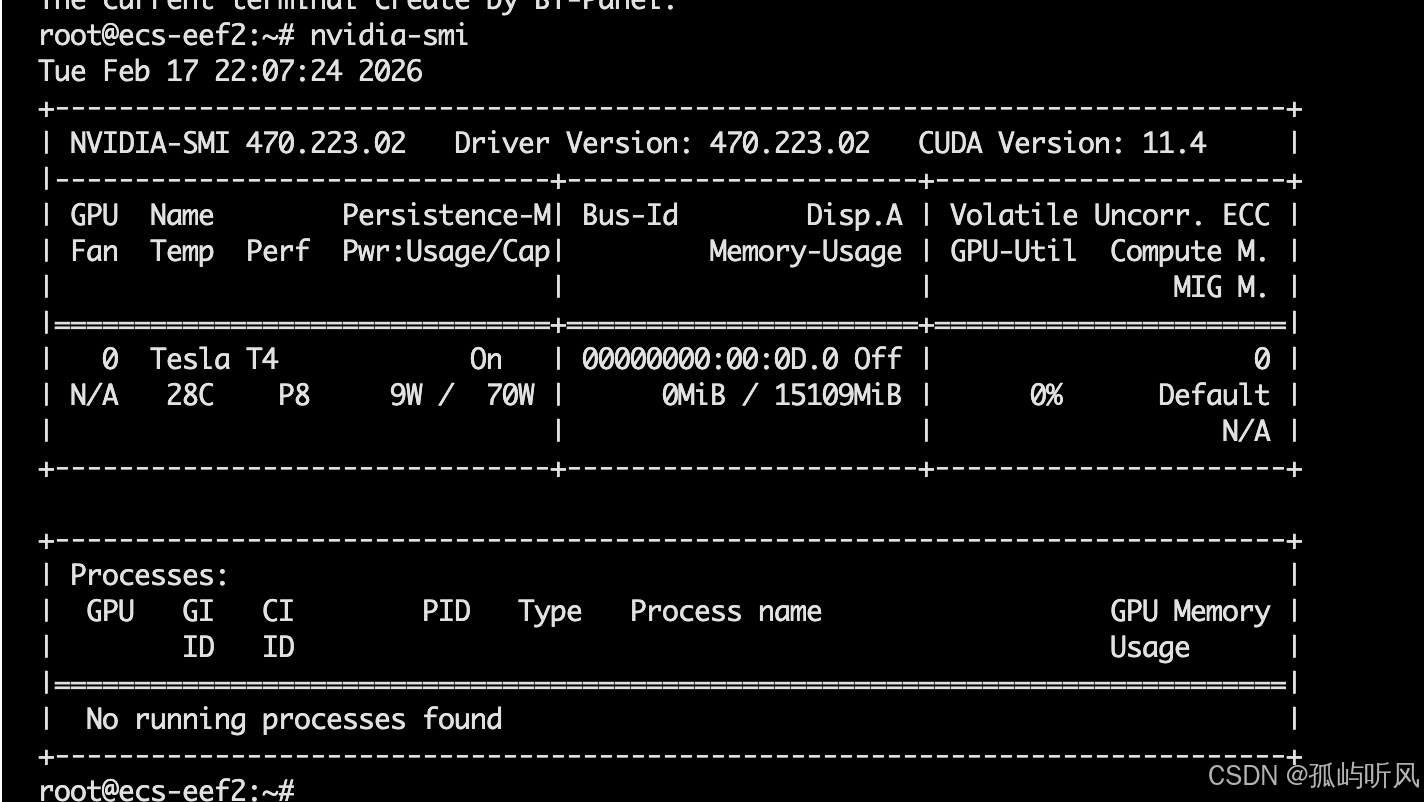
-
去 Ollama 目录
lib/ollama查看依赖库,发现新版 Ollama(v0.3+)默认只带了 cuda_v12 的运行库。结论:驱动版本过老(CUDA 11)与软件依赖(CUDA 12)不匹配,导致 Ollama 只能回退到 CPU 模式。
四、 峰回路转:华为云社区的“救命脚本”
此时我陷入了困境:服务器离线,无法使用 apt install nvidia-driver(默认源连不上),也无法去 NVIDIA 官网下载几百兆的 .run 文件(且依赖地狱难以解决)。
就在我准备放弃时,我在华为云社区搜到了一篇神贴《ubuntu安装显卡驱动》。
转机:原来华为云 ECS 即使在离线状态下,也可以访问 内网镜像源(mirrors.myhuaweicloud.com)!
神操作:一键升级驱动
无需配置任何外网代理,直接利用内网源升级:
# 1. 添加 PPA(这一步在离线环境会失败,但没关系,华为云内网源已经够用了)
sudo add-apt-repository ppa:graphics-drivers/ppa

# 2. 更新软件列表(成功连接内网源!)
sudo apt update

# 3. 自动识别并安装推荐驱动
sudo ubuntu-drivers autoinstall
系统自动识别到了我的 Tesla T4,并开始下载安装 nvidia-driver-590-open(支持 CUDA 12)。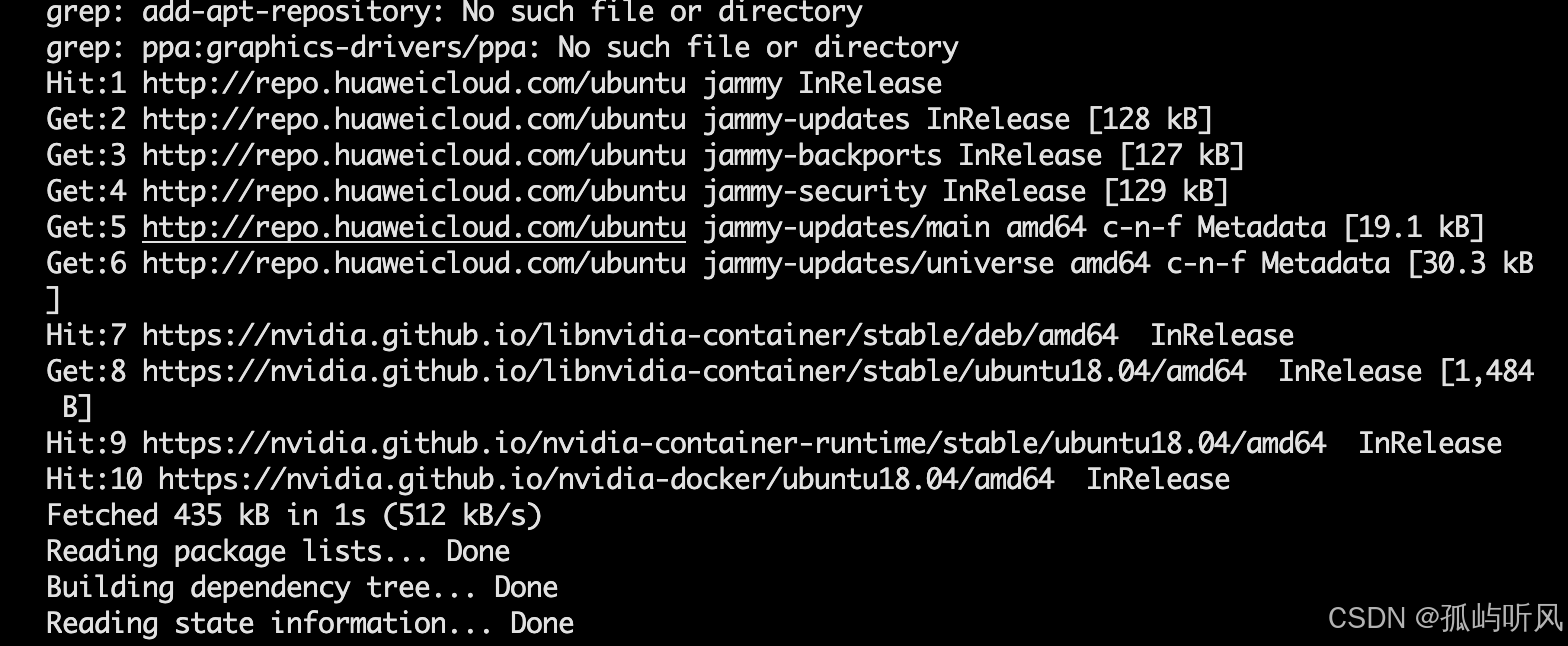
插曲:版本不匹配的“鬼打墙”
安装完成后,我运行 nvidia-smi,却报错:
Failed to initialize NVML: Driver/library version mismatch
原因:Linux 内核模块仍加载旧版驱动(470.x),而磁盘上已是新版库文件(590.x),导致“引擎与变速箱不匹配”。
解决:果断重启服务器。
解决后启动ollama,发现显卡下面已经成功挂载了ollama进程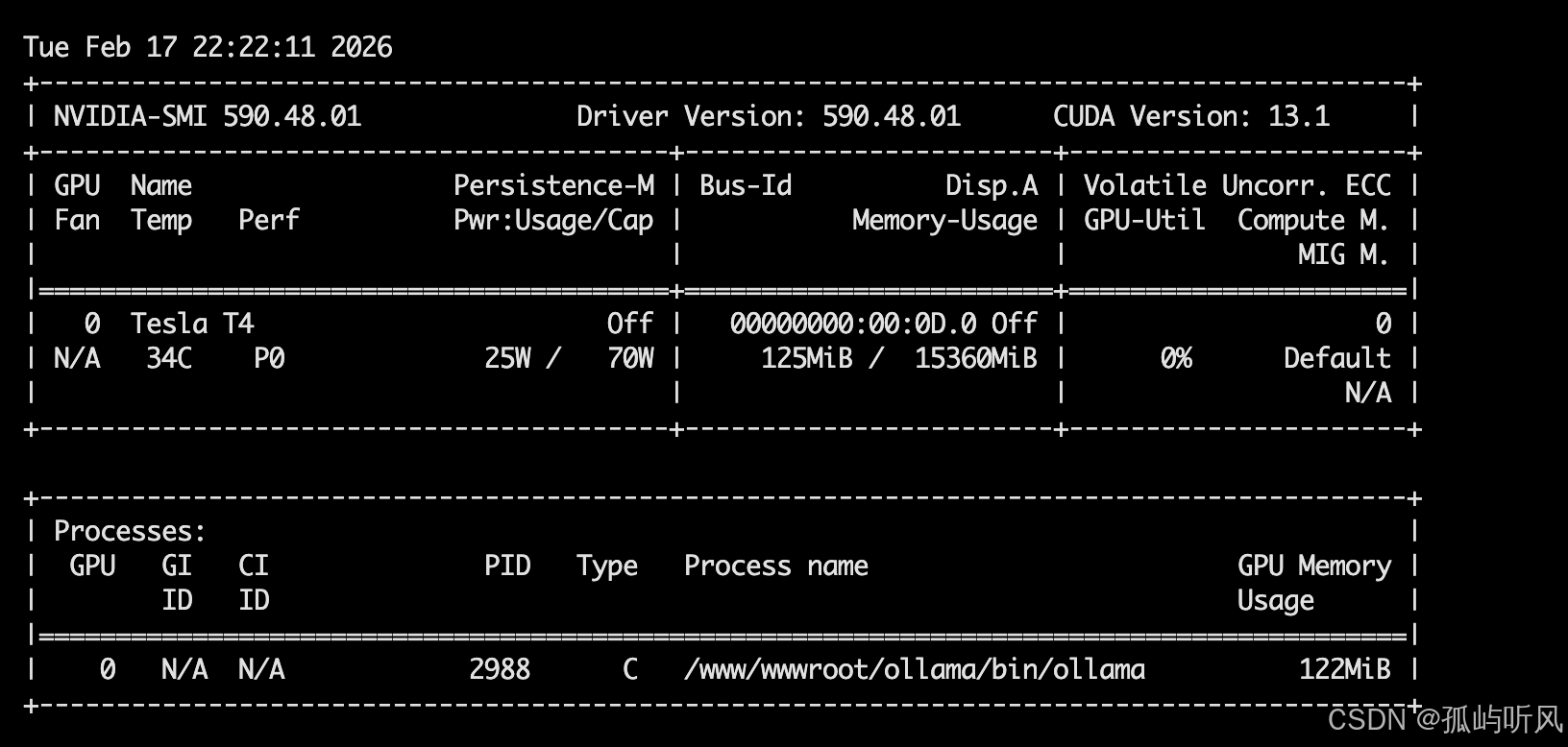
五、 终局:性能起飞
重启后再次登录,见证奇迹的时刻:
nvidia-smi
输出显示 Driver Version: 590.48,CUDA Version: 12.x。完美!
最终验证:
- 重新启动 Ollama 服务:
sudo systemctl restart ollama - 开启 GPU 监控:
watch -n 1 nvidia-smi - 再次运行模型,显存瞬间被吃满,Token 生成速度飞跃,体感快了十倍以上!
六、 总结
场景一:能访问外网
如果是个人开发环境或有公网 IP 的服务器,直接一把梭:
- 安装 Ollama:
curl -fsSL https://ollama.com/install.sh | bash
场景二:纯内网环境(如华为云 ECS)
这是本文重点解决的场景,SOP 如下:
- 文件传输:到官网github,下载
ollama-linux-amd64.tar.zst->split拆分 -> 上传 ->cat合并 -> 解压。 - 驱动升级:利用云厂商内网源(如华为云
mirrors.myhuaweicloud.com),直接运行sudo apt update && sudo ubuntu-drivers autoinstall。 - 重启生效:遇到
Driver/library version mismatch报错,直接重启。 - 服务配置:参考官方脚本配置 Systemd,实现开机自启。
参考文档:

有“AI”的1024 = 2048,欢迎大家加入2048 AI社区
更多推荐
 18
18 0
0- 0


 已为社区贡献7条内容

所有评论(0)