从零开始上手大模型—— 01.环境配置
Docker Desktop 是一个。它会在你的Windows系统内部,悄悄地创建一个小型的、高效的Linux虚拟机(默认基于WSL2技术)。
一、Docker与WSL2配置
在Windows系统上,Docker 提供了标准化的软件打包与运行环境,能彻底解决“在我电脑上能用”的部署难题;而 WSL2 则为Docker在Windows上高效运行提供了一个轻量级的原生Linux内核支持,是连接Windows主机与Linux容器的关键桥梁。两者结合,使得在Windows上直接运行基于Linux的AI模型(如Qwen)成为可能,并能直接调用Windows主机的NVIDIA GPU进行加速。
Docker Desktop 是一个管理工具。它会在你的Windows系统内部,悄悄地创建一个小型的、高效的Linux虚拟机(默认基于WSL2技术)。所有的Docker容器实际上都是运行在这个Linux虚拟机里,而不是直接在你的Windows系统里跑。
1. 启用 Windows 功能
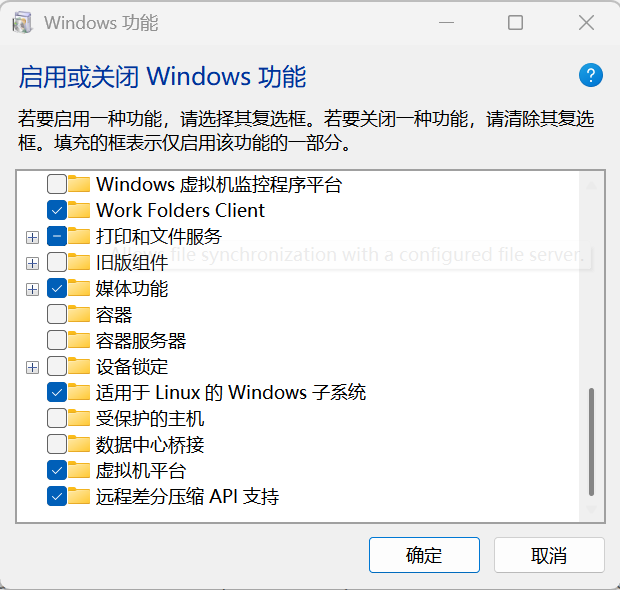
在“启用或关闭 Windows 功能”中,确保勾选:
• 适用于 Linux 的 Windows 子系统
• 虚拟机平台。然后重启电脑。
2. 安装并配置 WSL2
以管理员身份打开 CMD 或 PowerShell,执行:wsl --install -d Ubuntu (安装 Ubuntu)wsl --set-default-version 2 (设为默认版本)。安装后,务必重启。
3. 下载并安装 Docker Desktop
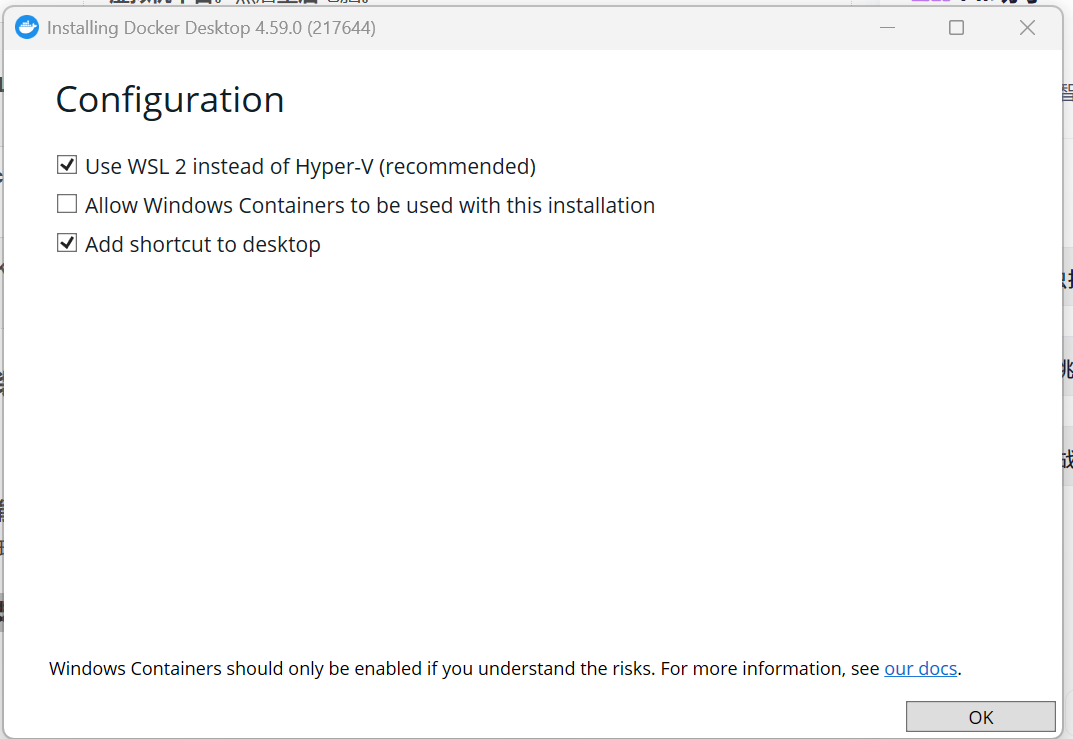
访问 Docker 官网 下载 Windows 版安装包。安装时,务必勾选“Use WSL 2 instead of Hyper-V”选项。
4. 在 Docker Desktop 中启用 WSL2 后端
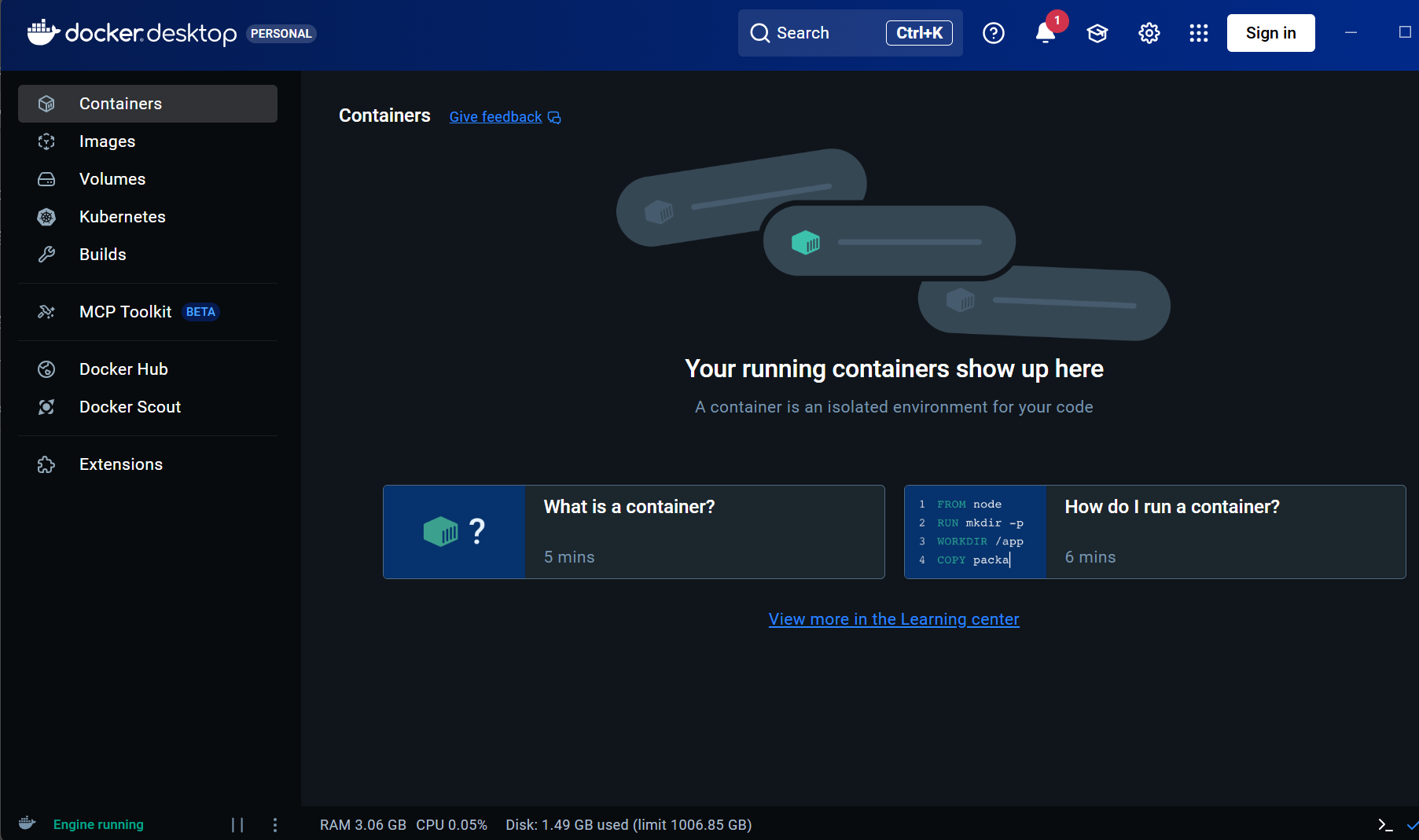
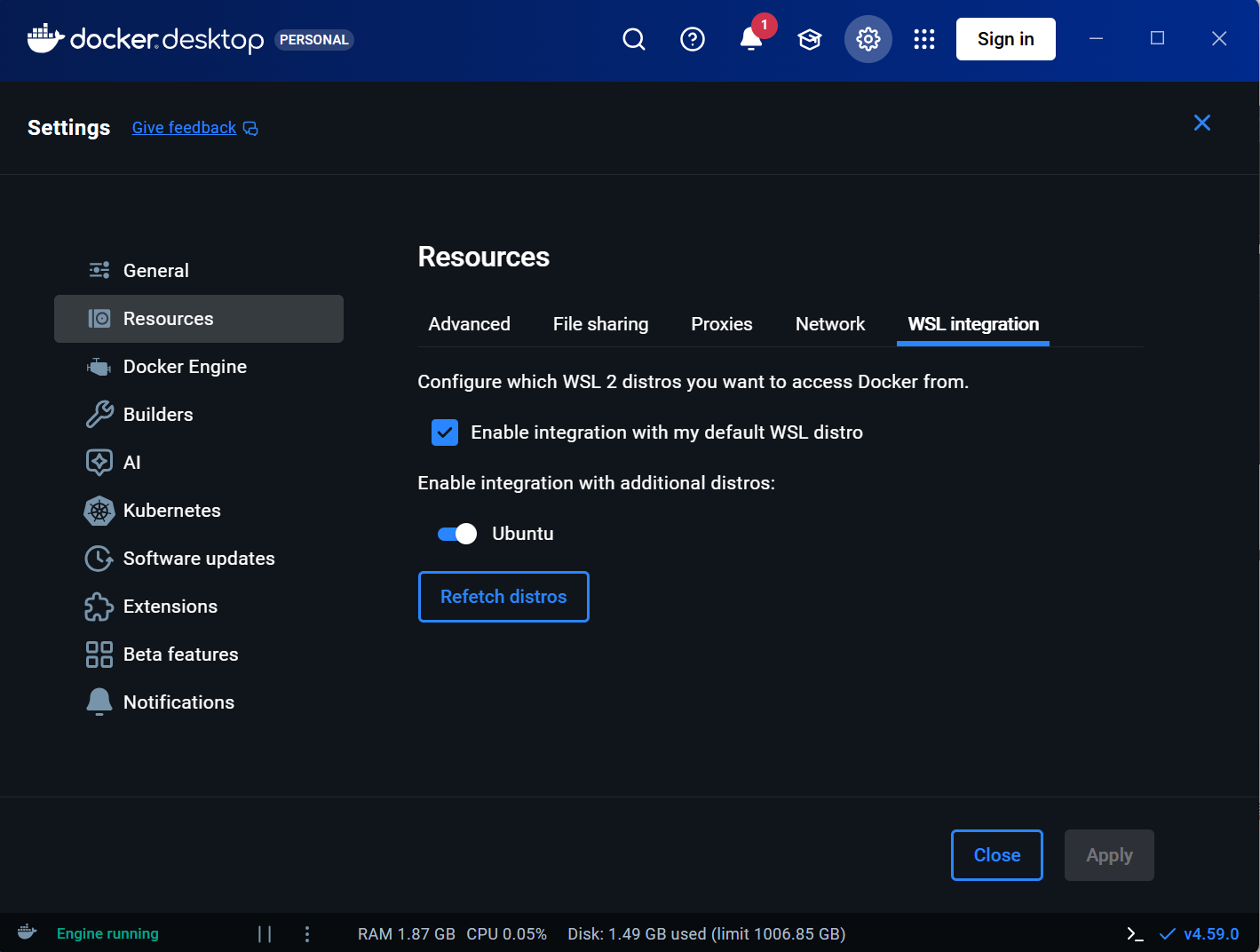
安装后打开 Docker Desktop,进入 Settings (设置) -> Resources -> WSL Integration,启用你安装的 Ubuntu 发行版,并点击“Apply & Restart”。
5. 如何验证安装成功?
完成以上步骤后,可以按顺序验证:
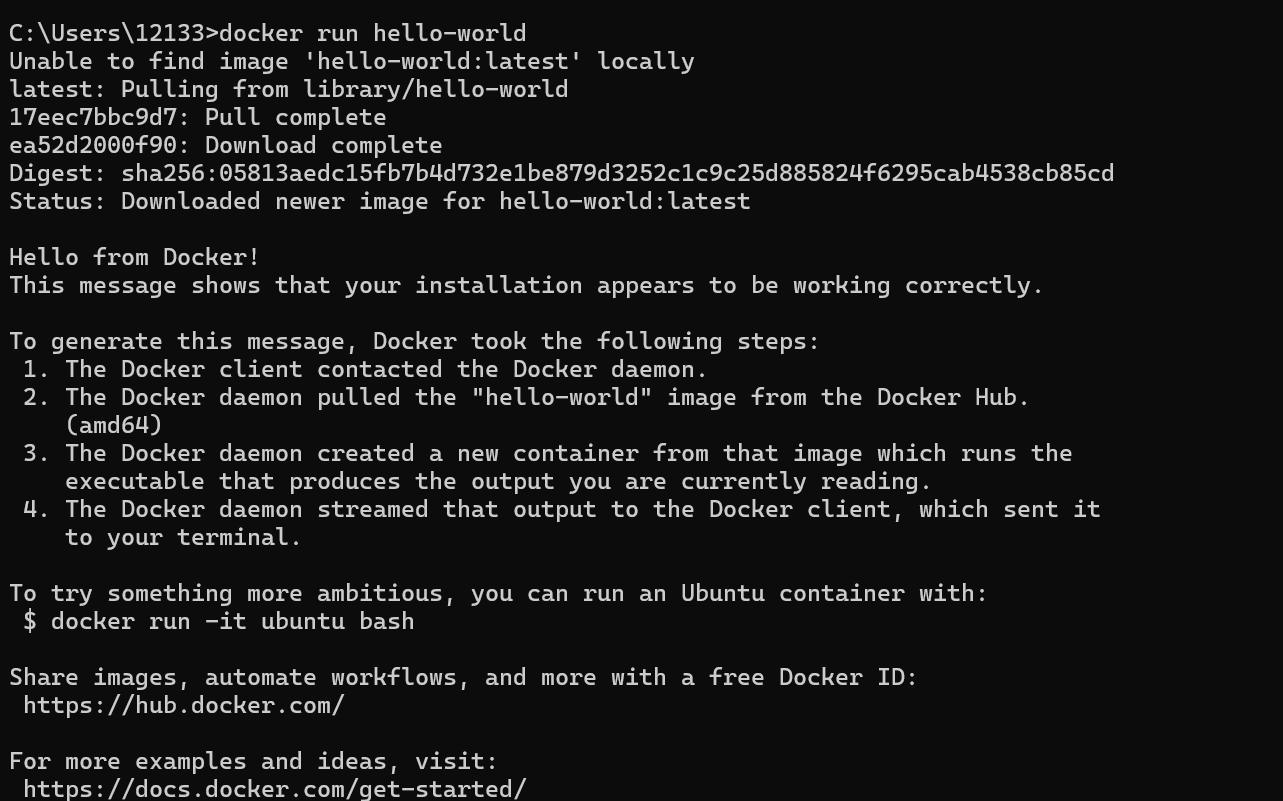
1.验证基础功能:在 CMD 中运行 docker run hello-world,看到欢迎信息即说明 Docker 和 WSL2 基础环境正常。如果发现报错如下
C:\Users\12133>docker run hello-world Unable to find image 'hello-world:latest' locally docker: Error response from daemon: failed to resolve reference "docker.io/library/hello-world:latest": failed to do request: Head "https://registry-1.docker.io/v2/library/hello-world/manifests/latest": dialing registry-1.docker.io:443 container via direct connection because Docker Desktop has no HTTPS proxy: connecting to registry-1.docker.io:443: dial tcp 104.244.46.9:443: connectex: A connection attempt failed because the connected party did not properly respond after a period of time, or established connection failed because connected host has failed to respond. Run 'docker run --help' for more information
请配置国内镜像源
2.验证 GPU 支持(关键):在 CMD 中运行:
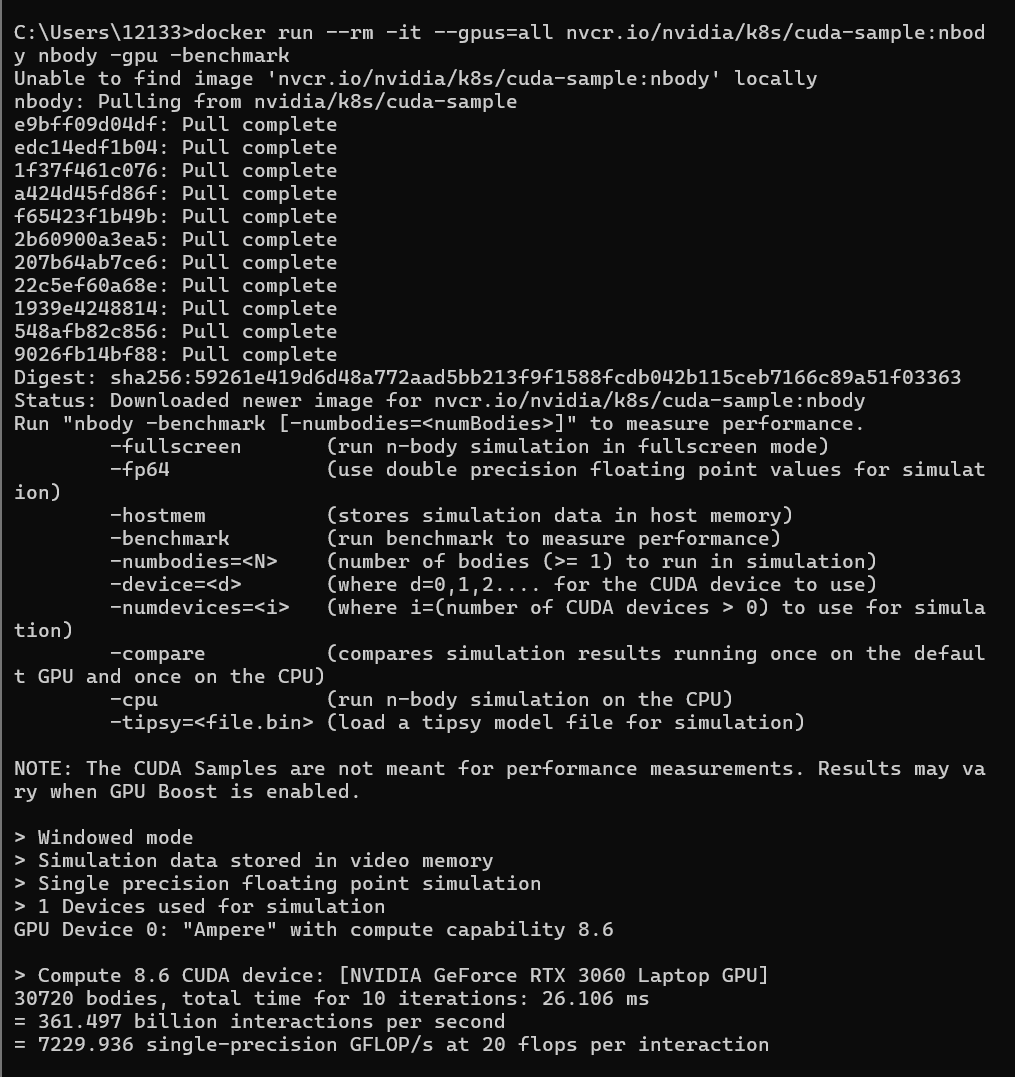
docker run --rm -it --gpus=all nvcr.io/nvidia/k8s/cuda-sample:nbody nbody -gpu -benchmark如果看到你的GPU型号和性能数据输出,这意味着你的Windows GPU(版本551.61)已成功透传给Docker容器,可以运行qwenllm/qwen:cu117这类需要GPU的镜像了。
6.核心原理与注意
-
驱动只需一套:你不需要在 WSL2 的 Ubuntu 里再装一遍 NVIDIA 驱动。Windows 主机上的驱动(551.61)会通过 WSL2 的特殊通道直接提供给容器使用。
-
GPU支持是自动的:只要你安装了最新版 Docker Desktop 并正确配置了 WSL2 后端,GPU 支持功能通常是默认开启的。
-
命令运行位置:以上所有
docker命令,均在 Windows 系统的 CMD 或 PowerShell 中执行即可,无需进入 WSL2 的 Linux 终端。
二、Qwen docker配置
基础docker配置完成后,配置Qwen docker
以下是Github中Qwen的介绍,为linux版本命令
1. Install the correct version of Nvidia driver depending on the image to use:
-
qwenllm/qwen:cu117(recommend):>= 515.48.07 -
qwenllm/qwen:cu114(w/o flash-attention):>= 470.82.01 -
qwenllm/qwen:cu121:>= 530.30.02 -
qwenllm/qwen:latest: same asqwenllm/qwen:cu117
2. Install and configure docker and nvidia-container-toolkit:
# configure docker
sudo systemctl start docker
# test if docker is correctly installed
sudo docker run hello-world
# configure nvidia-container-toolkit
sudo nvidia-ctk runtime configure --runtime=docker
sudo systemctl restart docker
# test if nvidia-container-toolkit is correctly installed
sudo docker run --rm --runtime=nvidia --gpus all ubuntu nvidia-smi
此前安装并配置Docker及NVIDIA容器工具包
此步骤在Windows上被简化为安装 Docker Desktop。你不需要手动安装 nvidia-container-toolkit
安装Docker Desktop:从官网下载安装,确保安装时勾选 “Use WSL 2 instead of Hyper-V”。
启用GPU支持:安装后,Docker Desktop会自动尝试启用WSL2后端的GPU支持。你可以在 Settings > Resources > WSL Integration 中确认。
3. Download model checkpoints and codes to your environment (see here).

有“AI”的1024 = 2048,欢迎大家加入2048 AI社区
更多推荐
 6
6 0
0- 0


 已为社区贡献1条内容

所有评论(0)