Flutter for OpenHarmony 实战:标签(Tag/Chip)
在移动开发领域,我们始终面临着技术选择与平台适配的挑战。当你的Flutter应用在Android和iOS平台运行稳定后,可能很快就要考虑适配一个全新的生态系统:HarmonyOS(鸿蒙)。这并非可选项,而是许多开发团队正在积极应对的现实需求。Flutter的优势不言而喻——只需编写一套代码,即可在两大主流移动平台流畅运行,开发体验高效便捷。而鸿蒙系统代表的则是下一代全场景互联生态,它不仅限于手机终
欢迎加入开源鸿蒙跨平台社区: https://openharmonycrossplatform.csdn.net
前言:跨生态开发的新机遇
在移动开发领域,我们始终面临着技术选择与平台适配的挑战。当你的Flutter应用在Android和iOS平台运行稳定后,可能很快就要考虑适配一个全新的生态系统:HarmonyOS(鸿蒙)。这并非可选项,而是许多开发团队正在积极应对的现实需求。
Flutter的优势不言而喻——只需编写一套代码,即可在两大主流移动平台流畅运行,开发体验高效便捷。而鸿蒙系统代表的则是下一代全场景互联生态,它不仅限于手机终端,更着眼于构建未来万物互联的智能体验。将现有Flutter应用适配到鸿蒙平台,看似是一次技术跨界,实则是拓展产品影响力、丰富技术栈的战略之举。
然而,这条适配之路并非坦途。Flutter与鸿蒙在底层架构设计、开发工具链等方面均有各自独特的逻辑体系。开发过程中会面临诸多具体问题:代码如何合理组织?原有功能如何在鸿蒙平台实现?平台特有能力如何调用?更实际的是,从编译打包到上架部署的全流程都需要重新探索。
本文旨在分享我们在实践中积累的经验与解决方案,不仅告诉你"如何做",更深入解析"为何这样做"以及"遇到问题该如何排查"。这是一份源于真实项目的实战指南,聚焦于开发过程中最易遇到的技术瓶颈。
无论你是希望为成熟产品拓展鸿蒙市场,还是从立项初期就计划构建跨多端的应用,本文的思路与方案都能为你提供直接参考。理解两套技术体系的异同,掌握关键的衔接技术,不仅能顺利完成本次适配,更能为未来应对新技术变化积累宝贵经验。
混合工程结构深度解析
项目目录架构
当Flutter项目集成鸿蒙支持后,典型的项目结构会发生显著变化。以下是经过ohos_flutter插件初始化后的项目结构:
my_flutter_harmony_app/
├── lib/                          # Flutter业务代码(基本不变)
│   ├── main.dart                 # 应用入口
│   ├── home_page.dart           # 首页
│   └── utils/
│       └── platform_utils.dart  # 平台工具类
├── pubspec.yaml                  # Flutter依赖配置
├── ohos/                         # 鸿蒙原生层(核心适配区)
│   ├── entry/                    # 主模块
│   │   └── src/main/
│   │       ├── ets/              # ArkTS代码
│   │       │   ├── MainAbility/
│   │       │   │   ├── MainAbility.ts       # 主Ability
│   │       │   │   └── MainAbilityContext.ts
│   │       │   └── pages/
│   │       │       ├── Index.ets           # 主页面
│   │       │       └── Splash.ets          # 启动页
│   │       ├── resources/        # 鸿蒙资源文件
│   │       │   ├── base/
│   │       │   │   ├── element/  # 字符串等
│   │       │   │   ├── media/    # 图片资源
│   │       │   │   └── profile/  # 配置文件
│   │       │   └── en_US/        # 英文资源
│   │       └── config.json       # 应用核心配置
│   ├── ohos_test/               # 测试模块
│   ├── build-profile.json5      # 构建配置
│   └── oh-package.json5         # 鸿蒙依赖管理
└── README.md
目录
展示效果图片
flutter 实时预览 效果展示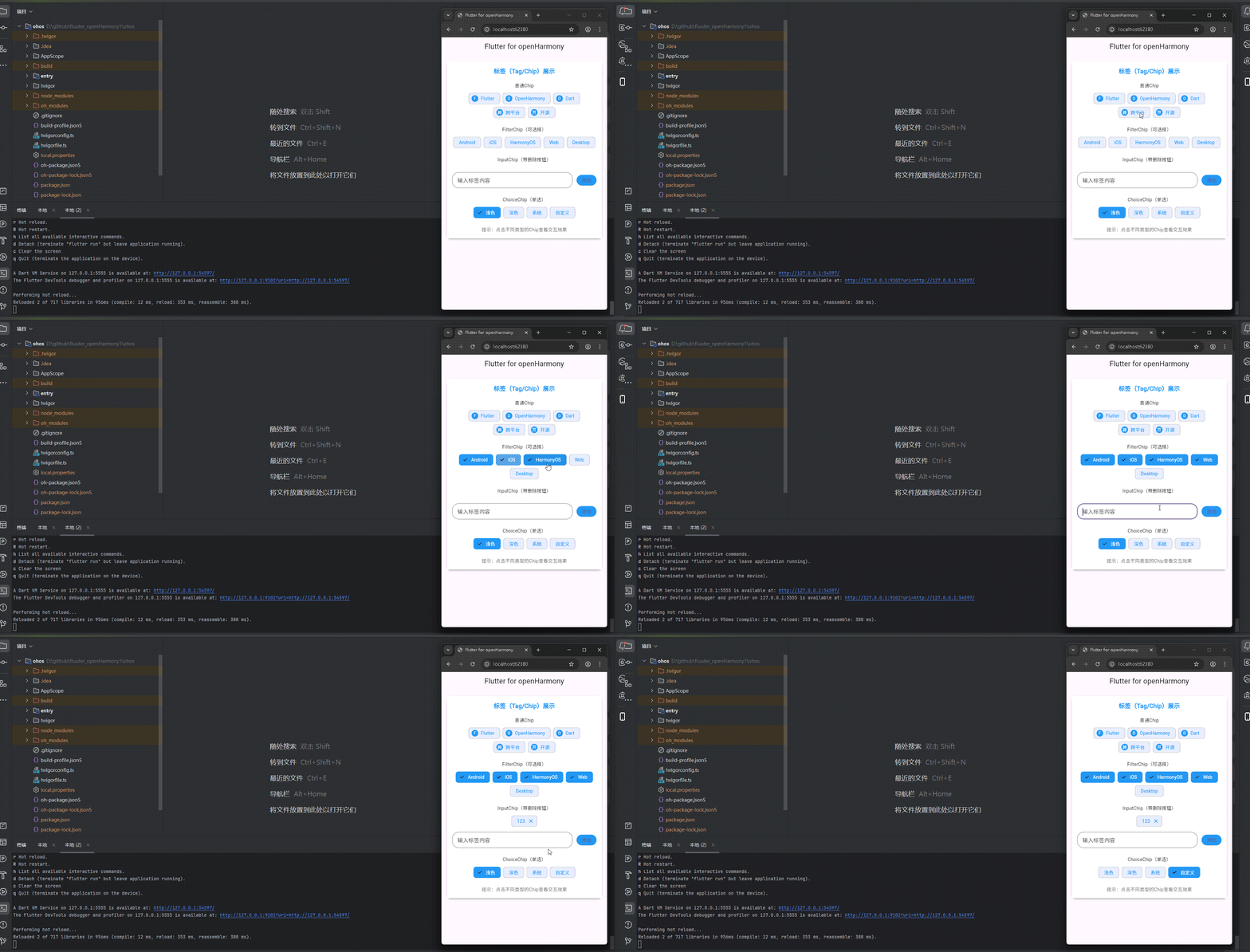
运行到鸿蒙虚拟设备中效果展示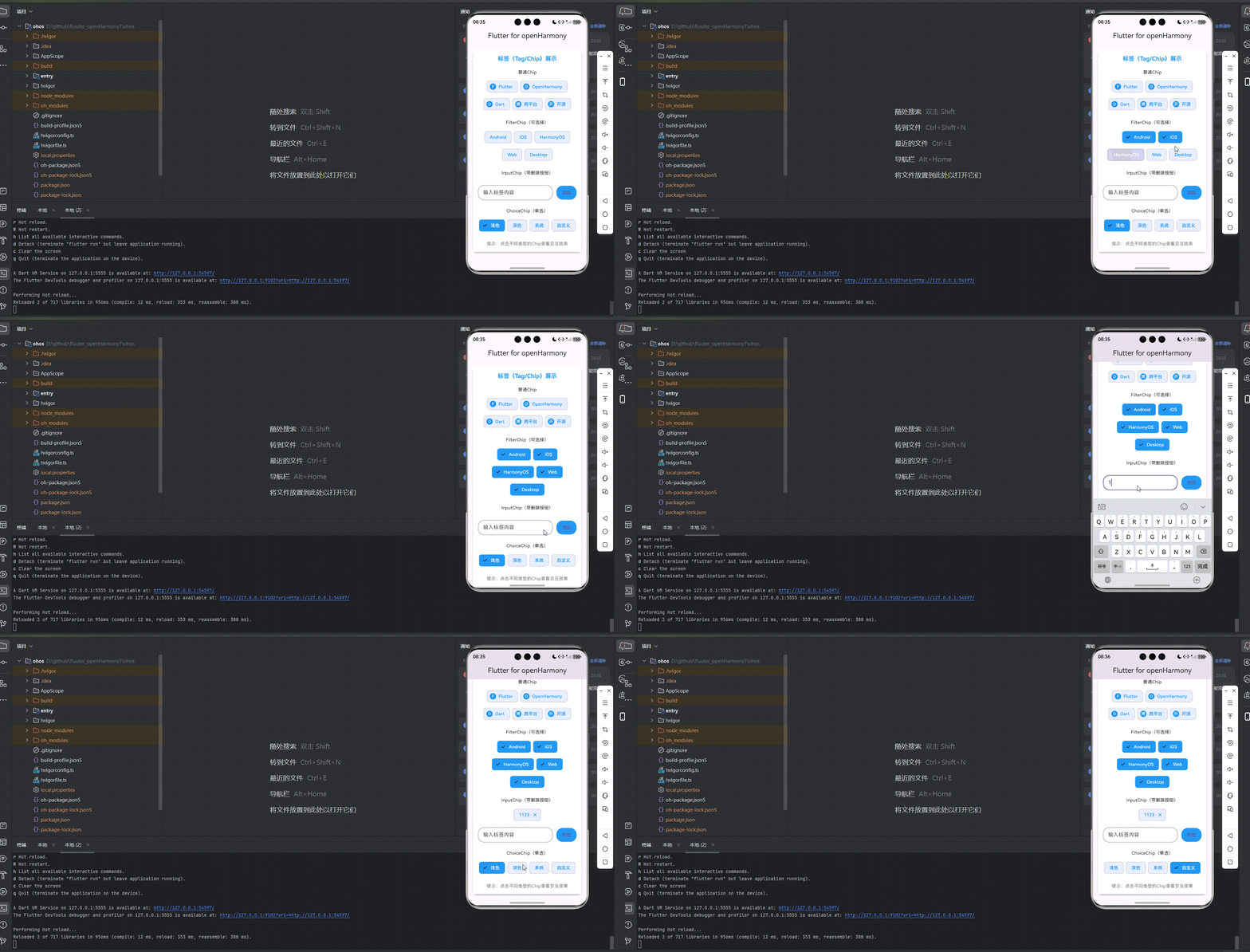
功能代码实现
标签(Tag/Chip)组件
标签(Tag/Chip)组件是一个使用Flutter内置的Chip系列组件实现的功能,展示了不同类型的标签及其交互效果。该组件通过以下技术实现:
- 普通Chip:展示基本的标签样式,带有头像
- FilterChip:可选择的标签,支持多选
- InputChip:可输入和删除的标签,支持用户自定义
- ChoiceChip:单选标签,只能选择一个选项
核心代码实现
组件结构
import 'package:flutter/material.dart';
class TagChip extends StatefulWidget {
final double width;
final double height;
final Color backgroundColor;
final Color primaryColor;
const TagChip({
Key? key,
this.width = double.infinity,
this.height = 600,
this.backgroundColor = Colors.white,
this.primaryColor = Colors.blue,
}) : super(key: key);
State<TagChip> createState() => _TagChipState();
}
class _TagChipState extends State<TagChip> {
// 普通Chip
final List<String> _basicTags = ['Flutter', 'OpenHarmony', 'Dart', '跨平台', '开源'];
// FilterChip
final List<String> _filterTags = ['Android', 'iOS', 'HarmonyOS', 'Web', 'Desktop'];
List<String> _selectedFilterTags = [];
// InputChip
final TextEditingController _inputController = TextEditingController();
List<String> _inputTags = [];
void dispose() {
_inputController.dispose();
super.dispose();
}
Widget build(BuildContext context) {
return Container(
padding: EdgeInsets.all(16.0),
color: widget.backgroundColor,
child: Column(
crossAxisAlignment: CrossAxisAlignment.center,
children: [
// 标题
Text(
'标签(Tag/Chip)展示',
style: TextStyle(
fontSize: 18,
fontWeight: FontWeight.bold,
color: widget.primaryColor,
),
),
SizedBox(height: 20),
// 普通Chip
Text('普通Chip'),
SizedBox(height: 12),
Wrap(
  spacing: 8,
  runSpacing: 8,
  alignment: WrapAlignment.center,
  children: _basicTags.map((tag) {
    return Chip(
      label: Text(tag),
      backgroundColor: widget.primaryColor.withOpacity(0.1),
      labelStyle: TextStyle(
        color: widget.primaryColor,
      ),
      avatar: CircleAvatar(
        backgroundColor: widget.primaryColor,
        child: Text(
          tag[0],
          style: TextStyle(
            color: Colors.white,
            fontSize: 12,
          ),
        ),
      ),
    );
  }).toList(),
),
SizedBox(height: 24),
// FilterChip
Text('FilterChip(可选择)'),
SizedBox(height: 12),
Wrap(
  spacing: 8,
  runSpacing: 8,
  alignment: WrapAlignment.center,
  children: _filterTags.map((tag) {
    return FilterChip(
      label: Text(tag),
      selected: _selectedFilterTags.contains(tag),
      onSelected: (selected) {
        setState(() {
          if (selected) {
            _selectedFilterTags.add(tag);
          } else {
            _selectedFilterTags.remove(tag);
          }
        });
      },
      selectedColor: widget.primaryColor,
      labelStyle: TextStyle(
        color: _selectedFilterTags.contains(tag) ? Colors.white : widget.primaryColor,
      ),
      backgroundColor: _selectedFilterTags.contains(tag)
          ? widget.primaryColor
          : widget.primaryColor.withOpacity(0.1),
    );
  }).toList(),
),
SizedBox(height: 24),
// InputChip
Text('InputChip(带删除按钮)'),
SizedBox(height: 12),
Wrap(
  spacing: 8,
  runSpacing: 8,
  alignment: WrapAlignment.center,
  children: _inputTags.map((tag) {
    return InputChip(
      label: Text(tag),
      onDeleted: () {
        setState(() {
          _inputTags.remove(tag);
        });
      },
      backgroundColor: widget.primaryColor.withOpacity(0.1),
      labelStyle: TextStyle(
        color: widget.primaryColor,
      ),
      deleteIconColor: widget.primaryColor,
    );
  }).toList(),
),
SizedBox(height: 16),
Row(
  children: [
    Expanded(
      child: TextField(
        controller: _inputController,
        decoration: InputDecoration(
          border: OutlineInputBorder(
            borderRadius: BorderRadius.circular(20),
          ),
          hintText: '输入标签内容',
          contentPadding: EdgeInsets.symmetric(
            horizontal: 16,
            vertical: 8,
          ),
        ),
        onSubmitted: (value) {
          if (value.isNotEmpty && !_inputTags.contains(value)) {
            setState(() {
              _inputTags.add(value);
              _inputController.clear();
            });
          }
        },
      ),
    ),
    SizedBox(width: 12),
    ElevatedButton(
      onPressed: () {
        String value = _inputController.text.trim();
        if (value.isNotEmpty && !_inputTags.contains(value)) {
          setState(() {
            _inputTags.add(value);
            _inputController.clear();
          });
        }
      },
      style: ElevatedButton.styleFrom(
        backgroundColor: widget.primaryColor,
        shape: RoundedRectangleBorder(
          borderRadius: BorderRadius.circular(20),
        ),
        padding: EdgeInsets.symmetric(
          horizontal: 16,
          vertical: 12,
        ),
      ),
      child: Text('添加'),
    ),
  ],
),
SizedBox(height: 24),
// ChoiceChip
Text('ChoiceChip(单选)'),
SizedBox(height: 12),
_buildChoiceChips(),
SizedBox(height: 24),
// 操作提示
Text(
'提示:点击不同类型的Chip查看交互效果',
style: TextStyle(
fontSize: 14,
color: Colors.grey[600],
),
),
],
),
);
}
// 选择的主题
String _selectedTheme = '浅色';
Widget _buildChoiceChips() {
return Wrap(
spacing: 8,
runSpacing: 8,
alignment: WrapAlignment.center,
children: [
'浅色', '深色', '系统', '自定义'
].map((theme) {
return ChoiceChip(
label: Text(theme),
selected: _selectedTheme == theme,
onSelected: (selected) {
setState(() {
_selectedTheme = theme;
});
},
selectedColor: widget.primaryColor,
labelStyle: TextStyle(
color: _selectedTheme == theme ? Colors.white : widget.primaryColor,
),
backgroundColor: _selectedTheme == theme
? widget.primaryColor
: widget.primaryColor.withOpacity(0.1),
);
}).toList(),
);
}
}
组件开发实现详解
1. 普通Chip组件
实现原理:
普通Chip组件是最基础的标签类型,主要用于展示信息,不包含交互功能。我们通过以下步骤实现:
- 数据定义:创建一个字符串列表
_basicTags,存储标签内容 - 布局实现:使用
Wrap组件实现标签的自动换行布局 - 样式设计:为每个Chip设置背景色、文字颜色,并添加圆形头像
核心代码:
// 普通Chip
Text('普通Chip'),
SizedBox(height: 12),
Wrap(
spacing: 8,
runSpacing: 8,
alignment: WrapAlignment.center,
children: _basicTags.map((tag) {
return Chip(
label: Text(tag),
backgroundColor: widget.primaryColor.withOpacity(0.1),
labelStyle: TextStyle(
color: widget.primaryColor,
),
avatar: CircleAvatar(
backgroundColor: widget.primaryColor,
child: Text(
tag[0],
style: TextStyle(
color: Colors.white,
fontSize: 12,
),
),
),
);
}).toList(),
),
使用方法:
普通Chip组件直接用于展示静态标签信息,适合展示分类、标签等内容。
2. FilterChip组件
实现原理:
FilterChip组件支持用户选择和取消选择,适合实现多选功能。我们通过以下步骤实现:
- 数据定义:创建标签列表
_filterTags和选中标签列表_selectedFilterTags - 状态管理:使用
setState方法更新选中状态 - 交互实现:通过
onSelected回调处理选择和取消选择事件 - 样式反馈:根据选中状态动态改变Chip的颜色和文字样式
核心代码:
// FilterChip
Text('FilterChip(可选择)'),
SizedBox(height: 12),
Wrap(
spacing: 8,
runSpacing: 8,
alignment: WrapAlignment.center,
children: _filterTags.map((tag) {
return FilterChip(
label: Text(tag),
selected: _selectedFilterTags.contains(tag),
onSelected: (selected) {
setState(() {
if (selected) {
_selectedFilterTags.add(tag);
} else {
_selectedFilterTags.remove(tag);
}
});
},
selectedColor: widget.primaryColor,
labelStyle: TextStyle(
color: _selectedFilterTags.contains(tag) ? Colors.white : widget.primaryColor,
),
backgroundColor: _selectedFilterTags.contains(tag)
? widget.primaryColor
: widget.primaryColor.withOpacity(0.1),
);
}).toList(),
),
使用方法:
FilterChip组件适合实现多选功能,如筛选条件选择、兴趣标签选择等场景。
3. InputChip组件
实现原理:
InputChip组件支持用户输入新标签和删除现有标签,是最灵活的标签类型。我们通过以下步骤实现:
- 数据管理:创建输入标签列表
_inputTags和文本控制器_inputController - 用户输入:使用
TextField组件接收用户输入 - 标签添加:通过按钮点击和文本提交事件添加新标签
- 标签删除:为每个InputChip添加
onDeleted回调实现删除功能 - 资源管理:在
dispose方法中释放文本控制器资源
核心代码:
// InputChip
Text('InputChip(带删除按钮)'),
SizedBox(height: 12),
Wrap(
spacing: 8,
runSpacing: 8,
alignment: WrapAlignment.center,
children: _inputTags.map((tag) {
return InputChip(
label: Text(tag),
onDeleted: () {
setState(() {
_inputTags.remove(tag);
});
},
backgroundColor: widget.primaryColor.withOpacity(0.1),
labelStyle: TextStyle(
color: widget.primaryColor,
),
deleteIconColor: widget.primaryColor,
);
}).toList(),
),
SizedBox(height: 16),
Row(
children: [
Expanded(
child: TextField(
controller: _inputController,
decoration: InputDecoration(
border: OutlineInputBorder(
borderRadius: BorderRadius.circular(20),
),
hintText: '输入标签内容',
contentPadding: EdgeInsets.symmetric(
horizontal: 16,
vertical: 8,
),
),
onSubmitted: (value) {
if (value.isNotEmpty && !_inputTags.contains(value)) {
setState(() {
_inputTags.add(value);
_inputController.clear();
});
}
},
),
),
SizedBox(width: 12),
ElevatedButton(
onPressed: () {
String value = _inputController.text.trim();
if (value.isNotEmpty && !_inputTags.contains(value)) {
setState(() {
_inputTags.add(value);
_inputController.clear();
});
}
},
style: ElevatedButton.styleFrom(
backgroundColor: widget.primaryColor,
shape: RoundedRectangleBorder(
borderRadius: BorderRadius.circular(20),
),
padding: EdgeInsets.symmetric(
horizontal: 16,
vertical: 12,
),
),
child: Text('添加'),
),
],
),
使用方法:
InputChip组件适合需要用户自定义标签的场景,如标签输入、兴趣爱好添加等。
4. ChoiceChip组件
实现原理:
ChoiceChip组件实现单选功能,同一组中只能选择一个标签。我们通过以下步骤实现:
- 状态管理:创建字符串变量
_selectedTheme存储当前选中的标签 - 布局实现:创建
_buildChoiceChips方法构建ChoiceChip列表 - 交互处理:通过
onSelected回调更新选中状态 - 样式反馈:根据选中状态动态改变Chip的颜色和文字样式
核心代码:
// ChoiceChip
Text('ChoiceChip(单选)'),
SizedBox(height: 12),
_buildChoiceChips(),

// 选择的主题
String _selectedTheme = '浅色';

Widget _buildChoiceChips() {
  return Wrap(
    spacing: 8,
    runSpacing: 8,
    alignment: WrapAlignment.center,
    children: [
      '浅色', '深色', '系统', '自定义'
    ].map((theme) {
      return ChoiceChip(
        label: Text(theme),
        selected: _selectedTheme == theme,
        onSelected: (selected) {
          setState(() {
            _selectedTheme = theme;
          });
        },
        selectedColor: widget.primaryColor,
        labelStyle: TextStyle(
          color: _selectedTheme == theme ? Colors.white : widget.primaryColor,
        ),
        backgroundColor: _selectedTheme == theme
            ? widget.primaryColor
            : widget.primaryColor.withOpacity(0.1),
      );
    }).toList(),
  );
}
使用方法:
ChoiceChip组件适合实现单选功能,如主题选择、优先级设置等场景。
在主应用中的集成
以下是在主应用中集成标签(Tag/Chip)组件的代码:
import 'package:flutter/material.dart';
import 'components/tag_chip.dart';
void main() {
runApp(const MyApp());
}
class MyApp extends StatelessWidget {
const MyApp({super.key});
Widget build(BuildContext context) {
return MaterialApp(
title: 'Flutter for openHarmony',
theme: ThemeData(
colorScheme: ColorScheme.fromSeed(seedColor: Colors.deepPurple),
useMaterial3: true,
),
debugShowCheckedModeBanner: false,
home: const MyHomePage(title: 'Flutter for openHarmony'),
);
}
}
class MyHomePage extends StatefulWidget {
const MyHomePage({super.key, required this.title});
final String title;
State<MyHomePage> createState() => _MyHomePageState();
}
class _MyHomePageState extends State<MyHomePage> {
Widget build(BuildContext context) {
return Scaffold(
appBar: AppBar(
title: Text(widget.title),
centerTitle: true,
),
body: SingleChildScrollView(
padding: EdgeInsets.all(16.0),
child: Column(
crossAxisAlignment: CrossAxisAlignment.stretch,
children: <Widget>[
// 标签(Tag/Chip)展示
Card(
elevation: 4,
margin: EdgeInsets.only(bottom: 20),
child: TagChip(),
),
],
),
),
);
}
}
开发中需要注意的点
-
文本控制器管理:在使用
TextEditingController时,务必在dispose方法中调用dispose(),避免内存泄漏。 -
状态管理:使用
setState方法更新状态时,确保只更新必要的部分,避免不必要的UI重建,提高应用性能。 -
布局适配:使用
Wrap组件实现标签的自适应布局,确保在不同屏幕尺寸上都能正常显示,避免布局溢出。 -
颜色处理:在处理颜色时,使用
withOpacity方法设置颜色透明度,创建统一的视觉效果,提升界面美观度。 -
用户体验:添加适当的间距和提示文字,提升界面美观度和用户体验,让交互更加直观。
-
代码组织:将不同类型的标签逻辑分开实现,如将ChoiceChip的构建逻辑抽取为单独的方法,提高代码可读性和可维护性。
-
输入验证:在添加新标签时,进行基本的输入验证,如检查是否为空、是否已存在,避免重复标签和空标签。
自定义配置使用方法
基本使用
import 'components/tag_chip.dart';

// 在需要的地方使用
TagChip()
自定义配置
// 自定义宽度、高度和颜色
TagChip(
  width: 300,
  height: 600,
  backgroundColor: Colors.grey[100]!,
  primaryColor: Colors.green,
)
本次开发中容易遇到的问题
-
Flutter SDK权限问题:在运行Flutter命令时可能会遇到权限不足的问题,导致无法正常构建和运行项目。解决方法是确保Flutter SDK目录有正确的读写权限,可通过终端命令修改权限。
-
组件导入路径错误:在导入自定义组件时,可能会因为路径错误导致编译失败。解决方法是使用相对路径或绝对路径正确导入组件,确保路径拼写无误。
-
状态管理问题:在使用
setState更新状态时,可能会因为状态更新逻辑不正确导致界面不刷新。解决方法是确保所有需要更新的状态都通过setState方法进行更新,并且更新逻辑正确。 -
颜色处理问题:在处理颜色时,可能会因为颜色值为null导致运行时错误。解决方法是使用
??运算符为可能为null的颜色值提供默认值,确保颜色值不为null。 -
布局适配问题:在不同屏幕尺寸上,组件可能会出现布局错乱的问题。解决方法是使用
Wrap、Flex等自适应布局组件,确保界面在不同屏幕尺寸上都能正常显示。 -
组件不存在错误:在引用不存在的组件时,会导致编译失败。解决方法是确保只引用项目中实际存在的组件,移除对不存在组件的引用。
-
文本控制器管理:在使用
TextEditingController时,忘记在dispose方法中调用dispose(),可能会导致内存泄漏。解决方法是在组件销毁时正确释放资源,养成良好的资源管理习惯。 -
输入验证问题:在添加新标签时,未进行输入验证可能会导致添加空标签或重复标签。解决方法是在添加标签前进行验证,确保输入不为空且标签不存在。
总结本次开发中用到的技术点
-
Flutter组件化开发:将标签功能封装为独立的
TagChip组件,提高代码复用性和可维护性,便于在不同页面中重复使用。 -
状态管理:使用
setState方法管理组件状态,实现标签的选择、添加和删除功能,确保UI与数据保持同步。 -
交互设计:使用各种Chip组件实现点击交互效果,通过颜色变化反馈用户操作,提升用户体验。
-
布局组件:使用
Wrap、SingleChildScrollView、Card等组件实现自适应布局,确保界面在不同屏幕尺寸上都能正常显示。 -
参数化设计:通过构造函数参数化组件配置,允许用户自定义组件宽度、高度、背景色和主题色,增强组件的灵活性。
-
响应式设计:使用自适应布局组件,确保界面在不同屏幕尺寸上都能正常显示,提高应用的适配能力。
-
图标使用:使用
CircleAvatar为普通Chip添加头像,丰富界面设计,提升视觉效果。 -
表单处理:使用
TextField和TextEditingController实现用户输入,通过onSubmitted回调和按钮点击事件处理表单提交,实现用户自定义标签功能。 -
资源管理:在组件销毁时正确释放
TextEditingController等资源,避免内存泄漏,提高应用性能。 -
主题配置:在主应用中配置主题,确保整个应用的视觉风格一致,提升应用的整体美观度。
-
错误处理:通过移除对不存在组件的引用,解决编译错误,确保代码的健壮性。
-
Chip组件使用:熟练使用Flutter内置的各种Chip组件(Chip、FilterChip、InputChip、ChoiceChip)实现不同类型的标签功能,满足不同场景的需求。
-
颜色管理:使用
withOpacity方法设置颜色透明度,创建统一的视觉效果,提升界面美观度。 -
用户体验:添加适当的间距和提示文字,提升界面美观度和用户体验,让交互更加直观友好。
-
代码组织:将不同类型的标签逻辑分开实现,提高代码可读性和可维护性,便于后续功能扩展和bug修复。
欢迎加入开源鸿蒙跨平台社区: https://openharmonycrossplatform.csdn.net

有“AI”的1024 = 2048,欢迎大家加入2048 AI社区
更多推荐
 0
0 0
0- 0


 已为社区贡献3条内容

所有评论(0)