Flutter for OpenHarmony高级闹钟App实战:渐进式响铃指示器实现
渐进式响铃指示器是DeepWake的特色功能之一,直观展示音量从小到大的渐进过程。说实话,这个指示器不仅要准确反映音量变化,还要设计得美观易懂,让用户一眼就能看出渐进式响铃的工作原理。
咱们这次要实现的渐进式响铃指示器,用环形进度条配合音量数值和动画效果,实时显示当前音量。做这个组件的时候,我一直在想怎么让抽象的音量变化变得可视化,最后决定用动画进度条配合颜色渐变和中心文字,形成直观的视觉效果。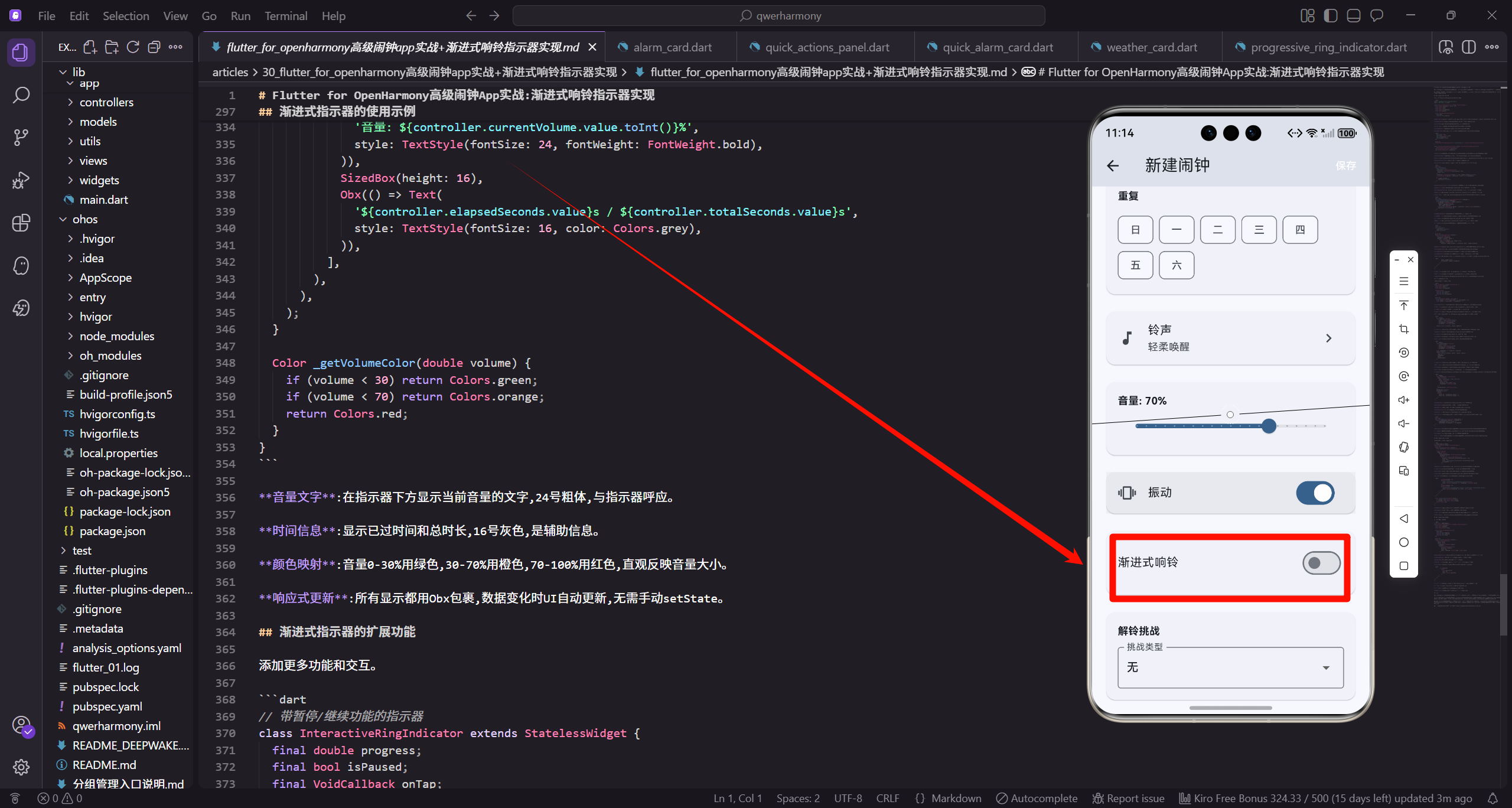
渐进式指示器的实际实现
让我们看看ProgressiveRingIndicator的完整实现。
import 'package:flutter/material.dart';
import 'dart:math' as math;

class ProgressiveRingIndicator extends StatefulWidget {
  final double progress; // 0.0 - 1.0
  final double size;
  final Color color;
  final double strokeWidth;
  final bool animate;

  const ProgressiveRingIndicator({
    super.key,
    required this.progress,
组件参数:progress是进度(0-1),size是指示器大小,color是颜色,strokeWidth是线条粗细,animate控制是否动画。
progress范围:0.0到1.0,表示0%到100%的进度,这是标准的进度表示方式。
size参数:指示器的宽高,默认100,可以根据使用场景调整大小。
color参数:进度条的颜色,默认蓝色,可以根据音量大小动态改变。
strokeWidth:进度条的粗细,默认8,太细看不清,太粗显得笨重。
animate参数:控制是否使用动画,true时进度变化会有平滑过渡,false时立即更新。
this.size = 100,
this.color = Colors.blue,
this.strokeWidth = 8,
this.animate = true,
});
State<ProgressiveRingIndicator> createState() => _ProgressiveRingIndicatorState();
}
class _ProgressiveRingIndicatorState extends State<ProgressiveRingIndicator>
with SingleTickerProviderStateMixin {
late AnimationController _controller;
late Animation<double> _animation;
默认值:size默认100,color默认蓝色,strokeWidth默认8,animate默认true,提供合理的默认配置。
StatefulWidget:需要管理动画状态,所以用StatefulWidget而不是StatelessWidget。
Mixin:with SingleTickerProviderStateMixin提供vsync,用于AnimationController,这是动画的标准做法。
AnimationController:控制动画的播放,管理动画的生命周期。
Animation:定义进度从当前值到目标值的过渡,Tween会自动插值计算中间值。
void initState() {
super.initState();
_controller = AnimationController(
duration: const Duration(milliseconds: 500),
vsync: this,
);
_animation = Tween<double>(begin: 0, end: widget.progress).animate(
CurvedAnimation(parent: _controller, curve: Curves.easeInOut),
);
if (widget.animate) {
_controller.forward();
}
}
AnimationController初始化:duration设为500毫秒,动画持续0.5秒,不会太快也不会太慢。
Tween动画:定义进度从0到widget.progress的过渡,初始化时从0开始增长。
CurvedAnimation:添加缓动曲线Curves.easeInOut,让动画开始和结束都平滑,中间快。
条件启动:如果animate为true,调用_controller.forward()启动动画,否则不播放动画。
vsync参数:传入this,因为State类混入了SingleTickerProviderStateMixin,可以作为vsync。
void didUpdateWidget(ProgressiveRingIndicator oldWidget) {
super.didUpdateWidget(oldWidget);
if (oldWidget.progress != widget.progress) {
_animation = Tween<double>(
begin: oldWidget.progress,
end: widget.progress,
).animate(CurvedAnimation(parent: _controller, curve: Curves.easeInOut));
_controller.forward(from: 0);
}
}
didUpdateWidget:当Widget重建且参数变化时调用,用于更新动画。
进度变化检测:比较oldWidget.progress和widget.progress,只有变化时才更新动画。
动画更新:创建新的Tween,begin是旧进度,end是新进度,实现平滑过渡。
重新播放:调用_controller.forward(from: 0)从头播放动画,让过渡效果流畅。
性能优化:只在progress变化时更新动画,避免不必要的重建和动画播放。
void dispose() {
_controller.dispose();
super.dispose();
}
Widget build(BuildContext context) {
return AnimatedBuilder(
animation: _animation,
builder: (context, child) {
return CustomPaint(
size: Size(widget.size, widget.size),
painter: _RingPainter(
progress: widget.animate ? _animation.value : widget.progress,
资源释放:dispose中调用_controller.dispose()释放动画资源,避免内存泄漏,这是必须的。
AnimatedBuilder:监听_animation的变化,每次变化时重建Widget,驱动UI更新。
CustomPaint:用CustomPaint绘制自定义的环形进度条,size设置绘制区域大小。
_RingPainter:自定义的画笔类,负责绘制环形进度条,传入progress和其他参数。
条件进度:如果animate为true,使用_animation.value(动画值),否则使用widget.progress(直接值)。
            color: widget.color,
            strokeWidth: widget.strokeWidth,
          ),
        );
      },
    );
  }
}
颜色传递:把widget.color传给_RingPainter,让画笔知道用什么颜色绘制。
粗细传递:把widget.strokeWidth传给_RingPainter,让画笔知道线条的粗细。
组件完成:这是ProgressiveRingIndicator的完整实现,包含动画、状态管理、自定义绘制。
环形进度条的绘制实现
实现自定义的环形进度条画笔。
class _RingPainter extends CustomPainter {
final double progress;
final Color color;
final double strokeWidth;
_RingPainter({
required this.progress,
required this.color,
required this.strokeWidth,
});
void paint(Canvas canvas, Size size) {
final center = Offset(size.width / 2, size.height / 2);
final radius = (size.width - strokeWidth) / 2;
CustomPainter:继承CustomPainter实现自定义绘制,重写paint和shouldRepaint方法。
参数传递:progress是进度,color是颜色,strokeWidth是线条粗细,从外部传入。
中心点计算:center是圆心坐标,在size的中心,用于绘制圆形。
半径计算:radius是圆的半径,取宽度减去strokeWidth再除以2,留出线条宽度的空间。
坐标系统:Canvas的坐标系原点在左上角,x向右,y向下,需要计算中心点和半径。
    // 背景圆环
    final bgPaint = Paint()
      ..color = color.withOpacity(0.2)
      ..style = PaintingStyle.stroke
      ..strokeWidth = strokeWidth
      ..strokeCap = StrokeCap.round;

    canvas.drawCircle(center, radius, bgPaint);
背景圆环:用Paint定义背景圆环的样式,颜色是主色的20%透明度,形成淡淡的背景。
描边模式:style设为PaintingStyle.stroke,只绘制边框,不填充内部。
线条粗细:strokeWidth设置线条粗细,与传入的参数一致。
圆角端点:strokeCap设为StrokeCap.round,让端点是圆角的,视觉上更柔和。
绘制背景:用drawCircle绘制完整的背景圆环,表示0%到100%的范围。
    // 进度圆环
    final progressPaint = Paint()
      ..color = color
      ..style = PaintingStyle.stroke
      ..strokeWidth = strokeWidth
      ..strokeCap = StrokeCap.round;

    final sweepAngle = 2 * math.pi * progress;
    canvas.drawArc(
      Rect.fromCircle(center: center, radius: radius),
      -math.pi / 2,
      sweepAngle,
      false,
      progressPaint,
    );
进度圆环:用Paint定义进度圆环的样式,颜色是主色,不透明,与背景形成对比。
样式一致:进度圆环的style、strokeWidth、strokeCap与背景一致,只有颜色不同。
扫描角度:sweepAngle是进度对应的角度,progress乘以2π(360度),0.5就是180度。
绘制进度:用drawArc绘制圆弧,从-π/2(12点方向)开始,扫描sweepAngle角度。
参数说明:Rect定义圆弧的边界,startAngle是起始角度,sweepAngle是扫描角度,useCenter为false表示不连接圆心。
    // 中心文本
    final textPainter = TextPainter(
      text: TextSpan(
        text: '${(progress * 100).toInt()}%',
        style: TextStyle(
          color: color,
          fontSize: size.width * 0.2,
          fontWeight: FontWeight.bold,
        ),
      ),
      textDirection: TextDirection.ltr,
    );
    textPainter.layout();
    textPainter.paint(
      canvas,
      Offset(
        center.dx - textPainter.width / 2,
        center.dy - textPainter.height / 2,
      ),
    );
  }
TextPainter:用TextPainter在Canvas上绘制文字,显示百分比数值。
文字内容:progress乘以100转为整数,加上%符号,比如"50%"。
文字样式:颜色与进度条一致,字号是size的20%,粗体,醒目显示。
textDirection:设为ltr(从左到右),这是文字的排列方向。
layout布局:调用layout()计算文字的尺寸,必须在paint之前调用。
居中绘制:计算文字的左上角坐标,让文字在圆心居中显示,center减去文字宽高的一半。
bool shouldRepaint(_RingPainter oldDelegate) {
return oldDelegate.progress != progress ||
oldDelegate.color != color ||
oldDelegate.strokeWidth != strokeWidth;
}
}
重绘判断:shouldRepaint判断是否需要重绘,只有progress、color或strokeWidth变化时才重绘。
性能优化:避免不必要的重绘,减少CPU消耗,让动画更流畅,这是CustomPainter的关键优化点。
三个条件:用||连接三个条件,任何一个参数变化都需要重绘。
返回值:返回true表示需要重绘,false表示不需要重绘,Flutter会根据返回值决定是否调用paint。
渐进式指示器的使用示例
在响铃界面中使用渐进式指示器。
// 在响铃界面显示音量渐进
class RingingPage extends StatelessWidget {
Widget build(BuildContext context) {
final controller = Get.find<RingingController>();
return Scaffold(
body: Center(
child: Column(
mainAxisAlignment: MainAxisAlignment.center,
children: [
Obx(() => ProgressiveRingIndicator(
progress: controller.currentVolume.value / 100,
size: 200,
color: _getVolumeColor(controller.currentVolume.value),
strokeWidth: 12,
)),
Obx响应式:用Obx包裹指示器,监听controller.currentVolume的变化,自动重建UI。
进度计算:currentVolume除以100转为0-1的进度,比如50除以100等于0.5。
尺寸设置:size设为200,在响铃界面用大尺寸,让用户清楚看到音量变化。
动态颜色:_getVolumeColor根据音量返回对应颜色,音量越大颜色越深或越鲜艳。
粗线条:strokeWidth设为12,比默认的8粗,在大尺寸指示器上更醒目。
            SizedBox(height: 24),
            Obx(() => Text(
              '音量: ${controller.currentVolume.value.toInt()}%',
              style: TextStyle(fontSize: 24, fontWeight: FontWeight.bold),
            )),
            SizedBox(height: 16),
            Obx(() => Text(
              '${controller.elapsedSeconds.value}s / ${controller.totalSeconds.value}s',
              style: TextStyle(fontSize: 16, color: Colors.grey),
            )),
          ],
        ),
      ),
    );
  }

  Color _getVolumeColor(double volume) {
    if (volume < 30) return Colors.green;
    if (volume < 70) return Colors.orange;
    return Colors.red;
  }
}
音量文字:在指示器下方显示当前音量的文字,24号粗体,与指示器呼应。
时间信息:显示已过时间和总时长,16号灰色,是辅助信息。
颜色映射:音量0-30%用绿色,30-70%用橙色,70-100%用红色,直观反映音量大小。
响应式更新:所有显示都用Obx包裹,数据变化时UI自动更新,无需手动setState。
渐进式指示器的扩展功能
添加更多功能和交互。
// 带暂停/继续功能的指示器
class InteractiveRingIndicator extends StatelessWidget {
final double progress;
final bool isPaused;
final VoidCallback onTap;
const InteractiveRingIndicator({
super.key,
required this.progress,
required this.isPaused,
required this.onTap,
});
Widget build(BuildContext context) {
return GestureDetector(
onTap: onTap,
child: Stack(
alignment: Alignment.center,
children: [
ProgressiveRingIndicator(
progress: progress,
size: 200,
color: isPaused ? Colors.grey : Colors.blue,
),
GestureDetector:用GestureDetector包裹指示器,添加点击交互,让用户可以暂停/继续。
isPaused状态:标记是否暂停,暂停时指示器变灰,继续时恢复颜色。
onTap回调:点击时调用回调,切换暂停/继续状态。
Stack布局:用Stack叠加指示器和暂停图标,让图标显示在指示器中心。
动态颜色:isPaused为true时用灰色,false时用蓝色,视觉反馈明确。
          if (isPaused)
            Icon(
              Icons.play_arrow,
              size: 60,
              color: Colors.grey[600],
            ),
        ],
      ),
    );
  }
}
暂停图标:isPaused为true时,在中心显示play_arrow图标,提示用户可以继续。
图标大小:size设为60,足够大,让用户清楚看到可以点击。
图标颜色:用深灰色,与暂停状态的指示器颜色呼应。
条件显示:用if判断,只有暂停时才显示图标,继续时不显示。
总结
渐进式响铃指示器是DeepWake的特色功能,通过环形进度条、动画效果和颜色变化,直观展示音量的渐进过程。清晰的数值显示和流畅的动画,让用户能实时了解渐进式响铃的状态。
说实话,做这个指示器让我对数据可视化和自定义绘制有了更深的理解。抽象的数据要变成直观的图形,需要仔细设计。进度条要准确,反映真实的音量变化。颜色要有意义,不同音量用不同颜色,让用户一眼就能判断。动画要流畅,让变化过程自然,用CurvedAnimation添加缓动曲线。绘制要高效,用shouldRepaint避免不必要的重绘。
如果你也在做类似的可视化组件,建议重点关注准确性和直观性。数据要准确,不要有误差,progress的计算要正确。展示要直观,用户一眼就能看懂,环形进度条比数字更直观。动画要流畅,不要卡顿,用AnimationController管理动画生命周期。样式要美观,但不要过度装饰,保持简洁专业。性能要优化,避免影响其他功能,用RepaintBoundary隔离重绘区域。交互要自然,点击暂停/继续,拖动调节音量,让用户有控制感。
欢迎加入OpenHarmony跨平台开发社区交流:https://openharmonycrossplatform.csdn.net

有“AI”的1024 = 2048,欢迎大家加入2048 AI社区
更多推荐
 3
3 0
0- 0


 已为社区贡献2条内容

所有评论(0)