WebGIS 开发实战教程|Vue3+高德地图 API实现地图搜索功能
本教程主要通过下面步骤完成高德地图搜索功能的实现,包括:整个过程借助高德地图开放平台的API,并结合Vue框架和Tailwind CSS实现了界面交互和样式美化视频版教程实操如下👇2026webgis开发实例教程|高德地图导航功能实现;定位标记/路线规划/导航指引;可做webgis毕设/课设地图可视化功能模块参考;新中地GIS开发公开课_哔哩哔哩_bilibilihttps://www.bili
PART.01 教程简介:
本教程主要通过下面步骤完成高德地图搜索功能的实现,包括:
- 地图初始化与定位
- 搜索框与输入提示
- POI搜索与结果展示
- 点标记与文本添加
- 地图中心点移动
整个过程借助高德地图开放平台的API,并结合Vue框架和Tailwind CSS实现了界面交互和样式美化
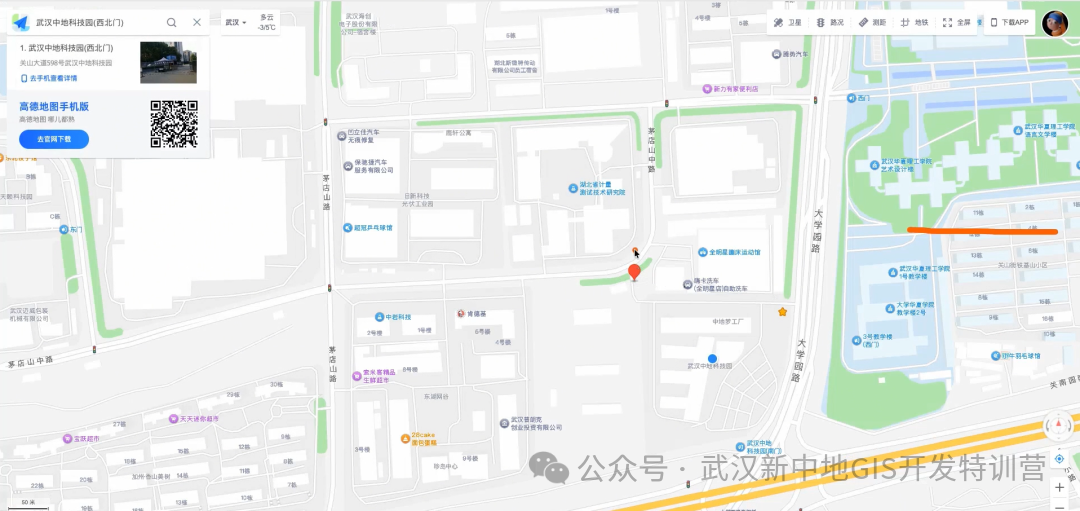
视频版教程实操如下👇
 https://www.bilibili.com/video/BV1vnzKB6EYp/?spm_id_from=333.337.search-card.all.click&vd_source=9629e581233f391f52868addec97b4bb
PART.02 前置知识
需要一定的网页开发基础,包括HTML、CSS、JavaScript以及Vue框架的基本了解。我们将使用以下技术栈:
- 前端框架:Vue
- 样式解决方案:Tailwind CSS
- GIS平台:高德地图开放平台
核心功能目标:实现类似高德地图的搜索功能,包括输入提示、POI搜索结果展示、点标记添加及地图中心点移动等功能。
1. 创建地图实例
首先,我们需要搭建项目环境并创建地图实例:
1). 使用Vite创建Vue项目:
npm init vite2). 安装Tailwind CSS:
npm install tailwindcss@3.4.17 postcss autoprefixer
npx tailwindcss init -p 3). 安装高德地图Loader:
npm install @amap/amap-jsapi-loader4). 在Vue组件中初始化地图:
import AMapLoader from '@amap/amap-jsapi-loader';
onMounted(async () => {
const AMap = await AMapLoader.load({
key: '你的高德地图key',
version: '2.0',
plugins: []
});
const map = new AMap.Map('map', {
zoom: 13,
center: [116.397428, 39.90923]
});
});
注意:需要在高德开放平台注册账号并创建应用,获取key和安全密钥。
2. 修改定位中心点
默认地图中心点是北京,我们需要根据用户当前位置进行定位:
1). 加载定位插件: plugins: [';AMap.Geolocation']
2). 创建定位实例并获取位置信息:
const geolocation = new AMap.Geolocation({
enableHighAccuracy: true,
timeout: 10000,
buttonPosition: 'RB'
});

geolocation.getCurrentPosition((status, result) => {
if (status === 'complete') {
const position = [result.position.lng, result.position.lat];
map.setCenter(position);
}
});
3. 添加定位点标记
获取用户位置后,在地图上添加点标记:
const marker = new AMap.Marker({
position: position,
map: map
});
这将在用户当前位置添加一个默认样式的标记。
4. 添加城市位置信息
为了实现基于城市的搜索,我们需要获取用户当前所在城市:
geolocation.getCityInfo((status, result) => {
if (status === 'complete') {
const city = result.city;
const cityCode = result.adcode;
}
});
保存城市信息,用于后续搜索功能。
5. 添加搜索框
在页面上添加搜索框,并使用Tailwind CSS进行样式设置:
<template>
<div class="fixed top-5 left-5 w-64">
<input
v-model="searchText"
placeholder="搜索位置"
class="w-full p-2 rounded shadow outline-none"
/>
</div>
</template>
<script setup>
import { ref } from 'vue';
const searchText = ref('');
</script>
6. 添加输入提示插件
实现搜索框输入提示功能:
1). 加载输入提示插件: plugins: ['AMap.Autocomplete']
2). 创建Autocomplete实例并监听输入事件:
const autocomplete = new AMap.Autocomplete({
city: city
});
function handleSearch() {
autocomplete.search(searchText.value, (status, result) => {
if (status === 'complete') {
searchResult.value = result.tips;
}
});
}
3). 展示搜索结果列表,并实现关键字高亮:
function highlight(text, keyword) {
const index = text.indexOf(keyword);
if (index !== -1) {
return text.slice(0, index) +
'<span style="color: blue">' + keyword + '</span>' +
text.slice(index + keyword.length);
}
return text;
}
7. 添加POI搜索插件
实现点击搜索结果后的POI详情展示:
1). 加载POI搜索插件: plugins: [';AMap.PlaceSearch']
2). 创建PlaceSearch实例,根据选中的搜索结果进行POI搜索:
const placeSearch = new AMap.PlaceSearch({
city: city
});
function handleSelect(name) {
searchText.value = name;
showPOI.value = true;
placeSearch.search(name, (status, result) => {
if (status === 'complete') {
poiResults.value = result.poiList.pois;
}
});
}
3). 展示POI结果列表,包含名称和地址信息。
8. 添加搜索点标记
在地图上为搜索到的POI添加点标记:
poiResults.value.forEach((poi, index) => {
const marker = new AMap.Marker({
position: [poi.location.lng, poi.location.lat],
icon: 'location_red.png', // 自定义红色图标
map: map
});
});
使用红色图标区分于用户当前位置的默认标记,避免混淆。
9. 为点标记添加文本
为每个点标记添加数字文本,方便与搜索结果列表对应:
import AMapText from '@amap/amap-jsapi-types/lib/AMap/Text';
poiResults.value.forEach((poi, index) => {
// 创建点标记...
const text = new AMap.Text({
text: (index + 1).toString(),
position: [poi.location.lng, poi.location.lat],
anchor: 'center',
style: {
fontSize: '12px',
color: '
#fff
',
backgroundColor: 'transparent'
}
});
text.setMap(map);
});
添文本标记后,用户可以清晰地将列表中的POI与地图上的标记对应起来。
10. 移动地图到中心点位置
实现点击POI后将地图中心点移动到对应位置:
// 在POI搜索结果处理中添加
 if (poiResults.value.length > 0) {
 const firstPoi = poiResults.value[0];
 map.setCenter([firstPoi.location.lng, firstPoi.location.lat]);
 }
使用 setCenter 方法可以将地图中心点移动到指定经纬度,实现类似高德地图的点击定位效果。

有“AI”的1024 = 2048,欢迎大家加入2048 AI社区
更多推荐

 1
1 0
0- 0


 已为社区贡献4条内容

所有评论(0)