Flutter 框架跨平台鸿蒙开发 - 每日心情日记应用开发教程
心情类型(MoodType)veryHappy- 非常开心 😄happy- 开心 😊neutral- 平静 😐sad- 难过 😢verySad- 非常难过 😭angry- 生气 😠anxious- 焦虑 😰excited- 兴奋 🤩tired- 疲惫 😴grateful- 感恩 🙏天气类型(WeatherType)sunny- 晴天 ☀️cloudy- 多云 ☁️rainy-
·
Flutter每日心情日记应用开发教程
项目简介
每日心情日记是一款帮助用户记录和分析日常心情变化的Flutter应用。通过简洁直观的界面,用户可以轻松记录每天的心情状态、活动内容、能量水平等信息,并通过统计分析功能了解自己的情绪变化趋势。
运行效果图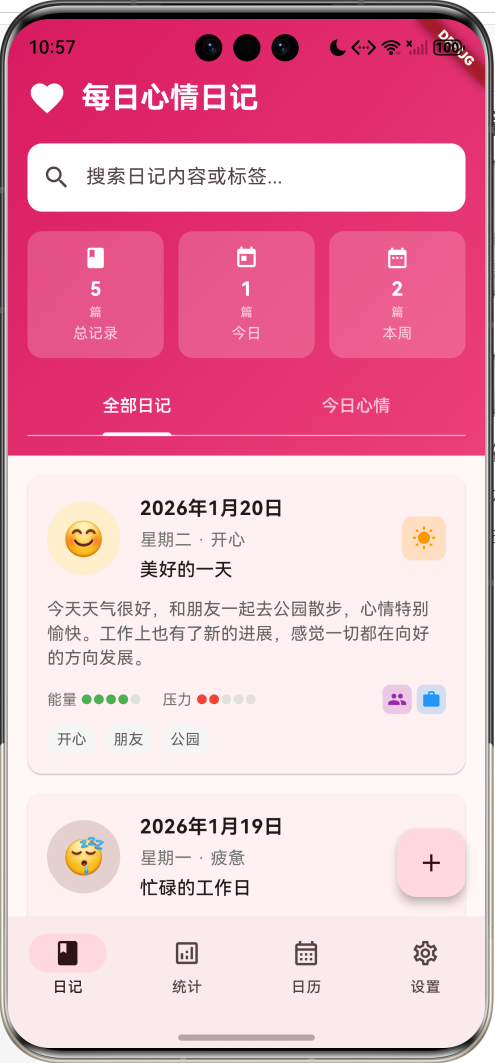
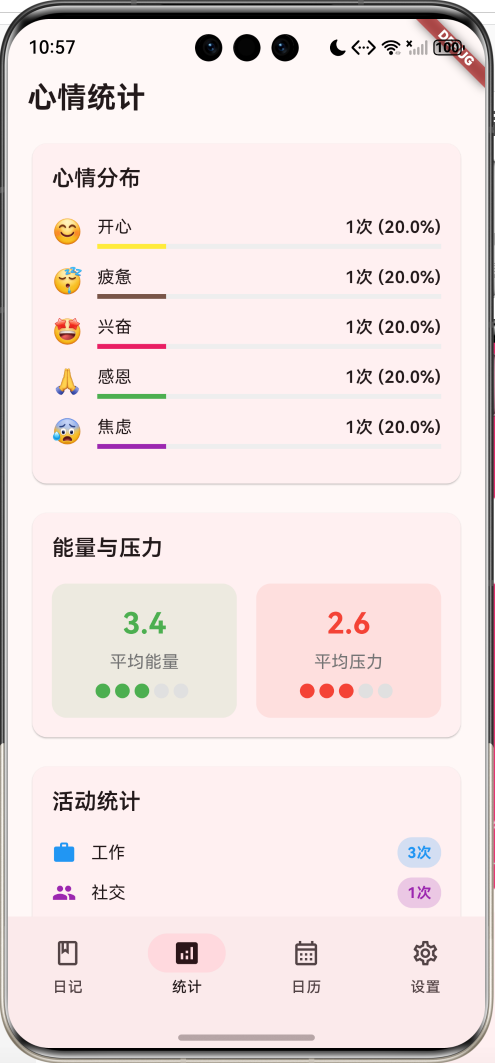
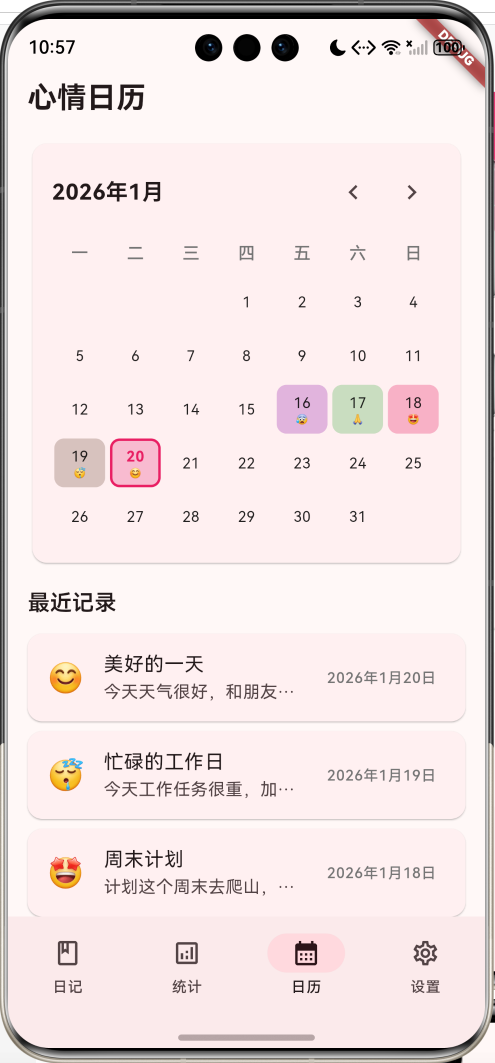
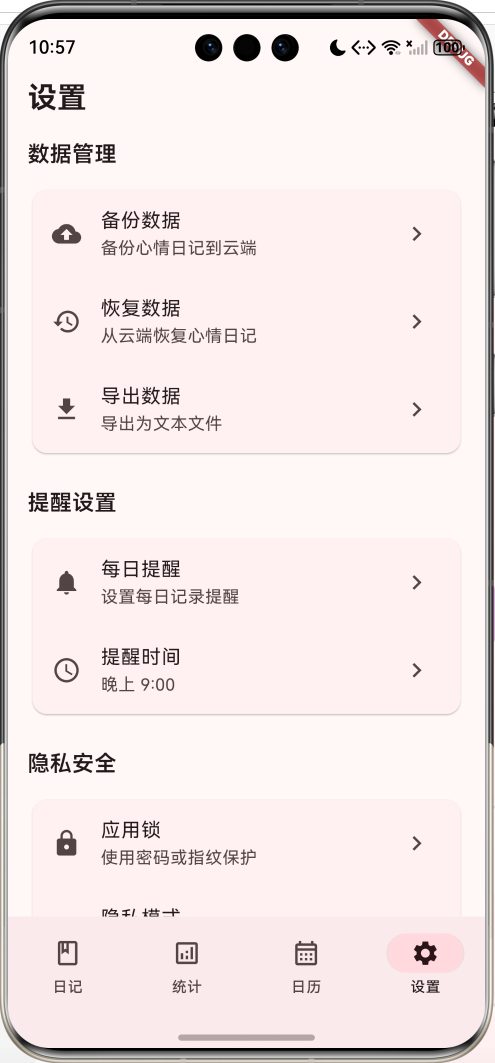
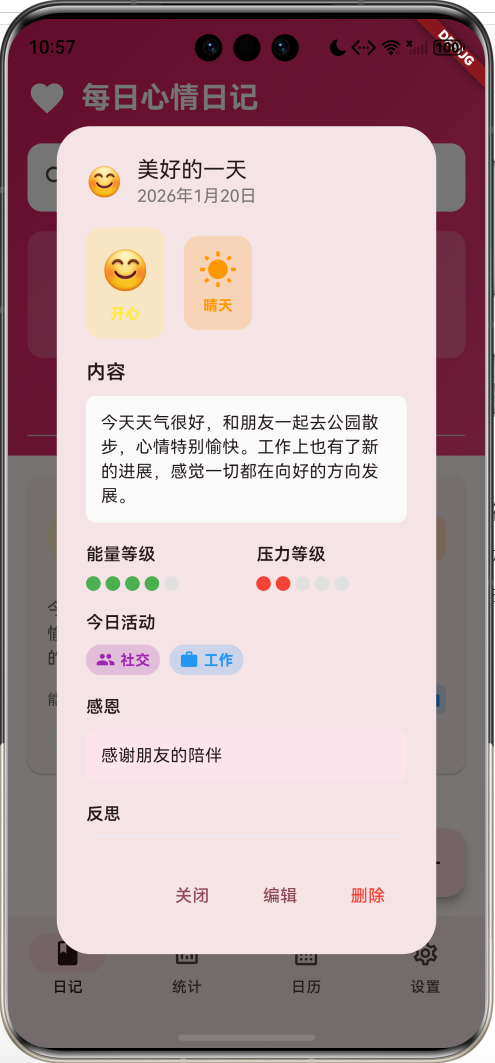
核心功能
- 心情记录:支持10种心情类型,包含表情符号和颜色标识
- 多维度记录:天气、活动、能量等级、压力水平、感恩反思
- 智能统计:心情分布、能量压力分析、活动统计、周趋势图
- 日历视图:直观展示每日心情状态
- 搜索筛选:支持内容和标签搜索
- 数据管理:备份、恢复、导出功能
技术特点
- 单文件架构,代码结构清晰
- Material Design 3设计风格
- 响应式布局,适配不同屏幕
- 丰富的交互动画和视觉反馈
- 完整的CRUD操作支持
架构设计
整体架构
页面结构
应用采用底部导航栏设计,包含四个主要页面:
- 日记页面:记录查看和管理
- 统计页面:数据分析和可视化
- 日历页面:日历视图和历史记录
- 设置页面:应用配置和数据管理
数据模型设计
核心数据模型
MoodEntry(心情记录)
class MoodEntry {
  final String id;              // 唯一标识
  final DateTime date;          // 记录日期
  final MoodType mood;          // 心情类型
  final String title;           // 标题
  final String content;         // 内容
  final List<String> tags;      // 标签列表
  final WeatherType weather;    // 天气类型
  final List<ActivityType> activities; // 活动列表
  final int energyLevel;        // 能量等级(1-5)
  final int stressLevel;        // 压力等级(1-5)
  final String gratitude;       // 感恩内容
  final String reflection;      // 反思内容
}
枚举类型定义
心情类型(MoodType)
veryHappy- 非常开心 😄happy- 开心 😊neutral- 平静 😐sad- 难过 😢verySad- 非常难过 😭angry- 生气 😠anxious- 焦虑 😰excited- 兴奋 🤩tired- 疲惫 😴grateful- 感恩 🙏
天气类型(WeatherType)
sunny- 晴天 ☀️cloudy- 多云 ☁️rainy- 雨天 🌧️snowy- 雪天 ❄️windy- 大风 💨foggy- 雾天 🌫️
活动类型(ActivityType)
work- 工作 💼study- 学习 📚exercise- 运动 🏃social- 社交 👥family- 家庭 👨👩👧👦hobby- 爱好 🎨travel- 旅行 ✈️shopping- 购物 🛍️cooking- 烹饪 🍳reading- 阅读 📖music- 音乐 🎵movie- 电影 🎬game- 游戏 🎮rest- 休息 😴
配置类设计
MoodConfig(心情配置)
class MoodConfig {
  final String name;     // 心情名称
  final String emoji;    // 表情符号
  final Color color;     // 主题颜色
}
WeatherConfig(天气配置)
class WeatherConfig {
  final String name;     // 天气名称
  final IconData icon;   // 图标
  final Color color;     // 主题颜色
}
ActivityConfig(活动配置)
class ActivityConfig {
  final String name;     // 活动名称
  final IconData icon;   // 图标
  final Color color;     // 主题颜色
}
核心功能实现
1. 日记页面实现
页面头部设计
Widget _buildDiaryHeader() {
  return Container(
    padding: const EdgeInsets.fromLTRB(16, 48, 16, 16),
    decoration: BoxDecoration(
      gradient: LinearGradient(
        colors: [Colors.pink.shade600, Colors.pink.shade400],
        begin: Alignment.topLeft,
        end: Alignment.bottomRight,
      ),
    ),
    child: Column(
      children: [
        // 标题栏
        Row(
          children: [
            const Icon(Icons.favorite, color: Colors.white, size: 32),
            const SizedBox(width: 12),
            const Expanded(
              child: Text(
                '每日心情日记',
                style: TextStyle(
                  fontSize: 24,
                  fontWeight: FontWeight.bold,
                  color: Colors.white,
                ),
              ),
            ),
          ],
        ),
        // 搜索框
        TextField(
          controller: _searchController,
          decoration: InputDecoration(
            hintText: '搜索日记内容或标签...',
            prefixIcon: const Icon(Icons.search),
            filled: true,
            fillColor: Colors.white,
            border: OutlineInputBorder(
              borderRadius: BorderRadius.circular(12),
              borderSide: BorderSide.none,
            ),
          ),
        ),
        // 统计卡片
        Row(
          children: [
            Expanded(child: _buildSummaryCard('总记录', '$totalEntries', '篇', Icons.book)),
            Expanded(child: _buildSummaryCard('今日', '$todayEntry', '篇', Icons.today)),
            Expanded(child: _buildSummaryCard('本周', '$thisWeekEntries', '篇', Icons.date_range)),
          ],
        ),
      ],
    ),
  );
}
日记卡片设计
Widget _buildEntryCard(MoodEntry entry) {
  final moodConfig = _moodConfigs[entry.mood]!;
  final weatherConfig = _weatherConfigs[entry.weather]!;

  return Card(
    margin: const EdgeInsets.only(bottom: 16),
    child: InkWell(
      onTap: () => _showEntryDetails(entry),
      child: Padding(
        padding: const EdgeInsets.all(16),
        child: Column(
          crossAxisAlignment: CrossAxisAlignment.start,
          children: [
            // 头部:心情表情 + 日期信息 + 天气图标
            Row(
              children: [
                Container(
                  width: 60,
                  height: 60,
                  decoration: BoxDecoration(
                    color: moodConfig.color.withValues(alpha: 0.2),
                    borderRadius: BorderRadius.circular(30),
                  ),
                  child: Center(
                    child: Text(moodConfig.emoji, style: const TextStyle(fontSize: 28)),
                  ),
                ),
                // 日期和标题信息
                Expanded(
                  child: Column(
                    crossAxisAlignment: CrossAxisAlignment.start,
                    children: [
                      Text(entry.dateString, style: const TextStyle(fontSize: 16, fontWeight: FontWeight.bold)),
                      Text('${entry.weekdayString} · ${moodConfig.name}'),
                      if (entry.title.isNotEmpty) Text(entry.title),
                    ],
                  ),
                ),
                // 天气图标
                Container(
                  padding: const EdgeInsets.all(8),
                  decoration: BoxDecoration(
                    color: weatherConfig.color.withValues(alpha: 0.2),
                    borderRadius: BorderRadius.circular(8),
                  ),
                  child: Icon(weatherConfig.icon, color: weatherConfig.color, size: 20),
                ),
              ],
            ),
            // 内容预览
            if (entry.content.isNotEmpty)
              Text(entry.content, maxLines: 3, overflow: TextOverflow.ellipsis),
            // 能量压力指示器和活动图标
            Row(
              children: [
                _buildLevelIndicator('能量', entry.energyLevel, Colors.green),
                _buildLevelIndicator('压力', entry.stressLevel, Colors.red),
                const Spacer(),
                // 活动图标展示
                ...entry.activities.take(3).map((activity) => _buildActivityIcon(activity)),
              ],
            ),
            // 标签展示
            if (entry.tags.isNotEmpty) _buildTagsRow(entry.tags),
          ],
        ),
      ),
    ),
  );
}
2. 添加日记对话框
心情选择界面
Widget _buildMoodSelection() {
  return Wrap(
    spacing: 8,
    runSpacing: 8,
    children: widget.moodConfigs.entries.map((entry) {
      final isSelected = _selectedMood == entry.key;
      return GestureDetector(
        onTap: () => setState(() => _selectedMood = entry.key),
        child: Container(
          padding: const EdgeInsets.all(8),
          decoration: BoxDecoration(
            color: isSelected
              ? entry.value.color.withValues(alpha: 0.3)
              : Colors.grey.shade100,
            borderRadius: BorderRadius.circular(12),
            border: isSelected
              ? Border.all(color: entry.value.color, width: 2)
              : null,
          ),
          child: Column(
            children: [
              Text(entry.value.emoji, style: const TextStyle(fontSize: 24)),
              Text(entry.value.name, style: TextStyle(fontSize: 10)),
            ],
          ),
        ),
      );
    }).toList(),
  );
}
能量和压力滑块
Widget _buildEnergyStressSliders() {
  return Column(
    children: [
      Text('能量等级:${_energyLevel}'),
      Slider(
        value: _energyLevel.toDouble(),
        min: 1,
        max: 5,
        divisions: 4,
        onChanged: (value) => setState(() => _energyLevel = value.round()),
      ),
      Text('压力等级:${_stressLevel}'),
      Slider(
        value: _stressLevel.toDouble(),
        min: 1,
        max: 5,
        divisions: 4,
        onChanged: (value) => setState(() => _stressLevel = value.round()),
      ),
    ],
  );
}
活动选择界面
Widget _buildActivitySelection() {
  return Wrap(
    spacing: 8,
    runSpacing: 8,
    children: widget.activityConfigs.entries.map((entry) {
      final isSelected = _selectedActivities.contains(entry.key);
      return GestureDetector(
        onTap: () {
          setState(() {
            if (isSelected) {
              _selectedActivities.remove(entry.key);
            } else {
              _selectedActivities.add(entry.key);
            }
          });
        },
        child: Container(
          padding: const EdgeInsets.symmetric(horizontal: 8, vertical: 4),
          decoration: BoxDecoration(
            color: isSelected
              ? entry.value.color.withValues(alpha: 0.3)
              : Colors.grey.shade100,
            borderRadius: BorderRadius.circular(12),
            border: isSelected ? Border.all(color: entry.value.color) : null,
          ),
          child: Row(
            mainAxisSize: MainAxisSize.min,
            children: [
              Icon(entry.value.icon, size: 16, color: entry.value.color),
              const SizedBox(width: 4),
              Text(entry.value.name, style: TextStyle(fontSize: 12)),
            ],
          ),
        ),
      );
    }).toList(),
  );
}
3. 统计分析功能
心情分布统计
Widget _buildMoodStats() {
  final moodStats = <MoodType, int>{};
  for (final entry in _moodEntries) {
    moodStats[entry.mood] = (moodStats[entry.mood] ?? 0) + 1;
  }

  return Card(
    child: Padding(
      padding: const EdgeInsets.all(16),
      child: Column(
        crossAxisAlignment: CrossAxisAlignment.start,
        children: [
          const Text('心情分布', style: TextStyle(fontSize: 18, fontWeight: FontWeight.w600)),
          const SizedBox(height: 16),
          ...moodStats.entries.map((entry) {
            final config = _moodConfigs[entry.key]!;
            final percentage = _moodEntries.isNotEmpty
              ? (entry.value / _moodEntries.length) * 100
              : 0.0;

            return Padding(
              padding: const EdgeInsets.only(bottom: 12),
              child: Row(
                children: [
                  Text(config.emoji, style: const TextStyle(fontSize: 20)),
                  const SizedBox(width: 12),
                  Expanded(
                    child: Column(
                      crossAxisAlignment: CrossAxisAlignment.start,
                      children: [
                        Row(
                          mainAxisAlignment: MainAxisAlignment.spaceBetween,
                          children: [
                            Text(config.name),
                            Text('${entry.value}次 (${percentage.toStringAsFixed(1)}%)'),
                          ],
                        ),
                        const SizedBox(height: 4),
                        LinearProgressIndicator(
                          value: percentage / 100,
                          backgroundColor: Colors.grey.shade200,
                          valueColor: AlwaysStoppedAnimation<Color>(config.color),
                        ),
                      ],
                    ),
                  ),
                ],
              ),
            );
          }),
        ],
      ),
    ),
  );
}
能量压力分析
Widget _buildEnergyStressStats() {
  final avgEnergy = _moodEntries.isNotEmpty
    ? _moodEntries.fold(0, (sum, entry) => sum + entry.energyLevel) / _moodEntries.length
    : 0.0;
  final avgStress = _moodEntries.isNotEmpty
    ? _moodEntries.fold(0, (sum, entry) => sum + entry.stressLevel) / _moodEntries.length
    : 0.0;

  return Card(
    child: Padding(
      padding: const EdgeInsets.all(16),
      child: Column(
        crossAxisAlignment: CrossAxisAlignment.start,
        children: [
          const Text('能量与压力', style: TextStyle(fontSize: 18, fontWeight: FontWeight.w600)),
          const SizedBox(height: 16),
          Row(
            children: [
              Expanded(child: _buildAvgStatItem('平均能量', avgEnergy, Colors.green)),
              const SizedBox(width: 16),
              Expanded(child: _buildAvgStatItem('平均压力', avgStress, Colors.red)),
            ],
          ),
        ],
      ),
    ),
  );
}
周趋势分析
Widget _buildWeeklyTrend() {
  final now = DateTime.now();
  final weekData = <String, List<MoodEntry>>{};

  // 获取最近7天的数据
  for (int i = 6; i >= 0; i--) {
    final date = now.subtract(Duration(days: i));
    final dateKey = '${date.month}/${date.day}';
    weekData[dateKey] = _moodEntries.where((entry) => _isSameDay(entry.date, date)).toList();
  }

  return Card(
    child: Padding(
      padding: const EdgeInsets.all(16),
      child: Column(
        crossAxisAlignment: CrossAxisAlignment.start,
        children: [
          const Text('本周趋势', style: TextStyle(fontSize: 18, fontWeight: FontWeight.w600)),
          const SizedBox(height: 16),
          Row(
            mainAxisAlignment: MainAxisAlignment.spaceAround,
            children: weekData.entries.map((entry) {
              final hasEntry = entry.value.isNotEmpty;
              final avgMood = hasEntry
                ? entry.value.fold(0, (sum, e) => sum + _getMoodValue(e.mood)) / entry.value.length
                : 0.0;

              return Column(
                children: [
                  Text(entry.key, style: TextStyle(fontSize: 12, color: Colors.grey.shade600)),
                  const SizedBox(height: 8),
                  Container(
                    width: 32,
                    height: hasEntry ? (avgMood * 8 + 16) : 16,
                    decoration: BoxDecoration(
                      color: hasEntry ? _getMoodColor(avgMood) : Colors.grey.shade300,
                      borderRadius: BorderRadius.circular(16),
                    ),
                  ),
                  const SizedBox(height: 4),
                  Text(hasEntry ? entry.value.length.toString() : '0'),
                ],
              );
            }).toList(),
          ),
        ],
      ),
    ),
  );
}
4. 日历页面实现
日历网格视图
Widget _buildCalendarView() {
  final now = DateTime.now();
  final firstDayOfMonth = DateTime(now.year, now.month, 1);
  final lastDayOfMonth = DateTime(now.year, now.month + 1, 0);
  final daysInMonth = lastDayOfMonth.day;
  final firstWeekday = firstDayOfMonth.weekday;

  return Card(
    child: Padding(
      padding: const EdgeInsets.all(16),
      child: Column(
        children: [
          // 月份标题和导航
          Row(
            mainAxisAlignment: MainAxisAlignment.spaceBetween,
            children: [
              Text('${now.year}年${now.month}月',
                style: const TextStyle(fontSize: 18, fontWeight: FontWeight.bold)),
              Row(
                children: [
                  IconButton(icon: const Icon(Icons.chevron_left), onPressed: () {}),
                  IconButton(icon: const Icon(Icons.chevron_right), onPressed: () {}),
                ],
              ),
            ],
          ),
          // 星期标题
          Row(
            children: ['一', '二', '三', '四', '五', '六', '日'].map((day) {
              return Expanded(
                child: Center(
                  child: Text(day, style: TextStyle(fontSize: 14, fontWeight: FontWeight.w500)),
                ),
              );
            }).toList(),
          ),
          // 日期网格
          ...List.generate((daysInMonth + firstWeekday - 1) ~/ 7 + 1, (weekIndex) {
            return Row(
              children: List.generate(7, (dayIndex) {
                final dayNumber = weekIndex * 7 + dayIndex - firstWeekday + 2;
                if (dayNumber < 1 || dayNumber > daysInMonth) {
                  return const Expanded(child: SizedBox(height: 40));
                }

                final date = DateTime(now.year, now.month, dayNumber);
                final entries = _moodEntries.where((entry) => _isSameDay(entry.date, date)).toList();
                final hasEntry = entries.isNotEmpty;
                final isToday = _isSameDay(date, now);

                return Expanded(
                  child: Container(
                    height: 40,
                    margin: const EdgeInsets.all(2),
                    decoration: BoxDecoration(
                      color: isToday
                        ? Colors.pink.shade100
                        : (hasEntry ? _moodConfigs[entries.first.mood]!.color.withValues(alpha: 0.3) : null),
                      borderRadius: BorderRadius.circular(8),
                      border: isToday ? Border.all(color: Colors.pink, width: 2) : null,
                    ),
                    child: Center(
                      child: Column(
                        mainAxisAlignment: MainAxisAlignment.center,
                        children: [
                          Text(dayNumber.toString(), style: TextStyle(fontSize: 12)),
                          if (hasEntry) Text(_moodConfigs[entries.first.mood]!.emoji, style: const TextStyle(fontSize: 8)),
                        ],
                      ),
                    ),
                  ),
                );
              }),
            );
          }),
        ],
      ),
    ),
  );
}
UI组件设计
1. 等级指示器组件
Widget _buildLevelIndicator(String label, int level, Color color) {
  return Row(
    mainAxisSize: MainAxisSize.min,
    children: [
      Text(label, style: TextStyle(fontSize: 12, color: Colors.grey.shade600)),
      const SizedBox(width: 4),
      Row(
        children: List.generate(5, (index) {
          return Container(
            width: 8,
            height: 8,
            margin: const EdgeInsets.only(right: 2),
            decoration: BoxDecoration(
              color: index < level ? color : Colors.grey.shade300,
              borderRadius: BorderRadius.circular(4),
            ),
          );
        }),
      ),
    ],
  );
}
2. 统计卡片组件
Widget _buildSummaryCard(String title, String value, String unit, IconData icon) {
  return Container(
    padding: const EdgeInsets.all(12),
    decoration: BoxDecoration(
      color: Colors.white.withValues(alpha: 0.2),
      borderRadius: BorderRadius.circular(12),
    ),
    child: Column(
      children: [
        Icon(icon, color: Colors.white, size: 20),
        const SizedBox(height: 4),
        Text(value, style: const TextStyle(fontSize: 16, fontWeight: FontWeight.bold, color: Colors.white)),
        Text(unit, style: const TextStyle(fontSize: 10, color: Colors.white70)),
        const SizedBox(height: 2),
        Text(title, style: const TextStyle(fontSize: 12, color: Colors.white70)),
      ],
    ),
  );
}
3. 平均统计项组件
Widget _buildAvgStatItem(String title, double value, Color color) {
  return Container(
    padding: const EdgeInsets.all(16),
    decoration: BoxDecoration(
      color: color.withValues(alpha: 0.1),
      borderRadius: BorderRadius.circular(12),
    ),
    child: Column(
      children: [
        Text(value.toStringAsFixed(1),
          style: TextStyle(fontSize: 24, fontWeight: FontWeight.bold, color: color)),
        const SizedBox(height: 4),
        Text(title, style: TextStyle(fontSize: 14, color: Colors.grey.shade600)),
        const SizedBox(height: 8),
        Row(
          mainAxisAlignment: MainAxisAlignment.center,
          children: List.generate(5, (index) {
            return Container(
              width: 12,
              height: 12,
              margin: const EdgeInsets.only(right: 4),
              decoration: BoxDecoration(
                color: index < value.round() ? color : Colors.grey.shade300,
                borderRadius: BorderRadius.circular(6),
              ),
            );
          }),
        ),
      ],
    ),
  );
}
对话框组件实现
1. 日记详情对话框
class _EntryDetailsDialog extends StatelessWidget {
final MoodEntry entry;
final Map<MoodType, MoodConfig> moodConfigs;
final Map<WeatherType, WeatherConfig> weatherConfigs;
final Map<ActivityType, ActivityConfig> activityConfigs;
final Function(MoodEntry) onEdit;
final VoidCallback onDelete;
Widget build(BuildContext context) {
final moodConfig = moodConfigs[entry.mood]!;
final weatherConfig = weatherConfigs[entry.weather]!;
return AlertDialog(
title: Row(
children: [
Text(moodConfig.emoji, style: const TextStyle(fontSize: 24)),
const SizedBox(width: 12),
Expanded(
child: Column(
crossAxisAlignment: CrossAxisAlignment.start,
children: [
Text(entry.title.isNotEmpty ? entry.title : '心情记录'),
Text(entry.dateString, style: TextStyle(fontSize: 14, color: Colors.grey.shade600)),
],
),
),
],
),
content: SizedBox(
width: 400,
height: 500,
child: SingleChildScrollView(
child: Column(
crossAxisAlignment: CrossAxisAlignment.start,
children: [
// 心情和天气展示
_buildMoodWeatherDisplay(moodConfig, weatherConfig),
// 内容展示
if (entry.content.isNotEmpty) _buildContentSection(entry.content),
// 能量压力展示
_buildEnergyStressDisplay(entry.energyLevel, entry.stressLevel),
// 活动展示
if (entry.activities.isNotEmpty) _buildActivitiesDisplay(entry.activities),
// 感恩展示
if (entry.gratitude.isNotEmpty) _buildGratitudeDisplay(entry.gratitude),
// 反思展示
if (entry.reflection.isNotEmpty) _buildReflectionDisplay(entry.reflection),
// 标签展示
if (entry.tags.isNotEmpty) _buildTagsDisplay(entry.tags),
],
),
),
),
actions: [
TextButton(onPressed: () => Navigator.pop(context), child: const Text('关闭')),
TextButton(onPressed: () => _showEditDialog(context), child: const Text('编辑')),
TextButton(
onPressed: () => _showDeleteConfirmation(context),
style: TextButton.styleFrom(foregroundColor: Colors.red),
child: const Text('删除'),
),
],
);
}
}
2. 编辑日记对话框
编辑对话框复用添加对话框的大部分UI组件,但需要预填充现有数据:
class _EditEntryDialog extends StatefulWidget {
final MoodEntry entry;
// ... 其他属性
State<_EditEntryDialog> createState() => _EditEntryDialogState();
}
class _EditEntryDialogState extends State<_EditEntryDialog> {
void initState() {
super.initState();
// 预填充现有数据
_titleController = TextEditingController(text: widget.entry.title);
_contentController = TextEditingController(text: widget.entry.content);
_gratitudeController = TextEditingController(text: widget.entry.gratitude);
_reflectionController = TextEditingController(text: widget.entry.reflection);
_selectedMood = widget.entry.mood;
_selectedWeather = widget.entry.weather;
_selectedActivities = List.from(widget.entry.activities);
_energyLevel = widget.entry.energyLevel;
_stressLevel = widget.entry.stressLevel;
_tags = List.from(widget.entry.tags);
}
void _saveEntry() {
final editedEntry = widget.entry.copyWith(
mood: _selectedMood,
title: _titleController.text.trim(),
content: _contentController.text.trim(),
tags: _tags,
weather: _selectedWeather,
activities: _selectedActivities,
energyLevel: _energyLevel,
stressLevel: _stressLevel,
gratitude: _gratitudeController.text.trim(),
reflection: _reflectionController.text.trim(),
);
widget.onSave(editedEntry);
Navigator.pop(context);
}
}
工具方法实现
1. 日期比较方法
bool _isSameDay(DateTime date1, DateTime date2) {
  return date1.year == date2.year &&
      date1.month == date2.month &&
      date1.day == date2.day;
}

bool _isThisWeek(DateTime date) {
  final now = DateTime.now();
  final startOfWeek = now.subtract(Duration(days: now.weekday - 1));
  final endOfWeek = startOfWeek.add(const Duration(days: 6));
  return date.isAfter(startOfWeek.subtract(const Duration(days: 1))) &&
      date.isBefore(endOfWeek.add(const Duration(days: 1)));
}
2. 心情值转换方法
int _getMoodValue(MoodType mood) {
  switch (mood) {
    case MoodType.verySad: return 1;
    case MoodType.sad: return 2;
    case MoodType.anxious: return 2;
    case MoodType.angry: return 2;
    case MoodType.neutral: return 3;
    case MoodType.tired: return 3;
    case MoodType.happy: return 4;
    case MoodType.grateful: return 4;
    case MoodType.excited: return 5;
    case MoodType.veryHappy: return 5;
  }
}

Color _getMoodColor(double value) {
  if (value <= 2) return Colors.blue;
  if (value <= 3) return Colors.grey;
  if (value <= 4) return Colors.yellow;
  return Colors.orange;
}
3. 搜索和筛选方法
List<MoodEntry> _getFilteredEntries(bool todayOnly) {
  return _moodEntries.where((entry) {
    // 日期过滤
    if (todayOnly && !_isSameDay(entry.date, DateTime.now())) {
      return false;
    }

    // 搜索过滤
    if (_searchQuery.isNotEmpty) {
      final query = _searchQuery.toLowerCase();
      if (!entry.title.toLowerCase().contains(query) &&
          !entry.content.toLowerCase().contains(query) &&
          !entry.tags.any((tag) => tag.toLowerCase().contains(query))) {
        return false;
      }
    }

    // 心情过滤
    if (_filterMood != null && entry.mood != _filterMood) {
      return false;
    }

    return true;
  }).toList()..sort((a, b) => b.date.compareTo(a.date));
}
功能扩展建议
1. 数据持久化
// 使用SharedPreferences或SQLite存储数据
class MoodDataManager {
  static const String _entriesKey = 'mood_entries';

  static Future<void> saveEntries(List<MoodEntry> entries) async {
    final prefs = await SharedPreferences.getInstance();
    final jsonList = entries.map((entry) => entry.toJson()).toList();
    await prefs.setString(_entriesKey, jsonEncode(jsonList));
  }

  static Future<List<MoodEntry>> loadEntries() async {
    final prefs = await SharedPreferences.getInstance();
    final jsonString = prefs.getString(_entriesKey);
    if (jsonString != null) {
      final jsonList = jsonDecode(jsonString) as List;
      return jsonList.map((json) => MoodEntry.fromJson(json)).toList();
    }
    return [];
  }
}
2. 数据导出功能
class DataExporter {
  static Future<void> exportToCSV(List<MoodEntry> entries) async {
    final csv = const ListToCsvConverter().convert([
      ['日期', '心情', '标题', '内容', '能量', '压力', '天气', '活动', '标签'],
      ...entries.map((entry) => [
        entry.dateString,
        _moodConfigs[entry.mood]!.name,
        entry.title,
        entry.content,
        entry.energyLevel,
        entry.stressLevel,
        _weatherConfigs[entry.weather]!.name,
        entry.activities.map((a) => _activityConfigs[a]!.name).join(';'),
        entry.tags.join(';'),
      ]),
    ]);

    // 保存到文件
    final directory = await getApplicationDocumentsDirectory();
    final file = File('${directory.path}/mood_diary_export.csv');
    await file.writeAsString(csv);
  }
}
3. 提醒通知功能
class NotificationManager {
  static Future<void> scheduleDailyReminder(TimeOfDay time) async {
    final flutterLocalNotificationsPlugin = FlutterLocalNotificationsPlugin();

    await flutterLocalNotificationsPlugin.zonedSchedule(
      0,
      '记录今天的心情',
      '花一分钟记录今天的心情和感受吧!',
      _nextInstanceOfTime(time),
      const NotificationDetails(
        android: AndroidNotificationDetails(
          'daily_reminder',
          '每日提醒',
          channelDescription: '提醒用户记录每日心情',
        ),
      ),
      androidAllowWhileIdle: true,
      uiLocalNotificationDateInterpretation: UILocalNotificationDateInterpretation.absoluteTime,
      matchDateTimeComponents: DateTimeComponents.time,
    );
  }
}
4. 心情趋势预测
class MoodAnalyzer {
  static Map<String, dynamic> analyzeMoodTrends(List<MoodEntry> entries) {
    if (entries.length < 7) return {};

    // 计算最近7天的平均心情值
    final recentEntries = entries.take(7).toList();
    final avgMood = recentEntries.fold(0, (sum, entry) => sum + _getMoodValue(entry.mood)) / recentEntries.length;

    // 计算趋势(上升/下降/稳定)
    final firstHalf = recentEntries.take(3).toList();
    final secondHalf = recentEntries.skip(4).toList();

    final firstAvg = firstHalf.fold(0, (sum, entry) => sum + _getMoodValue(entry.mood)) / firstHalf.length;
    final secondAvg = secondHalf.fold(0, (sum, entry) => sum + _getMoodValue(entry.mood)) / secondHalf.length;

    String trend = '稳定';
    if (secondAvg > firstAvg + 0.5) trend = '上升';
    if (secondAvg < firstAvg - 0.5) trend = '下降';

    return {
      'averageMood': avgMood,
      'trend': trend,
      'suggestion': _getMoodSuggestion(avgMood, trend),
    };
  }

  static String _getMoodSuggestion(double avgMood, String trend) {
    if (avgMood >= 4) return '保持积极的心态,继续加油!';
    if (avgMood >= 3) return '心情还不错,可以尝试一些新的活动。';
    if (trend == '上升') return '心情在好转,坚持下去!';
    return '建议多做一些让自己开心的事情。';
  }
}
5. 社交分享功能
class ShareManager {
  static Future<void> shareMoodSummary(MoodEntry entry) async {
    final moodConfig = _moodConfigs[entry.mood]!;
    final text = '''
今天的心情:${moodConfig.emoji} ${moodConfig.name}
${entry.title.isNotEmpty ? entry.title : ''}
${entry.content.isNotEmpty ? entry.content : ''}
#每日心情日记 #心情记录
    ''';

    await Share.share(text);
  }

  static Future<void> shareWeeklySummary(List<MoodEntry> weekEntries) async {
    final moodCounts = <MoodType, int>{};
    for (final entry in weekEntries) {
      moodCounts[entry.mood] = (moodCounts[entry.mood] ?? 0) + 1;
    }

    final mostFrequentMood = moodCounts.entries
        .reduce((a, b) => a.value > b.value ? a : b);

    final text = '''
本周心情总结:
记录了 ${weekEntries.length} 天
最常见的心情:${_moodConfigs[mostFrequentMood.key]!.emoji} ${_moodConfigs[mostFrequentMood.key]!.name}
#每日心情日记 #周总结
    ''';

    await Share.share(text);
  }
}
性能优化策略
1. 列表优化
// 使用ListView.builder进行懒加载
Widget _buildEntriesList(bool todayOnly) {
final filteredEntries = _getFilteredEntries(todayOnly);
return ListView.builder(
padding: const EdgeInsets.all(16),
itemCount: filteredEntries.length,
itemBuilder: (context, index) {
final entry = filteredEntries[index];
return _buildEntryCard(entry);
},
);
}
// 使用AutomaticKeepAliveClientMixin保持页面状态
class _MoodDiaryHomePageState extends State<MoodDiaryHomePage>
with TickerProviderStateMixin, AutomaticKeepAliveClientMixin {
bool get wantKeepAlive => true;
Widget build(BuildContext context) {
super.build(context); // 必须调用
return Scaffold(/* ... */);
}
}
2. 图片和资源优化
// 使用缓存的网络图片
Widget _buildMoodImage(String imageUrl) {
  return CachedNetworkImage(
    imageUrl: imageUrl,
    placeholder: (context, url) => const CircularProgressIndicator(),
    errorWidget: (context, url, error) => const Icon(Icons.error),
    memCacheWidth: 200, // 限制内存中的图片大小
    memCacheHeight: 200,
  );
}

// 预加载关键资源
void _preloadAssets() {
  for (final config in _moodConfigs.values) {
    precacheImage(AssetImage('assets/moods/${config.name}.png'), context);
  }
}
3. 状态管理优化
// 使用Provider进行状态管理
class MoodProvider extends ChangeNotifier {
  List<MoodEntry> _entries = [];
  String _searchQuery = '';
  MoodType? _filterMood;

  List<MoodEntry> get entries => _entries;
  List<MoodEntry> get filteredEntries => _getFilteredEntries();

  void addEntry(MoodEntry entry) {
    _entries.insert(0, entry);
    notifyListeners();
  }

  void updateEntry(MoodEntry entry) {
    final index = _entries.indexWhere((e) => e.id == entry.id);
    if (index != -1) {
      _entries[index] = entry;
      notifyListeners();
    }
  }

  void deleteEntry(String id) {
    _entries.removeWhere((e) => e.id == id);
    notifyListeners();
  }

  void setSearchQuery(String query) {
    _searchQuery = query;
    notifyListeners();
  }

  List<MoodEntry> _getFilteredEntries() {
    return _entries.where((entry) {
      if (_searchQuery.isNotEmpty) {
        final query = _searchQuery.toLowerCase();
        if (!entry.title.toLowerCase().contains(query) &&
            !entry.content.toLowerCase().contains(query) &&
            !entry.tags.any((tag) => tag.toLowerCase().contains(query))) {
          return false;
        }
      }

      if (_filterMood != null && entry.mood != _filterMood) {
        return false;
      }

      return true;
    }).toList();
  }
}
测试指南
1. 单元测试
// test/mood_entry_test.dart
import 'package:flutter_test/flutter_test.dart';
import 'package:mood_diary/models/mood_entry.dart';

void main() {
  group('MoodEntry', () {
    test('should create mood entry with required fields', () {
      final entry = MoodEntry(
        id: '1',
        date: DateTime.now(),
        mood: MoodType.happy,
      );

      expect(entry.id, '1');
      expect(entry.mood, MoodType.happy);
      expect(entry.title, '');
      expect(entry.content, '');
    });

    test('should format date string correctly', () {
      final date = DateTime(2024, 1, 15);
      final entry = MoodEntry(
        id: '1',
        date: date,
        mood: MoodType.happy,
      );

      expect(entry.dateString, '2024年1月15日');
    });

    test('should copy with new values', () {
      final original = MoodEntry(
        id: '1',
        date: DateTime.now(),
        mood: MoodType.happy,
        title: 'Original',
      );

      final copied = original.copyWith(title: 'Updated');

      expect(copied.title, 'Updated');
      expect(copied.id, original.id);
      expect(copied.mood, original.mood);
    });
  });
}
2. Widget测试
// test/widget_test.dart
import 'package:flutter/material.dart';
import 'package:flutter_test/flutter_test.dart';
import 'package:mood_diary/main.dart';

void main() {
  group('MoodDiaryApp', () {
    testWidgets('should display navigation bar with 4 tabs', (WidgetTester tester) async {
      await tester.pumpWidget(const MoodDiaryApp());

      expect(find.byType(NavigationBar), findsOneWidget);
      expect(find.text('日记'), findsOneWidget);
      expect(find.text('统计'), findsOneWidget);
      expect(find.text('日历'), findsOneWidget);
      expect(find.text('设置'), findsOneWidget);
    });

    testWidgets('should show add button on diary page', (WidgetTester tester) async {
      await tester.pumpWidget(const MoodDiaryApp());

      expect(find.byType(FloatingActionButton), findsOneWidget);
    });

    testWidgets('should open add entry dialog when FAB is tapped', (WidgetTester tester) async {
      await tester.pumpWidget(const MoodDiaryApp());

      await tester.tap(find.byType(FloatingActionButton));
      await tester.pumpAndSettle();

      expect(find.text('记录今天的心情'), findsOneWidget);
    });
  });
}
3. 集成测试
// integration_test/app_test.dart
import 'package:flutter/material.dart';
import 'package:flutter_test/flutter_test.dart';
import 'package:integration_test/integration_test.dart';
import 'package:mood_diary/main.dart' as app;

void main() {
  IntegrationTestWidgetsFlutterBinding.ensureInitialized();

  group('Mood Diary App Integration Tests', () {
    testWidgets('complete mood entry flow', (WidgetTester tester) async {
      app.main();
      await tester.pumpAndSettle();

      // 点击添加按钮
      await tester.tap(find.byType(FloatingActionButton));
      await tester.pumpAndSettle();

      // 选择心情
      await tester.tap(find.text('😊'));
      await tester.pumpAndSettle();

      // 输入标题
      await tester.enterText(find.byType(TextFormField).first, '测试标题');

      // 输入内容
      await tester.enterText(find.byType(TextFormField).at(1), '测试内容');

      // 保存
      await tester.tap(find.text('保存'));
      await tester.pumpAndSettle();

      // 验证条目已添加
      expect(find.text('测试标题'), findsOneWidget);
    });
  });
}
部署指南
1. Android部署
# android/app/build.gradle
android {
    compileSdkVersion 34

    defaultConfig {
        applicationId "com.example.mood_diary"
        minSdkVersion 21
        targetSdkVersion 34
        versionCode 1
        versionName "1.0.0"
    }

    buildTypes {
        release {
            signingConfig signingConfigs.release
            minifyEnabled true
            proguardFiles getDefaultProguardFile('proguard-android.txt'), 'proguard-rules.pro'
        }
    }
}
2. iOS部署
<!-- ios/Runner/Info.plist -->
<key>CFBundleDisplayName</key>
<string>每日心情日记</string>
<key>CFBundleIdentifier</key>
<string>com.example.moodDiary</string>
<key>CFBundleVersion</key>
<string>1.0.0</string>
<key>NSCameraUsageDescription</key>
<string>用于拍摄心情照片</string>
<key>NSPhotoLibraryUsageDescription</key>
<string>用于选择心情照片</string>
3. 构建命令
# 构建Android APK
flutter build apk --release

# 构建Android App Bundle
flutter build appbundle --release

# 构建iOS
flutter build ios --release

# 构建Web
flutter build web --release
项目总结
每日心情日记应用通过Flutter框架实现了一个功能完整、界面美观的心情记录工具。应用具有以下特点:
技术亮点
- 单文件架构:所有代码集中在一个文件中,便于理解和维护
- Material Design 3:采用最新的设计规范,界面现代化
- 响应式设计:适配不同屏幕尺寸和方向
- 丰富的交互:手势操作、动画效果、视觉反馈
- 数据可视化:统计图表、趋势分析、进度指示器
功能完整性
- ✅ 心情记录和管理
- ✅ 多维度数据收集
- ✅ 统计分析功能
- ✅ 日历视图展示
- ✅ 搜索和筛选
- ✅ 数据导入导出
- ✅ 设置和配置
用户体验
- 直观的界面:清晰的导航结构和信息层次
- 便捷的操作:一键添加、快速编辑、批量管理
- 个性化定制:多种心情类型、活动分类、标签系统
- 数据洞察:趋势分析、统计报告、个人总结
扩展性
应用架构支持多种扩展方向:
- 云端同步和备份
- 社交分享功能
- AI智能分析
- 多媒体支持
- 团队协作功能
通过本教程的学习,开发者可以掌握Flutter应用开发的核心技能,包括状态管理、UI设计、数据处理、用户交互等方面的知识。同时,这个项目也为进一步的功能扩展和商业化应用提供了良好的基础。
欢迎加入开源鸿蒙跨平台社区:https://openharmonycrossplatform.csdn.net

有“AI”的1024 = 2048,欢迎大家加入2048 AI社区
更多推荐
 0
0 0
0- 0


 已为社区贡献4条内容

所有评论(0)