Linux运维实战:文件查看/编辑/查找/压缩一条龙,10分钟学会7个高频命令组合应用
本文专为Linux新手整理,聚焦日常高频核心命令,涵盖文件操作类(cat、tac、nano、more、less、head、tail)、数据传输类(管道|)、日期日历类(date、cal)、查找筛选类(find、whereis、grep)、进程监控类(top)及压缩解压类(zip、unzip)。每个指令均搭配语法、实用选项与实操案例,兼顾易懂性与实用性,助力新手快速掌握基础用法,高效应对Linux日


👀专栏:《C++学习之旅》、《Linux学习指南》
💪学习阶段:C/C++、Linux
⏳“人理解迭代,神理解递归。”
引言
Linux命令是运维、开发工作的基础工具。对于新手而言,无需盲目背诵所有命令,结合实操练习就能快速上手。
本文整理了Linux日常高频命令,涵盖文件查看与编辑、日期日历、查找筛选、进程监控及压缩解压等场景,每个命令均搭配语法、选项及实操案例,兼顾实用性与易懂性,助力新手快速打通Linux命令入门壁垒。-
一、文件查看与编辑核心命令
1.1 cat & tac:文件查看与反向查看
这两个指令都是用来查看文件内容的(小文件、小算法,很短的代码),核心区别就是:cat从开头往结尾看(正),tac从结尾往开头看(倒)。当然,从各自的名称就能看出来。
语法:cat [选项] [文件]、tac [选项] [文件]。
功能: 正序、倒序查看文件的内容。
常用选项:
-b对非空输出行编号,空行不做编号。-n:对所有输出行进行编号。-s不输出多行空行,只保留一行。
使用:
【cat使用:选项可以根据合理性进行组合使用】
[root@VM-0-6-centos ~]# ls
B  test  test1  test2  test3  test.txt

#对所有行编号
[root@VM-0-6-centos ~]# cat -n test.txt
     1	hellow world!
     2	hellow world!
     3	hellow world!
     4	hellow world!
     5	hellow world!
     6	hellow world!
     7
     8
     9	hellow world!
    10	hellow world!
    11	hellow world!
    12

#不输出多行空行
[root@VM-0-6-centos ~]# cat -s test.txt
hellow world!
hellow world!
hellow world!
hellow world!
hellow world!
hellow world!

hellow world!
hellow world!
hellow world!

#对非空输出行进行编号
[root@VM-0-6-centos ~]# cat -b test.txt
     1	hellow world!
     2	hellow world!
     3	hellow world!
     4	hellow world!
     5	hellow world!
     6	hellow world!


     7	hellow world!
     8	hellow world!
     9	hellow world!

#组合:对非空行编号且不输出多行空行
[root@VM-0-6-centos ~]# cat -sb test.txt
     1	hellow world!
     2	hellow world!
     3	hellow world!
     4	hellow world!
     5	hellow world!
     6	hellow world!

     7	hellow world!
     8	hellow world!
     9	hellow world!

#对所有行进行编号且不输出多行空行
[root@VM-0-6-centos ~]# cat -sn test.txt
     1	hellow world!
     2	hellow world!
     3	hellow world!
     4	hellow world!
     5	hellow world!
     6	hellow world!
     7
     8	hellow world!
     9	hellow world!
    10	hellow world!
    11
【tac使用:很简单,没有常用选项】
[root@VM-0-6-centos ~]# nano test.txt
[root@VM-0-6-centos ~]# cat test.txt
A
B

C

D
[root@VM-0-6-centos ~]# tac test.txt
D

C

B
A
1.2 nano:小白专属文本编辑器
提到Linux文本编辑,很多人会说vim,但 vim 快捷键太多,新手很难上手。而 nano 是简易可视化编辑器(相当于 Linux 下的记事本),不用记复杂快捷键,打开就能直接编辑,新手首选!
语法:nano [文件名]。
功能: 新建文件或打开已有文件(文件不存在就新建,存在就直接打开)。
使用:
[root@VM-0-6-centos ~]# ls
B  test  test1  test2  test3  test.txt

#输出test.txt文件内容
[root@VM-0-6-centos ~]# cat test.txt

#打开记事本写入内容
[root@VM-0-6-centos ~]# nano test.txt
[root@VM-0-6-centos ~]# cat test.txt
hellow world!
hellow world!
hellow world!
hellow world!
hellow world!
hellow world!


hellow world!
hellow world!
hellow world!
核心操作(必记–写完内容后Ctrl X,保存后直接回车键):
- 输入内容:直接敲键盘就行,用上下左右箭头移动光标
- 保存文件:按
Ctrl+O(下方会提示确认文件名,直接按回车即可) - 退出编辑器:按
Ctrl+X(如果没保存,会提示是否保存,输入Y保存,N不保存)
【补充】: 查找内容按 Ctrl+W,输入关键词回车就能找。
1.3 more & less :大文件分页查看
用 cat 查看大文件时,内容会一次性刷屏,根本看不完。这时候就需要 more 和 less ——专门分页查看大文件的工具。其中 less 功能更强大,新手优先学 less 。
1.3.1 more: 基础分页查看
语法:more [选项] [文件名]
功能: more 是简易分页工具,只能向下翻页,不能向上回滚(部分终端支持少量回滚),适合简单查看大文件。
常用选项:
-n指定输出行数。- 向下翻一页:按 空格 键。
- 向下翻一行:按 回车 键。
- 输入
q退出 more。
使用:
#Sell脚本生成30条内容
[root@VM-0-6-centos ~]# cnt=0; while [ $cnt -le 30 ]; do echo "hello Lotso"; let cnt++; done > test.txt
[root@VM-0-6-centos ~]# more test.txt
hello World
hello World
hello World
hello World
hello World
hello World
hello World
hello World
hello World
hello World
hello World
hello World
hello World
hello World
hello World
hello World
hello World
hello World
hello World
hello World
hello World
hello World
hello World
hello World
hello World
hello World
hello World
hello World
hello World
hello World
hello World
--More--(77%)

#指定输出10行内容
[root@VM-0-6-centos ~]# more -10 test.txt
hello World
hello World
hello World
hello World
hello World
hello World
hello World
hello World
hello World
hello World
1.3.2 less:增强版分页查看
语法:less [选项] [文件名]。
功能: less 是 more 的升级版,支持上下翻页、内容查找、快速跳转,是查看大文件的首选工具。
选项:
-i忽略搜索时的大小写-N显示每行的行- 向下翻一页:空格 或
PageDown键 - 向上翻一页:
PageUp键 - 向下/上翻一行:向下/上箭头键
- 查找内容(向下找):输入
/字符串(按n找下一个,N找上一个) - 查找内容(向上找):输入
?字符串 - 快速跳开头:按
g键 - 快速跳结尾:按
G键 - 退出查看:按
q键
使用:
#-N显示行号
      1 hello World
      2 hello World
      3 hello World
      4 hello World
      5 hello World
      6 hello World
      7 hello World
      8 hello World
      9 hello World
     10 hello World
     11 hello World
     12 hello World
     13 hello World
     14 hello World
     15 hello World
     16 hello World
     17 hello World
     18 hello World
     19 hello World
     20 hello World
     21 hello World
     22 hello World
     23 hello World
     24 hello World
1.4 head & tail :文件首尾查看
有时候我们不需要看整个文件,只需要看开头几行或结尾几行(比如看日志的最新内容),这时候就用 head 和 tail ——head看开头,tail看结尾,默认都看10行,可自定义行数。
1.4.1 head:查看文件头部内容
语法:head [选项] [文件名]。
功能: 用来显示档案开头至标准输出中,默认打印文件的开头10行。
选项: 查看前 N 行-n N [文件名]/-N [文件名]。
使用:
#默认查看前10行
[root@VM-0-6-centos ~]# head test.txt
hello World
hello World
hello World
hello World
hello World
hello World
hello World
hello World
hello World
hello World

#自定义查看前2行
[root@VM-0-6-centos ~]# head -2 test.txt
hello World
hello World
1.4.2 tail :查看文件尾部内容(核心:实时监控)
tail 和 head 用法类似,但有个新手必学的核心功能:实时监控文件更新(比如监控日志的最新动态),运维场景经常用。
语法:tail [选项] [文件名],
功能: 用于显示指定文件末尾内容,不指定文件时,作为输入信息进行处理。常用查看日志文件。
选项:
-f循环读取-n <N>显示 N 行
使用:
[root@VM-0-6-centos ~]# cnt=0; while [ $cnt -le 30 ]; do echo "hello $cnt"; let cnt++; done > test.txt
[root@VM-0-6-centos ~]# cat test.txt
hello 0
hello 1
hello 2
hello 3
hello 4
hello 5
hello 6
hello 7
hello 8
hello 9
hello 10
hello 11
hello 12
hello 13
hello 14
hello 15
hello 16
hello 17
hello 18
hello 19
hello 20
hello 21
hello 22
hello 23
hello 24
hello 25
hello 26
hello 27
hello 28
hello 29
hello 30

#查默认最后10行
[root@VM-0-6-centos ~]# tail test.txt
hello 21
hello 22
hello 23
hello 24
hello 25
hello 26
hello 27
hello 28
hello 29
hello 30

#查指定末尾2行
[root@VM-0-6-centos ~]# tail -2 test.txt
hello 29
hello 30
1.5 | :搭建“数据传输通道”
在 Linux中,单个命令的用法固然简单,但是往往会涉及到多步处理才能完成要求,这时候,管道指令|就登场了——让多个命令“协同”,用管道串联就能轻松实现,是新手进阶的关键。
语法:[命令1] | [命令2] | [...]。
功能: 将前一个命令的标准输出(终端正常显示的结果),直接作为后一个命令的标准输入(后一个命令的处理数据)。
核心规则:
- 只传递 “标准输出” :错误信息(比如命令输错的报错)不会通过管道传递。
- 后一个命令需支持“标准输入”:像grep、less、head等能接收外部数据的命令才可接在管道后,ls、cd等不接收输入的命令无效。
- 顺序不可颠倒:管道从左到右传递数据,顺序错误会导致无结果或结果异常。
使用: 接着上面的指令情景,文件中含300行内容,倒序输出中间120-149行内容
[root@VM-0-6-centos ~]# cnt=0; while [ $cnt -le 300 ]; do echo "hello $cnt"; let cnt++; done > test.txt
[root@VM-0-6-centos ~]# nano test.txt
[root@VM-0-6-centos ~]# head -150 test.txt |tail | tac
hello 149
hello 148
hello 147
hello 146
hello 145
hello 144
hello 143
hello 142
hello 141
hello 140
二、日期与日历
2.1 date:查看/设置系统时间
语法:date查看当前日期时间。
自定义形式: 年-月-日 时:分:秒(分隔符任意)date +"%Y-%m-%d %H:%M:%S"
- %Y:4位年份(如2026)
- %m:2位月份(如01)
- %d:2位日期(如19)
- %H:24小时制小时(如14)
- %M:分钟(如05)
- %S:秒(如00)
使用:
[root@VM-0-6-centos ~]# date
Mon Jan 19 21:56:45 CST 2026
[root@VM-0-6-centos ~]# date +%Y
2026
[root@VM-0-6-centos ~]# date +%Y:%m
2026:01
[root@VM-0-6-centos ~]# date +%Y:%m:%d
2026:01:19
[root@VM-0-6-centos ~]# date +%Y-%m-%d
2026-01-19
[root@VM-0-6-centos ~]# date +%Y-%m-%d-%H-%M-%S
2026-01-19-21-58-44

#将日期与时间分开:需要转义字符
[root@VM-0-6-centos ~]# date +%Y-%m-%d %H-%M-%S
date: extra operand ‘%H-%M-%S’
Try 'date --help' for more information.

[root@VM-0-6-centos ~]# date +%Y-%m-%d\ %H-%M-%S
2026-01-19 22-02-25
【补充】:时间戳
时间戳是指格林威治时间1970年1月1日00:00:00(UTC)到当前时间的总秒数(或毫秒/微秒/纳秒)。在日常中用于备份、日志等。
#指令显示时间戳
[root@VM-0-6-centos ~]# date +%s
1768831806

#将时间戳转换行可读性高的形式
[root@VM-0-6-centos ~]# date +%Y-%m-%d\ %H-%M-%S -d @1768831806
2026-01-19 22-10-06
2.2 cal :查看日历
语法:
cal,基础,查看当前日期cal 年份,查看指定年份全年日历cal 月份 年份,查看指定年月的日历
选项:
-3显示系统前一个月、当前月、下一个月的日历-j显示在当年中的第几天
使用:
[root@VM-0-6-centos ~]# cal
    January 2026
Su Mo Tu We Th Fr Sa
             1  2  3
 4  5  6  7  8  9 10
11 12 13 14 15 16 17
18 19 20 21 22 23 24
25 26 27 28 29 30 31
[root@VM-0-6-centos ~]# cal -3
    December 2025         January 2026          February 2026
Su Mo Tu We Th Fr Sa  Su Mo Tu We Th Fr Sa  Su Mo Tu We Th Fr Sa
    1  2  3  4  5  6               1  2  3   1  2  3  4  5  6  7
 7  8  9 10 11 12 13   4  5  6  7  8  9 10   8  9 10 11 12 13 14
14 15 16 17 18 19 20  11 12 13 14 15 16 17  15 16 17 18 19 20 21
21 22 23 24 25 26 27  18 19 20 21 22 23 24  22 23 24 25 26 27 28
28 29 30 31           25 26 27 28 29 30 31
三、文件查找
3.1 find :精准查找
find 可遍历指定目录及其子目录,按多种条件查找文件/目录,是最全面的查找工具,唯一缺点是遍历目录时速度较慢(文件多的场景)。
语法:find [路径] [选项]
选项:
-name“文件名”:按文件名查找(支持通配符*,匹配任意字符;?匹配单个字符)-type f:查找普通文件(-type d 查找目录,-type l 查找软链接)-size +Nk/-Nk:按大小查找(k=千字节,M=兆字节;+大于,-小于)-mtime -N:按修改时间查找(-N=N天内修改,+N=N天前修改)
使用:
[root@VM-0-6-centos ~]# cd /
[root@VM-0-6-centos /]# pwd
/
[root@VM-0-6-centos /]# find ~ -name test.txty
[root@VM-0-6-centos /]# find ~ -name test.txt
/root/test.txt
3.2 whereis :快速查找
whereis 只查找系统自带的命令、可执行文件、帮助文档,不找普通用户文件,速度极快(只查系统预设目录,不遍历磁盘)。
语法:whereis 命令名/文件名。
使用:
[root@VM-0-6-centos /]# whereis ls
ls: /usr/bin/ls /usr/share/man/man1/ls.1.gz
3.3 grep:文本过滤神器
grep 核心作用是从文件或命令输出中,筛选包含指定关键词的行,支持正则表达式,可搭配管道指令(如筛选日志、查找配置)。
语法:
# 1. 从文件中筛选关键词
grep [选项] "关键词" 文件名

# 2. 管道用法:从其他命令输出中筛选
其他命令 | grep [选项] "关键词"
常用选项:
-i:忽略大小写-n:显示匹配行的行号-v:反向匹配(筛选不包含关键词的行)
四、系统进程监控
4.1 top:Linux任务管理器
top 相当于 Windows 的任务管理器,实时显示系统CPU、内存使用率,以及各个进程的运行状态,是查看系统负载、排查进程问题的必备工具。
语法:top -d 1 -n 5。
选项:
-d:刷新的时间间隔-n:刷新次数q退出
使用: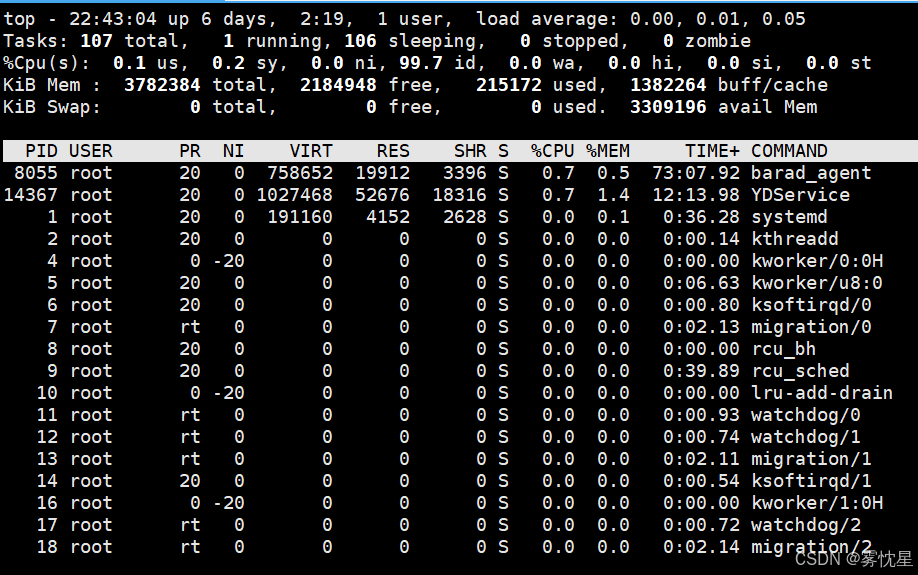
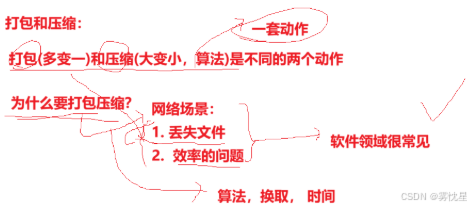
五、文件压缩与解压:zip & unzip(跨平台兼容)
语法:
# 基础:压缩文件/目录为.zip
zip 压缩文件名.zip 要压缩的文件/目录1 要压缩的文件/目录2

# 基础:解压到当前目录
unzip 压缩文件名.zip

# 实用:解压到指定目录(目录需提前存在)
unzip 压缩文件名.zip -d 目标目录
选项:
-r,递归压缩目录(压缩目录时必须加,否则只压缩目录本身,不包含内部文件)-l,查看压缩文件内内容(不解压,先确认再解压)
总结
🍓 我是晨非辰Tong!若这篇技术干货帮你打通了学习中的卡点:
👀 【关注】跟我一起深耕技术领域,从基础到进阶,见证每一次成长
❤️ 【点赞】让优质内容被更多人看见,让知识传递更有力量
⭐ 【收藏】把核心知识点、实战技巧存好,需要时直接查、随时用
💬 【评论】分享你的经验或疑问(比如曾踩过的技术坑?),一起交流避坑
🗳️ 【投票】用你的选择助力社区内容方向,告诉大家哪个技术点最该重点拆解
技术之路难免有困惑,但同行的人会让前进更有方向~愿我们都能在自己专注的领域里,一步步靠近心中的技术目标!
结语:
以上整理的Linux命令,均为日常工作中高频实用的基础指令。掌握这些命令,能满足新手在Linux环境下的大部分基础需求,为后续进阶学习筑牢根基。
Linux命令的熟练度源于反复实操,建议结合文中案例多动手练习,灵活搭配管道等功能实现复杂需求。

有“AI”的1024 = 2048,欢迎大家加入2048 AI社区
更多推荐
 101
101 0
0- 0


 已为社区贡献1条内容

所有评论(0)