How To Avoid Infinite Until Loops In Bash Scripts Using Timeout
Have you ever written a Bash script that waits for a service to be ready before moving on? That’s a common pattern. But sometimes, that service never comes online. When that happens, your script can get stuck in an infinite loop and you may not even realize it.
This post will show you how to fix that. You'll learn to use the timeout command in Bash to avoid this problem.
Let’s get started.
Table of Contents
Discover more
Scripting
Scripting language
script
Bash
BASH
bash
scripts
Linux
Ostechnix
Shell
- What is the timeout Command in Linux?
- Which Package Provides the timeout Command?
- A Simple until Loop that Can Go Wrong
- Say Hello to timeout: A Simple Safety Net
- Why You Can’t Use timeout with until Directly
- The Right Way to Use timeout in Bash: Wrap It in a Bash Process
- Verifying until and timeout in Bash
- Handling Errors Gracefully
- Bonus: Shorter Alternative Using a Loop with Counter
- Key Takeaways
- Conclusion
What is the timeout Command in Linux?
Discover more
OSTechNix
BASH
Scripting language
Shells
Bash
scripting
Shell
Scripting
Linux
bash
The timeout command lets you run another command with a time limit. If the command does not finish within the given time, timeout stops it automatically.
This is useful when you want to avoid processes running forever, such as stuck loops or commands waiting for input that never comes.
Basic syntax:
timeout [duration] [command] [arguments]Example:
timeout 5s ping 8.8.8.8Discover more
Shells
BASH
Linux
Bash
scripts
shell
script
Ostechnix
bash
Scripts
This runs the ping command for 5 seconds, then stops it automatically.
Which Package Provides the timeout Command?
timeout is part of the GNU Coreutils package, which is included by default in most Linux distributions.
If you want to check which package provides the timeout command, you can use this command on Debian-based systems:
dpkg -S $(which timeout)
Sample Output:
Discover more
Scripts
Linux
Bash
OSTechNix
Scripting
Shells
bash
script
shell
scripting
coreutils: /usr/bin/timeout
You can check if it’s available on your system with:
command -v timeout && timeout --version
Sample output:
/usr/bin/timeout
timeout (GNU coreutils) 9.1
Copyright (C) 2022 Free Software Foundation, Inc.
License GPLv3+: GNU GPL version 3 or later <https://gnu.org/licenses/gpl.html>.
This is free software: you are free to change and redistribute it.
There is NO WARRANTY, to the extent permitted by law.

Written by Padraig Brady.
Discover more
scripting
Scripting language
Bash
script
shell
Shells
OSTechNix
Linux
bash
Scripting
If it’s missing, install it with:
sudo apt install coreutils     # Debian/Ubuntu
sudo dnf install coreutils     # Fedora/RHEL 8+
sudo yum install coreutils     # Older RHEL/CentOS
A Simple until Loop that Can Go Wrong
For demonstration purpose, let us take PostgreSQL as an example.
Say you're writing a deployment script. Before running a database migration, you want to make sure PostgreSQL is up.
Discover more
Shell
Scripting language
Shells
Ostechnix
scripts
BASH
Scripting
Bash
Scripts
bash
You might write:
until pg_isready -h 127.0.0.1 -p 5432; do
    echo "Waiting for database..."
    sleep 1
done

echo "Database is up! Running migrations..."
./run-migrations.sh
At first glance, this works. But if the database never starts (because of a typo, a crash, or a bad config) your script waits forever. That’s risky, especially in automation.
Discover more
Bash
BASH
Scripting
shell
Scripts
OSTechNix
Shell
bash
Scripting language
Ostechnix
Say Hello to timeout: A Simple Safety Net
Bash has a built-in way to check things forever, but it doesn't know when to give up. The timeout command fixes that. It runs a command and kills it if it takes too long.
Here’s how it works:
timeout 5s sleep 10
This command starts sleep 10, but after 5 seconds, timeout sends a signal and stops it.
You can also check the exit code afterward:
Discover more
Bash
Shells
scripting
scripts
OSTechNix
Shell
Scripting
bash
BASH
script
echo $?
124means it timed out.0means it finished normally.
Why You Can’t Use timeout with until Directly
At this point, you might try something like this:
timeout 30s until pg_isready -h 127.0.0.1 -p 5432; do
    sleep 1
done
Discover more
BASH
Bash
Shell
Ostechnix
Scripting
OSTechNix
Linux
shell
bash
scripts
But this won’t work. Why? Because until is not a command. It's a Bash keyword. timeout only works with real commands—things that run in a process, like sleep, curl, or ls.
The Right Way to Use timeout in Bash: Wrap It in a Bash Process
To fix this, you need to wrap the loop in a subprocess. Here's the correct approach:
timeout 30s bash -c '
until pg_isready -h 127.0.0.1 -p 5432; do
    echo "Waiting for database..."
    sleep 1
done
'
Discover more
Linux
Shell
OSTechNix
Bash
scripting
Scripts
bash
script
Scripting
shell
Now the loop runs in a new Bash process. timeout can monitor that process and kill it if needed.
Verifying until and timeout in Bash
Here’s how you can verify the above PostgreSQL pg_isready example on your local system.
Make sure you have:
- PostgreSQL installed (
pg_isreadycomes with it). - A local or remote PostgreSQL server running (or intentionally not running, to simulate failure).
- Bash shell (default on most Linux/macOS systems).
1. Confirm pg_isready Works
Run:
pg_isready -h 127.0.0.1 -p 5432
If PostgreSQL is running, output will be:
127.0.0.1:5432 - accepting connections
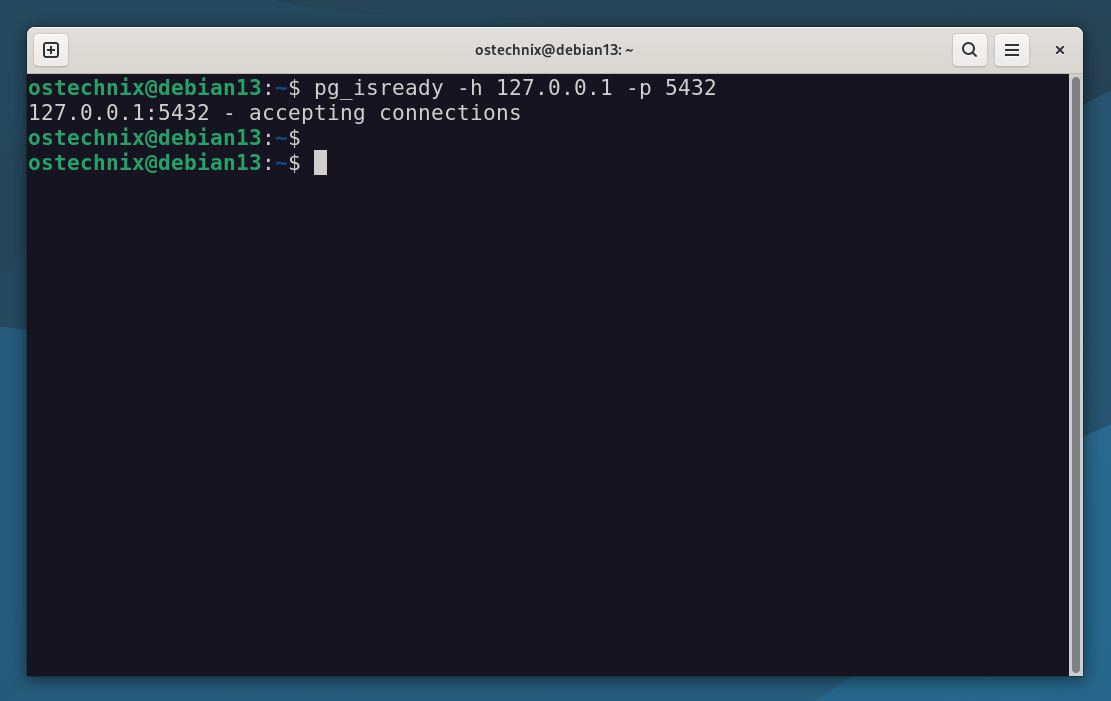
Confirm pg_isready Works
2. Stop PostgreSQL to Simulate Failure
If you're using systemd:
sudo systemctl stop postgresql
Then run:
pg_isready -h 127.0.0.1 -p 5432
You will get the following output:
127.0.0.1:5432 - no response
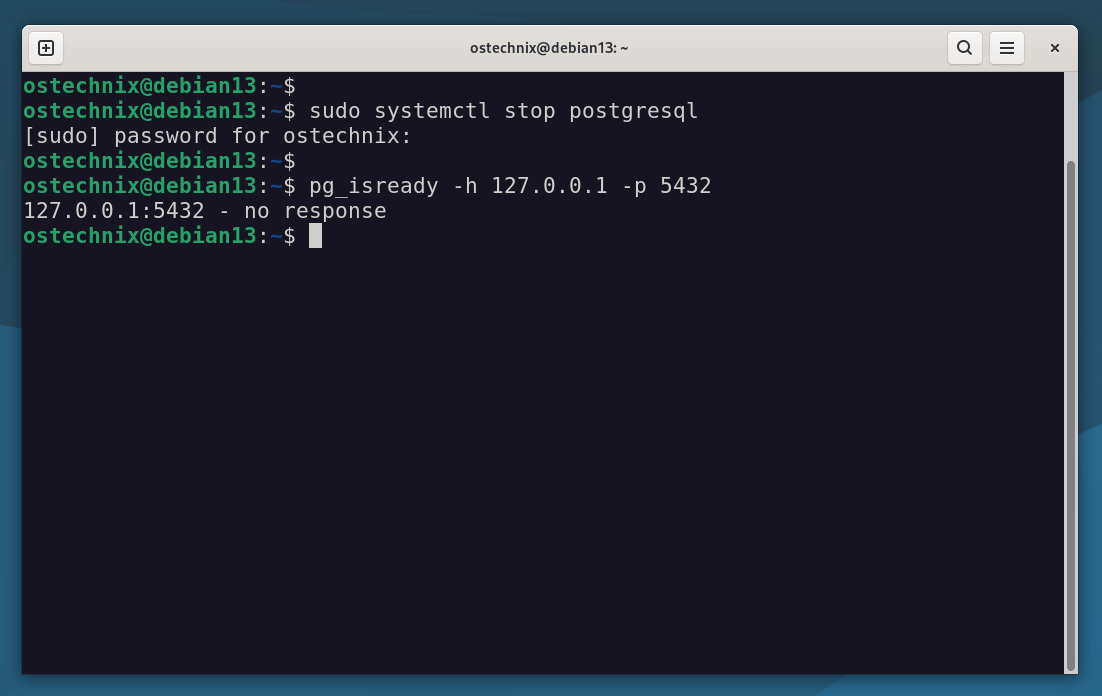
Stop PostgreSQL and Check If pg_isready Works
3. Test until Loop Without Timeout
Run the following code on your Terminal:
until pg_isready -h 127.0.0.1 -p 5432; do
    echo "Waiting for database..."
    sleep 1
done
While PostgreSQL is down, this loops forever.
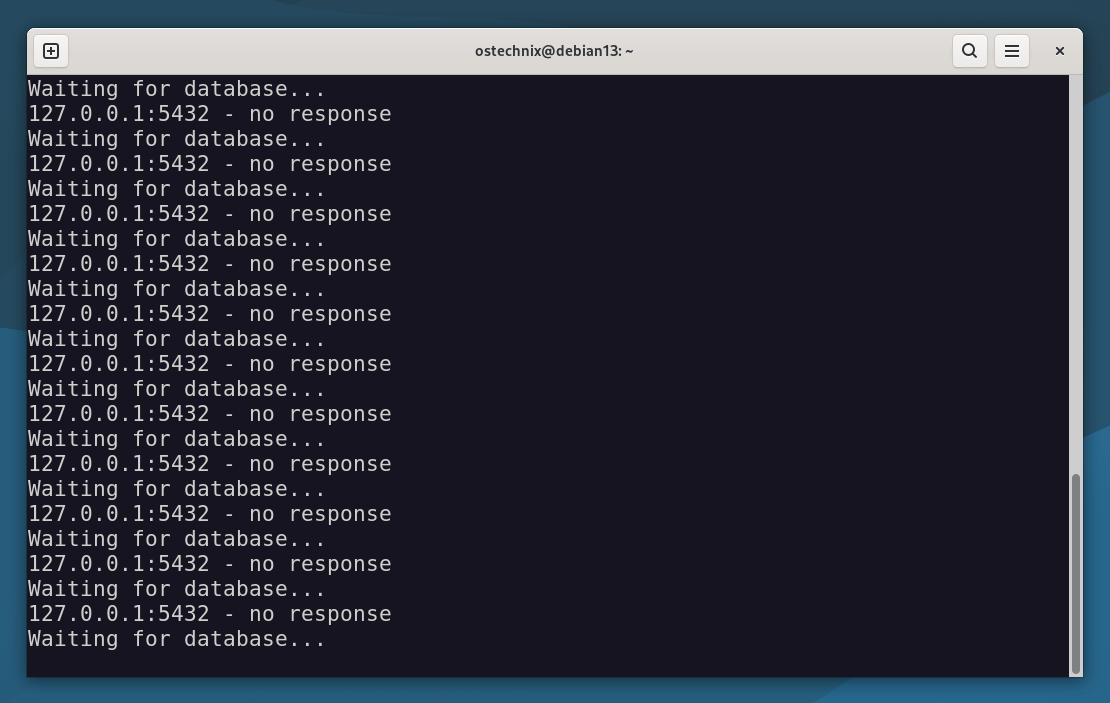
Test until Loop Without Timeout
4. Test With timeout + bash -c
Now run the following code in your Terminal:
timeout 10s bash -c '
until pg_isready -h 127.0.0.1 -p 5432; do
    echo "Waiting for database..."
    sleep 1
done
'
Expected behavior:
- Runs for 10 seconds.
- Then
timeoutkills the loop. - Exit code will be
124.
$ echo $?
124
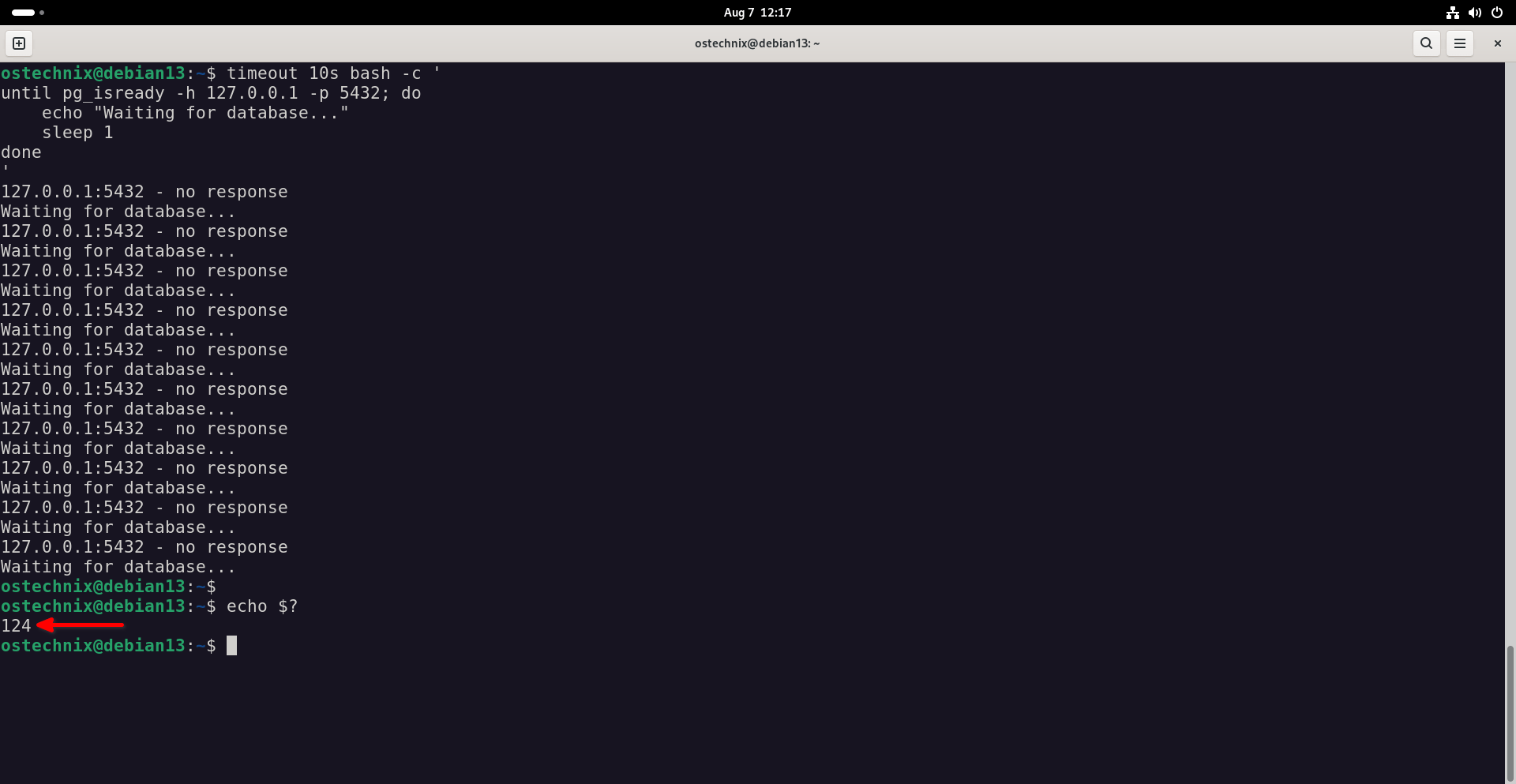
Test until Loop With timeout
5. Start PostgreSQL and Run Again
sudo systemctl start postgresql
Then run the timeout-wrapped loop again:
timeout 10s bash -c '
until pg_isready -h 127.0.0.1 -p 5432; do
    echo "Waiting for database..."
    sleep 1
done
'
This time, the loop should exit quickly.
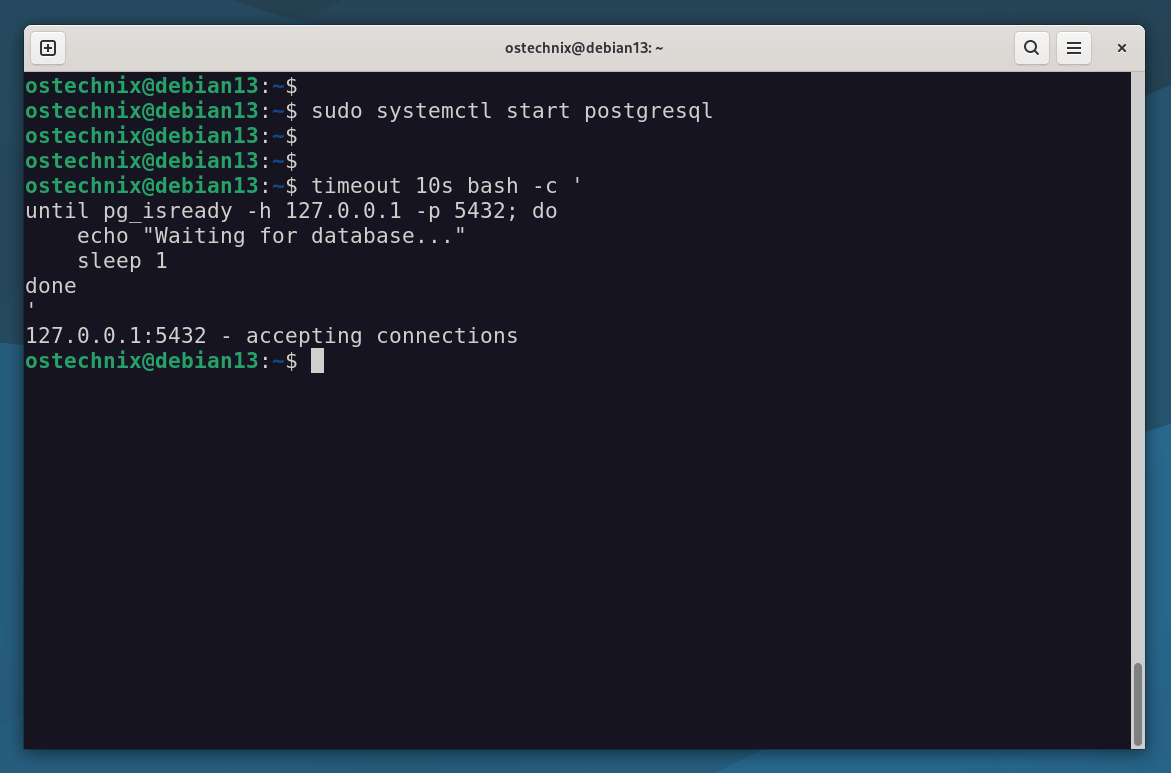
Start PostgreSQL and Check If pg_isready Works
Handling Errors Gracefully
You should always check if the loop succeeded or timed out. Here's how:
if timeout 30s bash -c '
until pg_isready -h 127.0.0.1 -p 5432; do
    sleep 1
done
'; then
    echo "Database is up. Starting migration..."
    ./run-migrations.sh
else
    echo "Error: Database did not start in time."
    exit 1
fi
This way, your script either moves forward safely or exits with a clear message.
Bonus: Shorter Alternative Using a Loop with Counter
If you don’t want to use timeout, here’s another way. Loop a fixed number of times:
for i in {1..30}; do
    if pg_isready -h 127.0.0.1 -p 5432; then
        echo "Database is ready."
        ./run-migrations.sh
        exit 0
    fi
    sleep 1
done

echo "Database did not start after 30 seconds."
exit 1
This is pure Bash and works fine for simple cases.
Key Takeaways
untilis a Bash keyword, not a process.timeoutcan’t control it directly.- Wrap your loop in a
bash -c '...'block to use it withtimeout. - Always check the exit status to know whether the loop succeeded or failed.
- Use
pg_isready,curl, or other tools to check service health.
Conclusion
Infinite loops can break your scripts and waste your time. timeout is a simple tool that gives you control. By wrapping your until loop in a subprocess, you make your script more robust.
It’s a small trick, but one that can save hours of debugging in the future.
If you want to keep your Bash scripts clean and reliable, start using timeout today.
Recommended Read:

有“AI”的1024 = 2048,欢迎大家加入2048 AI社区
更多推荐

 9
9 0
0- 0


 已为社区贡献226条内容

所有评论(0)