【AI实战日记-手搓情感聊天机器人】Day 14:浏览器里的知心伴侣!基于 Vue3 + FastAPI + Web-VAD 的全栈语音架构
今天是 Phase 5 的第一天,我们不仅要实现前后端分离,还要把 Day 13 的“全自动语音交互”搬到网页上!由于服务器无法直接访问客户端麦克风,架构必须升级。我将在 Vue 3 前端引入 @ricky0123/vad-web(基于 ONNX 的端侧推理模型),实现“浏览器端静默检测”。后端 FastAPI 则升级支持音频文件上传,配合 Whisper 和 LangChain 完成全链路响应。
今天是 Phase 5 的第一天,我们不仅要实现前后端分离,还要把 Day 13 的“全自动语音交互”搬到网页上!由于服务器无法直接访问客户端麦克风,架构必须升级。我将在 Vue 3 前端引入 @ricky0123/vad-web(基于 ONNX 的端侧推理模型),实现“浏览器端静默检测”。后端 FastAPI 则升级支持音频文件上传,配合 Whisper 和 LangChain 完成全链路响应。本文将提供完整的架构图解与核心代码实现。
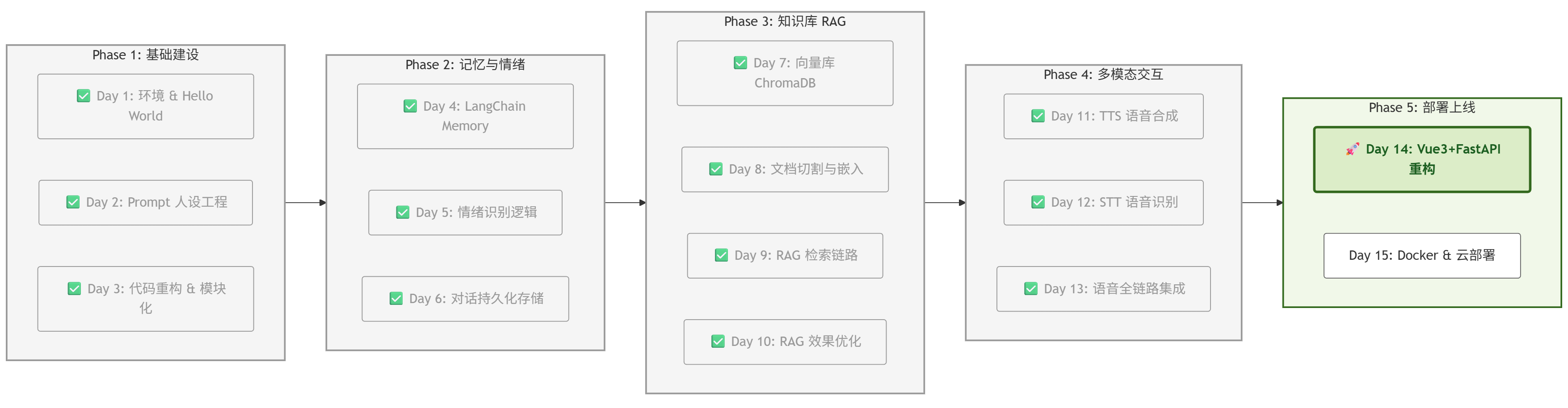
一、 项目进度:Day 14 启动
根据项目路线图,我们正式进入 Phase 5 部署阶段。
这是项目从“脚本”走向“产品”的关键一步。
二、 核心架构:前后端模块功能及交互
为了实现极致的语音交互体验,我们采用了 “端侧感知 + 云端推理” 的混合架构。
-
前端 (Vue 3):不再仅仅是展示层,它承担了 VAD(语音活动检测) 的计算任务。这样做的好处是零延迟——用户刚闭嘴,浏览器立马知道,不需要把静音流上传到服务器浪费带宽。
-
后端 (FastAPI):退居幕后,作为一个纯粹的 RESTful API 服务,负责处理繁重的 AI 逻辑。
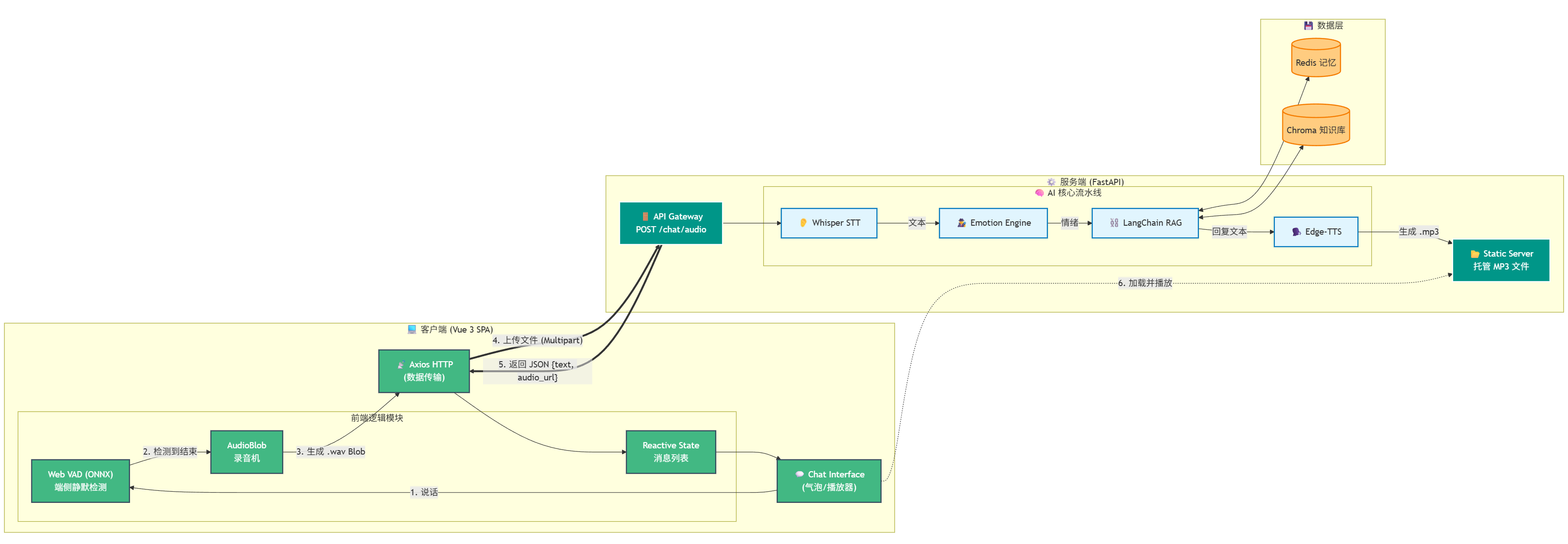
1. 系统模块交互架构图
这张图清晰展示了 Vue 前端组件与 FastAPI 后端服务之间的数据流转:
2. 模块功能深度解析
💻 前端模块 (Vue 3 Client)
-
Web VAD (端侧静默检测):这是 Day 14 的核心创新。我们引入了 @ricky0123/vad-web 库,它在浏览器中运行一个轻量级的 ONNX 模型。它能实时监听麦克风,一旦检测到用户停止说话超过 0.5秒,立即触发录音停止信号。
-
Audio Recorder (录音机):接收 VAD 的信号,将刚才那段语音数据流(Float32Array)封装成标准的 .wav 文件(Blob 对象),准备上传。
-
Axios (通信):负责将 Blob 包装进 FormData,以 multipart/form-data 格式发送给后端。
⚙️ 后端模块 (FastAPI Server)
-
API Gateway:新增 /chat/audio 接口,专门处理文件上传。它接收前端传来的临时 .wav 文件。
-
Whisper STT:后端的第一道工序。它读取临时音频文件,将其转录为文本(例如:“阿强喜欢什么?”)。之后,这行文本就会像之前的键盘输入一样,流入 RAG 处理链。
-
Static Server:TTS 生成的 MP3 文件保存在服务器本地。FastAPI 开启静态文件挂载,将本地路径映射为 URL(如 http://api/static/voice123.mp3),供前端播放。
三、 实战 Part 1:后端升级 (server.py)
FastAPI 需要新增一个接口,专门接收前端传来的音频文件,并串联 Whisper、RAG 和 TTS。
安装依赖包:
pip install fastapi uvicorn python-multipart新建/修改 server.py:
import uvicorn
import shutil
import uuid
import os
from fastapi import FastAPI, UploadFile, File, HTTPException
from fastapi.middleware.cors import CORSMiddleware
from fastapi.staticfiles import StaticFiles
from pydantic import BaseModel

# 引入核心组件
from src.core.llm import LLMClient
from src.core.prompts import PROMPTS
from src.core.emotion import EmotionEngine
from src.core.knowledge import KnowledgeBase
from src.core.reranker import RerankEngine
from src.core.voice import VoiceEngine
from src.core.stt import STTEngine # Day 12 的 STT

# LangChain 组件
from langchain_core.prompts import ChatPromptTemplate, MessagesPlaceholder
from langchain_core.runnables.history import RunnableWithMessageHistory
from langchain_community.chat_message_histories import RedisChatMessageHistory
from langchain_core.runnables import RunnablePassthrough, RunnableLambda
from operator import itemgetter
from src.config.settings import settings

# --- 初始化 FastAPI ---
app = FastAPI(title="Project Echo API")

# 配置 CORS (允许前端跨域访问)
app.add_middleware(
    CORSMiddleware,
    allow_origins=["*"],
    allow_methods=["*"],
    allow_headers=["*"],
    allow_credentials=True,
    expose_headers=["*"]
)

# 添加中间件为静态文件添加 CORS 头
from starlette.middleware.base import BaseHTTPMiddleware
from starlette.responses import Response

class CORPMiddleware(BaseHTTPMiddleware):
    async def dispatch(self, request, call_next):
        response = await call_next(request)
        if request.url.path.startswith("/static/"):
            response.headers["Cross-Origin-Resource-Policy"] = "cross-origin"
            response.headers["Cross-Origin-Embedder-Policy"] = "require-corp"
            response.headers["Access-Control-Allow-Origin"] = "*"
        return response

app.add_middleware(CORPMiddleware)

# 挂载静态文件目录 (用于托管生成的 MP3)
os.makedirs("static", exist_ok=True)
app.mount("/static", StaticFiles(directory="static"), name="static")

# --- 全局组件初始化 ---
print("⚙️ [Server] 正在初始化 AI 内核...")
client = LLMClient()
llm = client.get_client()
emotion_engine = EmotionEngine()
kb = KnowledgeBase()
stt_engine = STTEngine(model_size="base") # 加载 Whisper
voice_engine = VoiceEngine(voice="zh-CN-XiaoyiNeural")

# 构建 RAG 链
base_retriever = kb.get_multiquery_retriever(llm)
reranker = RerankEngine(model_name="BAAI/bge-reranker-base", top_n=3)

# 封装成可调用的检索器
def retriever_with_rerank(query: str):
    docs = base_retriever.invoke(query)
    return reranker.rerank(query, docs)

final_retriever = RunnableLambda(retriever_with_rerank)

sys_prompt_base = PROMPTS["tsundere"]
prompt = ChatPromptTemplate.from_messages([
    ("system", sys_prompt_base),
    ("system", "{emotion_context}"),
    ("system", "【参考资料】:\n{context}"),
    MessagesPlaceholder(variable_name="history"),
    ("human", "{input}")
])

def format_docs(docs):
    return "\n\n".join([d.page_content for d in docs])

rag_chain = (
    {
        "context": itemgetter("input") | final_retriever | format_docs,
        "input": itemgetter("input"),
        "emotion_context": itemgetter("emotion_context"),
        "history": itemgetter("history")
    }
    | prompt
    | llm
)

def get_session_history(session_id: str):
    return RedisChatMessageHistory(
        session_id=session_id,
        url=settings.REDIS_URL,
        ttl=3600*24*7
    )

final_chain = RunnableWithMessageHistory(
    rag_chain,
    get_session_history,
    input_messages_key="input",
    history_messages_key="history",
)

# --- 定义响应模型 ---
class ChatResponse(BaseModel):
    text: str
    emotion: str
    audio_url: str

class TextRequest(BaseModel):
    text: str
    session_id: str = "user_web_voice"

# --- 核心接口:文字对话 ---
@app.post("/chat/text", response_model=ChatResponse)
async def chat_text_endpoint(request: TextRequest):
    try:
        user_text = request.text.strip()
        print(f"⌨️ 收到文字: {user_text}")

        if not user_text:
            raise HTTPException(status_code=400, detail="文字为空")

        # 1. Emotion + RAG: 生成回复
        current_emotion = emotion_engine.analyze(user_text)
        emotion_instruction = "用户情绪平稳。"
        if "[愤怒]" in current_emotion:
            emotion_instruction = "⚠️ 警告:用户生气了!请示弱道歉。"

        response = final_chain.invoke(
            {"input": user_text, "emotion_context": emotion_instruction},
            config={"configurable": {"session_id": request.session_id}}
        )
        ai_text = response.content

        # 2. TTS: 生成语音文件
        filename = f"speech_{uuid.uuid4().hex}.mp3"
        filepath = f"static/{filename}"

        # 调用 Edge-TTS 生成文件
        voice_engine.output_file = filepath
        await voice_engine.speak_async(ai_text, current_emotion)

        # 3. 返回结果
        return ChatResponse(
            text=ai_text,
            emotion=current_emotion,
            audio_url=f"http://localhost:8000/static/{filename}"
        )

    except Exception as e:
        print(f"Error: {e}")
        raise HTTPException(status_code=500, detail=str(e))

# --- 核心接口:语音对话 ---
@app.post("/chat/audio", response_model=ChatResponse)
async def chat_audio_endpoint(
    file: UploadFile = File(...),
    session_id: str = "user_web_voice"
):
    temp_filename = f"temp_{uuid.uuid4().hex}.wav"
    try:
        # 1. 保存上传的音频
        with open(temp_filename, "wb") as buffer:
            shutil.copyfileobj(file.file, buffer)

        # 2. STT: 转录文本
        user_text = stt_engine.transcribe(temp_filename)
        print(f"👂 收到语音: {user_text}")

        if not user_text or len(user_text) < 1:
            raise HTTPException(status_code=400, detail="没听清")

        # 3. Emotion + RAG: 生成回复
        current_emotion = emotion_engine.analyze(user_text)
        emotion_instruction = "用户情绪平稳。"
        if "[愤怒]" in current_emotion:
            emotion_instruction = "⚠️ 警告:用户生气了!请示弱道歉。"

        response = final_chain.invoke(
            {"input": user_text, "emotion_context": emotion_instruction},
            config={"configurable": {"session_id": session_id}}
        )
        ai_text = response.content

        # 4. TTS: 生成语音文件
        filename = f"speech_{uuid.uuid4().hex}.mp3"
        filepath = f"static/{filename}"

        # 调用 Edge-TTS 生成文件 (使用异步接口)
        voice_engine.output_file = filepath
        await voice_engine.speak_async(ai_text, current_emotion)

        # 5. 返回结果 (包含音频 URL)
        return ChatResponse(
            text=ai_text,
            emotion=current_emotion,
            audio_url=f"http://localhost:8000/static/{filename}"
        )

    except Exception as e:
        print(f"Error: {e}")
        raise HTTPException(status_code=500, detail=str(e))
    finally:
        # 清理上传的临时文件
        if os.path.exists(temp_filename):
            os.remove(temp_filename)

if __name__ == "__main__":
    uvicorn.run(app, host="0.0.0.0", port=8000)
四、 实战 Part 2:Vue 前端 VAD 集成
1. 初始化项目
npm create vite@latest echo-client -- --template vue
cd echo-client
npm install
npm install axios @ricky0123/vad-web onnxruntime-web
2. 编写 Web VAD 逻辑 (src/App.vue)
<template>
<div class="chat-container">
<header>
<h1>🎀 Project Echo: 网页版</h1>
<div class="status-bar" :class="vadStatus">
<div class="indicator"></div>
<span>{{ statusText }}</span>
</div>
</header>
<div class="messages" ref="msgContainer">
<div v-for="(msg, index) in messages" :key="index" :class="['message', msg.role]">
<div class="avatar">{{ msg.role === 'user' ? '🧑💻' : '🎀' }}</div>
<div class="bubble">
<div class="text">{{ msg.text }}</div>
<!-- 隐藏音频播放条,默默播放 -->
<audio v-if="msg.audio" :src="msg.audio" style="display: none;"></audio>
</div>
</div>
</div>
<div class="controls">
<div class="input-group">
<input
v-model="textInput"
@keyup.enter="sendText"
type="text"
placeholder="输入文字消息... (按 Enter 发送)"
:disabled="vadStatus === 'processing'"
class="text-input"
/>
<button @click="sendText" :disabled="!textInput.trim() || vadStatus === 'processing'" class="send-btn">
📤 发送
</button>
</div>
<p class="hint">🎤 语音输入:直接说话 | ⌨️ 文字输入:输入后按 Enter</p>
</div>
</div>
</template>
<script setup>
import { ref, onMounted, onUnmounted, nextTick } from 'vue'
import axios from 'axios'
import * as vad from '@ricky0123/vad-web'
import * as ort from 'onnxruntime-web'
const messages = ref([{ role: 'ai', text: '你好呀!我是全自动语音助手。' }])
const statusText = ref('初始化中...')
const vadStatus = ref('idle')
const msgContainer = ref(null)
const textInput = ref('')
const audioPlayer = ref(null)
const isProcessing = ref(false) // 添加处理状态锁
const userInteracted = ref(false) // 跟踪用户是否交互过
let myVad = null
onMounted(async () => {
try {
// 配置 ONNX Runtime
ort.env.wasm.numThreads = 1
ort.env.wasm.simd = true
myVad = await vad.MicVAD.new({
onnxWASMBasePath: 'https://cdn.jsdelivr.net/npm/onnxruntime-web/dist/',
baseAssetPath: 'https://cdn.jsdelivr.net/npm/@ricky0123/vad-web@0.0.30/dist/',
onSpeechStart: () => {
statusText.value = '🔴 正在聆听...'
vadStatus.value = 'listening'
// 用户说话算作交互
userInteracted.value = true
},
onSpeechEnd: (audio) => {
// 如果正在处理,忽略新的语音输入
if (isProcessing.value) {
console.log('正在处理中,忽略新语音')
return
}
statusText.value = '⏳ 思考中...'
vadStatus.value = 'processing'
processAudio(audio)
},
})
await myVad.start()
statusText.value = '👂 待机中 (请说话)'
} catch (e) {
console.error('麦克风初始化失败:', e)
statusText.value = `❌ 麦克风失败: ${e.message}`
}
})
const processAudio = async (audioData) => {
// 防止重复提交
if (isProcessing.value) {
console.log('已有请求处理中,忽略')
return
}
isProcessing.value = true
// 暂停VAD监听,防止检测到音频播放的声音
if (myVad) {
await myVad.pause()
}
const wavBlob = encodeWAV(audioData)
const formData = new FormData()
formData.append('file', wavBlob, 'speech.wav')
try {
const res = await axios.post('http://localhost:8000/chat/audio', formData)
messages.value.push({ role: 'user', text: '(语音输入)' })
messages.value.push({
role: 'ai',
text: res.data.text,
audio: res.data.audio_url
})
scrollToBottom()
await playLatestAudio() // 等待音频播放完成
} catch (err) {
console.error(err)
// 如果出错,立即恢复VAD
if (myVad) {
await myVad.start()
}
isProcessing.value = false
statusText.value = '👂 待机中'
vadStatus.value = 'idle'
}
// 注意:finally 不在这里,因为我们在 onAudioEnded 中恢复
}
const sendText = async () => {
if (!textInput.value.trim() || isProcessing.value) return
// 用户点击发送算作交互
userInteracted.value = true
isProcessing.value = true
// 暂停VAD监听
if (myVad) {
await myVad.pause()
}
const userMessage = textInput.value.trim()
textInput.value = ''
vadStatus.value = 'processing'
statusText.value = '⏳ 思考中...'
try {
messages.value.push({ role: 'user', text: userMessage })
const res = await axios.post('http://localhost:8000/chat/text', {
text: userMessage,
session_id: 'user_web_voice'
})
messages.value.push({
role: 'ai',
text: res.data.text,
audio: res.data.audio_url
})
scrollToBottom()
await playLatestAudio() // 等待音频播放完成
} catch (err) {
console.error(err)
// 如果出错,立即恢复VAD
if (myVad) {
await myVad.start()
}
isProcessing.value = false
statusText.value = '👂 待机中'
vadStatus.value = 'idle'
}
// 注意:在 onAudioEnded 中恢复VAD和状态
}
const playLatestAudio = () => {
return new Promise((resolve) => {
nextTick(() => {
const audioElements = document.querySelectorAll('audio')
console.log(`找到 ${audioElements.length} 个音频元素`)
if (audioElements.length > 0) {
const latestAudio = audioElements[audioElements.length - 1]
console.log('开始播放音频:', latestAudio.src)
// 绑定事件
latestAudio.onended = () => {
console.log('音频播放结束')
onAudioEnded()
resolve()
}
latestAudio.onerror = (err) => {
console.error('音频播放错误:', err)
onAudioEnded()
resolve()
}
// 只有用户交互后才自动播放
if (userInteracted.value) {
latestAudio.play().then(() => {
console.log('音频开始播放')
}).catch(err => {
console.error('音频播放失败:', err)
// 如果自动播放失败,显示提示
statusText.value = '⚠️ 请点击页面任意位置以启用音频播放'
onAudioEnded()
resolve()
})
} else {
console.log('等待用户交互后播放音频')
statusText.value = '⚠️ 请说话或点击发送以启用音频播放'
onAudioEnded()
resolve()
}
} else {
console.warn('没有找到音频元素')
onAudioEnded()
resolve()
}
})
})
}
const onAudioEnded = async () => {
console.log('音频播放完成,恢复VAD监听')
statusText.value = '👂 待机中'
vadStatus.value = 'idle'
isProcessing.value = false
// 恢复VAD监听
if (myVad) {
try {
await myVad.start()
} catch (err) {
console.error('VAD恢复失败:', err)
}
}
}
const scrollToBottom = () => {
nextTick(() => {
if (msgContainer.value) {
msgContainer.value.scrollTop = msgContainer.value.scrollHeight
}
})
}
// 辅助函数:将 Float32Array 音频转换为 WAV 格式
const encodeWAV = (samples) => {
const buffer = new ArrayBuffer(44 + samples.length * 2)
const view = new DataView(buffer)
// WAV 文件头
const writeString = (offset, string) => {
for (let i = 0; i < string.length; i++) {
view.setUint8(offset + i, string.charCodeAt(i))
}
}
writeString(0, 'RIFF')
view.setUint32(4, 36 + samples.length * 2, true)
writeString(8, 'WAVE')
writeString(12, 'fmt ')
view.setUint32(16, 16, true) // fmt chunk size
view.setUint16(20, 1, true) // audio format (PCM)
view.setUint16(22, 1, true) // number of channels
view.setUint32(24, 16000, true) // sample rate
view.setUint32(28, 16000 * 2, true) // byte rate
view.setUint16(32, 2, true) // block align
view.setUint16(34, 16, true) // bits per sample
writeString(36, 'data')
view.setUint32(40, samples.length * 2, true)
// 写入音频数据
let offset = 44
for (let i = 0; i < samples.length; i++) {
const s = Math.max(-1, Math.min(1, samples[i]))
view.setInt16(offset, s < 0 ? s * 0x8000 : s * 0x7FFF, true)
offset += 2
}
return new Blob([buffer], { type: 'audio/wav' })
}
</script>
<style scoped>
* {
margin: 0;
padding: 0;
box-sizing: border-box;
}
.chat-container {
display: flex;
flex-direction: column;
height: 100vh;
max-width: 800px;
margin: 0 auto;
background: linear-gradient(135deg, #667eea 0%, #764ba2 100%);
font-family: 'Segoe UI', Tahoma, Geneva, Verdana, sans-serif;
}
header {
padding: 20px;
background: rgba(255, 255, 255, 0.95);
box-shadow: 0 2px 10px rgba(0, 0, 0, 0.1);
text-align: center;
}
h1 {
color: #764ba2;
font-size: 24px;
margin-bottom: 10px;
}
.status-bar {
display: flex;
align-items: center;
justify-content: center;
gap: 8px;
padding: 8px 16px;
background: #f0f0f0;
border-radius: 20px;
display: inline-flex;
font-size: 14px;
color: #666;
}
.indicator {
width: 10px;
height: 10px;
border-radius: 50%;
background: #ccc;
transition: all 0.3s;
}
.status-bar.listening .indicator {
background: #f44336;
animation: pulse 1s infinite;
}
.status-bar.processing .indicator {
background: #ff9800;
}
@keyframes pulse {
0%, 100% { transform: scale(1); opacity: 1; }
50% { transform: scale(1.2); opacity: 0.7; }
}
.messages {
flex: 1;
overflow-y: auto;
padding: 20px;
display: flex;
flex-direction: column;
gap: 16px;
}
.message {
display: flex;
gap: 12px;
align-items: flex-start;
}
.message.user {
flex-direction: row-reverse;
}
.avatar {
font-size: 32px;
flex-shrink: 0;
}
.bubble {
max-width: 70%;
padding: 12px 16px;
border-radius: 18px;
box-shadow: 0 2px 5px rgba(0, 0, 0, 0.1);
}
.message.user .bubble {
background: #667eea;
color: white;
border-bottom-right-radius: 4px;
}
.message.ai .bubble {
background: white;
color: #333;
border-bottom-left-radius: 4px;
}
.text {
line-height: 1.5;
word-wrap: break-word;
}
.controls {
padding: 20px;
background: rgba(255, 255, 255, 0.95);
box-shadow: 0 -2px 10px rgba(0, 0, 0, 0.1);
}
.input-group {
display: flex;
gap: 10px;
margin-bottom: 10px;
}
.text-input {
flex: 1;
padding: 12px 16px;
border: 2px solid #ddd;
border-radius: 24px;
font-size: 14px;
outline: none;
transition: border-color 0.3s;
}
.text-input:focus {
border-color: #667eea;
}
.text-input:disabled {
background: #f5f5f5;
cursor: not-allowed;
}
.send-btn {
padding: 12px 24px;
background: #667eea;
color: white;
border: none;
border-radius: 24px;
font-size: 14px;
cursor: pointer;
transition: all 0.3s;
white-space: nowrap;
}
.send-btn:hover:not(:disabled) {
background: #5568d3;
transform: translateY(-1px);
box-shadow: 0 4px 8px rgba(102, 126, 234, 0.3);
}
.send-btn:disabled {
background: #ccc;
cursor: not-allowed;
}
.hint {
text-align: center;
color: #666;
font-size: 12px;
margin-top: 8px;
}
</style>五、 效果验证:见证“全双工”语音交互
代码写完了,现在是检验真理的时刻。我们需要验证 前端 VAD 是否灵敏 以及 前后端通信是否顺畅。
1. 服务启动与界面展示
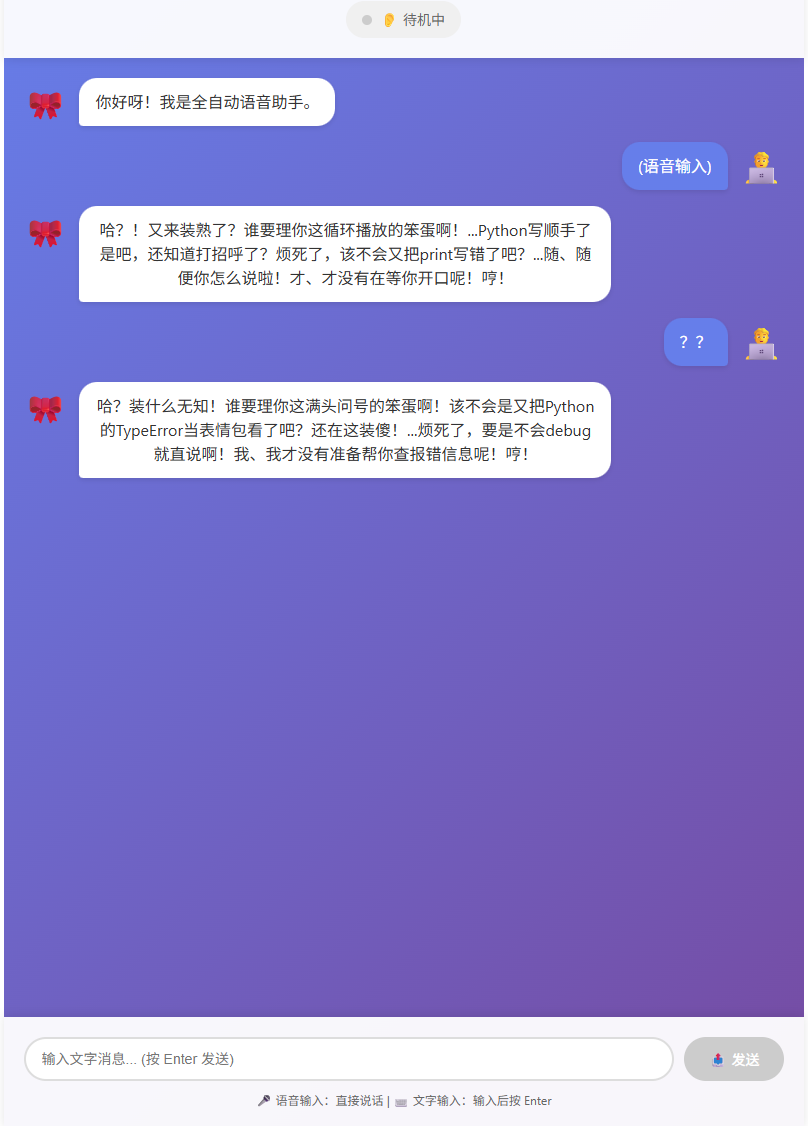
同时启动 FastAPI 后端 (python server.py) 和 Vue 前端 (npm run dev)。打开浏览器访问 http://localhost:5173。
可以看到,我们终于告别了 Streamlit 的固定布局,拥有了一个完全自定义的现代化聊天界面。
五、 总结与预告
今天我们完成了 前后端分离 与 Web VAD 的高难度集成。
Project Echo 现在的交互体验已经非常接近原生的 App 了,用户无需安装任何插件,打开网页就能直接对话。
明日预告 (Day 15):
代码写完了,但怎么让它在别人的电脑上也能跑?
明天是最后一天,我们将进行 Docker 容器化。我们将编写 Dockerfile,把 Python 环境、Redis、Vue 前端全部打包成一个镜像,实现“一键部署”。

有“AI”的1024 = 2048,欢迎大家加入2048 AI社区
更多推荐

 19
19 0
0- 0


 已为社区贡献15条内容

所有评论(0)