rn_for_openharmony_steam资讯app实战-评测信息实现
本文介绍了使用React Native开发OpenHarmony版Steam资讯App中游戏评测页面的实现方法。该页面主要展示游戏评价数据,包括: 数据获取:通过appdetails API获取游戏评测统计信息,包含总评测数、好评率、专业评分等关键数据。 页面布局:分为评测统计区、评分分布图和评测列表三部分。统计区展示总体评价、评分、好评率和总评测数;分布图用进度条直观显示好评差评比例。 核心实现
React Native for OpenHarmony 实战:Steam 资讯 App 游戏评测页面
案例开源地址:https://atomgit.com/nutpi/rn_openharmony_steam
游戏评测是用户了解游戏质量的重要参考。评测页面需要展示用户对游戏的评价、评分统计和评测列表。这个页面涉及数据统计、图表展示和列表渲染。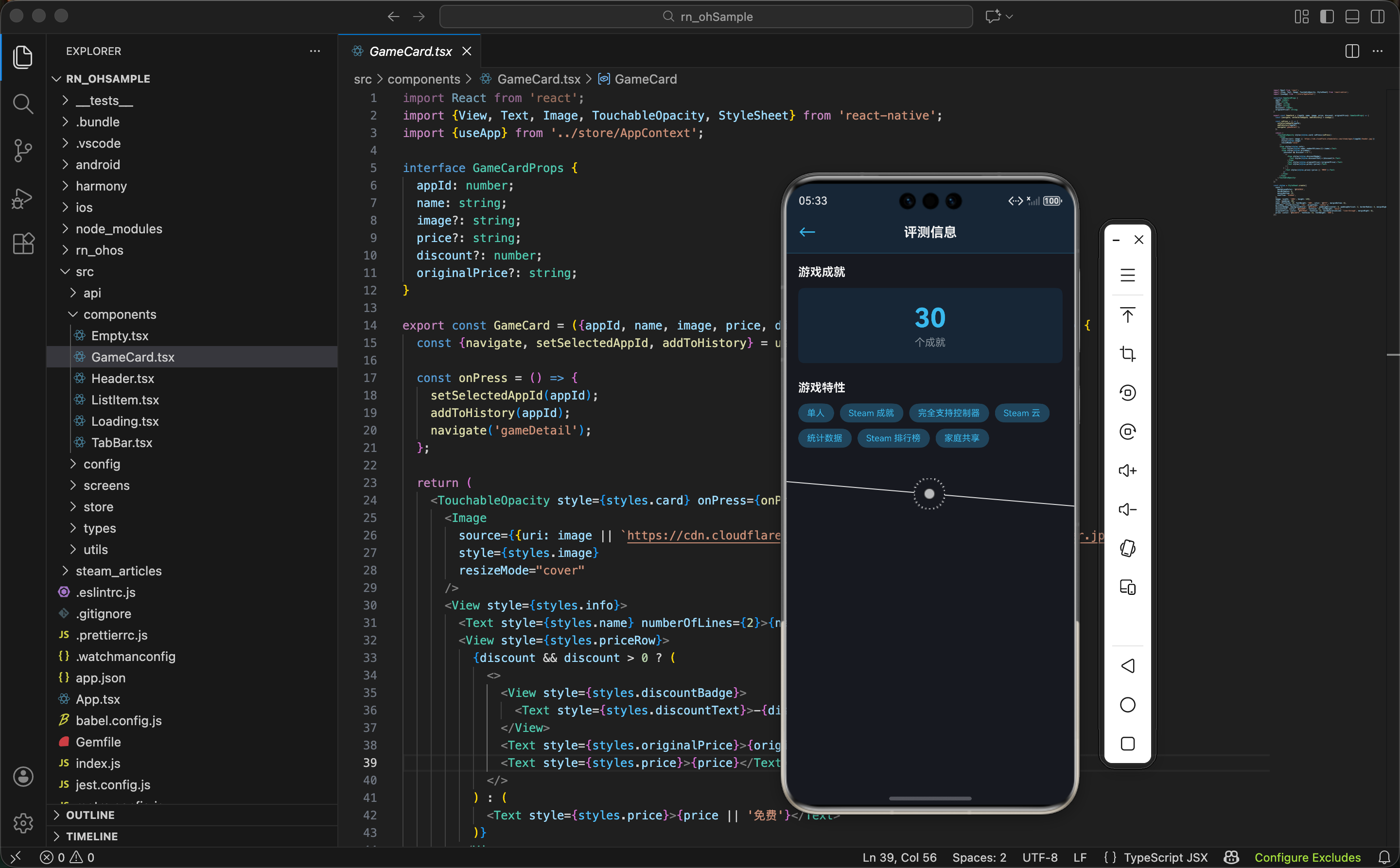
评测数据的来源
游戏的评测数据来自 appdetails API 的返回结果。这个 API 返回的数据中包含 reviews 相关的信息:
export const getAppDetails = async (appId: number) => {
  const res = await fetch(`${STORE_API}/appdetails?appids=${appId}`);
  return res.json();
};
这里做了什么: 调用 appdetails 接口获取游戏详情。这个接口返回的数据包含游戏的评测统计信息。
为什么用 appdetails: appdetails 已经包含了评测的汇总数据,比如总评测数、好评率等。这样可以快速获取评测统计。
数据结构: appdetails 返回的评测相关数据大概是这样的:
{
  "metacritic": {
    "score": 85,
    "url": "https://www.metacritic.com/game/..."
  },
  "reviews": "Overwhelmingly Positive",
  "review_score": 9,
  "review_percentage": 98,
  "total_reviews": 150000
}
关键字段说明:
metacritic- Metacritic 评分(专业评测)reviews- 评测总体评价(比如"好评如潮")review_score- 评分(0-10)review_percentage- 好评率百分比total_reviews- 总评测数
页面结构设计
评测页面的布局需要展示评测统计和列表:
顶部 是 Header,显示游戏名称和返回按钮。
上半部分 是评测统计信息,包括总体评分、好评率、评测数量等。
中间 是评分分布图表,显示各个评分等级的数量。
下半部分 是最新评测列表,显示用户的具体评测。
底部 是 TabBar,保持应用的导航一致性。
核心代码实现
组件初始化和数据加载
export const GameReviewsScreen = () => {
  const {selectedAppId} = useApp();
  const [gameData, setGameData] = useState<any>(null);
  const [reviews, setReviews] = useState<any[]>([]);
  const [loading, setLoading] = useState(true);
  const [stats, setStats] = useState({
    totalReviews: 0,
    positiveCount: 0,
    negativeCount: 0,
    positiveRate: 0,
  });
这里做了什么: 定义了游戏数据、评测列表、加载状态和统计信息。stats 用来存储评测的统计数据。
状态的作用: gameData 存储游戏的基本信息和评测统计,reviews 存储具体的评测列表,stats 存储计算后的统计数据。
为什么分离 stats: 这样可以避免每次渲染时重复计算统计数据。计算一次后存储在状态中,提高性能。
数据加载和统计计算
  useEffect(() => {
    if (!selectedAppId) return;

    getAppDetails(selectedAppId).then(data => {
      const gameData = data?.[selectedAppId]?.data;
      setGameData(gameData);

      const totalReviews = gameData?.total_reviews || 0;
      const positiveRate = gameData?.review_percentage || 0;
      const positiveCount = Math.round(totalReviews * positiveRate / 100);
      const negativeCount = totalReviews - positiveCount;

      setStats({
        totalReviews,
        positiveCount,
        negativeCount,
        positiveRate,
      });
      setLoading(false);
    }).catch(() => setLoading(false));
  }, [selectedAppId]);
这里做了什么:
- 数据提取 - 从 API 响应中提取游戏数据
- 统计计算 - 根据总数和百分比计算好评和差评的数量
- 状态更新 - 将计算结果存储到状态中
统计计算的逻辑: 使用总评测数乘以好评率百分比,得到好评数量。然后用总数减去好评数,得到差评数量。
Math.round 的作用: 四舍五入到整数。因为评测数量必须是整数,不能有小数。
数据安全性: 使用可选链操作符 ?. 和逻辑或 || 提供默认值,避免 undefined 导致的错误。
评测统计信息的展示
<View style={styles.statsContainer}>
  <View style={styles.statItem}>
    <Text style={styles.statLabel}>总体评价</Text>
    <Text style={styles.statValue}>{gameData?.reviews || '暂无'}</Text>
  </View>
  <View style={styles.statItem}>
    <Text style={styles.statLabel}>评分</Text>
    <Text style={styles.statValue}>{gameData?.review_score || 0}/10</Text>
  </View>
  <View style={styles.statItem}>
    <Text style={styles.statLabel}>好评率</Text>
    <Text style={styles.statValue}>{stats.positiveRate}%</Text>
  </View>
  <View style={styles.statItem}>
    <Text style={styles.statLabel}>总评测</Text>
    <Text style={styles.statValue}>{stats.totalReviews.toLocaleString()}</Text>
  </View>
</View>
这里做了什么:
- 四个统计项 - 显示总体评价、评分、好评率、总评测数
- 数据格式化 - 使用 toLocaleString() 格式化数字
- 默认值处理 - 如果数据不存在,显示默认值
toLocaleString() 的作用: 这个方法将数字格式化为本地格式。比如 150000 会显示为 150,000,更容易阅读。
总体评价的显示: Steam 会根据好评率给出一个总体评价,比如"好评如潮"、"特别好评"等。直接显示这个评价比显示百分比更直观。
评分的显示: 评分是 0-10 的数字,显示为 “9/10” 这样的格式,用户能快速理解。
评分分布的展示
const getReviewDistribution = () => {
  const distribution = [
    {label: '好评', count: stats.positiveCount, color: '#4c6b22'},
    {label: '差评', count: stats.negativeCount, color: '#c23c2a'},
  ];
  return distribution;
};

<View style={styles.distributionContainer}>
  {getReviewDistribution().map((item) => (
    <View key={item.label} style={styles.distributionItem}>
      <View style={styles.barContainer}>
        <View
          style={[
            styles.bar,
            {
              backgroundColor: item.color,
              width: `${stats.totalReviews > 0 ? (item.count / stats.totalReviews) * 100 : 0}%`,
            },
          ]}
        />
      </View>
      <Text style={styles.distributionLabel}>
        {item.label}: {item.count.toLocaleString()} ({Math.round((item.count / stats.totalReviews) * 100)}%)
      </Text>
    </View>
  ))}
</View>
这里做了什么:
- 分布数据 - 创建好评和差评的分布数据
- 进度条显示 - 用进度条显示各类评测的比例
- 百分比计算 - 计算每类评测占总数的百分比
进度条的宽度计算: 用评测数除以总数,乘以 100 得到百分比。这样进度条的宽度就能准确反映比例。
颜色的选择: 好评用绿色(#4c6b22),差评用红色(#c23c2a)。这样用户能快速识别。
数据格式化: 显示具体的评测数量和百分比,用户能看到详细信息。
评测列表的渲染
<FlatList
  data={reviews}
  keyExtractor={(item, index) => index.toString()}
  renderItem={({item}) => (
    <View style={styles.reviewItem}>
      <View style={styles.reviewHeader}>
        <Text style={styles.reviewAuthor}>{item.author || '匿名用户'}</Text>
        <Text style={styles.reviewScore}>
          {item.voted_up ? '👍 推荐' : '👎 不推荐'}
        </Text>
      </View>
      <Text style={styles.reviewText} numberOfLines={3}>{item.review}</Text>
      <View style={styles.reviewFooter}>
        <Text style={styles.reviewTime}>{formatDate(item.timestamp_created)}</Text>
        <Text style={styles.reviewHours}>游戏时长: {item.author_playtime_forever} 小时</Text>
      </View>
    </View>
  )}
/>
这里做了什么:
- 评测列表 - 使用 FlatList 渲染评测列表
- 评测信息 - 显示作者、推荐/不推荐、评测内容、时间、游戏时长
- 推荐状态 - 用 emoji 表示推荐或不推荐
为什么显示游戏时长: 游戏时长可以帮助用户判断评测的可信度。玩了 100 小时的评测比玩了 1 小时的更有参考价值。
推荐状态的显示: 用 emoji 表示推荐或不推荐,比用文字更直观。👍 表示推荐,👎 表示不推荐。
评测内容的截断: 使用 numberOfLines={3} 限制评测内容最多显示 3 行。这样列表不会因为某条评测特别长而显得不整齐。
加载和空状态
if (loading) {
  return (
    <View style={styles.container}>
      <Header title="游戏评测" showBack />
      <Loading />
      <TabBar />
    </View>
  );
}

if (!gameData) {
  return (
    <View style={styles.container}>
      <Header title="游戏评测" showBack />
      <View style={styles.emptyContainer}>
        <Text style={styles.emptyText}>暂无评测数据</Text>
      </View>
      <TabBar />
    </View>
  );
}
这里做了什么:
- 加载状态 - 显示 Loading 组件
- 空状态 - 如果没有评测数据,显示提示
用户体验: 通过显示明确的状态提示,用户能理解当前的情况。
提前返回模式: 这种模式让代码更清晰,避免嵌套多层 if-else。
样式设计
统计信息的样式
statsContainer: {
  flexDirection: 'row',
  flexWrap: 'wrap',
  padding: 16,
  backgroundColor: '#1b2838',
  borderBottomWidth: 1,
  borderBottomColor: '#2a475e',
},
statItem: {
  width: '50%',
  paddingVertical: 12,
  alignItems: 'center',
},
statLabel: {
  fontSize: 12,
  color: '#8f98a0',
  marginBottom: 4,
},
statValue: {
  fontSize: 16,
  fontWeight: 'bold',
  color: '#66c0f4',
},
这里的设计考量:
- flexWrap: ‘wrap’ - 统计项换行显示,2 列布局
- width: ‘50%’ - 每个项占据 50% 的宽度
- paddingVertical: 12 - 上下内边距
- 蓝色强调 - 统计数值用强调色
2 列布局的优势: 这样可以在有限的屏幕空间内显示 4 个统计项。如果用 1 列,会显得很长。
颜色的层级: 标签用灰色,数值用蓝色。这样数值更突出。
边框的作用: 下方的边框可以清晰地区分统计信息和其他内容。
评测项的样式
reviewItem: {
  padding: 16,
  borderBottomWidth: 1,
  borderBottomColor: '#2a475e',
  backgroundColor: '#1b2838',
},
reviewHeader: {
  flexDirection: 'row',
  justifyContent: 'space-between',
  alignItems: 'center',
  marginBottom: 8,
},
reviewAuthor: {
  fontSize: 14,
  fontWeight: '600',
  color: '#acdbf5',
},
reviewScore: {
  fontSize: 12,
  color: '#8f98a0',
},
reviewText: {
  fontSize: 13,
  color: '#acdbf5',
  lineHeight: 18,
  marginBottom: 8,
},
reviewFooter: {
  flexDirection: 'row',
  justifyContent: 'space-between',
  fontSize: 12,
  color: '#8f98a0',
},
这里的设计考量:
- padding: 16 - 评测项的内边距
- flexDirection: ‘row’ - 作者和推荐状态并排显示
- lineHeight: 18 - 评测文本的行高,提高可读性
- 边框分割 - 用边框分割每条评测
行高的作用: 行高大于字体大小可以提高文本的可读性。18 比默认的 13 大,看起来更舒服。
footer 的设计: 时间和游戏时长并排显示,节省空间。
时间格式化
const formatDate = (timestamp: number) => {
  const date = new Date(timestamp * 1000);
  const now = new Date();
  const diff = Math.floor((now.getTime() - date.getTime()) / 1000);

  if (diff < 60) return '刚刚';
  if (diff < 3600) return `${Math.floor(diff / 60)}分钟前`;
  if (diff < 86400) return `${Math.floor(diff / 3600)}小时前`;
  if (diff < 604800) return `${Math.floor(diff / 86400)}天前`;

  return date.toLocaleDateString('zh-CN');
};
这里做了什么:
- 相对时间 - 显示"刚刚"、"5分钟前"等相对时间
- 绝对时间 - 超过 1 周显示具体日期
- 时间戳转换 - 将 Unix 时间戳转换成可读的格式
为什么用相对时间: 相对时间更符合用户习惯。用户更关心"这条评测是最近发的"而不是具体的日期。
时间戳的处理: Steam API 返回的是秒级时间戳,需要乘以 1000 转换成毫秒。
国际化支持: toLocaleDateString('zh-CN') 使用中文格式显示日期。
评测数据的获取
在实际项目中,Steam 的评测数据可能需要通过其他方式获取。如果 appdetails 没有返回具体的评测列表,可以考虑:
// 方案 1:使用 Steam 社区 API
const getSteamReviews = async (appId: number) => {
  const res = await fetch(
    `https://steamcommunity.com/app/${appId}/reviews/?json=1&num_per_page=10`
  );
  return res.json();
};

// 方案 2:使用第三方 API
const getThirdPartyReviews = async (appId: number) => {
  const res = await fetch(`https://api.example.com/reviews/${appId}`);
  return res.json();
};
这里做了什么: 提供了两种获取评测数据的方案。
方案 1 的优势: 直接从 Steam 社区获取数据,数据最新最准确。
方案 2 的优势: 使用第三方 API 可能有更好的性能和缓存。
完整页面示例
import React, {useEffect, useState} from 'react';
import {View, Text, FlatList, StyleSheet} from 'react-native';
import {Header} from '../components/Header';
import {TabBar} from '../components/TabBar';
import {Loading} from '../components/Loading';
import {useApp} from '../store/AppContext';
import {getAppDetails} from '../api/steam';

export const GameReviewsScreen = () => {
  const {selectedAppId} = useApp();
  const [gameData, setGameData] = useState<any>(null);
  const [reviews, setReviews] = useState<any[]>([]);
  const [loading, setLoading] = useState(true);
  const [stats, setStats] = useState({
    totalReviews: 0,
    positiveCount: 0,
    negativeCount: 0,
    positiveRate: 0,
  });

  useEffect(() => {
    if (!selectedAppId) return;

    getAppDetails(selectedAppId).then(data => {
      const gameData = data?.[selectedAppId]?.data;
      setGameData(gameData);

      const totalReviews = gameData?.total_reviews || 0;
      const positiveRate = gameData?.review_percentage || 0;
      const positiveCount = Math.round(totalReviews * positiveRate / 100);
      const negativeCount = totalReviews - positiveCount;

      setStats({
        totalReviews,
        positiveCount,
        negativeCount,
        positiveRate,
      });
      setLoading(false);
    }).catch(() => setLoading(false));
  }, [selectedAppId]);

  const formatDate = (timestamp: number) => {
    const date = new Date(timestamp * 1000);
    const now = new Date();
    const diff = Math.floor((now.getTime() - date.getTime()) / 1000);

    if (diff < 60) return '刚刚';
    if (diff < 3600) return `${Math.floor(diff / 60)}分钟前`;
    if (diff < 86400) return `${Math.floor(diff / 3600)}小时前`;
    if (diff < 604800) return `${Math.floor(diff / 86400)}天前`;

    return date.toLocaleDateString('zh-CN');
  };

  const getReviewDistribution = () => {
    return [
      {label: '好评', count: stats.positiveCount, color: '#4c6b22'},
      {label: '差评', count: stats.negativeCount, color: '#c23c2a'},
    ];
  };

  if (loading) {
    return (
      <View style={styles.container}>
        <Header title="游戏评测" showBack />
        <Loading />
        <TabBar />
      </View>
    );
  }

  if (!gameData) {
    return (
      <View style={styles.container}>
        <Header title="游戏评测" showBack />
        <View style={styles.emptyContainer}>
          <Text style={styles.emptyText}>暂无评测数据</Text>
        </View>
        <TabBar />
      </View>
    );
  }

  return (
    <View style={styles.container}>
      <Header title="游戏评测" showBack />

      <FlatList
        ListHeaderComponent={
          <>
            <View style={styles.statsContainer}>
              <View style={styles.statItem}>
                <Text style={styles.statLabel}>总体评价</Text>
                <Text style={styles.statValue}>{gameData?.reviews || '暂无'}</Text>
              </View>
              <View style={styles.statItem}>
                <Text style={styles.statLabel}>评分</Text>
                <Text style={styles.statValue}>{gameData?.review_score || 0}/10</Text>
              </View>
              <View style={styles.statItem}>
                <Text style={styles.statLabel}>好评率</Text>
                <Text style={styles.statValue}>{stats.positiveRate}%</Text>
              </View>
              <View style={styles.statItem}>
                <Text style={styles.statLabel}>总评测</Text>
                <Text style={styles.statValue}>{stats.totalReviews.toLocaleString()}</Text>
              </View>
            </View>

            <View style={styles.distributionContainer}>
              {getReviewDistribution().map((item) => (
                <View key={item.label} style={styles.distributionItem}>
                  <View style={styles.barContainer}>
                    <View
                      style={[
                        styles.bar,
                        {
                          backgroundColor: item.color,
                          width: `${stats.totalReviews > 0 ? (item.count / stats.totalReviews) * 100 : 0}%`,
                        },
                      ]}
                    />
                  </View>
                  <Text style={styles.distributionLabel}>
                    {item.label}: {item.count.toLocaleString()} ({Math.round((item.count / stats.totalReviews) * 100)}%)
                  </Text>
                </View>
              ))}
            </View>
          </>
        }
        data={reviews}
        keyExtractor={(item, index) => index.toString()}
        renderItem={({item}) => (
          <View style={styles.reviewItem}>
            <View style={styles.reviewHeader}>
              <Text style={styles.reviewAuthor}>{item.author || '匿名用户'}</Text>
              <Text style={styles.reviewScore}>
                {item.voted_up ? '👍 推荐' : '👎 不推荐'}
              </Text>
            </View>
            <Text style={styles.reviewText} numberOfLines={3}>{item.review}</Text>
            <View style={styles.reviewFooter}>
              <Text style={styles.reviewTime}>{formatDate(item.timestamp_created)}</Text>
              <Text style={styles.reviewHours}>游戏时长: {item.author_playtime_forever} 小时</Text>
            </View>
          </View>
        )}
      />

      <TabBar />
    </View>
  );
};

const styles = StyleSheet.create({
  container: {flex: 1, backgroundColor: '#171a21'},
  emptyContainer: {flex: 1, justifyContent: 'center', alignItems: 'center'},
  emptyText: {fontSize: 16, color: '#8f98a0'},
  statsContainer: {flexDirection: 'row', flexWrap: 'wrap', padding: 16, backgroundColor: '#1b2838', borderBottomWidth: 1, borderBottomColor: '#2a475e'},
  statItem: {width: '50%', paddingVertical: 12, alignItems: 'center'},
  statLabel: {fontSize: 12, color: '#8f98a0', marginBottom: 4},
  statValue: {fontSize: 16, fontWeight: 'bold', color: '#66c0f4'},
  distributionContainer: {padding: 16, backgroundColor: '#1b2838', borderBottomWidth: 1, borderBottomColor: '#2a475e'},
  distributionItem: {marginBottom: 12},
  barContainer: {height: 8, backgroundColor: '#2a475e', borderRadius: 4, marginBottom: 6, overflow: 'hidden'},
  bar: {height: '100%', borderRadius: 4},
  distributionLabel: {fontSize: 12, color: '#8f98a0'},
  reviewItem: {padding: 16, borderBottomWidth: 1, borderBottomColor: '#2a475e', backgroundColor: '#1b2838'},
  reviewHeader: {flexDirection: 'row', justifyContent: 'space-between', alignItems: 'center', marginBottom: 8},
  reviewAuthor: {fontSize: 14, fontWeight: '600', color: '#acdbf5'},
  reviewScore: {fontSize: 12, color: '#8f98a0'},
  reviewText: {fontSize: 13, color: '#acdbf5', lineHeight: 18, marginBottom: 8},
  reviewFooter: {flexDirection: 'row', justifyContent: 'space-between', fontSize: 12, color: '#8f98a0'},
  reviewTime: {color: '#8f98a0'},
  reviewHours: {color: '#8f98a0'},
});
这里做了什么: 完整的游戏评测页面实现,包括:
- 评测统计信息的展示
- 评分分布的可视化
- 评测列表的渲染
- 时间格式化
- 加载和空状态处理
小结
游戏评测页面虽然功能相对复杂,但涉及了很多实用的开发技巧:
- 数据统计 - 计算好评率、评测数量等统计数据
- 进度条显示 - 用进度条可视化评分分布
- 时间格式化 - 将时间戳转换成用户友好的格式
- 列表渲染 - 使用 FlatList 渲染评测列表
- 数据聚合 - 从多个数据源聚合信息
下一篇我们来实现搜索功能,这个功能会让用户能够搜索游戏,涉及搜索框、搜索结果展示等。
欢迎加入开源鸿蒙跨平台社区:https://openharmonycrossplatform.csdn.net

有“AI”的1024 = 2048,欢迎大家加入2048 AI社区
更多推荐

 15
15 0
0- 0


 已为社区贡献1条内容

所有评论(0)