Microsoft Edit Is the Command Prompt Text Editor You Have Been Waiting For
【代码】Microsoft Edit Is the Command Prompt Text Editor You Have Been Waiting For。
If you were a fan of the MS-DOS from the 90s, you will love Microsoft Edit – a fully open-source command-line interface (CLI) text editor. Microsoft Edit addresses a specific need for a default CLI editor in 64-bit Windows. At just 250 KB, it is exceptionally lightweight, enabling text file edits within Command Prompt or PowerShell while providing modeless editing and scripting support.
Installing Microsoft Edit
There are two ways to install Microsoft Edit, using its Github source file or through winget in PowerShell. It supports both Windows 10 and Windows 11.
GitHub
Visit Microsoft Edit’s official GitHub repository page. Download the ZIP file to your PC and extract its folders.
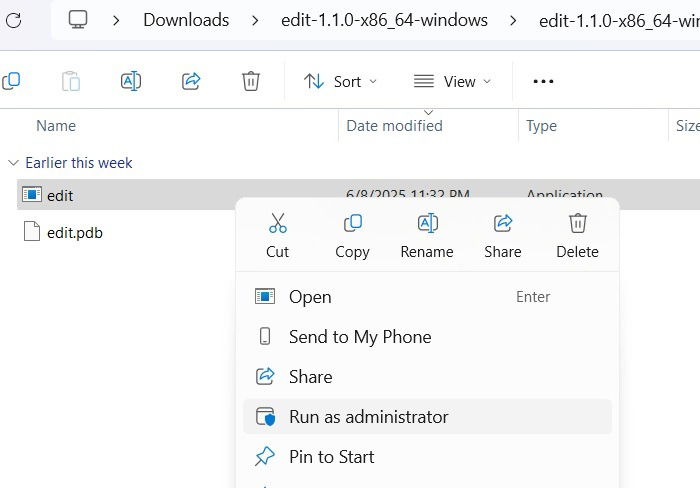
From the extracted inner folder, you can run the application as an administrator with a simple right-click.
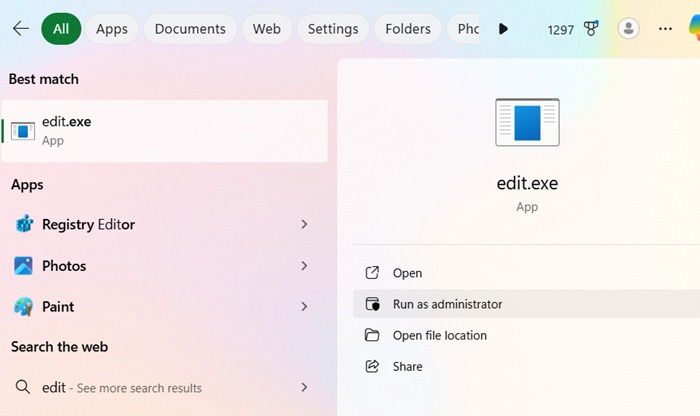
You can also launch the Edit app, viewed as “edit.exe” from the search menu. It’s always better to Run as administrator.
To get the full feature benefits of Edit, it is better to install the full application as shown below.
Winget
Open PowerShell window in administrator mode. Enter the following command, and subsequently, press Y to agree to all the source agreement terms.
winget install Microsoft.Edit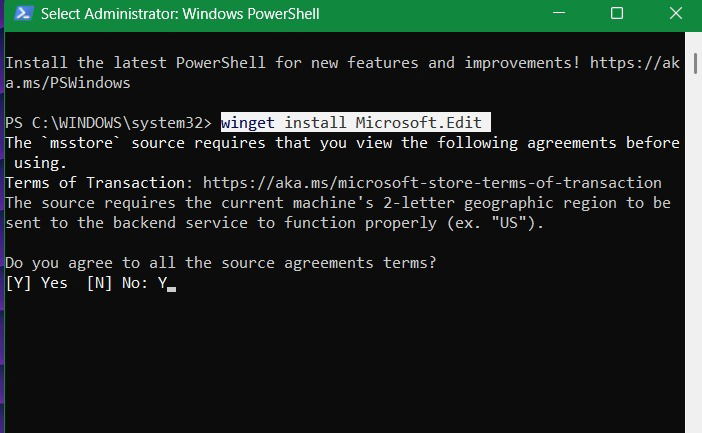
Once you get hands-on with Microsoft Edit, you will discover a range of uses and convenient features. Unlike the MS-DOS Editor of the past, which only supported 16-bit applications, the new Edit is fully capable of scaling with 64-bit Windows 11 in the future.
A Very Simple Windows Command Line Text Editor
As an occasional Windows developer, I find Microsoft Edit an ideal tool for my needs. It strikes a perfect balance between simplicity and functionality, allowing me to modify the code behind software applications without memorizing complex commands and steps
Fully open-source, Microsoft Edit has sparked excitement due to its overall simplicity with a clear blue screen interface. It has only four buttons showcasing its minimalist design, with File, Edit, and View containing everything you need.
Just like Notepad, the Edit button in this app supports all common shortcuts, such as Ctrl + S to save a text file, along with hotkeys like Ctrl + Z, Ctrl + Y, Ctrl + F to find files, Ctrl + R for replacements, and Ctrl + A to select all. Of course, the cut, copy, and paste shortcuts are available.
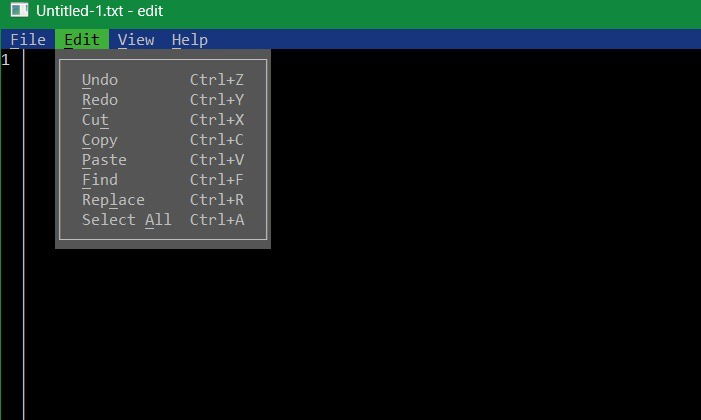
However, unlike Notepad which is a GUI editing tool, you get access to these commands in a CLI interface, which is ideal for developers.
As the core Edit application file is less than 250 KB in size, opening it takes a fraction of a second compared to the processes of other console-based applications.
Using Edit Within Command Prompt and PowerShell
One big reason to use winget for installing Edit is that it adds itself as a command-line alias, helping with all existing consoles in Windows, including Command Prompt, PowerShell, and Windows Terminal.
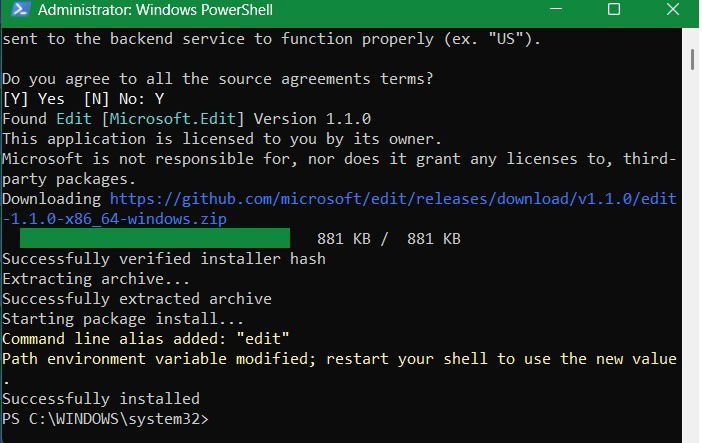
After the alias is added, all you have to do is type edit or edit.exe in any command-line interpreter, such as Command Prompt, PowerShell, or Windows Terminal. Edit integrates with all these environments to edit the text files, complementing their command execution capabilities.
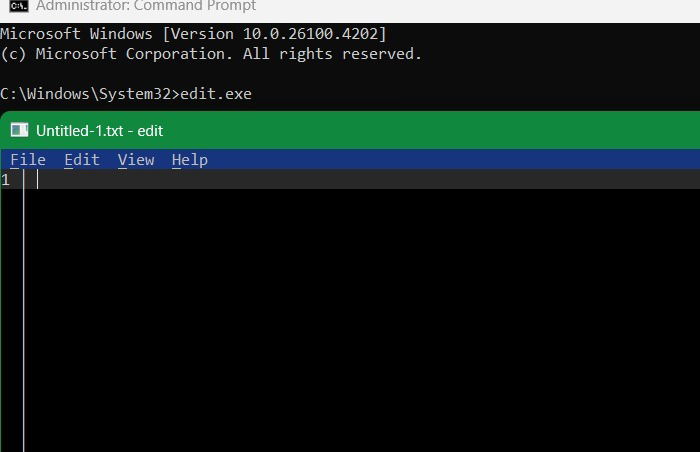
Do note that Edit doesn’t execute any commands on its own, so you can’t use it to run a system command like ipconfig. You can use it to write any PowerShell scripts, with PS1 files though.
Creating and Editing Batch Files
Edit serves as a replacement of many of Notepad’s text-editing functions, notably its ability to edit batch scripts, although it can’t create them.
Open Command Prompt and use cd to place yourself in the path of a file where you have some BAT scripts stored. Here, I have a script called “Myscript” saved in the C:\Files folder path. All I have to do now is use cd to go to the exact folder location, and type the following:
edit "Batch file script name".bat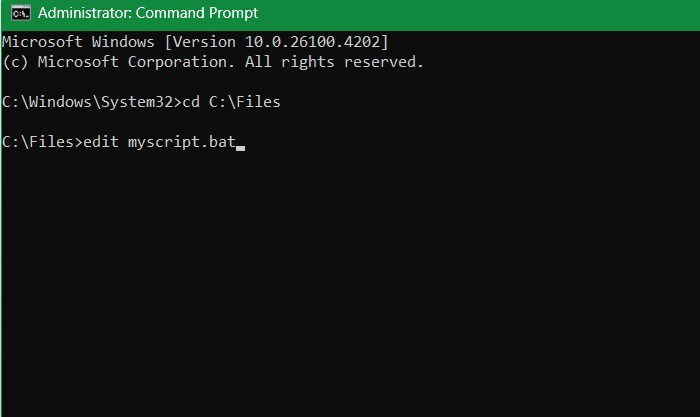
Before Microsoft Edit, editing batch scripts directly within command-line interpreters like PowerShell or Command Prompt was complicated and challenging. You had to use third-party editors like Vim or exit the interpreter and open Notepad or Visual Studio Code. This frequent window switching broke the flow for most developers.
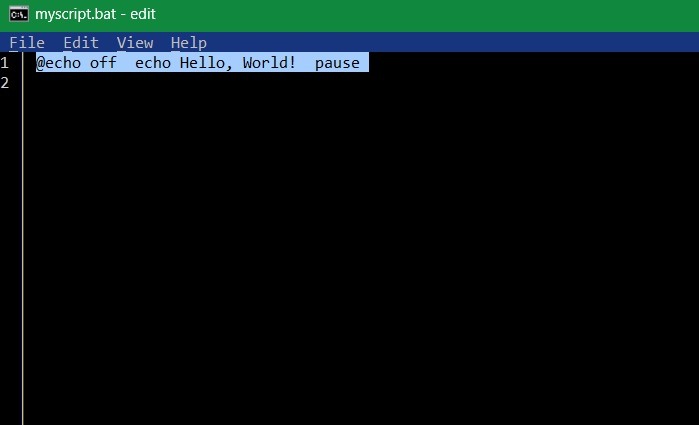
The manual file management was also a hassle. Remember all the “‘echo on” and ‘”echo off” jargon just to move files within your own system. All that is now a thing of the past, as the Edit application launches directly in a folder path of your choice.
Modeless Editing of Config Files
We will explain a major benefit of Microsoft Edit. It’s completely “modeless” unlike modal applications such as Vim or Visual Editor. Here’s an example.
You will have come across many config files in Windows, with INI or CFG extensions. These are simple text-based files that store settings for applications and system functions. They are also linked to any software you install in Windows. Many portable apps (ones that don’t need installation) extensively use INI extensions.
With Microsoft Edit, you can directly modify these INI or CFG files without needing a separate GUI editor. In Command Prompt or Powershell, go to the path where these files are stored. Here, I have the INI files named “Appconfig.” Type the following command.
edit "Config file name".iniEdit will open the configuration file automatically. You can do all the possible edits here. For example, here I am doing a simple edit for the theme which I’m changing from dark to light. There are many other uses for this capability. In another example, gamers can adjust parameters like resolution or frame rate, saving their changes, and staying within the CLI workflow.
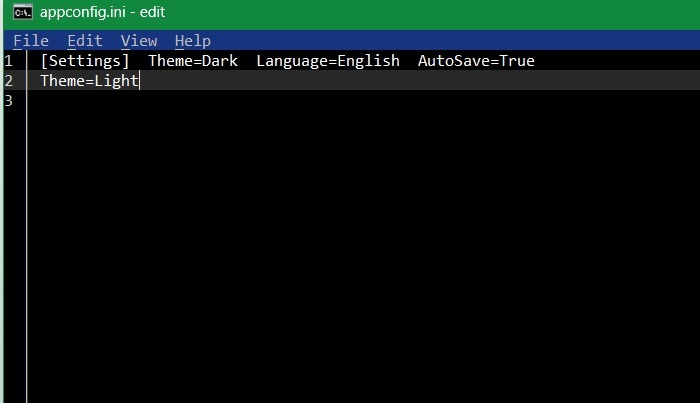
The above tweaks are not possible with modal editors where you have to memorize so many commands. With Microsoft Edit, you can do whatever you want without memorizing anything. If you’re not a heavy coder, but someone who just wants to make small edits, this software is perfect.
There are many other uses you can gradually learn to operate with Microsoft Edit. You can use it for log file analysis across application logs, operate documents with a feature called “Document Picker,”‘ debug scripts in any Windows program, including Python, and much more, all while the application remains a nostalgic nod to the classic MS-DOS Editor from a bygone Windows era.
Apart from Microsoft Edit, you will find a PowerToys feature called Command Palette very useful in quickly opening any files or applications.

有“AI”的1024 = 2048,欢迎大家加入2048 AI社区
更多推荐

 13
13 0
0- 0


 已为社区贡献185条内容

所有评论(0)