windows上使用github上的ssh该如何设置
本文针对 Windows 用户在克隆 GitHub 仓库时遇到的 SSH 代理服务(ssh-agent)配置问题,系统性地提供了六种解决方案,从标准服务启用到灵活的密钥直连方式,帮助用户绕过常见的 SSH 连接障碍。文章首先介绍如何通过 PowerShell 启用并管理 Windows 内置的 SSH-Agent 服务,并添加密钥实现自动认证。若服务无法正常工作,可转而使用 Git Bash 或手
方法1:启用并启动SSH-Agent服务
以管理员身份运行PowerShell:
-
按
Win + X,选择 Windows PowerShell (管理员) -
执行以下命令:
powershell
# 1. 设置SSH-Agent服务为自动启动
Set-Service ssh-agent -StartupType Automatic

# 2. 启动服务
Start-Service ssh-agent

# 3. 检查服务状态
Get-Service ssh-agent

# 4. 添加SSH密钥
ssh-add ~/.ssh/id_ed25519

# 5. 显示公钥
Get-Content ~/.ssh/id_ed25519.pub
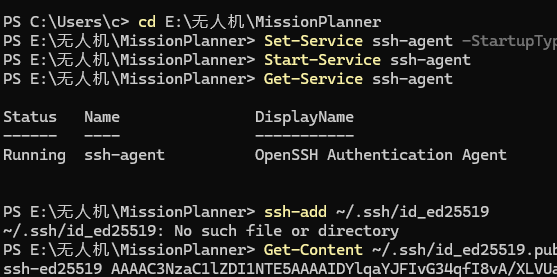
这个是方法一正确运行的样子
方法2:如果方法1失败,使用替代方案
使用Git自带的ssh-agent:
在Git Bash中操作(不需要Windows服务):
-
打开 Git Bash(不是CMD或PowerShell)
-
执行:
bash
# 启动ssh-agent
eval "$(ssh-agent -s)"

# 添加密钥
ssh-add ~/.ssh/id_ed25519

# 显示公钥
cat ~/.ssh/id_ed25519.pub

# 测试连接
ssh -T git@github.com
手动启动ssh-agent(不需要服务):
cmd
# 在CMD中
set SSH_AUTH_SOCK=%TEMP%\ssh-agent.sock
ssh-agent.exe -a %SSH_AUTH_SOCK%

# 然后在新的CMD窗口设置相同的环境变量
set SSH_AUTH_SOCK=%TEMP%\ssh-agent.sock
ssh-add %USERPROFILE%\.ssh\id_ed25519
方法3:最简单的方法 - 直接使用密钥文件
如果ssh-agent无法工作,可以直接在克隆时指定密钥:
cmd
# 方法A:设置环境变量
set GIT_SSH_COMMAND=ssh -i %USERPROFILE%\.ssh\id_ed25519

# 然后克隆(使用SSH URL)
git clone git@github.com:ArduPilot/MissionPlanner.git MissionPlanner-master
或者:
cmd
# 方法B:使用Git配置指定密钥
git config --global core.sshCommand "ssh -i %USERPROFILE%\.ssh\id_ed25519"

# 然后克隆
git clone git@github.com:ArduPilot/MissionPlanner.git MissionPlanner-master
方法4:一次性解决方案(推荐)
创建一个批处理文件 clone_with_ssh.bat:
batch
@echo off
echo 使用SSH密钥克隆MissionPlanner仓库...
echo.

:: 设置SSH命令使用指定的密钥
set GIT_SSH_COMMAND=ssh -i "%USERPROFILE%\.ssh\id_ed25519"

:: 设置Git使用SSH
git config --global url."git@github.com:".insteadOf "https://github.com/"

:: 克隆仓库(使用SSH地址)
git clone git@github.com:ArduPilot/MissionPlanner.git MissionPlanner-master

if errorlevel 1 (
    echo 克隆失败,尝试使用HTTPS...
    git clone https://github.com/ArduPilot/MissionPlanner.git MissionPlanner-master
) else (
    echo 克隆成功!
)

pause
方法5:验证和测试SSH连接
在PowerShell中测试(不需要启动服务):
powershell
# 测试SSH连接(使用指定密钥)
ssh -i $HOME\.ssh\id_ed25519 -T git@github.com

# 或者使用更详细的测试
ssh -i $HOME\.ssh\id_ed25519 -vT git@github.com
方法6:Windows注册表启用SSH-Agent服务
如果服务确实被禁用,可以通过注册表启用:
-
按
Win + R,输入regedit -
导航到:
HKEY_LOCAL_MACHINE\SYSTEM\CurrentControlSet\Services\ssh-agent -
找到
Start项,将其值从4(禁用)改为2(自动启动)或3(手动启动) -
重启计算机或在管理员PowerShell中执行:
powershell
Start-Service ssh-agent
当前最可行的解决方案
既然您已经生成了SSH密钥,最简单的方法是:
步骤1:复制公钥到GitHub
powershell
# 在PowerShell中
cat ~/.ssh/id_ed25519.pub
# 复制输出的内容到剪贴板
步骤2:添加到GitHub
-
点击 "New SSH key"
-
粘贴公钥内容
步骤3:使用SSH克隆(无需ssh-agent)
cmd
# 在CMD中直接使用
git clone -c core.sshCommand="ssh -i %USERPROFILE%\.ssh\id_ed25519" git@github.com:ArduPilot/MissionPlanner.git MissionPlanner-master
备用方案:使用HTTPS + 凭据管理器
如果SSH仍然有问题,可以切换回HTTPS并使用Git凭据管理器:
cmd
# 切换回HTTPS
git config --global --unset url."git@github.com:".insteadOf "https://github.com/"

# 启用凭据管理器
git config --global credential.helper manager

# 使用浅克隆
git clone --depth 1 https://github.com/ArduPilot/MissionPlanner.git MissionPlanner-master
推荐的操作顺序:
-
首先尝试最简单的方法:
cmd
git clone -c core.sshCommand="ssh -i %USERPROFILE%\.ssh\id_ed25519" git@github.com:ArduPilot/MissionPlanner.git MissionPlanner-master
-
如果失败,使用Git Bash:
-
打开Git Bash
-
执行:
git clone git@github.com:ArduPilot/MissionPlanner.git MissionPlanner-master
-
-
再不行,回退到HTTPS:
cmd
git config --global http.postBuffer 524288000
git clone --depth 1 https://github.com/ArduPilot/MissionPlanner.git MissionPlanner-master
还有一篇是教如何在下一次使用ssh下载github上的方法,可以进入我的主页找一下,如果有帮助,希望可以给个小星星

有“AI”的1024 = 2048,欢迎大家加入2048 AI社区
更多推荐



 29
29 0
0- 0


 已为社区贡献1条内容

所有评论(0)