37.容器管理工具Containerd
Containerd是一个专注于容器运行时管理的工业级工具,作为Docker的轻量级替代方案,它采用C/S架构并通过gRPC API提供容器管理功能。文章介绍了Containerd的架构设计,包括Bundle和Runtime两大子系统,以及Content、Snapshot等核心插件。通过性能测试对比显示,Containerd在容器生命周期管理方面优于Docker和crio。安装部分详细讲解了YUM
容器管理工具Containerd
Containerd介绍
前言
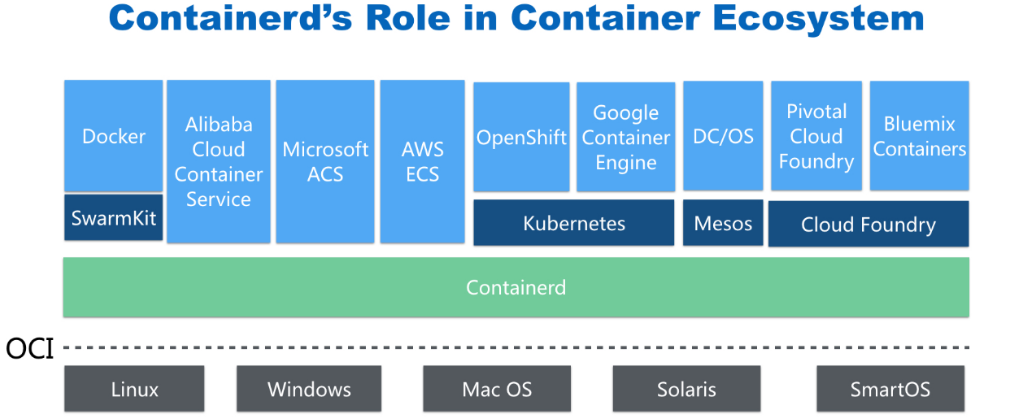
- 早在2016年3月,Docker 1.11的Docker Engine里就包含了containerd,而现在则是把containerd 从Docker Engine里彻底剥离出来,作为一个独立的开源项目独立发展,目标是提供一个更加开 放、稳定的容器运行基础设施。和原先包含在Docker Engine里containerd相比,独立的 containerd将具有更多的功能,可以涵盖整个容器运行时管理的所有需求。
- containerd并不是直接面向最终用户的,而是主要用于集成到更上层的系统里,比如Swarm, Kubernetes, Mesos等容器编排系统。
- containerd以Daemon的形式运行在系统上,通过暴露底层的gRPC API,上层系统可以通过这些 API管理机器上的容器。
- 每个containerd只负责一台机器,Pull镜像,对容器的操作(启动、停止等),网络,存储都是由 containerd完成。具体运行容器由runC负责,实际上只要是符合OCI规范的容器都可以支持。
- 对于容器编排服务来说,运行时只需要使用containerd+runC,更加轻量,容易管理。
- 独立之后containerd的特性演进可以和Docker Engine分开,专注容器运行时管理,可以更稳定。
Containerd架构
架构图
Containerd设计的目的是为了嵌入到Kubernetes中使用,它是一个工业级的容器运行时,不提供给开发 人员和终端用户直接使用,这样就避免了与Docker产生竞争,但事实上,Containerd已经实现大多数容 器管理功能,例如:容器生命周期管理、容器镜像传输和管理、容器存储与网络管理等。
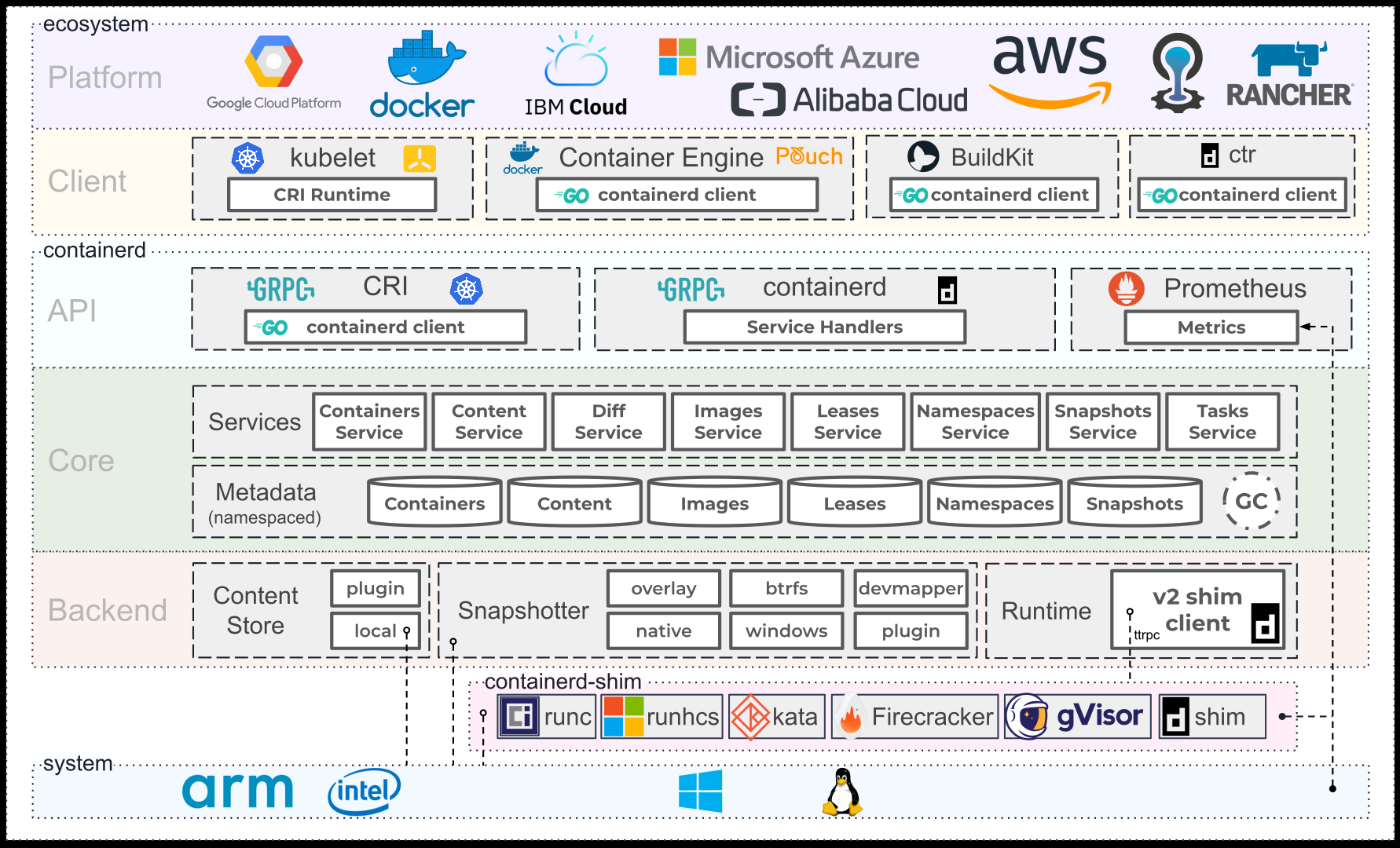
- Containerd 采用标准的 C/S 架构
- 服务端通过 GRPC 协议提供稳定的 API
- 客户端通过调用服务端的 API 进行高级的操作
- 为了实现解耦,Containerd 将不同的职责划分给不同的组件,每个组件就相当于一个子系统 (subsystem)。连接不同子系统的组件被称为模块。
- Containerd 两大子系统为:
- Bundle : 在 Containerd 中,Bundle 包含了配置、元数据和根文件系统数据,你可以理解为 容器的文件系统。而 Bundle 子系统允许用户从镜像中提取和打包 Bundles。
- Runtime : Runtime 子系统用来执行 Bundles,比如创建容器。
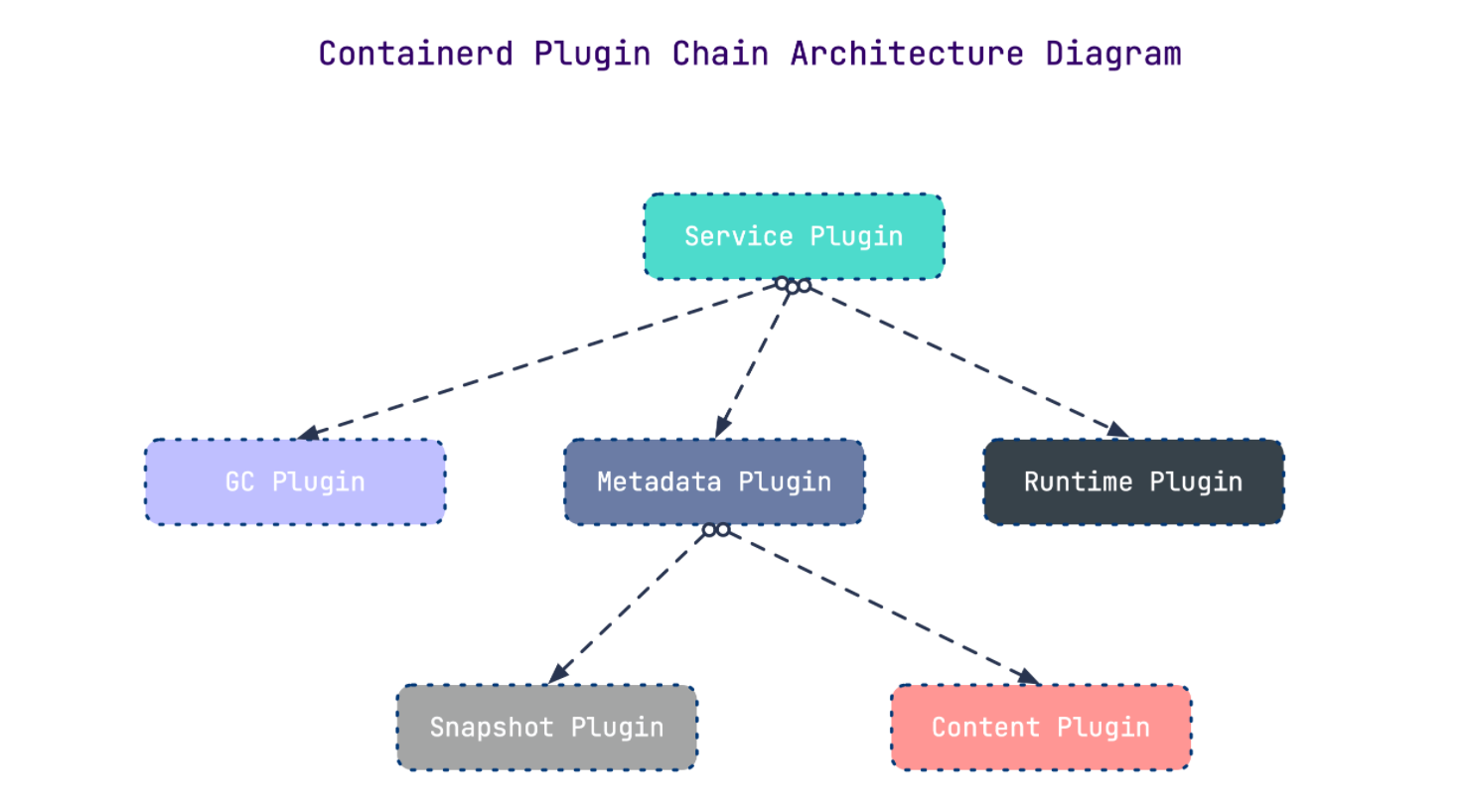
- 其中,每一个子系统的行为都由一个或多个模块协作完成(架构图中的 Core 部分)。每一种类型 的模块都以插件的形式集成到 Containerd 中,而且插件之间是相互依赖的。 例如,上图中的每一个长虚线的方框都表示一种类型的插件,包括 Service Plugin、Metadata Plugin、GC Plugin、Runtime Plugin 等,其中 Service Plugin 又会依赖 Metadata Plugin、GC Plugin 和 Runtime Plugin。每一个小方框都表示一个细分的插件,例如 Metadata Plugin 依赖 Containers Plugin、Content Plugin 等。
常用插件
- Content Plugin : 提供对镜像中可寻址内容的访问,所有不可变的内容都被存储在这里。
- Snapshot Plugin : 用来管理容器镜像的文件系统快照。镜像中的每一个 layer 都会被解压成文件 系统快照,类似于 Docker 中的 graphdriver 。
- Metrics : 暴露各个组件的监控指标。
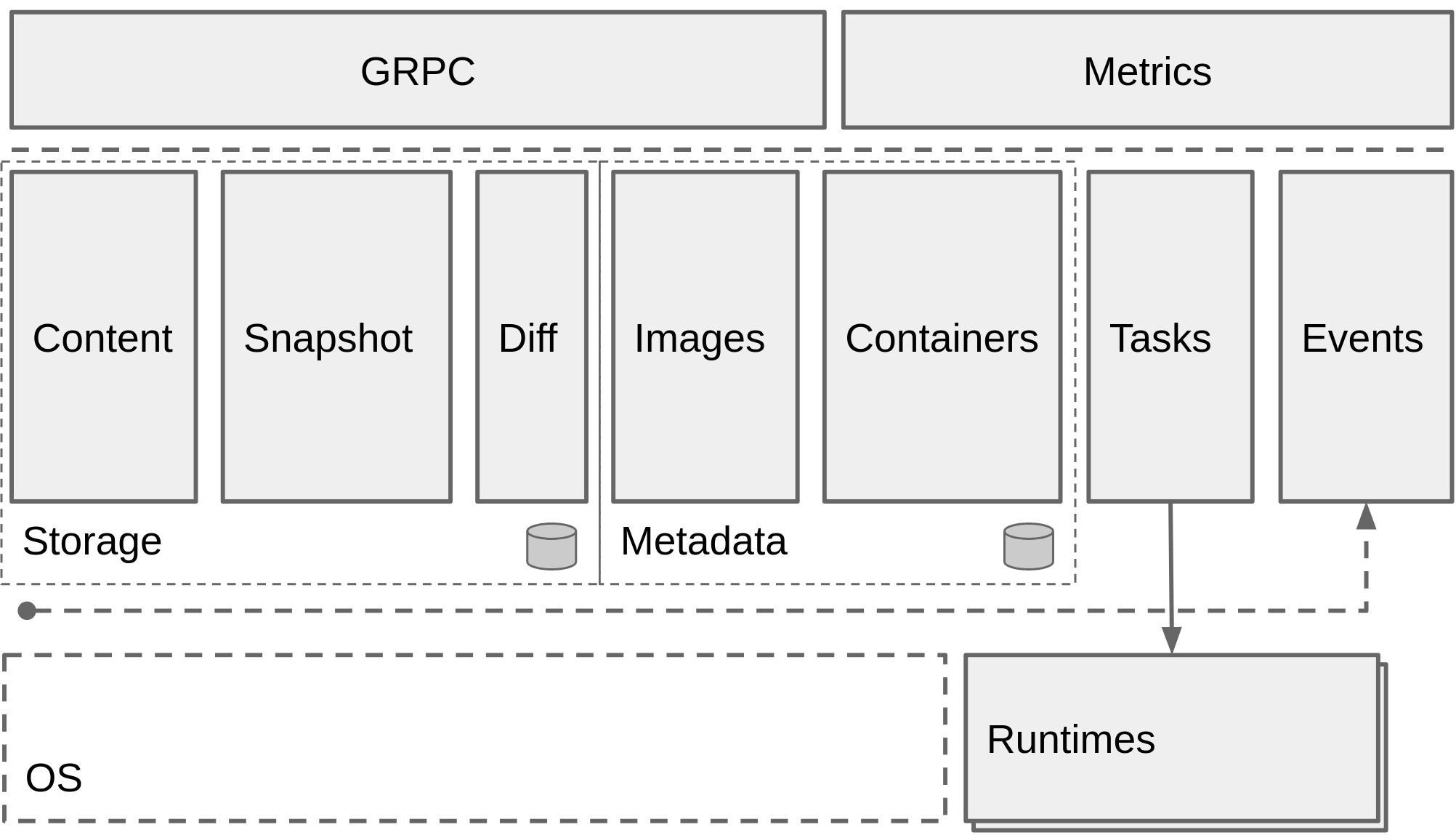
架构缩略图
Containerd 被分为三个大块: Storage 、 Metadata 和 Runtime
与其它容器运行时工具性能对比
这是使用 bucketbench 对 Docker、crio 和 Containerd 的性能测试结果,包括启动、停止和删除容器, 以比较它们所耗的时间:
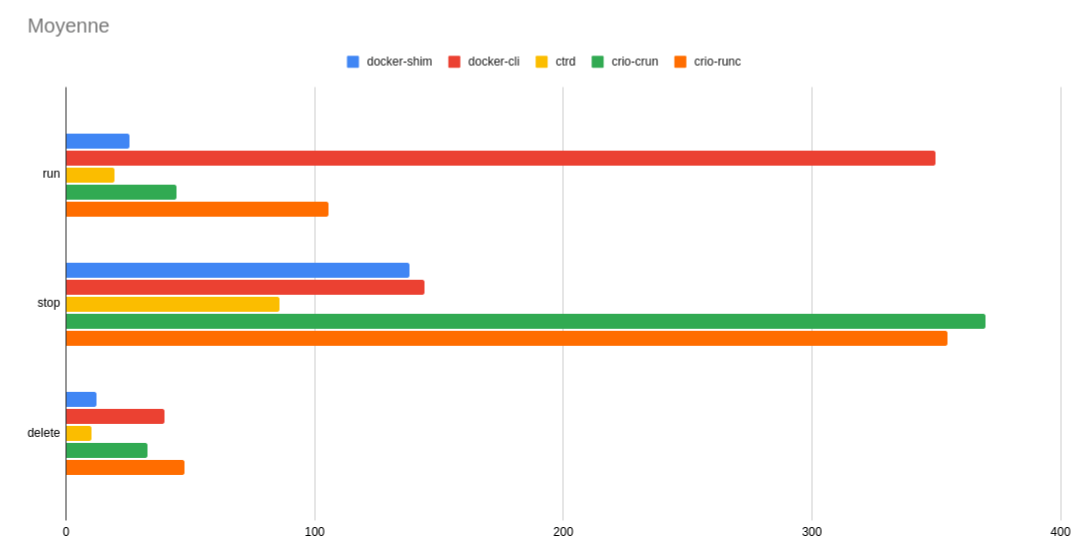
结论: Containerd 在各个方面都表现良好,总体性能优于 Docker 和 crio 。
Containerd安装
操作系统: CentOS Stream 8
YUM方式安装
基于 CentOS-Stream-8模板制作.md 制作的模板克隆一台虚拟机命名为Containerd
安装必要工具
[root@localhost ~ 21:46:44]# yum install -y yum-utils device-mapper-persistent-data lvm2 vim
安装Containerd
# 1.获取阿里云YUM源
[root@localhost ~ 21:47:11]# yum-config-manager --add-repo https://mirrors.aliyun.com/docker-ce/linux/centos/docker-ce.repo
[root@localhost ~ 21:47:32]# yum makecache

# 2.查看YUM源中Containerd软件
[root@localhost ~ 21:47:57]# yum list |grep containerd
containerd.io.x86_64                                   1.6.32-3.1.el8                                        docker-ce-stable

# 3.安装Containerd.io软件,即可安装Containerd
[root@localhost ~ 21:48:11]# yum -y install containerd.io

# 4.使用rpm -qa命令查看是否安装
[root@localhost ~ 21:50:34]# rpm -qa |grep containerd
containerd.io-1.6.32-3.1.el8.x86_64

# 5.设置containerd服务启动及开机自启动
[root@localhost ~ 21:53:12]# systemctl enable containerd --now
[root@localhost ~ 22:10:59]# systemctl status containerd

# 6.验证
# 安装Containerd时ctr命令亦可使用,ctr命令主要用于管理容器及容器镜像等。
# 使用ctr命令查看Containerd客户端及服务端相关信息
[root@localhost ~ 22:11:17]# ctr version
Client:
  Version:  1.6.32
  Revision: 8b3b7ca2e5ce38e8f31a34f35b2b68ceb8470d89
  Go version: go1.21.10

Server:
  Version:  1.6.32
  Revision: 8b3b7ca2e5ce38e8f31a34f35b2b68ceb8470d89
  UUID: fbb5535b-2894-4380-ad6f-4f0bebf89cd6
二进制方式安装
Containerd有两种安装包:
- 第一种是containerd-xxx,这种包用于单机测试没问题,不包含runC,需要提前安装。
- 第二种是cri-containerd-cni-xxxx,包含runc和k8s里的所需要的相关文件。k8s集群里需要用到此 包。虽然包含runC,但是依赖系统中的seccomp(安全计算模式,是一种限制容器调用系统资源的 模式。)
安装Containerd
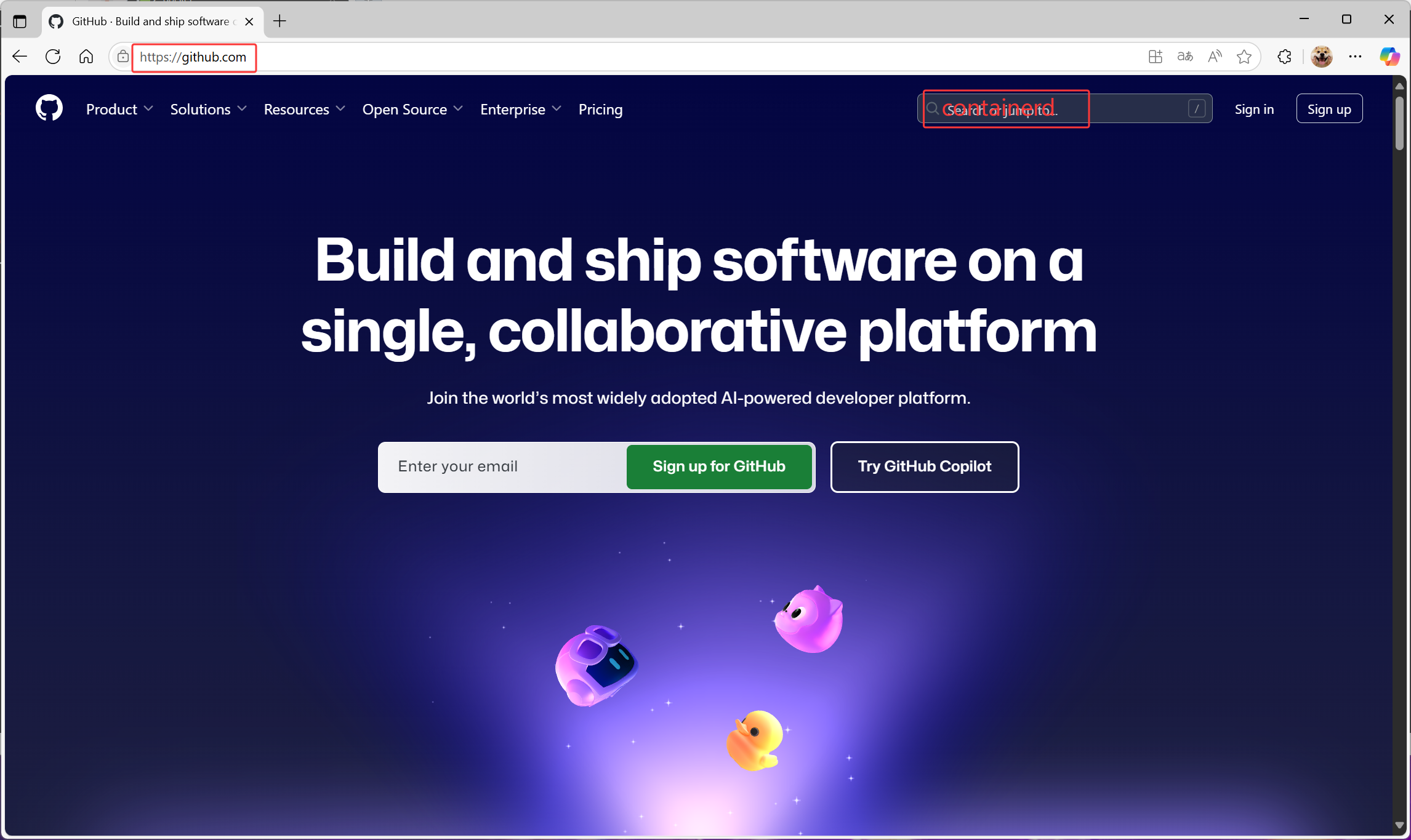
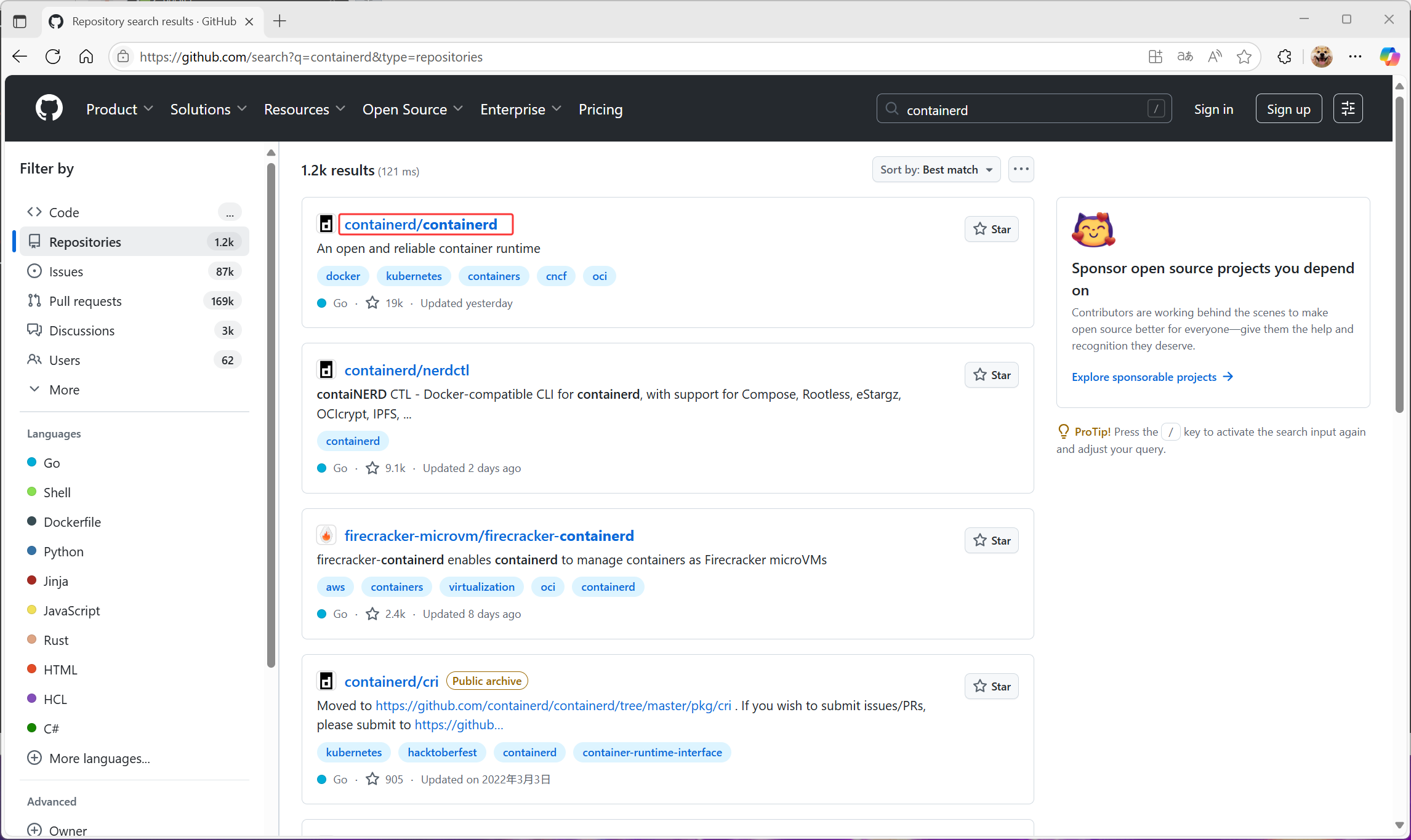
打开github官网 ,搜索containerd项目
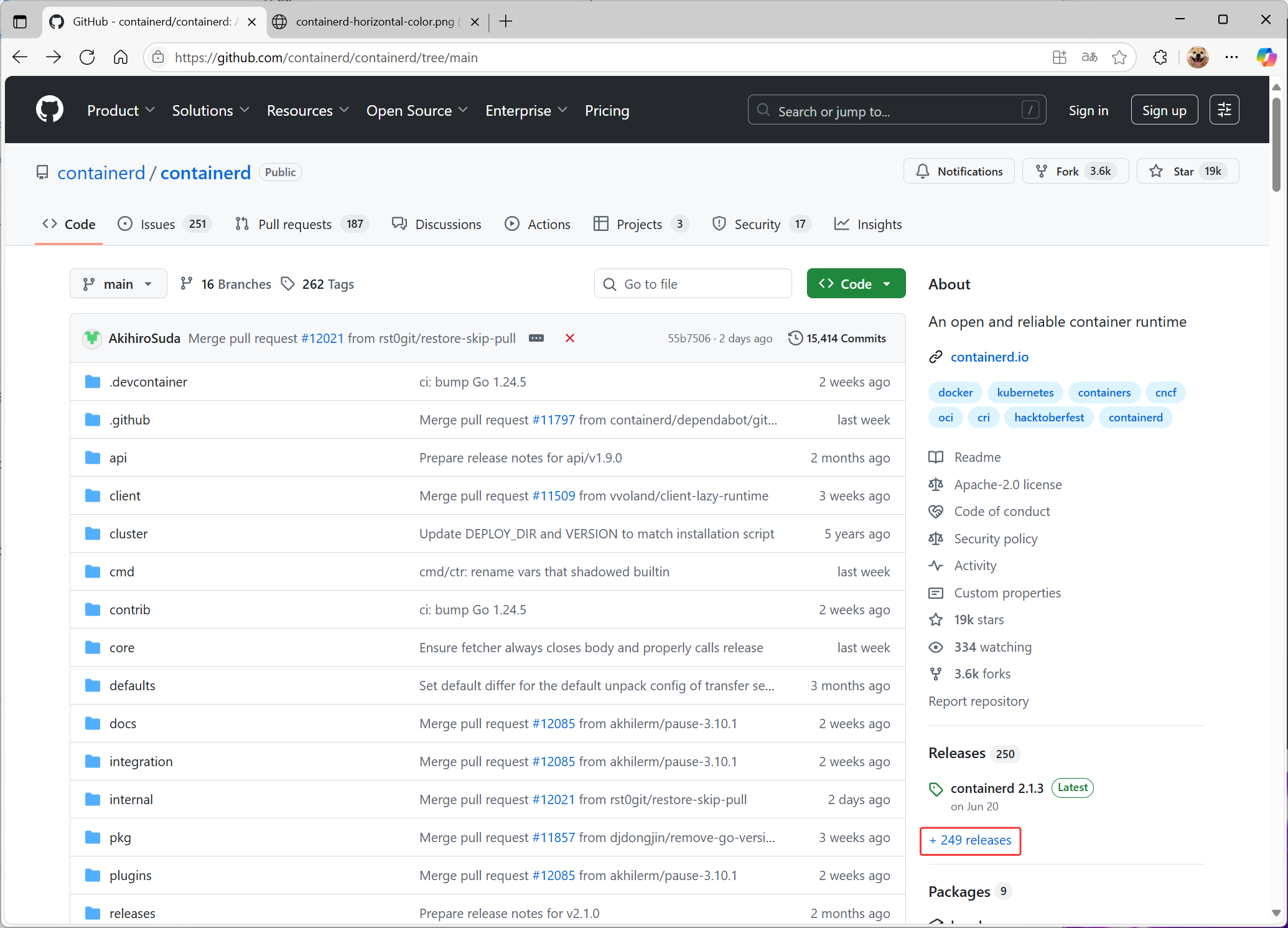
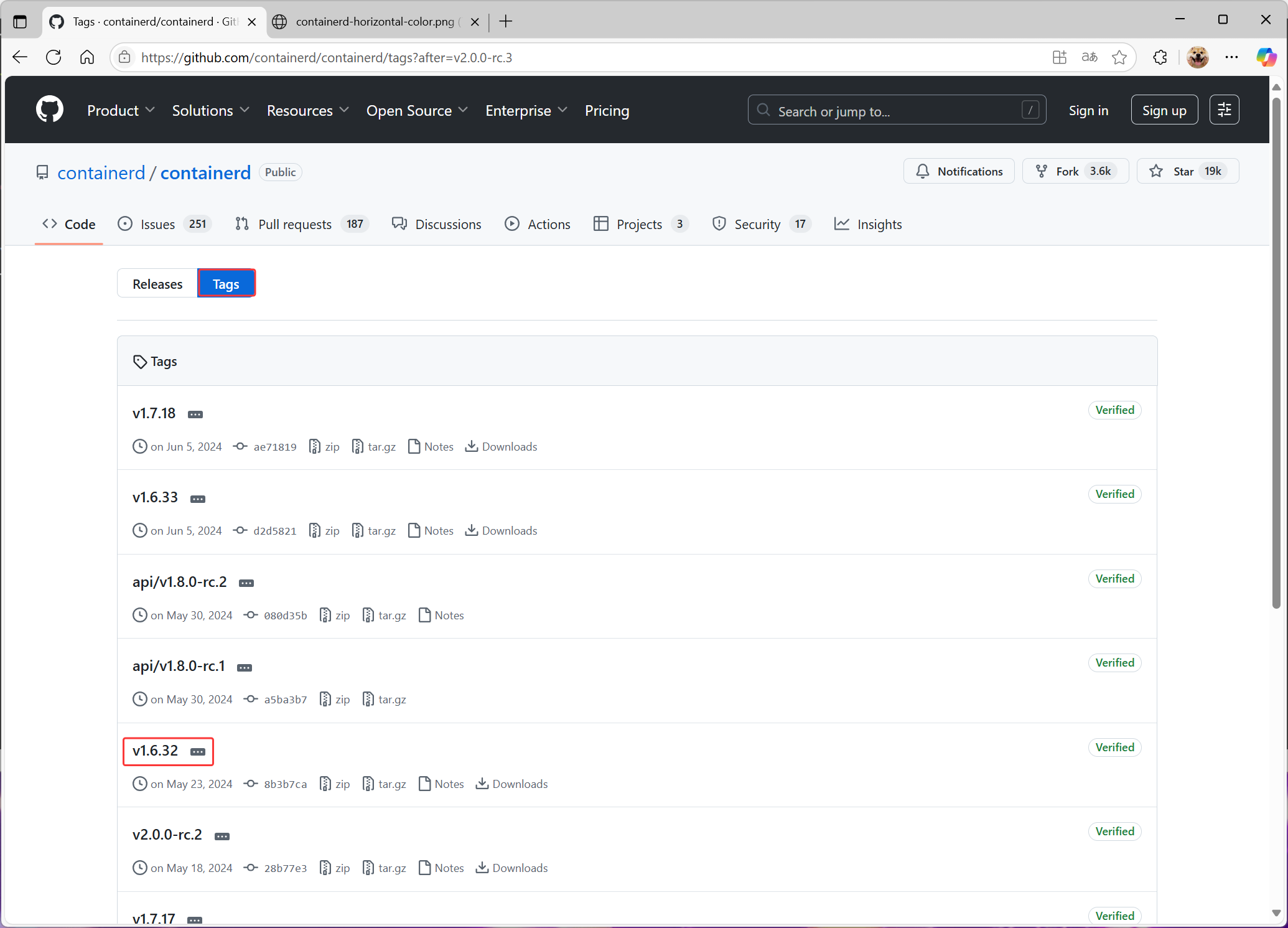
往下翻,找到软件包下载,然后上传到centos
也可以右击,复制链接,wget下载 https://github.com/containerd/containerd/releases/download/v1.6.32/cri-containerd-cni-1.6.32-linux-amd64.tar.gz
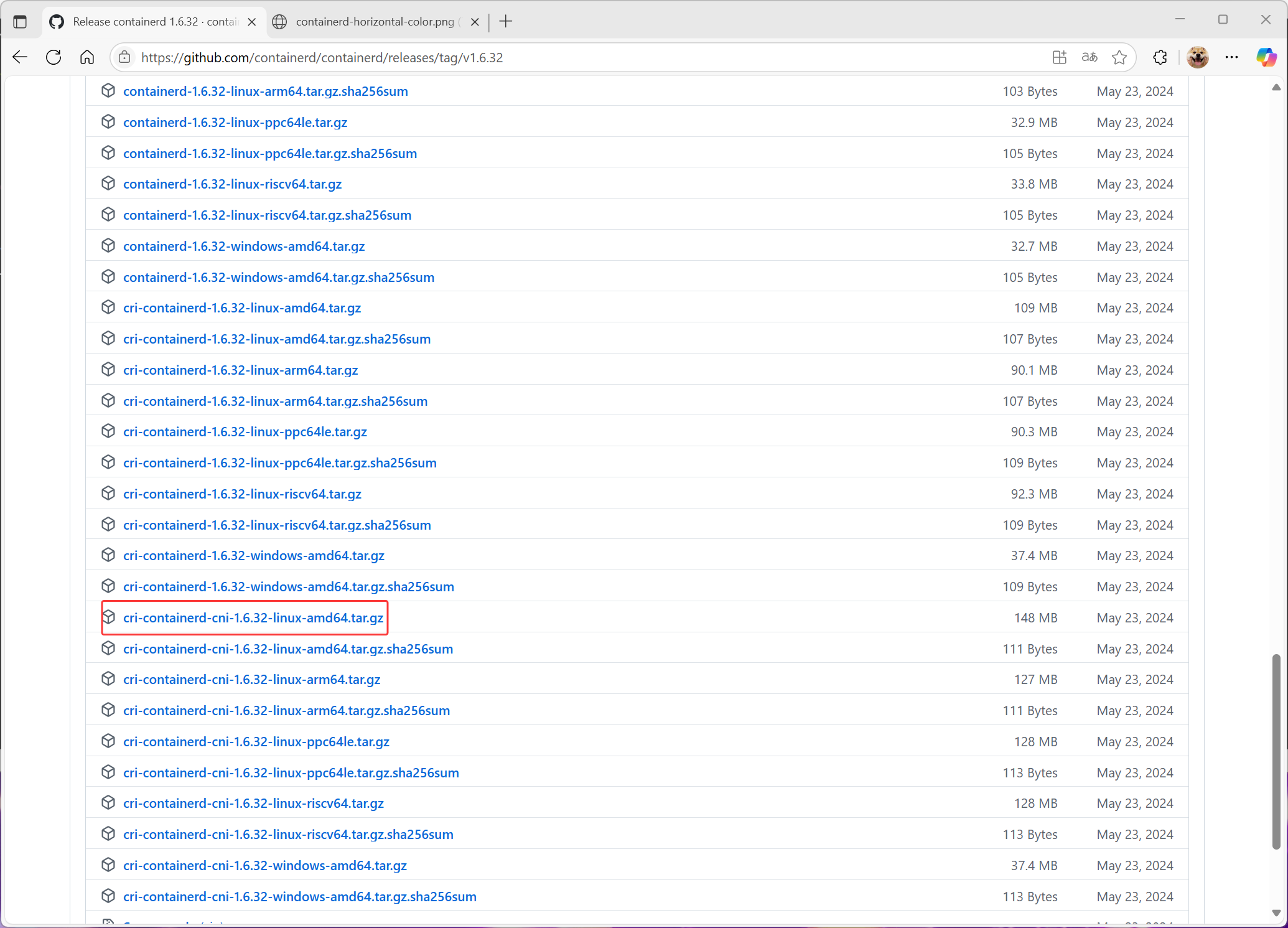
# 1.下载Containerd安装包
# 此处是下载的第二种
[root@localhost ~ 22:15:17]# wget https://github.com/containerd/containerd/releases/download/v1.6.32/cricontainerd-cni-1.6.32-linux-amd64.tar.gz

# 2.安装containerd
[root@localhost ~ 22:16:01]# mkdir containerd
[root@localhost ~ 22:16:22]# tar -xf cri-containerd-cni-1.6.32-linux-amd64.tar.gz -C containerd/
[root@localhost ~ 22:16:54]# cd containerd/
[root@localhost containerd 22:17:00]# ls
cri-containerd.DEPRECATED.txt  etc  opt  usr

[root@localhost containerd 22:17:08]# yum install -y tree
[root@localhost containerd 22:17:29]# tree
.
├── cri-containerd.DEPRECATED.txt
├── etc      #etc目录主要为containerd服务管理配置文件及cni虚拟网卡配置文件
│   ├── cni
│   │   └── net.d
│   │       └── 10-containerd-net.conflist    #网络插件配置文件
│   ├── crictl.yaml
│   └── systemd
│       └── system
│           └── containerd.service    #服务配置文件
├── opt   #opt目录主要为gce环境中使用containerd配置文件及cni插件
│   ├── cni   #网络插件
│   │   └── bin
│   │       ├── bandwidth
│   │       ├── bridge
│   │       ├── dhcp
│   │       ├── firewall
│   │       ├── host-device
│   │       ├── host-local
│   │       ├── ipvlan
│   │       ├── loopback
│   │       ├── macvlan
│   │       ├── portmap
│   │       ├── ptp
│   │       ├── sbr
│   │       ├── static
│   │       ├── tuning
│   │       ├── vlan
│   │       └── vrf
│   └── containerd
│       └── cluster
│           ├── gce
│           │   ├── cloud-init
│           │   │   ├── master.yaml
│           │   │   └── node.yaml
│           │   ├── cni.template
│           │   ├── configure.sh
│           │   └── env
│           └── version
└── usr   #usr目录主要为containerd运行时文件,包含runc
    └── local   # bin,sbin命令
        ├── bin
        │   ├── containerd
        │   ├── containerd-shim
        │   ├── containerd-shim-runc-v1
        │   ├── containerd-shim-runc-v2
        │   ├── containerd-stress
        │   ├── crictl
        │   ├── critest
        │   ├── ctd-decoder
        │   └── ctr
        └── sbin
            └── runc

16 directories, 36 files

#查看containerd.service文件,了解containerd文件安装位置
[root@localhost containerd 22:17:33]# cat etc/systemd/system/containerd.service
# Copyright The containerd Authors.
#
# Licensed under the Apache License, Version 2.0 (the "License");
# you may not use this file except in compliance with the License.
# You may obtain a copy of the License at
#
#     http://www.apache.org/licenses/LICENSE-2.0
#
# Unless required by applicable law or agreed to in writing, software
# distributed under the License is distributed on an "AS IS" BASIS,
# WITHOUT WARRANTIES OR CONDITIONS OF ANY KIND, either express or implied.
# See the License for the specific language governing permissions and
# limitations under the License.

[Unit]
Description=containerd container runtime
Documentation=https://containerd.io
After=network.target local-fs.target

[Service]
ExecStartPre=-/sbin/modprobe overlay
ExecStart=/usr/local/bin/containerd

Type=notify
Delegate=yes
KillMode=process
Restart=always
RestartSec=5
# Having non-zero Limit*s causes performance problems due to accounting overhead
# in the kernel. We recommend using cgroups to do container-local accounting.
LimitNPROC=infinity
LimitCORE=infinity
LimitNOFILE=infinity
# Comment TasksMax if your systemd version does not supports it.
# Only systemd 226 and above support this version.
TasksMax=infinity
OOMScoreAdjust=-999

[Install]
WantedBy=multi-user.target

#复制containerd运行时文件至系统
[root@localhost containerd 22:18:07]# cp usr/local/bin/* /usr/local/bin

#添加containerd.service文件至系统
[root@localhost containerd 22:18:51]# cp etc/systemd/system/containerd.service  /usr/lib/systemd/system/containerd.service

# 生成containerd模块配置文件,可以自定义一下配置,如有私有镜像仓库等,按需配置
[root@localhost containerd 22:19:52]# mkdir /etc/containerd
[root@localhost containerd 22:20:10]# containerd config default > /etc/containerd/config.toml
[root@localhost containerd 22:20:50]# cat /etc/containerd/config.toml
disabled_plugins = []
imports = []
oom_score = 0
plugin_dir = ""
required_plugins = []
root = "/var/lib/containerd"
state = "/run/containerd"
temp = ""
version = 2

[cgroup]
  path = ""

[debug]
  address = ""
  format = ""
  gid = 0
  level = ""
  uid = 0

[grpc]
  address = "/run/containerd/containerd.sock"
  gid = 0
  max_recv_message_size = 16777216
  max_send_message_size = 16777216
  tcp_address = ""
  tcp_tls_ca = ""
  tcp_tls_cert = ""
  tcp_tls_key = ""
  uid = 0

[metrics]
  address = ""
  grpc_histogram = false

[plugins]

  [plugins."io.containerd.gc.v1.scheduler"]
    deletion_threshold = 0
    mutation_threshold = 100
    pause_threshold = 0.02
    schedule_delay = "0s"
    startup_delay = "100ms"

  [plugins."io.containerd.grpc.v1.cri"]
    device_ownership_from_security_context = false
    disable_apparmor = false
    disable_cgroup = false
    disable_hugetlb_controller = true
    disable_proc_mount = false
    disable_tcp_service = true
    drain_exec_sync_io_timeout = "0s"
    enable_selinux = false
    enable_tls_streaming = false
    enable_unprivileged_icmp = false
    enable_unprivileged_ports = false
    ignore_deprecation_warnings = []
    ignore_image_defined_volumes = false
    max_concurrent_downloads = 3
    max_container_log_line_size = 16384
    netns_mounts_under_state_dir = false
    restrict_oom_score_adj = false
    sandbox_image = "registry.k8s.io/pause:3.6"
    selinux_category_range = 1024
    stats_collect_period = 10
    stream_idle_timeout = "4h0m0s"
    stream_server_address = "127.0.0.1"
    stream_server_port = "0"
    systemd_cgroup = false
    tolerate_missing_hugetlb_controller = true
    unset_seccomp_profile = ""

    [plugins."io.containerd.grpc.v1.cri".cni]
      bin_dir = "/opt/cni/bin"
      conf_dir = "/etc/cni/net.d"
      conf_template = ""
      ip_pref = ""
      max_conf_num = 1

    [plugins."io.containerd.grpc.v1.cri".containerd]
      default_runtime_name = "runc"
      disable_snapshot_annotations = true
      discard_unpacked_layers = false
      ignore_rdt_not_enabled_errors = false
      no_pivot = false
      snapshotter = "overlayfs"

      [plugins."io.containerd.grpc.v1.cri".containerd.default_runtime]
        base_runtime_spec = ""
        cni_conf_dir = ""
        cni_max_conf_num = 0
        container_annotations = []
        pod_annotations = []
        privileged_without_host_devices = false
        runtime_engine = ""
        runtime_path = ""
        runtime_root = ""
        runtime_type = ""

        [plugins."io.containerd.grpc.v1.cri".containerd.default_runtime.options]

      [plugins."io.containerd.grpc.v1.cri".containerd.runtimes]

        [plugins."io.containerd.grpc.v1.cri".containerd.runtimes.runc]
          base_runtime_spec = ""
          cni_conf_dir = ""
          cni_max_conf_num = 0
          container_annotations = []
          pod_annotations = []
          privileged_without_host_devices = false
          runtime_engine = ""
          runtime_path = ""
          runtime_root = ""
          runtime_type = "io.containerd.runc.v2"

          [plugins."io.containerd.grpc.v1.cri".containerd.runtimes.runc.options]
            BinaryName = ""
            CriuImagePath = ""
            CriuPath = ""
            CriuWorkPath = ""
            IoGid = 0
            IoUid = 0
            NoNewKeyring = false
            NoPivotRoot = false
            Root = ""
            ShimCgroup = ""
            SystemdCgroup = false

      [plugins."io.containerd.grpc.v1.cri".containerd.untrusted_workload_runtime]
        base_runtime_spec = ""
        cni_conf_dir = ""
        cni_max_conf_num = 0
        container_annotations = []
        pod_annotations = []
        privileged_without_host_devices = false
        runtime_engine = ""
        runtime_path = ""
        runtime_root = ""
        runtime_type = ""

        [plugins."io.containerd.grpc.v1.cri".containerd.untrusted_workload_runtime.options]

    [plugins."io.containerd.grpc.v1.cri".image_decryption]
      key_model = "node"

    [plugins."io.containerd.grpc.v1.cri".registry]
      config_path = ""

      [plugins."io.containerd.grpc.v1.cri".registry.auths]

      [plugins."io.containerd.grpc.v1.cri".registry.configs]

      [plugins."io.containerd.grpc.v1.cri".registry.headers]

      [plugins."io.containerd.grpc.v1.cri".registry.mirrors]

    [plugins."io.containerd.grpc.v1.cri".x509_key_pair_streaming]
      tls_cert_file = ""
      tls_key_file = ""

  [plugins."io.containerd.internal.v1.opt"]
    path = "/opt/containerd"

  [plugins."io.containerd.internal.v1.restart"]
    interval = "10s"

  [plugins."io.containerd.internal.v1.tracing"]

  [plugins."io.containerd.metadata.v1.bolt"]
    content_sharing_policy = "shared"

  [plugins."io.containerd.monitor.v1.cgroups"]
    no_prometheus = false

  [plugins."io.containerd.runtime.v1.linux"]
    no_shim = false
    runtime = "runc"
    runtime_root = ""
    shim = "containerd-shim"
    shim_debug = false

  [plugins."io.containerd.runtime.v2.task"]
    platforms = ["linux/amd64"]
    sched_core = false

  [plugins."io.containerd.service.v1.diff-service"]
    default = ["walking"]

  [plugins."io.containerd.service.v1.tasks-service"]
    rdt_config_file = ""

  [plugins."io.containerd.snapshotter.v1.aufs"]
    root_path = ""

  [plugins."io.containerd.snapshotter.v1.btrfs"]
    root_path = ""

  [plugins."io.containerd.snapshotter.v1.devmapper"]
    async_remove = false
    base_image_size = ""
    discard_blocks = false
    fs_options = ""
    fs_type = ""
    pool_name = ""
    root_path = ""

  [plugins."io.containerd.snapshotter.v1.native"]
    root_path = ""

  [plugins."io.containerd.snapshotter.v1.overlayfs"]
    mount_options = []
    root_path = ""
    sync_remove = false
    upperdir_label = false

  [plugins."io.containerd.snapshotter.v1.zfs"]
    root_path = ""

  [plugins."io.containerd.tracing.processor.v1.otlp"]

[proxy_plugins]

[stream_processors]

  [stream_processors."io.containerd.ocicrypt.decoder.v1.tar"]
    accepts = ["application/vnd.oci.image.layer.v1.tar+encrypted"]
    args = ["--decryption-keys-path", "/etc/containerd/ocicrypt/keys"]
    env = ["OCICRYPT_KEYPROVIDER_CONFIG=/etc/containerd/ocicrypt/ocicrypt_keyprovider.conf"]
    path = "ctd-decoder"
    returns = "application/vnd.oci.image.layer.v1.tar"

  [stream_processors."io.containerd.ocicrypt.decoder.v1.tar.gzip"]
    accepts = ["application/vnd.oci.image.layer.v1.tar+gzip+encrypted"]
    args = ["--decryption-keys-path", "/etc/containerd/ocicrypt/keys"]
    env = ["OCICRYPT_KEYPROVIDER_CONFIG=/etc/containerd/ocicrypt/ocicrypt_keyprovider.conf"]
    path = "ctd-decoder"
    returns = "application/vnd.oci.image.layer.v1.tar+gzip"

[timeouts]
  "io.containerd.timeout.bolt.open" = "0s"
  "io.containerd.timeout.shim.cleanup" = "5s"
  "io.containerd.timeout.shim.load" = "5s"
  "io.containerd.timeout.shim.shutdown" = "3s"
  "io.containerd.timeout.task.state" = "2s"

[ttrpc]
  address = ""
  gid = 0
  uid = 0

#启动containerd并验证
[root@localhost containerd 22:21:01]# systemctl enable containerd --now
[root@localhost containerd 22:21:34]# systemctl status containerd
[root@localhost containerd 22:21:54]# ctr version
Client:
  Version:  v1.6.32
  Revision: 8b3b7ca2e5ce38e8f31a34f35b2b68ceb8470d89
  Go version: go1.21.10

Server:
  Version:  v1.6.32
  Revision: 8b3b7ca2e5ce38e8f31a34f35b2b68ceb8470d89
  UUID: 635f90c7-694c-492a-8e62-c2b2218da1ca
安装runC
由于二进制包中提供的runC默认需要系统中安装seccomp支持,需要单独安装,且不同版本runC对 seccomp版本要求一致,所以建议单独下载runC 二进制包进行安装,里面包含了seccomp模块支持
下载地址:https://github.com/opencontainers/runc/releases
# 使用wget下载runc
[root@localhost ~ 22:22:13]# wget https://github.com/opencontainers/runc/releases/download/v1.3.0/runc.amd64

# 安装runc
[root@localhost ~ 22:22:42]# mv runc.amd64 /usr/sbin/runc

# 为runc添加可执行权限
[root@localhost ~ 22:23:04]# chmod +x /usr/sbin/runc

# 使用runc命令验证是否安装成功
[root@localhost ~ 22:23:24]# runc -v
runc version 1.3.0
commit: v1.3.0-0-g4ca628d1
spec: 1.2.1
go: go1.23.8
libseccomp: 2.5.6
Containerd容器镜像管理
帮助命令
- docker使用docker images命令管理镜像
- 单机containerd使用ctr images命令管理镜像,containerd本身的CLI
- k8s中containerd使用crictl images命令管理镜像,Kubernetes社区的专用CLI工具
#命令帮助
[root@localhost ~ 23:15:31]# ctr --help
NAME:
   ctr -
        __
  _____/ /______
 / ___/ __/ ___/
/ /__/ /_/ /
\___/\__/_/

containerd CLI


USAGE:
   ctr [global options] command [command options] [arguments...]

VERSION:
   1.6.32

DESCRIPTION:

ctr is an unsupported debug and administrative client for interacting
with the containerd daemon. Because it is unsupported, the commands,
options, and operations are not guaranteed to be backward compatible or
stable from release to release of the containerd project.

COMMANDS:
   plugins, plugin            provides information about containerd plugins
   version                    print the client and server versions
   containers, c, container   manage containers
   content                    manage content
   events, event              display containerd events
   images, image, i           manage images
   leases                     manage leases
   namespaces, namespace, ns  manage namespaces
   pprof                      provide golang pprof outputs for containerd
   run                        run a container
   snapshots, snapshot        manage snapshots
   tasks, t, task             manage tasks
   install                    install a new package
   oci                        OCI tools
   deprecations
   shim                       interact with a shim directly
   help, h                    Shows a list of commands or help for one command

GLOBAL OPTIONS:
   --debug                      enable debug output in logs
   --address value, -a value    address for containerd's GRPC server (default: "/run/containerd/containerd.sock") [$CONTAINERD_ADDRESS]
   --timeout value              total timeout for ctr commands (default: 0s)
   --connect-timeout value      timeout for connecting to containerd (default: 0s)
   --namespace value, -n value  namespace to use with commands (default: "default") [$CONTAINERD_NAMESPACE]
   --help, -h                   show help
   --version, -v                print the version

# 子命令帮助
[root@localhost ~ 23:15:48]# ctr images --help
NAME:
   ctr images - manage images

USAGE:
   ctr images command [command options] [arguments...]

COMMANDS:
   check                    check existing images to ensure all content is available locally
   export                   export images
   import                   import images
   list, ls                 list images known to containerd
   mount                    mount an image to a target path
   unmount                  unmount the image from the target
   pull                     pull an image from a remote
   push                     push an image to a remote
   delete, del, remove, rm  remove one or more images by reference
   tag                      tag an image
   label                    set and clear labels for an image
   convert                  convert an image

OPTIONS:
   --help, -h  show help
查看镜像
[root@localhost ~ 23:16:10]# ctr images list
REF TYPE DIGEST SIZE PLATFORMS LABELS
[root@localhost ~ 23:16:27]# ctr image list
REF TYPE DIGEST SIZE PLATFORMS LABELS
[root@localhost ~ 23:16:31]# ctr images ls
REF TYPE DIGEST SIZE PLATFORMS LABELS
[root@localhost ~ 23:16:36]# ctr image ls
REF TYPE DIGEST SIZE PLATFORMS LABELS
[root@localhost ~ 23:16:40]# ctr i list
REF TYPE DIGEST SIZE PLATFORMS LABELS
[root@localhost ~ 23:16:48]# ctr i ls
REF TYPE DIGEST SIZE PLATFORMS LABELS
下载镜像
containerd支持oci标准的镜像,所以可以直接使用docker官方或dockerfile构建的镜像
# 这里ctr命令pull镜像时,不能直接把镜像名字写成nginx:alpine
[root@localhost ~ 23:16:52]# ctr images pull 054b8ac70e8010d90f2ac00ef29e6580.mirror.swr.myhuaweicloud.com/library/nginx:latest

# 验证现象
[root@localhost ~ 23:17:47]# ctr images ls
REF                                                                                TYPE                                    DIGEST                                                                  SIZE     PLATFORMS                                                                                                              LABELS
054b8ac70e8010d90f2ac00ef29e6580.mirror.swr.myhuaweicloud.com/library/nginx:latest application/vnd.oci.image.index.v1+json sha256:553f64aecdc31b5bf944521731cd70e35da4faed96b2b7548a3d8e2598c52a42 57.0 MiB linux/386,linux/amd64,linux/arm/v5,linux/arm/v7,linux/arm64/v8,linux/ppc64le,linux/riscv64,linux/s390x,unknown/unknown -
镜像挂载
方便查看镜像中包含的内容
# 挂载
[root@localhost ~ 23:33:11]# ctr images mount 054b8ac70e8010d90f2ac00ef29e6580.mirror.swr.myhuaweicloud.com/library/nginx:latest /mnt
sha256:7ab4a6fb632471ab3ee41345cf86ffaf7ecf2bf70be36232658a9374809268e7
/mnt

# 查看挂载
[root@localhost ~ 23:34:46]# ls /mnt
bin   dev                  docker-entrypoint.sh  home  lib64  mnt  proc  run   srv  tmp  var
boot  docker-entrypoint.d  etc                   lib   media  opt  root  sbin  sys  usr

# 卸载
[root@localhost ~ 23:35:00]# umount /mnt
镜像导出
#--platform linux/amd64,导出指定平台镜像
[root@localhost ~ 23:35:11]# ctr i export --platform linux/amd64 nginx.img 054b8ac70e8010d90f2ac00ef29e6580.mirror.swr.myhuaweicloud.com/library/nginx:latest

[root@localhost ~ 23:35:58]# ls
anaconda-ks.cfg  nginx.img
镜像删除
[root@localhost ~ 23:36:02]# ctr images rm --help
NAME:
   ctr images delete - remove one or more images by reference

USAGE:
   ctr images delete [command options] [flags] <ref> [<ref>, ...]

DESCRIPTION:
   remove one or more images by reference

OPTIONS:
   --sync  Synchronously remove image and all associated resources

# 删除指定镜像
[root@localhost ~ 23:36:28]# ctr images rm 054b8ac70e8010d90f2ac00ef29e6580.mirror.swr.myhuaweicloud.com/library/nginx:latest
054b8ac70e8010d90f2ac00ef29e6580.mirror.swr.myhuaweicloud.com/library/nginx:latest

# 验证现象
[root@localhost ~ 23:36:46]# ctr images ls
REF TYPE DIGEST SIZE PLATFORMS LABELS
镜像导入
# 导入镜像
[root@localhost ~ 23:36:52]# ctr images import --platform linux/amd64 nginx.img
unpacking 054b8ac70e8010d90f2ac00ef29e6580.mirror.swr.myhuaweicloud.com/library/nginx:latest (sha256:553f64aecdc31b5bf944521731cd70e35da4faed96b2b7548a3d8e2598c52a42)...done

# 验证现象
[root@localhost ~ 23:37:27]# ctr images ls
REF                                                                                TYPE                                    DIGEST                                                                  SIZE     PLATFORMS                                                                                                              LABELS
054b8ac70e8010d90f2ac00ef29e6580.mirror.swr.myhuaweicloud.com/library/nginx:latest application/vnd.oci.image.index.v1+json sha256:553f64aecdc31b5bf944521731cd70e35da4faed96b2b7548a3d8e2598c52a42 57.0 MiB linux/386,linux/amd64,linux/arm/v5,linux/arm/v7,linux/arm64/v8,linux/ppc64le,linux/riscv64,linux/s390x,unknown/unknown -
修改镜像tag
# 把054b8ac70e8010d90f2ac00ef29e6580.mirror.swr.myhuaweicloud.com/library/nginx:latest 修改为 nginx:latest
[root@localhost ~ 23:37:35]# ctr images tag 054b8ac70e8010d90f2ac00ef29e6580.mirror.swr.myhuaweicloud.com/library/nginx:latest nginx.latest
nginx.latest

# 验证现象
[root@localhost ~ 23:38:02]# ctr images ls
REF                                                                                TYPE                                    DIGEST                                                                  SIZE     PLATFORMS                                                                                                              LABELS
054b8ac70e8010d90f2ac00ef29e6580.mirror.swr.myhuaweicloud.com/library/nginx:latest application/vnd.oci.image.index.v1+json sha256:553f64aecdc31b5bf944521731cd70e35da4faed96b2b7548a3d8e2598c52a42 57.0 MiB linux/386,linux/amd64,linux/arm/v5,linux/arm/v7,linux/arm64/v8,linux/ppc64le,linux/riscv64,linux/s390x,unknown/unknown -
nginx.latest                                                                       application/vnd.oci.image.index.v1+json sha256:553f64aecdc31b5bf944521731cd70e35da4faed96b2b7548a3d8e2598c52a42 57.0 MiB linux/386,linux/amd64,linux/arm/v5,linux/arm/v7,linux/arm64/v8,linux/ppc64le,linux/riscv64,linux/s390x,unknown/unknown -
Containerd容器管理
#获取创建静态容器命令帮助   使用`ctr container create `命令创建容器后,容器并没有处于运行状态,其只是一个静态的容器。这个 container 对象只是包含了运行一个容器所需的资源及配置的数据结构,例如: namespaces、rootfs 和容器的配置都已经初始化成功了,只是用户进程(本案例为nginx)还没有启动。需要使用`ctr tasks`命令才能获取一个动态容器。
[root@localhost ~ 23:38:09]# ctr container --help
NAME:
   ctr containers - manage containers

USAGE:
   ctr containers command [command options] [arguments...]

COMMANDS:
   create                   create container
   delete, del, remove, rm  delete one or more existing containers
   info                     get info about a container
   list, ls                 list containers
   label                    set and clear labels for a container
   checkpoint               checkpoint a container
   restore                  restore a container from checkpoint

OPTIONS:
   --help, -h  show help

# 使用`ctr run`命令可以创建一个静态容器并使其运行。一步到位运行容器。
[root@localhost ~ 00:06:13]# ctr run --help
NAME:
   ctr run - run a container

USAGE:
   ctr run [command options] [flags] Image|RootFS ID [COMMAND] [ARG...]

OPTIONS:
   --rm                                    remove the container after running, cannot be used with --detach
   --null-io                               send all IO to /dev/null
   --log-uri value                         log uri
   --detach, -d                            detach from the task after it has started execution, cannot be used with --rm
   --fifo-dir value                        directory used for storing IO FIFOs
   --cgroup value                          cgroup path (To disable use of cgroup, set to "" explicitly)
   --platform value                        run image for specific platform
   --cni                                   enable cni networking for the container
   --runc-binary value                     specify runc-compatible binary
   --runc-root value                       specify runc-compatible root
   --runc-systemd-cgroup                   start runc with systemd cgroup manager
   --uidmap container-uid:host-uid:length  run inside a user namespace with the specified UID mapping range; specified with the format container-uid:host-uid:length
   --gidmap container-gid:host-gid:length  run inside a user namespace with the specified GID mapping range; specified with the format container-gid:host-gid:length
   --remap-labels                          provide the user namespace ID remapping to the snapshotter via label options; requires snapshotter support
   --cpus value                            set the CFS cpu quota (default: 0)
   --cpu-shares value                      set the cpu shares (default: 1024)
   --snapshotter value                     snapshotter name. Empty value stands for the default value. [$CONTAINERD_SNAPSHOTTER]
   --snapshotter-label value               labels added to the new snapshot for this container.
   --config value, -c value                path to the runtime-specific spec config file
   --cwd value                             specify the working directory of the process
   --env value                             specify additional container environment variables (e.g. FOO=bar)
   --env-file value                        specify additional container environment variables in a file(e.g. FOO=bar, one per line)
   --label value                           specify additional labels (e.g. foo=bar)
   --annotation value                      specify additional OCI annotations (e.g. foo=bar)
   --mount value                           specify additional container mount (e.g. type=bind,src=/tmp,dst=/host,options=rbind:ro)
   --net-host                              enable host networking for the container
   --privileged                            run privileged container
   --read-only                             set the containers filesystem as readonly
   --runtime value                         runtime name (default: "io.containerd.runc.v2")
   --runtime-config-path value             optional runtime config path
   --tty, -t                               allocate a TTY for the container
   --with-ns value                         specify existing Linux namespaces to join at container runtime (format '<nstype>:<path>')
   --pid-file value                        file path to write the task's pid
   --gpus value                            add gpus to the container
   --allow-new-privs                       turn off OCI spec's NoNewPrivileges feature flag
   --memory-limit value                    memory limit (in bytes) for the container (default: 0)
   --device value                          file path to a device to add to the container; or a path to a directory tree of devices to add to the container
   --cap-add value                         add Linux capabilities (Set capabilities with 'CAP_' prefix)
   --cap-drop value                        drop Linux capabilities (Set capabilities with 'CAP_' prefix)
   --seccomp                               enable the default seccomp profile
   --seccomp-profile value                 file path to custom seccomp profile. seccomp must be set to true, before using seccomp-profile
   --apparmor-default-profile value        enable AppArmor with the default profile with the specified name, e.g. "cri-containerd.apparmor.d"
   --apparmor-profile value                enable AppArmor with an existing custom profile
   --rdt-class value                       name of the RDT class to associate the container with. Specifies a Class of Service (CLOS) for cache and memory bandwidth management.
   --rootfs                                use custom rootfs that is not managed by containerd snapshotter
   --no-pivot                              disable use of pivot-root (linux only)
   --cpu-quota value                       Limit CPU CFS quota (default: -1)
   --cpu-period value                      Limit CPU CFS period (default: 0)
   --rootfs-propagation value              set the propagation of the container rootfs

# 2.查看容器(container表示静态容器,可用c缩写代表container)
[root@localhost ~ 00:06:25]# ctr container ls  # 可以简写为 ctr c ls
CONTAINER    IMAGE    RUNTIME

# 3.查看任务(task表示容器里跑的进程, 可用t缩写代表task)
[root@localhost ~ 00:06:44]# ctr task ls  # 可以简写为 ctr t ls
TASK    PID    STATUS

# 4.创建静态容器
[root@localhost ~ 00:07:46]# ctr container create nginx.latest nginx1
[root@localhost ~ 00:08:00]# ctr container ls
CONTAINER    IMAGE           R
UNTIME
nginx1       nginx.latest    io.containerd.runc.v2
[root@localhost ~ 00:08:39]# ctr container info nginx1

# 5.静态容器启动为动态容器
[root@localhost ~ 00:08:44]# ctr task ls
TASK    PID    STATUS
#启动task,即表时在容器中运行了进程,即为动态容器 -d 后台
[root@localhost ~ 00:08:56]# ctr task start -d nginx1
#容器是以宿主机进程的方式存在的
[root@localhost ~ 00:09:14]# ctr task ls
TASK      PID     STATUS
nginx1    1875    RUNNING
[root@localhost ~ 00:09:18]# ps aux|grep 1875
root        1875  0.1  1.1  14764  9040 ?        Ss   00:09   0:00 nginx: master process nginx -g daemon off;
root        1915  0.0  0.1  12216  1192 pts/0    R+   00:09   0:00 grep --color=auto 1875

# 6.进入容器操作
[root@localhost ~ 00:09:34]# ctr task exec --exec-id $RANDOM -t nginx1 /bin/sh
#

# 7.直接运行一个动态容器
# --net-host 代表容器的IP就是宿主机的IP(相当于docker里的host类型网络)
[root@localhost ~ 00:10:42]# ctr run -d --net-host nginx.latest nginx2

# 8.暂停容器
[root@localhost ~ 00:11:05]# ctr tasks pause nginx2

[root@localhost ~ 00:11:32]# ctr task ls
TASK      PID     STATUS
nginx1    1875    RUNNING
nginx2    1974    PAUSED  #状态为PAUSED,表示暂停

# 9.恢复容器
[root@localhost ~ 00:11:35]# ctr tasks resume nginx2

[root@localhost ~ 00:11:56]# ctr task ls
TASK      PID     STATUS
nginx1    1875    RUNNING
nginx2    1974    RUNNING   #恢复RUNNING

# 10.停止容器
[root@localhost ~ 00:11:59]# ctr tasks kill nginx2
[root@localhost ~ 00:12:11]# ctr task ls
TASK      PID     STATUS
nginx1    1875    RUNNING
nginx2    1974    STOPPED   #容器停止后STATUS为STOPPED

# 11.删除容器
#必须先停止tasks或先删除task,再删除容器
[root@localhost ~ 00:12:32]# ctr tasks delete nginx2
[root@localhost ~ 00:12:36]# ctr task ls
TASK      PID     STATUS
nginx1    1875    RUNNING

# 查看静态容器,确认其还存在于系统中
[root@localhost ~ 00:12:40]# ctr container ls
CONTAINER    IMAGE           RUNTIME
nginx1       nginx.latest    io.containerd.runc.v2
nginx2       nginx.latest    io.containerd.runc.v2
[root@localhost ~ 00:12:51]# ctr container delete nginx2
[root@localhost ~ 00:13:15]# ctr container ls
CONTAINER    IMAGE           RUNTIME
nginx1       nginx.latest    io.containerd.runc.v2
Containerd NameSpace管理
containerd中namespace的作用为隔离运行的容器,可以实现运行多个容器
# 1.列出已有namespace
[root@localhost ~ 00:13:24]# ctr namespace ls
NAME    LABELS
default  #containerd默认工作在default命名空间

[root@docker ~ 00:51:28]# ctr namespace ls
NAME LABELS
moby    #docker默认工作在moby空间

# 2.创建namespace
[root@localhost ~ 00:44:34]# ctr namespace create myns
[root@localhost ~ 00:45:00]# ctr namespace create testns
[root@localhost ~ 00:45:16]# ctr namespace ls
NAME    LABELS
default
myns
testns

# 3.删除namespace
[root@localhost ~ 00:45:24]# ctr namespace rm testns
testns
[root@localhost ~ 00:45:37]# ctr namespace ls
NAME    LABELS
default
myns

# 4.查看指定namespace中镜像
[root@localhost ~ 00:45:48]# ctr -n myns images ls
REF TYPE DIGEST SIZE PLATFORMS LABELS

# 5.查看指定namespace中是否有用户进程在运行
[root@localhost ~ 00:46:17]# ctr -n myns tasks ls
TASK    PID    STATUS

# 6.在指定namespace中下载容器镜像
[root@localhost ~ 00:47:47]# ctr -n myns images pull 054b8ac70e8010d90f2ac00ef29e6580.mirror.swr.myhuaweicloud.com/library/nginx:latest
[root@localhost ~ 00:49:22]# ctr -n myns images ls
REF                                                                                TYPE                                    DIGEST                                                                  SIZE     PLATFORMS                                                                                                              LABELS
054b8ac70e8010d90f2ac00ef29e6580.mirror.swr.myhuaweicloud.com/library/nginx:latest application/vnd.oci.image.index.v1+json sha256:553f64aecdc31b5bf944521731cd70e35da4faed96b2b7548a3d8e2598c52a42 57.0 MiB linux/386,linux/amd64,linux/arm/v5,linux/arm/v7,linux/arm64/v8,linux/ppc64le,linux/riscv64,linux/s390x,unknown/unknown -

# 7.在指定namespace中创建静态容器
[root@localhost ~ 00:49:49]# ctr -n myns container create 054b8ac70e8010d90f2ac00ef29e6580.mirror.swr.myhuaweicloud.com/library/nginx:latest mynginx

# 8.查看在指定namespace中创建的容器
[root@localhost ~ 00:50:24]# ctr -n myns container ls
CONTAINER    IMAGE                                                                                 RUNTIME
mynginx      054b8ac70e8010d90f2ac00ef29e6580.mirror.swr.myhuaweicloud.com/library/nginx:latest    io.containerd.runc.v2
[root@localhost ~ 00:50:39]# ctr -n myns task start -d mynginx
[root@localhost ~ 00:51:06]# ctr -n myns tasks ls
TASK       PID     STATUS
mynginx    2237    RUNNING
nerdctl 实践
nerdctl 安装
我们推荐使用 nerdctl 管理containerd,命令语法与 docker 一致。
截止 2023-05-24 最新版本是 v 1.4.0
github项目地址:https://github.com/containerd/nerdctl/releases
cni插件项目地址:https://github.com/containernetworking/plugins/releases
# 下载并安装
[root@localhost ~ 17:33:16]# wget https://github.com/containerd/nerdctl/releases/download/v1.4.0/nerdctl-1.4.0-linux-amd64.tar.gz
[root@localhost ~ 17:34:32]# tar -xf nerdctl-1.4.0-linux-amd64.tar.gz -C /usr/bin/

# 配置nerdctl命令自动补全
[root@localhost ~ 17:35:00]# nerdctl completion bash > /etc/bash_completion.d/nerdctl
[root@localhost ~ 17:35:56]# source /etc/bash_completion.d/nerdctl

# 下载nerdctl所需要的cni插件
[root@localhost ~ 17:36:13]# wget https://github.com/containernetworking/plugins/releases/download/v1.3.0/cni-plugins-linux-amd64-v1.3.0.tgz
[root@localhost ~ 17:36:13]# mkdir -p /opt/cni/bin
[root@localhost ~ 17:36:36]# tar -xf cni-plugins-linux-amd64-v1.3.0.tgz  -C /opt/cni/bin
如果nerdctl补全是报错信息如下:
_get_comp_words_by_ref: command not found解决方法:安装
bash-completionyum install -y bash-completion
配置镜像加速
#编辑containerd的配置文件config.toml,如果不存在,需要手动生成,方法 containerd config default > /etc/containerd/config.toml,在配置文件中搜索关键字“config_path”,在其下面添加镜像加速参数
[root@localhost ~ 17:36:58]# containerd config default > /etc/containerd/config.toml
[root@localhost ~ 17:37:46]# vim /etc/containerd/config.toml
   [plugins."io.containerd.grpc.v1.cri".registry]
     config_path = "/etc/containerd/certs.d"
[root@localhost ~ 17:39:18]# mkdir -p /etc/containerd/certs.d/docker.io
[root@localhost ~ 17:39:48]# vim /etc/containerd/certs.d/docker.io/hosts.toml
server = "https://054b8ac70e8010d90f2ac00ef29e6580.mirror.swr.myhuaweicloud.com"
[host."https://054b8ac70e8010d90f2ac00ef29e6580.mirror.swr.myhuaweicloud.com"]
 capabilities = ["pull", "resolve"]

 #重启containerd服务生效
[root@localhost ~ 17:41:06]# systemctl restart containerd
nerdctl 管理镜像
[root@localhost ~ 17:41:20]# nerdctl image <tab>
Manage images

Usage: nerdctl image [flags]

Commands:
  build    Build an image from a Dockerfile. Needs buildkitd to be running.
  convert  convert an image
  decrypt  decrypt an image
  encrypt  encrypt image layers
  history  Show the history of an image
  inspect  Display detailed information on one or more images.
  load     Load an image from a tar archive or STDIN
  ls       List images
  prune    Remove unused images
  pull     Pull an image from a registry. Optionally specify "ipfs://" or "ipns://" scheme to pull image from IPFS.
  push     Push an image or a repository to a registry. Optionally specify "ipfs://" or "ipns://" scheme to push image to IPFS.
  rm       Remove one or more images
  save     Save one or more images to a tar archive (streamed to STDOUT by default)
  tag      Create a tag TARGET_IMAGE that refers to SOURCE_IMAGE

Flags:
  -h, --help   help for image

See also 'nerdctl --help' for the global flags such as '--namespace', '--snapshotter', and '--cgroup-manager'.
ls
作用:查看本地镜像清单。
[root@localhost ~ 17:41:40]# nerdctl image ls
REPOSITORY                                                                     TAG       IMAGE ID        CREATED         PLATFORM       SIZE         BLOB SIZE

# 可简写如下
[root@localhost ~ 17:42:03]# nerdctl images
pull
作用:从网络上下载镜像。
#下载镜像busybox
[root@localhost ~ 17:42:51]# nerdctl image pull busybox

# 可简写如下下载httpd
[root@localhost ~ 17:43:13]# nerdctl pull httpd

[root@localhost ~ 17:43:49]# nerdctl image ls
REPOSITORY                                                                     TAG       IMAGE ID        CREATED           PLATFORM       SIZE         BLOB SIZE
busybox                                                                        latest    e3652a00a2fa    44 seconds ago    linux/amd64    4.3 MiB      2.1 MiB
httpd                                                                          latest    f9b88f3f093d    7 seconds ago     linux/amd64    121.0 MiB    43.1 MiB
rm
作用:删除本地不用的镜像。
[root@localhost ~ 17:43:57]# nerdctl image rm httpd

[root@localhost ~ 17:44:36]# nerdctl images
REPOSITORY                                                                     TAG       IMAGE ID        CREATED               PLATFORM       SIZE         BLOB SIZE
busybox                                                                        latest    e3652a00a2fa    About a minute ago    linux/amd64    4.3 MiB      2.1 MiB
tag
作用:给镜像打标签。
[root@localhost ~ 17:45:12]# nerdctl tag busybox busybox_containerd
[root@localhost ~ 17:45:25]# nerdctl images
REPOSITORY                                                                     TAG       IMAGE ID        CREATED          PLATFORM       SIZE         BLOB SIZE
busybox                                                                        latest    e3652a00a2fa    2 minutes ago    linux/amd64    4.3 MiB      2.1 MiB
busybox_containerd                                                             latest    e3652a00a2fa    7 seconds ago    linux/amd64    4.3 MiB      2.1 MiB
save
作用:将本地镜像导出为文件。
[root@localhost ~ 17:46:51]# nerdctl image save busybox -o busybox.tar
# 可简写为
[root@localhost ~ 17:46:51]# nerdctl save busybox -o busybox.tar

# 删除镜像
[root@localhost ~ 17:47:30]# nerdctl image rm busybox
[root@localhost ~ 17:47:48]# nerdctl images
REPOSITORY            TAG       IMAGE ID        CREATED          PLATFORM       SIZE         BLOB SIZE
busybox_containerd    latest    e3652a00a2fa    2 minutes ago    linux/amd64    4.3 MiB      2.1 MiB
load
作用:导入tar文件中镜像。
[root@localhost ~ 17:48:02]# nerdctl image load -i busybox.tar

[root@localhost ~ 17:48:02]# nerdctl load -i busybox.tar

[root@localhost ~ 17:48:38]# nerdctl images
REPOSITORY            TAG       IMAGE ID        CREATED           PLATFORM       SIZE         BLOB SIZE
busybox               latest    e3652a00a2fa    18 seconds ago    linux/amd64    4.3 MiB      2.1 MiB
busybox_containerd    latest    e3652a00a2fa    3 minutes ago     linux/amd64    4.3 MiB      2.1 MiB
history
作用:查看镜像构建时的历史命令层次结构。
[root@localhost ~ 17:49:05]# nerdctl image history busybox
SNAPSHOT                                                                   CREATED          CREATED BY                           SIZE       COMMENT
sha256:e14542cc062958c3bfada9c260a6ae47bb2906fd8b514999774760710dbce3cb    14 months ago    BusyBox 1.37.0 (glibc), Debian 13    4.3 MiB
inspect
作用:查看镜像详细信息。
[root@localhost ~ 17:49:21]# nerdctl image inspect busybox
[
    {
        "Id": "sha256:08ef35a1c3f050afbbd64194ffd1b8d5878659f5491567f26d1c814513ae9649",
        "RepoTags": [
            "busybox:latest"
        ],
        "RepoDigests": [
            "busybox@sha256:e3652a00a2fabd16ce889f0aa32c38eec347b997e73bd09e69c962ec7f8732ee"
        ],
        "Comment": "",
        "Created": "2024-09-26T21:31:42Z",
        "Author": "",
        "Config": {
            "AttachStdin": false,
            "Env": [
                "PATH=/usr/local/sbin:/usr/local/bin:/usr/sbin:/usr/bin:/sbin:/bin"
            ],
            "Cmd": [
                "sh"
            ]
        },
        "Architecture": "amd64",
        "Os": "linux",
        "Size": 4493312,
        "RootFS": {
            "Type": "layers",
            "Layers": [
                "sha256:e14542cc062958c3bfada9c260a6ae47bb2906fd8b514999774760710dbce3cb"
            ]
        },
        "Metadata": {
            "LastTagTime": "0001-01-01T00:00:00Z"
        }
    }
]
prune
作用:删除所有未使用的镜像
[root@localhost ~ 17:49:42]# nerdctl image prune --all --force

[root@localhost ~ 17:50:19]# nerdctl images
REPOSITORY      TAG       IMAGE ID        CREATED         PLATFORM       SIZE         BLOB SIZE
nerdctl 管理容器
帮助信息
[root@localhost ~ 17:50:28]# nerdctl containrd --help
nerdctl is a command line interface for containerd

Config file ($NERDCTL_TOML): /etc/nerdctl/nerdctl.toml

Usage: nerdctl [flags]

Management commands:
  apparmor   Manage AppArmor profiles
  builder    Manage builds
  container  Manage containers
  image      Manage images
  ipfs       Distributing images on IPFS
  namespace  Manage containerd namespaces
  network    Manage networks
  system     Manage containerd
  volume     Manage volumes

Commands:
  build       Build an image from a Dockerfile. Needs buildkitd to be running.
  commit      Create a new image from a container's changes
  completion  Generate the autocompletion script for the specified shell
  compose     Compose
  cp          Copy files/folders between a running container and the local filesystem.
  create      Create a new container. Optionally specify "ipfs://" or "ipns://" scheme to pull image from IPFS.
  events      Get real time events from the server
  exec        Run a command in a running container
  help        Help about any command
  history     Show the history of an image
  images      List images
  info        Display system-wide information
  inspect     Return low-level information on objects.
  kill        Kill one or more running containers
  load        Load an image from a tar archive or STDIN
  login       Log in to a container registry
  logout      Log out from a container registry
  logs        Fetch the logs of a container. Expected to be used with 'nerdctl run -d'.
  pause       Pause all processes within one or more containers
  port        List port mappings or a specific mapping for the container
  ps          List containers
  pull        Pull an image from a registry. Optionally specify "ipfs://" or "ipns://" scheme to pull image from IPFS.
  push        Push an image or a repository to a registry. Optionally specify "ipfs://" or "ipns://" scheme to push image to IPFS.
  rename      rename a container
  restart     Restart one or more running containers
  rm          Remove one or more containers
  rmi         Remove one or more images
  run         Run a command in a new container. Optionally specify "ipfs://" or "ipns://" scheme to pull image from IPFS.
  save        Save one or more images to a tar archive (streamed to STDOUT by default)
  start       Start one or more running containers
  stats       Display a live stream of container(s) resource usage statistics.
  stop        Stop one or more running containers
  tag         Create a tag TARGET_IMAGE that refers to SOURCE_IMAGE
  top         Display the running processes of a container
  unpause     Unpause all processes within one or more containers
  update      Update one or more running containers
  version     Show the nerdctl version information
  wait        Block until one or more containers stop, then print their exit codes.

Flags:
  -H, --H string                 Alias of --address (default "/run/containerd/containerd.sock")
  -a, --a string                 Alias of --address (default "/run/containerd/containerd.sock")
      --address string           containerd address, optionally with "unix://" prefix [$CONTAINERD_ADDRESS] (default "/run/containerd/containerd.sock")
      --cgroup-manager string    Cgroup manager to use ("cgroupfs"|"systemd") (default "cgroupfs")
      --cni-netconfpath string   cni config directory [$NETCONFPATH] (default "/etc/cni/net.d")
      --cni-path string          cni plugins binary directory [$CNI_PATH] (default "/opt/cni/bin")
      --data-root string         Root directory of persistent nerdctl state (managed by nerdctl, not by containerd) (default "/var/lib/nerdctl")
      --debug                    debug mode
      --debug-full               debug mode (with full output)
      --experimental             Control experimental: https://github.com/containerd/nerdctl/blob/main/docs/experimental.md [$NERDCTL_EXPERIMENTAL] (default true)
  -h, --help                     help for nerdctl
      --host string              Alias of --address (default "/run/containerd/containerd.sock")
      --host-gateway-ip string   IP address that the special 'host-gateway' string in --add-host resolves to. Defaults to the IP address of the host. It has no effect without setting --add-host [$NERDCTL_HOST_GATEWAY_IP] (default "192.168.108.128")
      --hosts-dir strings        A directory that contains <HOST:PORT>/hosts.toml (containerd style) or <HOST:PORT>/{ca.cert, cert.pem, key.pem} (docker style) (default [/etc/containerd/certs.d,/etc/docker/certs.d])
      --insecure-registry        skips verifying HTTPS certs, and allows falling back to plain HTTP
  -n, --n string                 Alias of --namespace (default "default")
      --namespace string         containerd namespace, such as "moby" for Docker, "k8s.io" for Kubernetes [$CONTAINERD_NAMESPACE] (default "default")
      --snapshotter string       containerd snapshotter [$CONTAINERD_SNAPSHOTTER] (default "overlayfs")
      --storage-driver string    Alias of --snapshotter (default "overlayfs")
  -v, --version                  version for nerdctl

Run 'nerdctl COMMAND --help' for more information on a command.
ls
作用:查看容器清单。
[root@localhost ~ 18:24:55]# nerdctl container ls
CONTAINER ID    IMAGE    COMMAND    CREATED    STATUS    PORTS    NAMES
# 可简写为
[root@localhost ~ 18:25:00]# nerdctl ps
CONTAINER ID    IMAGE    COMMAND    CREATED    STATUS    PORTS    NAMES

# 使用-a选项查看所有容器,包括未运行的
[root@localhost ~ 18:25:08]# nerdctl container ls -a
CONTAINER ID    IMAGE           COMMAND                   CREATED         STATUS     PORTS    NAMES
常用选项:
- -a, --all Show all containers (default shows just running)
- -f, --filter strings Filter matches containers based on given conditions
- –format string Format the output using the given Go template, e.g, ‘{{json .}}’, ‘wide’
run
作用:创建并运行容器。
[root@localhost ~ 18:26:12]# nerdctl run --help
Run a command in a new container. Optionally specify "ipfs://" or "ipns://" scheme to pull image from IPFS.

Usage: nerdctl run [flags] IMAGE [COMMAND] [ARG...]
......


[root@localhost ~ 18:26:35]# nerdctl container run -it ubuntu
# 可简写为
[root@localhost ~ 18:26:35]# nerdctl run -it ubuntu
root@0651c6016760:/#
exit

# 容器状态为Exited
[root@localhost ~ 18:28:59]# nerdctl container ls
CONTAINER ID    IMAGE    COMMAND    CREATED    STATUS    PORTS    NAMES
[root@localhost ~ 18:29:13]# nerdctl container ls -a
CONTAINER ID    IMAGE                              COMMAND        CREATED           STATUS                         PORTS    NAMES
0651c6016760    docker.io/library/ubuntu:latest    "/bin/bash"    48 seconds ago    Exited (130) 36 seconds ago             ubuntu-0651c
常用选项:
- –cpu-shares uint CPU shares (relative weight)
- –cpus float Number of CPUs
- -d, --detach Run container in background and print container ID
- –dns strings Set custom DNS servers
- -e, --env stringArray Set environment variables
- -h, --hostname string Container host name
- -i, --interactive Keep STDIN open even if not attached
- –ip string Pv4 address to assign to the container
- –mac-address string MAC address to assign to the container
- -m, --memory string Memory limit
- –name string Assign a name to the container
- –net strings Connect a container to a network (“bridge”|“host”|“none”|) (default [bridge])
- –network strings Connect a container to a network (“bridge”|“host”|“none”|“container:”|) (default [bridge])
- –privileged Give extended privileges to this container
- –pull string Pull image before running (“always”|“missing”|“never”) (default “missing”)
- –restart string Restart policy to apply when a container exits (implemented values: “no”|“always|on-failure:n|unless-stopped”) (default “no”)
- –rm Automatically remove the container when it exits
- –runtime string Runtime to use for this container, e.g.
- –stop-signal string Signal to stop a container (default “SIGTERM”)
- –stop-timeout Timeout (in seconds) to stop a container
- -t, --tty Allocate a pseudo-TTY
- -v, --volume Bind mount a volume
rm
作用:删除容器。
[root@localhost ~ 18:29:35]# nerdctl container rm 06
06
[root@localhost ~ 18:29:57]# nerdctl container ls -a
CONTAINER ID    IMAGE    COMMAND    CREATED    STATUS    PORTS    NAMES
prune
作用:删除所有未运行的容器。
[root@localhost ~ 18:30:04]# nerdctl container run ubuntu
[root@localhost ~ 18:30:29]# nerdctl container run ubuntu
[root@localhost ~ 18:30:46]# nerdctl container ls -a
CONTAINER ID    IMAGE                              COMMAND        CREATED           STATUS                       PORTS    NAMES
72dd719a013f    docker.io/library/ubuntu:latest    "/bin/bash"    17 seconds ago    Exited (0) 16 seconds ago             ubuntu-72dd7
7510c01e3032    docker.io/library/ubuntu:latest    "/bin/bash"    21 seconds ago    Exited (0) 21 seconds ago             ubuntu-7510c

[root@localhost ~ 18:30:50]# nerdctl container prune --force
Deleted Containers:
72dd719a013ffca4c836ab05dc3a3003a01549799da19eba2252105bbd04aa07
7510c01e30329eb9e93047c1bb93fc06a37831f1ca239f0c2139cc395e503edf
rename
作用:重命名容器
[root@localhost ~ 18:31:09]# nerdctl container run --name ubuntu-1 ubuntu
[root@localhost ~ 18:31:52]# nerdctl container ls -a
CONTAINER ID    IMAGE                              COMMAND        CREATED           STATUS                       PORTS    NAMES
c55fd4da079c    docker.io/library/ubuntu:latest    "/bin/bash"    21 seconds ago    Exited (0) 21 seconds ago             ubuntu-1

[root@localhost ~ 18:32:00]# nerdctl container rename ubuntu-1 ubuntu
[root@localhost ~ 18:32:23]# nerdctl container ls -a
CONTAINER ID    IMAGE                              COMMAND        CREATED           STATUS                       PORTS    NAMES
c55fd4da079c    docker.io/library/ubuntu:latest    "/bin/bash"    47 seconds ago    Exited (0) 46 seconds ago             ubuntu

[root@localhost ~ 18:32:26]# nerdctl container rm ubuntu
ubuntu
stop 和 start
作用:停止和启动容器
[root@localhost ~ 18:34:10]# nerdctl container run -d --name nginx1 nginx
[root@localhost ~ 18:36:32]# nerdctl container ls --format "{{.Names}} {{.Status}}"
nginx1 Up

[root@localhost ~ 18:36:41]# nerdctl container stop nginx1
nginx1
[root@localhost ~ 18:37:01]# nerdctl container ls --format "{{.Names}} {{.Status}}" -a
nginx1 Exited (0) 7 seconds ago

[root@localhost ~ 18:37:08]# nerdctl container start nginx1
nginx1
[root@localhost ~ 18:37:36]# nerdctl container ls --format "{{.Names}} {{.Status}}"
nginx1 Up
restart
作用:重启容器。
[root@localhost ~ 18:37:41]# nerdctl container restart nginx1
nginx1
pause 和 unpause
作用:挂起和取消挂起容器。
[root@localhost ~ 18:38:02]# nerdctl container pause nginx1
nginx1
[root@localhost ~ 18:38:18]# nerdctl container ls --format "{{.Names}} {{.Status}}" -a
nginx1 Paused

[root@localhost ~ 18:38:24]# nerdctl container unpause nginx1
nginx1
[root@localhost ~ 18:38:32]# nerdctl container ls --format "{{.Names}} {{.Status}}" -a
nginx1 Up
kill
作用:给容器发信号,默认发KILL信号
[root@localhost ~ 18:38:34]# nerdctl container kill nginx1
f74cb17e9af45ae03914f43f85f425b76696e01e33b6e7442e6e8bdcb2c7498d
[root@localhost ~ 18:38:52]# nerdctl container ls --format "{{.Names}} {{.Status}}" -a
nginx1 Exited (137) 4 seconds ago
exec
作用:在运行的容器内部执行命令
[root@localhost ~ 18:39:14]# nerdctl container start nginx1
nginx1
[root@localhost ~ 18:39:40]# nerdctl container exec -it nginx1 bash
root@f74cb17e9af4:/# exit
cp
作用:将宿主机文件复制给容器。
[root@localhost ~ 18:41:06]# nerdctl container cp /etc/hostname  nginx1:
[root@localhost ~ 18:41:14]# nerdctl container exec nginx1 ls hostname
hostname
inspect
作用:查看容器详细信息
[root@localhost ~ 18:41:37]# nerdctl container inspect nginx1
[
    {
        "Id": "f74cb17e9af45ae03914f43f85f425b76696e01e33b6e7442e6e8bdcb2c7498d",
        "Created": "2025-11-25T10:35:39.947624148Z",
        "Path": "/docker-entrypoint.sh",
        "Args": [
            "nginx",
            "-g",
            "daemon off;"
        ],
        "State": {
            "Status": "running",
            "Running": true,
            "Paused": false,
            "Restarting": false,
            "Pid": 3090,
            "ExitCode": 0,
            "Error": "",
            "FinishedAt": "0001-01-01T00:00:00Z"
        },
        "Image": "docker.io/library/nginx:latest",
        "ResolvConfPath": "/var/lib/nerdctl/1935db59/containers/default/f74cb17e9af45ae03914f43f85f425b76696e01e33b6e7442e6e8bdcb2c7498d/resolv.conf",
        "HostnamePath": "/var/lib/nerdctl/1935db59/containers/default/f74cb17e9af45ae03914f43f85f425b76696e01e33b6e7442e6e8bdcb2c7498d/hostname",
        "LogPath": "/var/lib/nerdctl/1935db59/containers/default/f74cb17e9af45ae03914f43f85f425b76696e01e33b6e7442e6e8bdcb2c7498d/f74cb17e9af45ae03914f43f85f425b76696e01e33b6e7442e6e8bdcb2c7498d-json.log",
        "Name": "nginx1",
        "RestartCount": 0,
        "Driver": "overlayfs",
        "Platform": "linux",
        "AppArmorProfile": "",
        "Mounts": null,
        "Config": {
            "Hostname": "f74cb17e9af4",
            "AttachStdin": false,
            "Labels": {
                "containerd.io/restart.explicitly-stopped": "false",
                "io.containerd.image.config.stop-signal": "SIGQUIT",
                "nerdctl/extraHosts": "null",
                "nerdctl/hostname": "f74cb17e9af4",
                "nerdctl/log-uri": "binary:///usr/bin/nerdctl?_NERDCTL_INTERNAL_LOGGING=%2Fvar%2Flib%2Fnerdctl%2F1935db59",
                "nerdctl/name": "nginx1",
                "nerdctl/namespace": "default",
                "nerdctl/networks": "[\"bridge\"]",
                "nerdctl/platform": "linux/amd64",
                "nerdctl/state-dir": "/var/lib/nerdctl/1935db59/containers/default/f74cb17e9af45ae03914f43f85f425b76696e01e33b6e7442e6e8bdcb2c7498d"
            }
        },
        "NetworkSettings": {
            "GlobalIPv6Address": "",
            "GlobalIPv6PrefixLen": 0,
            "IPAddress": "10.4.0.9",
            "IPPrefixLen": 24,
            "MacAddress": "ae:bd:24:77:df:74",
            "Networks": {
                "unknown-eth0": {
                    "IPAddress": "10.4.0.9",
                    "IPPrefixLen": 24,
                    "GlobalIPv6Address": "",
                    "GlobalIPv6PrefixLen": 0,
                    "MacAddress": "ae:bd:24:77:df:74"
                }
            }
        }
    }
]
logs
作用:显示容器console终端内容
[root@localhost ~ 18:41:57]# nerdctl container logs nginx1
2025/11/25 10:39:40 [notice] 1#1: using the "epoll" event method
2025/11/25 10:39:40 [notice] 1#1: nginx/1.29.3
2025/11/25 10:39:40 [notice] 1#1: built by gcc 14.2.0 (Debian 14.2.0-19)
2025/11/25 10:39:40 [notice] 1#1: OS: Linux 4.18.0-553.6.1.el8.x86_64
2025/11/25 10:39:40 [notice] 1#1: getrlimit(RLIMIT_NOFILE): 1024:1024
/docker-entrypoint.sh: /docker-entrypoint.d/ is not empty, will attempt to perform configuration
/docker-entrypoint.sh: Looking for shell scripts in /docker-entrypoint.d/
/docker-entrypoint.sh: Launching /docker-entrypoint.d/10-listen-on-ipv6-by-default.sh
10-listen-on-ipv6-by-default.sh: info: IPv6 listen already enabled
/docker-entrypoint.sh: Sourcing /docker-entrypoint.d/15-local-resolvers.envsh
/docker-entrypoint.sh: Launching /docker-entrypoint.d/20-envsubst-on-templates.sh
/docker-entrypoint.sh: Launching /docker-entrypoint.d/30-tune-worker-processes.sh
/docker-entrypoint.sh: Configuration complete; ready for start up
2025/11/25 10:39:40 [notice] 1#1: start worker processes
2025/11/25 10:39:40 [notice] 1#1: start worker process 22
port
作用:显示宿主机和容器之间端口映射关系
[root@localhost ~ 18:42:16]# nerdctl container run --name nginx -d -p 8080:80 nginx
7525f58d576a063d3033ba54fc621eabc0a4bd9b1fba35c6a141471a499130de
[root@localhost ~ 18:42:52]# nerdctl container port nginx
80/tcp -> 0.0.0.0:8080
commit
作用:将容器提交为镜像
[root@localhost ~ 18:43:14]# nerdctl commit nginx nginx_containerd
sha256:b38b52ca39d82b4c70e41bea24d1f47d10fd25d7a794fe1b46669e514a707748
[root@localhost ~ 18:43:40]# nerdctl images
REPOSITORY          TAG       IMAGE ID        CREATED           PLATFORM       SIZE         BLOB SIZE
nginx               latest    553f64aecdc3    8 minutes ago     linux/amd64    154.7 MiB    57.0 MiB
nginx_containerd    latest    7df48f7ad4a6    8 seconds ago     linux/amd64    154.7 MiB    57.0 MiB
ubuntu              latest    c35e29c94501    15 minutes ago    linux/amd64    81.1 MiB     28.4 MiB
nerdctl 管理网络
Containerd 中的网络与Docker类似,所有网络接口默认都是虚拟接口。
当使用nerdctl创建容器时,nerdctl命令会创建一个名称为bridge的Linux网桥(其上有一个nerdctl0内 部接口),利用了Linux虚拟网络技术,在本地主机和容器内分别创建一个虚拟接口,并让它们彼此连通 (这样的一对接口叫做vethpair)。Containerd 默认指定了nerdctl0接口的IP地址和子网掩码,让主机 和容器之间可以通过网桥相互通信。
[root@localhost ~ 18:54:29]# nerdctl run -d busybox -- sleep infinity
22c7d9279b25043761c21bd4109fc0a38ad3dd4baaf2862c71f4cd9acc3e7a5e

[root@localhost ~ 18:54:48]# nerdctl container ls
CONTAINER ID    IMAGE                               COMMAND                   CREATED           STATUS    PORTS                   NAMES
22c7d9279b25    docker.io/library/busybox:latest    "sleep infinity"          9 seconds ago     Up                                busybox-22c7d

[root@localhost ~ 18:55:28]# nerdctl exec busybox-22c7d -- ip a
1: lo: <LOOPBACK,UP,LOWER_UP> mtu 65536 qdisc noqueue qlen 1000
    link/loopback 00:00:00:00:00:00 brd 00:00:00:00:00:00
    inet 127.0.0.1/8 scope host lo
       valid_lft forever preferred_lft forever
    inet6 ::1/128 scope host
       valid_lft forever preferred_lft forever
2: eth0@if15: <BROADCAST,MULTICAST,UP,LOWER_UP,M-DOWN> mtu 1500 qdisc noqueue
    link/ether 12:90:16:1c:25:6d brd ff:ff:ff:ff:ff:ff
    inet 10.4.0.13/24 brd 10.4.0.255 scope global eth0
       valid_lft forever preferred_lft forever
    inet6 fe80::1090:16ff:fe1c:256d/64 scope link
       valid_lft forever preferred_lft forever
容器内看到的网卡名: 2: eth0@if15 ,@if15代表对端是15号网卡。
[root@localhost ~ 18:55:58]# ip a
1: lo: <LOOPBACK,UP,LOWER_UP> mtu 65536 qdisc noqueue state UNKNOWN group default qlen 1000
    link/loopback 00:00:00:00:00:00 brd 00:00:00:00:00:00
    inet 127.0.0.1/8 scope host lo
       valid_lft forever preferred_lft forever
    inet6 ::1/128 scope host
       valid_lft forever preferred_lft forever
2: ens160: <BROADCAST,MULTICAST,UP,LOWER_UP> mtu 1500 qdisc fq_codel state UP group default qlen 1000
    link/ether 00:0c:29:af:de:92 brd ff:ff:ff:ff:ff:ff
    altname enp3s0
    inet 192.168.108.128/24 brd 192.168.108.255 scope global dynamic noprefixroute ens160
       valid_lft 1214sec preferred_lft 1214sec
    inet6 fe80::20c:29ff:feaf:de92/64 scope link noprefixroute
       valid_lft forever preferred_lft forever
3: nerdctl0: <BROADCAST,MULTICAST,UP,LOWER_UP> mtu 1500 qdisc noqueue state UP group default qlen 1000
    link/ether ee:2f:5b:a1:7c:c0 brd ff:ff:ff:ff:ff:ff
    inet 10.4.0.1/24 brd 10.4.0.255 scope global nerdctl0
       valid_lft forever preferred_lft forever
    inet6 fe80::ec2f:5bff:fea1:7cc0/64 scope link
       valid_lft forever preferred_lft forever
11: veth5ea0e8a4@if2: <BROADCAST,MULTICAST,UP,LOWER_UP> mtu 1500 qdisc noqueue master nerdctl0 state UP group default
    link/ether 2e:c4:17:d2:e9:46 brd ff:ff:ff:ff:ff:ff link-netnsid 0
    inet6 fe80::2cc4:17ff:fed2:e946/64 scope link
       valid_lft forever preferred_lft forever
12: vethc5c3a9b2@if2: <BROADCAST,MULTICAST,UP,LOWER_UP> mtu 1500 qdisc noqueue master nerdctl0 state UP group default
    link/ether fa:18:ae:b9:93:03 brd ff:ff:ff:ff:ff:ff link-netnsid 1
    inet6 fe80::f818:aeff:feb9:9303/64 scope link
       valid_lft forever preferred_lft forever
15: vethffd06af2@if2: <BROADCAST,MULTICAST,UP,LOWER_UP> mtu 1500 qdisc noqueue master nerdctl0 state UP group default
    link/ether c2:e2:f6:7c:a9:53 brd ff:ff:ff:ff:ff:ff link-netnsid 2
    inet6 fe80::c0e2:f6ff:fe7c:a953/64 scope link
       valid_lft forever preferred_lft forever
对应容器主机的网卡: 15: veth790d9140@if2 , @if2 代表对端容器内对应2号网卡
示例:
[root@localhost ~ 18:56:10]# nerdctl network ls
NETWORK ID      NAME      FILE
17f29b073143    bridge    /etc/cni/net.d/nerdctl-bridge.conflist
                host
                none
[root@localhost ~ 18:56:45]# nerdctl network inspect bridge
[
    {
        "Name": "bridge",
        "Id": "17f29b073143d8cd97b5bbe492bdeffec1c5fee55cc1fe2112c8b9335f8b6121",
        "IPAM": {
            "Config": [
                {
                    "Subnet": "10.4.0.0/24",
                    "Gateway": "10.4.0.1"
                }
            ]
        },
        "Labels": {
            "nerdctl/default-network": "true"
        }
    }
]

# 主机中nerdctl0就是容器的网关
[root@localhost ~ 18:57:12]# ip addr show nerdctl0
3: nerdctl0: <BROADCAST,MULTICAST,UP,LOWER_UP> mtu 1500 qdisc noqueue state UP group default qlen 1000
    link/ether ee:2f:5b:a1:7c:c0 brd ff:ff:ff:ff:ff:ff
    inet 10.4.0.1/24 brd 10.4.0.255 scope global nerdctl0
       valid_lft forever preferred_lft forever
    inet6 fe80::ec2f:5bff:fea1:7cc0/64 scope link
       valid_lft forever preferred_lft forever
目前 Containerd 网桥是Linux网桥,用户可以使用 brctl show 命令查看网桥和端口连接信息。
[root@localhost ~ 18:57:37]# cd /etc/yum.repos.d/
[root@localhost yum.repos.d 18:57:54]# vim cloud.repo
[root@localhost yum.repos.d 18:58:30]# cd
[root@localhost ~ 18:58:35]# dnf install -y bridge-utils

[root@localhost ~ 18:59:25]# brctl show
bridge name	bridge id		STP enabled	interfaces
nerdctl0		8000.ee2f5ba17cc0	no		veth5ea0e8a4
							vethc5c3a9b2
							vethffd06af2
nerdctl network 命令使用帮助
[root@localhost ~ 18:59:30]# nerdctl network --help
Manage networks

Usage: nerdctl network [flags]

Commands:
  create   Create a network
  inspect  Display detailed information on one or more networks
  ls       List networks
  prune    Remove all unused networks
  rm       Remove one or more networks

Flags:
  -h, --help   help for network

See also 'nerdctl --help' for the global flags such as '--namespace', '--snapshotter', and '--cgroup-manager'.
nerdctl 管理存储
nerdctl volume 命令使用帮助
[root@localhost ~ 18:59:54]# nerdctl volume --help
Manage volumes

Usage: nerdctl volume [flags]

Commands:
  create   Create a volume
  inspect  Display detailed information on one or more volumes
  ls       List volumes
  prune    Remove all unused local volumes
  rm       Remove one or more volumes

Flags:
  -h, --help   help for volume

See also 'nerdctl --help' for the global flags such as '--namespace', '--snapshotter', and '--cgroup-manager'.
nerdctl 命令创建容器的时候,可以使用 -v 选项将本地目录挂载给容器实现数据持久化。
示例:
[root@localhost ~ 19:23:37]# mkdir /data
[root@localhost ~ 19:23:51]# nerdctl run -d -v /data:/data busybox -- sleep infinity
a2dd044b564a8e52893c7c6c5c5c53f90ee754e488d8227506dcfcd1f2b5c493
[root@localhost ~ 19:24:30]# touch /data/f1
[root@localhost ~ 19:24:40]# nerdctl exec busybox-a2dd0 -- ls /data
f1
nerdctl 命令创建容器的时候,也可以使用 -v 选项指定volume。
# 直接写容器目录,会自动生成目录
[root@localhost ~ 19:25:06]# nerdctl run -d -v /data busybox -- sleep infinity
99588572ae072336756cdcc985fa18e22c5a02ce2949dc9305b7c631e85c67d5
[root@localhost ~ 19:26:16]# nerdctl exec busybox-99588 -- touch /data/f2

#指定宿主机生成的目录名为data
[root@localhost ~ 19:27:05]# nerdctl run -d -v data:/data busybox -- sleep infinity
4bd67bcb41b4914a44b1e78081500cbfa677bba3ae737b6c7f34c9297f9e5340
[root@localhost ~ 19:27:09]# nerdctl exec busybox-4bd67 -- touch /data/f3

[root@localhost ~ 19:27:46]# nerdctl volume ls
VOLUME NAME                                                         DIRECTORY
data                                                                /var/lib/nerdctl/1935db59/volumes/default/data/_data
f39c6463f06dd6a819e7ba565fc27a07ea4788a1450855831a0c88f6c2cb3dc6    /var/lib/nerdctl/1935db59/volumes/default/f39c6463f06dd6a819e7ba565fc27a07ea4788a1450855831a0c88f6c2cb3dc6/_data

[root@localhost ~ 19:27:54]# ls /var/lib/nerdctl/1935db59/volumes/default/f39c6463f06dd6a819e7ba565fc27a07ea4788a1450855831a0c88f6c2cb3dc6/_data
f2
[root@localhost ~ 19:28:39]# ls /var/lib/nerdctl/1935db59/volumes/default/data/_data
f3
[root@localhost ~ 19:28:49]# ls /data
f1
nerdctl 管理命名空间
[root@localhost ~ 19:28:54]# nerdctl namespace
Unrelated to Linux namespaces and Kubernetes namespaces

Usage: nerdctl namespace [flags]

Aliases: namespace, ns
Commands:
  create   Create a new namespace
  inspect  Display detailed information on one or more namespaces.
  ls       List containerd namespaces
  remove   Remove one or more namespaces
  update   Update labels for a namespace

Flags:
  -h, --help   help for namespace

See also 'nerdctl --help' for the global flags such as '--namespace', '--snapshotter', and '--cgroup-manager'.
示例:
[root@localhost ~ 19:42:23]# nerdctl namespace ls
NAME       CONTAINERS    IMAGES    VOLUMES    LABELS
default    8             4         2
myns       1             1         0
crictl 实践
crictl 命令介绍
crictl 命令是遵循 CRI 接口规范的一个命令行工具,通常用它来检查和管理 kubelet 节点上的容器运 行时和镜像。
在kubernetes集群环境中,当我们执行 kubectl 命令式, kubelet 代理会自动调用crictl命令管理镜像 和容器。
手动执行 crictl 命令时,一般用于查看镜像和容器。
crictl 命令安装
配置kubernetes源:
[root@localhost ~ 19:42:33]# vim /etc/yum.repos.d/kubernetes.repo
[kubernetes]
name=Kubernetes
baseurl=https://mirrors.aliyun.com/kubernetes-new/core/stable/v1.30/rpm/
enabled=1
gpgcheck=1
gpgkey=https://mirrors.aliyun.com/kubernetesnew/core/stable/v1.30/rpm/repodata/repomd.xml.key
安装CRI命令
[root@localhost ~ 19:43:23]# yum install -y cri-tools
crictl 命令配置
使用 crictl 命令之前,需要先配置 /etc/crictl.yaml 。
示例:配置crictl后端运行时使用containerd。
[root@localhost ~ 19:43:56]# vim /etc/crictl.yaml
runtime-endpoint: unix:///run/containerd/containerd.sock
image-endpoint: unix:///run/containerd/containerd.sock
timeout: 5
debug: false
也可以通过命令进行设置:
[root@localhost ~ 19:44:39]# crictl config runtime-endpoint unix:///run/containerd/containerd.sock
[root@localhost ~ 19:45:26]# crictl config image-endpoint unix:///run/containerd/containerd.sock
更多命令操作,可以直接在命令行输入命令查看帮助。
[root@localhost ~ 19:45:36]# crictl config --help
NAME:
   crictl config - Get and set crictl client configuration options

USAGE:
   crictl config [command options] [<crictl options>]

EXAMPLE:
   crictl config --set debug=true

CRICTL OPTIONS:
   runtime-endpoint:      Container runtime endpoint
   image-endpoint:        Image endpoint
   timeout:               Timeout of connecting to server (default: 2s)
   debug:                 Enable debug output (default: false)
   pull-image-on-create:  Enable pulling image on create requests (default: false)
   disable-pull-on-run:   Disable pulling image on run requests (default: false)

OPTIONS:
   --get value                  show the option value
   --list                       show all option value (default: false)
   --set value [ --set value ]  set option (can specify multiple or separate values with commas: opt1=val1,opt2=val2)
   --help, -h                   show help
crictl 命令实践
帮助信息
[root@localhost ~ 19:45:51]# crictl
NAME:
   crictl - client for CRI

USAGE:
   crictl [global options] command [command options]

VERSION:
   v1.30.1

COMMANDS:
   attach              Attach to a running container
   create              Create a new container
   exec                Run a command in a running container
   version             Display runtime version information
   images, image, img  List images
   inspect             Display the status of one or more containers
   inspecti            Return the status of one or more images
   imagefsinfo         Return image filesystem info
   inspectp            Display the status of one or more pods
   logs                Fetch the logs of a container
   port-forward        Forward local port to a pod
   ps                  List containers
   pull                Pull an image from a registry
   run                 Run a new container inside a sandbox
   runp                Run a new pod
   rm                  Remove one or more containers
   rmi                 Remove one or more images
   rmp                 Remove one or more pods
   pods                List pods
   start               Start one or more created containers
   info                Display information of the container runtime
   stop                Stop one or more running containers
   stopp               Stop one or more running pods
   update              Update one or more running containers
   config              Get and set crictl client configuration options
   stats               List container(s) resource usage statistics
   statsp              List pod statistics. Stats represent a structured API that will fulfill the Kubelet's /stats/summary endpoint.
   metricsp            List pod metrics. Metrics are unstructured key/value pairs gathered by CRI meant to replace cAdvisor's /metrics/cadvisor endpoint.
   completion          Output shell completion code
   checkpoint          Checkpoint one or more running containers
   runtime-config      Retrieve the container runtime configuration
   events, event       Stream the events of containers
   help, h             Shows a list of commands or help for one command

GLOBAL OPTIONS:
   --config value, -c value                   Location of the client config file. If not specified and the default does not exist, the program's directory is searched as well (default: "/etc/crictl.yaml") [$CRI_CONFIG_FILE]
   --debug, -D                                Enable debug mode (default: false)
   --enable-tracing                           Enable OpenTelemetry tracing. (default: false)
   --image-endpoint value, -i value           Endpoint of CRI image manager service (default: uses 'runtime-endpoint' setting) [$IMAGE_SERVICE_ENDPOINT]
   --runtime-endpoint value, -r value         Endpoint of CRI container runtime service (default: uses in order the first successful one of [unix:///run/containerd/containerd.sock unix:///run/crio/crio.sock unix:///var/run/cri-dockerd.sock]). Default is now deprecated and the endpoint should be set instead. [$CONTAINER_RUNTIME_ENDPOINT]
   --timeout value, -t value                  Timeout of connecting to the server in seconds (e.g. 2s, 20s.). 0 or less is set to default (default: 2s)
   --tracing-endpoint value                   Address to which the gRPC tracing collector will send spans to. (default: "127.0.0.1:4317")
   --tracing-sampling-rate-per-million value  Number of samples to collect per million OpenTelemetry spans. Set to 1000000 or -1 to always sample. (default: -1)
   --help, -h                                 show help
   --version, -v                              print the version
案例
[root@localhost ~ 19:46:01]# crictl pull httpd
Image is up to date for sha256:c00bfb4edfeb0206fa0e988e51b588a442deca46cb4ea69b3cd7e08f93b429ae
[root@localhost ~ 19:46:43]# crictl images
IMAGE                     TAG                 IMAGE ID            SIZE
docker.io/library/httpd   latest              c00bfb4edfeb0       45.2MB
镜像命令
- images, image, img List images
- pull Pull an image from a registry
- inspecti Return the status of one or more images
- imagefsinfo Return image filesystem info
- rmi Remove one or more images
容器命令
- ps List containers
- create Create a new container
- run Run a new container inside a sandbox
- inspect Display the status of one or more containers
- info Display information of the container runtime
- attach Attach to a running container
- exec Run a command in a running container
- logs Fetch the logs of a container
- update Update one or more running containers
- stats List container(s) resource usage statistics
- checkpoint Checkpoint one or more running containers
- start Start one or more created containers
- stop Stop one or more running containers
- rm Remove one or more containers
pod命令
- pods List pods
- runp Run a new pod
- inspectp Display the status of one or more pods
- statsp List pod resource usage statistics
- port-forward Forward local port to a pod
- stopp Stop one or more running pods
- rmp Remove one or more pods
其他命令
- version Display runtime version information
- config Get and set crictl client configuration options
- completion Output shell completion code
- help, h Shows a list of commands or help for one command
命令行对照表
| 命令功能 | docker | podman | nerdctl | ctr | crictl |
|---|---|---|---|---|---|
| 查看容器状态 | docker ps | podman ps | nerdctl ps | ctr task ls / ctr container ls | crictl ps |
| 查看镜像 | docker images | podman images | nerdctl images | ctr image ls | crictl images |
| 查看容器日志 | docker logs | podman logs | nerdctl logs | 无 | crictl logs |
| 查看容器信息 | docker inspect | podman inspect | nerdctl inspect | ctr container info | crictl inspect |
| 查看容器资源 | docker stats | podman stats | nerdctl stats | 无 | crictl stats |
| 运行新容器 | docker run | podman run | nerdctl run | ctr run | 无 |
| 修改镜像标签 | docker tag | podman tag | nerdctl tag | ctr image tag | 无 |
| 创建新容器 | docker create | podman create | nerdctl create | ctr container create | crictl create |
| 导入镜像 | docker load | podman load | nerdctl load | ctr image import | 无 |
| 导出镜像 | docker save | podman save | nerdctl save | ctr image export | 无 |
| 删除容器 | docker rm | podman rm | nerdctl rm | ctr container rm | crictl rm |
| 删除镜像 | docker rmi | podman rmi | nerdctl rmi | ctr image rm | crictl rmi |
| 拉取镜像 | docker pull | podman pull | nerdctl pull | ctr image pull | crictl pull |
| 推送镜像 | docker push | podman push | nerdctl push | ctr image push | 无 |
| 在容器内部执行命令 | docker exec | podman exec | nerdctl exec | 无 | crictl execc |
如果您还对Docker比较怀旧的话,执行“alias docker=nerdctl”这样的命令后,您依然可以体验到与 Docker相似的感觉。
nerdctl 和 crictl 都是用于管理和操作容器的命令行工具,但是它们在开发者、设计目的和功能上有 所不同。
- nerdctl:
- 开发者:由Docker的创始人之一,也是containerd项目的主要贡献者Akihiro Suda开发。
- 设计目的:nerdctl是一个兼容Docker CLI的containerd CLI,意味着大部分Docker命令可以 在nerdctl中运行。
- 功能:它可以管理容器的生命周期,如创建、运行、停止和删除容器。此外,它还支持镜像管 理,网络管理,卷管理等。
- crictl:
- 开发者:由Kubernetes项目社区开发。
- 设计目的:crictl是一个命令行接口,用于与任何实现了Kubernetes容器运行时接口(CRI)的容 器运行时进行交互,例如containerd,CRI-O等。
- 功能:它主要用于调试,可以从Kubernetes API Server的角度检查和理解容器运行时的行 为。它允许用户直接与容器运行时进行交互,实现容器生命周期管理,镜像管理等。
总的来说,二者主要区别在于他们的使用场景和目标用户并不完全相同。nerdctl更适合需要Docker CLI 兼容性的用户,而crictl则更适合需要调试和理解Kubernetes CRI容器运行时行为的用户。

有“AI”的1024 = 2048,欢迎大家加入2048 AI社区
更多推荐

 29
29 0
0- 0


 已为社区贡献9条内容

所有评论(0)