鸿蒙学习实战之路-SpeechKit语音服务全攻略
Speech Kit(场景化语音服务)集成了语音类AI能力,包括朗读控件(TextReader)和AI字幕控件(AICaptionComponent)能力,便于用户与设备进行互动,为用户实现朗读文章。朗读控件应用广泛,例如在用户不方便或者无法查看屏幕文字时,为用户朗读新闻,提供资讯。AI字幕控件应用广泛,例如在用户不熟悉音频源语言或者静音时,为用户提供字幕服务。
鸿蒙学习实战之路-SpeechKit语音服务全攻略
最近好多朋友问我:“西兰花啊,鸿蒙应用里怎么集成语音朗读和AI字幕功能?我想给新闻阅读APP加个朗读功能,让用户开车时也能听,咋整?” 害,这问题可问对人了!
今天这篇,我就手把手带你搞定鸿蒙的Speech Kit(场景化语音服务),从基础概念到实战代码,全程用大白话讲明白~
一、什么是Speech Kit?
Speech Kit(场景化语音服务)集成了语音类AI能力,包括朗读控件(TextReader)和AI字幕控件(AICaptionComponent)能力,便于用户与设备进行互动,为用户实现朗读文章。
场景介绍
朗读控件应用广泛,例如在用户不方便或者无法查看屏幕文字时,为用户朗读新闻,提供资讯。
AI字幕控件应用广泛,例如在用户不熟悉音频源语言或者静音时,为用户提供字幕服务。
约束与限制
设备限制
本Kit仅适用于Phone、Tablet、和2in1设备,暂不支持模拟器。
地区限制
本Kit仅支持中国境内(不包含中国香港、中国澳门、中国台湾)提供服务。
能力限制
| AI能力 | 约束 |
|---|---|
| 朗读控件 | 支持的语种类型:中文。 |
| AI字幕控件 | 支持的语种类型:中英文。 支持的音频流: 音频类型:当前仅支持 "pcm"编码。 音频采样率:当前仅支持16000采样率。 音频声道:当前仅支持1个通道。 音频采样位深:当前仅支持16位。 部分机型暂不支持,调用失败返回对应错误码初始化失败。 |
二、朗读控件(TextReader)使用详解
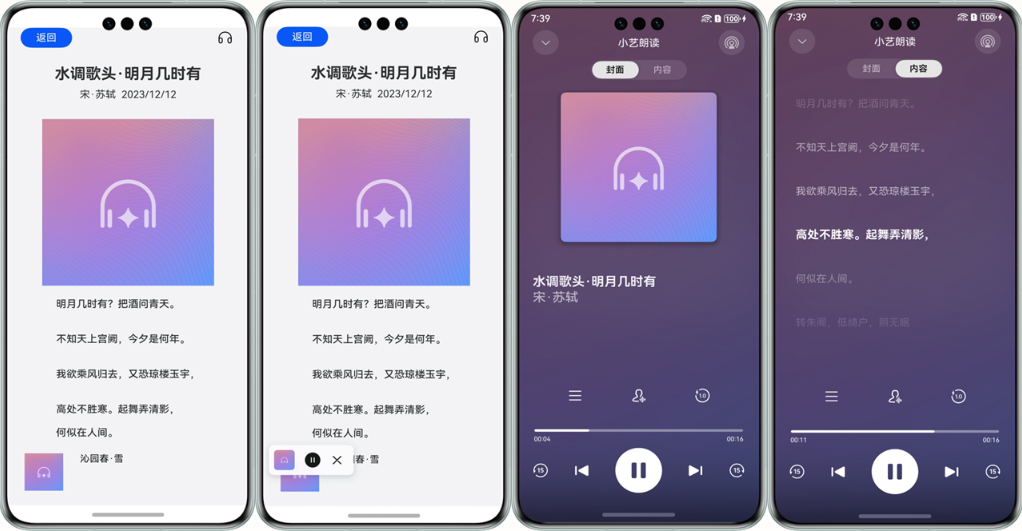
朗读控件适用于用户不方便查看屏幕文字的场景,例如朗读新闻资讯。效果如下图所示:
接口说明
| 接口名 | 描述 |
|---|---|
init(context: BaseContext, readParams: ReaderParam): Promise<void> |
初始化 TextReader |
start(readInfoList: ReadInfo[], articleId?: string): Promise<void> |
启动 TextReader |
on(type: string, callback: function): void |
注册事件回调 |
ReaderParam(isVoiceBrandVisible: boolean, businessBrandInfo?: BusinessBrandInfo, isFastForward?: boolean, keepBackgroundRunning?: boolean, online?: number) |
朗读参数配置 |
具体 API 说明详见API 参考
开发步骤
1. 配置 EntryAbility.ets
首先,咱们需要在EntryAbility中设置窗口管理器,这是使用朗读控件的基础:
import { WindowManager } from "@kit.SpeechKit";
import { ConfigurationConstant } from "@kit.AbilityKit";

export default class EntryAbility extends UIAbility {
  onCreate(): void {
    // 设置颜色模式跟随系统
    this.context
      .getApplicationContext()
      .setColorMode(ConfigurationConstant.ColorMode.COLOR_MODE_NOT_SET);
  }

  onWindowStageCreate(windowStage: window.WindowStage): void {
    // 设置窗口管理器(关键步骤!)
    WindowManager.setWindowStage(windowStage);

    windowStage.loadContent("pages/Index", (err, data) => {
      if (err) {
        console.error(
          `加载内容失败:${err.code}, ${err.message}`
        );
        return;
      }
      console.info(
        `加载内容成功:${JSON.stringify(data)}`
      );
    });
  }
}
2. 实现朗读控件页面
接下来,在Index.ets中实现朗读控件的基本功能:
import { TextReader, TextReaderIcon, ReadStateCode } from '@kit.SpeechKit';

@Entry
@Component
struct Index {
  // 朗读状态
  @State readState: ReadStateCode = ReadStateCode.WAITING;
  // 初始化状态
  @State isInit: boolean = false;
  // 朗读文章列表
  @State readInfoList: TextReader.ReadInfo[] = [];
  // 当前选中的文章
  @State selectedReadInfo: TextReader.ReadInfo = this.readInfoList[0];

  aboutToAppear() {
    // 初始化文章数据(这里用苏东坡的《水调歌头》做示例~)
    this.readInfoList = [{
      id: '001',
      title: { text: '水调歌头.明月几时有', isClickable: true },
      author: { text: '宋.苏轼', isClickable: true },
      date: { text: '2024/01/01', isClickable: false },
      bodyInfo: '明月几时有?把酒问青天。不知天上宫阙,今夕是何年。我欲乘风归去,又恐琼楼玉宇,高处不胜寒。起舞弄清影,何似在人间。转朱阁,低绮户,照无眠。不应有恨,何事长向别时圆?人有悲欢离合,月有阴晴圆缺,此事古难全。但愿人长久,千里共婵娟。'
    }];
    this.selectedReadInfo = this.readInfoList[0];
    // 初始化朗读控件
    this.init();
  }

  // 初始化朗读控件
  async init() {
    const readerParam: TextReader.ReaderParam = {
      isVoiceBrandVisible: true, // 是否显示语音品牌
      businessBrandInfo: {        // 业务品牌信息
        panelName: '小艺朗读',     // 面板名称
        panelIcon: $r('app.media.startIcon') // 面板图标
      }
    };

    try {
      const context = this.getUIContext().getHostContext();
      if (context) {
        await TextReader.init(context, readerParam);
        this.isInit = true;
        // 设置事件监听
        this.setActionListener();
      }
    } catch (err) {
      console.error(`朗读控件初始化失败:${err.code}, ${err.message}`);
    }
  }

  // 设置事件监听
  setActionListener() {
    // 状态变化监听
    TextReader.on('stateChange', (state: TextReader.ReadState) => {
      if (this.selectedReadInfo?.id === state.id) {
        this.readState = state.state;
      } else {
        this.readState = ReadStateCode.WAITING;
      }
    });

    // 加载更多监听
    TextReader.on('requestMore', () => {
      TextReader.loadMore([], true);
    });
  }

  build() {
    Column() {
      TextReaderIcon({ readState: this.readState }) // 朗读控件图标
        .margin({ right: 20 })
        .width(32)
        .height(32)
        .onClick(async () => {
          try {
            // 启动朗读
            await TextReader.start(this.readInfoList, this.selectedReadInfo?.id);
          } catch (err) {
            console.error(`朗读启动失败:${err.code}, ${err.message}`);
          }
        })

      // 文章内容展示
      Text(this.selectedReadInfo.bodyInfo)
        .fontSize(16)
        .margin(20)
        .textAlign(TextAlign.Start)
    }
    .height('100%')
  }
}
3. 配置长时任务(可选)
如果需要让应用在后台继续朗读(比如用户切到别的APP),咱们需要配置长时任务权限:
在module.json5中添加权限配置:
{
  "module": {
    "requestPermissions": [
      {
        "name": "ohos.permission.KEEP_BACKGROUND_RUNNING",
        "usedScene": {
          "abilities": ["FormAbility"],
          "when": "inuse"
        }
      }
    ],
    "abilities": [
      {
        "backgroundModes": ["audioPlayback"]
        // 其他配置...
      }
    ]
  }
}
然后在初始化参数中启用后台运行:
async init() {
  const readerParam: TextReader.ReaderParam = {
    // 其他配置...
    keepBackgroundRunning: true // 启用后台运行
  };
}
三、2in1设备适配
对于2in1设备(平板/笔记本二合一),咱们需要特殊适配:
1. 创建新Ability承载主窗
import { TextReader, WindowManager } from "@kit.SpeechKit";
import { commonEventManager } from "@kit.BasicServicesKit";

export default class SubAbility extends UIAbility {
  private link: SubscribedAbstractProperty<boolean> =
    AppStorage.link("isReadyToStart");

  onWindowStageCreate(windowStage: window.WindowStage): void {
    WindowManager.setWindowStage(windowStage);

    // 发送事件通知主Ability
    let eventData: emitter.EventData = {
      data: { state: "publish" },
    };
    emitter.emit("onLoadSubAbility", eventData);

    this.link.set(true); // 设置就绪状态
  }

  async onWindowStageDestroy(): Promise<void> {
    try {
      TextReader.hidePanel();
      await TextReader.stop();
      this.link.set(false); // 重置就绪状态
    } catch (e) {
      console.error(`销毁窗口失败:${e}`);
    }
  }
}
2. 配置module.json5
{
  "abilities": [
    {
      "name": "SubAbility",
      "srcEntry": "./ets/entryability/SubAbility.ets",
      "description": "$string:SubAbility_desc",
      "icon": "$media:icon",
      "label": "$string:EntryAbility_label",
      "startWindowIcon": "$media:icon",
      "startWindowBackground": "$color:start_window_background",
      "supportWindowMode": ["floating"],
      "maxWindowWidth": 1158,
      "minWindowWidth": 1158,
      "maxWindowHeight": 772,
      "minWindowHeight": 772
    }
  ]
}
3. 在主页面中判断设备类型
aboutToAppear() {
  AppStorage.setOrCreate('isReadyToStart', false);

  // 检查设备类型并适配
  if (deviceInfo.deviceType === '2in1') {
    let context = this.getUIContext().getHostContext();
    context?.eventHub.emit('onShowPanel');
  }
}
四、🥦 西兰花警告
- 权限问题别忽视:如果需要后台朗读功能,一定要申请
KEEP_BACKGROUND_RUNNING权限! - 设备限制记清楚:模拟器暂不支持,测试时请用真实设备~
- 地区限制要注意:仅支持中国大陆地区,海外用户暂时用不了哦
- 音频参数别搞错:AI字幕控件对音频格式要求很严格,必须是16kHz、16位、单声道的PCM编码!
五、相关资源
我是盐焗西兰花,
不教理论,只给你能跑的代码和避坑指南。
下期见!🥦

有“AI”的1024 = 2048,欢迎大家加入2048 AI社区
更多推荐
 19
19 0
0- 0


 已为社区贡献3条内容

所有评论(0)