Flutter&OpenHarmony进度指示器组件开发
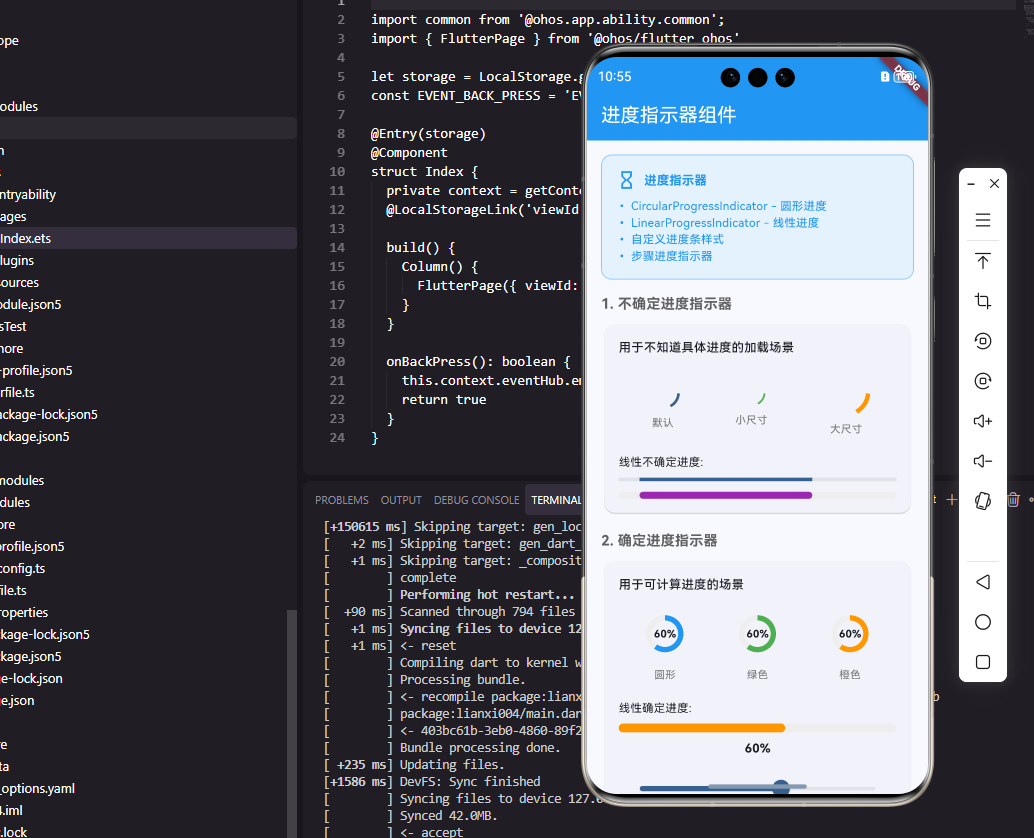
本文介绍了Flutter和OpenHarmony平台上实现进度指示器的多种方法。Flutter提供了CircularProgressIndicator圆形进度指示器和LinearProgressIndicator线性进度条,支持不确定进度和确定进度两种模式,可自定义颜色、粗细等样式。OpenHarmony通过Progress组件实现多种类型的进度显示,包括线性、环形等,支持百分比数值显示。文章还演
前言
进度指示器是应用中反馈操作状态的重要组件,它告诉用户当前正在进行的操作以及完成进度。在笔记应用中,文件上传、数据同步、批量操作等场景都需要使用进度指示器。一个设计良好的进度指示器应该清晰地传达进度信息,同时不过度干扰用户的操作。本文将详细介绍如何在Flutter和OpenHarmony平台上实现各种进度指示器组件。
Flutter CircularProgressIndicator
Flutter提供了圆形进度指示器组件。
class LoadingWidget extends StatelessWidget {
Widget build(BuildContext context) {
return Center(
child: CircularProgressIndicator(
strokeWidth: 3,
valueColor: AlwaysStoppedAnimation<Color>(Colors.blue),
),
);
}
}
CircularProgressIndicator是Material风格的圆形加载指示器。不设置value属性时显示为不确定进度的旋转动画,适合不知道具体进度的加载场景。strokeWidth设置圆环的宽度,valueColor设置颜色。AlwaysStoppedAnimation用于设置固定颜色,也可以使用动画颜色。这种简洁的加载指示器适合大多数加载场景。
CircularProgressIndicator(
  value: _progress,
  strokeWidth: 4,
  backgroundColor: Colors.grey.shade200,
  valueColor: AlwaysStoppedAnimation<Color>(Colors.green),
)
设置value属性后显示确定进度,value范围是0.0到1.0。backgroundColor设置背景圆环的颜色,与进度颜色形成对比。确定进度的指示器适合文件上传、下载等可以计算进度的场景。用户可以清楚地看到操作完成了多少,还需要等待多久。
Flutter LinearProgressIndicator
线性进度指示器以条形显示进度。
Column(
  children: [
    Text('同步中...'),
    SizedBox(height: 8),
    LinearProgressIndicator(
      value: _syncProgress,
      backgroundColor: Colors.grey.shade200,
      valueColor: AlwaysStoppedAnimation<Color>(Colors.blue),
      minHeight: 6,
    ),
    SizedBox(height: 4),
    Text('${(_syncProgress * 100).toInt()}%'),
  ],
)
LinearProgressIndicator是线性进度条,适合在有限宽度内显示进度。minHeight设置进度条的高度。配合文字说明和百分比显示,可以提供完整的进度信息。线性进度条常用于页面顶部或对话框中,不会占用太多空间。
LinearProgressIndicator(
  borderRadius: BorderRadius.circular(4),
  minHeight: 8,
  value: _progress,
  backgroundColor: Colors.grey.shade300,
  valueColor: AlwaysStoppedAnimation<Color>(
    _progress < 0.3 ? Colors.red :
    _progress < 0.7 ? Colors.orange : Colors.green,
  ),
)
进度条可以根据进度值显示不同的颜色,低进度显示红色,中等进度显示橙色,高进度显示绿色。borderRadius设置圆角使进度条更加美观。这种动态颜色变化可以直观地传达进度状态,让用户对完成情况有更清晰的认知。
OpenHarmony进度指示器
OpenHarmony提供了Progress组件实现进度显示。
@Entry
@Component
struct LoadingPage {
  @State isLoading: boolean = true

  build() {
    Column() {
      if (this.isLoading) {
        LoadingProgress()
          .width(50)
          .height(50)
          .color('#1890FF')

        Text('加载中...')
          .fontSize(14)
          .fontColor('#666666')
          .margin({ top: 12 })
      }
    }
    .width('100%')
    .height('100%')
    .justifyContent(FlexAlign.Center)
  }
}
LoadingProgress是OpenHarmony提供的加载动画组件,显示为旋转的圆形指示器。width和height设置尺寸,color设置颜色。配合条件渲染,可以在加载完成后隐藏指示器。这种不确定进度的指示器适合网络请求、数据加载等场景。
Progress({ value: this.currentProgress, total: 100, type: ProgressType.Linear })
  .width('100%')
  .height(8)
  .color('#1890FF')
  .backgroundColor('#E0E0E0')
  .style({ strokeWidth: 8 })
Progress组件支持多种类型的进度显示。value是当前进度值,total是总进度值,type指定进度条类型。ProgressType.Linear是线性进度条,还支持Ring环形、Eclipse月食形等类型。style属性可以进一步自定义样式。这种声明式的API使得进度条的配置非常直观。
Progress({ value: this.progress, total: 100, type: ProgressType.Ring })
  .width(100)
  .height(100)
  .color('#52C41A')
  .backgroundColor('#F0F0F0')
  .style({ strokeWidth: 10 })

Text(this.progress + '%')
  .fontSize(20)
  .fontWeight(FontWeight.Bold)
环形进度条适合在中心显示百分比数字。ProgressType.Ring创建环形进度条,strokeWidth设置环的宽度。将Text组件叠加在Progress上方可以显示具体的百分比数值。这种设计在文件上传、任务完成度等场景中非常常见。
自定义进度指示器
有时需要自定义进度指示器以匹配应用风格。
class CustomProgressBar extends StatelessWidget {
final double progress;
final Color backgroundColor;
final Color progressColor;
final double height;
const CustomProgressBar({
required this.progress,
this.backgroundColor = Colors.grey,
this.progressColor = Colors.blue,
this.height = 8,
});
Widget build(BuildContext context) {
return Container(
height: height,
decoration: BoxDecoration(
color: backgroundColor,
borderRadius: BorderRadius.circular(height / 2),
),
child: FractionallySizedBox(
alignment: Alignment.centerLeft,
widthFactor: progress.clamp(0.0, 1.0),
child: Container(
decoration: BoxDecoration(
color: progressColor,
borderRadius: BorderRadius.circular(height / 2),
),
),
),
);
}
}
自定义进度条使用Container和FractionallySizedBox实现。外层Container作为背景,FractionallySizedBox根据progress值控制内层Container的宽度比例。clamp确保进度值在有效范围内。圆角设置为高度的一半形成胶囊形状。这种自定义方式可以完全控制进度条的外观。
class StepProgressIndicator extends StatelessWidget {
final int currentStep;
final int totalSteps;
const StepProgressIndicator({
required this.currentStep,
required this.totalSteps,
});
Widget build(BuildContext context) {
return Row(
children: List.generate(totalSteps, (index) {
final isCompleted = index < currentStep;
final isCurrent = index == currentStep;
return Expanded(
child: Container(
height: 4,
margin: EdgeInsets.symmetric(horizontal: 2),
decoration: BoxDecoration(
color: isCompleted ? Colors.blue :
isCurrent ? Colors.blue.shade200 : Colors.grey.shade300,
borderRadius: BorderRadius.circular(2),
),
),
);
}),
);
}
}
步骤进度指示器将进度分为多个步骤显示,适合多步骤流程的场景。List.generate根据总步骤数生成进度段,每段根据当前步骤显示不同的颜色。已完成的步骤显示主色,当前步骤显示浅色,未完成的步骤显示灰色。这种设计让用户清楚地知道当前处于哪个步骤。
带动画的进度更新
进度更新时添加动画可以提升视觉效果。
class AnimatedProgressBar extends StatefulWidget {
final double progress;
const AnimatedProgressBar({required this.progress});
_AnimatedProgressBarState createState() => _AnimatedProgressBarState();
}
class _AnimatedProgressBarState extends State<AnimatedProgressBar>
with SingleTickerProviderStateMixin {
late AnimationController _controller;
late Animation<double> _animation;
double _oldProgress = 0;
void initState() {
super.initState();
_controller = AnimationController(
duration: Duration(milliseconds: 300),
vsync: this,
);
_animation = Tween<double>(begin: 0, end: widget.progress).animate(_controller);
_controller.forward();
}
void didUpdateWidget(AnimatedProgressBar oldWidget) {
super.didUpdateWidget(oldWidget);
if (oldWidget.progress != widget.progress) {
_oldProgress = oldWidget.progress;
_animation = Tween<double>(begin: _oldProgress, end: widget.progress)
.animate(_controller);
_controller.forward(from: 0);
}
}
Widget build(BuildContext context) {
return AnimatedBuilder(
animation: _animation,
builder: (context, child) {
return CustomProgressBar(progress: _animation.value);
},
);
}
}
AnimatedProgressBar在进度值变化时添加平滑的过渡动画。didUpdateWidget检测progress属性的变化,创建从旧值到新值的动画。AnimatedBuilder监听动画并重建进度条。这种动画效果让进度更新更加流畅自然,提升用户体验。
总结
进度指示器是应用中反馈操作状态的重要组件。Flutter和OpenHarmony都提供了丰富的进度指示器组件,包括圆形、线性、环形等多种类型。开发者可以根据场景选择合适的类型,并通过自定义样式和动画效果提升视觉体验。良好的进度反馈可以减少用户的等待焦虑,提升应用的整体体验。

有“AI”的1024 = 2048,欢迎大家加入2048 AI社区
更多推荐



 5
5 0
0- 0


 已为社区贡献3条内容

所有评论(0)