Flutter & OpenHarmony 运动App训练计划组件开发
本文介绍了Flutter与OpenHarmony平台上训练计划组件的实现方案。Flutter部分设计了层级化的训练计划模型(TrainingPlan)和训练课程模型(TrainingSession),支持计划创建、进度追踪和智能推荐功能。OpenHarmony部分则使用关系型数据库存储训练计划数据,包含计划信息和完成记录表。系统实现了从计划创建到执行跟踪的完整流程,支持根据不同用户水平和训练目标提
前言
训练计划是帮助用户系统性提升运动能力的核心功能。通过科学的训练安排,用户可以循序渐进地达成运动目标,避免过度训练或训练不足。本文将详细介绍如何在Flutter与OpenHarmony平台上实现专业的训练计划组件,包括计划创建、课程安排、进度追踪、智能调整等功能模块的完整实现方案。
训练计划的设计需要考虑运动科学原理,包括渐进超负荷、恢复周期、训练多样性等。我们需要为不同水平的用户提供适合的训练方案,并根据用户的完成情况动态调整计划难度。
Flutter训练计划模型
class TrainingPlan {
  final String id;
  final String name;
  final String description;
  final String level;
  final int durationWeeks;
  final String goal;
  final List<TrainingWeek> weeks;
  final DateTime startDate;
  final int completedSessions;

  TrainingPlan({
    required this.id,
    required this.name,
    required this.description,
    required this.level,
    required this.durationWeeks,
    required this.goal,
    required this.weeks,
    required this.startDate,
    this.completedSessions = 0,
  });

  int get totalSessions => weeks.fold(0, (sum, w) => sum + w.sessions.length);
  double get progressPercentage => totalSessions > 0 ? completedSessions / totalSessions * 100 : 0;
  int get currentWeek => DateTime.now().difference(startDate).inDays ~/ 7 + 1;

  TrainingSession? get todaySession {
    int dayOfWeek = DateTime.now().weekday;
    if (currentWeek <= weeks.length) {
      return weeks[currentWeek - 1].sessions.firstWhere(
        (s) => s.dayOfWeek == dayOfWeek,
        orElse: () => TrainingSession.rest(),
      );
    }
    return null;
  }
}

class TrainingWeek {
  final int weekNumber;
  final String focus;
  final List<TrainingSession> sessions;

  TrainingWeek({required this.weekNumber, required this.focus, required this.sessions});
}
训练计划模型定义了完整的训练方案结构。计划包含名称、描述、难度级别、持续周数和目标。weeks列表包含每周的训练安排。progressPercentage计算整体完成进度,currentWeek根据开始日期计算当前是第几周。todaySession属性返回今天应该进行的训练课程,如果今天是休息日则返回休息课程。这种层级结构清晰地组织了训练计划的所有内容。
Flutter训练课程模型
class TrainingSession {
final String id;
final String name;
final String type;
final int dayOfWeek;
final Duration targetDuration;
final double? targetDistance;
final String? targetPace;
final List<TrainingInterval> intervals;
final bool isCompleted;
final String description;
TrainingSession({
required this.id,
required this.name,
required this.type,
required this.dayOfWeek,
required this.targetDuration,
this.targetDistance,
this.targetPace,
this.intervals = const [],
this.isCompleted = false,
this.description = '',
});
factory TrainingSession.rest() {
return TrainingSession(
id: 'rest',
name: '休息日',
type: 'rest',
dayOfWeek: 0,
targetDuration: Duration.zero,
description: '今天是休息日,让身体充分恢复',
);
}
String get typeIcon {
switch (type) {
case 'easy': return '🚶';
case 'tempo': return '🏃';
case 'interval': return '⚡';
case 'long': return '🏃♂️';
case 'rest': return '😴';
default: return '🏃';
}
}
}
class TrainingInterval {
final String name;
final Duration duration;
final String intensity;
TrainingInterval({required this.name, required this.duration, required this.intensity});
}
训练课程模型定义了单次训练的详细内容。type区分不同类型的训练:轻松跑、节奏跑、间歇跑、长距离跑和休息。targetDuration、targetDistance和targetPace定义训练目标。intervals列表用于间歇训练,定义每个间歇段的时长和强度。rest工厂方法创建休息日课程。typeIcon属性为不同类型返回对应的emoji图标。这种模型支持从简单的持续跑到复杂的间歇训练各种课程类型。
OpenHarmony训练计划存储
import relationalStore from '@ohos.data.relationalStore';

class TrainingPlanStorage {
  private rdbStore: relationalStore.RdbStore | null = null;

  async initDatabase(context: Context): Promise<void> {
    const config: relationalStore.StoreConfig = {
      name: 'training.db',
      securityLevel: relationalStore.SecurityLevel.S1,
    };
    this.rdbStore = await relationalStore.getRdbStore(context, config);

    await this.rdbStore.executeSql(
      'CREATE TABLE IF NOT EXISTS plans (id TEXT PRIMARY KEY, name TEXT, data TEXT, start_date TEXT, completed_sessions INTEGER)'
    );

    await this.rdbStore.executeSql(
      'CREATE TABLE IF NOT EXISTS session_records (id TEXT PRIMARY KEY, plan_id TEXT, session_id TEXT, completed_date TEXT, actual_duration INTEGER, actual_distance REAL)'
    );
  }

  async savePlan(plan: object): Promise<void> {
    if (this.rdbStore) {
      let valueBucket = {
        'id': plan['id'],
        'name': plan['name'],
        'data': JSON.stringify(plan),
        'start_date': plan['startDate'],
        'completed_sessions': 0,
      };
      await this.rdbStore.insert('plans', valueBucket);
    }
  }

  async markSessionCompleted(planId: string, sessionId: string, duration: number, distance: number): Promise<void> {
    if (this.rdbStore) {
      let recordBucket = {
        'id': Date.now().toString(),
        'plan_id': planId,
        'session_id': sessionId,
        'completed_date': new Date().toISOString(),
        'actual_duration': duration,
        'actual_distance': distance,
      };
      await this.rdbStore.insert('session_records', recordBucket);

      let predicates = new relationalStore.RdbPredicates('plans');
      predicates.equalTo('id', planId);
      let resultSet = await this.rdbStore.query(predicates, ['completed_sessions']);
      if (resultSet.goToFirstRow()) {
        let completed = resultSet.getLong(resultSet.getColumnIndex('completed_sessions'));
        await this.rdbStore.update({ 'completed_sessions': completed + 1 }, predicates);
      }
      resultSet.close();
    }
  }
}
训练计划存储服务管理计划和完成记录。plans表存储计划基本信息和完整数据的JSON字符串。session_records表记录每次训练的完成情况,包括实际时长和距离。markSessionCompleted方法在用户完成训练后调用,插入完成记录并更新计划的完成课程数。这种设计支持计划进度追踪和训练数据分析。
Flutter训练计划卡片
class TrainingPlanCard extends StatelessWidget {
final TrainingPlan plan;
final VoidCallback onTap;
const TrainingPlanCard({Key? key, required this.plan, required this.onTap}) : super(key: key);
Widget build(BuildContext context) {
return Card(
margin: EdgeInsets.symmetric(horizontal: 16, vertical: 8),
child: InkWell(
onTap: onTap,
borderRadius: BorderRadius.circular(12),
child: Padding(
padding: EdgeInsets.all(16),
child: Column(
crossAxisAlignment: CrossAxisAlignment.start,
children: [
Row(
mainAxisAlignment: MainAxisAlignment.spaceBetween,
children: [
Text(plan.name, style: TextStyle(fontSize: 18, fontWeight: FontWeight.bold)),
Container(
padding: EdgeInsets.symmetric(horizontal: 8, vertical: 4),
decoration: BoxDecoration(
color: _getLevelColor(plan.level),
borderRadius: BorderRadius.circular(12),
),
child: Text(plan.level, style: TextStyle(color: Colors.white, fontSize: 12)),
),
],
),
SizedBox(height: 8),
Text(plan.description, style: TextStyle(color: Colors.grey), maxLines: 2),
SizedBox(height: 12),
Row(
children: [
Icon(Icons.calendar_today, size: 16, color: Colors.grey),
SizedBox(width: 4),
Text('${plan.durationWeeks}周', style: TextStyle(color: Colors.grey)),
SizedBox(width: 16),
Icon(Icons.flag, size: 16, color: Colors.grey),
SizedBox(width: 4),
Text(plan.goal, style: TextStyle(color: Colors.grey)),
],
),
SizedBox(height: 12),
LinearProgressIndicator(
value: plan.progressPercentage / 100,
backgroundColor: Colors.grey[200],
),
SizedBox(height: 4),
Text('进度: ${plan.progressPercentage.toStringAsFixed(0)}% (${plan.completedSessions}/${plan.totalSessions}课)', style: TextStyle(fontSize: 12, color: Colors.grey)),
],
),
),
),
);
}
Color _getLevelColor(String level) {
switch (level) {
case '初级': return Colors.green;
case '中级': return Colors.orange;
case '高级': return Colors.red;
default: return Colors.blue;
}
}
}
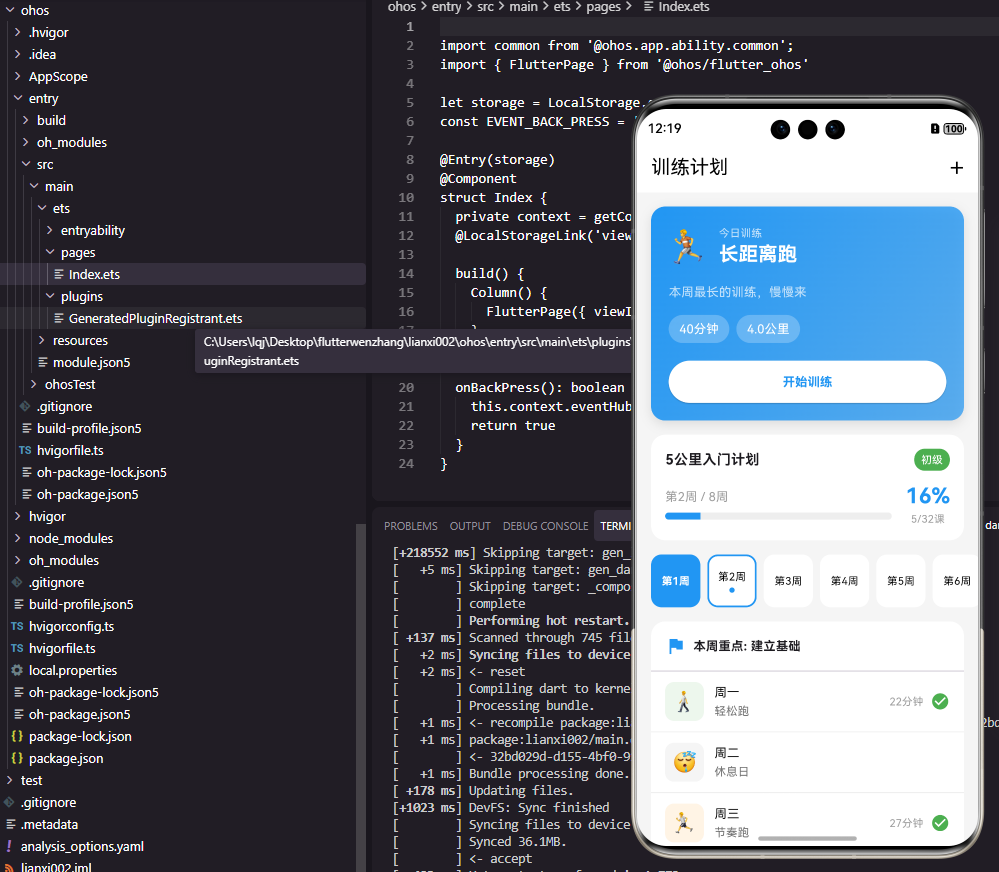
训练计划卡片展示计划的概览信息。顶部显示计划名称和难度级别标签,中间显示描述、周数和目标,底部显示进度条和完成情况。难度级别使用不同颜色区分,初级绿色、中级橙色、高级红色。进度条直观展示计划完成进度。这种卡片设计让用户快速了解计划的基本信息和当前状态,点击可以查看详细的周计划和课程安排。
Flutter今日训练组件
class TodayTrainingCard extends StatelessWidget {
final TrainingSession? session;
final VoidCallback onStart;
const TodayTrainingCard({Key? key, this.session, required this.onStart}) : super(key: key);
Widget build(BuildContext context) {
if (session == null) {
return Card(
margin: EdgeInsets.all(16),
child: Padding(
padding: EdgeInsets.all(24),
child: Center(child: Text('暂无训练计划', style: TextStyle(color: Colors.grey))),
),
);
}
bool isRest = session!.type == 'rest';
return Card(
margin: EdgeInsets.all(16),
child: Container(
decoration: BoxDecoration(
gradient: isRest ? null : LinearGradient(
colors: [Colors.blue, Colors.blueAccent],
begin: Alignment.topLeft,
end: Alignment.bottomRight,
),
borderRadius: BorderRadius.circular(12),
),
child: Padding(
padding: EdgeInsets.all(20),
child: Column(
crossAxisAlignment: CrossAxisAlignment.start,
children: [
Row(
children: [
Text(session!.typeIcon, style: TextStyle(fontSize: 32)),
SizedBox(width: 12),
Column(
crossAxisAlignment: CrossAxisAlignment.start,
children: [
Text('今日训练', style: TextStyle(color: isRest ? Colors.grey : Colors.white70)),
Text(session!.name, style: TextStyle(fontSize: 20, fontWeight: FontWeight.bold, color: isRest ? Colors.black : Colors.white)),
],
),
],
),
SizedBox(height: 16),
Text(session!.description, style: TextStyle(color: isRest ? Colors.grey : Colors.white70)),
if (!isRest) ...[
SizedBox(height: 16),
Row(
children: [
if (session!.targetDuration.inMinutes > 0)
_buildTargetChip('${session!.targetDuration.inMinutes}分钟'),
if (session!.targetDistance != null)
_buildTargetChip('${session!.targetDistance}公里'),
if (session!.targetPace != null)
_buildTargetChip('配速${session!.targetPace}'),
],
),
SizedBox(height: 16),
SizedBox(
width: double.infinity,
child: ElevatedButton(
onPressed: session!.isCompleted ? null : onStart,
style: ElevatedButton.styleFrom(backgroundColor: Colors.white, foregroundColor: Colors.blue),
child: Text(session!.isCompleted ? '已完成' : '开始训练'),
),
),
],
],
),
),
),
);
}
Widget _buildTargetChip(String text) {
return Container(
margin: EdgeInsets.only(right: 8),
padding: EdgeInsets.symmetric(horizontal: 12, vertical: 6),
decoration: BoxDecoration(color: Colors.white24, borderRadius: BorderRadius.circular(16)),
child: Text(text, style: TextStyle(color: Colors.white)),
);
}
}
今日训练组件突出显示当天应该进行的训练课程。使用渐变背景和大图标吸引用户注意。显示训练类型、名称、描述和目标参数。休息日使用普通样式,训练日使用蓝色渐变背景。底部的开始按钮引导用户开始训练,已完成的课程按钮变为禁用状态。这种设计让用户打开应用就能看到今天的训练任务,降低了开始训练的门槛。
OpenHarmony训练提醒服务
import reminderAgentManager from '@ohos.reminderAgentManager';

class TrainingReminderService {
  async setTrainingReminder(session: object, hour: number, minute: number): Promise<number> {
    let reminderRequest: reminderAgentManager.ReminderRequestAlarm = {
      reminderType: reminderAgentManager.ReminderType.REMINDER_TYPE_ALARM,
      hour: hour,
      minute: minute,
      daysOfWeek: [session['dayOfWeek']],
      title: '训练提醒',
      content: `今天的训练: ${session['name']}`,
      ringDuration: 10,
      snoozeTimes: 1,
      snoozeInterval: 10,
    };

    return await reminderAgentManager.publishReminder(reminderRequest);
  }

  async cancelReminder(reminderId: number): Promise<void> {
    await reminderAgentManager.cancelReminder(reminderId);
  }
}
训练提醒服务在训练日提醒用户进行训练。根据课程的dayOfWeek设置提醒的重复日期,确保只在训练日提醒。提醒内容包含当天的训练名称,帮助用户了解训练内容。这种提醒机制帮助用户坚持训练计划,不会因为忘记而错过训练。
Flutter周计划视图
class WeekPlanView extends StatelessWidget {
final TrainingWeek week;
final Function(TrainingSession) onSessionTap;
const WeekPlanView({Key? key, required this.week, required this.onSessionTap}) : super(key: key);
Widget build(BuildContext context) {
List<String> dayNames = ['', '周一', '周二', '周三', '周四', '周五', '周六', '周日'];
return Column(
crossAxisAlignment: CrossAxisAlignment.start,
children: [
Padding(
padding: EdgeInsets.all(16),
child: Column(
crossAxisAlignment: CrossAxisAlignment.start,
children: [
Text('第${week.weekNumber}周', style: TextStyle(fontSize: 18, fontWeight: FontWeight.bold)),
Text('重点: ${week.focus}', style: TextStyle(color: Colors.grey)),
],
),
),
...List.generate(7, (index) {
int day = index + 1;
var session = week.sessions.firstWhere(
(s) => s.dayOfWeek == day,
orElse: () => TrainingSession.rest()..dayOfWeek == day,
);
return ListTile(
leading: Container(
width: 40,
height: 40,
decoration: BoxDecoration(
color: session.type == 'rest' ? Colors.grey[200] : Colors.blue.withOpacity(0.1),
borderRadius: BorderRadius.circular(8),
),
child: Center(child: Text(session.typeIcon)),
),
title: Text(dayNames[day]),
subtitle: Text(session.name),
trailing: session.isCompleted ? Icon(Icons.check_circle, color: Colors.green) : null,
onTap: () => onSessionTap(session),
);
}),
],
);
}
}
周计划视图展示一周的训练安排。顶部显示周数和本周训练重点,下方列出周一到周日的每日课程。每天显示训练类型图标、星期几和课程名称,已完成的课程显示绿色勾选。休息日使用灰色背景区分。这种视图让用户可以预览整周的训练安排,合理规划时间。点击某天可以查看该课程的详细内容。
总结
本文全面介绍了Flutter与OpenHarmony平台上训练计划组件的实现方案。从计划模型到课程安排,从进度追踪到训练提醒,涵盖了训练计划功能的各个方面。通过科学的训练安排和便捷的进度管理,我们可以帮助用户系统性地提升运动能力,实现运动目标。

有“AI”的1024 = 2048,欢迎大家加入2048 AI社区
更多推荐

 10
10 0
0- 0


 已为社区贡献3条内容

所有评论(0)