【Bugs】Failed to connect to github.com port 443 after 75003 ms: Couldn‘t connect to server(Mac 电脑)
登录你的GitHub/GitLab/Gitee等平台,进入 Settings > SSH and GPG keys(或类似选项),点击 New SSH key,将复制的公钥内容粘贴到 Key 区域,并添加标题(如 Mac_PC),然后保存。当提示设置密钥密码(passphrase)时,直接按回车跳过(不设置密码)或输入并确认一个密码(推荐设置,更安全)。将复制的公钥内容粘贴到 Key 区域,并添加
背景
新买了mac电脑,想在mac电脑上使用“终端➕git clone https:…”去下载GitHub上的一个代码库。 但是,遇到:fatal: unable to access 'https://github.com/yusufkaraaslan/Skill_Seekers.git/': Failed to connect to github.com port 443 after 75003 ms: Couldn't connect to server。

解决方法
核心思路:不再使用git clone https:…的方式去下载代码库,而是改用github配置ssh密钥,然后再用git clone git@…形式去执行代码库下载。
Step-1 配置ssh
➡️➡️ 在Mac电脑上生成Git SSH密钥【链接】
-
检查并删除旧的SSH Key
打开“终端” (Terminal)。
输入cd ~/.ssh检查.ssh目录。
输入ls查看文件。如果看到 id_rsa 或 id_rsa.pub,说明有旧密钥。
(可选) 备份并删除旧的: mkdir key_backup cp id_rsa* key_backup rm id_rsa* 代码解释:创建备份目录,复制旧密钥,然后删除旧密钥。 -
生成新的SSH Key
在终端输入:ssh-keygen -t rsa -C "your_email@example.com"
代码解释:-t rsa指定生成RSA类型,-C后跟你的邮箱,用来标记密钥。
按回车键接受默认的密钥保存路径(通常是 ~/.ssh/id_rsa)。
当提示设置密钥密码(passphrase)时,直接按回车跳过(不设置密码)或输入并确认一个密码(推荐设置,更安全)。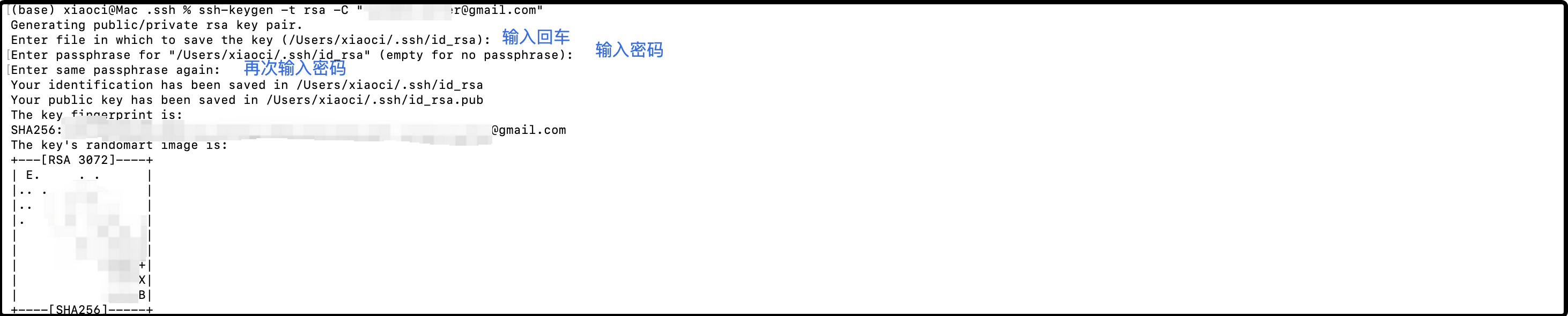
-
添加公钥到ssh-agent
启动ssh-agent:eval "$(ssh-agent -s)"
添加私钥到agent:ssh-add ~/.ssh/id_rsa
代码解释:如果设置了密码,这里会要求输入。
-
复制公钥内容并添加到Git服务商平台
在命令行输入以下指令,并复制公钥内容:cat ~/.ssh/id_rsa.pub
代码解释:cat命令会显示公钥内容,以 ssh-rsa 开头,复制全部内容。
➡️➡️ 在github上生成新的SSH密钥【github链接】
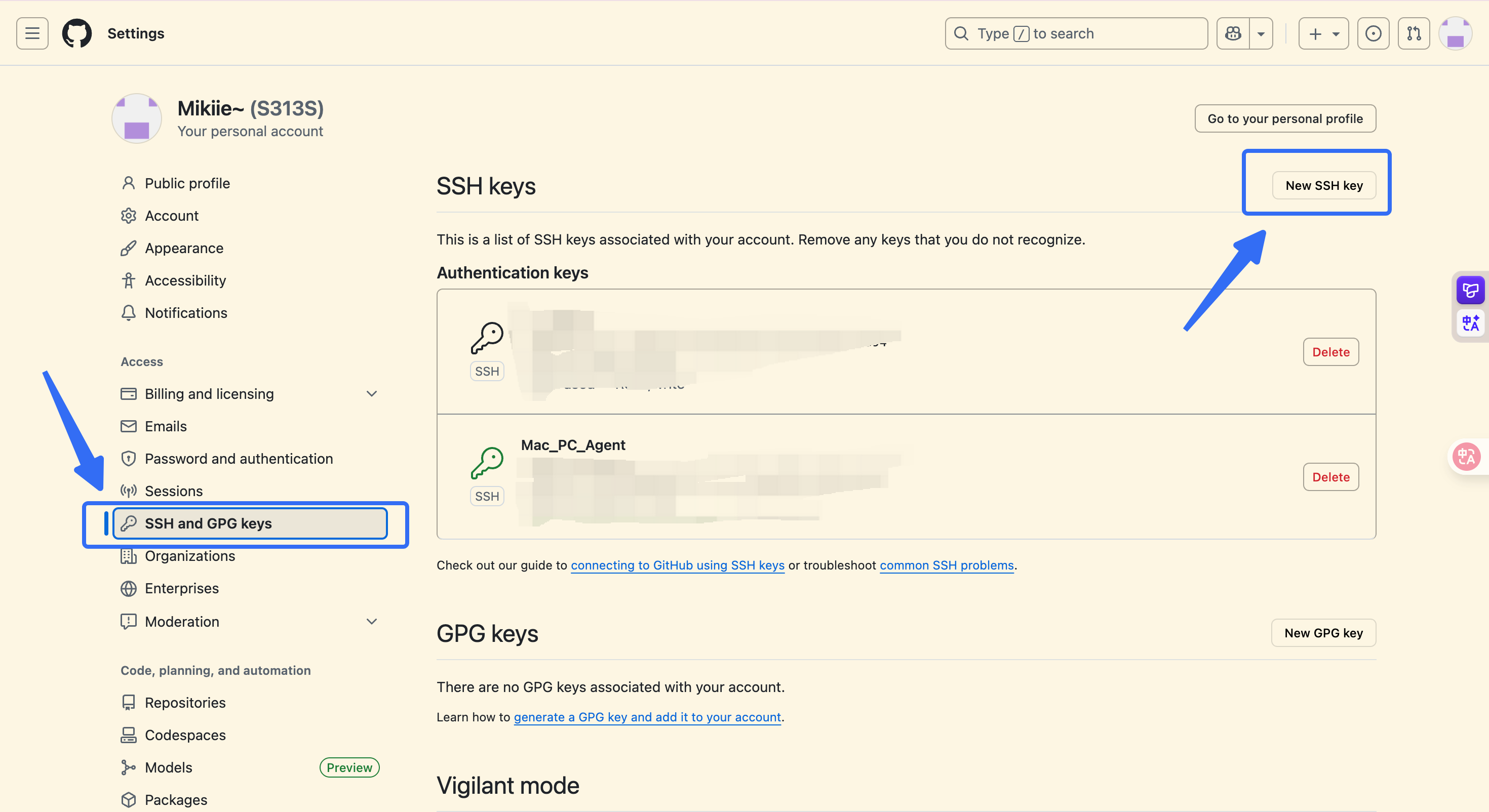
登录你的GitHub/GitLab/Gitee等平台,进入 Settings > SSH and GPG keys(或类似选项),点击 New SSH key,将复制的公钥内容粘贴到 Key 区域,并添加标题(如 Mac_PC),然后保存。
-
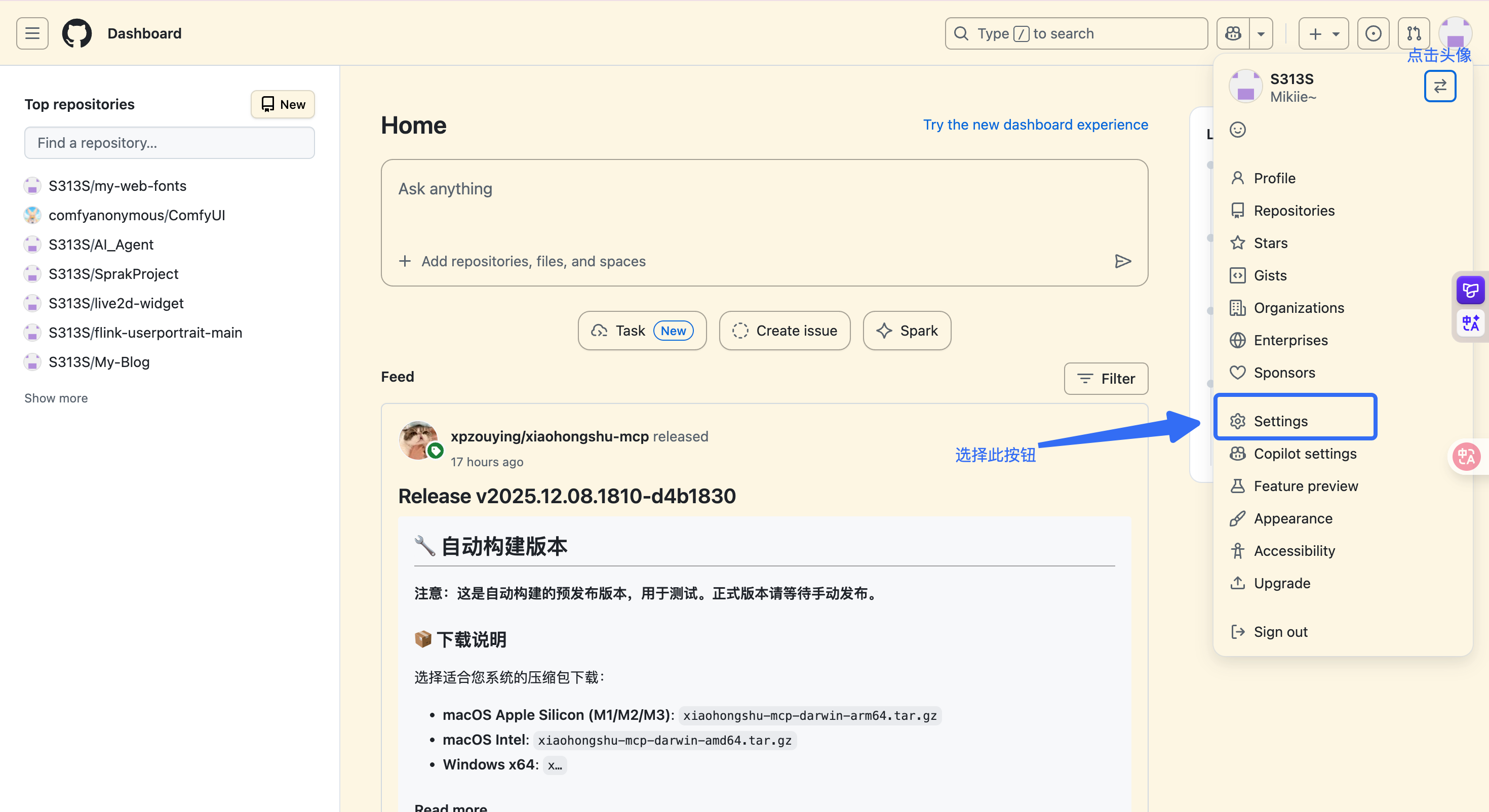
登陆GitHub平台
-
在GitHub个人界面,Settings > SSH and GPG keys(或类似选项),点击 New SSH key
-
将复制的公钥内容粘贴到 Key 区域,并添加标题(如 Mac_PC),然后保存。
➡️➡️ 返回终端,测试连接
在终端输入测试命令 (以GitHub为例):ssh -T git@github.com
首次连接会提示是否继续,输入 yes,然后按回车。如果显示 Hi username! You’ve successfully authenticated…,表示成功。
Step-2 采用git clone git@获取数据
git clone 待下载的库ssh地址,例如:git clone git@github.com:yusufkaraaslan/Skill_Seekers.git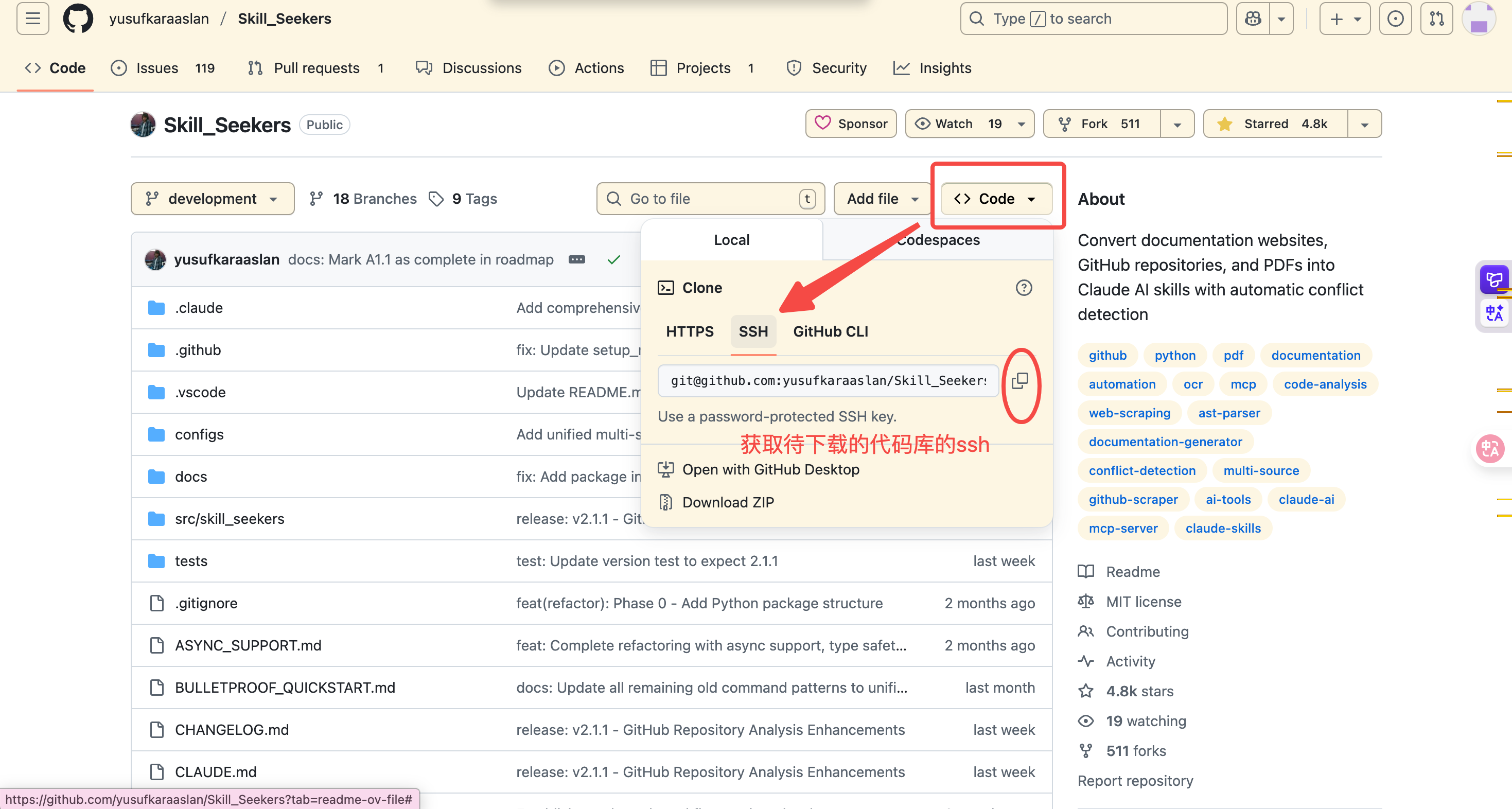

参考链接
1、mac电脑怎么生成git ssh(谷歌搜索中的AI回答很准确)
3、fatal: Not a git repository (or any of the parent directories): .git [duplicate]

有“AI”的1024 = 2048,欢迎大家加入2048 AI社区
更多推荐

 16
16 0
0- 0


 已为社区贡献2条内容

所有评论(0)