Android入门到实战(十):首页实现——从布局到逻辑解析
一. 引言
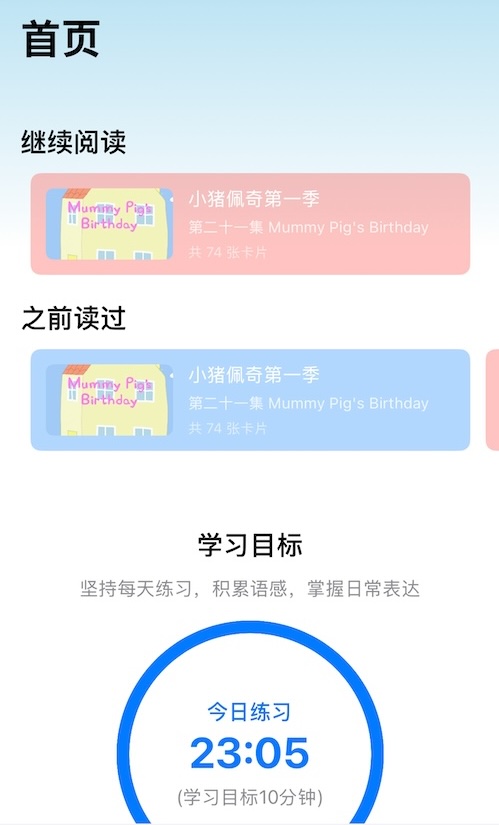
在之前的系列文章中,我们已经实现了发现页、详情页以及书架页。今天,我们要讲的是 首页的实现。首页是用户进入应用后第一眼看到的界面,它不仅要展示用户最近的阅读内容,还要提供清晰的学习目标和操作入口。
首页的核心功能包括:
- 继续阅读:展示用户最近在看的剧集或课程,横向滚动显示。
- 历史记录:展示用户之前阅读过的内容,纵向列表显示。
- 学习目标模块:展示今日学习进度,并提供“开始阅读”按钮。
在本篇文章中,我会用文字详细讲解实现思路,并穿插完整的关键代码示例,让读者既能理解逻辑,也能直接参考实现。
二. 首页布局设计
首页布局采用了 ConstraintLayout + NestedScrollView,保证整体结构清晰,并支持上下滑动。整体结构可以拆解为三部分:
1.顶部 Toolbar
- 带渐变背景,让首页顶部更有层次感
- 使用 MaterialToolbar,可以方便设置标题、图标等
2.内容区域
- 使用 NestedScrollView 包裹整体内容,保证滚动顺畅
- 内部是一个垂直的 LinearLayout,包含三个模块:
3.三个主要模块
- 继续阅读:横向 RecyclerView,展示最近一集或正在观看的剧集
- 历史记录:纵向 RecyclerView,展示最近的阅读历史
- 学习目标:包含标题、今日进度、进度圆圈和开始阅读按钮
RecyclerView 内嵌在 NestedScrollView 时,需要设置 android:nestedScrollingEnabled="false",否则滑动会出现卡顿或冲突。
下面是首页布局的XML:
<androidx.constraintlayout.widget.ConstraintLayout xmlns:android="http://schemas.android.com/apk/res/android"
    xmlns:app="http://schemas.android.com/apk/res-auto"
    xmlns:tools="http://schemas.android.com/tools"
    android:layout_width="match_parent"
    android:layout_height="match_parent"
    tools:context=".page.home.fragment.HomeFragment">

    <!--渐变-->
    <View
        android:id="@+id/header_bg"
        android:layout_width="match_parent"
        android:layout_height="match_parent"
        android:background="@drawable/home_gradient_bg" />
    <!--    导航栏-->
    <com.google.android.material.appbar.MaterialToolbar
        android:id="@+id/toolbar"
        style="@style/Widget.MaterialComponents.Toolbar"
        android:layout_width="0dp"
        android:layout_height="?attr/actionBarSize"
        android:background="@android:color/transparent"
        android:titleTextColor="@android:color/black"
        app:layout_constraintEnd_toEndOf="parent"
        app:layout_constraintStart_toStartOf="parent"
        app:layout_constraintTop_toTopOf="parent" />

    <!--    NestedScrollView-->
    <androidx.core.widget.NestedScrollView
        android:layout_width="0dp"
        android:layout_height="0dp"
        android:fillViewport="true"
        app:layout_constraintBottom_toBottomOf="parent"
        app:layout_constraintEnd_toEndOf="parent"
        app:layout_constraintStart_toStartOf="parent"
        app:layout_constraintTop_toBottomOf="@id/toolbar">


        <LinearLayout

            android:layout_width="match_parent"
            android:layout_height="wrap_content"
            android:orientation="vertical"
            android:paddingStart="24dp"
            android:paddingTop="16dp"
            android:paddingEnd="24dp"
            android:paddingBottom="16dp">

            <!--        继续阅读-->
            <LinearLayout
                android:id="@+id/continue_reading_layout"
                android:layout_width="match_parent"
                android:layout_height="wrap_content"
                android:orientation="vertical">

                <TextView
                    android:id="@+id/continue_reading_label"
                    android:layout_width="wrap_content"
                    android:layout_height="wrap_content"
                    android:text="继续阅读"
                    android:textColor="@android:color/black"
                    android:textSize="18sp"
                    android:textStyle="bold" />

                <androidx.recyclerview.widget.RecyclerView
                    android:id="@+id/continue_reading_recyclerView"
                    android:layout_width="match_parent"
                    android:layout_height="wrap_content"
                    android:layout_marginTop="8dp"
                    android:nestedScrollingEnabled="false"
                    android:overScrollMode="never"
                    app:layoutManager="androidx.recyclerview.widget.LinearLayoutManager"
                    tools:listitem="@layout/episode_item_view" />

            </LinearLayout>

            <!-- 之前读过 -->
            <LinearLayout
                android:id="@+id/history_layout"
                android:layout_width="match_parent"
                android:layout_height="wrap_content"
                android:orientation="vertical">

                <TextView
                    android:id="@+id/recommended_label"
                    android:layout_width="wrap_content"
                    android:layout_height="wrap_content"
                    android:layout_marginTop="16dp"
                    android:text="之前读过"
                    android:textColor="@android:color/black"
                    android:textSize="18sp"
                    android:textStyle="bold" />

                <androidx.recyclerview.widget.RecyclerView
                    android:id="@+id/history_recyclerView"
                    android:layout_width="match_parent"
                    android:layout_height="wrap_content"
                    android:layout_marginTop="8dp"
                    android:nestedScrollingEnabled="false"
                    android:overScrollMode="never"
                    app:layoutManager="androidx.recyclerview.widget.LinearLayoutManager"
                    tools:listitem="@layout/episode_item_view" />

            </LinearLayout>


<!--            目标-->

            <LinearLayout
                xmlns:android="http://schemas.android.com/apk/res/android"
                android:orientation="vertical"
                android:gravity="center_horizontal"
                android:padding="16dp"
                android:layout_width="match_parent"
                android:layout_height="wrap_content">

                <TextView
                    android:id="@+id/goal_title"
                    android:layout_width="wrap_content"
                    android:layout_height="wrap_content"

                    android:text="学习目标"
                    android:textSize="18sp"
                    android:textStyle="bold"/>

                <TextView
                    android:id="@+id/goal_desc"
                    android:layout_width="wrap_content"
                    android:layout_height="wrap_content"
                    android:text="坚持每天练习,积累语感,掌握日常表达"
                    android:textSize="14sp"
                    android:textColor="#888888"
                    android:layout_marginTop="4dp"/>

                <FrameLayout
                    android:layout_width="wrap_content"
                    android:layout_height="wrap_content"
                    android:layout_gravity="center"
                    android:layout_marginTop="16dp">

                    <com.example.americandramaassistantandroid.page.home.view.ReadingProgressView
                        android:id="@+id/reading_progress_view"
                        android:layout_width="200dp"
                        android:layout_height="200dp"
                        android:layout_gravity="center" />
                    <LinearLayout
                        android:layout_width="200dp"
                        android:layout_height="200dp"
                        android:orientation="vertical"
                        android:gravity="center"
                        android:layout_gravity="center">
                        <TextView
                            android:layout_width="wrap_content"
                            android:layout_height="wrap_content"
                            android:text="今日学习"
                            android:textSize="24sp"
                            android:textStyle="bold"
                            android:textColor="@android:color/black"/>
                        <TextView
                            android:id="@+id/today_reading_count"
                            android:layout_width="wrap_content"
                            android:layout_height="wrap_content"
                            android:text="0:00"
                            android:textSize="20sp"
                            android:textColor="@android:color/black"
                            android:layout_marginTop="8dp"/>
                        <TextView
                            android:layout_width="wrap_content"
                            android:layout_height="wrap_content"
                            android:text="(学习目标10分钟)"
                            android:textSize="16sp"
                            android:textColor="#888888"
                            android:layout_marginTop="4dp"/>
                    </LinearLayout>


                </FrameLayout>


                <Button
                    android:id="@+id/start_reading_button"
                    android:layout_width="match_parent"
                    android:layout_height="55dp"
                    android:text="开始阅读"
                    android:layout_marginTop="16dp"
                    android:backgroundTint="@color/blue_700"
                    android:textColor="@android:color/white"/>

            </LinearLayout>

        </LinearLayout>


    </androidx.core.widget.NestedScrollView>


</androidx.constraintlayout.widget.ConstraintLayout>
整个首页的布局逻辑清晰,每个模块都是独立的 LinearLayout,便于后续扩展或复用。
三. 首页逻辑解析(HomeFragment)
首页逻辑主要围绕 Fragment + ViewModel + RecyclerView 展开,核心任务有:
1.绑定视图
- 通过 findViewById 获取 Toolbar、RecyclerView、各个布局容器
- 初始时,如果没有数据,继续阅读和历史记录模块隐藏
2.设置 RecyclerView 和 Adapter
- 继续阅读:横向 LinearLayoutManager
- 历史记录:纵向 LinearLayoutManager
- Adapter 内部处理封面加载、标题显示、点击事件
3.获取数据并刷新 UI
- 使用 HomeViewModel 提供的 LiveData
- 观察最近一集和接下来的十集的数据变化
- 数据更新后调用 Adapter 的 updateEpisodes,并控制模块显示或隐藏
下面是 HomeFragment 的主要逻辑(核心方法):
    private fun setupView(view: View) {
        // 导航栏
        toolbar = view.findViewById<MaterialToolbar>(R.id.toolbar)
        // 继续阅读视图
        continueReadView = view.findViewById<View>(R.id.continue_reading_layout)
        continueReadRecyclerView =
            view.findViewById<RecyclerView>(R.id.continue_reading_recyclerView)
        continueReadView.isVisible = false
        // 之前读过
        historyView = view.findViewById<View>(R.id.history_layout)
        historyRecyclerView = view.findViewById<RecyclerView>(R.id.history_recyclerView)
        historyView.isVisible = false

    }

    /// 设置继续阅读RecyclerView
    private fun setupContinueReadRecyclerView() {
        continueReadRecyclerView.layoutManager =
            androidx.recyclerview.widget.LinearLayoutManager(
                requireContext(),
                RecyclerView.HORIZONTAL,
                false
            )
        val adapter = HistoryCardAdapter(
            requireContext(),
            onItemClick = { item ->
                Log.d("HomeFragment", "Item clicked: $item")
                goToCardList(item)
            },
        )
        continueReadRecyclerView.adapter = adapter

        // 监听数据变化
        viewModel.recentFirst.observe(viewLifecycleOwner) { recentFirstList ->
            var list: List<RecentEpisodeInfo> = recentFirstList

            adapter.updateEpisodes(recentFirstList)
            Log.d("HomeFragment", "RecentFirst updated: ${recentFirstList.size} items")
            // 根据数据是否为空显示或隐藏继续阅读视图
            continueReadView.isVisible = list.isNotEmpty()
        }
    }


    // 设置之前读过RecyclerView
    private fun setupHistoryRecyclerView() {
        historyRecyclerView.layoutManager =
            androidx.recyclerview.widget.LinearLayoutManager(requireContext())
        val adapter = HistoryCardAdapter(
            requireContext(),
            onItemClick = { item ->
                Log.d("HomeFragment", "Item clicked: $item")
                goToCardList(item)
            },
        )
        historyRecyclerView.adapter = adapter

        // 监听数据变化
        viewModel.recentNextTen.observe(viewLifecycleOwner) { recentOtherList ->
            var list: List<RecentEpisodeInfo> = recentOtherList

            adapter.updateEpisodes(recentOtherList)
            Log.d("HomeFragment", "RecentOther updated: ${recentOtherList.size} items")
            // 根据数据是否为空显示或隐藏继续阅读视图
            historyView.isVisible = list.isNotEmpty()
        }
    }

    // 请求数据
    private fun fetchData() {
        // 请求列表数据
        lifecycleScope.launch {
            viewModel.loadRecentEpisodes()
        }

    }

    ///跳转到卡片列表
    private fun goToCardList(episode: Episode) {
        val intent = Intent(requireContext(), CardActivity::class.java)
        intent.putExtra("episode", episode)
        startActivity(intent)

    }
四. Adapter 实现与点击事件
首页的 RecyclerView 使用了统一的 HistoryCardAdapter,它负责:
- 展示封面、剧集标题和卡片数量
- 点击条目跳转到详情页
- 背景随机色提高视觉层次感
Adapter 的核心逻辑如下:
override fun onBindViewHolder(holder: ViewHolder, position: Int) {
    val episodeInfo = recentEpisodeInfoList[position]
    holder.dramaTitle.text = episodeInfo.dramaTitle
    holder.episodeTitle.text = episodeInfo.episode.title ?: "第 X 集"
    holder.cardCount.text = "共 ${episodeInfo.cardCount} 张卡片"

    val coverPath = fileHelper.getEpisodeCoverImagePath(
        context, episodeInfo.episode.dramaId, episodeInfo.episode.packageId!!
    )
    Glide.with(holder.cover.context)
        .load(coverPath)
        .placeholder(R.color.gray_700)
        .into(holder.cover)

    holder.view.setOnClickListener { onItemClick(episodeInfo.episode) }
}
这里我们通过 Glide 加载封面图片,并在点击时通过回调跳转到卡片列表页面。
五. 学习目标模块与自定义进度视图
首页的学习目标模块除了显示今日已学习时间,还包括一个自定义圆形进度 View,展示学习进度。
自定义进度视图核心实现:
class ReadingProgressView(context: Context, attrs: AttributeSet?) : View(context, attrs) {
    var progress: Float = 0f
        set(value) { field = value; invalidate() }

    override fun onDraw(canvas: Canvas) {
        val radius = (width.coerceAtMost(height) - 20f) / 2f
        val centerX = width / 2f
        val centerY = height / 2f
        canvas.drawCircle(centerX, centerY, radius, Paint().apply { color = Color.LTGRAY; style = Paint.Style.STROKE; strokeWidth = 20f })
        canvas.drawArc(RectF(centerX - radius, centerY - radius, centerX + radius, centerY + radius), -90f, 360f * progress, false, Paint().apply { color = Color.BLUE; style = Paint.Style.STROKE; strokeWidth = 20f })
    }
}
通过重写 onDraw,绘制背景圆与进度弧,实现动态进度显示。
六. 总结
首页实现包含以下关键点:
- 布局清晰:Toolbar + NestedScrollView + 三大模块
- RecyclerView 灵活使用:横向与纵向结合,动态刷新数据
- ViewModel + LiveData:数据驱动 UI,简化逻辑
- 自定义进度 View:增强视觉交互体验
- 点击跳转与封面加载:完善用户操作流程
整个首页实现思路简单明了,代码结构清晰,便于扩展。读者可以在此基础上继续优化,比如增加动画、网络请求、更多模块等。
需要源码可以评论区留言。

有“AI”的1024 = 2048,欢迎大家加入2048 AI社区
更多推荐

 26
26 0
0- 0


 已为社区贡献6条内容

所有评论(0)