pytest学习和使用-HTML报告如何生成?(pytest-html)
1 插件介绍
-
pytest-HTML是一个插件,pytest用于生成测试结果的HTML报告; -
这个插件需要进行安装。
2 pytest-html安装
-
直接使用
pip安装即可:
pip install pytest-html
AI写代码
-
安装信息如下:
-
C:\Users\Administrator>pip install pytest-html -
Looking in indexes: https://pypi.tuna.tsinghua.edu.cn/simple -
Requirement already satisfied: pytest-html in d:\python37\lib\site-packages (2.0.1) -
Requirement already satisfied: pytest>=5.0in d:\python37\lib\site-packages (from pytest-html) (6.2.4) -
Requirement already satisfied: pytest-metadata in d:\python37\lib\site-packages (from pytest-html) (1.8.0) -
Requirement already satisfied: colorama in d:\python37\lib\site-packages (from pytest>=5.0->pytest-html) (0.4.4) -
Requirement already satisfied: py>=1.8.2in d:\python37\lib\site-packages (from pytest>=5.0->pytest-html) (1.10.0) -
Requirement already satisfied: atomicwrites>=1.0in d:\python37\lib\site-packages (from pytest>=5.0->pytest-html) (1.4.0) -
Requirement already satisfied: importlib-metadata>=0.12in d:\python37\lib\site-packages (from pytest>=5.0->pytest-html) (2.1.1) -
Requirement already satisfied: pluggy<1.0.0a1,>=0.12in d:\python37\lib\site-packages (from pytest>=5.0->pytest-html) (0.13.1) -
Requirement already satisfied: toml in d:\python37\lib\site-packages (from pytest>=5.0->pytest-html) (0.10.2) -
Requirement already satisfied: packaging in d:\python37\lib\site-packages (from pytest>=5.0->pytest-html) (20.8) -
Requirement already satisfied: iniconfig in d:\python37\lib\site-packages (from pytest>=5.0->pytest-html) (1.1.1) -
Requirement already satisfied: attrs>=19.2.0in d:\python37\lib\site-packages (from pytest>=5.0->pytest-html) (20.3.0) -
Requirement already satisfied: zipp>=0.5in d:\python37\lib\site-packages (from importlib-metadata>=0.12->pytest>=5.0->pytest-html) (1.2.0) -
Requirement already satisfied: pyparsing>=2.0.2in d:\python37\lib\site-packages (from packaging->pytest>=5.0->pytest-html) (2.4.7)
AI写代码python运行

-
插件版本查看:
-
C:\Users\Administrator>pip show pytest-html -
Name: pytest-html -
Version: 2.0.1 -
Summary: pytest plugin for generating HTML reports -
Home-page: https://github.com/pytest-dev/pytest-html -
Author: Dave Hunt -
Author-email: dhunt@mozilla.com -
License: Mozilla Public License 2.0 (MPL 2.0) -
Location: d:\python37\lib\site-packages -
Requires: pytest, pytest-metadata -
Required-by:
AI写代码python运行

3 生成报告
3.1 插件执行方式
-
使用如下命令在命令行执行:
pytest --html=report.html
AI写代码
-
执行后,在当前目录下生成一个吗,名为
report.html的报告: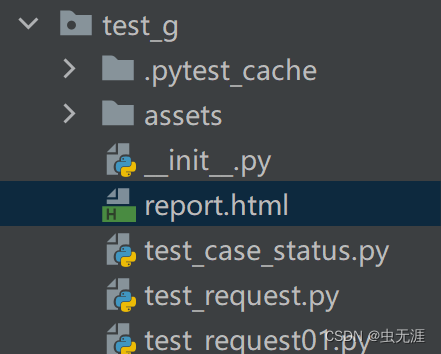
3.2 执行效果

在这里插入图片描述
3.3 指定报告生成的路径
-
当前目录下:
pytest --html=report.html
AI写代码
-
指定目录下:
pytest --html=./report/report.html
AI写代码

在这里插入图片描述
-
指定某个用例运行,生成报告保存到指定目录下:
pytest --html=./report/report.html
AI写代码

在这里插入图片描述
4 合并css
-
从生成的报告可以看出,除了
report.html外,还有个文件style.css; -
这个文件是报告的样式,是独立的,那么我们分享报告的时候,就必须把这个样式也加上,比较麻烦:

-
body { -
font-family: Helvetica, Arial, sans-serif; -
font-size: 12px; -
/* do not increase min-width as some may use split screens */ -
min-width: 800px; -
color: #999; -
} -
h1 { -
font-size: 24px; -
color: black; -
} -
h2 { -
font-size: 16px; -
color: black; -
} -
p { -
color: black; -
} -
a { -
color: #999; -
} -
table { -
border-collapse: collapse; -
} -
/****************************** -
* SUMMARY INFORMATION -
******************************/ -
#environment td { -
padding: 5px; -
border: 1px solid #E6E6E6; -
} -
#environment tr:nth-child(odd) { -
background-color: #f6f6f6; -
} -
/****************************** -
* TEST RESULT COLORS -
******************************/ -
span.passed, .passed .col-result { -
color: green; -
} -
span.skipped, span.xfailed, span.rerun, .skipped .col-result, .xfailed .col-result, .rerun .col-result { -
color: orange; -
} -
span.error, span.failed, span.xpassed, .error .col-result, .failed .col-result, .xpassed .col-result { -
color: red; -
} -
/****************************** -
* RESULTS TABLE -
* -
* 1. Table Layout -
* 2. Extra -
* 3. Sorting items -
* -
******************************/ -
/*------------------ -
* 1. Table Layout -
*------------------*/ -
#results-table { -
border: 1px solid #e6e6e6; -
color: #999; -
font-size: 12px; -
width: 100% -
} -
#results-table th, #results-table td { -
padding: 5px; -
border: 1px solid #E6E6E6; -
text-align: left -
} -
#results-table th { -
font-weight: bold -
} -
/*------------------ -
* 2. Extra -
*------------------*/ -
.log:only-child { -
height: inherit -
} -
.log { -
background-color: #e6e6e6; -
border: 1px solid #e6e6e6; -
color: black; -
display: block; -
font-family: "Courier New", Courier, monospace; -
height: 230px; -
overflow-y: scroll; -
padding: 5px; -
white-space: pre-wrap -
} -
div.image { -
border: 1px solid #e6e6e6; -
float: right; -
height: 240px; -
margin-left: 5px; -
overflow: hidden; -
width: 320px -
} -
div.image img { -
width: 320px -
} -
.collapsed { -
display: none; -
} -
.expander::after { -
content: " (show details)"; -
color: #BBB; -
font-style: italic; -
cursor: pointer; -
} -
.collapser::after { -
content: " (hide details)"; -
color: #BBB; -
font-style: italic; -
cursor: pointer; -
} -
/*------------------ -
* 3. Sorting items -
*------------------*/ -
.sortable { -
cursor: pointer; -
} -
.sort-icon { -
font-size: 0px; -
float: left; -
margin-right: 5px; -
margin-top: 5px; -
/*triangle*/ -
width: 0; -
height: 0; -
border-left: 8px solid transparent; -
border-right: 8px solid transparent; -
} -
.inactive .sort-icon { -
/*finish triangle*/ -
border-top: 8px solid #E6E6E6; -
} -
.asc.active .sort-icon { -
/*finish triangle*/ -
border-bottom: 8px solid #999; -
} -
.desc.active .sort-icon { -
/*finish triangle*/ -
border-top: 8px solid #999; -
}
AI写代码python运行

-
所以为了方便,我们把这个
css样式合并到html里,命令如下:
pytest --html=report.html --self-contained-html
AI写代码
-
再次运行报告查看下,此时只有
report.html文件,且样式已经合并进来了:
5 报告中的行显示设置
-
默认生成功的报告中的所有行都是被展开的,如图:

-
我们可以自定义显示的样式:
?collapsed=Passed,XFailed,Skipped
AI写代码
6 报告增强
详细参考官网文档:https://github.com/pytest-dev/pytest-html
6.1 自定义css
-
可以使用
--CSS选项在命令行上传递自定义CSS:
$ pytest --html=report.html --css=highcontrast.css --css=accessible.css
AI写代码
6.2 报告标题
-
默认情况下,报告标题将是报告的文件名;
-
您可以使用
pytest_html_report_title钩子对其进行编辑:
-
def pytest_html_report_title(report): -
report.title = "My very own title!"
6.3 环境
-
Environment部分由pytest-metadata插件提供; -
可以通过
pytest_configure和pytest_sessionfinish钩子访问; -
要在运行测试之前修改
Environment部分,请使用pytest_configure:
-
def pytest_configure(config): -
config._metadata["foo"] = "bar"
-
要在测试运行后修改
Environment部分,请使用pytest_sessionfinish:
-
import pytest -
@pytest.hookimpl(tryfirst=True) -
def pytest_sessionfinish(session, exitstatus): -
session.config._metadata["foo"] = "bar"
AI写代码python运行

'
运行
运行
请注意,在上面的示例中,@pytest.hookimpl(tryfirst=True)非常重要,因为这可以确保在任何其他插件(包括pytest-html和pytest-metadata)运行之前尽最大努力运行pytest_sessionfinish。如果省略了这一行,那么Environment表将不会更新,因为插件的pytest_sessionfinish将首先执行,因此不会接受您的更改。
除非元数据是集合.OrderedDict,否则生成的表将按字母顺序排序。
可以从环境表中编辑变量。重做的变量将显示其名称,但其值将灰显。这可以通过在INI配置文件(例如:pytest.INI)中设置environment_table_redact_list来实现。environment_table_redact_list是正则表达式的行列表。与此列表中的正则表达式匹配的任何环境表变量都会对其值进行编校。
例如,以下命令将对与正则表达式^foo$、.*redact.*或bar匹配的所有环境表变量进行编校:
-
[pytest] -
environment_table_redact_list = ^foo$ -
.*redact.* -
bar
AI写代码python运行
6.4 其他摘要信息
-
可以使用
pytest_html_results_Summary挂钩编辑Summary部分:
-
from py.xml import html -
def pytest_html_results_summary(prefix, summary, postfix): -
prefix.extend([html.p("foo: bar")])
AI写代码python运行
6.5 Extra内容
-
可以通过在报告对象上创建“
extra”列表来向HTML报告添加详细信息; -
以下是可以添加的
extra内容类型:
|
Type |
Example |
|---|---|
|
Raw HTML |
|
|
JSON |
|
|
Plain text |
|
|
URL |
|
|
Image |
|
|
Image |
|
|
Image |
|
-
注意:从文件添加图像时,路径可以是绝对路径,也可以是相对路径;
-
注意:当使用
--self-contained-html时,作为文件或链接添加的图像可能无法按预期工作,有关详细信息,请参阅 Creating a self-contained report一节。 -
还有几种图像格式的方便类型:
|
Image format |
Example |
|---|---|
|
PNG |
|
|
JPEG |
|
|
SVG |
|
-
以下示例使用
pytest_runtest_makereport钩子添加了各种类型的附加功能,该钩子可以在plugin或conftest.py文件中实现:
-
import pytest -
@pytest.hookimpl(hookwrapper=True) -
def pytest_runtest_makereport(item, call): -
pytest_html = item.config.pluginmanager.getplugin("html") -
outcome = yield -
report = outcome.get_result() -
extra = getattr(report, "extra", []) -
if report.when == "call": -
# always add url to report -
extra.append(pytest_html.extras.url("http://www.example.com/")) -
xfail = hasattr(report, "wasxfail") -
if (report.skipped and xfail) or (report.failed andnot xfail): -
# only add additional html on failure -
extra.append(pytest_html.extras.html("<div>Additional HTML</div>")) -
report.extra = extra
AI写代码python运行

-
还可以为
html以外的所有类型指定名称参数,这将更改创建的超链接的标题:
extra.append(pytest_html.extras.text("some string", name="Different title"))
AI写代码
-
还可以使用
fixture extra直接在测试函数中添加内容,而不需要实现挂钩。这些通常会在插件添加任何额外功能之前结束。
-
from pytest_html import extras -
def test_extra(extra): -
extra.append(extras.text("some string"))
AI写代码python运行
6.6 修改结果表
-
可以通过为表头和行实现自定义挂钩来修改报表的列;
-
以下示例
conftest.py使用测试函数docstring添加描述列,添加可排序时间列,并删除链接列:
-
from datetime import datetime -
from py.xml import html -
import pytest -
def pytest_html_results_table_header(cells): -
cells.insert(2, html.th("Description")) -
cells.insert(1, html.th("Time", class_="sortable time", col="time")) -
cells.pop() -
def pytest_html_results_table_row(report, cells): -
cells.insert(2, html.td(report.description)) -
cells.insert(1, html.td(datetime.utcnow(), class_="col-time")) -
cells.pop() -
@pytest.hookimpl(hookwrapper=True) -
def pytest_runtest_makereport(item, call): -
outcome = yield -
report = outcome.get_result() -
report.description = str(item.function.__doc__)
AI写代码python运行

-
还可以通过实现
pytest_html_results_table_row钩子并删除所有单元格来删除结果。以下示例从报告中删除所有传递的结果:
-
def pytest_html_results_table_row(report, cells): -
if report.passed: -
del cells[:]
AI写代码python运行
'
运行
运行
-
可以通过实现
pytest_HTML_results.HTML钩子来修改日志输出和其他HTML。以下示例用日志为空的通知替换所有其他HTML和日志输出:
-
from py.xml import html -
def pytest_html_results_table_html(report, data): -
if report.passed: -
del data[:] -
data.append(html.div("No log output captured.", class_="empty log"))
AI写代码python运行

var code = "43d4bcd6-e331-43c5-bf7b-1387d7988f7b"感谢每一个认真阅读我文章的人!!!
作为一位过来人也是希望大家少走一些弯路,如果你不想再体验一次学习时找不到资料,没人解答问题,坚持几天便放弃的感受的话,在这里我给大家分享一些自动化测试的学习资源,希望能给你前进的路上带来帮助。
软件测试面试文档
我们学习必然是为了找到高薪的工作,下面这些面试题是来自阿里、腾讯、字节等一线互联网大厂最新的面试资料,并且有字节大佬给出了权威的解答,刷完这一套面试资料相信大家都能找到满意的工作。 
视频文档获取方式:
这份文档和视频资料,对于想从事【软件测试】的朋友来说应该是最全面最完整的备战仓库,这个仓库也陪伴我走过了最艰难的路程,希望也能帮助到你!以上均可以分享,点下方小卡片即可自行领取。

有“AI”的1024 = 2048,欢迎大家加入2048 AI社区
更多推荐

 23
23 0
0- 0


 已为社区贡献2条内容

所有评论(0)