自定义视图:图形与图像的处理(二):绘图
除了使用已有的图片之外,Android应用还常常需要在运行时动态地生成图片,比如一个手机游戏,游戏界面看上去丰富多彩,而且可以随着用户动作而动态改变,这就需要借助于Android的绘图支持了。
1. Android绘图基础:Canvas、Paint等
Android的绘图应该继承View组件,并重写它的onDraw (Canvas canvas)方法即可。
重写onDraw (Canvas canvas)方法时涉及一个绘图APl:Canvas,Canvas代表“依附"于指定View的画布,它提供了如表所示的方法来绘制各种图形。
| 方法签名 | 简要说明 |
|---|---|
| drawArc(RectF oval, float startAngle, float sweepAngle, boolean useCenter, Paint paint) | 绘制弧 |
| drawBitmap(Bitmap bitmap, Rect src, Rect dst, Paint paint) | 在指定点绘制从源位图中“挖取”的一块 |
| drawBitmap(Bitmap bitmap, float left, float top, Paint paint) | 在指定点绘制位图 |
| drawCircle(float cx, float cy, float radius, Paint paint) | 在指定点绘制一个圆 |
| drawLine(float startX, float startY, float stopX, float stopY, Paint paint) | 绘制一条直线 |
| drawLines(float[pts,int offset, int count,Paint paint) | 绘制多条直线 |
| drawOval(RectF oval, Paint paint) | 绘制椭圆 |
| drawPath(Path path,Paint paint) | 沿着指定Path 绘制任意形状 |
| drawPoint(float x, float y, Paint paint) | 绘制一个点 |
| drawPoints(float[] pts, int offset, int count,Paint paint) | 绘制多个点 |
| drawRect(float left, float top, float right, float bottom, Paint paint) | 绘制矩形 |
| drawRoundRect(RectF rect, float rx, float ry, Paint paint) | 绘制圆角矩形 |
| draw Text(String text, int start, int end,Paint paint) | 绘制字符串 |
| drawTextOnPath(String text, Path path, float hOffset, float vOffset, Paint paint) | 沿着路径绘制字符串 |
| clipRect(float left, float top, float right, float bottom) | 剪切一个矩形区域 |
| clipRegion(Region region) | 剪切指定区域 |
Canvas还提供了如下方法进行坐标变换:
- rotate (float degrees, float px,float py) :对Canvas执行旋转变换。
- scale (float sx,float sy,float px,float py) :对Canvas执行缩放变换。
- skew (float sx, float sy) :对Canvas执行倾斜变换。
- translate (float dx,float dy):移动Canvas。向右移动dx距离(dx为负数即向左移动);向下移动dy距离(dy为负数即向上移动)。
Canvas提供的方法还涉及一个API: Paint,Paint代表Canvas上的画笔,因此Paint类主要用于设置绘制风格,包括画笔颜色、画笔笔触粗细、填充风格等。Paint提供了如表所示的方法。
| 方法签名 | 简要说明 |
|---|---|
| setARGB(int a, int r, int g, int b)/setColor(int color) | 设置颜色 |
| setAlpha(int a) | 设置透明度 |
| setAntiAlias(boolean aa) | 设置是否抗锯齿 |
| setColor(int color) | 设置颜色 |
| setPathEffect(PathEffect effect) | 设置绘制路径时的路径效果 |
| setShader(Shader shader) | 设置画笔的填充效果 |
| setShadowLayer(float radius, float dx, float dy, int color) | 设置阴影 |
| setStrokeWidth(float width) | 设置画笔的笔触宽度 |
| setStrokeJoin(Paint.Join join) | 设置画笔转弯处的连接风格 |
| setStyle(Paint.Style style) | 设置 Paint的填充风格 |
| setTextAlign(Paint.Align align) | 设置绘制文本时的文字对齐方式 |
| setTextSize(float textSize) | 设置绘制文本时的文字大小 |
在Canvas提供的绘制方法中还用到了一个API: Path,Path代表任意多条直线连接而成的任意图形,当Canvas根据Path绘制时,它可以绘制出任意的形状。
1.1 例子
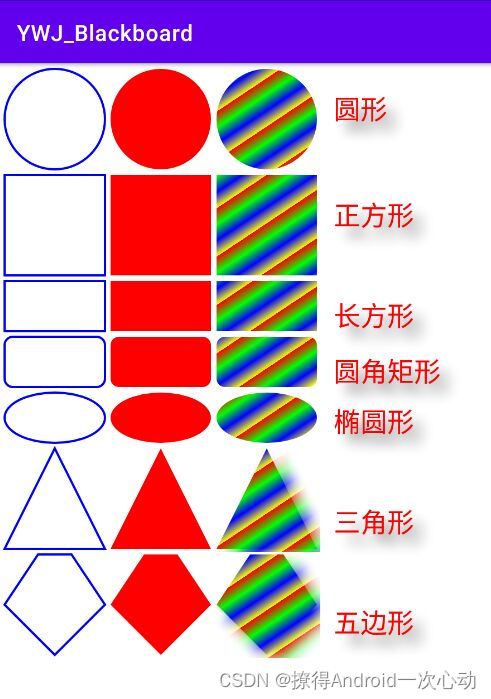
public class MyView extends View {

    private Path path1 = new Path();
    private Path path2 = new Path();
    private Path path3 = new Path();
    private Path path4 = new Path();
    private Path path5 = new Path();
    private Path path6 = new Path();

    public MyView(Context context, AttributeSet set){
        super(context,set);
    }
    private LinearGradient mShader = new LinearGradient(0f,0f,40f,60f,
            new int[]{Color.RED,Color.GREEN,Color.BLUE,Color.YELLOW},
            null, Shader.TileMode.REPEAT);
    private RectF rect = new RectF();

    //定义画笔
    private Paint paint = new Paint();
    //重写方法,进行绘图
    @Override
    protected void onDraw(Canvas canvas) {
        super.onDraw(canvas);
        //把整张画布绘制成白色
        canvas.drawColor(Color.WHITE);
        //去锯齿
        paint.setAntiAlias(true);
        paint.setColor(Color.BLUE);
        paint.setStyle(Paint.Style.STROKE);
        paint.setStrokeWidth(4f);
        int viewWidth = this.getWidth();

        //绘制圆形
        canvas.drawCircle(viewWidth/10 + 10,viewWidth/10 + 10
                , viewWidth / 10, paint);
        //绘制正方形
        canvas.drawRect (10 , viewWidth / 5 + 20 , viewWidth / 5 + 10
                , viewWidth *2/ 5 + 20 , paint) ;
        //绘制矩形
        canvas.drawRect (10,viewWidth * 2/ 5 + 30,viewWidth / 5 + 10
                , viewWidth / 2 + 30, paint);
        @SuppressLint("DrawAllocation")
        RectF re1 = new RectF (10,viewWidth / 2 +40
                , 10 + viewWidth / 5 , viewWidth * 3 / 5 +40) ;
        //绘制圆角矩形
        canvas.drawRoundRect (re1, 15,15, paint) ;
        @SuppressLint("DrawAllocation")
        RectF re11 = new RectF(10,viewWidth * 3 / 5 + 50
                ,10 + viewWidth / 5 ,viewWidth * 7 / 10 + 50);

        //绘制椭圆
        canvas.drawOval(re11, paint) ;
        //定义一个Path对象,封闭成一个三角形
        path1.moveTo (10,viewWidth * 9 / 10 + 60);
        path1.lineTo(viewWidth / 5 + 10,viewWidth * 9 /10 + 60);
        path1.lineTo (viewWidth / 10 + 10,viewWidth * 7 /10 + 60 );
        path1.close () ;
        //根据Path进行绘制,绘制三角形
        canvas.drawPath (path1, paint);
        //定义一个 Path对象,封闭成一个五角形
        path2.moveTo(10 + viewWidth / 15,viewWidth * 9 / 10 + 70);
        path2.lineTo(10 + viewWidth * 2/ 15,viewWidth * 9 / 10 +70);
        path2.lineTo(10 + viewWidth / 5, viewWidth + 70);
        path2.lineTo(10 + viewWidth / 10,viewWidth * 11/10 +70);
        path2.lineTo (10 , viewWidth + 70);
        path2.close();
        //根据Path进行绘制,绘制五角形
        canvas .drawPath (path2 , paint) ;
        //----------设置填充风格后绘制-—--------
        paint.setStyle(Paint.Style.FILL);
        paint.setColor(Color.RED);

        //绘制圆形
        canvas.drawCircle(viewWidth * 3 / 10 + 20,viewWidth / 10 + 10
                , viewWidth / 10, paint) ;
        //绘制正方形
        canvas.drawRect (viewWidth / 5 +20 , viewWidth / 5 +20
                , viewWidth * 2/ 5 + 20 , viewWidth * 2/ 5 + 20 , paint) ;
        //绘制矩形
        canvas.drawRect (viewWidth / 5 + 20,viewWidth * 2/ 5 + 30
                , viewWidth * 2 / 5 + 20 , viewWidth / 2 + 30,paint);
        @SuppressLint("DrawAllocation")
        RectF re2 = new RectF (viewWidth / 5 + 20,viewWidth / 2 + 40
                ,20 + viewWidth * 2 / 5 ,viewWidth * 3 / 5 + 40);
        //绘制圆角矩形
        canvas.drawRoundRect (re2,15,15, paint) ;
        @SuppressLint("DrawAllocation")
        RectF re21 = new RectF(20 + viewWidth / 5, viewWidth * 3 / 5 + 50
                ,20 + viewWidth * 2/ 5 ,viewWidth * 7 / 10 + 50);
        //绘制椭圆
        canvas.drawOval(re21, paint) ;
        //定义一个Path对象,封闭成一个三角形
        path3.moveTo(20 + viewWidth / 5,viewWidth * 9 / 10 + 60);
        path3.lineTo(viewWidth * 2/ 5 + 20,viewWidth * 9 / 10 + 60);
        path3.lineTo(viewWidth * 3 / 10 + 20,viewWidth * 7 / 10 + 60);
        path3.close ( ) ;
        //根据Path进行绘制,绘制三角形
        canvas.drawPath (path3, paint) ;
        //定义一个Path对象,封闭成一个五角形
        path4.moveTo(20 + viewWidth *4 / 15,viewWidth * 9 / 10 + 70);
        path4.lineTo(20 + viewWidth / 3, viewWidth * 9 / 10 +70);
        path4.lineTo(20 + viewWidth * 2/ 5, viewWidth + 70);
        path4.lineTo(20 + viewWidth * 3 / 10,viewWidth * 11/10 + 70);
        path4.lineTo(20 + viewWidth / 5 , viewWidth + 70);
        path4.close ( ) ;
        //根据Path进行绘制,绘制五角形
        canvas.drawPath (path4, paint) ;
        //----------设置渐变器后绘制-—------
        // 为Paint设置渐变器
        @SuppressLint("DrawAllocation")
        Shader mShader = new LinearGradient(0,0,40,60
                ,new int[] {Color.RED,Color.GREEN,Color.BLUE,Color.YELLOW }
                , null , Shader.TileMode.REPEAT);
        paint.setShader(mShader) ;
        //设置阴影
        paint.setShadowLayer (25 , 20 , 20 , Color.GRAY);
        //绘制圆形
        canvas.drawCircle (viewWidth / 2 + 30, viewWidth / 10 + 10
                , viewWidth / 10,paint) ;
        //绘制正方形
        canvas.drawRect (viewWidth * 2 / 5 + 30 , viewWidth / 5 + 20
                , viewWidth * 3 / 5 + 30 , viewWidth * 2/ 5 + 20 , paint);
        //绘制矩形
        canvas.drawRect (viewWidth * 2 / 5+ 30,viewWidth * 2/ 5 + 30
                , viewWidth * 3 / 5 + 30 , viewWidth / 2 + 30,paint);
        @SuppressLint("DrawAllocation")
        RectF re3 = new RectF(viewWidth * 2 / 5 + 30,viewWidth / 2 + 40
                ,30 + viewWidth * 3 / 5 , viewWidth * 3 / 5 + 40);
        //绘制圆角矩形
        canvas.drawRoundRect (re3, 15,15, paint) ;
        @SuppressLint("DrawAllocation")
        RectF re31 = new RectF(30 + viewWidth *2/ 5,viewWidth * 3 / 5 + 50
                ,30 + viewWidth * 3 / 5 , viewWidth * 7 / 10 + 50 ) ;
        //绘制彬圆
        canvas.drawOval (re31, paint) ;
        //定义一个Path对象,封闭成一个三角形
        path5.moveTo(30 + viewWidth * 2/ 5,viewWidth * 9 / 10 + 60 ) ;
        path5.lineTo(viewWidth * 3 / 5 + 30,viewWidth * 9 / 10 + 60);
        path5.lineTo (viewWidth / 2 + 30,viewWidth * 7 / 10 + 60);
        path5.close();
        //根据Path进行绘制,绘制三角形
        canvas .drawPath (path5, paint) ;
        //定义一个Path对象,封闭成一个五角形
        path6.moveTo (30 + viewWidth * 7 / 15,viewWidth * 9 / 10 + 70);
        path6.lineTo(30 + viewWidth * 8 / 15,viewWidth * 9 / 10 + 70);
        path6.lineTo (30 + viewWidth* 3/ 5,viewWidth + 70);
        path6.lineTo (30 + viewWidth / 2,viewWidth * 11/10 + 70);
        path6.lineTo (30 + viewWidth * 2/ 5 , viewWidth + 70 );
        path6.close ( ) ;
        //根据Path进行绘制,绘制五角形
        canvas.drawPath (path6, paint);
        //----------设置字符大小后绘制
        paint.setTextSize(48);
        paint.setShader(null);
        //绘制7个字符串
        canvas.drawText(getResources().getString(R.string.circle)
                ,60 + viewWidth * 3 / 5, viewWidth / 10 + 10,paint);
        canvas.drawText(getResources ( ).getString(R.string.square)
                ,60 + viewWidth * 3 / 5,viewWidth * 3 / 10 + 20,paint);
        canvas.drawText (getResources ( ).getString (R.string.rect)
                ,60 + viewWidth * 3 / 5, viewWidth * 1 / 2 + 20,paint);
        canvas.drawText(getResources ( ).getString (R.string.round_rect)
                ,60 + viewWidth * 3 / 5,viewWidth * 3 / 5 + 30,paint) ;
        canvas.drawText (getResources ().getString (R.string.oval)
                ,60 + viewWidth * 3 / 5,viewWidth * 7 / 10 + 30,paint);
        canvas.drawText (getResources ( ).getString (R.string.triangle)
                ,60 + viewWidth * 3 / 5, viewWidth * 9 / 10 + 30,paint);
        canvas.drawText (getResources ( ).getString (R.string.pentagon)
                ,60 + viewWidth * 3 / 5,viewWidth * 11 / 10 + 30,paint);

    }

}
Android的Canvas不仅可以绘制这种简单的几何图形,还可以直接将一个Bitmap绘制到画布上,这样就给了开发者巨大的灵活性,只要前期美工把应用程序所需的图片制作出来,后期开发时把这些图片绘制到Canvas上即可。
1.2 额外知识点
(1). LinearGradient类
此类实现线性渐变效果,目前只在实现卡拉ok字幕上使用过,就是让歌词随着歌声逐渐变色的效果。
LinearGradient lg = new LinearGradient(0,0,100,100,
                        new int[]{Color.RED,Color.GREEN,Color.BLUE,Color.WHITE},
                        null, Shader.TileMode.REPEAT);
参数说明:
第一个 起始的x坐标
第二个 起始的y坐标
第三个 结束的x坐标
第四个 结束的y坐标
——以上4个坐标参数除了设置渐变区域,还决定渐变的方向
第五个 颜色数组,如{#000000,#ffffff}
第六个 这个也是一个数组,如{0.5f,0.51f},
用来指定颜色数组的相对位置,
取值从0.0f到1.0f按第五个参数的颜色组切分渐变区域
如果为null 就沿坡度线均匀分布
——以上2个参数配对出现,第六个如果不设置null,则需对应第五个参数的数组元素个数
第七个 渲染模式
(2).RectF类
Rect和RextF都是用来创建一个矩形的,Rect的参数是int型,RectF的参数是float型,由此可以看出RectF比Rect的精确度更高。他们都是通过四个坐标参数来确定矩形的区域。
- RectF.left 矩形左上角的x坐标。
- RectF.top 矩形左上角的y坐标。
- RectF.right 矩形右下角的y坐标。
- RectF.right 矩形右下角的y坐标。

2. Path类
调用Canvas的drawPath (path,paint)方法可沿着路径绘制图形。Android还为路径绘制提供了PathEffect来定义绘制效果,PathEffect包含了如下子类(每个子类代表一种绘制效果)。
- ComposePathEffect
- CornerPathEffect
- DashPathEffect
- DiscretePathEffect
- PathDashPathEffect
- sumPathEffect
这些绘制效果使用语言来表述总显得有点空洞,下面通过一个程序来让读者理解这些绘制效果。该程序绘制7条路径,分别示范了不使用效果和使用上面6种效果的效果。
2.1 例子
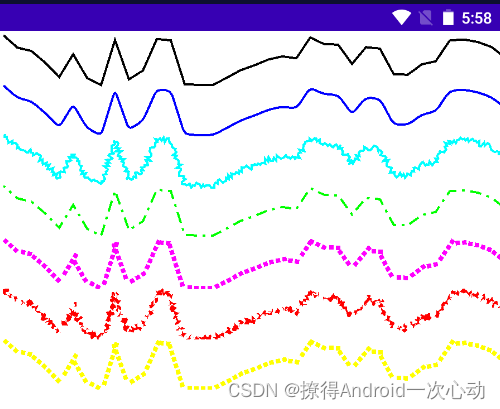
public class Test7Activity extends Activity {

    @Override
    protected void onCreate(Bundle savedInstanceState) {
        super.onCreate(savedInstanceState);
        setContentView(new Test7View(this));
    }

    class Test7View extends View{
        private float phase;
        private PathEffect[] effects = new PathEffect[7];
        private int[] colors;
        private Paint paint = new Paint();
        //定义创建并初始化Path
        private Path path = new Path();

        public Test7View(Context context){
            super(context);
            paint.setStyle(Paint.Style.STROKE);
            paint.setStrokeWidth(4f);
            path.moveTo(0f,0f);
            for (int i = 1; i <=40 ; i++) {
                //生成40个点,随机生成他们的坐标,并将它们连接成一条Path
                path.lineTo(i*25f,(float)(Math.random()*90));
            }
            //初始化7种颜色
            colors = new int[]{Color.BLACK,Color.BLUE,Color.CYAN,Color.GREEN
                            ,Color.MAGENTA,Color.RED,Color.YELLOW};

            //--------下面开始初始化 7 条路径的效果----------
            //不使用路径效果
            effects[0]=null;
            // 使用CornerPathEffect
            effects[1]= new CornerPathEffect(10f);
            // 初始化DiscretePathEffect
            effects[2]= new DiscretePathEffect(3.0f,5.0f);

        }

        @SuppressLint("DrawAllocation")
        @Override
        protected void onDraw(Canvas canvas) {
            //将背景填充成白色
            canvas.drawColor(Color.WHITE);
            //将画布移到(8,8)处开始绘制
            canvas.translate(8f,8f);
            //依次使用7种不同的路径效果,7种不同的颜色来绘制路径
            for (int i = 0; i <effects.length ; i++) {
                paint.setPathEffect(effects[i]);
                paint.setColor(colors[i]);
                canvas.drawPath(path,paint);
                canvas.translate(0f,90f);
            }
            // 初始化DashPathEffect
            effects[3] = new DashPathEffect(new float[]{20f,10f,5f,10f},phase);
            // 初始化PathDashPathEffect
            Path p = new Path();
            p.addRect(0f,0f,8f,8f,Path.Direction.CCW);
            effects[4] = new PathDashPathEffect(p,12f,phase,
                    PathDashPathEffect.Style.ROTATE);
            // 初始化ComposePathEffect
            effects[5] = new ComposePathEffect(effects[2],effects[4]);
            // 初始化sumPathEffect
            effects[6] = new SumPathEffect(effects[4],effects[3]);
            //改变phase值 ,形成动画效果
            phase +=1f;
            invalidate();
        }
    }
}
正如上面的程序中所看到的,当定义DashPathEffect、PathDashPathEffect时可指定一个phase参数,该参数用于指定路径效果的相位,当该phase参数改变时,绘制效果也略有变化。上面的程序不停地改变phase参数,并不停地重绘该View组件,这将产生动画效果。
2.2 六条路径效果详解
- CornerPathEffect:使路径变得圆润
通过将线段之间的任何锐角替换为指定半径的圆角,转换绘制的几何图形(描边或填充式)。
参数:radius 相当于线段之间的圆角。
- DiscretePathEffect:类似毛刺一样的效果
官方的解释:
DiscretePathEffect :切断线段
segmentLength:是指定切断的长度
deviation:为切断之后线段的偏移量,随机的,小于等于deviation。
- DashPathEffect:实线与虚线之间交替
第一个,float intervals[],它是一个数组,这里用来存放,显示的实线与虚线的长度。 其中20和5属于实线 ;两个10属于虚线
第二个,phase,它是一个偏移的数值,就是左右偏移量,正数向左,负数向右。
- PathDashPathEffect
// 通过用指定的形状冲压绘制的路径来划线。这仅适用于绘画样式为“描边”或“描边和填充”时的绘图。
// 如果绘画的样式是填充,那么这个效果会被忽略。绘画的笔划宽度不会影响结果。
//shape Path:要踩踏的路径
//advance float:形状的每个印章之间的间距
//phase float:冲压第一个形状前的偏移量
//style PathDashPathEffect.Style:如何在冲压时变换每个位置的形状
// MORPH ROTATE TRANSLATE 变形 旋转 平移
- ComposePathEffect
构建一个PathEffect,其效果是首先应用内部效果和外部pathEffect(例如outer(inner(path))。
// 第一个参数:outerpe 第二个参数:innerpe
- sumPathEffect
构建一个PathEffect,其效果是依次应用两个效果。(例如第一个(路径)+第二个(路径))
Canvas还提供了一个drawTextOnPath (String text,Pathpath,float hOffset,float vOffset,Paint paint)方法,该方法可以沿着Path绘制文本。其中hOffset参数指定水平偏移,vOffset参数指定垂直偏移。

有“AI”的1024 = 2048,欢迎大家加入2048 AI社区
更多推荐

 17
17 0
0- 0


 已为社区贡献3条内容

所有评论(0)