今日份学习Linux目录结构和文件操作命令
一、Linux系统目录结构
Linux系统采用树状目录结构,从根目录(/)开始衍生出众多子目录,每个目录都有特定的用途,以下是对常见目录的具体介绍。
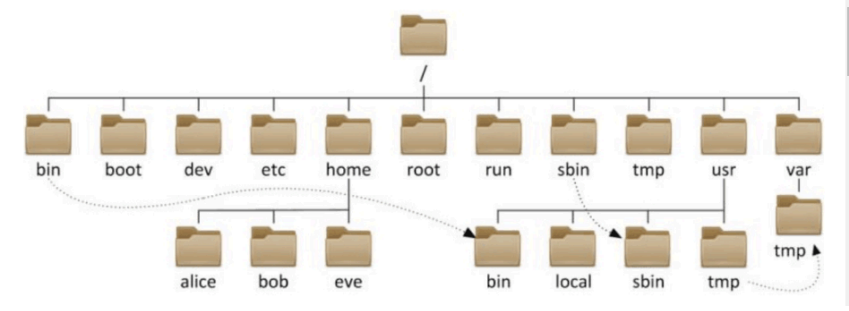
| 目录 | 说明 |
| /(根目录) |
Linux系统目录结构的最顶层,所有目录、文件都挂在根目录之下, 是整个文件系统的入口 |
| bin(系统二进制文件目录) | 存放供所有用户使用的基本命令,如ls , cd |
| boot(引导目录) | 系统引导程序及系统内核文件存储目录 |
| dev | 设备、光驱、硬盘目录 |
| etc | 存放系统或服务的配置文件目录 |
| home |
普通用户的家目录 |
| lib | 库文件存放目录 |
| lib64 | 库文件存放目录(64位) |
| mnt、media(临时的挂载点目录) |
mnt用于临时挂载文件系统,比如U盘,硬盘,media是由桌面环境自动创建并使用, 用于挂载可移动媒体 |
| opt | 三方软件安装目录 |
| proc(进程相关目录) | 虚拟目录,显示硬件的信息及内核参数配置文件 |
| root(超级用户的家目录) | 只对root用户可见和可操作 |
| sbin(系统二进制文件目录) |
超级命令,通常只有root用户才能够执行,比如init , reboot |
| sys(系统状态信息目录) | 虚拟目录,内核配置信息 |
| tmp(临时文件目录) | 用于存放临时文件,所有用户都可以访问和写入,系统开机会自动清理目录下的文件 |
| usr | 存放用户程序目录 |
| var | log:系统日志目录;spool/mail:邮件文件 |
| lost+found | 磁盘、文件系统损坏、断电、存放临时文件目录 |
| /etc/selinux |
selinux及其配置文件存放目录,安全上下文 |
二、文件操作命令
1.打印工作目录命令
pwd命令:在终端进行操作时,会有一个当前工作目录,在不太确定当前位置时,使用pwd来查看当前目录在文件系统内的确切位置。
语法:pwd+选项
pwd -p 显示实际路径
操作案例:
[root@localhost ~]# pwd
/root
[root@localhost ~]# cd /tmp
[root@localhost tmp]# pwd -P
/tmp
2.目录切换命令
cd命令 语法:cd 目录名
| 命令 | 作用 |
| cd 或者cd ~ | 返回当前登录用户的家目录 |
| cd .. | 返回上级目录 |
| cd - | 返回上次跳转到当前目录的目录 |
| cd /path | 切换到指定目录 |
操作案例:
[root@localhost ~]# cd /boot
[root@localhost boot]# cd
[root@localhost ~]# cd ~
[root@localhost ~]# cd ..
[root@localhost /]# cd /opt/
[root@localhost opt]# cd /etc/
[root@localhost etc]# cd -
/opt
[root@localhost opt]# cd
[root@localhost ~]#
3.目录内容查看命令
ls命令,通过ls命令不仅可以查看Linux文件夹包含的文件,而且可以查看文件权限(包括目录、文件夹、文件权限)查看目录信息等等。
语法:ls 选项 参数
| 命令选项 | 作用 |
| -a,--all | 显示所有文件(包括以.开头的隐藏文件) |
| -l | 以详细列表格式显示文件或目录的详细信息 |
| -h,--human-readable | 以人类可读的格式显示文件大小(例:5K、6M) |
| -r,--reverse | 以相反的顺序列出文件 |
| -t | 按照修改时间排序 |
| -S | 按照文件大小排序 |
| -d,--directory | 显示目录本身,而非目录下的文件列表 |
| --color=auto | 自动根据文件类型显示不同的颜色 |
| -R,--recursive | 递归列出目录及子目录中的文件 |
操作案例:
[root@localhost ~]# ls -a
.      视频  桌面             .bashrc   .local
..     图片  anaconda-ks.cfg  .cache    .ssh
4.txt  文档  .bash_history    .config   .tcshrc
公共   下载  .bash_logout     .cshrc    .viminfo
模板   音乐  .bash_profile    .lesshst
[root@localhost ~]# ls -al
总用量 48
dr-xr-x---. 14 root root 4096  7月 31 15:48 .
dr-xr-xr-x. 18 root root  235  7月 28 22:10 ..
-rw-r--r--.  1 root root    4  7月 31 15:31 4.txt
drwxr-xr-x.  2 root root    6  7月 28 14:32 公共
drwxr-xr-x.  2 root root    6  7月 28 14:32 模板
drwxr-xr-x.  2 root root    6  7月 28 14:32 视频
drwxr-xr-x.  2 root root    6  7月 28 14:32 图片
drwxr-xr-x.  2 root root    6  7月 28 14:32 文档
drwxr-xr-x.  2 root root    6  7月 28 14:32 下载
drwxr-xr-x.  2 root root    6  7月 28 14:32 音乐
drwxr-xr-x.  2 root root    6  7月 28 14:32 桌面
-rw-------.  1 root root  993  7月 28 14:19 anaconda-ks.cfg
-rw-------.  1 root root 1385  7月 31 15:37 .bash_history
-rw-r--r--.  1 root root   18  5月 11  2022 .bash_logout
-rw-r--r--.  1 root root  141  5月 11  2022 .bash_profile
-rw-r--r--.  1 root root  429  5月 11  2022 .bashrc
drwx------.  8 root root  117  7月 29 16:01 .cache
drwx------.  9 root root 4096  7月 30 10:05 .config
-rw-r--r--.  1 root root  100  5月 11  2022 .cshrc
-rw-------.  1 root root   31  7月 29 21:04 .lesshst
drwx------.  4 root root   32  7月 28 15:10 .local
drwx------.  2 root root    6  7月 28 22:11 .ssh
-rw-r--r--.  1 root root  129  5月 11  2022 .tcshrc
-rw-------.  1 root root 2056  7月 30 16:31 .viminfo
[root@localhost ~]# ls -l
总用量 8
-rw-r--r--. 1 root root   4  7月 31 15:31 4.txt
drwxr-xr-x. 2 root root   6  7月 28 14:32 公共
drwxr-xr-x. 2 root root   6  7月 28 14:32 模板
drwxr-xr-x. 2 root root   6  7月 28 14:32 视频
drwxr-xr-x. 2 root root   6  7月 28 14:32 图片
drwxr-xr-x. 2 root root   6  7月 28 14:32 文档
drwxr-xr-x. 2 root root   6  7月 28 14:32 下载
drwxr-xr-x. 2 root root   6  7月 28 14:32 音乐
drwxr-xr-x. 2 root root   6  7月 28 14:32 桌面
-rw-------. 1 root root 993  7月 28 14:19 anaconda-ks.cfg
[root@localhost ~]# ls -alh
总用量 48K
dr-xr-x---. 14 root root 4.0K  7月 31 15:48 .
dr-xr-xr-x. 18 root root  235  7月 28 22:10 ..
-rw-r--r--.  1 root root    4  7月 31 15:31 4.txt
drwxr-xr-x.  2 root root    6  7月 28 14:32 公共
drwxr-xr-x.  2 root root    6  7月 28 14:32 模板
drwxr-xr-x.  2 root root    6  7月 28 14:32 视频
drwxr-xr-x.  2 root root    6  7月 28 14:32 图片
drwxr-xr-x.  2 root root    6  7月 28 14:32 文档
drwxr-xr-x.  2 root root    6  7月 28 14:32 下载
drwxr-xr-x.  2 root root    6  7月 28 14:32 音乐
drwxr-xr-x.  2 root root    6  7月 28 14:32 桌面
-rw-------.  1 root root  993  7月 28 14:19 anaconda-ks.cfg
-rw-------.  1 root root 1.4K  7月 31 15:37 .bash_history
-rw-r--r--.  1 root root   18  5月 11  2022 .bash_logout
-rw-r--r--.  1 root root  141  5月 11  2022 .bash_profile
-rw-r--r--.  1 root root  429  5月 11  2022 .bashrc
drwx------.  8 root root  117  7月 29 16:01 .cache
drwx------.  9 root root 4.0K  7月 30 10:05 .config
-rw-r--r--.  1 root root  100  5月 11  2022 .cshrc
-rw-------.  1 root root   31  7月 29 21:04 .lesshst
drwx------.  4 root root   32  7月 28 15:10 .local
drwx------.  2 root root    6  7月 28 22:11 .ssh
-rw-r--r--.  1 root root  129  5月 11  2022 .tcshrc
-rw-------.  1 root root 2.1K  7月 30 16:31 .viminfo
[root@localhost ~]# ls -R
.:
4.txt  模板  图片  下载  桌面
公共   视频  文档  音乐  anaconda-ks.cfg

./公共:

./模板:

./视频:

./图片:

./文档:

./下载:

./音乐:

./桌面:
4.文件查看命令
4.1.cat命令
cat命令常用来显示文件内容,或者将几个文件连接起来显示,或者从标准输入读取内容并显示。
语法:cat 选项 文件
作用:1.一次显示整个文件:cat filename
2.从键盘创建一个文件:cat >filename 只能创建新文件,不能编辑已有文件
3.将几个文件合并为一个文件:cat file1 file2 >file3
4.追加内容到指定文件:cat <<e>> filename
重定向符号:覆盖重定向 >
追加重定向 >>
选项:
-n 显示行号
-e 在输出的行尾添加制表符和换行符
操作案例:
[root@localhost ~]# cat /etc/issue
\S
Kernel \r on an \m

[root@localhost ~]# cat /etc/issue -n
     1  \S
     2  Kernel \r on an \m
     3
[root@localhost ~]# cat /etc/issue -n -e
     1  \S$
     2  Kernel \r on an \m$
     3  $
[root@localhost ~]# cat 1.txt

111

222
[root@localhost ~]# cat 2.txt
333
[root@localhost ~]# cat 1.txt 2.txt >3.txt
[root@localhost ~]#
[root@localhost ~]# cat 3.txt

111

222
333
[root@localhost ~]# cat aaa >>3.txt
cat: aaa: 没有那个文件或目录
[root@localhost ~]# cat >>3.txt
aaa
^C
[root@localhost ~]# cat 3.txt

111

222
333
aaa
[root@localhost ~]# cat <<e>> 3.txt
> 123
> e
[root@localhost ~]# cat 3.txt

111

222
333
aaa
123
4.2.more命令
用于逐页查看文本文件内容。
语法:more 选项 文件名
| 操作 |
作用 |
|
空格键
|
向下翻动一页
|
|
Enter键
|
向下翻动一行
|
| q |
退出 more 命令
|
|
/pattern
|
在文件中搜索指定的模式(pattern)
|
| :n |
跳转到第 n 行
|
| :f |
显示文件名和当前行号
|
操作案例:
[root@localhost ~]# cd /etc/
Display all 134 possibilities? (y or n)
accountsservice/   depmod.d/          jvm/               PackageKit/        sos/
alsa/              dhcp/              jvm-common/        pam.d/             speech-dispatcher/
alternatives/      dnf/               kdump/             pesign/            ssh/
asciidoc/          dnsmasq.d/         kernel/            pkcs11/            ssl/
audit/             dracut.conf.d/     krb5.conf.d/       pkgconfig/         sssd/
authselect/        egl/               ld.so.conf.d/      pki/               statetab.d/
avahi/             firefox/           libblockdev/       plymouth/          sudoers.d/
bash_completion.d/ firewalld/         libibverbs.d/      pm/                sysconfig/
binfmt.d/          flatpak/           libnl/             polkit-1/          sysctl.d/
bluetooth/         fonts/             libpaper.d/        popt.d/            systemd/
brltty/            foomatic/          libreport/         profile.d/         terminfo/
chromium/          fwupd/             libssh/            pulse/             tmpfiles.d/
cifs-utils/        gcrypt/            logrotate.d/       qemu-ga/           tpm2-tss/
cockpit/           gdbinit.d/         lsm/               ras/               tuned/
containers/        gdm/               lvm/               rc.d/              udev/
cron.d/            geoclue/           mcelog/            rpm/               udisks2/
cron.daily/        glvnd/             microcode_ctl/     rsyslog.d/         UPower/
cron.hourly/       gnupg/             modprobe.d/        rwtab.d/           vmware-tools/
cron.monthly/      groff/             modules-load.d/    samba/             vulkan/
cron.weekly/       grub.d/            motd.d/            sane.d/            wireplumber/
[root@localhost ~]# cd /etc/vdev
-bash: cd: /etc/vdev: 没有那个文件或目录
[root@localhost ~]# cd /etc/
[root@localhost etc]# ls
accountsservice          firewalld       machine-id                rwtab.d
adjtime                  flatpak         magic                     samba
aliases                  fonts           mailcap                   sane.d
alsa                     foomatic        makedumpfile.conf.sample  sasl2
alternatives             fprintd.conf    man_db.conf               security
anacrontab               fstab           mcelog                    selinux
appstream.conf           fuse.conf       microcode_ctl             services
asciidoc                 fwupd           mime.types                sestatus.conf
asound.conf              gcrypt          mke2fs.conf               setroubleshoot
at.deny                  gdbinit         modprobe.d                sgml
audit                    gdbinit.d       modules-load.d            shadow
authselect               gdm             motd                      shadow-
avahi                    geoclue         motd.d                    shells
bash_completion.d        glvnd           mtab                      skel
bashrc                   gnupg           multipath                 smartmontools
bindresvport.blacklist   GREP_COLORS     nanorc                    sos
binfmt.d                 groff           netconfig                 speech-dispatcher
bluetooth                group           NetworkManager            ssh
brlapi.key               group-          networks                  ssl
brltty                   grub2.cfg       nftables                  sssd
brltty.conf              grub.d          nsswitch.conf             statetab.d
chromium                 gshadow         nsswitch.conf.bak         subgid
chrony.conf              gshadow-        nvme                      subgid-
chrony.keys              gss             openldap                  subuid
cifs-utils               host.conf       opt                       subuid-
cockpit                  hostname        os-release                sudo.conf
containers               hosts           ostree                    sudoers
cron.d                   hp              PackageKit                sudoers.d
cron.daily               inittab         pam.d                     sudo-ldap.conf
cron.deny                inputrc         papersize                 sysconfig
cron.hourly              iproute2        passwd                    sysctl.conf
cron.monthly             iscsi           passwd-                   sysctl.d
crontab                  issue           pbm2ppa.conf              systemd
cron.weekly              issue.d         pesign                    system-release
crypto-policies          issue.net       pinforc                   system-release-cpe
crypttab                 java            pkcs11                    terminfo
csh.cshrc                jvm             pkgconfig                 tmpfiles.d
csh.login                jvm-common      pki                       tpm2-tss
cups                     kdump           plymouth                  trusted-key.key
cupshelpers              kdump.conf      pm                        tuned
dbus-1                   kernel          pnm2ppa.conf              udev
dconf                    krb5.conf       polkit-1                  udisks2
debuginfod               krb5.conf.d     popt.d                    updatedb.conf
default                  ld.so.cache     printcap                  UPower
depmod.d                 ld.so.conf      profile                   usb_modeswitch.conf
dhcp                     ld.so.conf.d    profile.d                 vconsole.conf
DIR_COLORS               libaudit.conf   protocols                 vimrc
DIR_COLORS.lightbgcolor  libblockdev     pulse                     virc
dnf                      libibverbs.d    qemu-ga                   vmware-tools
dnsmasq.conf             libnl           ras                       vulkan
dnsmasq.d                libpaper.d      rc.d                      wgetrc
dracut.conf              libreport       rc.local                  wireplumber
dracut.conf.d            libssh          redhat-release            wpa_supplicant
egl                      libuser.conf    resolv.conf               X11
enscript.cfg             locale.conf     rocky-release             xattr.conf
environment              localtime       rocky-release-upstream    xdg
ethertypes               login.defs      rpc                       xml
exports                  logrotate.conf  rpm                       yum
favicon.png              logrotate.d     rsyncd.conf               yum.conf
filesystems              lsm             rsyslog.conf              yum.repos.d
firefox                  lvm             rsyslog.d
[root@localhost etc]# more yum

*** yum:目录 ***

[root@localhost etc]# more rpc
#ident  "@(#)rpc        1.11    95/07/14 SMI"   /* SVr4.0 1.2   */
#
#       rpc
#
portmapper      100000  portmap sunrpc rpcbind
rstatd          100001  rstat rup perfmeter rstat_svc
rusersd         100002  rusers
nfs             100003  nfsprog
ypserv          100004  ypprog
mountd          100005  mount showmount
ypbind          100007
walld           100008  rwall shutdown
yppasswdd       100009  yppasswd
etherstatd      100010  etherstat
rquotad         100011  rquotaprog quota rquota
sprayd          100012  spray
3270_mapper     100013
rje_mapper      100014
selection_svc   100015  selnsvc
database_svc    100016
“rpc”第 20 行
4.3.head命令
用于显示文件的开头部分,默认显示文件的前10行。
语法:head 选项 文件名
管道符:|
将前一命令的结果作为后一命令的输入进行再次处理,相当于流水作业
head -n 显示的行数
操作案例:
[root@localhost ~]# cd /boot/
efi/    grub2/  loader/
[root@localhost ~]# cd /boot/
[root@localhost boot]# cat grub2
cat: grub2: 是一个目录
[root@localhost boot]# cd grub2
[root@localhost grub2]# ls
device.map  grub.cfg  i386-pc
fonts       grubenv   locale
[root@localhost grub2]# cat grub.cfg
[root@localhost grub2]# cat -n grub.cfg
     1  #
     2  # DO NOT EDIT THIS FILE
     3  #
     4  # It is automatically generated by grub2-mkconfig using templates
     5  # from /etc/grub.d and settings from /etc/default/grub
     6  #
     7
     8  ### BEGIN /etc/grub.d/00_header ###
     9  set pager=1
    10
    11  if [ -f ${config_directory}/grubenv ]; then
    12    load_env -f ${config_directory}/grubenv
    13  elif [ -s $prefix/grubenv ]; then
    14    load_env
    15  fi
    16  if [ "${next_entry}" ] ; then
    17     set default="${next_entry}"
    18     set next_entry=
    19     save_env next_entry
    20     set boot_once=true
    21  else
    22     set default="${saved_entry}"
    23  fi
    24
    25  if [ x"${feature_menuentry_id}" = xy ]; then
    26    menuentry_id_option="--id"
    27  else
    28    menuentry_id_option=""
    29  fi
    30
    31  export menuentry_id_option
    32
    33  if [ "${prev_saved_entry}" ]; then
    34    set saved_entry="${prev_saved_entry}"
    35    save_env saved_entry
    36    set prev_saved_entry=
    37    save_env prev_saved_entry
    38    set boot_once=true
    39  fi
    40
    41  function savedefault {
    42    if [ -z "${boot_once}" ]; then
    43      saved_entry="${chosen}"
    44      save_env saved_entry
    45    fi
[root@localhost grub2]# cat -n grub.cfg|head -8
     1  #
     2  # DO NOT EDIT THIS FILE
     3  #
     4  # It is automatically generated by grub2-mkconfig using templates
     5  # from /etc/grub.d and settings from /etc/default/grub
     6  #
     7
     8  ### BEGIN /etc/grub.d/00_header ###
4.4. tail命令
用于查看文件尾部内容,默认显示文件最后10行。
语法:tail 选项 文件名
tail -f 循环读取,实时监控文件内容的变化
tail -n 显示行数
操作案例:
[root@localhost grub2]# cd
[root@localhost ~]# cd /root/grub2/
-bash: cd: /root/grub2/: 没有那个文件或目录
[root@localhost ~]# cd /boot/grub2/
[root@localhost grub2]# cat -n grub2
cat: grub2: 没有那个文件或目录
[root@localhost grub2]# cat -n grub.cfg|tail -1
   231  ### END /etc/grub.d/41_custom ###
[root@localhost grub2]# tail -f /var/log/
anaconda/                 dnf.rpm.log               samba/                    vmware-network.5.log
audit/                    firewalld                 secure                    vmware-network.6.log
boot.log                  gdm/                      speech-dispatcher/        vmware-network.7.log
boot.log-20250730         hawkey.log                spooler                   vmware-network.8.log
boot.log-20250731         kdump.log                 sssd/                     vmware-network.9.log
btmp                      lastlog                   tallylog                  vmware-network.log
chrony/                   maillog                   tuned/                    vmware-vgauthsvc.log.0
cron                      messages                  vmware-network.1.log      vmware-vmsvc-root.log
cups/                     private/                  vmware-network.2.log      vmware-vmtoolsd-root.log
dnf.librepo.log           qemu-ga/                  vmware-network.3.log      vmware-vmusr-root.log
dnf.log                   README                    vmware-network.4.log      wtmp
[root@localhost grub2]# tail -f /var/log/messages
Jul 31 19:48:10 localhost systemd[1]: Finished dnf makecache.
Jul 31 19:56:29 localhost NetworkManager[1106]: <info>  [1753962989.4083] dhcp4 (ens160): state changed new lease, address=192.168.50.131
Jul 31 19:56:29 localhost systemd[1]: Starting Network Manager Script Dispatcher Service...
Jul 31 19:56:29 localhost systemd[1]: Started Network Manager Script Dispatcher Service.
Jul 31 19:56:39 localhost systemd[1]: NetworkManager-dispatcher.service: Deactivated successfully.
Jul 31 20:00:22 localhost cupsd[1131]: REQUEST localhost - - "POST / HTTP/1.1" 200 183 Renew-Subscription client-error-not-found
Jul 31 20:11:29 localhost NetworkManager[1106]: <info>  [1753963889.4098] dhcp4 (ens160): state changed new lease, address=192.168.50.131
Jul 31 20:11:29 localhost systemd[1]: Starting Network Manager Script Dispatcher Service...
Jul 31 20:11:29 localhost systemd[1]: Started Network Manager Script Dispatcher Service.
Jul 31 20:11:39 localhost systemd[1]: NetworkManager-dispatcher.service: Deactivated successfully.

有“AI”的1024 = 2048,欢迎大家加入2048 AI社区
更多推荐

 22
22 0
0- 0


 已为社区贡献2条内容

所有评论(0)