关于将Google Scholar搜索到的文献批量导入Zotero/Endnote等文献管理工具
最近想整一个自己的文献库,计算机领域用得最多的应该是Google Scholar,但是Google Scholar无法批量导出文献。于是用selenium写了一个拙劣的小爬虫。
·
关于将Google Scholar搜索到的文献批量导入Zotero/Endnote等文献管理工具
最近想整一个自己的文献库,计算机领域用得最多的应该是Google Scholar,但是Google Scholar无法批量导出文献。于是用selenium写了一个拙劣的小爬虫。
Google Scholar的图书馆
对于一篇在Google Scholar上搜索到的文献,我们可以将其保存至我们的图书馆。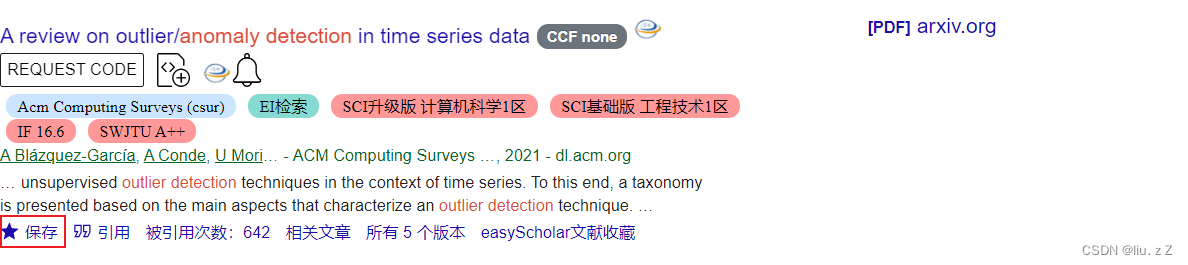
然后全部导出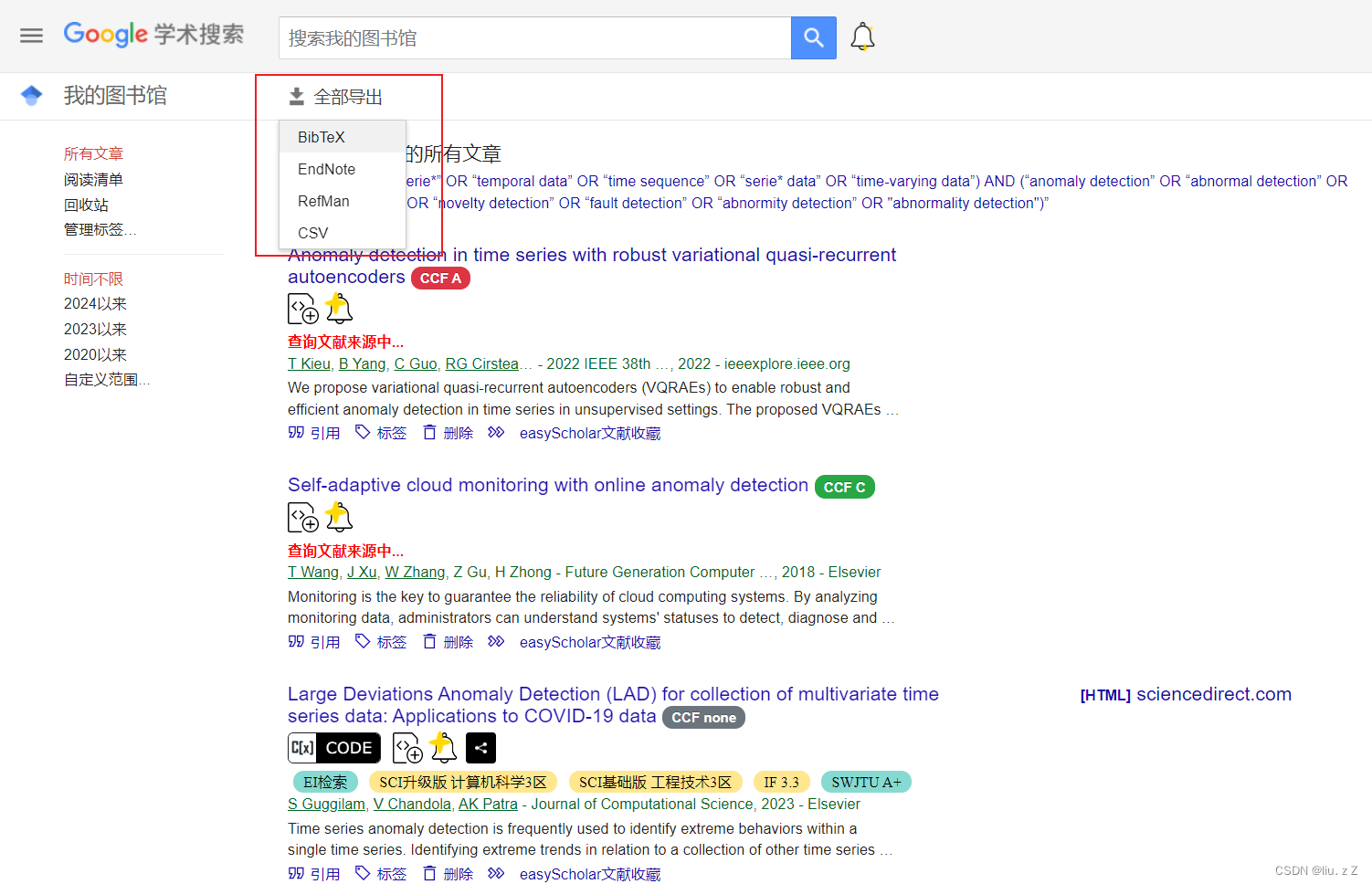
demo版本(先用这个吧,version 2.0没法用)
有思路就开干!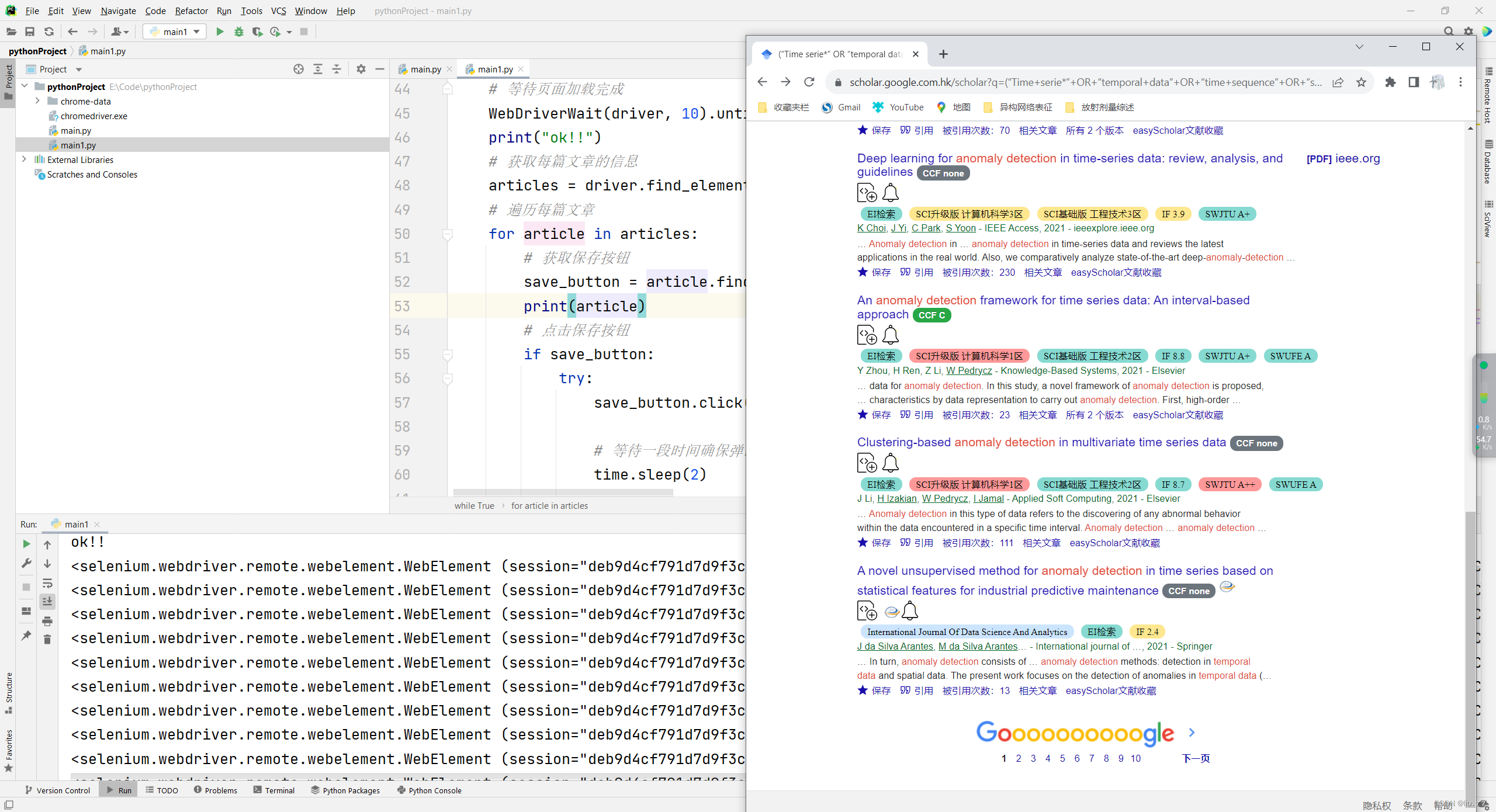
Demo 1.0
from selenium import webdriver
from selenium.webdriver.common.by import By
from selenium.webdriver.support.ui import WebDriverWait
from selenium.webdriver.support import expected_conditions as EC
from selenium.webdriver.chrome.options import Options
import time
import os

os.system(r'start chrome --remote-debugging-port=8082 --user-data-dir="F:\selenium"')

# 等待接管页面(也就是说首先需要手动登录账号以及搜索需要的文献)
input('输入回车继续程序...')

options = Options()
options.add_experimental_option("debuggerAddress", "127.0.0.1:8082")
driver = webdriver.Chrome(options=options)

print(driver.title)
print("#######")

refrences = 0
while True:

    # 等待页面加载完成
    WebDriverWait(driver, 10).until(EC.presence_of_element_located((By.CLASS_NAME, 'gs_r')))
    time.sleep(4) #如果时不时有文献没有被保存可以尝试将这个数值加大
    # 获取每篇文章的信息
    articles = driver.find_elements(By.CLASS_NAME, 'gs_r')
    # 如果没有下一页,退出循环
    if not articles:
        break

    # 遍历每篇文章
    i = 0
    for article in articles:
        i += 1
        if i==11:
            break
        # 获取保存按钮
        save_button = article.find_element(By.CLASS_NAME, 'gs_or_sav')
        print(save_button)
        # 点击保存按钮
        if save_button:
            try:
                save_button.click()

                # 等待一段时间确保弹出的选择框加载完成
                time.sleep(2)

                # 获取完成按钮并点击
                complete_button = driver.find_element(By.ID, 'gs_lbd_apl')
                # time.sleep(3000)
                if complete_button:
                    complete_button.click()

            except Exception as e:
                print(f"Error clicking save button: {e}")

    refrences += i-1
    print(f"{refrences} refrences have been saved")
    print("next page")
    next_page = driver.find_element(By.CLASS_NAME, 'gs_ico_nav_next')
    next_page.click()

# 关闭浏览器
driver.quit()
Demo 2.0
from selenium import webdriver
from selenium.webdriver.common.by import By
from selenium.webdriver.support.ui import WebDriverWait
from selenium.webdriver.support import expected_conditions as EC
from selenium.webdriver.chrome.options import Options
import time
import os

os.system(r'start chrome --remote-debugging-port=8082 --user-data-dir="F:\selenium"')

input('输入回车继续程序...')

options = Options()
options.add_experimental_option("debuggerAddress", "127.0.0.1:8082")
driver = webdriver.Chrome(options=options)

print(driver.title)
print("#######")


refrences = 0
while True:

    # 等待页面加载完成
    WebDriverWait(driver, 10).until(EC.presence_of_element_located((By.CLASS_NAME, 'gs_r')))
    # 获取每篇文章的信息
    time.sleep(4)
    articles = driver.find_elements_by_xpath(
        '//div[contains(@class, "gs_fl") and contains(@class, "gs_flb")]')
    print(len(articles))
    # 如果没有下一页,退出循环
    if not articles:
        break
    # 遍历每篇文章
    i = 0
    for article in articles:
        # 等待元素可见
        WebDriverWait(driver, 10).until(EC.visibility_of(article))

        # 获取保存按钮
        save_button = article.find_element(By.CLASS_NAME, 'gs_or_btn_lbl')
        print(save_button)
        # 点击保存按钮
        if save_button:
            try:
                save_button.click()

                # 等待一段时间确保弹出的选择框加载完成
                time.sleep(2)
                # 定位标签,改成自己的标签
                tag = driver.find_element(By.XPATH, '//span[@class="gs_lbl" and contains(text(), "tag_title")]')
                # print(1)
                # 定位到包含特定文本的 <span> 元素的父节点 <a> 元素
                checkbox_a = tag.find_element(By.XPATH,'..')
                aria_checked_value = checkbox_a.get_attribute("aria-checked")
                print(aria_checked_value)
                if aria_checked_value=="false":
                    i += 1
                    tag.click()
                    time.sleep(2)
                # 获取完成按钮并点击
                complete_button = driver.find_element(By.ID, 'gs_lbd_apl')
                if complete_button:
                    complete_button.click()
                    time.sleep(2)

            except Exception as e:
                print(f"Error clicking save button: {e}")

    refrences += i
    print(f"{refrences} refrences have been saved")
    print("next page")
    next_page = driver.find_element(By.CLASS_NAME, 'gs_ico_nav_next')
    next_page.click()

# 关闭浏览器
driver.quit()
Version 2.0(搭配Zotero connector插件使用)
使用Zotero Connector插件可以一次性保存一整页的文献至Zotero,效率更高。
这要啥自行车?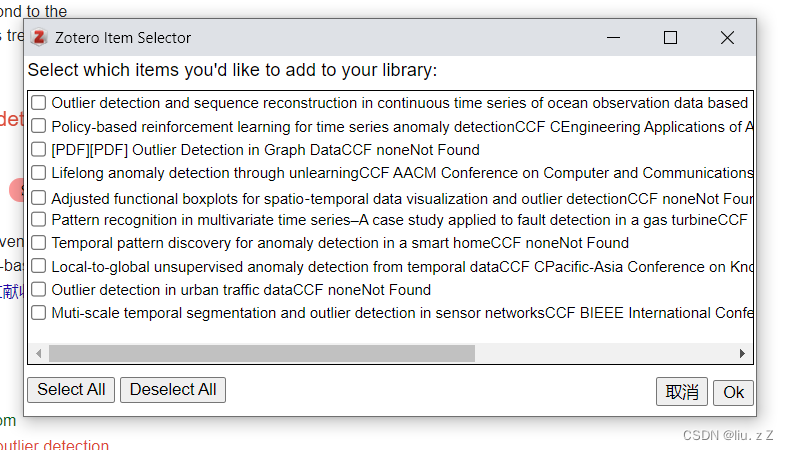
使用这个版本的话,需要首先设扩展程序的快捷键,我将这个插件的快捷键设置成Alt+Z
from selenium import webdriver
from selenium.webdriver.common.by import By
from selenium.webdriver.support.ui import WebDriverWait
from selenium.webdriver.support import expected_conditions as EC
from selenium.webdriver.chrome.options import Options
from pynput.keyboard import Key, Controller
import time
import os

os.system(r'start chrome --remote-debugging-port=8082 --user-data-dir="F:\selenium"')

input('输入回车继续程序...')

options = Options()
options.add_experimental_option("debuggerAddress", "127.0.0.1:8082")
driver = webdriver.Chrome(options=options)

# 获取当前窗口句柄
main_window_handle = driver.current_window_handle

print(driver.title)
print("#######")

refrences = 0
while True:

    # 等待页面加载完成
    WebDriverWait(driver, 10).until(EC.presence_of_element_located((By.CLASS_NAME, 'gs_r')))
    # 获取每篇文章的信息
    articles = driver.find_elements(By.CLASS_NAME, 'gs_r')
    # 如果没有下一页,退出循环
    if not articles:
        break

    # 创建键盘控制器对象
    keyboard = Controller()

    # 模拟按下 Alt + Z 组合键
    keyboard.press(Key.alt)
    keyboard.press('z')
    time.sleep(0.1)  # 等待一段时间
    keyboard.release('z')
    keyboard.release(Key.alt)

    # 等待一段时间确保弹出的选择框加载完成
    time.sleep(5)
    # 获取所有窗口句柄
    all_window_handles = driver.window_handles

    # 切换到新窗口
    for window_handle in all_window_handles:
        if window_handle != main_window_handle:
            driver.switch_to.window(window_handle)
            break

    # 在新窗口中查找元素
    select_all = driver.find_element_by_id("select")
    ok = driver.find_element_by_id("ok")
    # 点击select_all
    if select_all:
        try:
            select_all.click()
            # 等待一段时间确保弹出的选择框加载完成
            time.sleep(2)
        except Exception as e:
            print(f"Error clicking select all: {e}")
    # 点击ok
    if ok:
        try:
            ok.click()
            # 等待一段时间确保弹出的选择框加载完成
            time.sleep(2)
        except Exception as e:
            print(f"Error clicking ok: {e}")
    # 等待一段时间确保弹出的选择框加载完成
    time.sleep(3)

    # 切回到主窗口
    driver.switch_to.window(main_window_handle)

    # 回车
    keyboard.press(Key.enter)
    time.sleep(0.1)  # 等待一段时间
    keyboard.release(Key.enter)

    refrences += 10
    print(f"{refrences} refrences have been saved")

    print("next page")
    next_page = driver.find_element(By.CLASS_NAME, 'gs_ico_nav_next')
    next_page.click()

# 关闭浏览器
driver.quit()
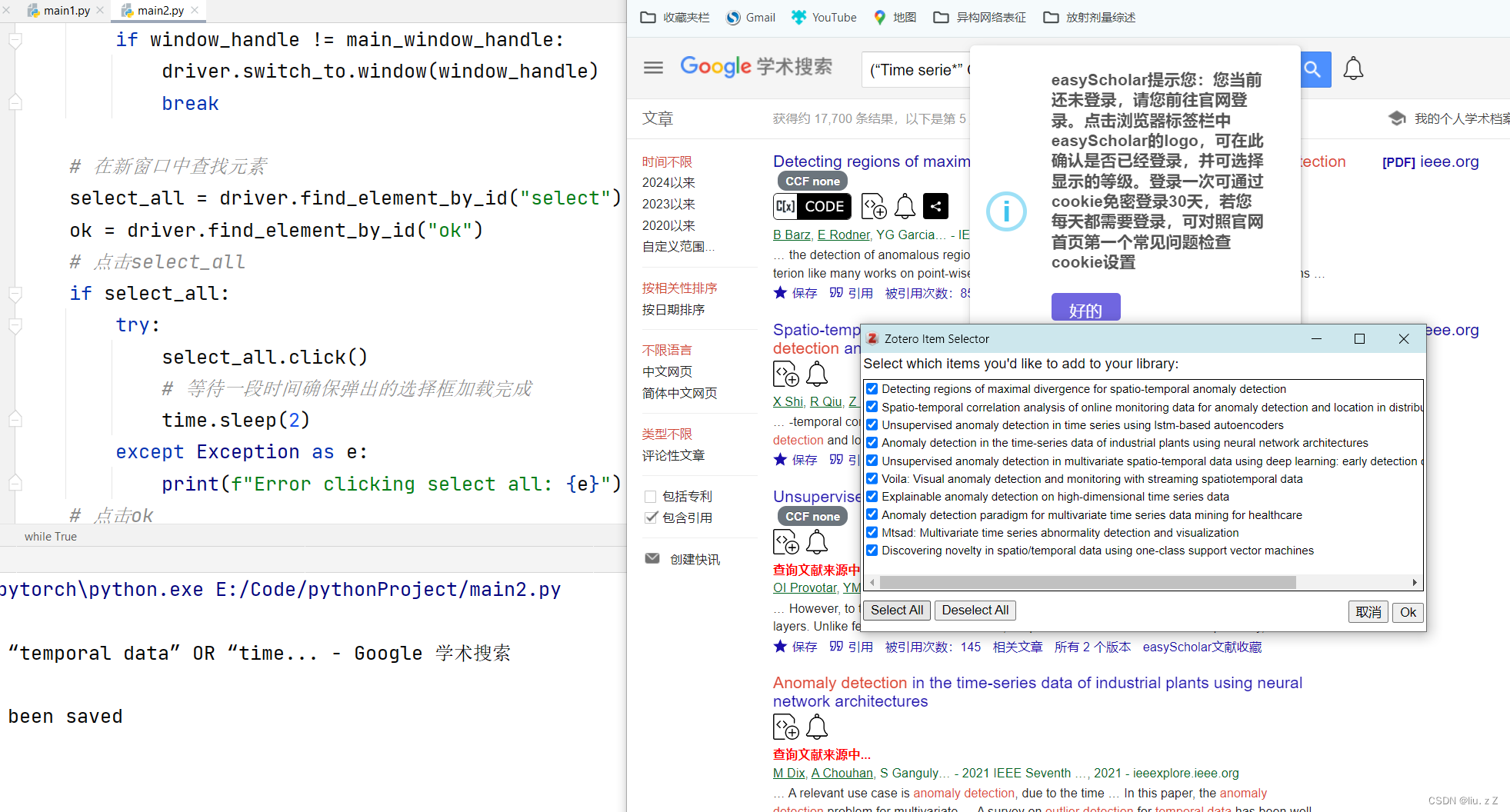
这个版本出了点问题,无法将文献保存至Zotero。这里还是分享出来,如果有大神看见了,还请指点一下😰
Zotero/Endnote相互转换

有“AI”的1024 = 2048,欢迎大家加入2048 AI社区
更多推荐

 8
8 0
0- 0


 已为社区贡献3条内容

所有评论(0)