初识HTML(三)---div块级元素以及浮动和定位(超详细带演示)
div块级元素div是一个特别重要的标签是块级元素上代码,看图! 手册<html><head><meta charset="utf-8"><title></title></head><body><div style="width: 600px;height: 600px;background-color: b
div块级元素
div是一个特别重要的标签
是块级元素
上代码,看图! 手册
<html>
	<head>
		<meta charset="utf-8">
		<title></title>
	</head>
	<body>
		<div style="width: 600px;height: 600px;background-color: black;">
			<div style="width: 500px;height: 500px;background-color: red;">
				<div style="width: 400px;height: 400px;background-color: green;"></div>
			</div>
		</div>
	</body>
</html>
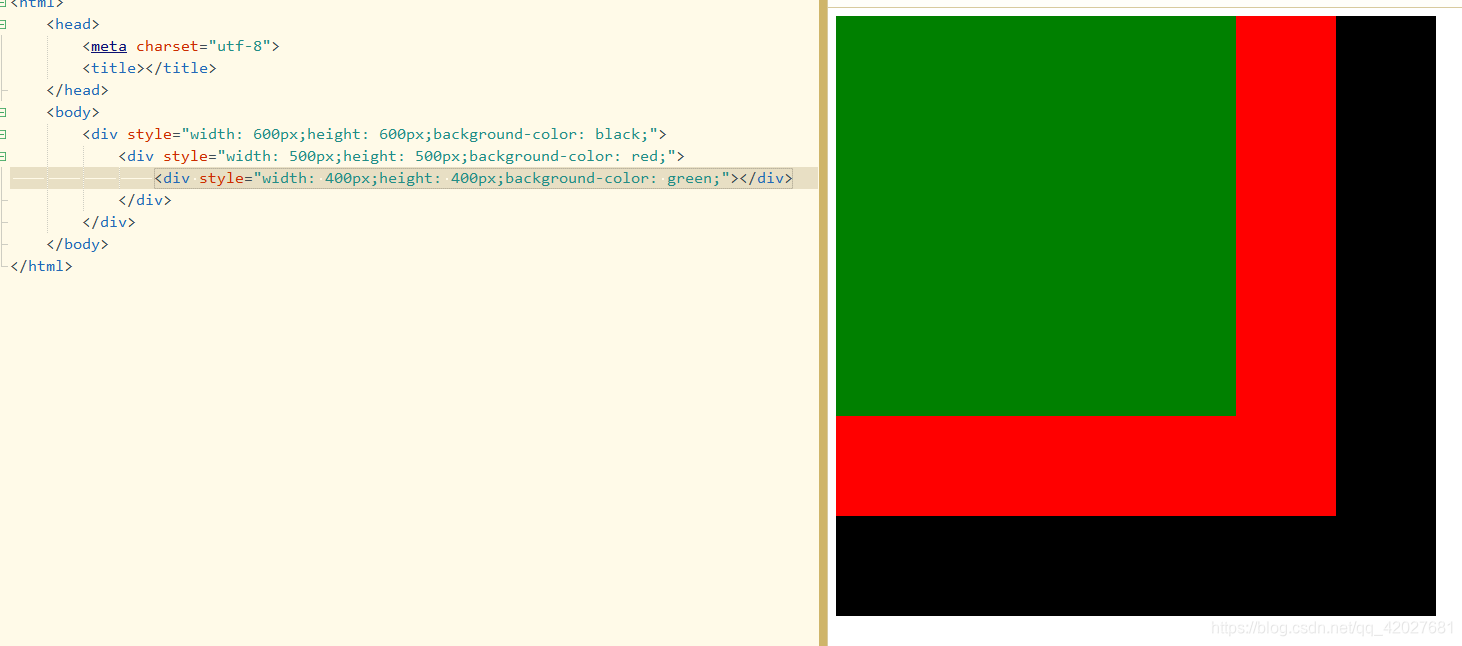 可以看到我们定义的样式是三个正方形的块style(css)后面会细讲
style="width: 600px;height: 600px;background-color: black;
分别对应宽高和背景色
那么分块有什么用呢
切割成不同的块互不干扰 方便定位和布局
<div style="width: 100px;height: 100px;background-color: black;"></div>
		<div style="width: 100px;height: 100px;background-color: red;"></div>
		<div style="width: 100px;height: 100px;background-color: green;"></div>
效果如下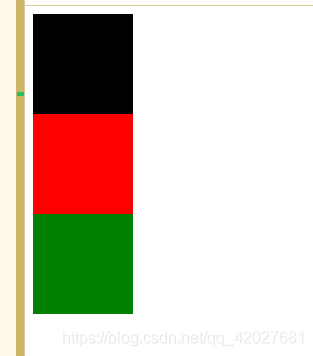 可以看出div其实自带了换行效果
但是如果我们需要第一行有两个块怎么办呢
浮动和定位
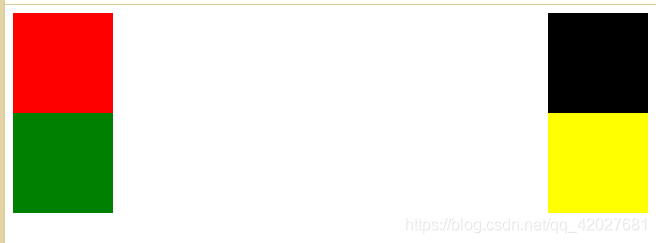
浮动 常见为左右浮动
float: left/right 大家看出来英语很重要了吧
用法如下
<html>
	<head>
		<meta charset="utf-8">
		<title></title>
	</head>
	<body>
		<div style="width: 100px;height: 100px;background-color: black;float:right;"></div>
		<div style="width: 100px;height: 100px;background-color: red;"></div>
		<div style="width: 100px;height: 100px;background-color: green;float: left;"></div>
		<div style="width: 100px;height: 100px;background-color: yellow;float: right;"></div>
	</body>
</html>
style="width: 100px;height: 100px;background-color: black;position: absolute;
width:宽 height:高 background-color:背景色
额外说明:盒模型
浏览器查看元素时会显示这样一个图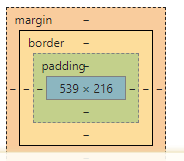
定义一个元素的宽高时
可以通过
padding:填充
border:边框
margin:边距
总元素的宽度=宽度+左填充+右填充+左边框+右边框+左边距+右边距
总元素的高度=高度+顶部填充+底部填充+上边框+下边框+上边距+下边距
例如
<html>
	<head>
		<meta charset="utf-8">
		<title></title>
	</head>
	<body>
		<div style="background-color: black;padding: 0px;width: 100px;height: 100px;"></div><br />
		<div style="background-color: black;padding: 20px;width: 100px;height: 100px;"></div><br />
		<div style="background-color: black;border: #FF0000 solid 10px;padding: 20px;width: 100px;height: 100px;"></div>
		<div style="background-color: black;margin: 20px;border: #FF0000 solid 10px;padding: 20px;width: 100px;height: 100px;"></div>
	</body>
</html>
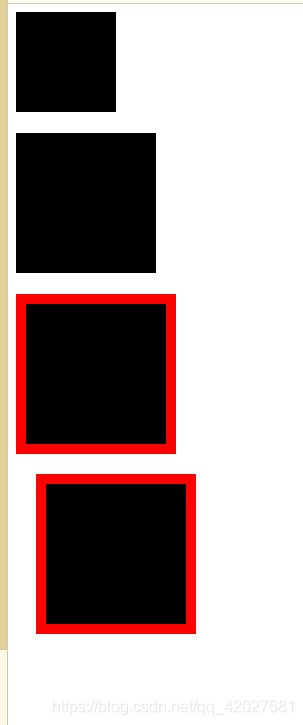
position 规定元素的定位类型 手册
元素的定位通过 left,top,right,bottom 属性来定位。
这里介绍两个
absolute:相对于 static 定位以外的第一个父元素进行定位(一般元素不说明都是static)
可以理解为在浏览器中的绝对位置
无视空间直接放置
relative:相对于其正常位置进行定位
<html>
	<head>
		<meta charset="utf-8">
		<title></title>
	</head>
	<body>
		<div style="width: 100px;height: 100px;background-color: black;position: absolute;left: 300px;top: 0px;"></div>
		<div style="width: 100px;height: 100px;background-color: red;position: relative;left: 100px;top: 0px;"></div>
		<div style="width: 100px;height: 100px;background-color: green;position: relative;left: 100px;top: 100px;"></div>
		<div style="width: 100px;height: 100px;background-color: yellow;position: relative;"></div>
		<div style="width: 100px;height: 100px;background-color: palevioletred;position: relative;left: 100px;"></div>
	</body>
</html>
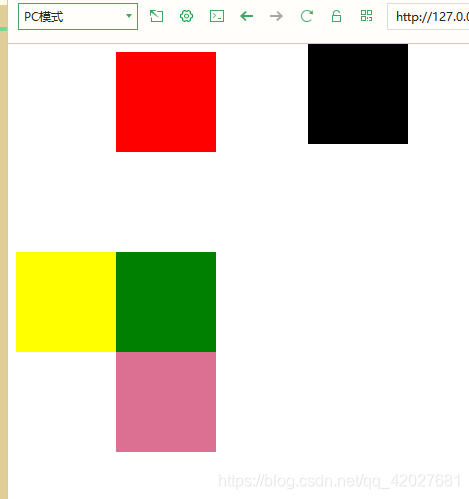
可以对比下
对比(一)
<html>
	<head>
		<meta charset="utf-8">
		<title></title>
	</head>
	<body>
		<div style="background-color: black;width: 500px;height: 500px;position: absolute;top: 0px;left: 0;"></div>
		<div style="background-color: red;width: 300px;height: 300px;position: absolute;top: 0px;"></div>
		<div style="background-color:green;width: 300px;height: 300px;position: relative;top: 0px;left: 50px;"></div>
	</body>
</html>
第一个div是黑色背景看下面两个就行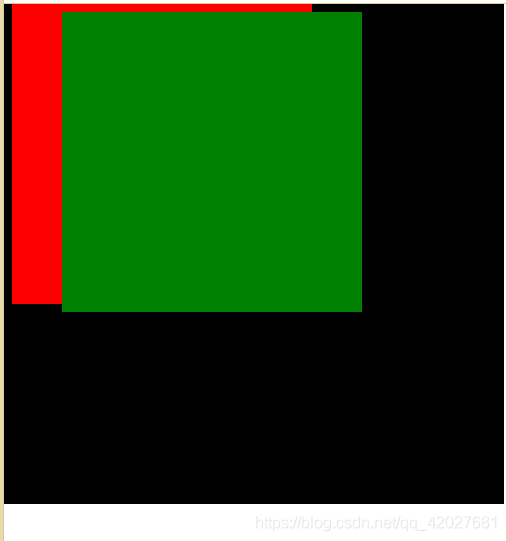
对比(二)
<html>
	<head>
		<meta charset="utf-8">
		<title></title>
	</head>
	<body>
		<div style="background-color: black;width: 800px;height: 800px;position: absolute;top: 0px;left: 0;"></div>
		<div style="background-color: red;width: 300px;height: 300px;position: absolute;top: 0px;"></div>
		<div style="background-color:green;width: 300px;height: 300px;position: relative;top: 0px;left: 50px;"></div>
		<div style="background-color:blue;width: 300px;height: 300px;position:absolute;top: 0px;left: 50px;"></div>
		<div style="background-color:blue;width: 300px;height: 300px;position:relative;top: 0px;left: 50px;"></div>
	</body>
</html>
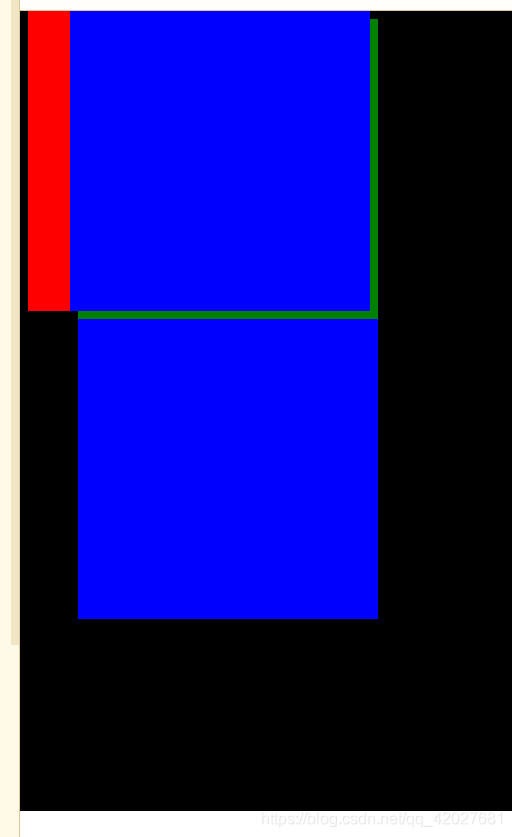
实现一个简单布局
<html>
	<head>
		<meta charset="utf-8">
		<title></title>
	</head>
	<body>
		<div style="width: 1000px;height: 30px;background-color: black;color: white;text-align: center;">TOP</div>
		<div style="width: 1000px;height: 300px;position: relative;top: 5px;">
			<div style="width: 280px;height: 300px;background-color: red;position: absolute;">LEFT</div>
			<div style="width: 700px;height: 300px;background-color: green;float: right;">RIGHT</div>
		</div>

		<div style="width: 1000px;height: 30px;background-color: yellow;position: relative;top: 10px;text-align: center;">BOTTOM</div>

	</body>
</html>
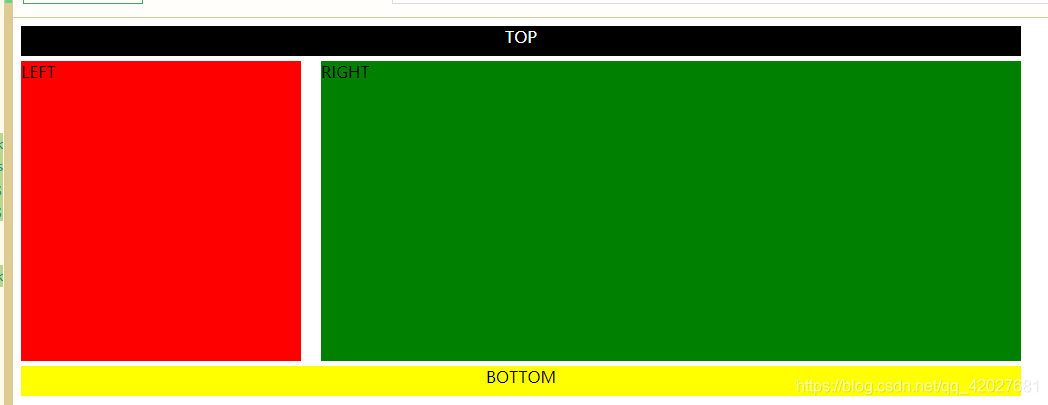
如果我们讲这些背景填充色去掉
找一些图片填充
<html>
	<head>
		<meta charset="utf-8">
		<title></title>
	</head>
	<body>
		<div style="height: 50px;">
			<img src="1.png"/>
		</div>
		<div style="width: 1200px;height: 300px;position: relative;top: 5px;">
			<div style="position: absolute;">
				<img src="2.png" />
			</div>
			<div style="width: 700px;height: 300px;float: right;">
				<img src="3.png" />
			</div>
		</div>

		<div style="width: 1200px;height: 30px;position: relative;top: 70px;">
			<img src="4.png" />
		</div>

	</body>
</html>
这里的1/2/3/4.png是我截的csdn主页的图
文件目录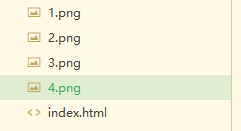
<img src="3.png" />此处解释:img图片链接为 同文件夹下的3.png图片
看到这里是不是有点意思了 如果把每一块内容实现 就是一个页面了
一个好看的网站往往都会有好看的布局,所以学会div的使用以及浮动和定位是很重要的
有兴趣的小伙伴可以试着截你喜欢的网站的图 拼装一个去装逼哦,但是要注意不要侵权哦
特别提醒
要勤加练习,切忌眼高手低,加油
后续会推出
前端:js入门 vue入门 vue开发小程序 等
后端: java入门 springboot入门等
服务器:mysql入门 服务器简单指令 云服务器运行项目
python:推荐不温卜火 一定要看哦
一些插件的使用等
大学之道亦在自身,努力学习,热血青春
如果对编程感兴趣可以加入我们的qq群一起交流:974178910
有问题可以下方留言,看到了会恢回复哦

有“AI”的1024 = 2048,欢迎大家加入2048 AI社区
更多推荐



 65
65 0
0- 0


 已为社区贡献2条内容

所有评论(0)